
01Who this is for
- Founders who run onboarding processes and need immediate acknowledgment of client documents.
- Agents handling loan applications who must alert reviewers as soon as paperwork arrives.
- Support teams that require a task to be generated when clients submit required files.
02Client Portal file uploaded workflow triggers, explained
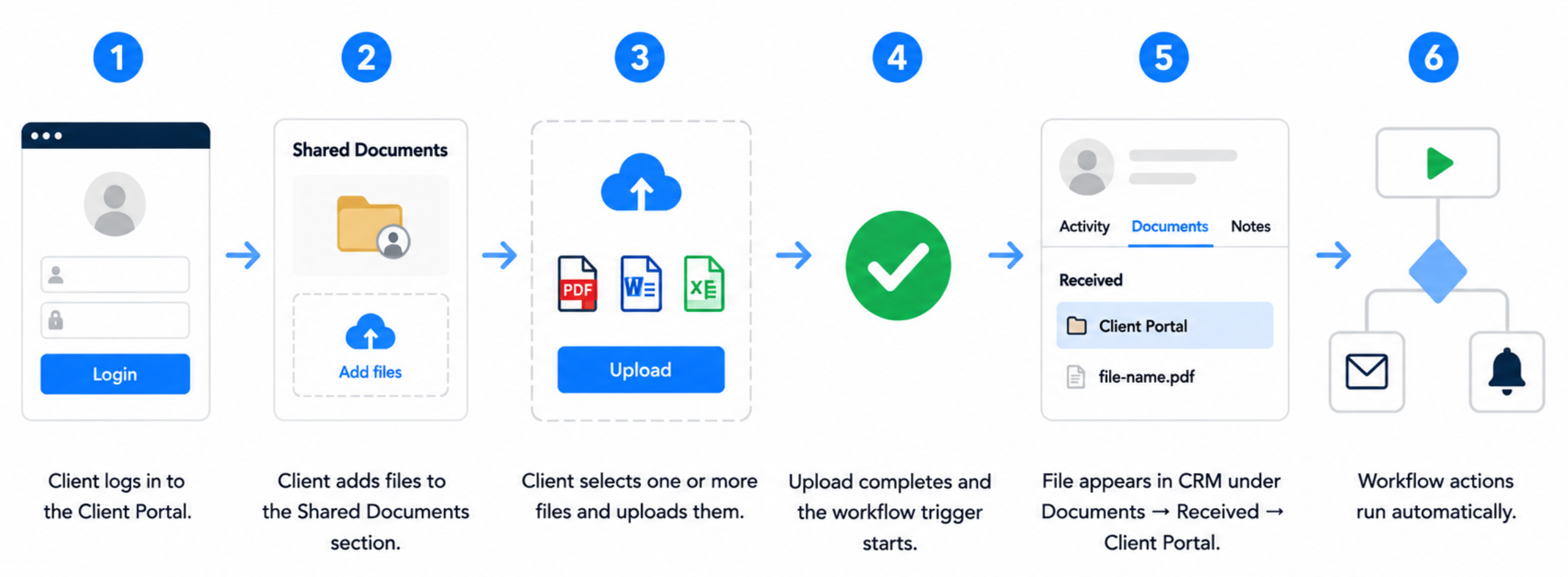
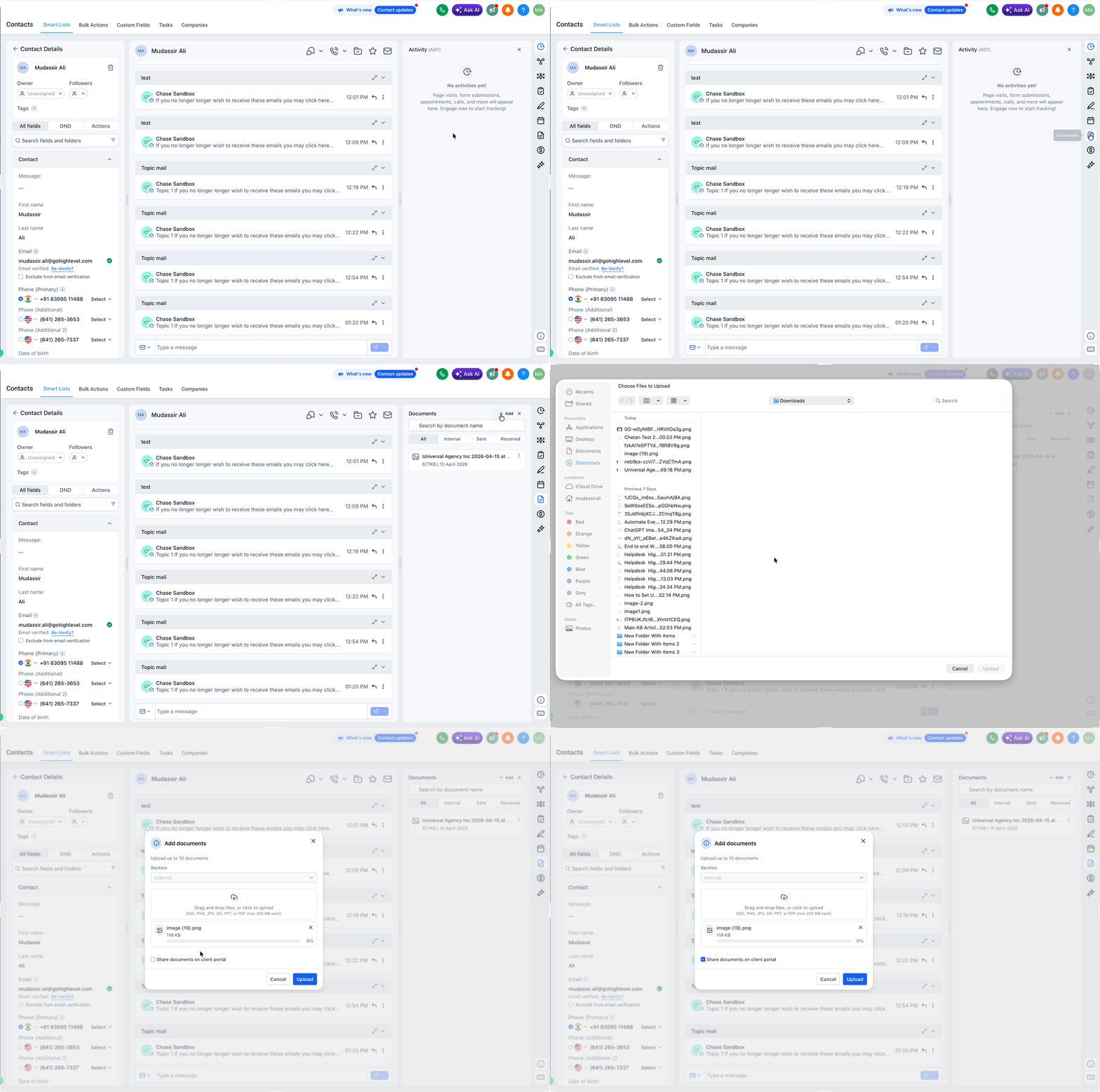
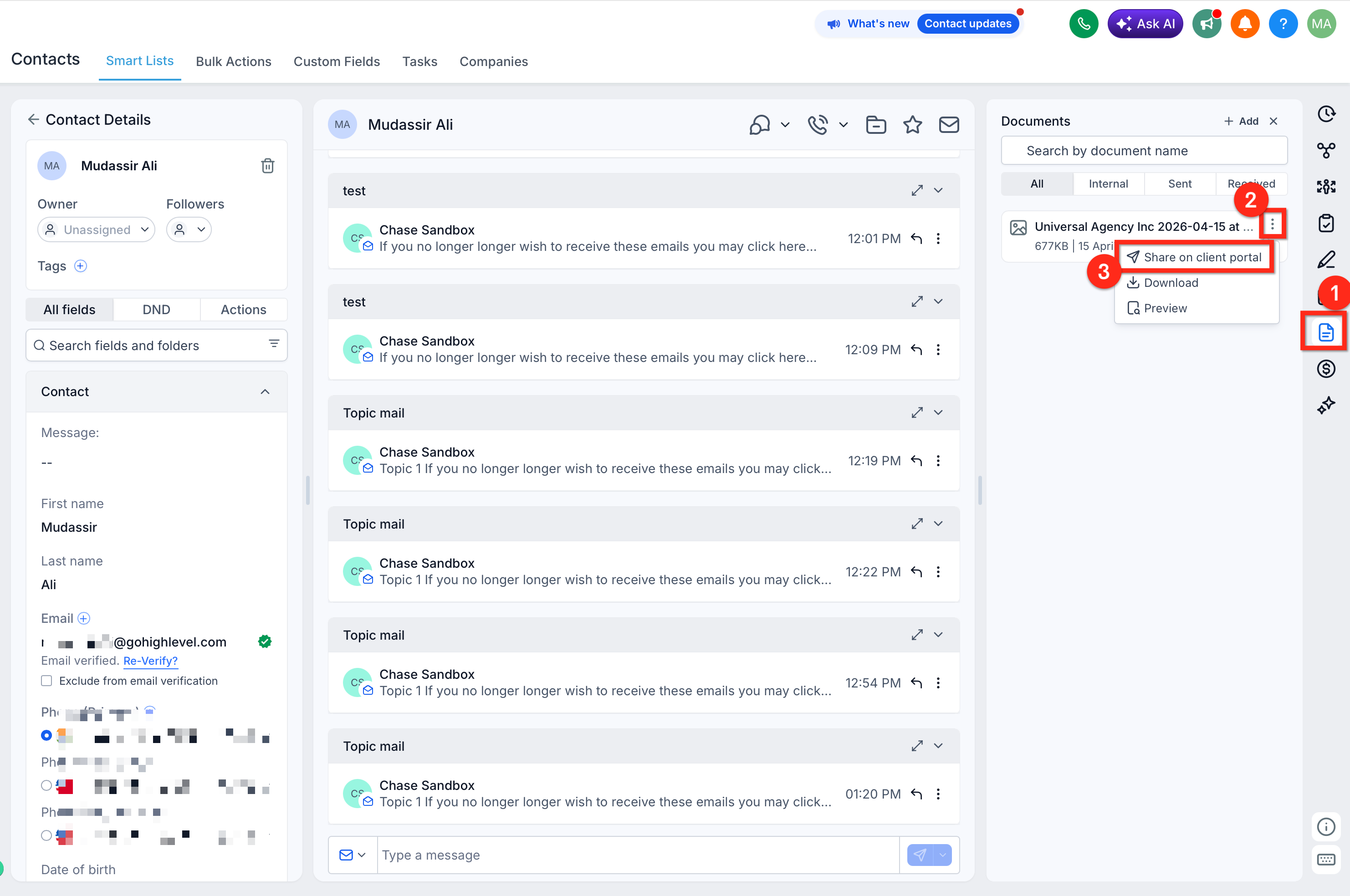
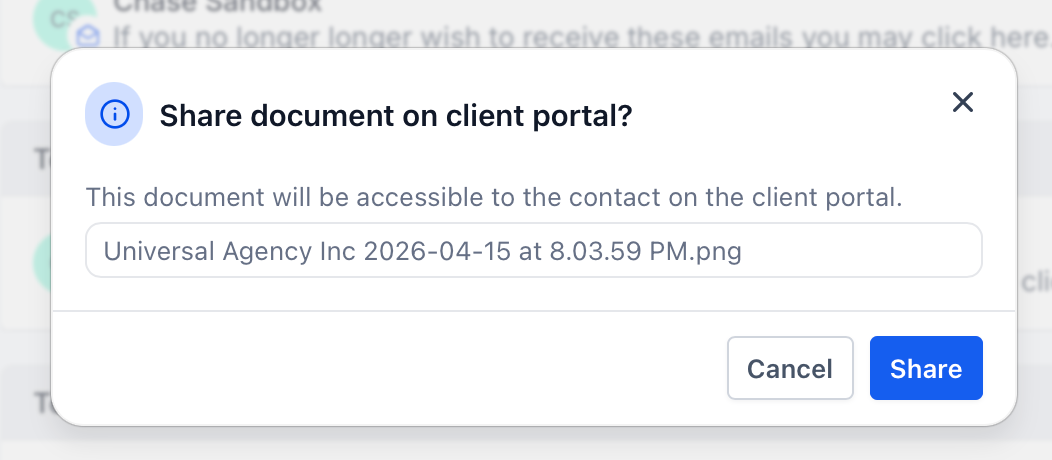
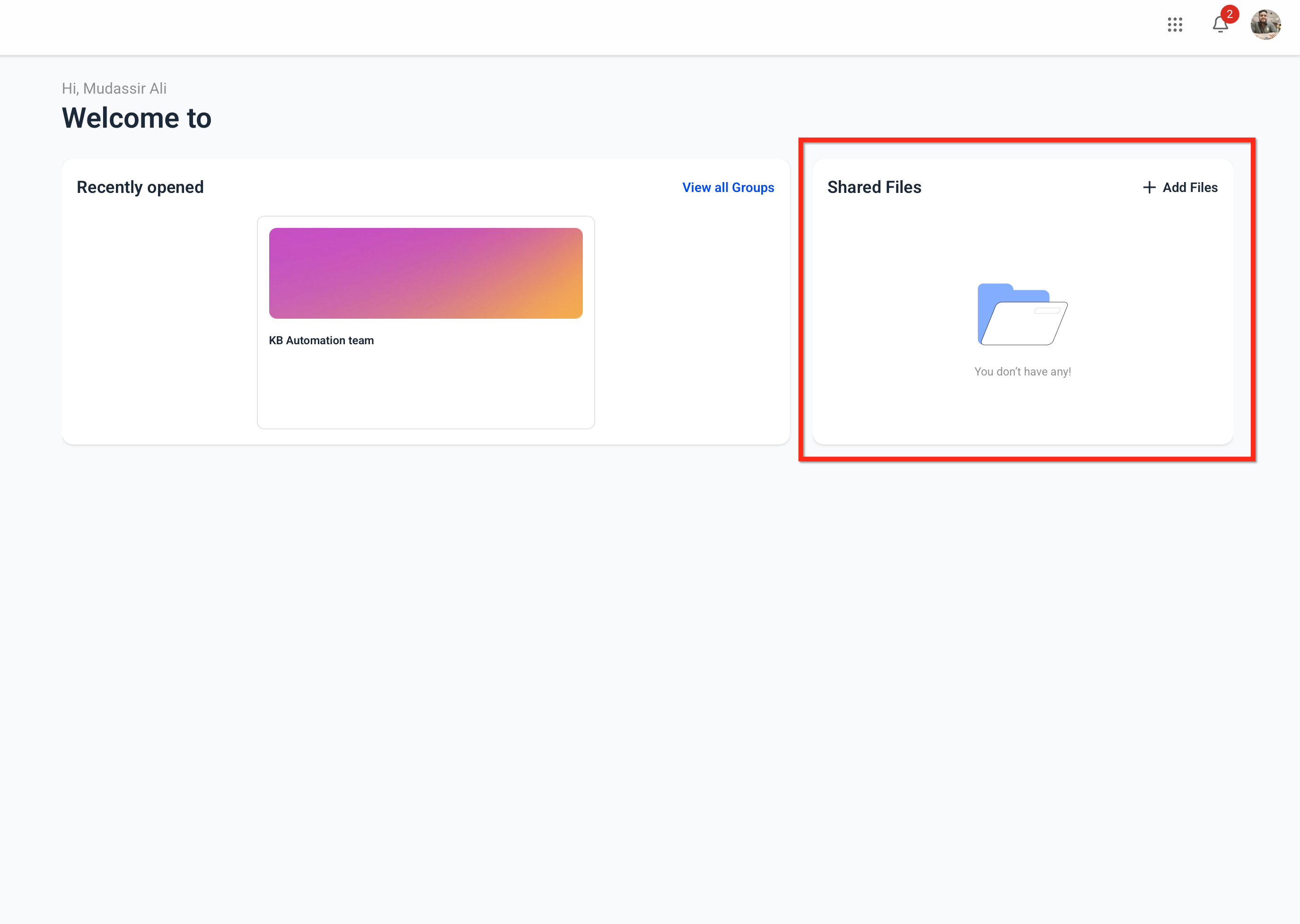
The trigger fires when a contact uploads a supported file via the Shared Documents area of the Client Portal. The uploaded file is attached to the contact's record and stored under Contacts > Documents > Received > Client Portal. Once the event occurs, any actions placed after the trigger run in sequence.
This trigger is managed inside the Automation > Workflows builder. After adding the trigger, you attach actions such as email, SMS, internal notification, task creation, tag addition, contact field update, opportunity movement, or webhook calls. You can also include waits, conditions, or additional actions to match your process.
A workflow must be published for the trigger to react to live uploads. Testing with a real client portal upload confirms that the file is stored correctly and that each action executes as designed.
03How businesses use Client Portal file uploaded workflow trigger
- Mortgage brokerage. The broker adds a trigger that sends an internal notification and creates a review task each time a borrower uploads income statements. The workflow runs automatically, keeping the underwriting team informed.
- Digital marketing agency. The agency sets up an action to email a client a confirmation receipt after they upload brand assets. The email includes next step instructions, ensuring the client knows the process continues.
- Property management firm. When a tenant uploads a lease renewal form, the workflow updates a custom field on the contact record and moves the related opportunity to the “Renewal in Review” stage.
04The numbers and rules that matter
- Supported document formats:.PDF,.doc,.docx,.xls,.xlsx,.ppt,.pptx,.txt,.rtf.
- Supported image formats:.jpg,.jpeg,.png,.gif.
- Video formats such as MP4, MOV, AVI, MKV, and WMV are not supported.
- A client can select up to 10 files in one upload.
05Before you start
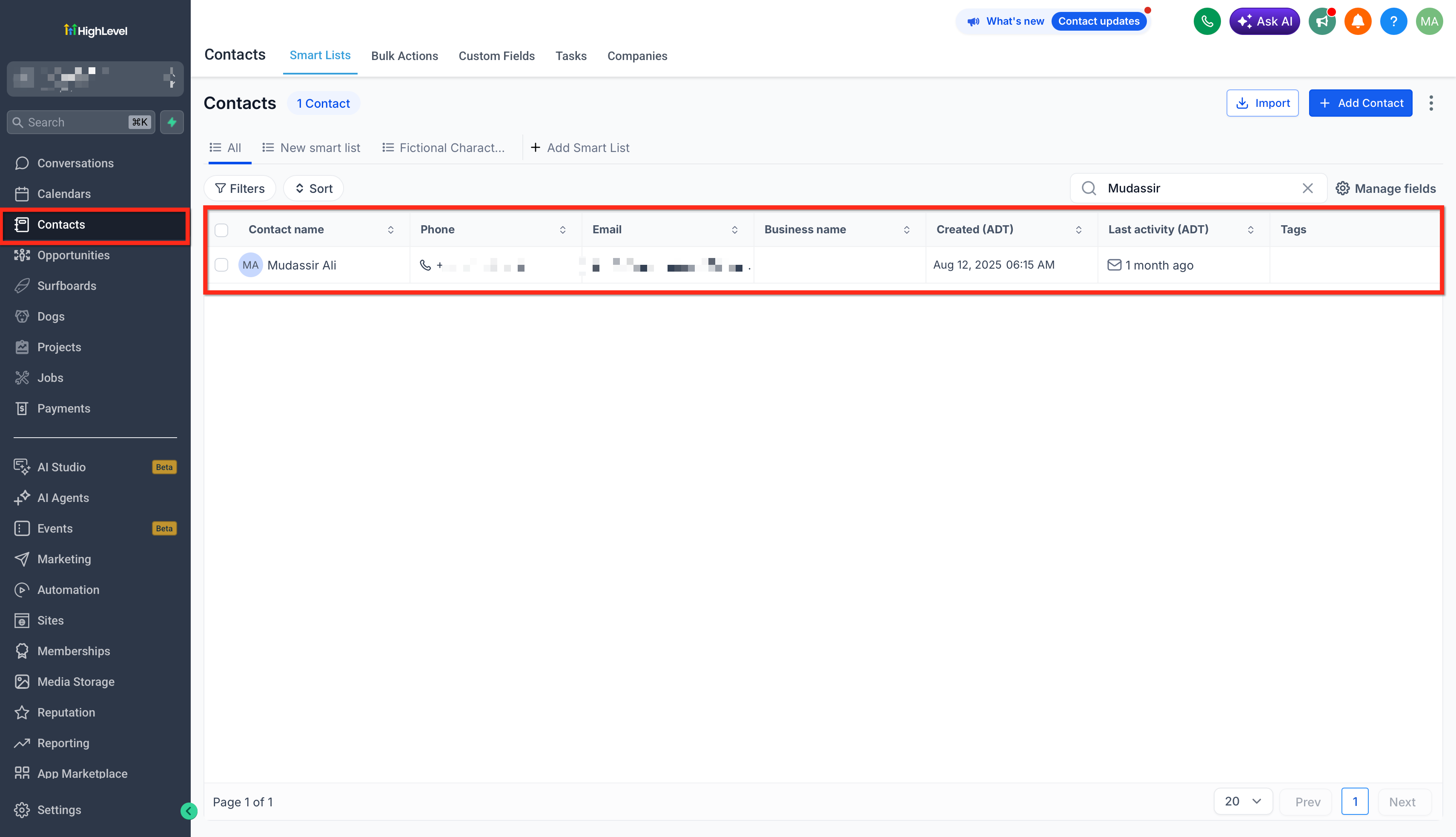
- The contact used for testing must have active Client Portal access and be able to open the Documents or Shared Documents area.
06How to set up and use Client Portal file uploaded workflow trigger in HighLevel
Set up the Client Portal File Uploaded workflow trigger
- Make sure the test contact can log into the Client Portal and view the Documents section.
- Go to Automation > Workflows and either create a new workflow or edit an existing one.
- Click Add New Trigger, type “Client Portal File Uploaded”, and select it from the list.
- Configure any trigger filters or settings that are needed for your scenario.
- Click the plus button beneath the trigger to add the first action that should run after the upload.
- Choose the appropriate action, such as sending an email, internal SMS, creating a task, adding a tag, updating a field, moving an opportunity, or firing a webhook.
- Insert any additional actions, wait steps, or conditional branches required by your process.
- Save the workflow to make it active.
- Run a live upload with the test contact to verify that the trigger fires and the actions execute.
07What it looks like in HighLevel
08Settings that matter
- Client Portal File Uploaded. Triggers a workflow when a contact uploads a supported document through the portal’s Shared Documents feature.
09Things to know before you rely on it
- Supported document formats are PDF, DOC, DOCX, XLS, XLSX, PPT, PPTX, TXT, RTF, JPG, JPEG, PNG, and GIF.
- Video file types such as MP4, MOV, AVI, MKV, and WMV cannot be uploaded via the Client Portal.
- A client can select up to 10 files in a single upload operation.
10If something goes wrong
- Workflow did not run after a client uploaded a file.. Open the workflow and check Execution Logs and Enrollment History. Confirm the workflow is published, the contact has Client Portal access, the file type is supported, and the upload completed without error.
11How it connects to the rest of HighLevel
- Overview of all workflow triggers Workflow triggers
- How to add actions such as tasks or notifications in a workflow Add workflow actions
- Pricing details for the Workflow Pro plan Workflow pricing
Michael's take

This trigger is worth the effort for any business that relies on client submitted documents. It removes the constant need to watch records and helps keep onboarding or approval steps moving forward.
Avoid the mistake of testing with a file type that isn’t supported; the workflow will not fire if the upload fails.