
01Who this is for
- Agency owners who need to offer tailored pricing for select clients without changing their default SaaS plans.
- Enterprises negotiating custom contract terms that require unique billing amounts or intervals.
02Special prices for saas subaccounts, explained
Special Prices are a configuration option that overrides the default pricing of a SaaS plan for a single subaccount. The override is created during the manual conversion of an existing subaccount to SaaS mode. HighLevel generates a hidden custom pricing object, so the public plan list stays unchanged.
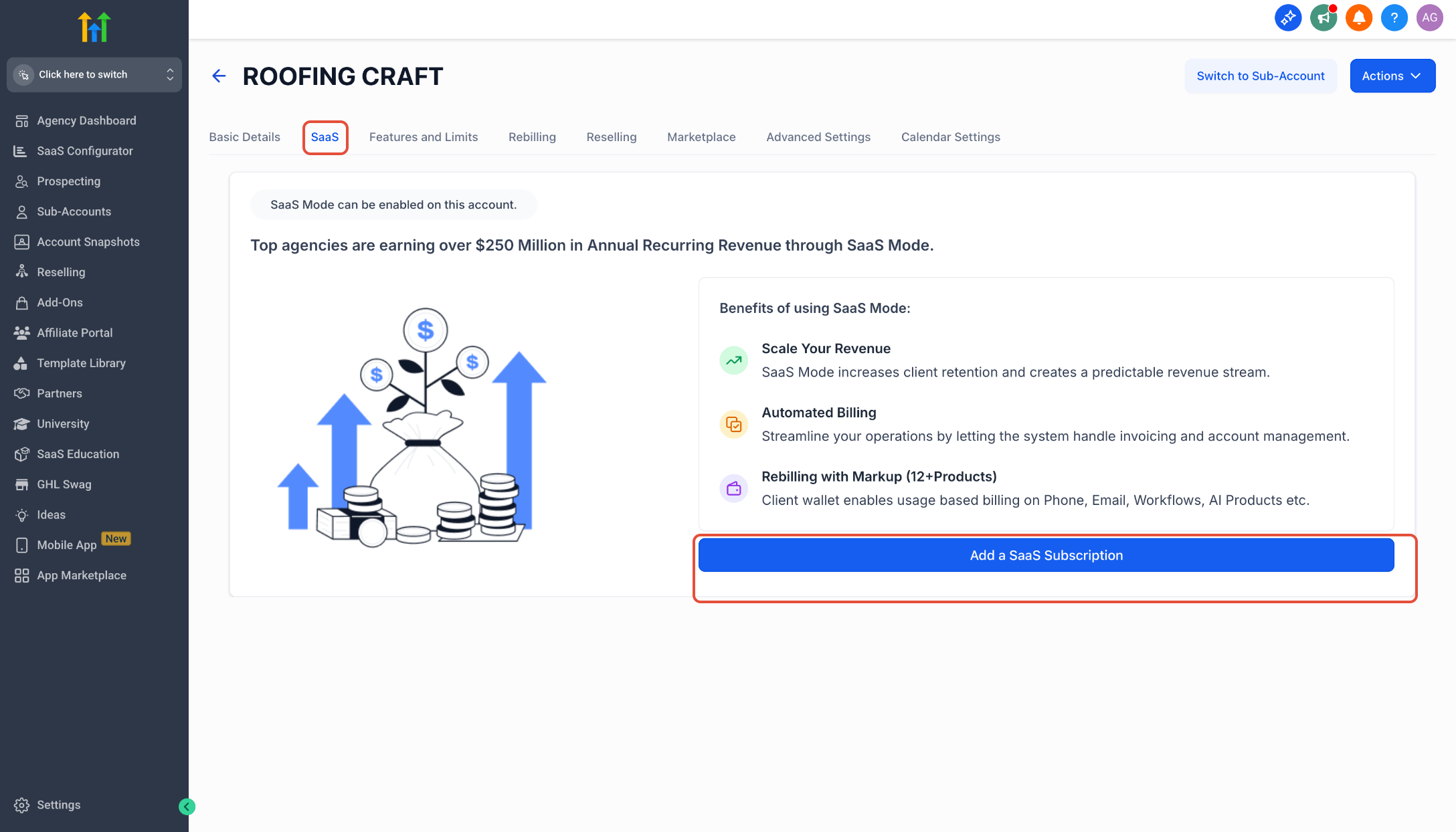
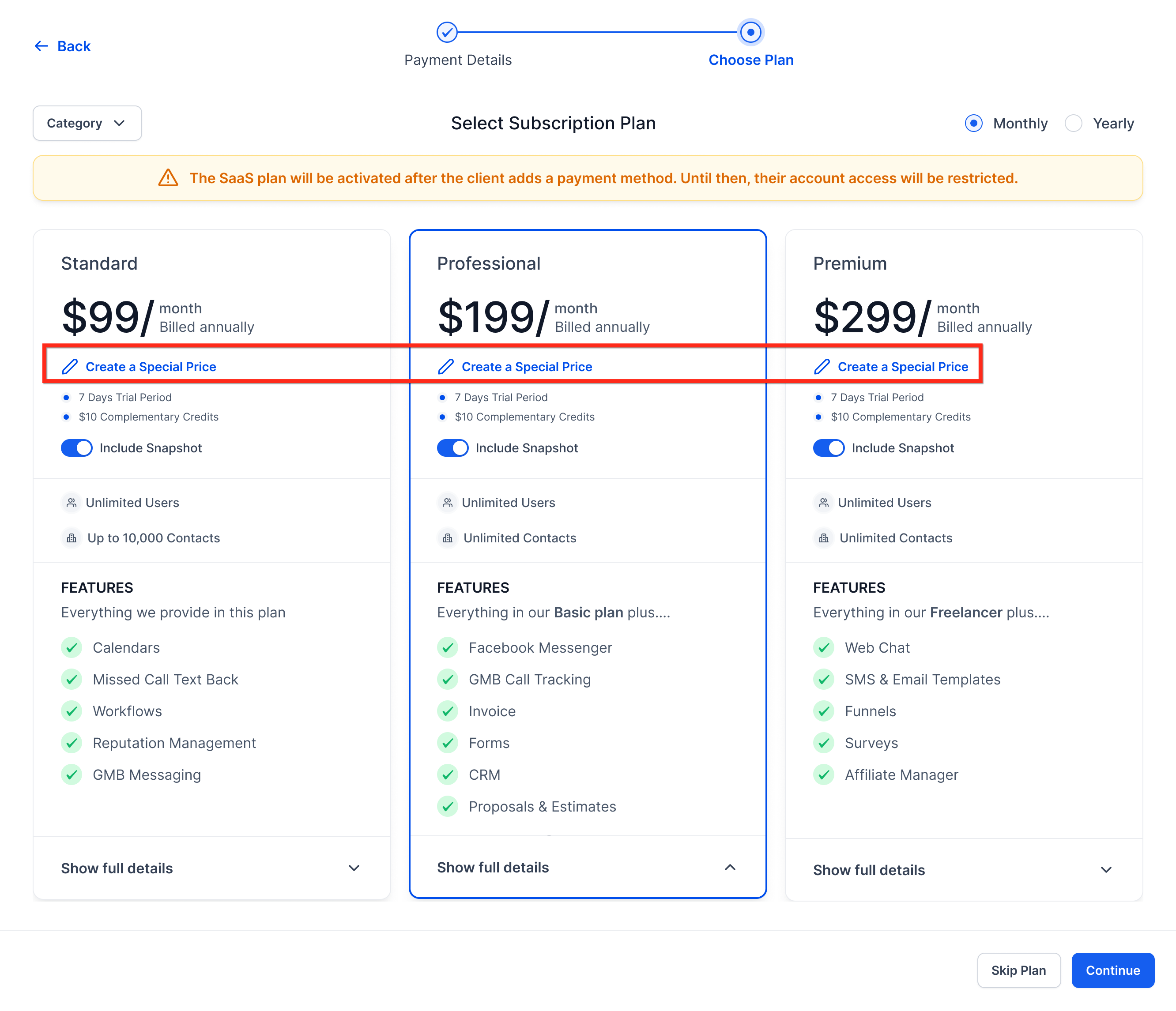
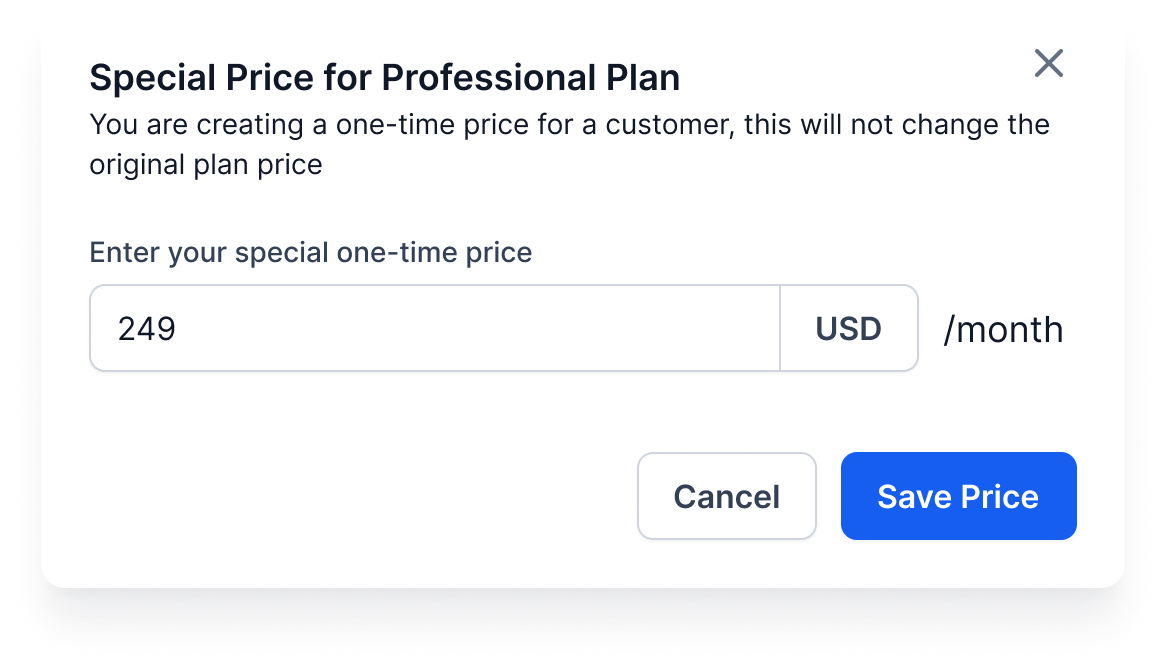
The feature appears in the SaaS tab of the Manage Client view. After adding a SaaS subscription, a button labeled Create a Special Price lets you enter a custom amount, choose the currency, and select a monthly or yearly billing interval. Once saved, the special price can be selected for the new subscription and the activation proceeds with the custom terms.
If an identical special price (same amount, currency, interval, and product) already exists, HighLevel may automatically reuse it, preventing duplicate entries. Subscriptions created with a special price can later be upgraded or downgraded to other standard or special prices, and reactivating a cancelled special price subscription now shows the correct amount at checkout.
03How businesses use special prices for saas subaccounts
- Marketing agency. The agency converts a client’s existing subaccount to SaaS mode, selects Add a SaaS Subscription, then creates a Special Price with a discounted monthly amount. The agency activates the subscription, giving the client the promotional rate while keeping the agency’s standard plans unchanged.
- Enterprise software provider. During a contract renewal, the provider switches the enterprise client’s subaccount to SaaS mode, creates a Special Price with a custom yearly amount matching the negotiated deal, and activates the subscription. This custom price is tied only to that client’s subaccount.
- Legacy SaaS business. The business imports a long time customer’s subaccount, converts it to SaaS mode, and creates a Special Price that mirrors the legacy monthly fee and currency. The subscription is activated so the client continues on the familiar pricing without altering the new public plans.
04Before you start
- An existing subaccount must be present in the Agency View.
- The subaccount must be manually converted to SaaS mode during the setup.
05How to set up and use special prices for saas subaccounts in HighLevel
Set up a special price for a subaccount
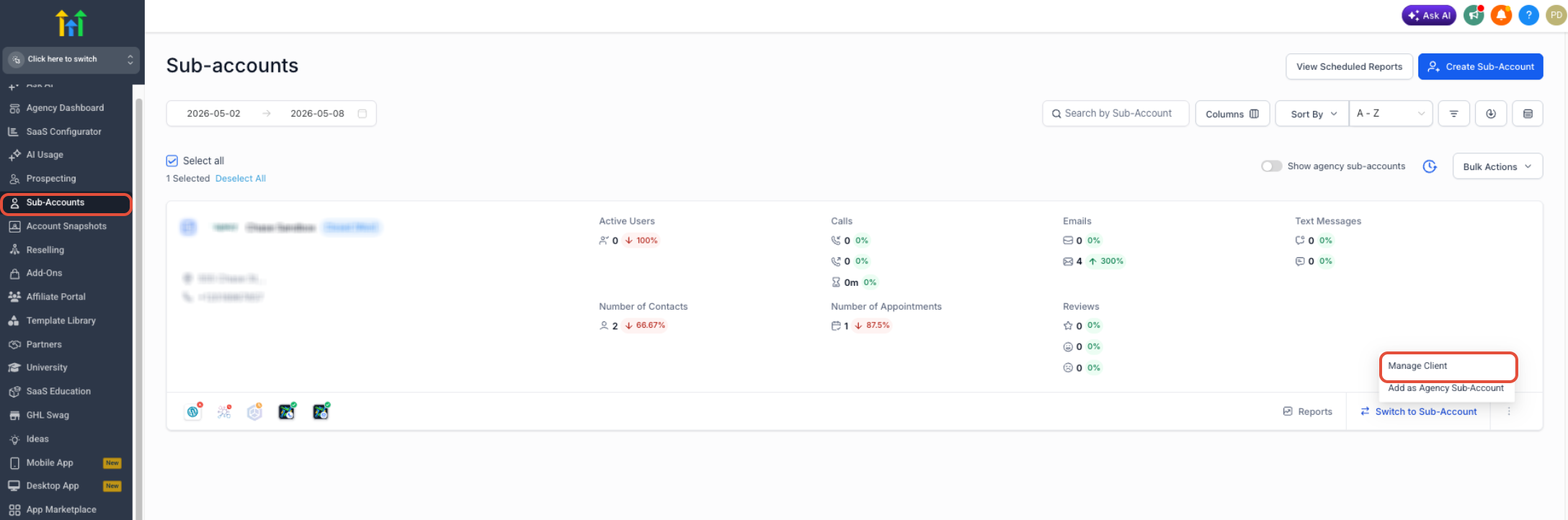
- In Agency View, open Subaccounts, choose the target subaccount, and click Manage Client.
- Select the SaaS tab, click Add a SaaS Subscription, choose the payment provider, and pick or create a Stripe customer.
- On the Select Subscription Plan screen, click Create a Special Price under the desired plan, then enter the custom amount, currency, and billing interval before saving.
- Choose the newly created Special Price, review the subscription details, and click Continue or Activate to finish.
06What it looks like in HighLevel
07Settings that matter
- Custom amount. Defines the exact monetary value that will be billed for this special subscription.
- Currency. Specifies the currency in which the custom amount is charged.
- Billing interval. Sets whether the custom price recurs monthly or yearly.
08Things to know before you rely on it
- Special Prices are only available when manually converting an existing subaccount to SaaS mode.
- They cannot be used with public checkout links for new customers.
- Only one custom price is applied per subscription; identical pricing may be reused automatically.
- Reactivating a cancelled special price subscription now displays the correct custom amount.
09If something goes wrong
- Reactivating a cancelled special price subscription shows an incorrect amount. No additional setup is required; the platform now displays the correct custom pricing automatically.
10How it connects to the rest of HighLevel
- Convert an existing subaccount to SaaS mode Convert to SaaS mode
- Full list of SaaS Configurator features SaaS Configurator
- HighLevel pricing and plans Pricing
Michael's take

Special Prices are a neat way to give a single client a custom SaaS rate without touching your public plans.
Skip it if you never need one off pricing or only use public checkout links.