
01Who this is for
- Agency owners who manage multiple client subaccounts and need a unified billing model.
- Coaching businesses that want to move clients onto a recurring SaaS plan without recreating accounts.
02SaaS mode subscriptions, explained
The conversion feature links an existing subaccount to a SaaS subscription defined in the SaaS Configurator. It creates or connects a Stripe customer, assigns a plan, and optionally applies a snapshot of assets. The subaccount’s feature set is then limited to those included in the chosen plan.
You find the controls in the Agency view under the Subaccounts tab. From the listing you open the actions menu, choose Switch To SaaS, handle the Stripe customer step, pick a plan, review details, respond to any snapshot conflict warning, and confirm. The platform updates the subaccount status and shows payment method prompts if needed.
03How businesses use the SaaS mode subscription
- Digital marketing agency. The agency opens the Subaccounts list, selects a client’s subaccount, switches it to SaaS, creates a Stripe customer, and assigns the agency’s standard SaaS plan. The client then receives a payment link to complete the subscription.
- Online coaching business. The coach locates the learner’s subaccount, links it to an existing Stripe customer, chooses the coaching SaaS tier, and confirms the snapshot of course assets. Learners are prompted to add a card if none is on file.
- SaaS product provider. The provider converts a legacy subaccount to SaaS mode, selects the appropriate product tier, and decides whether to overwrite or keep existing assets from the snapshot. The client’s access updates automatically based on the new plan.
04Before you start
- Stripe integration must be set up in the HighLevel agency account.
- The subaccount you want to convert must already exist in the Subaccounts list.
05How to set up and use the SaaS mode subscription in HighLevel
Convert an existing subaccount to SaaS mode
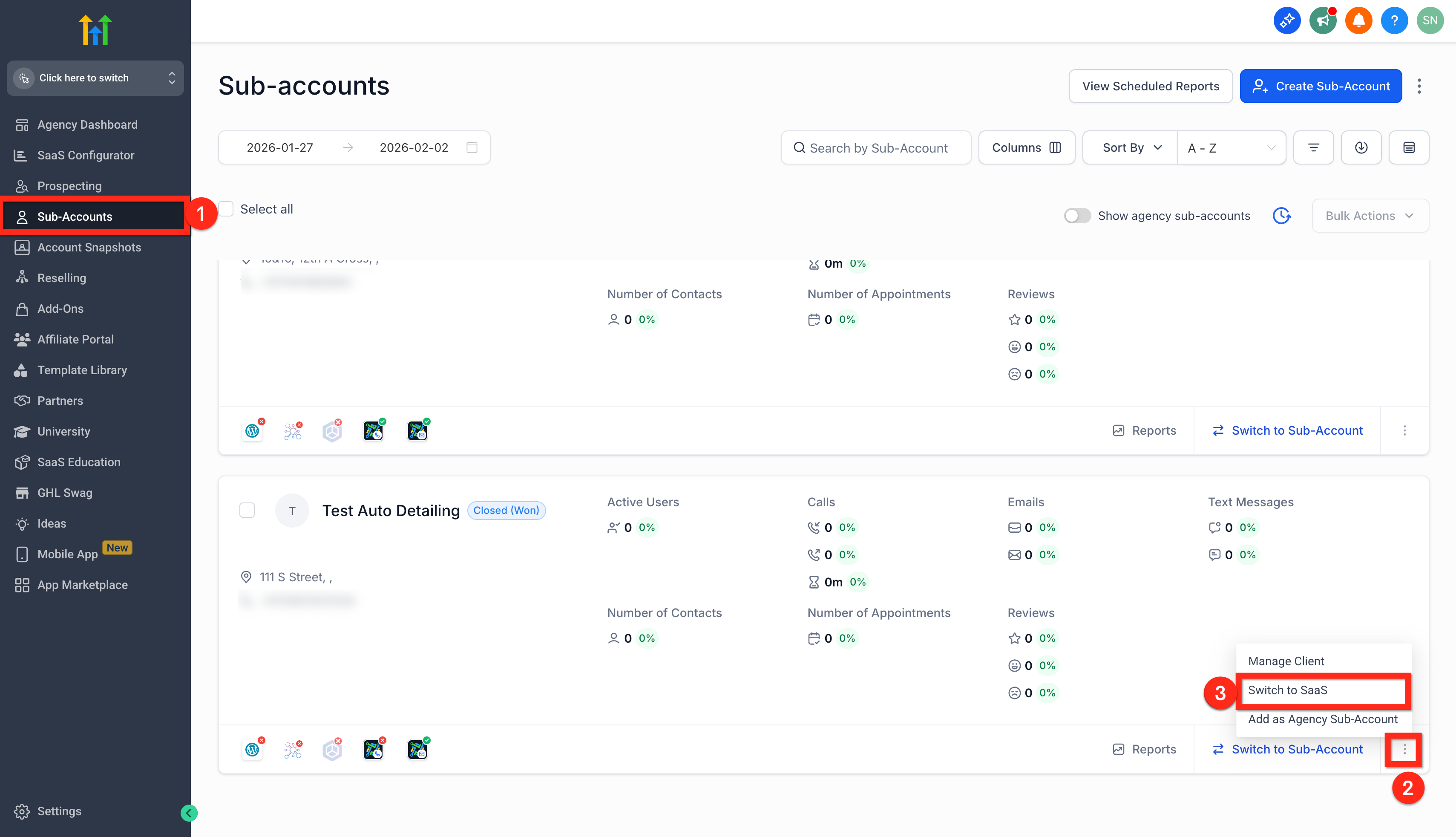
- Open the Agency account and go to Subaccounts on the main navigation bar.
- Find the subaccount to convert and click the three dots icon at the lower right of its tile.
- Select the Switch To SaaS option from the menu.
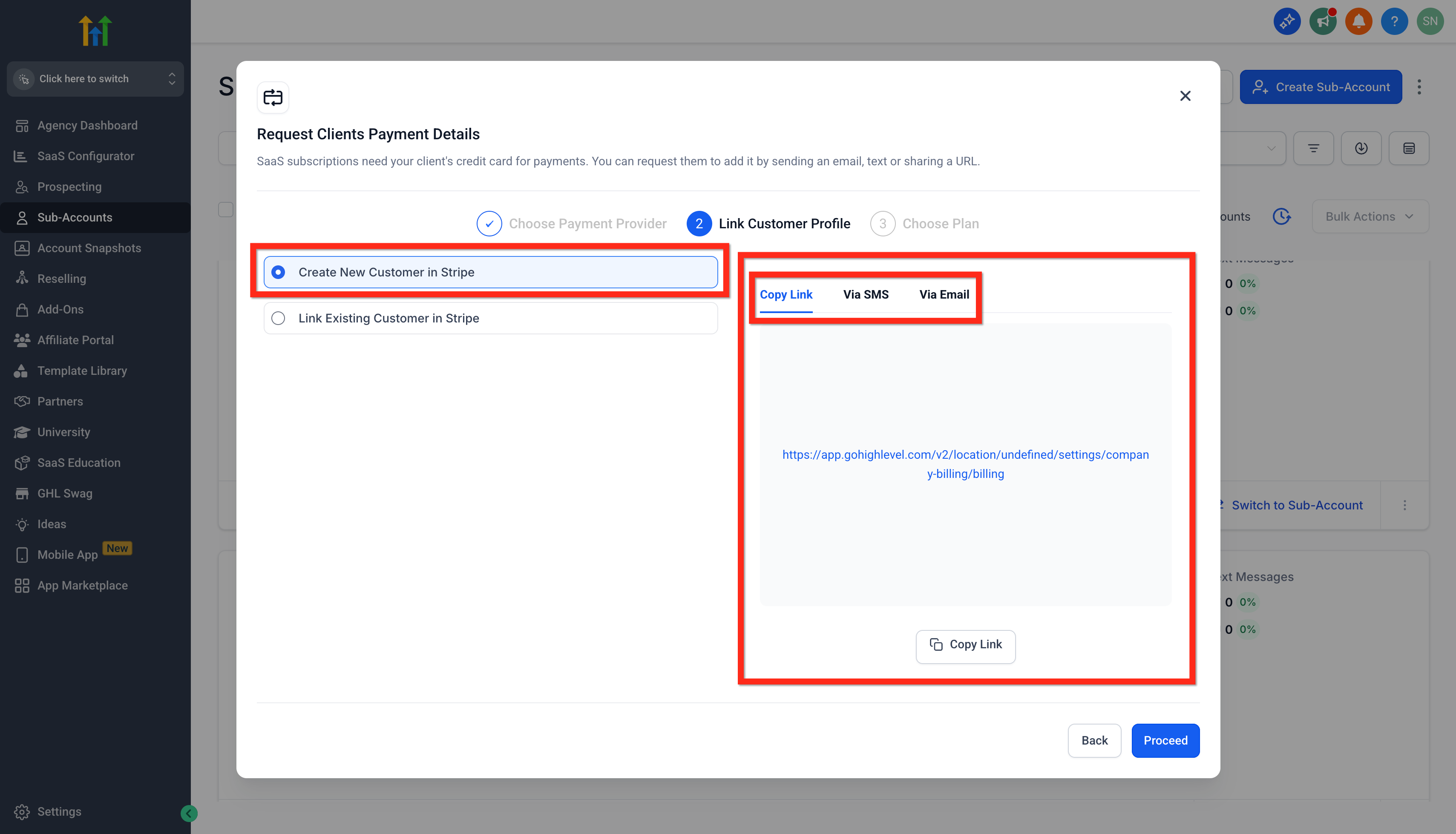
- If the customer does not exist in Stripe, choose Create New Customer in Stripe, copy the generated link, and send it to the client via SMS, email, or direct copy.
- Click Proceed after sending the link.
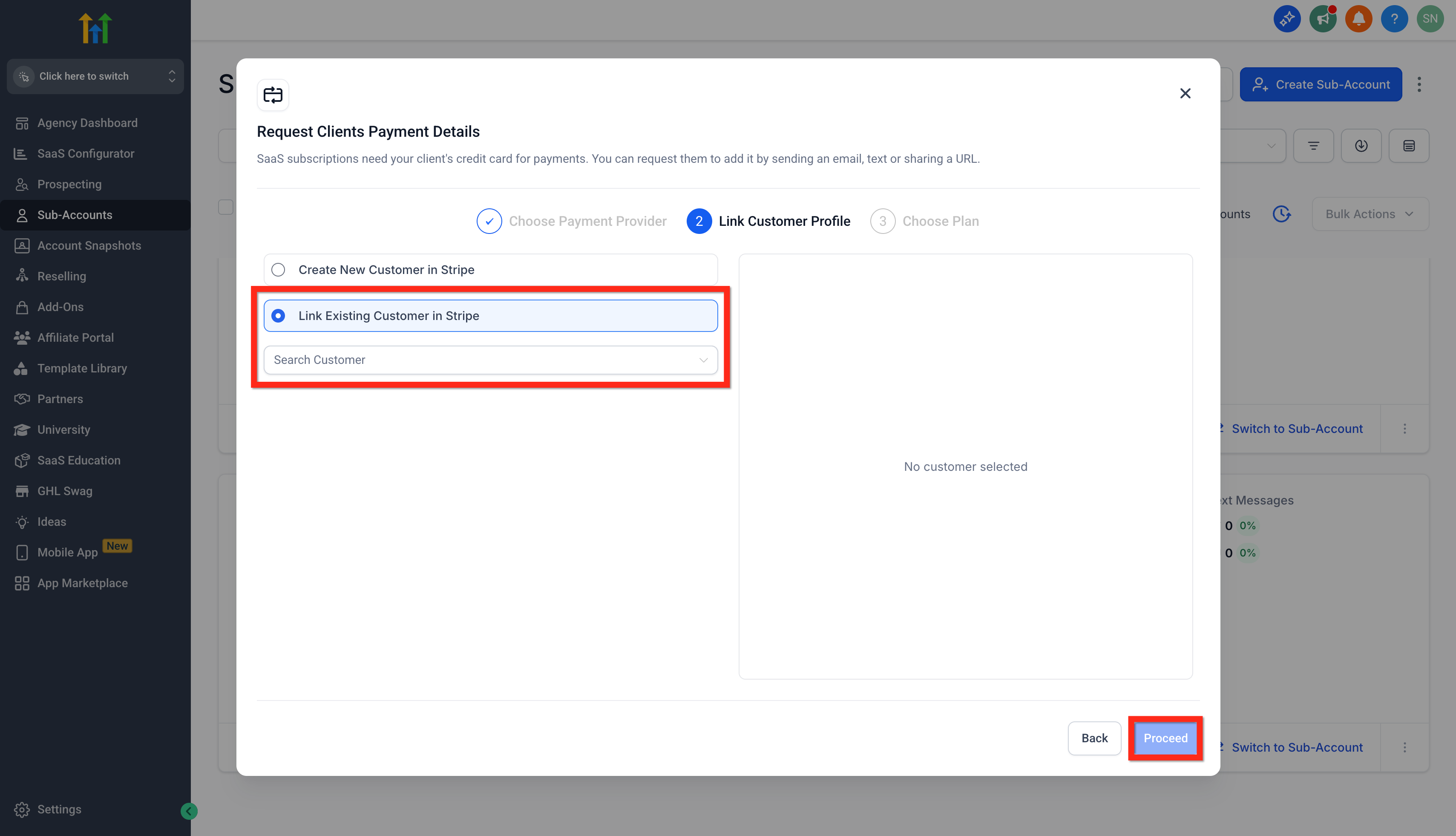
- If the customer already exists in Stripe, choose Link Existing Customer in Stripe, search for the customer, select them, and click Proceed.
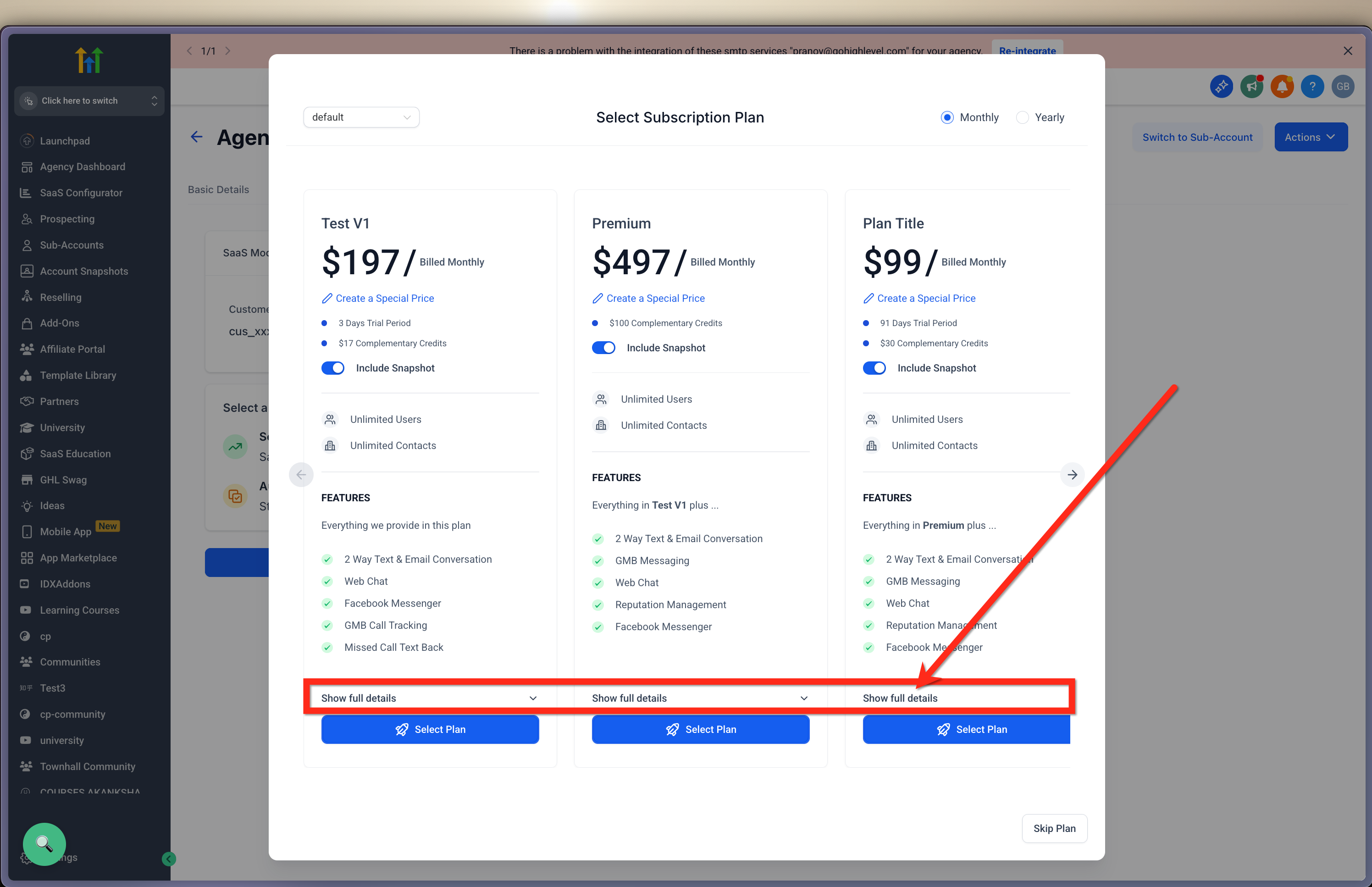
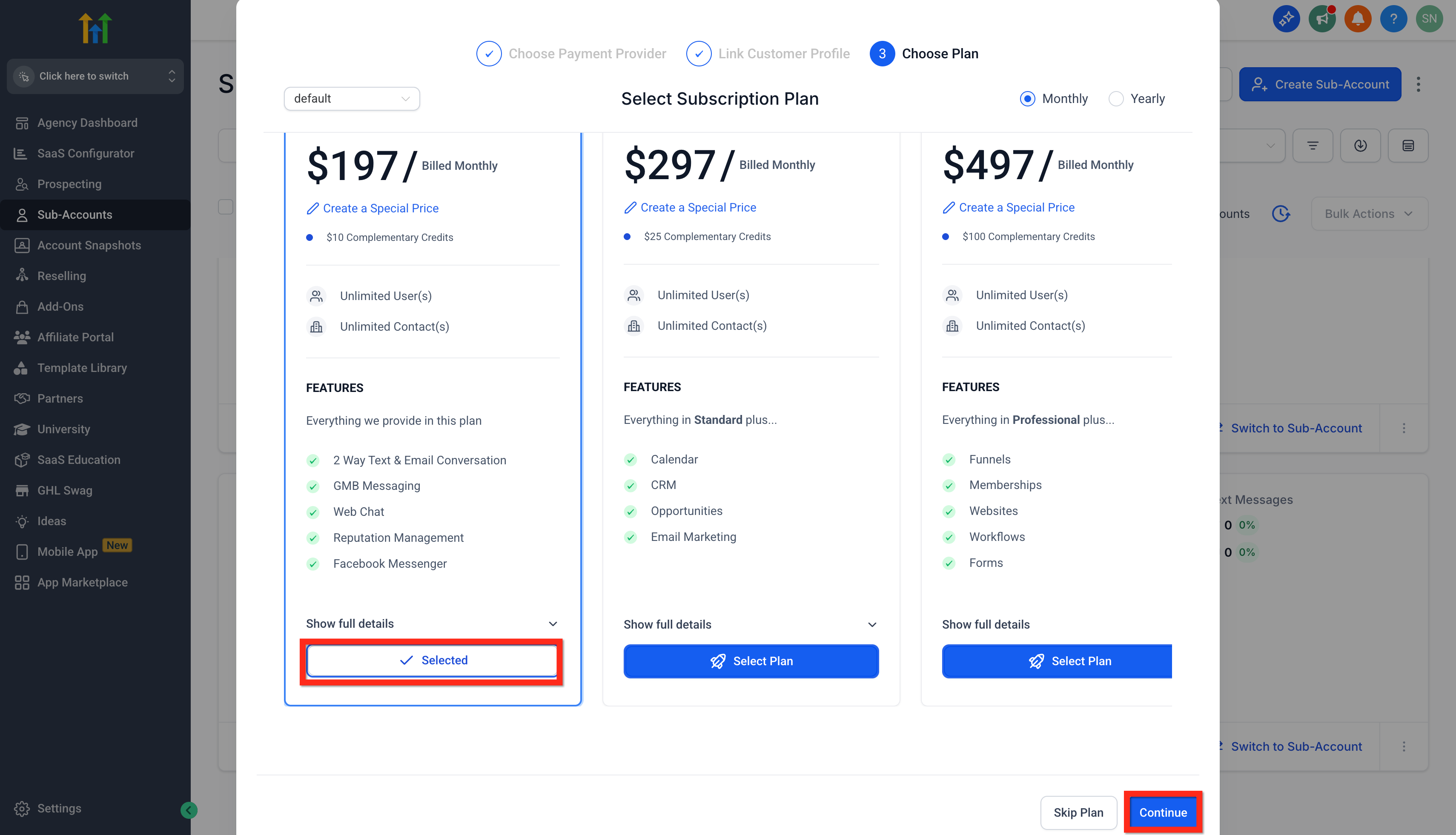
- When prompted, pick a SaaS Configurator plan; a plan selection is required to enable SaaS mode.
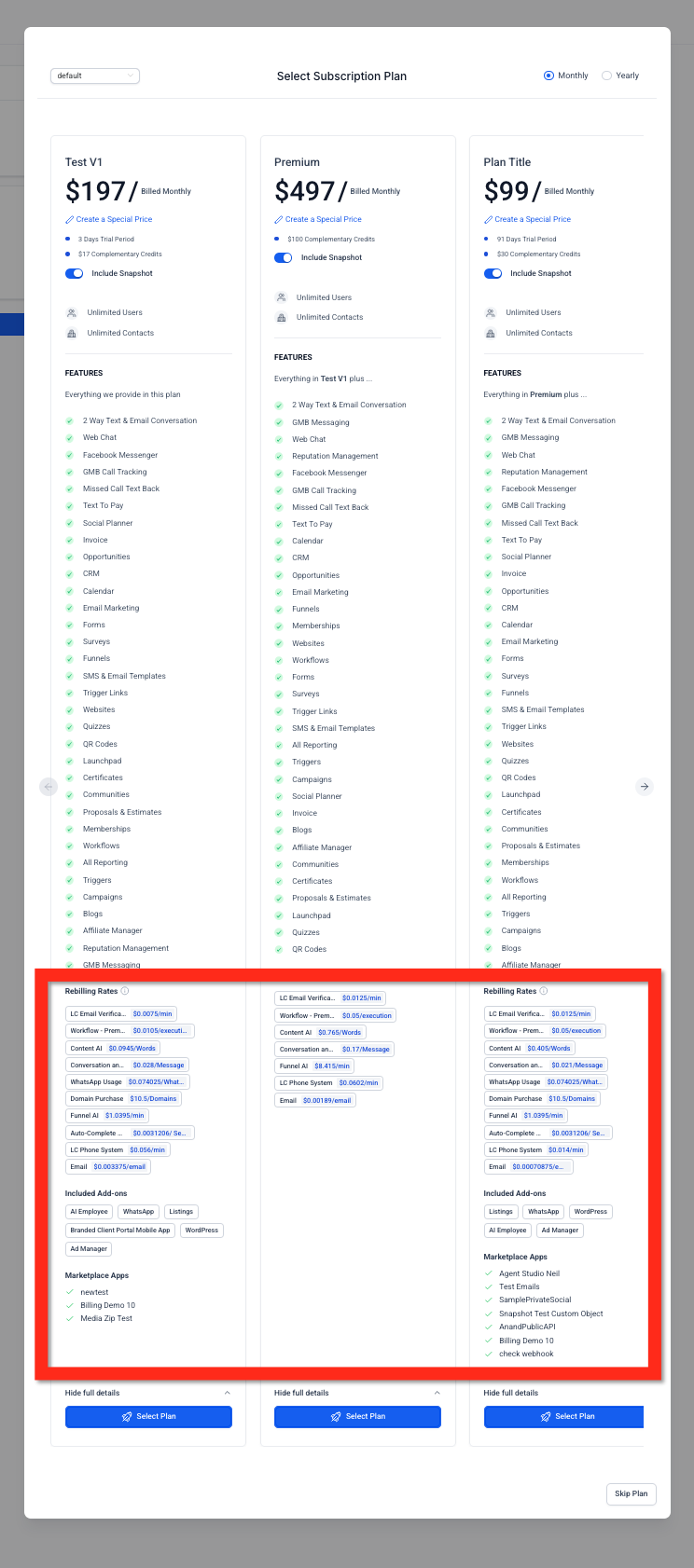
- Click the Show Full Details button above the select Plan button.
- Review the rebilling rates, add ons, marketplace apps, and custom menu links displayed for the chosen plan.
- Select the desired plan and click Continue.
- If Attach Snapshot is enabled for the chosen plan, respond to the warning by selecting Overwrite Conflicting Assets, Keep Existing Assets, or Cancel.
- If no payment method is on file when the plan is assigned, the plan remains On Hold until the client adds or confirms a card.
06What it looks like in HighLevel
07Settings that matter
- Switch To SaaS. Starts the process of moving a subaccount into SaaS mode.
- Create New Customer in Stripe. Generates a Stripe customer link for a client who does not yet have a Stripe record.
- Link Existing Customer in Stripe. Associates an already existing Stripe customer with the subaccount.
- Show Full Details. Expands the plan selection modal to display full information about the plan.
- Attach Snapshot. Enables the system to apply a snapshot of assets when the plan is assigned and triggers conflict handling options.
08Things to know before you rely on it
- A SaaS plan must be selected; without a plan SaaS mode does not activate.
- Clients must add a payment method for the plan to take full effect.
- If no payment method is on file, the plan stays On Hold until the client adds or confirms a card.
- Conflict handling options appear only when Attach Snapshot is enabled for the chosen plan.
- The conflict handling behavior works for both SaaS V1 and SaaS V2.
- Pending invoices do not block conversion, but resolving them is recommended.
09If something goes wrong
- Share Link option does not work or is unavailable. Make sure the browser or network is not blocking pop ups or the link. Try a different browser, clear the cache, and check any account permissions that might restrict the feature.
10How it connects to the rest of HighLevel
- Configure phone rebilling in SaaS mode Phone rebilling guide
- Manage SaaS wallet credits Wallet credit management
- Cancel a SaaS subaccount or enable client self cancellation Cancel SaaS subaccount
- All SaaS Configurator features overview SaaS Configurator
- HighLevel pricing and plans Pricing page
Michael's take

In my experience, converting an existing subaccount to SaaS mode gives a recurring revenue model and the built in tools simplify the setup process, especially the Stripe linking and snapshot handling.
If the client still needs a lot of custom features that aren’t in any software tier, the conversion may end up costing more in lost functionality than it saves. In those cases I’d hold off until the product roadmap aligns with the software offerings, or I’d keep the account in the traditional mode.