
01Who this is for
- Agency owners who run SaaS subscriptions benefit by auto deploying third party tools to each new subaccount.
- Coaching firms that bundle external scheduling apps benefit by presenting those apps as native menu items inside HighLevel.
- Technology startups offering platform as a service benefit by guaranteeing every client receives the same integrated utilities.
02Custom menu links, explained
Custom Menu Links are iframe based shortcuts that appear as menu items inside the HighLevel interface. Agencies create a link, specify a URL, and can embed merge fields so the link reflects the current user or location context. Once a link is saved, it can be attached to a SaaS plan.
When a SaaS plan includes Custom Menu Links, the platform automatically adds those links to any subaccount that later subscribes to that plan. Existing subaccounts keep their current links; they only receive new links if manually updated. The feature lives under the agency settings for link creation and inside the SaaS Configurations area for plan attachment.
03How businesses use custom menu links
- Digital marketing agency. The agency creates a Custom Menu Link that points to an AI copy writing tool, using merge fields for the client’s location ID. The link is then added to the agency’s premium SaaS plan so every new client automatically sees the AI tool inside HighLevel.
- Fitness coaching business. A coach sets up a Custom Menu Link to an external nutrition tracker, inserting the coach’s email via a merge field. The link is attached to the business’s SaaS plan, so new members right away have access to the tracker from the HighLevel dashboard.
- Ecommerce fulfillment service. The service creates a link to an inventory dashboard, including the location ID as a merge field. By adding the link to its SaaS plan, any new merchant subaccount receives the inventory view directly within HighLevel.
04The numbers and rules that matter
- Supported params: User.first_name, user.last_name, user.name, user.phone, user.email, location.I'd, location.name, location.city, location.state, location.country, location.address, location.email, location.phone, location.postal_code, location.full_address, location.website, location.logo_URL, location_owner.first_name, location_owner.last_name, location_owner.email, custom_values.{CUSTOM_VALUE_NAME}.
05How to set up and use custom menu links in HighLevel
Create custom menu link
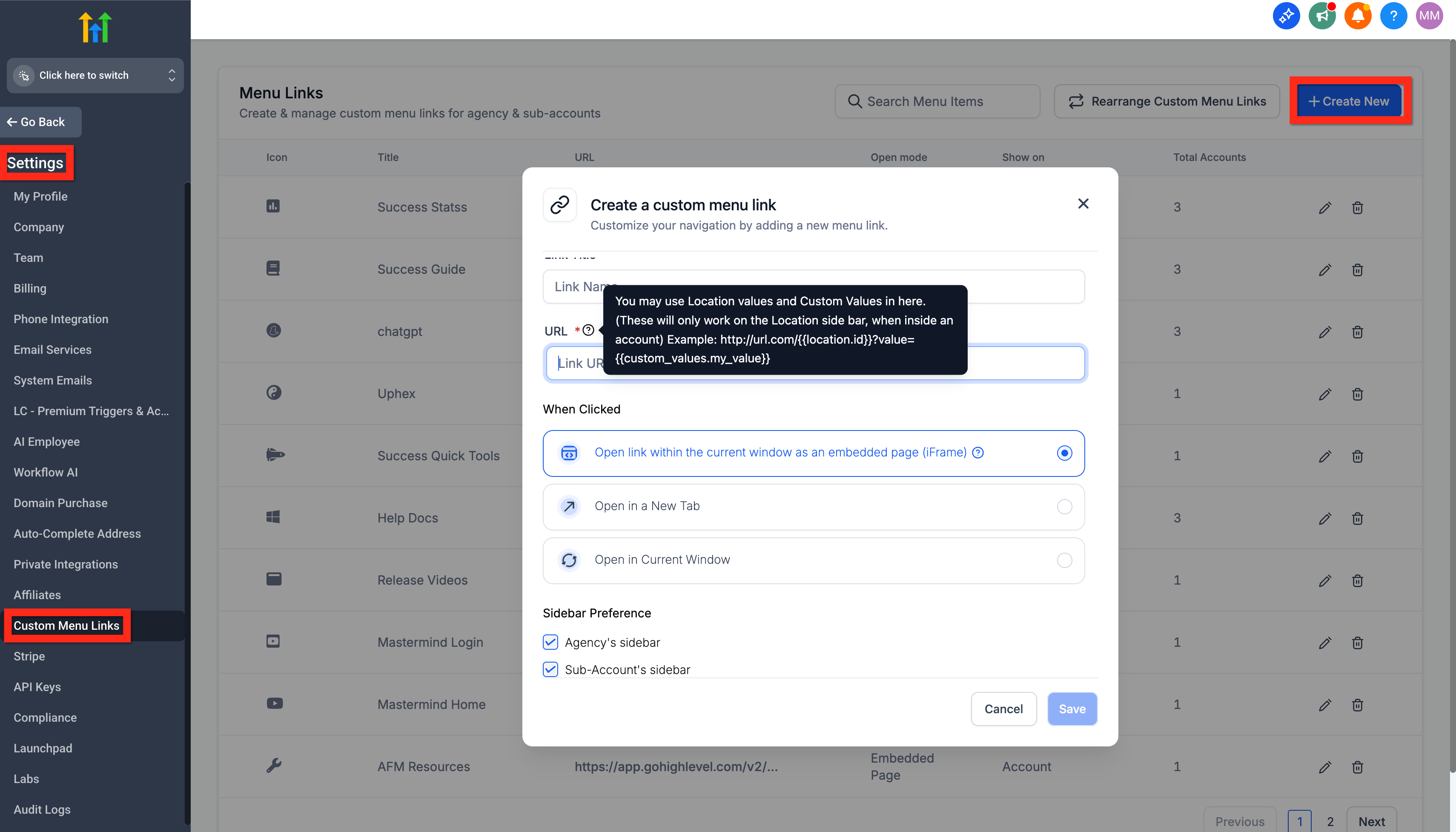
- Navigate to Agency Account > Settings > Custom Menu Links > Create New or Edit.
- Enter the desired name and other required information in the form.
- Set the URL, optionally using merge fields such as {{location.id}} or {{custom_values.my_value}}.
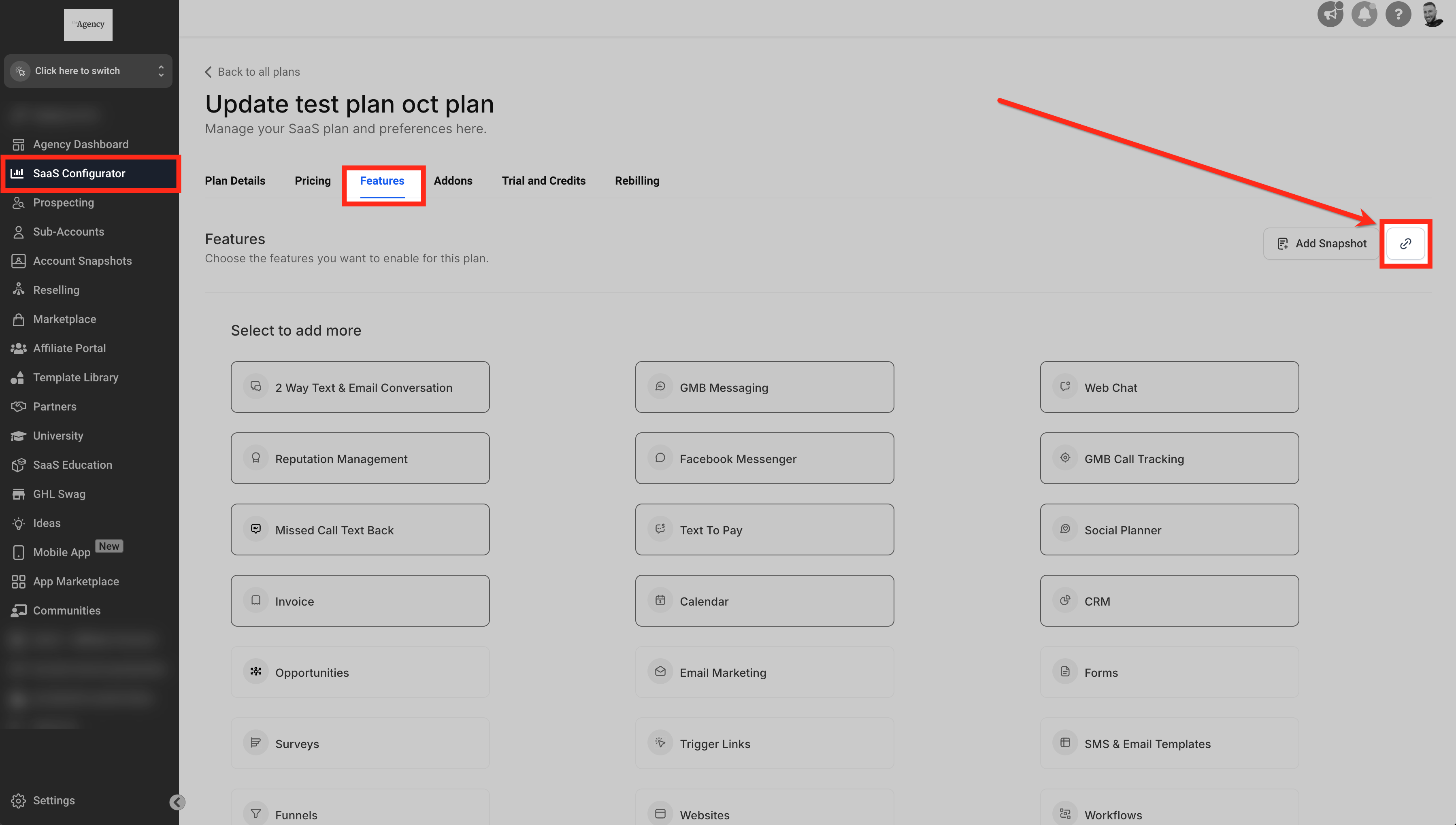
Add custom menu links to SaaS plan
- Log in to the HighLevel agency dashboard.
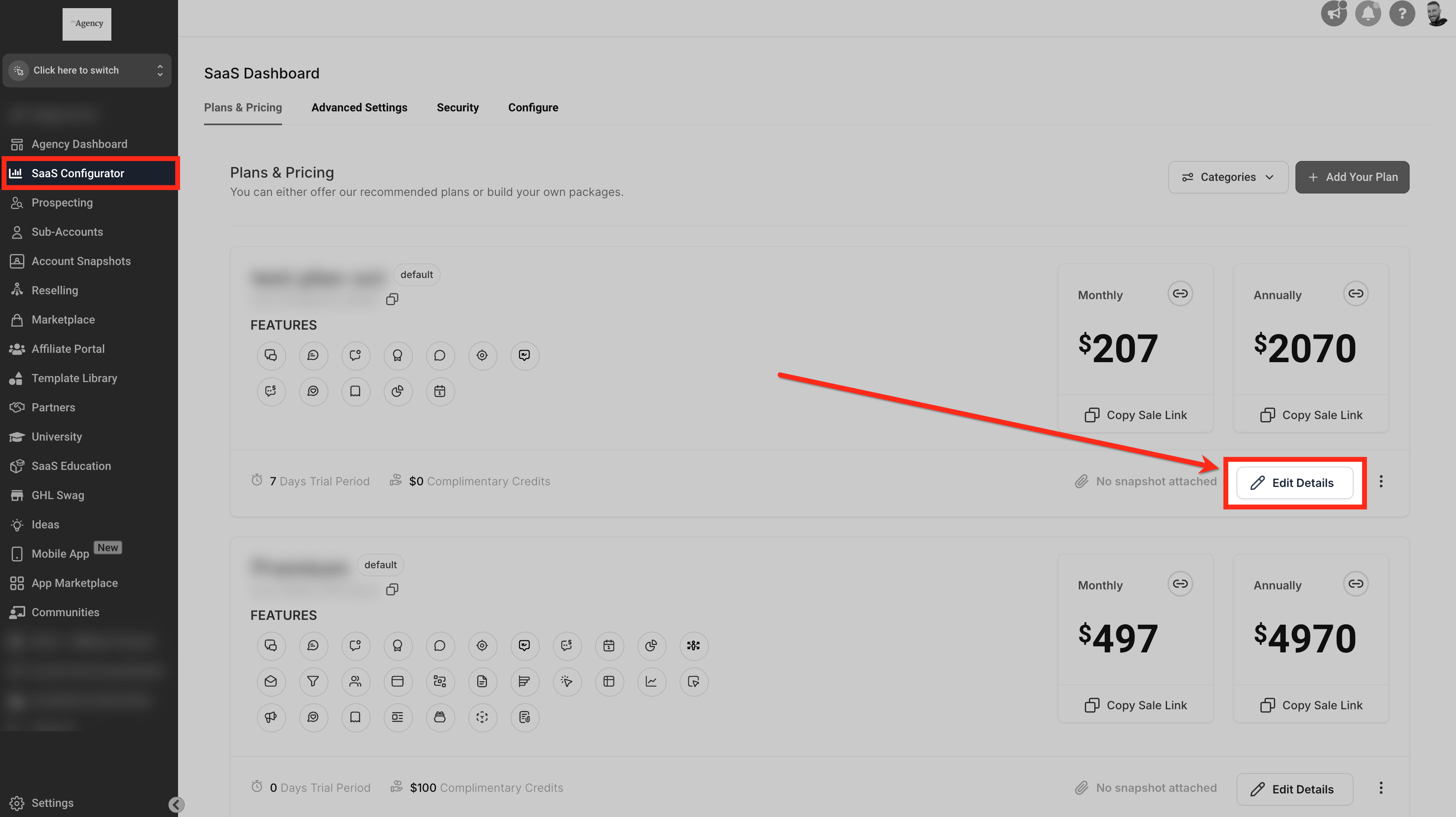
- Navigate to the SaaS Configurations section.
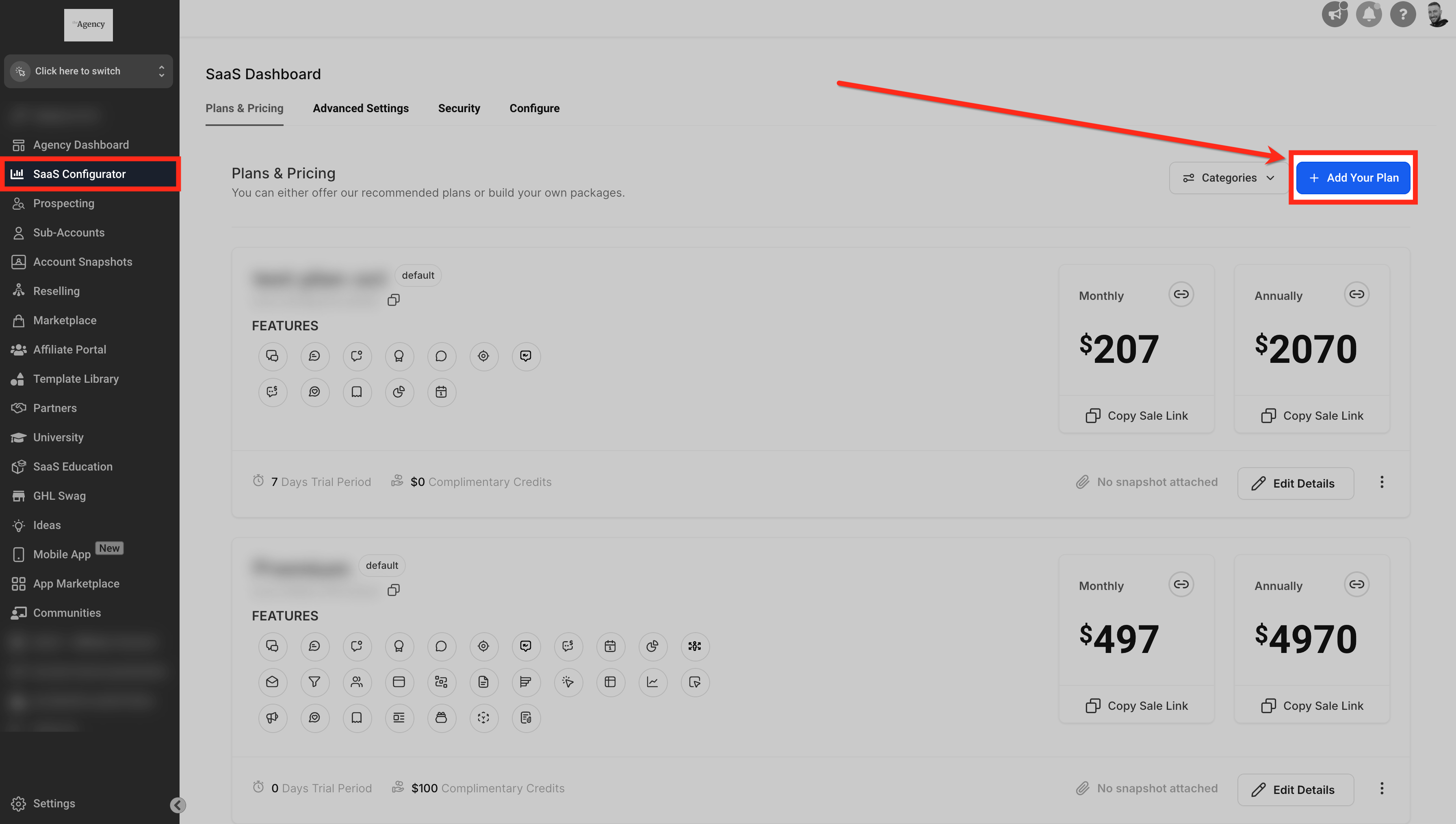
- Select Create New Plan to start a fresh SaaS offering.
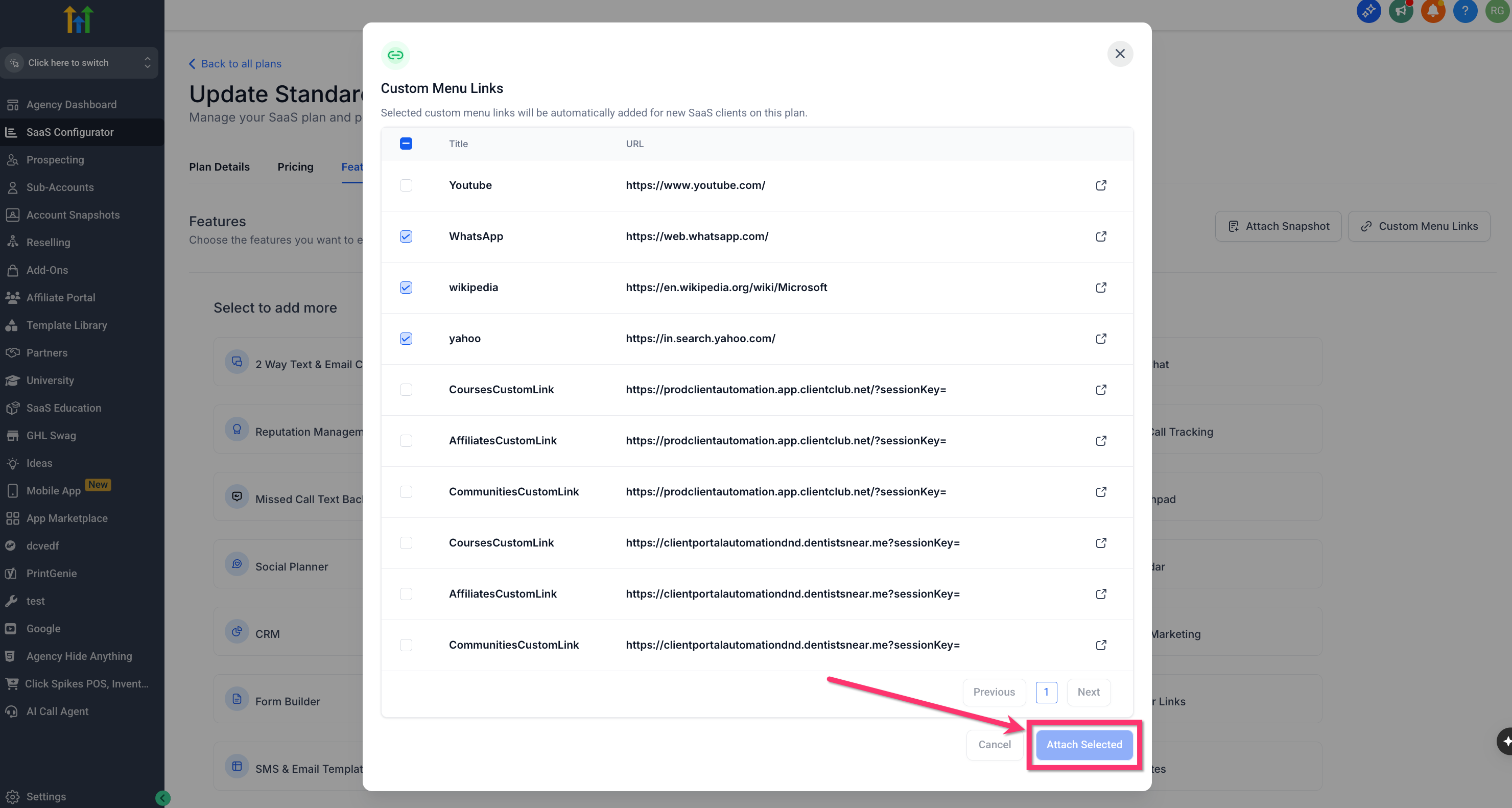
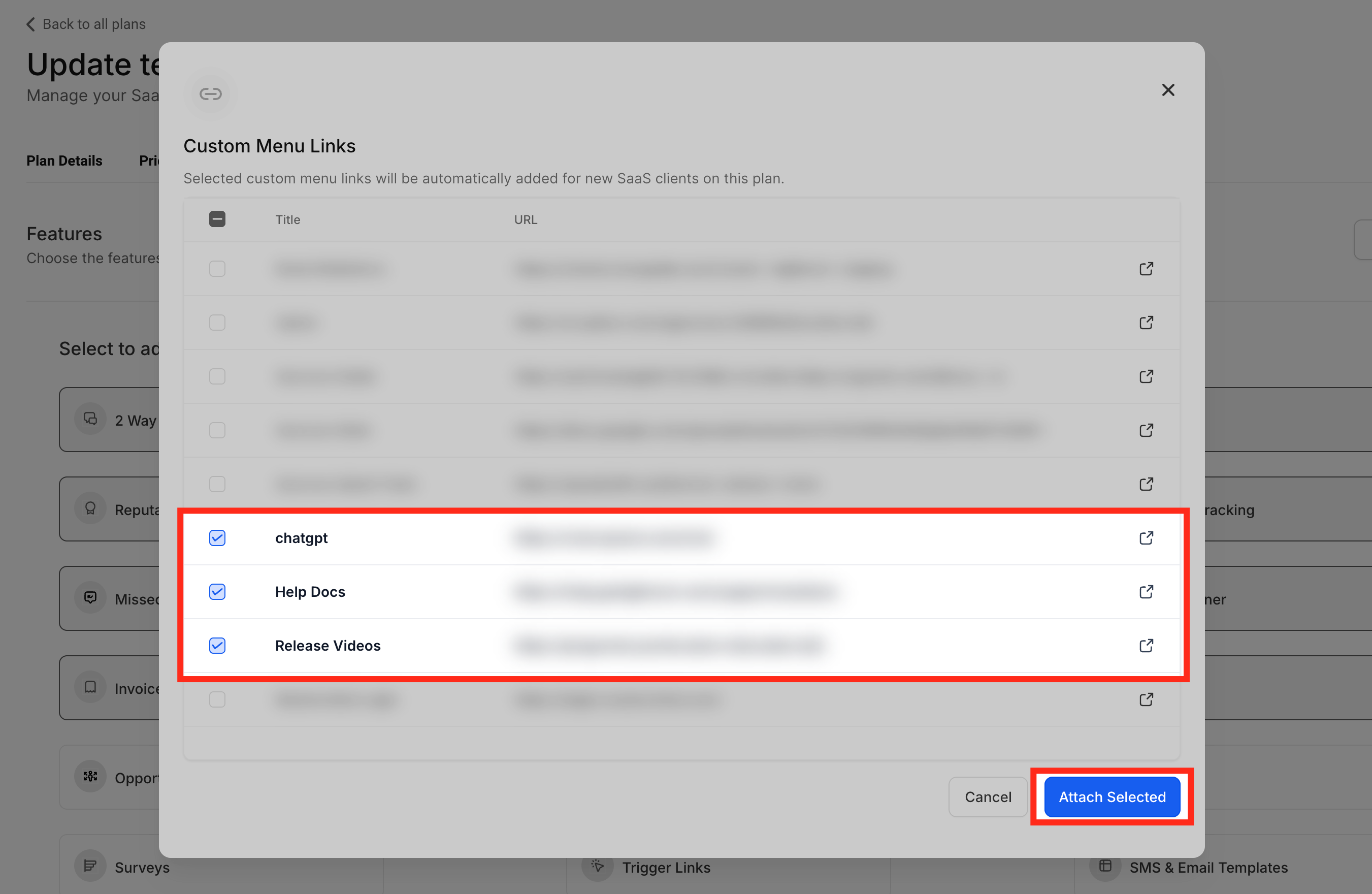
- Open the Custom Menu Links area within the plan settings.
- Enter the iframe URLs for each third party solution you wish to embed.
- Provide a name for each link and arrange them for the user experience.
- Save the plan so that future subaccounts receive the configured links.
06What it looks like in HighLevel
07Settings that matter
- URL field. Defines the iframe source address for the custom menu item and can include merge fields for dynamic values.
- Merge Fields. Placeholders surrounded by double braces that HighLevel replaces with actual user or location data when the link is opened.
08Things to know before you rely on it
- Custom Menu Links are intended for SaaS plans; non SaaS accounts require manual addition of links.
- Updates to a SaaS plan affect only subaccounts that subscribe after the change; existing subaccounts are not auto updated.
- Any third party tool that supports iframe embedding can be linked; there is no built in restriction on tool type.
- Large libraries of links are shown with pagination, using Previous, Next, or page numbers to browse.
09How it connects to the rest of HighLevel
- Manage SaaS wallet credits for subaccounts SaaS wallet credits
- Upgrade or downgrade a SaaS plan for a location SaaS plan changes
- Convert an existing subaccount to SaaS mode Convert to SaaS
- Start a 30 day trial of HighLevel 30 day trial
- View all SaaS Configurator features All SaaS features
Michael's take

Custom menu links are a handy way to bundle third party tools into your SaaS offering.
Agencies that don’t run a SaaS business or don’t need embedded tools should skip it.