
01Who this is for
- Agency owners who run multiple client subaccounts can hide unused tools and present a focused interface.
- SaaS providers can assemble differentiated product tiers by selecting distinct feature sets for each plan.
- Support teams benefit from clear permission structures that reduce confusion when troubleshooting client access.
02Feature permissions, explained
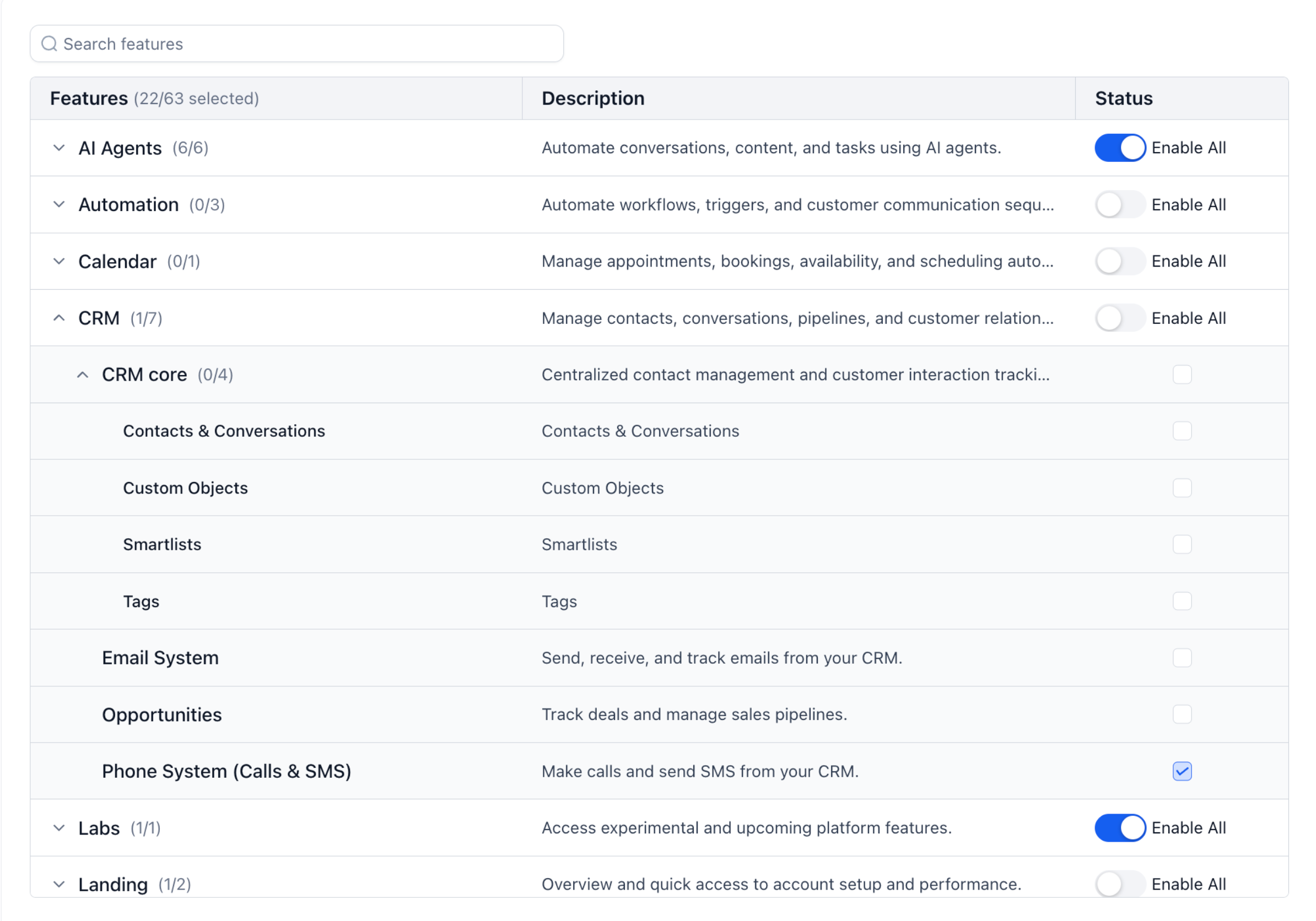
Feature Permissions control the availability of HighLevel tools at the subaccount level. An agency can turn individual features on or off, and the selections are saved with the subaccount or attached SaaS plan. The system shows counts next to each Category and Module so you can see how many features are active.
The permission screen groups tools into three layers: Category (broad area), Module (related group), and Feature (specific function). You can browse this hierarchy or use the search field to locate a feature directly. Selections are applied right away and reflected in the client’s view.
When a SaaS plan includes Feature Permissions, any subaccount that subscribes to that plan inherits the same feature set. Existing subaccounts and SaaS plans were migrated automatically, preserving their previous access before the update.
03How businesses use feature permissions
- Marketing agency. The agency opens a client’s subaccount, searches for "AI Agents" and disables it if the client does not need artificial intelligence tools. The agency then saves the changes so the client’s dashboard no longer shows that option.
- Real estate brokerage. The broker creates a SaaS plan for new agents, selects Calendar and Opportunities features, ensures at least one feature is chosen, and saves the plan. When an agent signs up, the plan’s permissions automatically restrict the subaccount to those tools.
- Dental practice. The practice manager reviews the subaccount’s Feature Permissions, expands HighLevel category, and disables the Phone System because calls are handled through a third party service. After saving, the staff no longer sees phone related screens.
04The numbers and rules that matter
- 80+ controllable features.
- AI Agents (6/6) means all 6 AI Agent features are selected.
- CRM (1/7) means 1 of the 7 CRM features is selected.
- Features (22/63 selected) shows total selected features in a permission setup.
05How to set up and use feature permissions in HighLevel
Manage permissions for a subaccount
- Open the agency area where you manage the client.
- Select the subaccount you want to update.
- Open its Feature Permissions settings.
- Use Search features or browse the Categories.
- Expand a Category to view its Modules and Features.
- Select or clear the supported features you want to manage.
- Review the selected feature count.
- Save your changes.
Manage permissions for a SaaS plan
- Open the SaaS Configurator.
- Create a new plan or open an existing plan.
- Go to the feature selection area.
- Search for a feature or open the appropriate Category.
- Select the features that should be included in the plan.
- Make sure at least one feature is selected.
- Review the feature choices.
- Save the SaaS plan.
06What it looks like in HighLevel
07Settings that matter
- Feature Permissions. Controls which HighLevel tools are visible and usable inside a subaccount or SaaS plan.
- Search features field. Filters the permission list so you can quickly locate a specific feature to enable or disable.
08Things to know before you rely on it
- The updated screen offers control over more than 80 features, compared with fewer controls previously.
- When configuring a SaaS plan, at least one feature must be selected before the plan can be saved.
- Some permission controls are not available in every area of HighLevel at the same time.
- If a feature does not appear in search, it may not have a configurable permission yet.
09If something goes wrong
- A client cannot see a feature. Check whether the feature is enabled in the subaccount's Feature Permissions.
- A user cannot access a feature even though the subaccount has it. Check that user's individual permissions; a user may be restricted even if the subaccount allows the feature.
- I cannot find a feature. Use the Search features field. If the feature still does not appear, it may not currently have a configurable permission.
- The selected number is lower than expected. Open the Category or Module and review the individual selected features.
- A permission appears unavailable. Some permission controls may not be available in every area of HighLevel at the same time. Review the current settings shown in your account before making changes.
10How it connects to the rest of HighLevel
- Managing subaccount level permissions in HighLevel Subaccount permissions
- HighLevel guide to upgrade or downgrade a SaaS plan Upgrade SaaS plan
- HighLevel pricing and plans Pricing
Michael's take

When you have a handful of clients and each needs a different toolset, Feature Permissions let you customize the dashboard and package services in SaaS plans.
If every client uses the same suite of tools, the extra effort of toggling individual features may not add much value. In that case you might stick with the default set and focus on other customizations.