
01Who this is for
- SaaS agencies that create client subaccounts, because they control which features each client can access.
- Founders offering a platform on HighLevel, to ensure their plan limits are enforced across client accounts.
- Support managers who need to restrict user actions for security or compliance reasons.
02User level permissions vs subaccount level permissions, explained
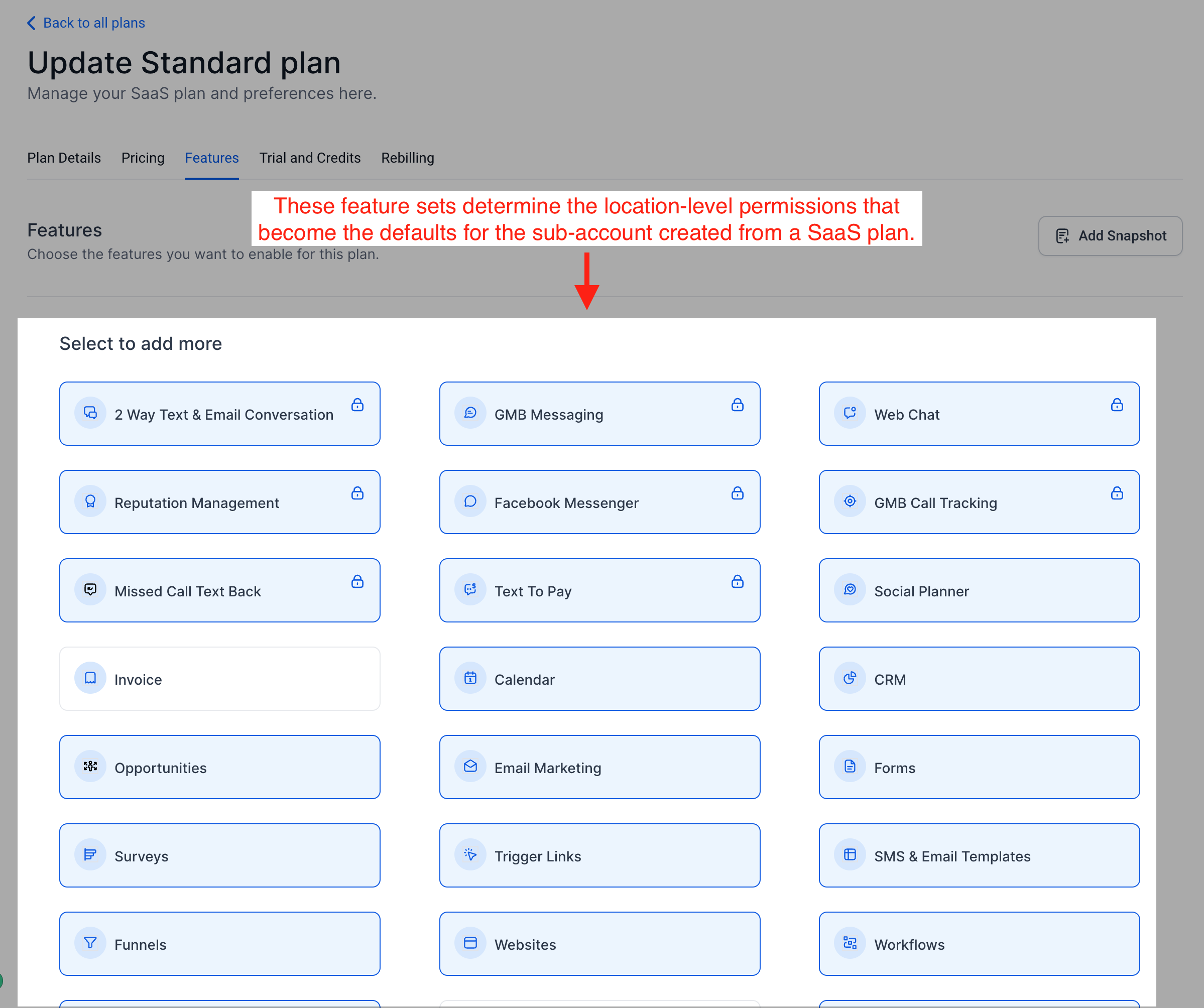
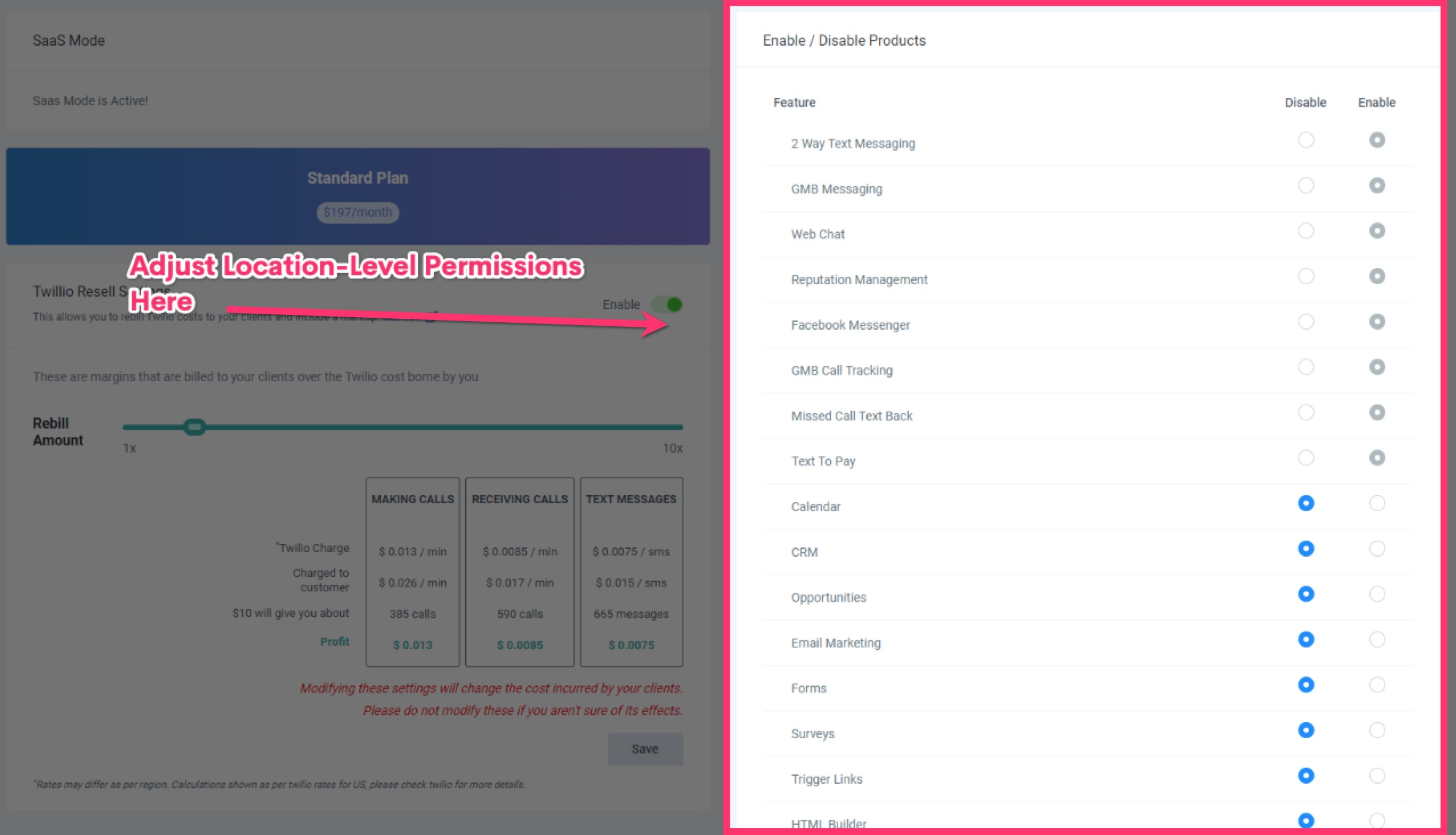
The Subaccount Level Permissions feature sets the maximum feature access a subaccount can have. When a subaccount is generated through SaaS mode, the system assigns the user permissions based on these limits. No user in that subaccount can exceed the features allowed at the subaccount level.
These permissions are managed from the Agency View. In the SaaS Configurator, each plan defines a feature set, and the subaccount inherits those capabilities. Individual user permissions can be tightened further, but they cannot broaden the subaccount's allowed features.
03How businesses use user level permissions vs subaccount level permissions
- Digital marketing agency. The agency searches for a client subaccount, opens the Manage Client menu, and disables any premium analytics tools the client does not pay for. This keeps the client’s access aligned with their subscription.
- SaaS Founder. A Founder edits the Features list for a subaccount to turn on the email automation module for a new plan tier, then restricts team members by editing their Roles and Permissions inside the same subaccount.
- Customer support team. Support staff opens a subaccount, navigates to Features and Limits, and removes the SMS messaging feature for a client that requested to stop texting, ensuring users cannot send messages.
04Before you start
- A subaccount must already exist in SaaS mode.
- You must be viewing the Agency dashboard.
05How to set up and use user level permissions vs subaccount level permissions in HighLevel
Adjust subaccount level permissions
- In Agency View, open the Subaccounts menu on the left and locate the subaccount you want to edit.
- Click the three dot icon next to that subaccount and choose Manage Client.
- Select Features and Limits, then click the Features tab.
- Turn on or off each supported feature according to the access you want to grant.
- Note that disabling a feature removes access for all users immediately.
06What it looks like in HighLevel
07Settings that matter
- Features. Controls which platform features are available to the entire subaccount.
- Roles and Permissions. Sets the specific features each individual user in the subaccount may use, without exceeding the subaccount’s feature set.
08Things to know before you rely on it
- A user cannot have more permissions than the Subaccount Level permissions allow.
- Feature availability is limited to what the SaaS Configurator plan provides.
09How it connects to the rest of HighLevel
- View all SaaS Configurator features All SaaS Configurator features
- Learn how to cancel a SaaS subaccount Cancel SaaS subaccounts
- Explore HighLevel pricing and plans HighLevel pricing
Michael's take

I find that using the SaaS Configurator to set the permission ceiling fits my workflow when I manage multiple client accounts.
If you’re only giving a single client a private account or you don’t need granular control over each user’s role, the extra steps can feel like overhead.