
01Who this is for
- Marketing agencies, can showcase client videos on landing pages without external players.
- Online course creators, embed tutorial videos directly into sales funnels.
- Event organizers, add promotional videos to event registration sites.
02Video elements, explained
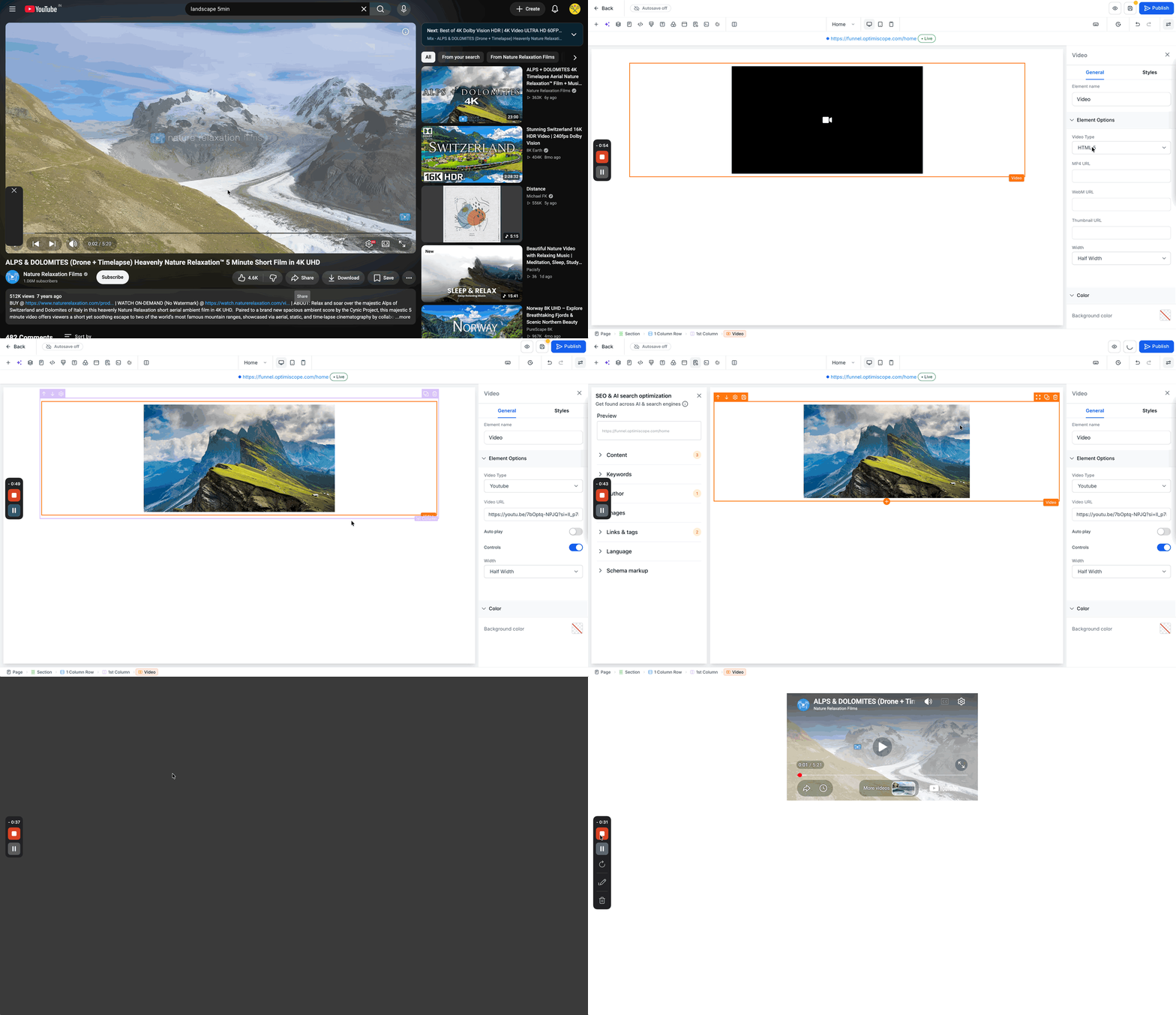
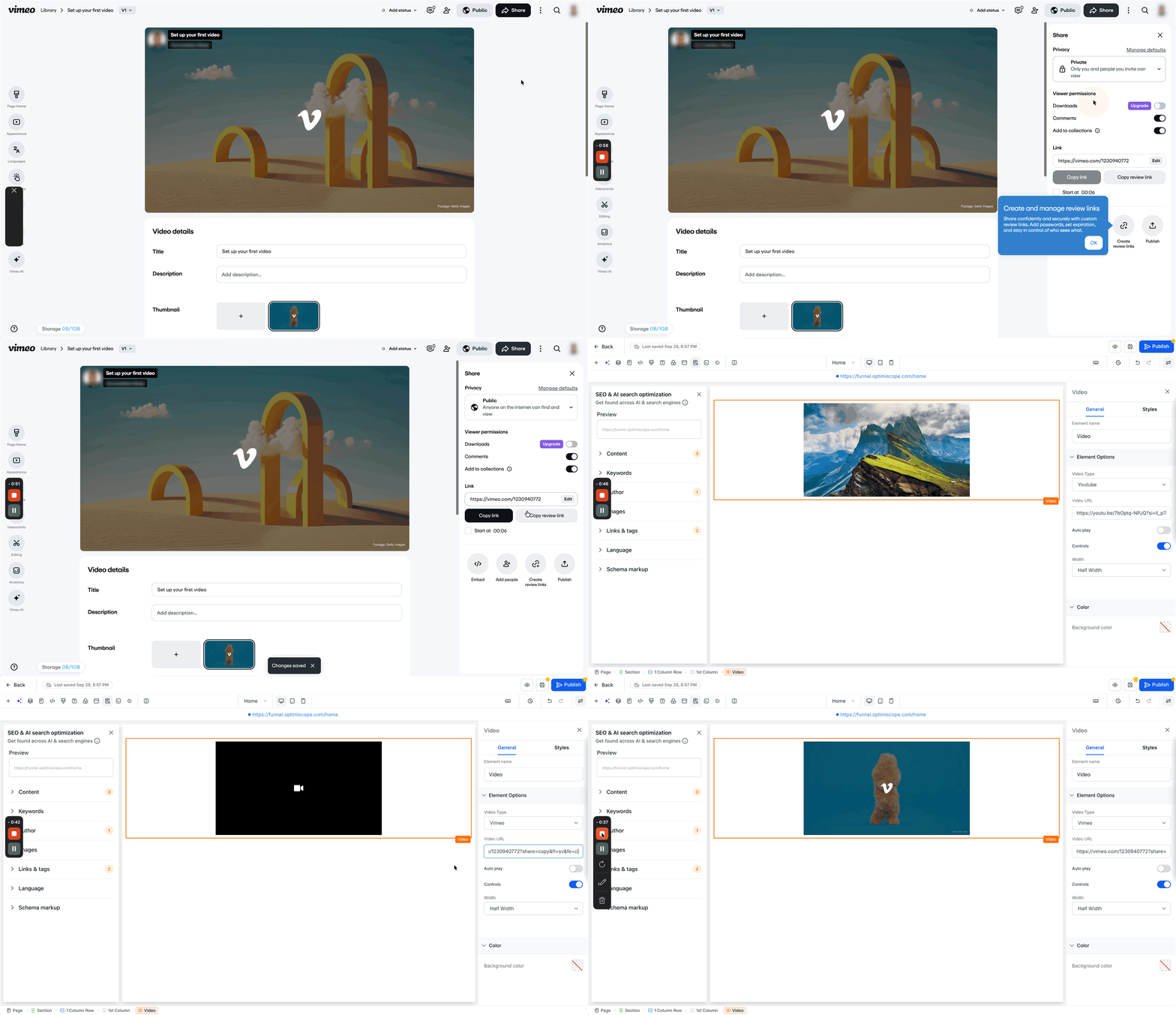
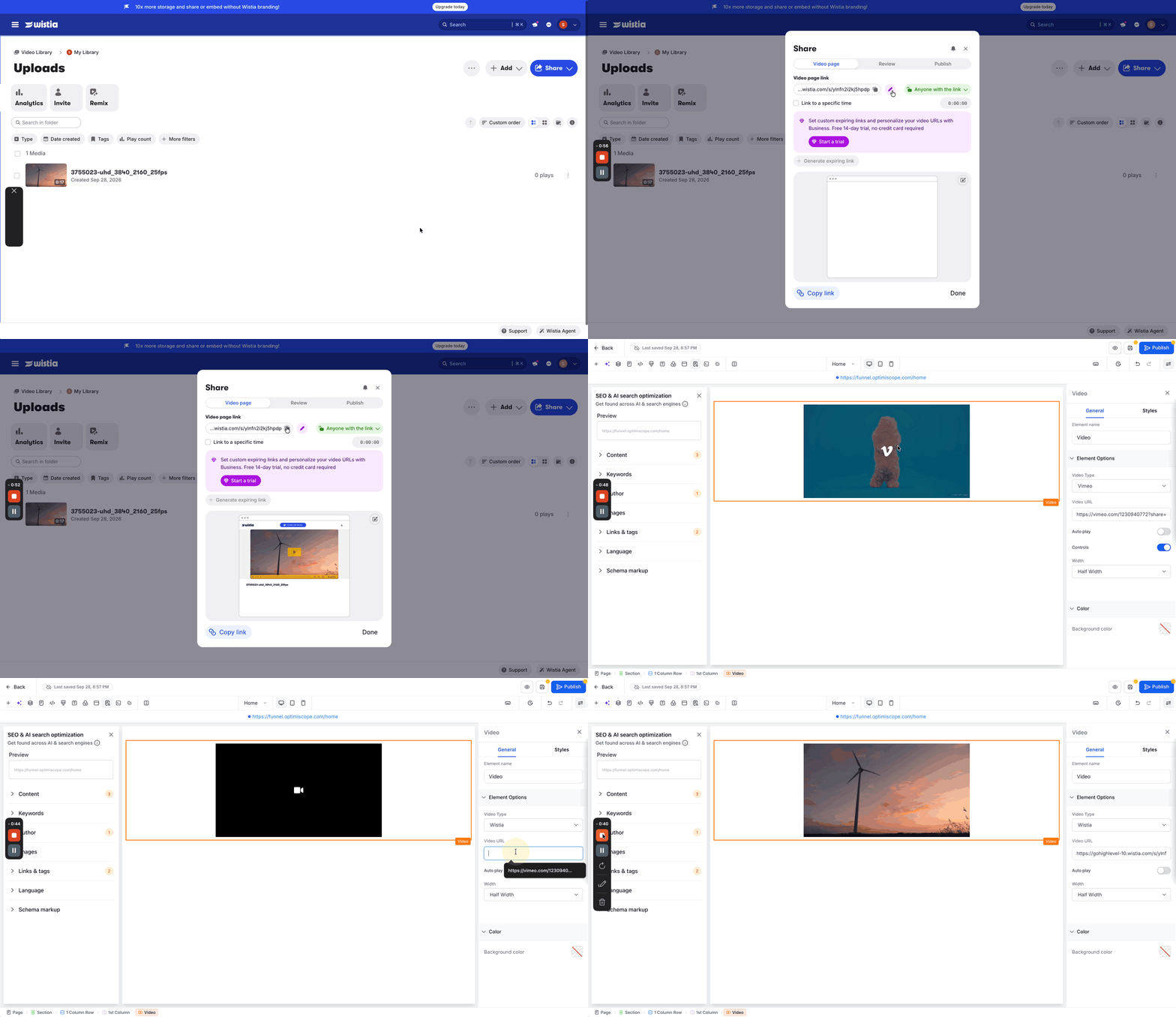
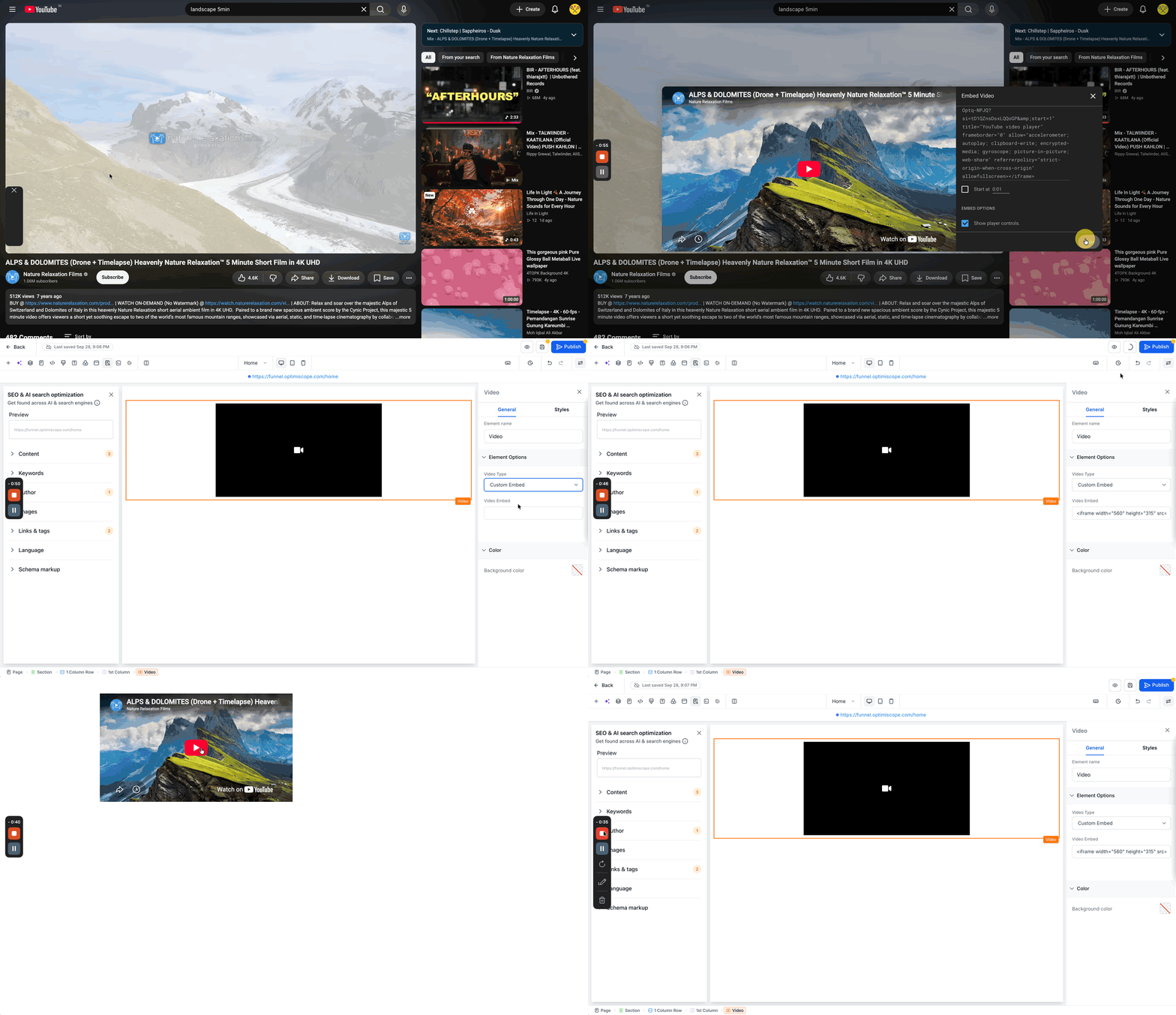
The Video element provides a way to display video content on any funnel or website page built in HighLevel. It accepts several source types, including YouTube, Vimeo, Wistia, custom embed code and HTML5 file URLs.
When you place the element, you choose the video type, paste the appropriate URL or embed code, and then configure playback options such as autoplay, width, colors and background styling.
The element is added from the Sites area, inside the Funnels or Websites builders, using the Add Elements (+) panel.
03How businesses use the video element
- Digital marketing agency. Add a YouTube video to a client landing page, then enable autoplay and set the width to match the page layout. The video plays directly on the page without redirecting visitors.
- Fitness studio. Insert an HTML5 MP4 file of a workout demo, provide a thumbnail URL, and turn on autoplay for a smooth preview on the class signup funnel.
- Software SaaS startup. Use a custom embed code from a webinar platform to place the player on a product feature page, then adjust the element's background color to align with brand styling.
04The numbers and rules that matter
- Supported video sources: YouTube, YouTube Shorts, Vimeo, Wistia, Custom Embed, HTML5.
05How to set up and use the video element in HighLevel
Add a video element to a funnel or website page
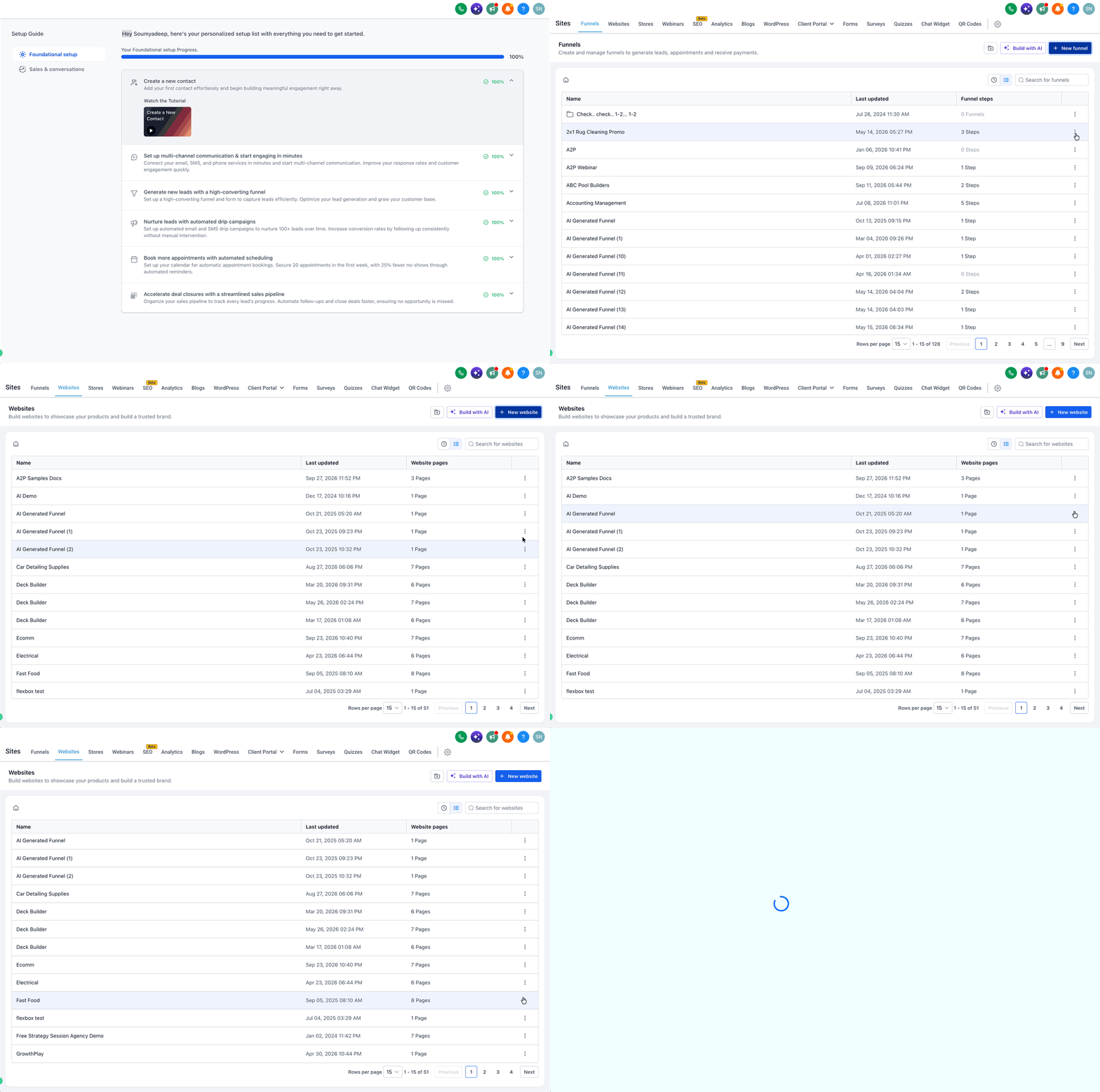
- Navigate to the Sites section.
- Select Funnels or Websites and open the desired project.
- Create a new funnel or website, or edit an existing one.
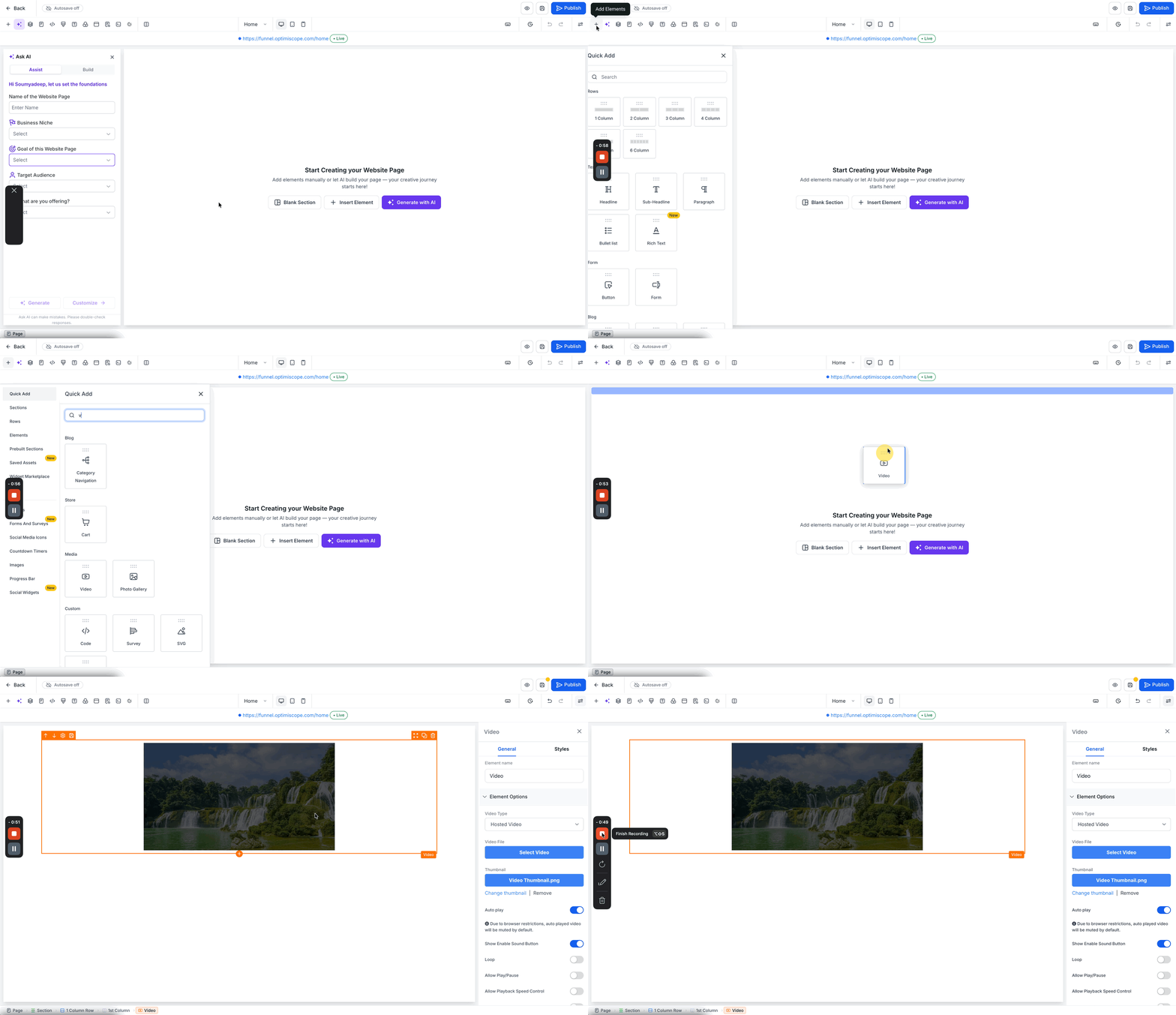
- Open the specific page you want to modify in the page builder.
- Click the Add Elements (+) button.
- Enter “Video” in the search field to locate the element.
- Drag the Video element onto the page where it should appear.
- Click the placed Video element to open its configuration settings.
06What it looks like in HighLevel
07Settings that matter
- Autoplay. Controls whether the video starts playing automatically when the page loads.
- Width. Determines the horizontal size of the video player on the page.
- Colors. Allows customization of color elements that apply to the video player interface.
- Background. Sets the styling of the area surrounding the video element.
08Things to know before you rely on it
- Video URLs must be publicly reachable; private or restricted videos will not load.
- HTML5 sources require direct MP4 or WebM file URLs, not playlist links.
- Custom embed relies on valid embed code from the source platform.
- YouTube Shorts are supported only through the standard YouTube URL method.
09If something goes wrong
- A YouTube, Vimeo, or Wistia video does not load on the page.. Verify that the video URL is correct and that the video's privacy or sharing settings allow public access via the link.
10How it connects to the rest of HighLevel
- Review overall website page settings before inserting a video. website overview
- Add tracking scripts to capture video engagement data. tracking code
- Create scroll to element links that jump directly to a video section. scroll to element
Michael's take

Michael ReimerFounder of CRM Pros, HighLevel Commander and Certified Admin
The video element is a straightforward way to bring visual content onto your funnel or site.
If you don’t need video at all, or you’re only using static images, you can skip this feature.
Get More InformationOpens on HighLevelPublished November 3, 2026 · Updated November 17, 2026