
01Who this is for
- Users who build multiple pages benefit from being able to locate shared sections quickly.
- Teams that need consistent design elements across sites can maintain uniform headers, footers, and galleries.
02Global sections, explained
Global Sections are saved sections that can be added to any page or funnel step. When you edit a Global Section, the changes appear everywhere that section is used, keeping design consistent.
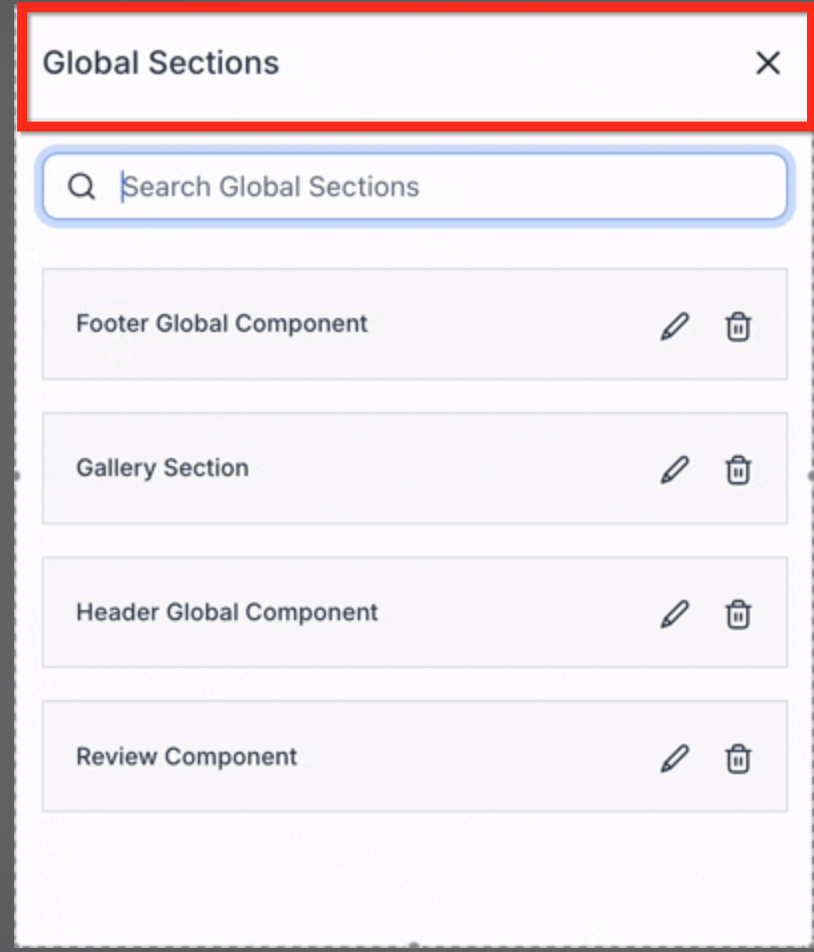
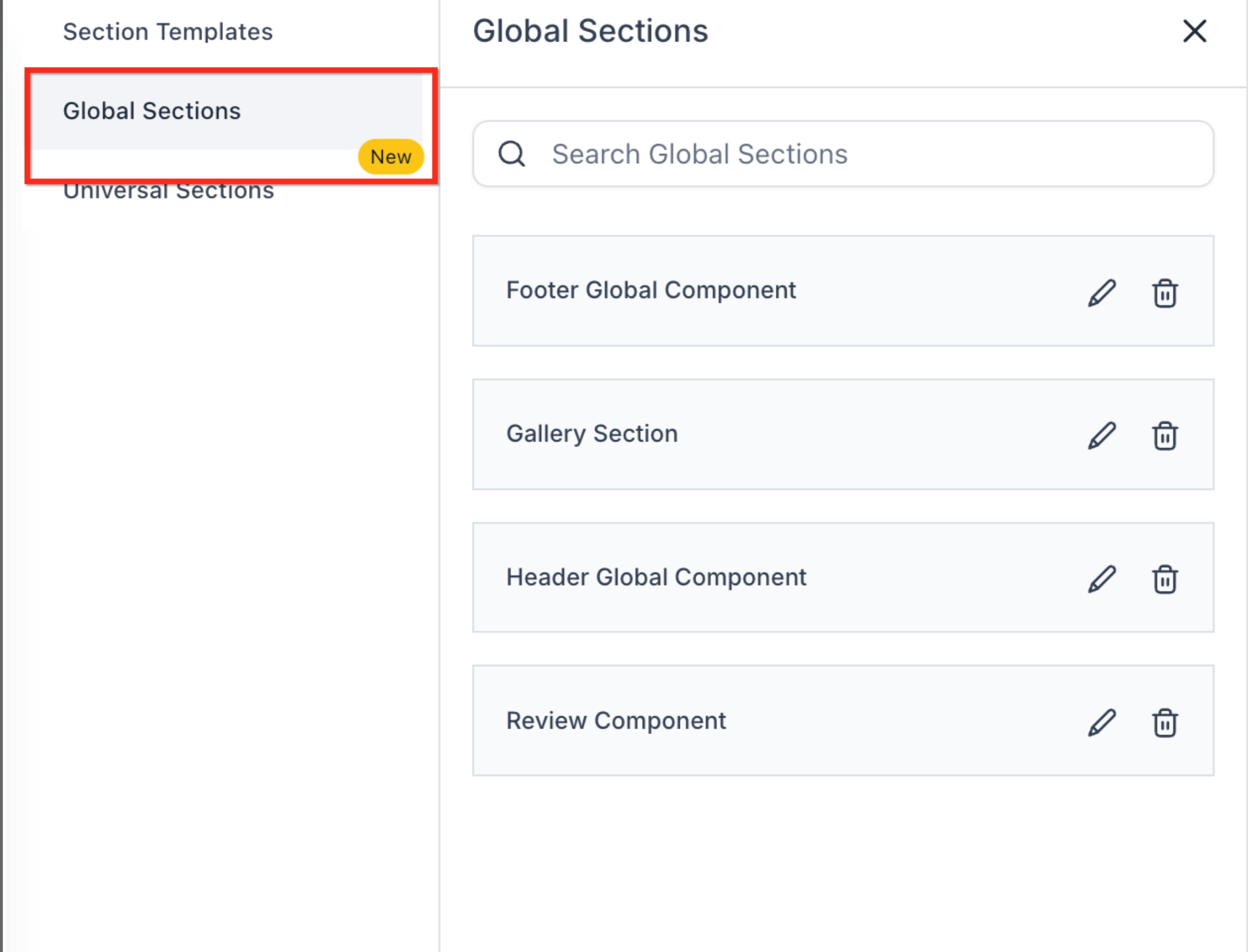
The feature lives inside the Page Builder under the Saved Sections > Global Sections panel. A search field appears at the top of that panel.
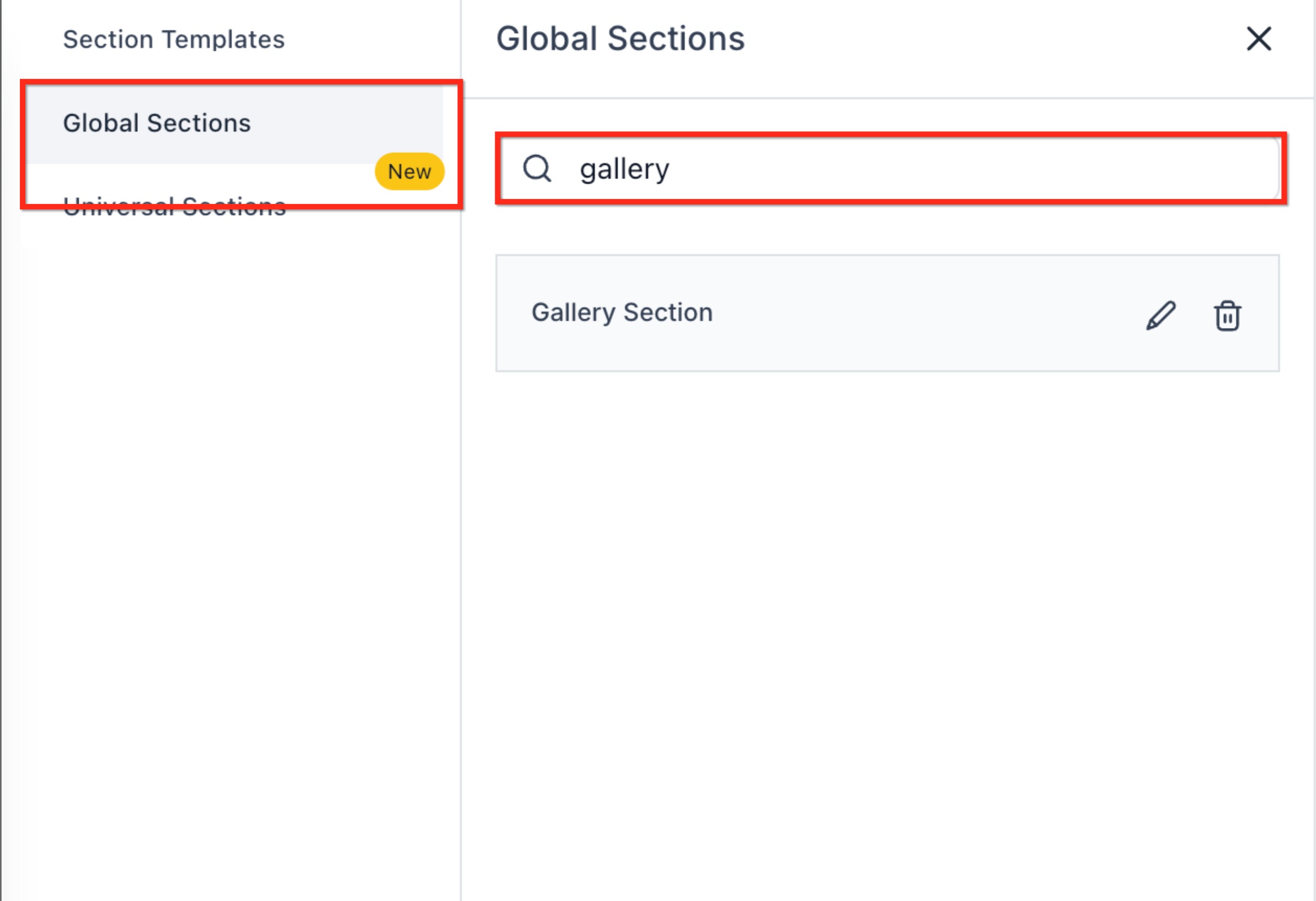
Typing a full or partial name filters the list in real time. Only Global Sections are searched; Local Sections are never included.
03How businesses use global sections
- Marketing agency. The agency opens a client’s funnel page in the Page Builder, clicks Add Elements, chooses Saved Sections, then Global Sections. It uses the search bar to type "header" and quickly drops the shared header block onto the new page.
- Ecommerce store. The store owner edits product gallery pages. In the Page Builder they select Global Sections, search for "gallery hero", and insert the matching block, ensuring all product pages share the same gallery layout.
- Coaching business. A coach creates a testimonial carousel as a Global Section. Later, when building a new workshop landing page, they search for "testimonial" and add the carousel without scrolling through other sections.
04How to set up and use global sections in HighLevel
Accessing Global Sections in the Page Builder
- Open the Page Builder for the desired page or funnel step.
- Click the Add Elements button in the left sidebar.
- Choose Saved Sections from the menu.
- Select the Global Sections tab to view reusable sections.
Searching Global Sections (New)
- Locate the search field at the top of the Global Sections panel.
- Enter all or part of the section name you want to find.
- Watch the list update right away to show matching Global Sections.
05What it looks like in HighLevel
06Things to know before you rely on it
- The search only looks at Global Sections; Local Sections are not included in results.
- The update does not alter how Global Sections are created, edited, or synchronized across pages.
07How it connects to the rest of HighLevel
- All Sites features overview All Sites features
- How to save and use element templates in the Page Builder Element templates
- HighLevel pricing and plans for access to Sites Pricing
Michael's take

Finding the right header or footer shouldn't feel like digging through a filing cabinet. Global sections let you keep those elements consistent across all pages, and the new search box cuts the time needed to locate the right piece.
The first setting I would get right is the name you give each global section. A clear, descriptive name makes the real time search work for you, letting you grab the exact component you need in seconds.