
01Who this is for
- Marketing agencies, can give client forms a fresh look that encourages interaction.
- Business coaches, can use bubble style in questionnaires to improve answer clarity.
- Ecommerce owners, can make checkout opt ins more noticeable on mobile devices.
02Bubble style for radio & checkbox elements, explained
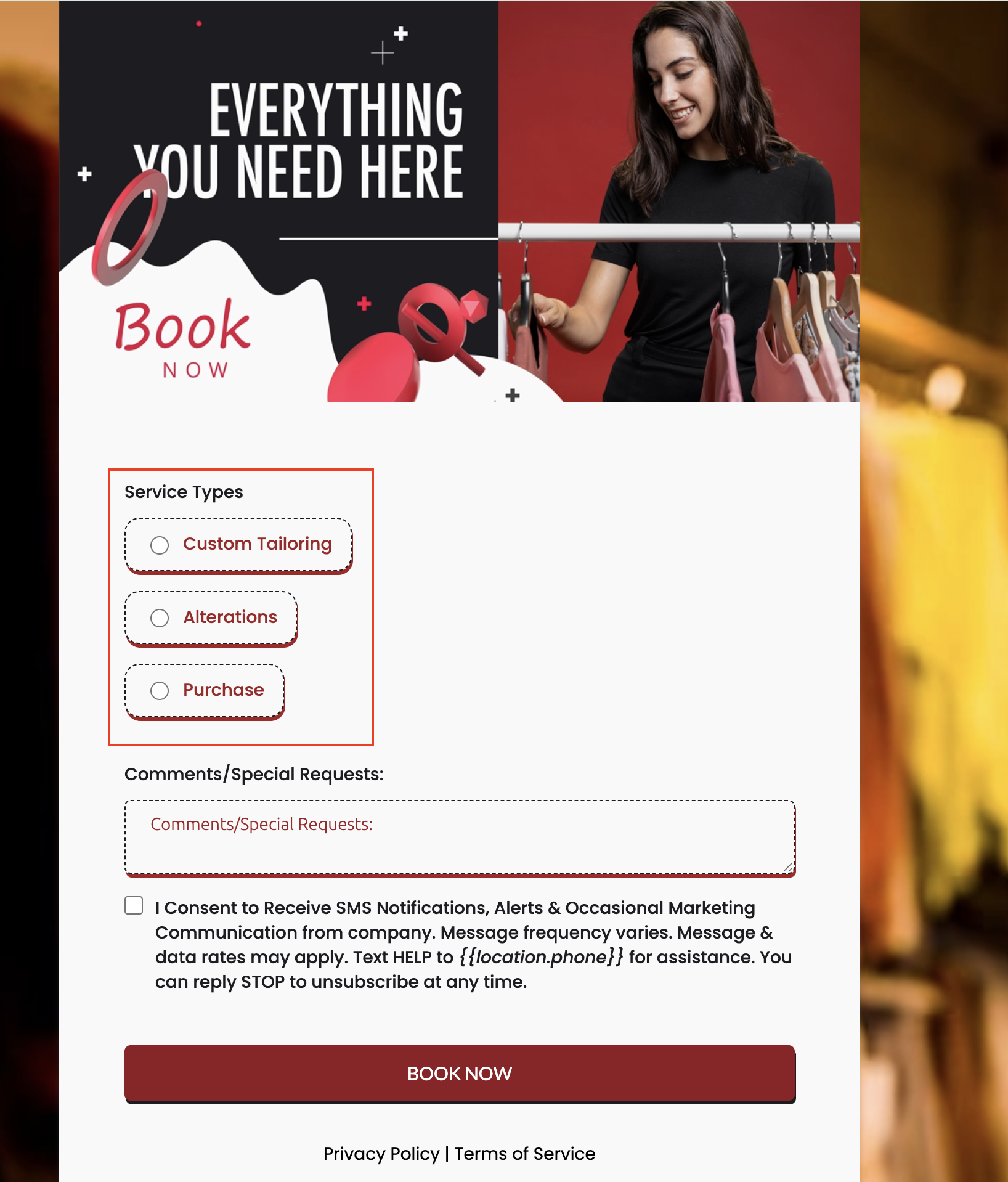
Bubble Style is a visual option for radio button and checkbox fields inside HighLevel’s Form, Survey, and Quiz builders. When selected, the field displays rounded, pill shaped bubbles instead of the standard markers. The change is purely cosmetic; it does not alter submission data, conditional logic, or workflow triggers.
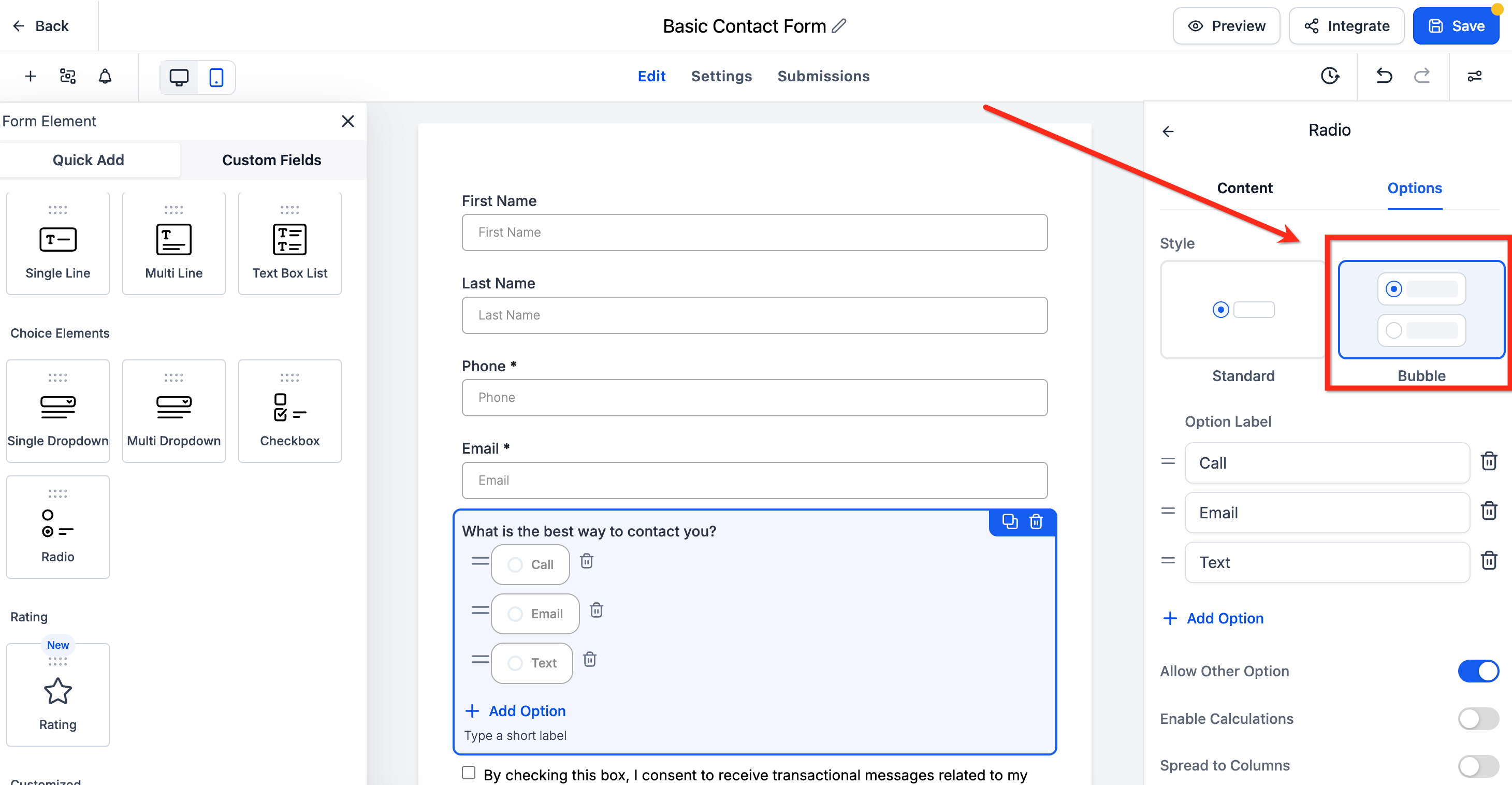
The setting is found in the right hand Options panel under the Style dropdown. Choosing "Bubble" applies the new design to every choice within that field. The bubbles resize automatically, providing clear tap targets on phones, tablets, and desktops.
Bubble Style works for assets embedded in Funnels, Websites, or external pages via embed code. Existing forms, surveys, or quizzes keep their original appearance until the option is manually switched.
03How businesses use bubble style for radio & checkbox elements
- Digital marketing agency. The agency opens a client’s form in the builder, selects a checkbox field, switches the Style to Bubble, and saves. The updated form is then embedded on the client’s landing page, giving a modern look without changing any data collection.
- Health coach practice. In a quiz used for client intake, the coach adds a radio field, enables Bubble style, and publishes the quiz. Respondents see larger, rounded choices that are easy to tap on mobile devices.
- Online retailer. The store’s checkout form includes a checkbox for newsletter sign up. By applying Bubble style, the checkbox becomes a prominent bubble, enhancing visibility while the underlying data flow remains unchanged.
04The numbers and rules that matter
- Bubble Style is 100% responsive by default.
05How to set up and use bubble style for radio & checkbox elements in HighLevel
Enable bubble style
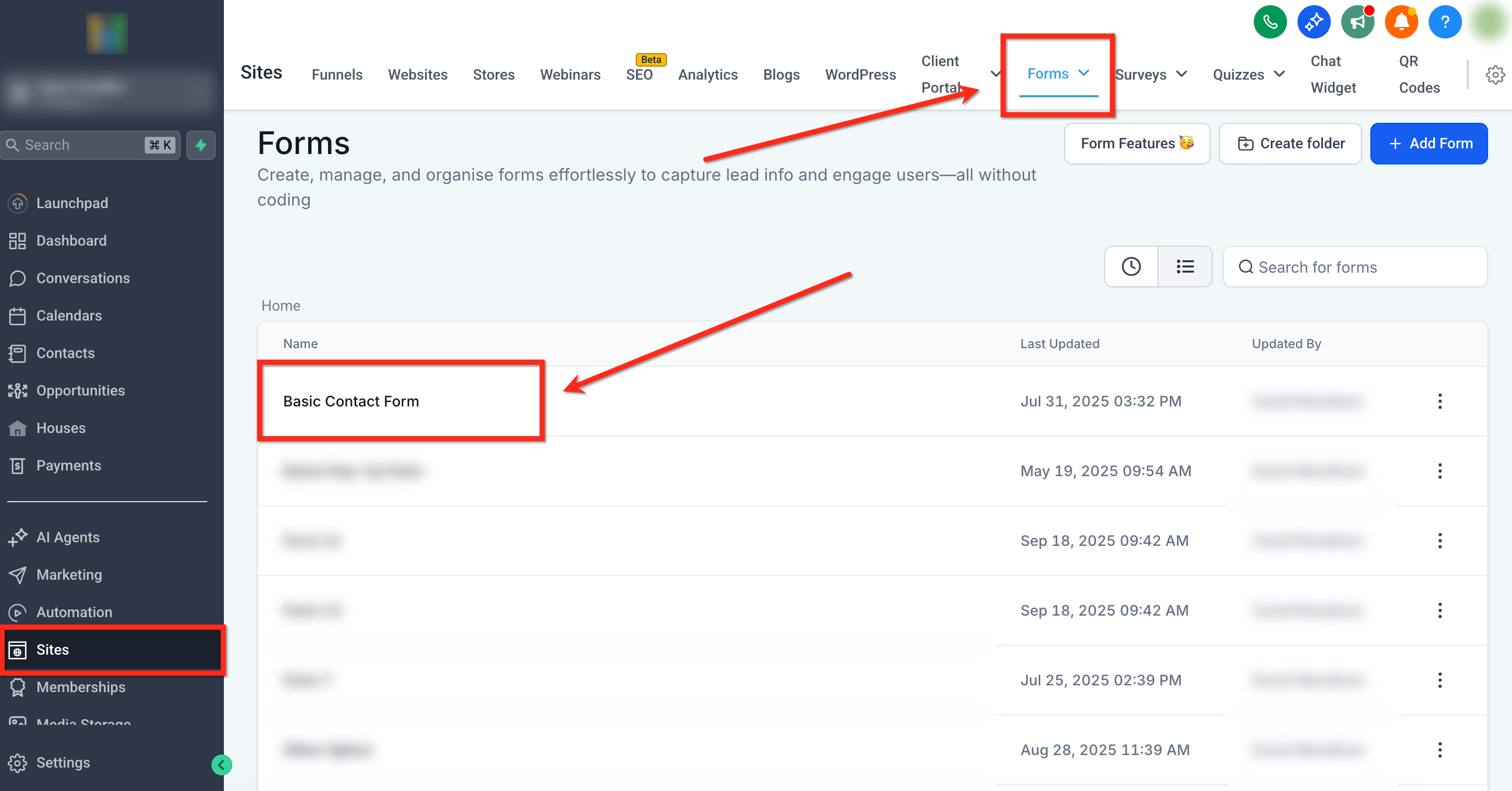
- Navigate to Sites > Forms (or Surveys / Quizzes) and click Edit on the desired asset.
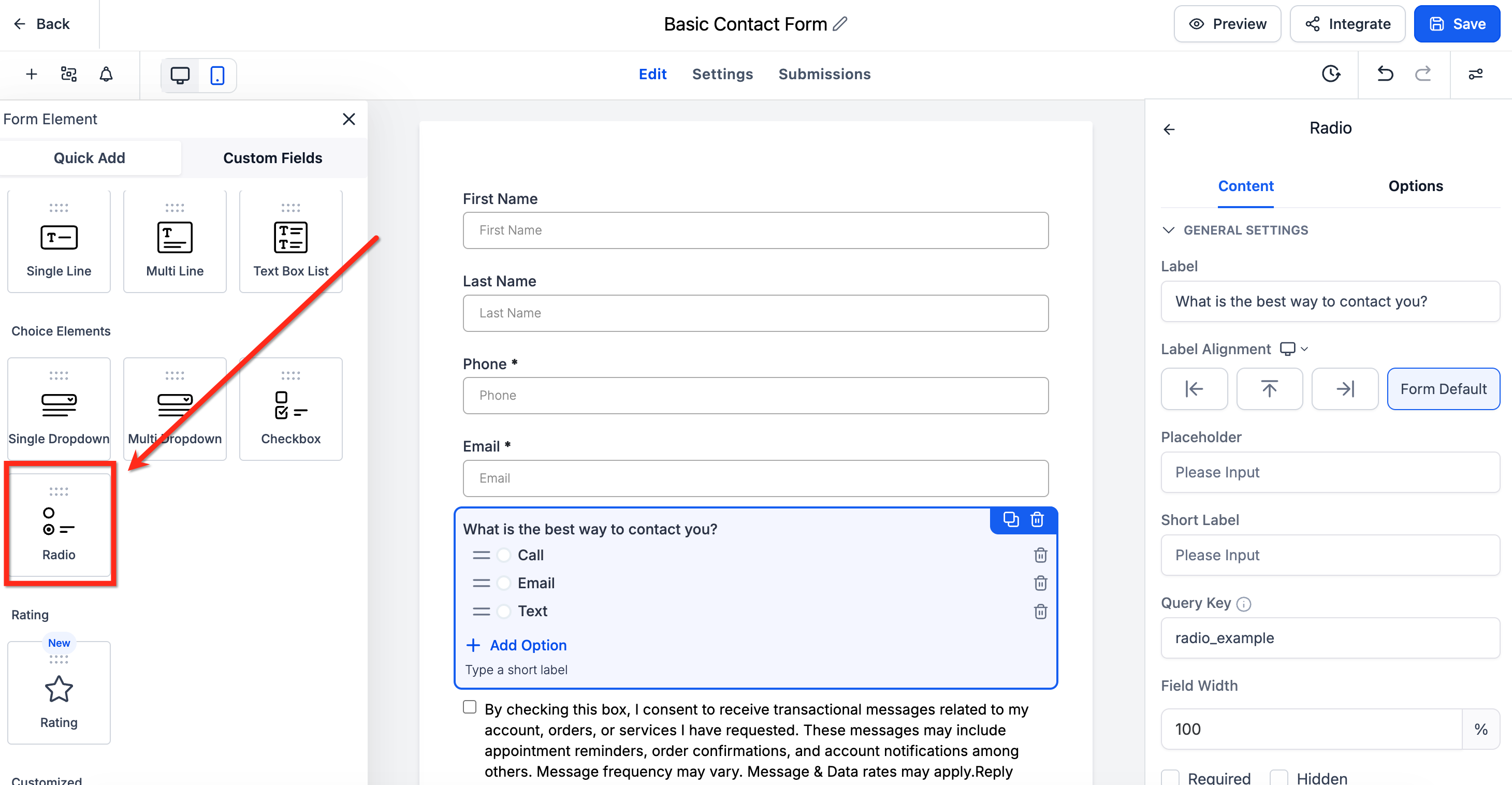
- Drag a Radio or Checkbox field onto the canvas, or select an existing one.
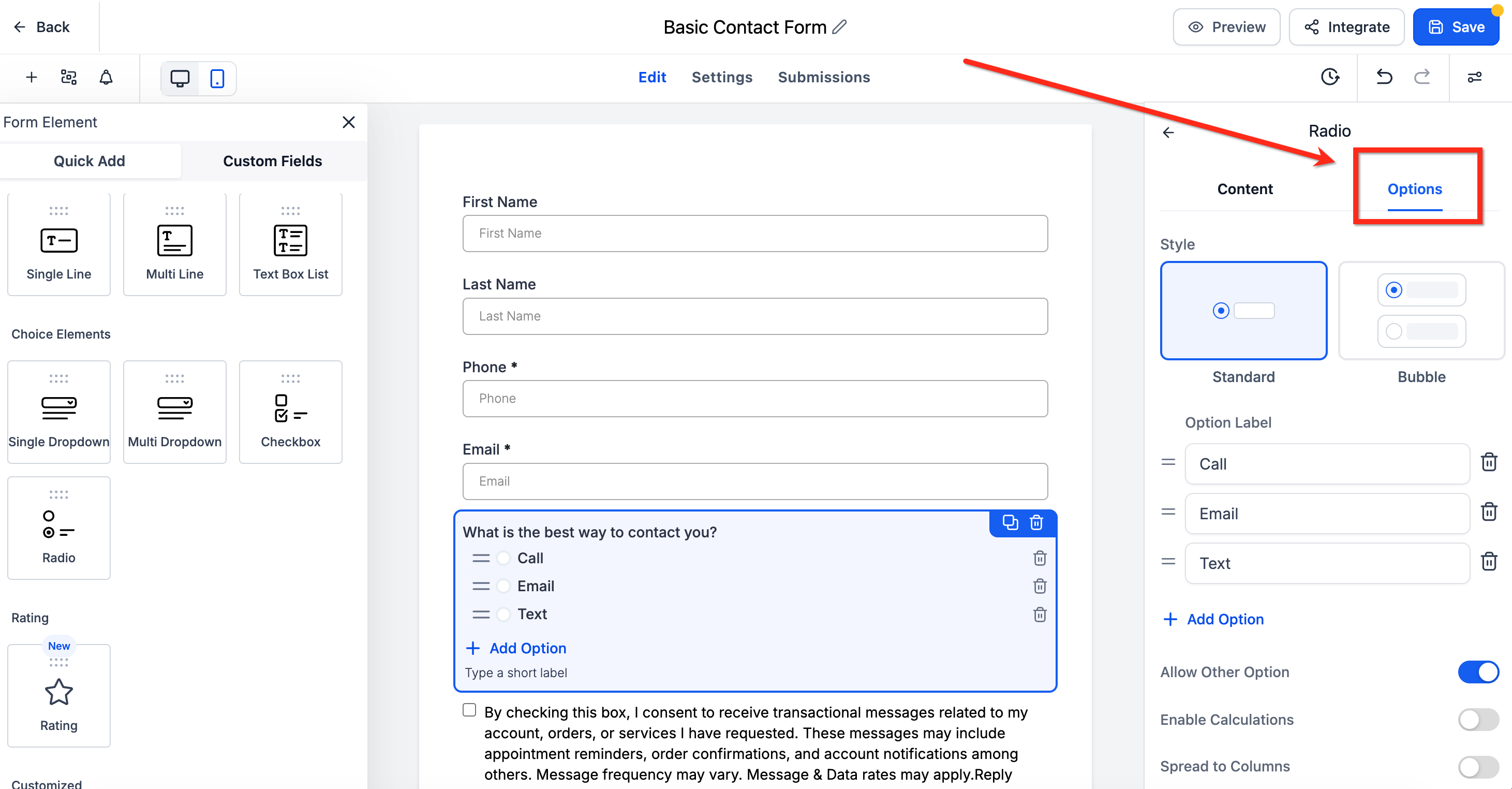
- In the right sidebar, open the Options tab.
- Under the Style dropdown, select Bubble.
- Click Save, then Preview or Embed as needed.
06What it looks like in HighLevel
07Settings that matter
- Style. Controls the visual appearance of radio button and checkbox fields; choosing Bubble applies a rounded, pill shaped design to the entire element.
08Things to know before you rely on it
- Works only in Forms, Surveys, and Quizzes placed in Funnels, Websites, or external embed code.
- The styling is visual only and does not affect submission data, conditional logic, or workflow triggers.
- Existing assets retain their current look until the Bubble option is manually enabled.
- Responsive behavior is built in; bubbles resize automatically across screen sizes.
09How it connects to the rest of HighLevel
- Explore all site related features All Sites features
- Review HighLevel pricing and plans HighLevel pricing
- Start a 30 day trial of HighLevel 30 day trial
Michael's take

Bubble style gives your forms a quick visual lift with rounded, easy to tap options.