
01Who this is for
- Marketing agencies, can quickly brand client forms with consistent themes.
- Coaches, can apply a professional look to sign up surveys without design work.
- Ecommerce stores, can match checkout forms to brand colors for a unified experience.
02Themes in forms and surveys, explained
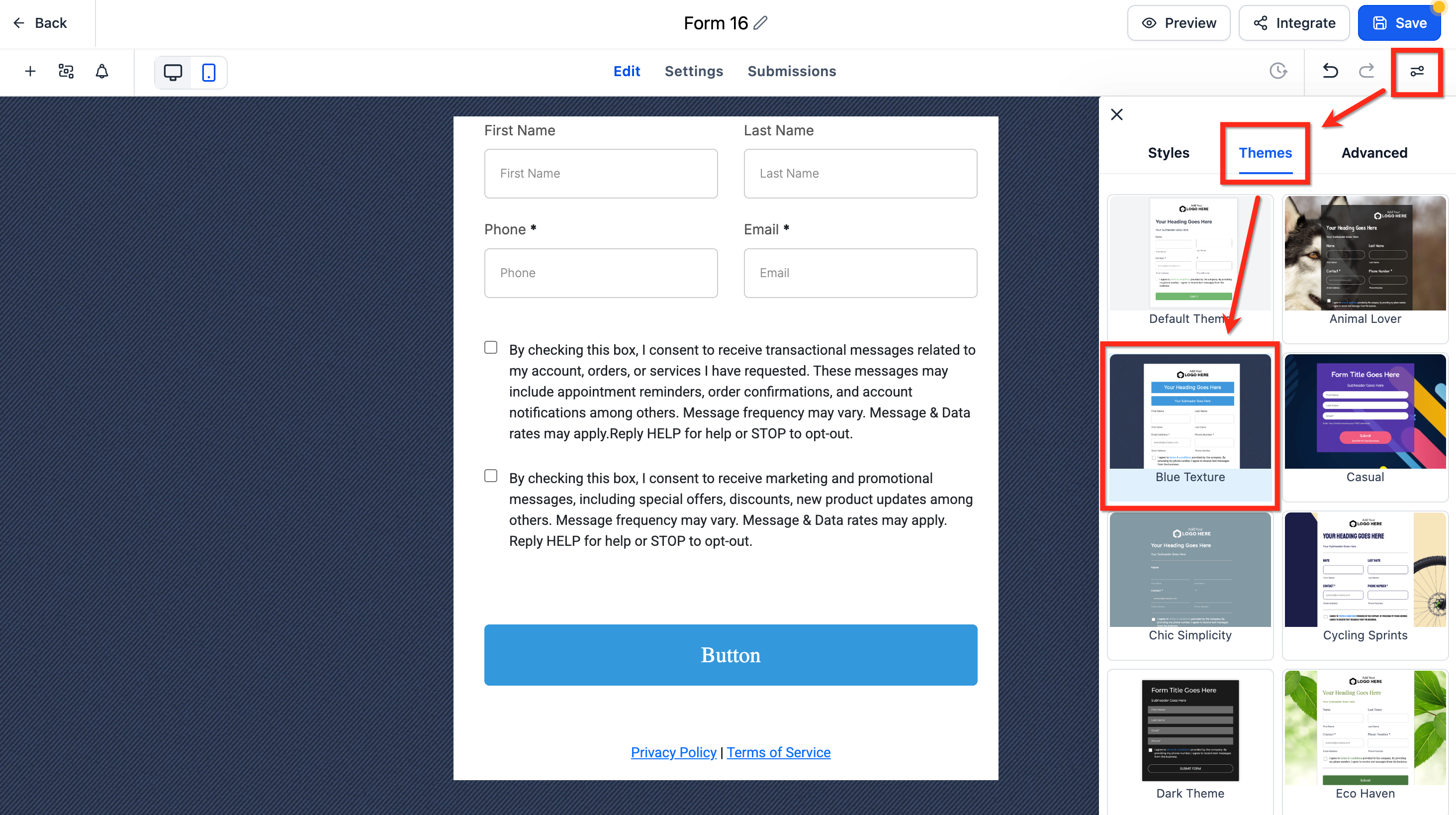
Themes live in the Form and Survey Builder’s right hand sidebar. They provide a full visual package that includes colors, button styles and optional background images. When a theme is chosen, the form updates right away and shows a live preview on desktop, tablet and mobile.
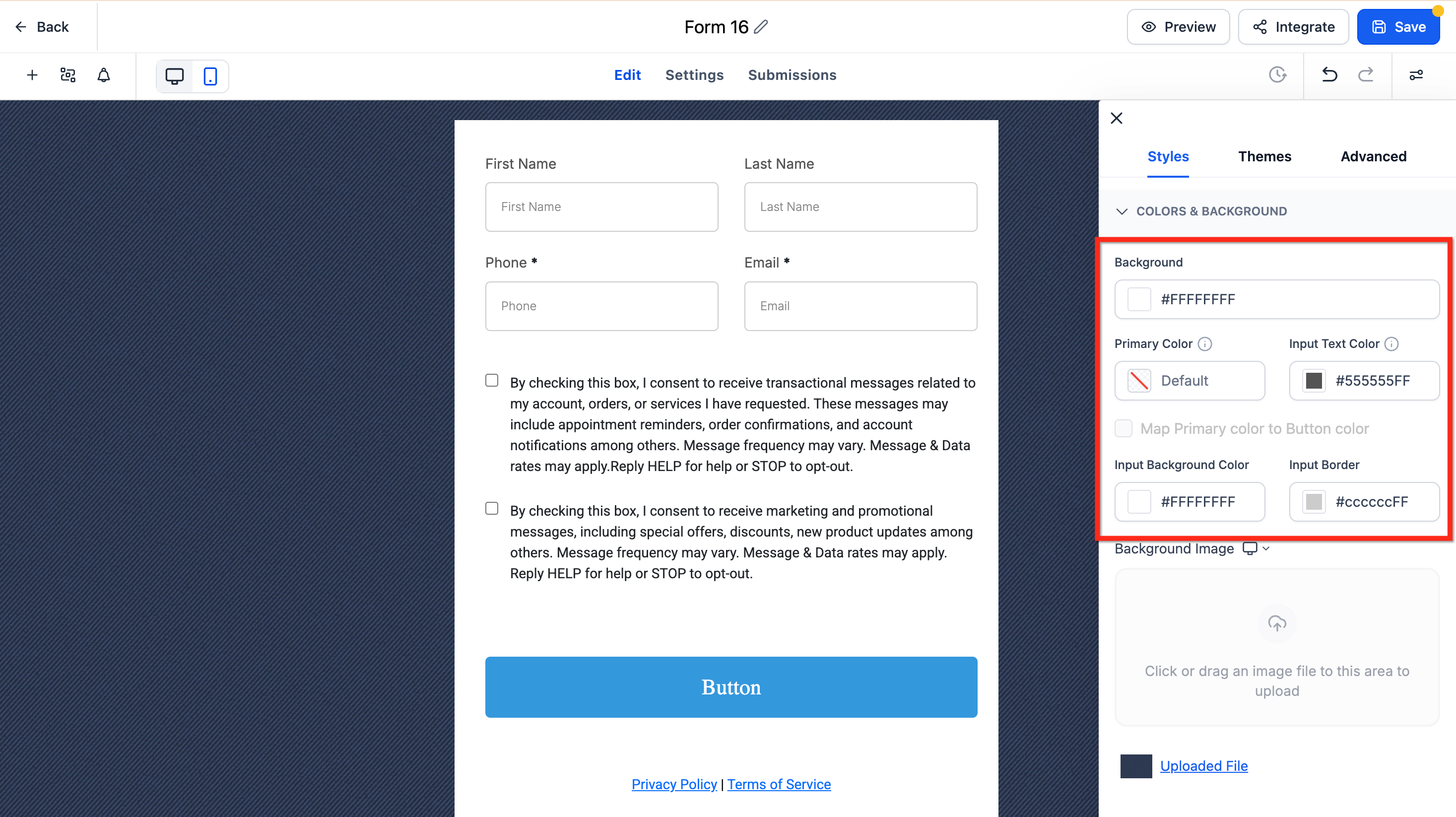
After a theme is applied you can modify individual style groups such as Colors & Background, Typography, Layout & Alignment, Padding, Border & Corner Radius, and Shadow. The Full Width toggle and background image uploader let you customize the layout further, while the Button Styling Panel lets you keep button branding consistent across assets.
03How businesses use themes in forms and surveys
- Digital marketing agency. The agency opens each client’s form, selects a pre built theme that matches the client’s brand, and then adjusts the primary color and button style to satisfy the client’s guidelines. The updated form is then embedded on the client’s landing page.
- Fitness trainer. The trainer creates a sign up survey, applies a theme with a clean background, uploads a custom background photo after removing the default image, and tweaks the button colors to match the gym’s logo before sharing the link with prospects.
- Real estate brokerage. The brokerage builds a property interest form, chooses a theme that uses neutral tones, edits the input field colors for better contrast, and turns on Full Width to ensure the form stretches across the mobile site layout.
04The numbers and rules that matter
- The default theme for Forms, Surveys, and supported Quiz components has a refreshed look and feel.
05How to set up and use themes in forms and surveys in HighLevel
Apply a theme to a form or survey
- Open the desired Form or Survey in the builder interface.
- Click the Styles & Options button at the top right to show the right sidebar.
- Select the Themes tab and pick the theme you want to use.
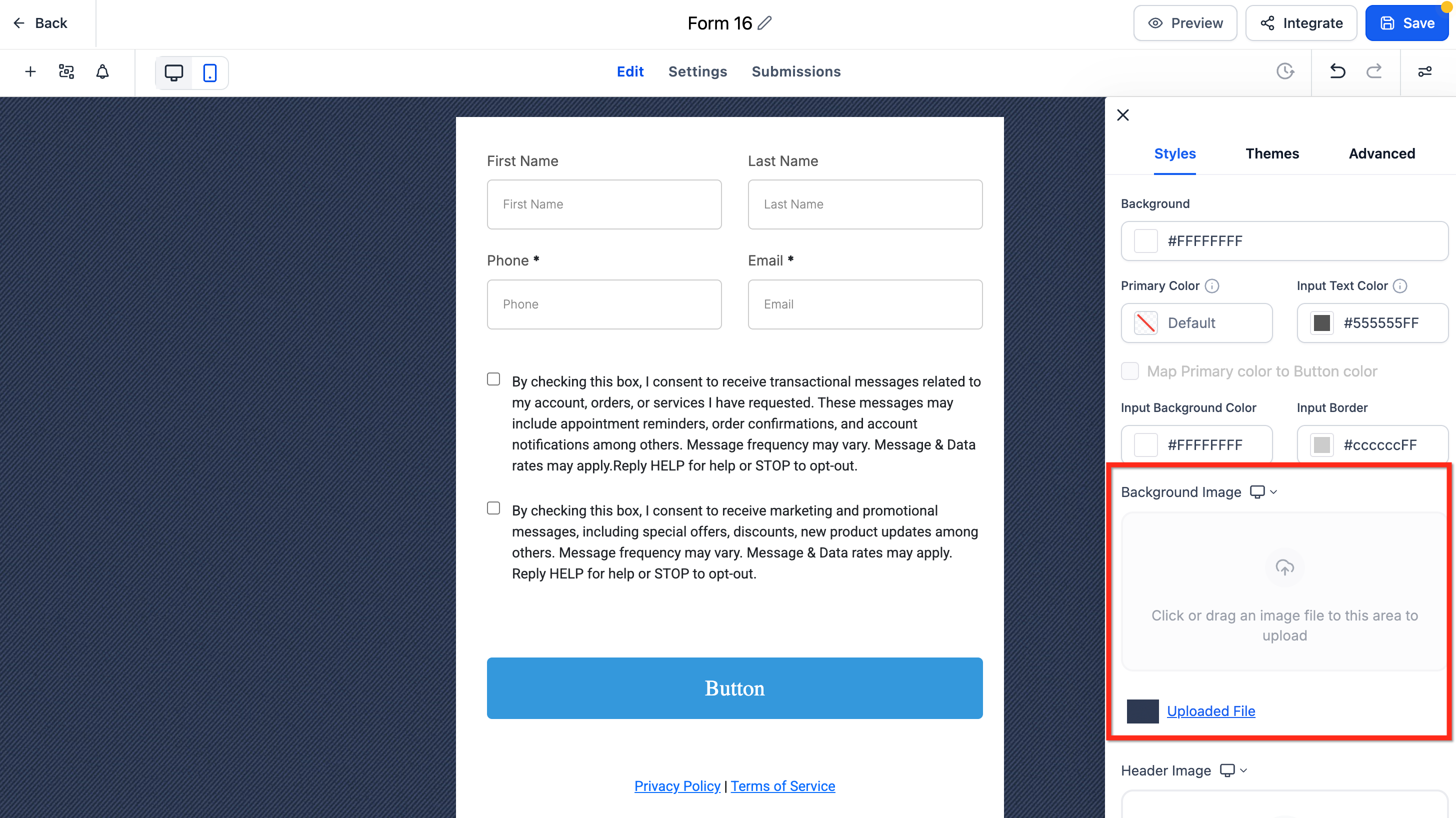
Change the background image
- If the chosen theme includes a default background, delete that image first.
- Click the Background Image control that appears after the default is removed.
- Upload the new image file you want to use as the background.
06What it looks like in HighLevel
07Settings that matter
- Themes. Shows a gallery of pre designed visual presets that can be applied to the current form or survey.
- Colors & Background. Controls the colors for the form background, text inputs and borders, letting you align the palette with your brand.
- Typography. Sets the font family, size and style for headings, labels and input text.
- Layout & Alignment. Adjusts how elements are positioned and aligned within the form.
- Padding. Defines the space inside form elements to affect visual density.
- Border & Corner Radius. Manages the thickness of element borders and the roundness of their corners.
- Shadow. Adds a drop shadow effect to form components for depth.
- Full Width. When toggled on, expands the form to occupy the full horizontal space of its container.
- Background Image. Lets you upload a custom image to use as the form’s background after any default image is removed.
- Reset/Revert. Restores the theme and style settings to their original state before any custom changes.
08Things to know before you rely on it
- The Upload New Background button stays disabled until the theme’s default background image is deleted.
- Themes are applied per asset; to keep multiple forms consistent you must repeat the apply and customize steps for each one.
- Button themes can be reused across assets, but each form or survey still needs the theme applied individually.
09If something goes wrong
- Upload New Background button is disabled. Delete the theme’s default background image first; the upload control becomes active afterward.
10How it connects to the rest of HighLevel
- Enable sticky contact to keep form leads visible on the page Sticky contact
- Add address auto complete to Forms and Surveys for faster data entry Address auto complete
- Embed HighLevel forms on external website builders after styling them with themes Embedding forms
Michael's take

I find themes useful when I need a quick, professional look for landing pages, newsletters, or event sign ups.
If you already have a fully custom design system, you might find the theme library adds little value and prefer to style from scratch.