
01Who this is for
- Founders who run a content driven website and need a quick way to capture visitor emails.
- Marketing teams that want to segment blog readers for targeted email outreach.
- Small business owners who maintain a HighLevel blog and prefer automated post delivery.
02Subscribe to Blog, explained
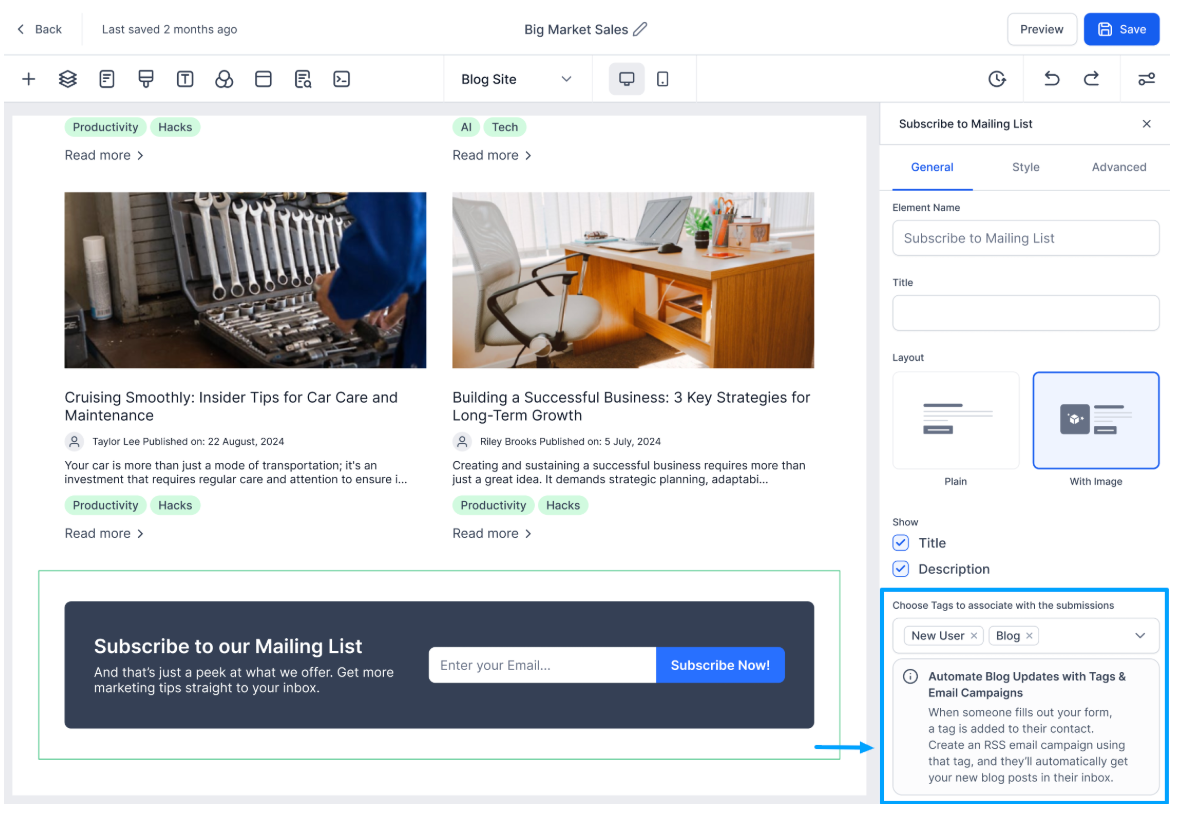
The feature adds a customizable subscription form to a blog page. You can edit the title, description, button label, layout, fonts, colors, and spacing directly in the site editor. Each submission creates a new contact in the platform’s CRM and applies a predefined tag, such as “Blog”.
When a tag is attached, you can build an email campaign that pulls the latest posts via RSS. The campaign uses special RSS Header and RSS Items blocks, schedules itself to run whenever new content appears, and targets contacts that carry the blog tag. This keeps subscribers informed without manual effort.
Both the form and the RSS campaign live inside HighLevel. The form resides in the Blog Builder > Site Editor, while the email campaign is created under Email Campaigns. No external tools are required.
03How businesses use subscribe to Blog
- SaaS startup. The startup adds a subscription form to its product blog, tags new contacts as “Blog”, and creates an RSS email campaign. Each time a feature article is published, the system automatically emails the tagged list.
- Local service provider. The provider places a form in the blog sidebar, captures homeowner emails, and runs an RSS campaign that sends the latest home maintenance tips. All contacts appear in HighLevel with the appropriate tag.
- Online education platform. The platform adds a form on its course updates blog, tags learners, and sets up an RSS driven email that delivers new lesson announcements to the tagged audience.
04Before you start
- A blog site must already exist in HighLevel.
05How to set up and use subscribe to Blog in HighLevel
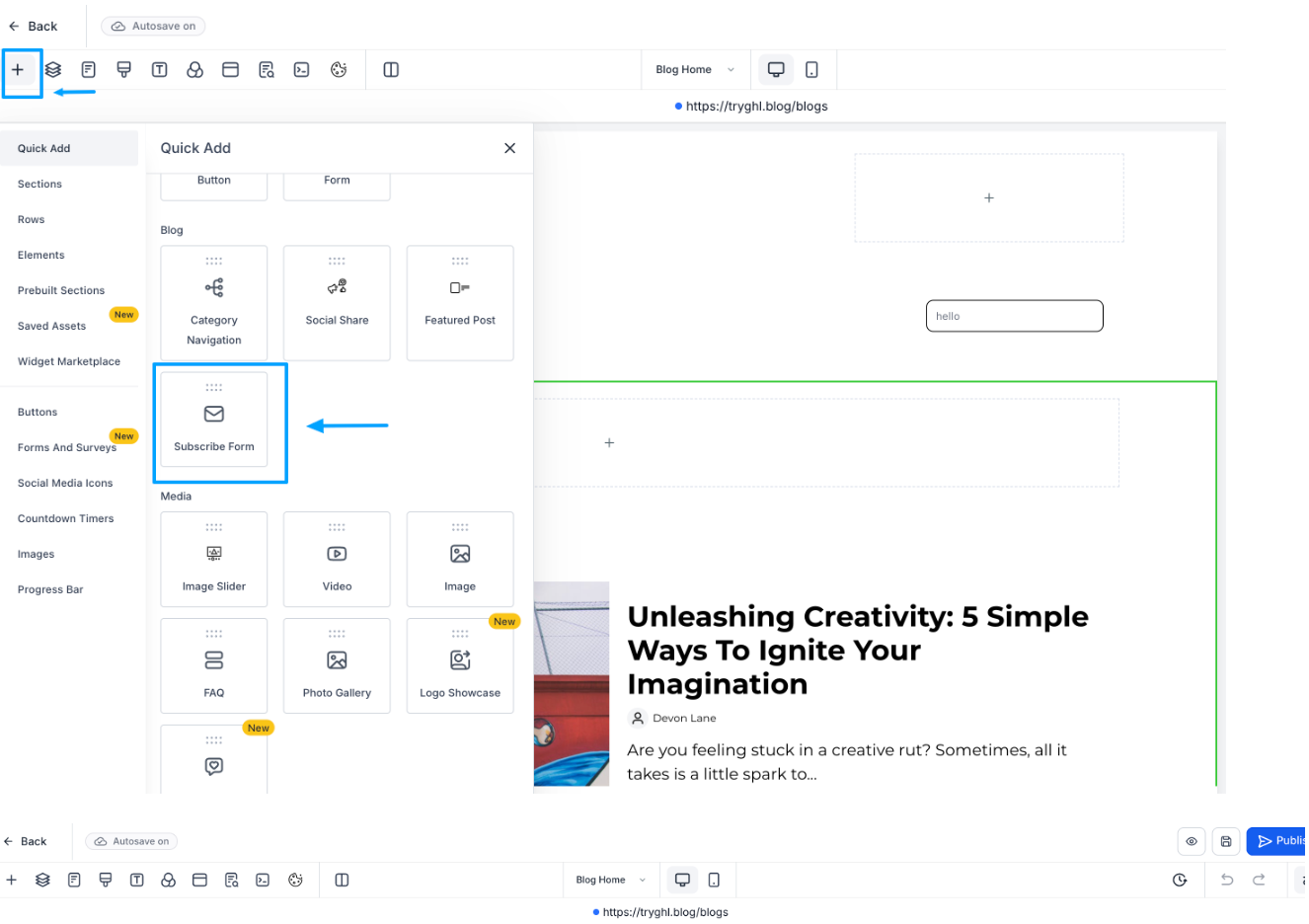
Add subscribe form to blog
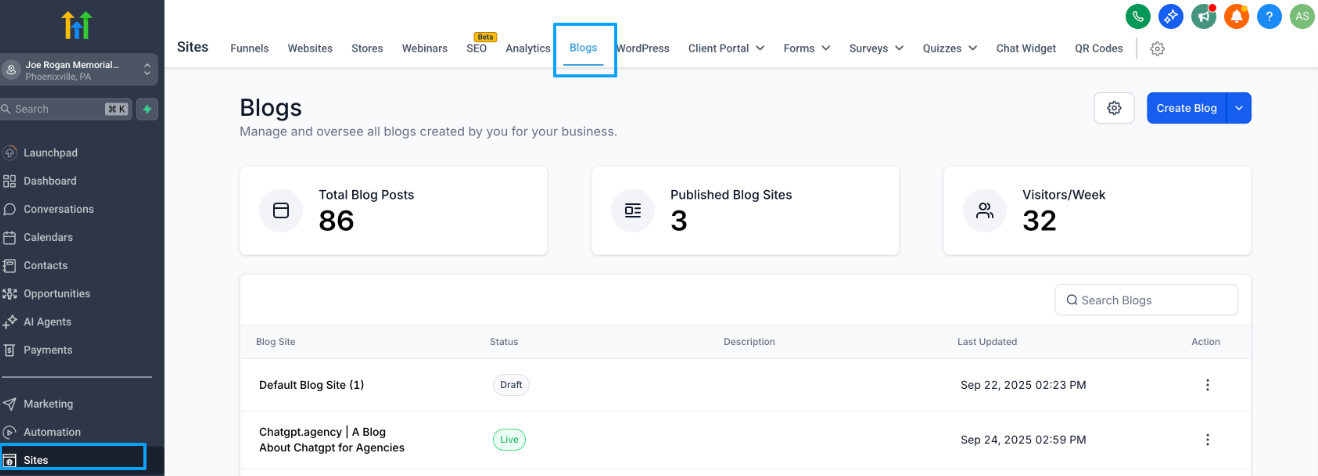
- Navigate to Sites.
- Select the blog site you want to edit.
- Click Blog Builder > Site Editor to open the editor.
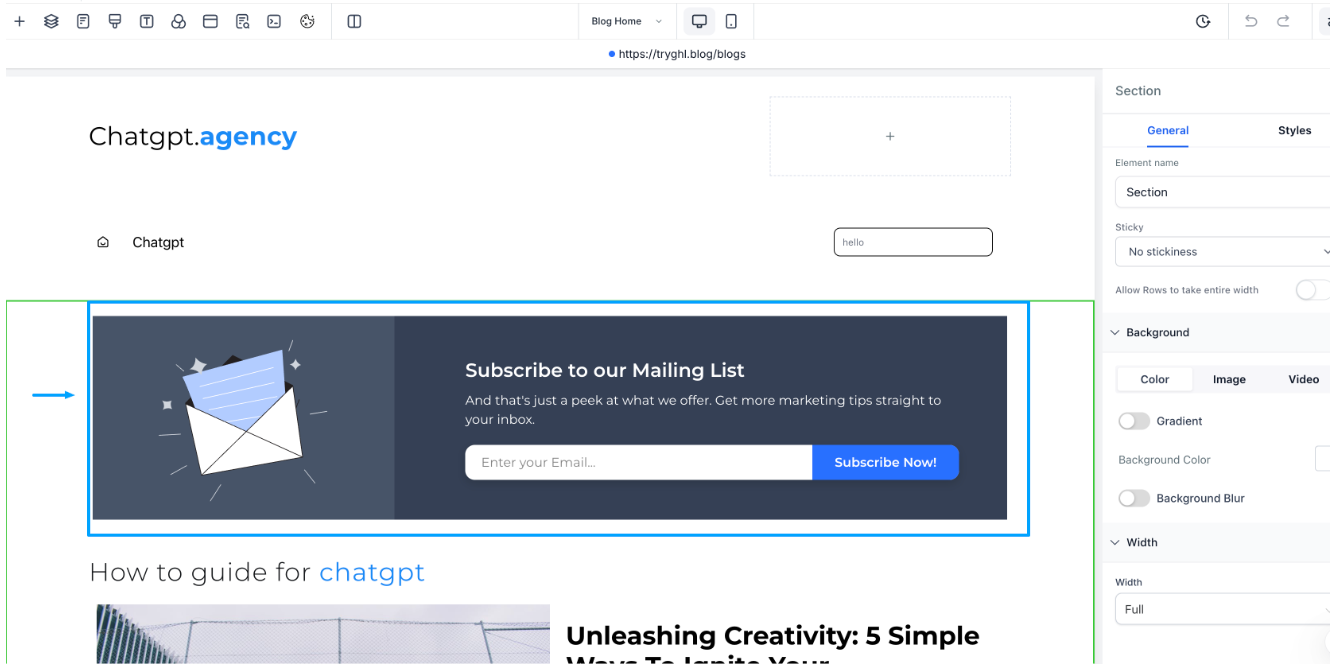
- Drag the Subscribe form element onto the page.
- Edit the form title.
- Edit the description, button text, layout, fonts, colors, and spacing.
- Click Publish to make the page live.
Create RSS email campaign for subscribers
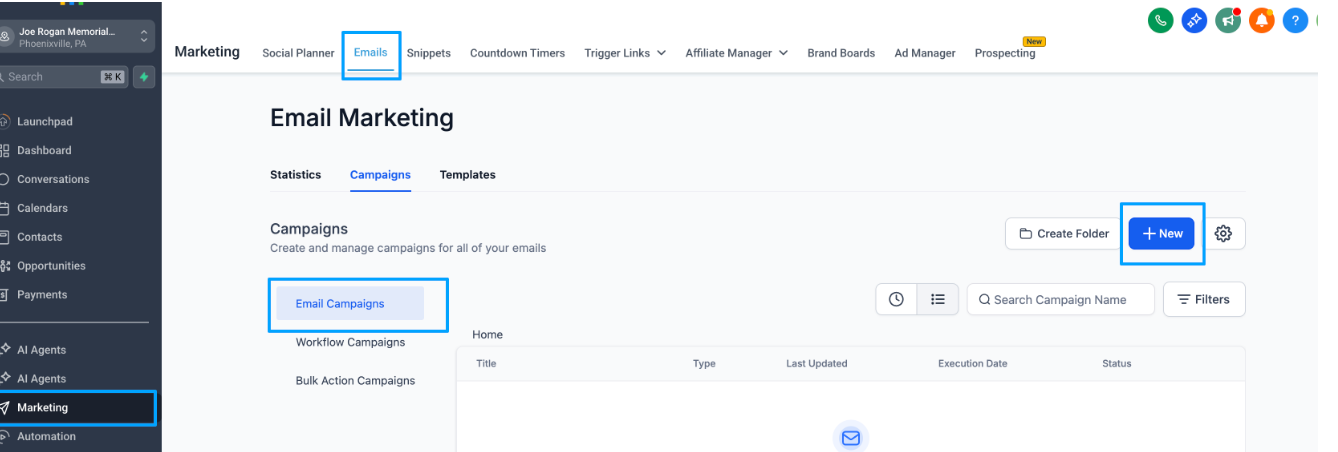
- Go to Email Campaigns and start a new campaign.
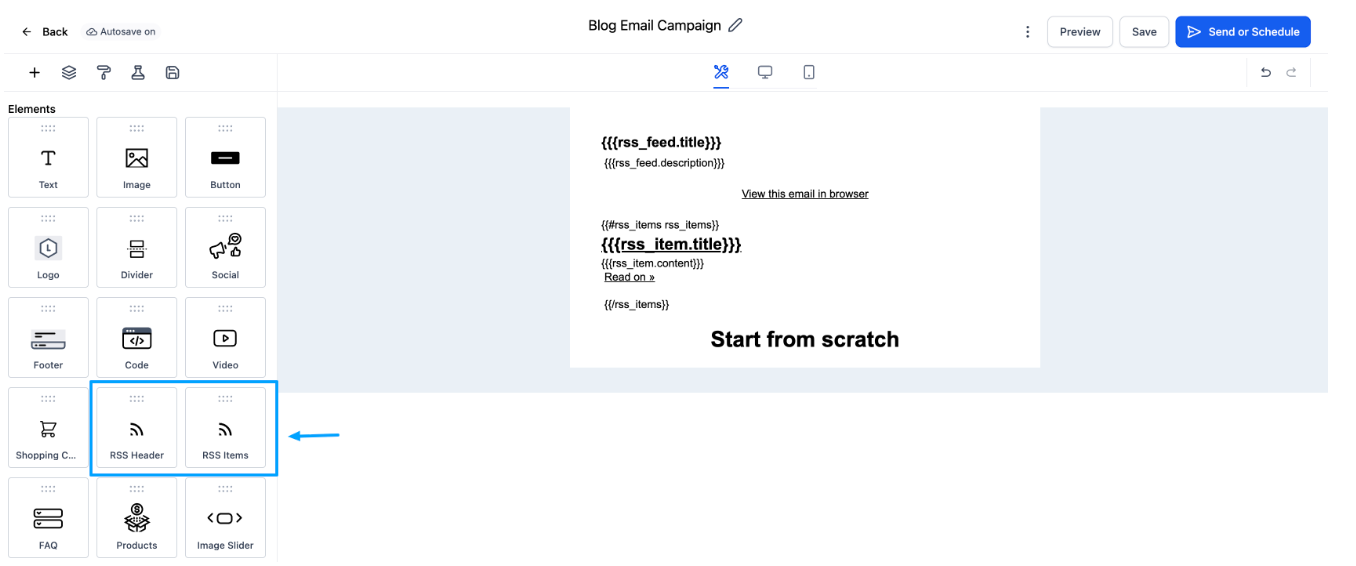
- Add an RSS Header block to the email body.
- Add an RSS Items block to the email body.
- Set the schedule to RSS Schedule so new posts are pulled automatically.
- Choose Recipients > Contacts from Tag > Blog and save the campaign.
06What it looks like in HighLevel
07Settings that matter
- Layout. Determines whether the form appears with only text (Plain) or with an accompanying image (With Image).
- RSS Header. Displays the blog’s title and summary at the top of the email.
- RSS Items. Shows a list of the newest blog posts in the email.
- RSS Schedule. Enables the campaign to retrieve and send the latest posts each time the schedule runs.
- Tag → Blog. Filters contacts that have been tagged by the subscription form for inclusion in the campaign.
08Things to know before you rely on it
- Multiple subscription forms can be placed on the same blog page; all submissions share the same contact tag.
- The feature currently does not include an unsubscribe option for subscribers.
- Adding the form does not impact the blog’s SEO.
09How it connects to the rest of HighLevel
- Set up and manage blogs in HighLevel Blog setup guide
- Create an RSS feed for your HighLevel blog RSS feed guide
- Add and edit SEO information for blog posts SEO editing guide
Michael's take

The Subscribe to Blog feature lets you capture emails directly on your blog page and tag them for future outreach.