
01Who this is for
- Agency admins who need a repeatable onboarding flow for client sites, ensuring each launch follows the same steps.
- Authorized users with WordPress management permissions who can view and work through the guide.
02WordPress hosting setup guide, explained
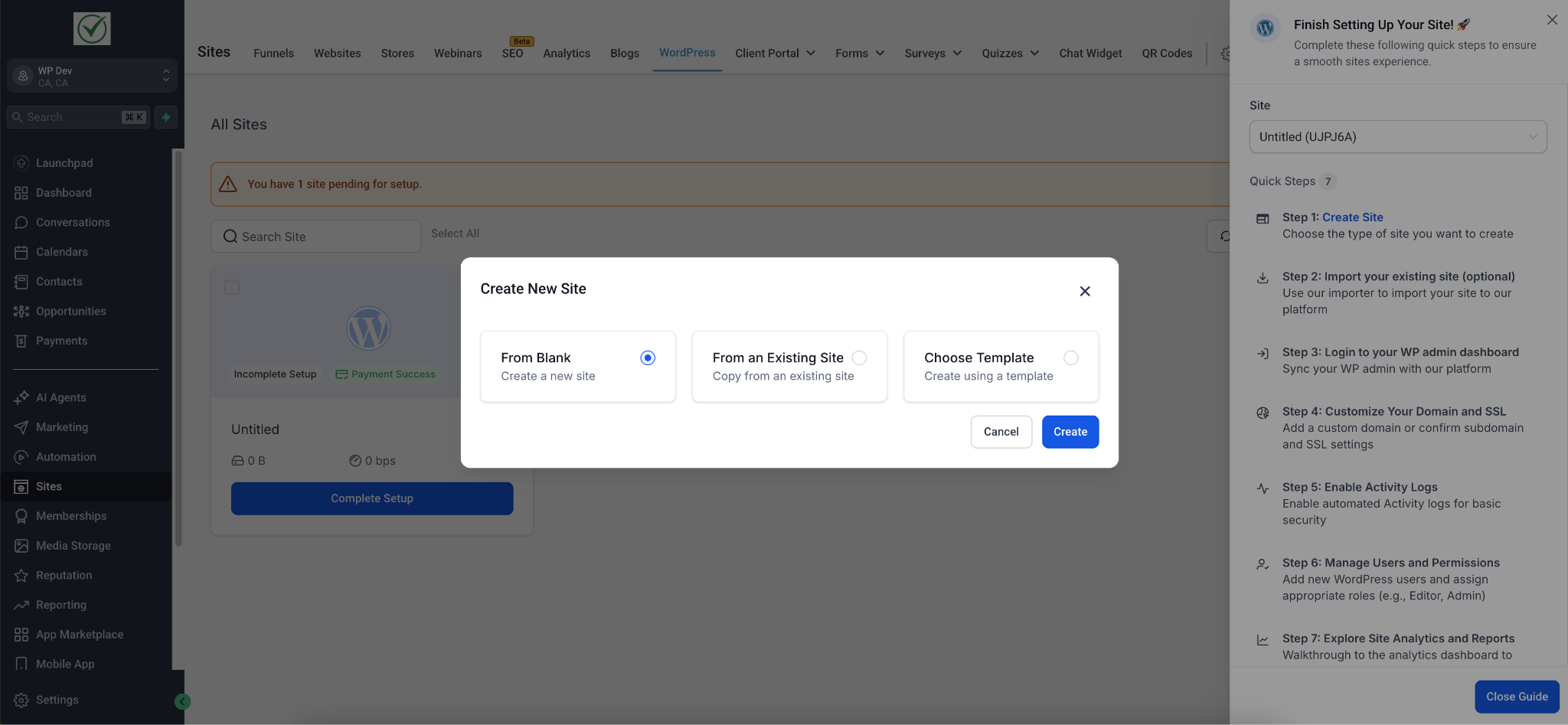
The Setup Guide appears on the dashboard of any newly provisioned WordPress site after a hosting subscription is active. It shows a series of tasks with clear call to action buttons and a progress bar, allowing users to see what is completed and what remains.
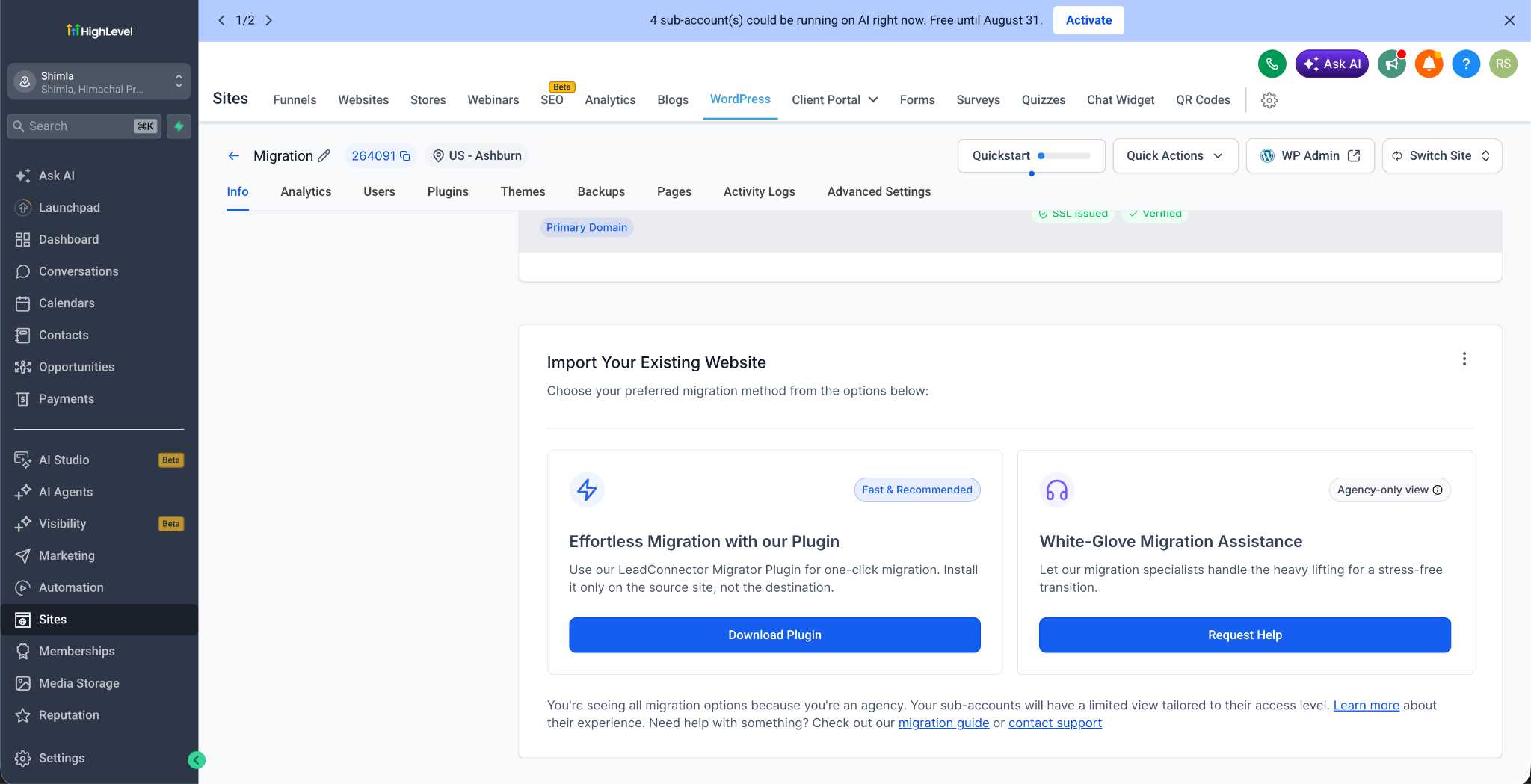
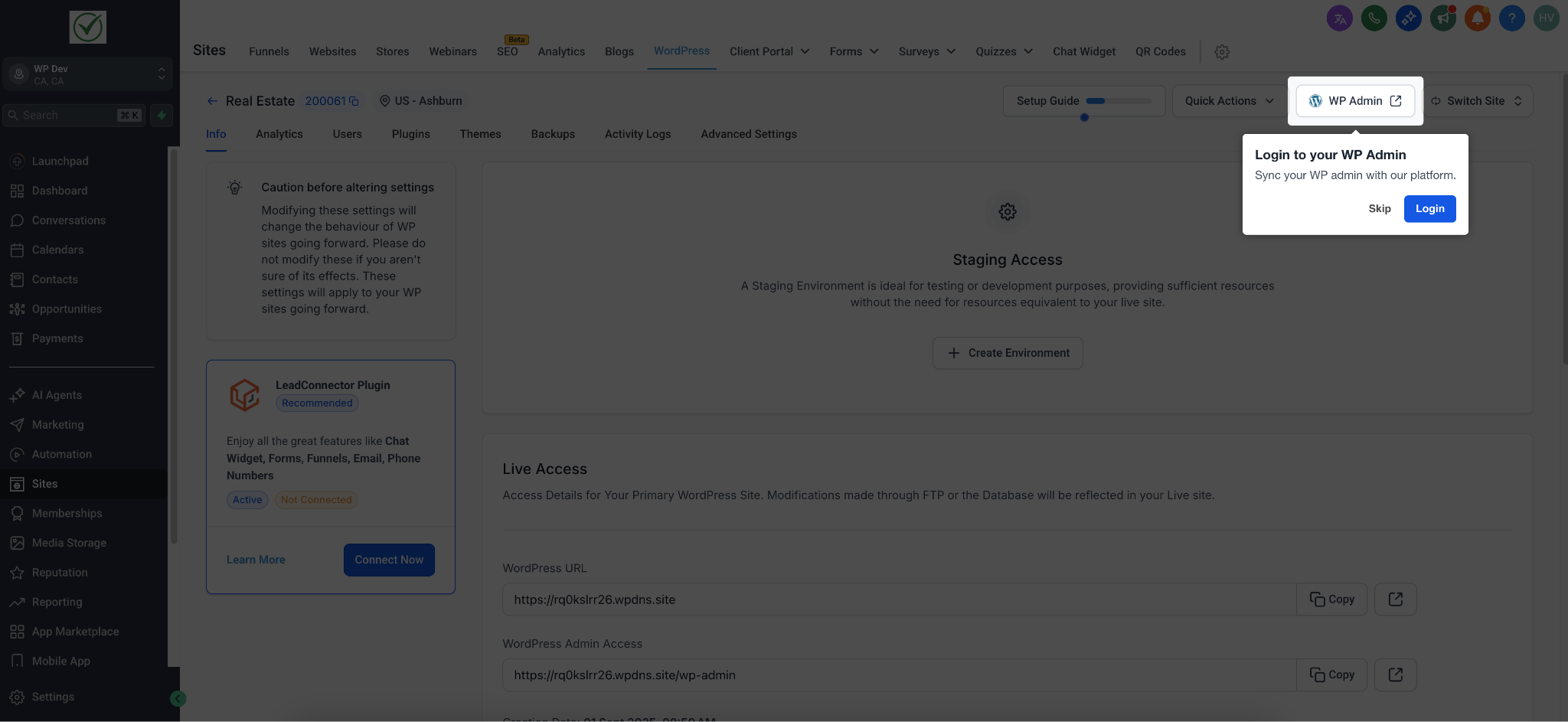
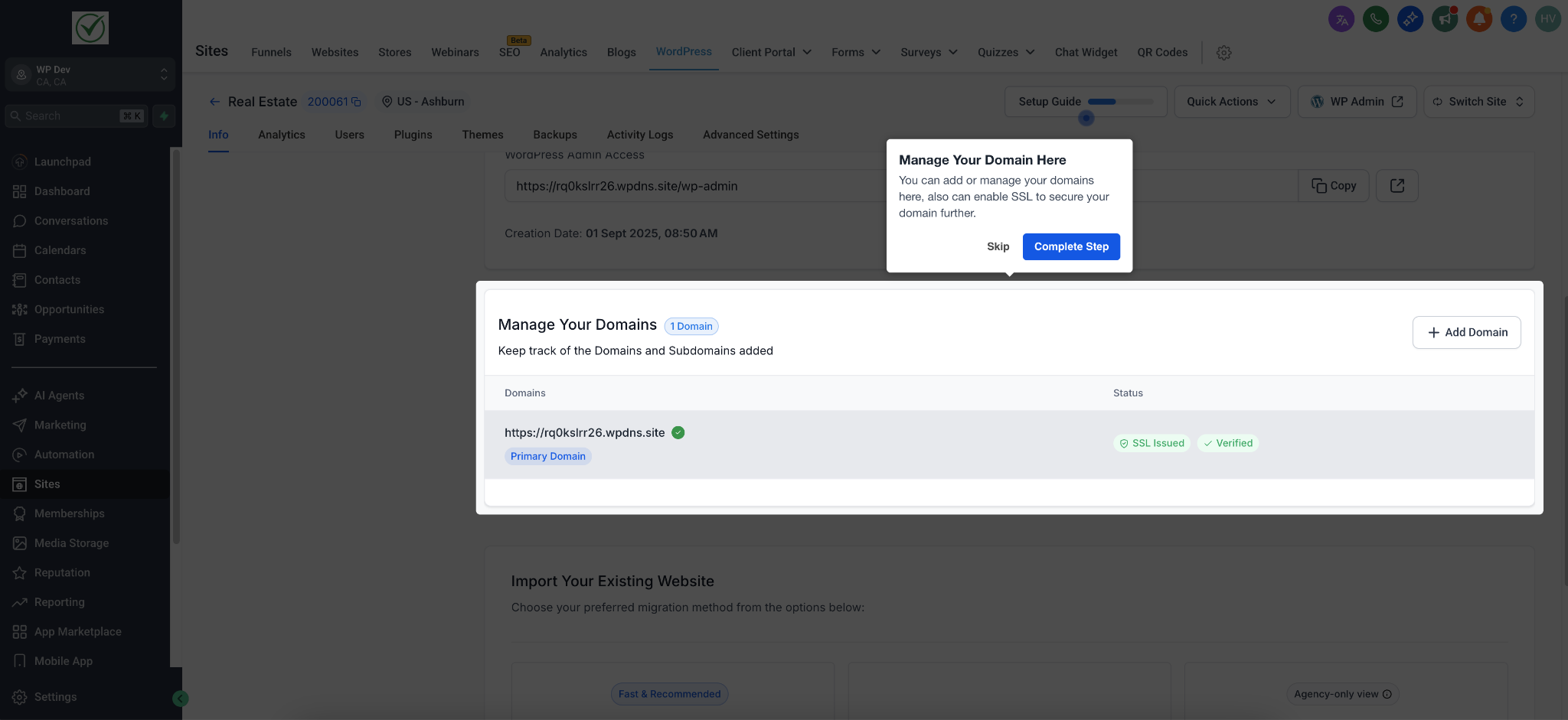
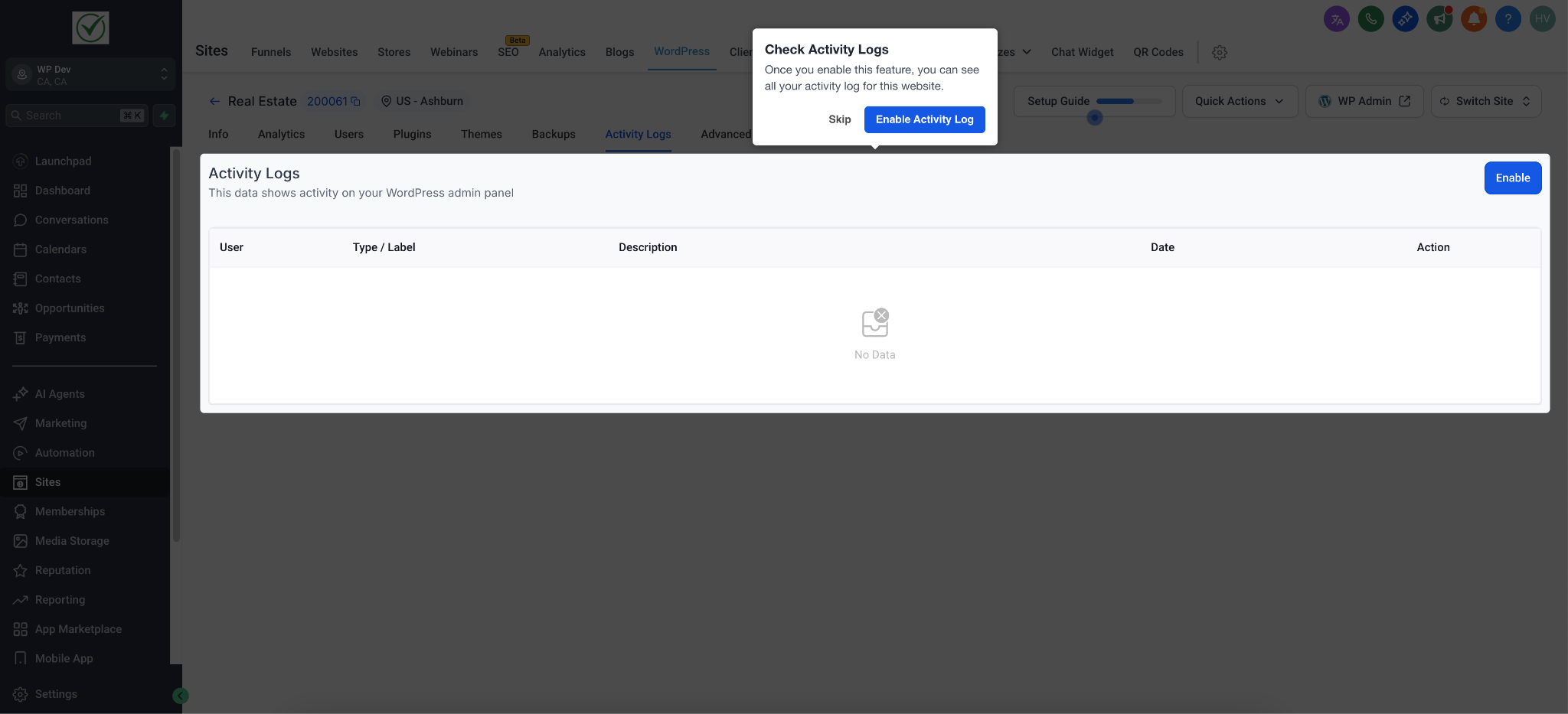
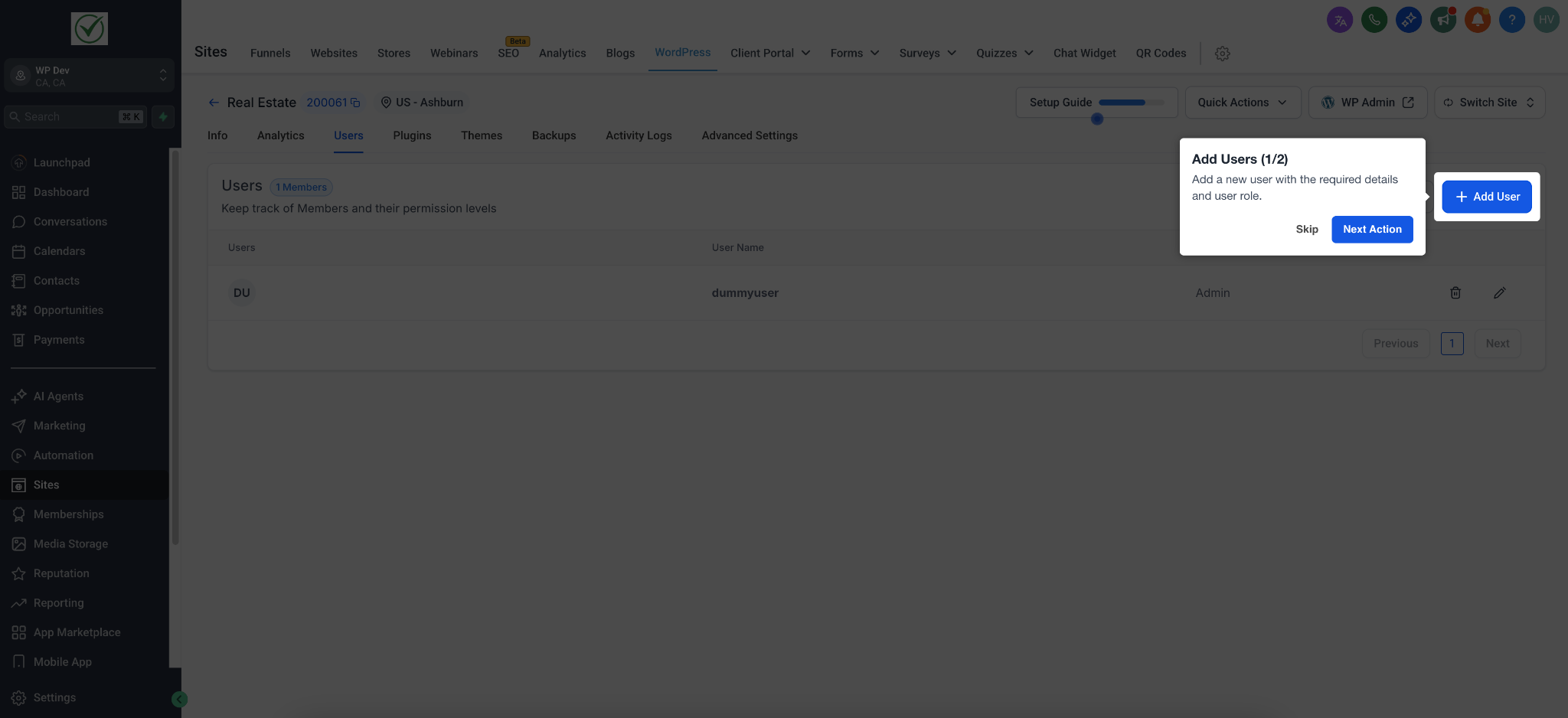
Tasks cover creating the site, importing existing WordPress content, one click access to the WP admin area, connecting a primary domain with Cloudflare managed SSL, turning on security logs, assigning user permissions and enabling analytics via the Uptime Monitoring report.
Optional items can be skipped. When every required step is marked complete, the guide automatically disappears, keeping the dashboard uncluttered. It can be reopened later from the dashboard if needed.
03How businesses use WordPress hosting setup guide
- Digital marketing agency. The agency selects a template or clones a previous client site, imports the client’s existing WordPress content, connects the client’s domain with SSL, enables security logs and assigns team members appropriate roles before launching the site and checking the visitor analytics.
- Local retailer expanding online. The retailer creates a fresh site from a blank install, attaches their store domain with SSL, turns on security logs for audit purposes, grants admin rights only to the store manager, and then monitors traffic through the Uptime Monitoring visitor report.
- Consulting firm offering client portals. The firm imports an existing client portal WordPress site, uses the one click WP Admin button to adjust settings, enables security logs to track changes, sets user permissions for consultants, and reviews analytics after the portal goes live.
04The numbers and rules that matter
- Imported content counts toward plan's allocated storage limits.
05Before you start
- A WordPress Hosting subscription must be active.
- The user must have Agency admin or WordPress management permissions.
06How to set up and use WordPress hosting setup guide in HighLevel
Complete the WordPress Hosting Setup Guide
- Open the dashboard of the newly provisioned WordPress site.
- Locate the Setup Guide panel that displays the task list.
- Review each listed task and read its tooltip for guidance.
- Click the Continue button on the active prompt to start a step.
- Repeat the Continue action until all tasks are marked complete and the guide hides itself.
07What it looks like in HighLevel
08Settings that matter
- Security Logs. Activates a log view that records changes made to the site, providing an audit trail for troubleshooting and security.
- Uptime Monitoring. Enables the Visitors Report under Analytics, allowing you to see traffic and engagement metrics for the launched site.
09Things to know before you rely on it
- Imported content counts toward the plan's storage limits, while bandwidth remains unmetered.
- DNS changes may need several hours to propagate before SSL verification succeeds.
- Optional tasks in the guide can be skipped, but the guide will not hide until all required steps are finished.
10How it connects to the rest of HighLevel
- Manage WordPress plugins and themes in HighLevel Plugin and theme management
- Use the WP Admin button for single sign on to WordPress WP Admin single sign on
- Add domains to WordPress sites in HighLevel Add WordPress domains
Michael's take

Wondering if the WordPress hosting setup guide is worth the extra effort for your agency? It’s essentially a guided to do list that walks you through the whole process. From building the site to getting analytics. So you don’t have to remember each step yourself.
If I were setting up a new client site, I’d fire up the checklist, click through each task, and let the one click admin access pull me straight into WordPress. It helps keep everything consistent and avoid missing critical steps like SSL or security logs.