
01Who this is for
- Founders of event focused businesses can automate registration windows without manual changes.
- Marketing managers running flash sale campaigns benefit from precise control over when submissions are accepted.
- Education platform owners can publish quizzes early and hide them until the official launch time.
02Scheduled availability, explained
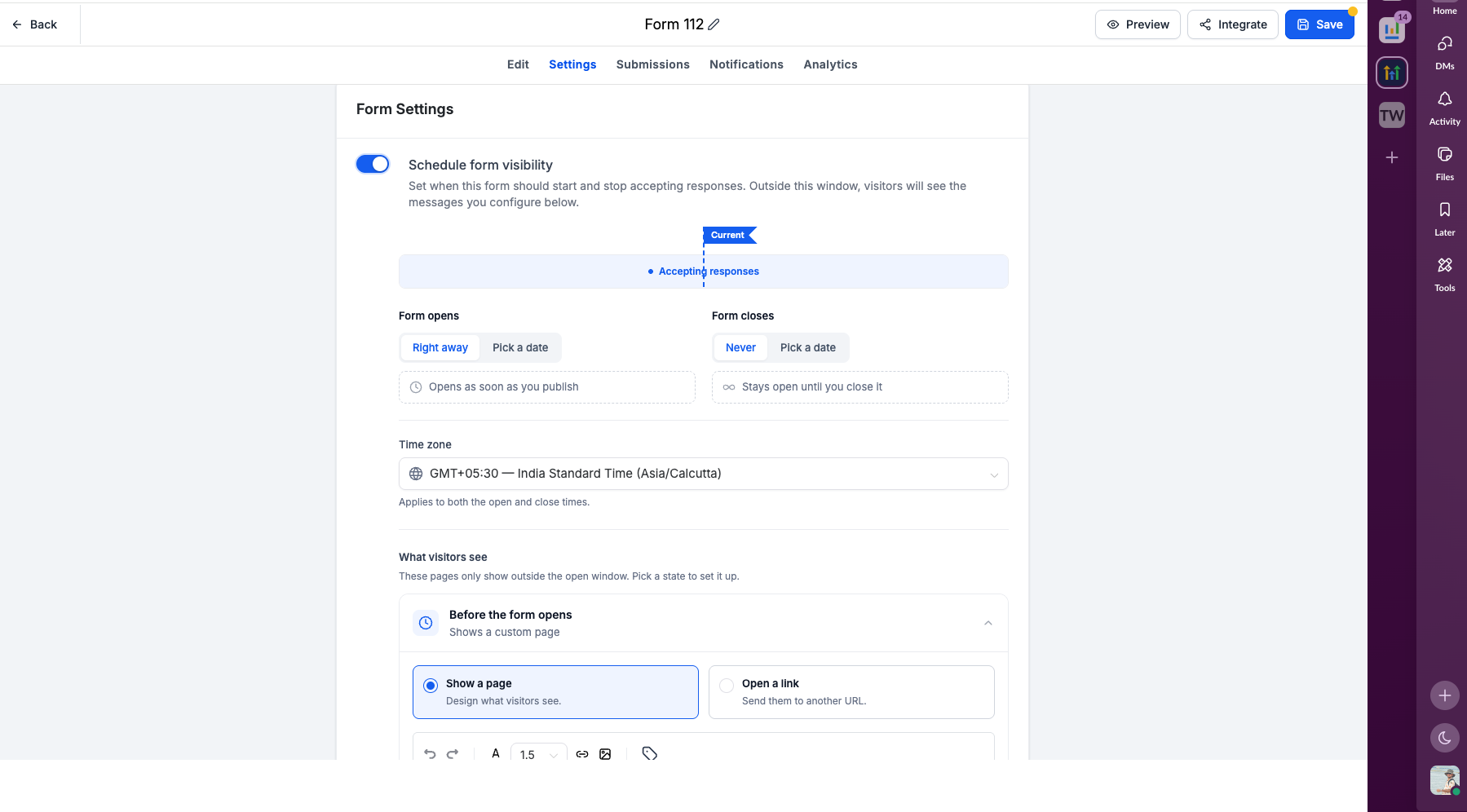
The feature adds a scheduling layer to any Form, Survey, or Quiz built in HighLevel. You enable Schedule visibility and then set when the asset starts accepting responses and when it stops. A single time zone governs both dates, and you can leave the closing time open forever.
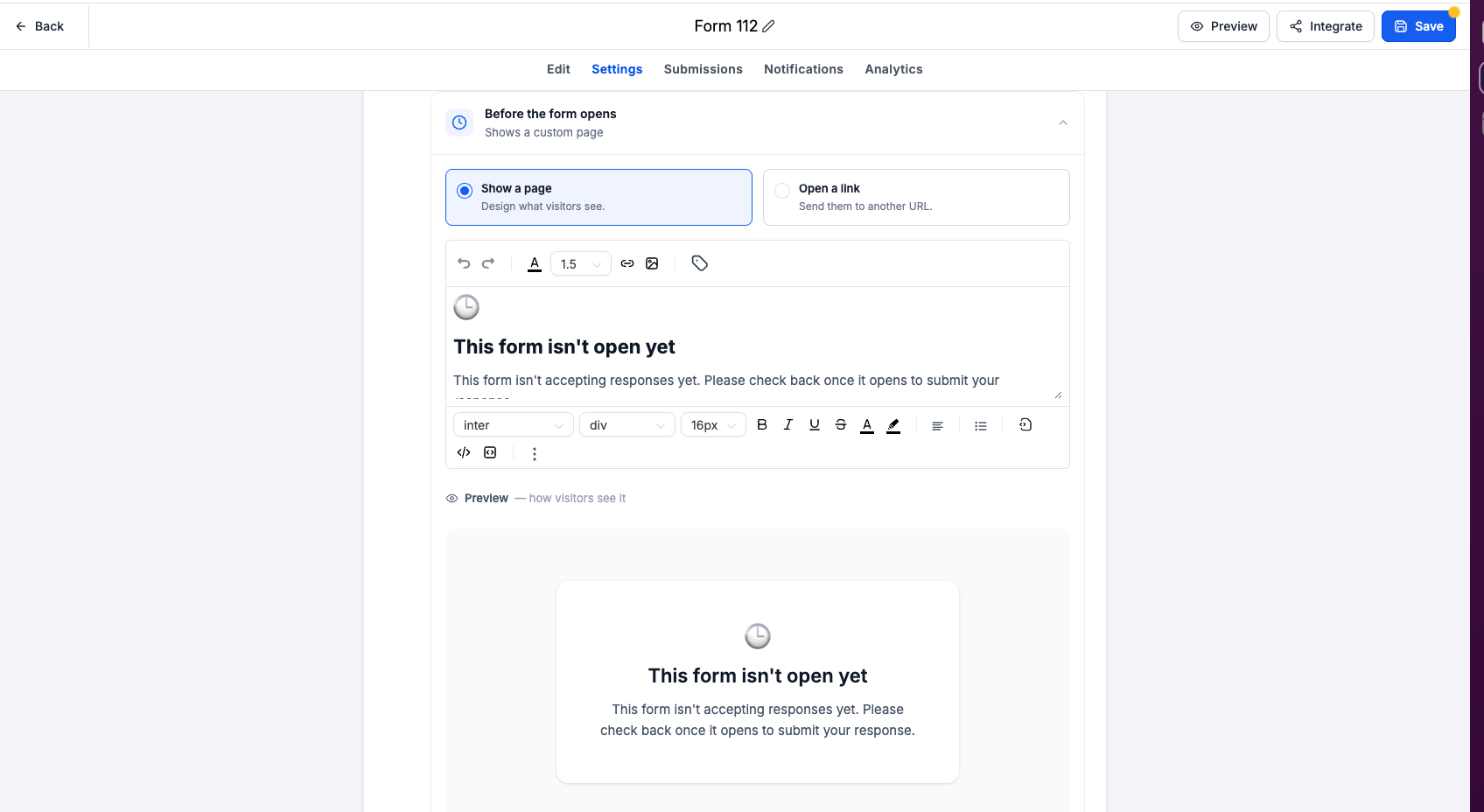
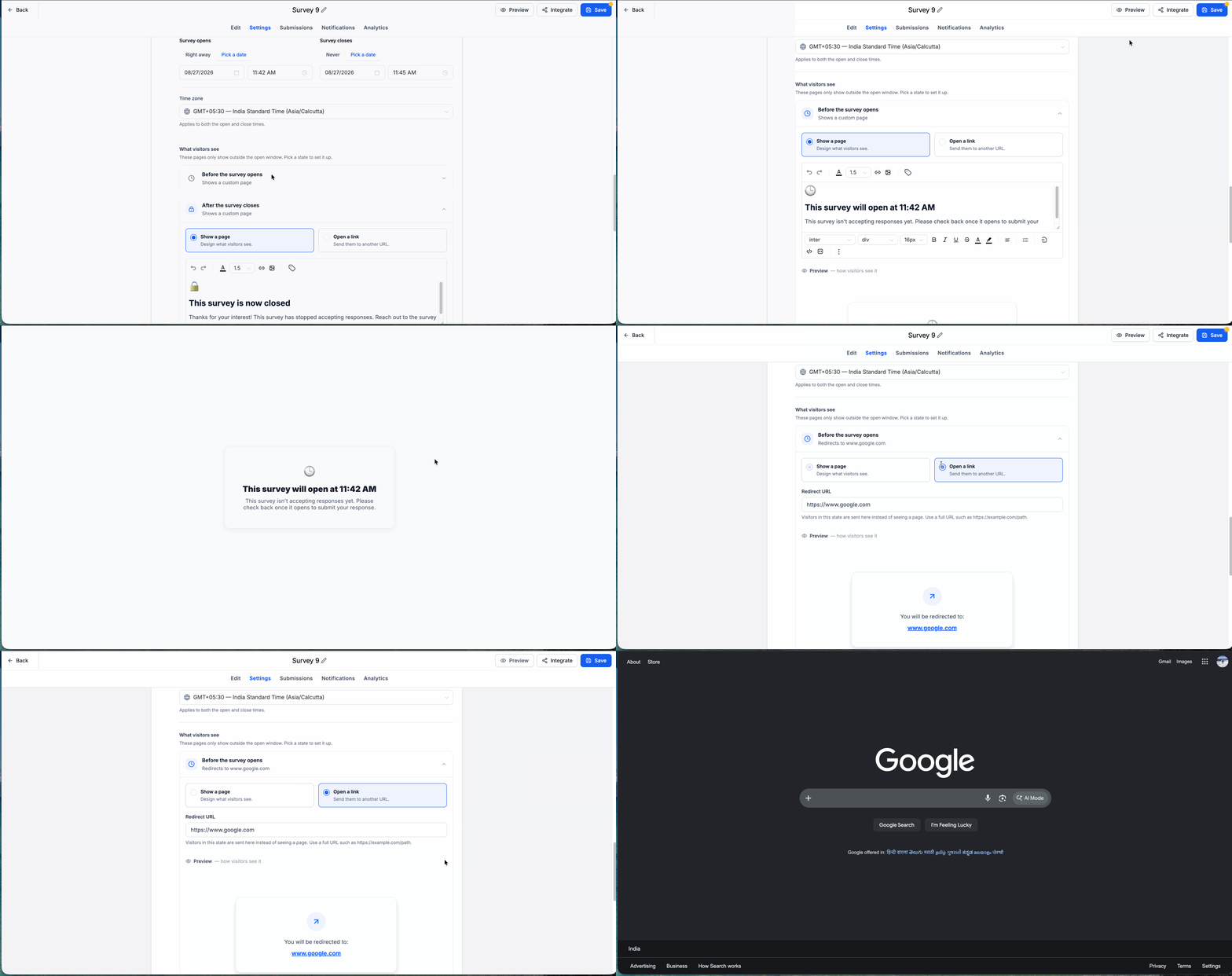
When a visitor reaches the asset outside the active window, HighLevel shows either a custom page built with the rich content editor or redirects to a URL you specify. Separate configurations exist for the pre open and post close states, letting you tailor messaging for early or late arrivals. The settings live on the individual asset under its Settings tab.
03How businesses use scheduled availability
- Event organizer. The organizer opens the registration Form in HighLevel, sets the opening date to the event launch time and the closing date to the registration deadline, then creates a pre open page that displays the event start time and a post close page that links to a waitlist.
- Ecommerce flash sale manager. The manager schedules a Survey that captures discount codes, chooses the exact sale start and end times, selects the appropriate time zone, and configures a pre open page that teases the upcoming deal while redirecting late visitors to a regular price product page.
- Online education platform. The platform builds a Quiz for a course module, sets the Quiz to open on the module release date, leaves the closing option set to Never, and adds a pre open page that explains the upcoming lesson schedule, keeping the experience hidden until the release.
04How to set up and use scheduled availability in HighLevel
Set up scheduled availability for a Form, Survey, or Quiz
- Navigate to the Sites area in HighLevel.
- Open the Forms, Surveys, or Quizzes section and select the item you want to schedule.
- Enable Schedule visibility in the Settings tab.
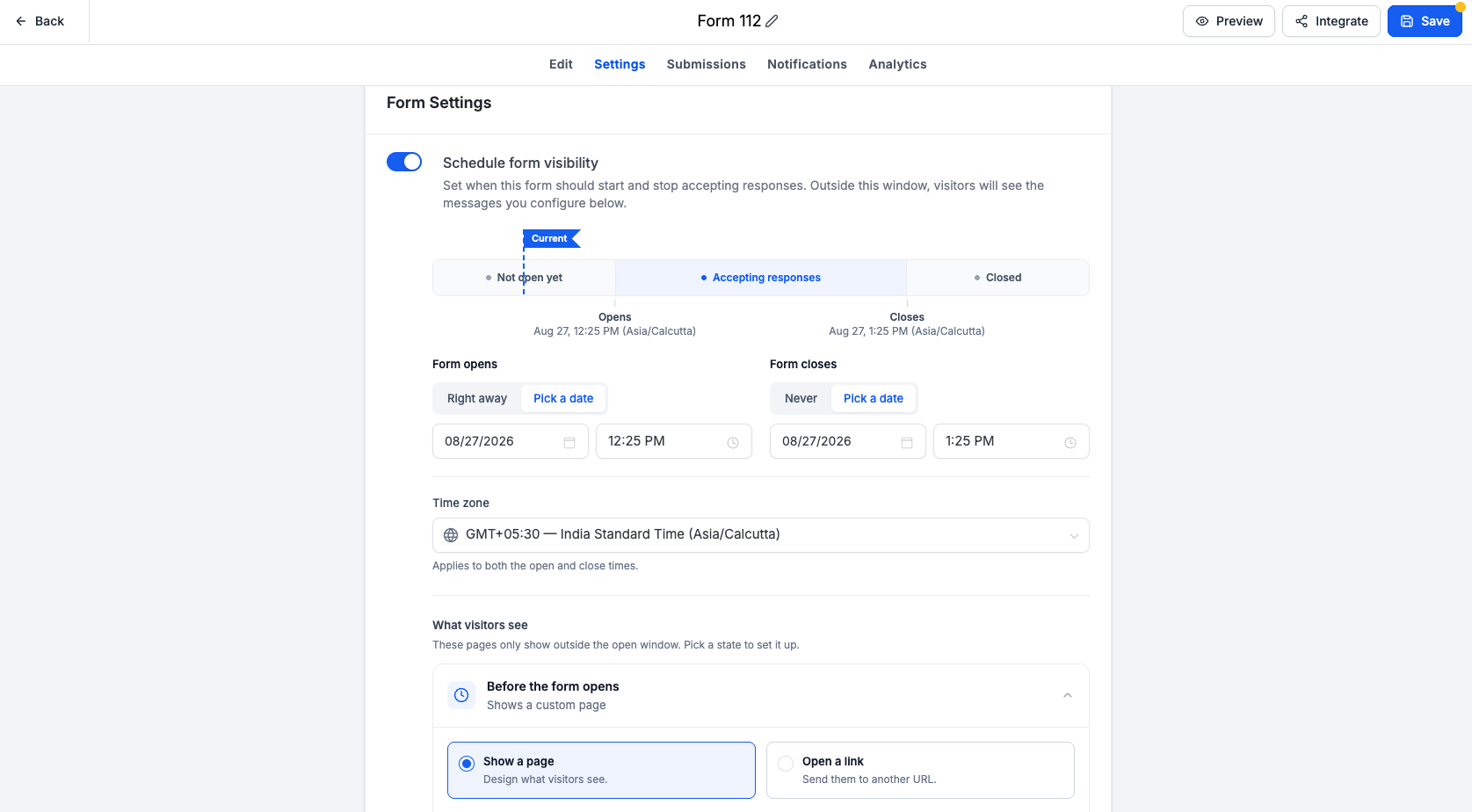
- Choose opening and closing options, selecting specific dates if needed.
- Pick the time zone that will apply to both opening and closing times.
- Configure the pre open visitor experience by selecting Show a page or Open a link and customizing the content.
- Configure the post close visitor experience using the same page or link options.
- Save the asset, preview the timeline, and confirm the dates and time zone before publishing.
05What it looks like in HighLevel
06Settings that matter
- Schedule visibility. Turns the scheduling controls on for the selected Form, Survey, or Quiz.
- Opens. Determines whether the asset starts accepting responses right away or at a chosen date and time.
- Closes. Specifies whether the asset never stops accepting responses or stops at a chosen date and time.
- Time zone. Applies the selected time zone to both opening and closing schedules.
- Before the form/survey/quiz opens. Sets the visitor experience, either a custom page or a redirect, shown before the opening time.
- After the form/survey/quiz closes. Sets the visitor experience, either a custom page or a redirect, shown after the closing time.
07Things to know before you rely on it
- Scheduling is optional; assets without Schedule visibility keep their existing behavior.
- Only one time zone can be applied to both opening and closing times.
- If Schedule visibility is turned off, the asset reverts to its normal availability.
08If something goes wrong
- The experience is accepting responses earlier than expected. Confirm the opening option is not set to Right away and verify the scheduled date, time, and time zone.
- The experience still accepts responses after the intended deadline. Verify that the closing option is set to Pick a date rather than Never and confirm the configured time zone.
- Visitors see the pre open page when the experience should be open. Compare the current time with the configured opening time in the selected schedule time zone.
- Visitors see the closed page too early. Review the closing date, closing time, and time zone for an incorrect value.
- The wrong visitor message appears. Confirm you edited the correct state: Before opening or After closing.
- The redirect does not go to the intended destination. Review the URL configured under Open a link and test the destination separately.
- An existing Form, Survey, or Quiz changed unexpectedly. Confirm whether Schedule visibility was enabled. Items without scheduling enabled continue using their existing behavior.
09How it connects to the rest of HighLevel
- How to find and export survey submissions in HighLevel Export survey data
- How to enable One Question at a Time in HighLevel surveys One question mode
- HighLevel pricing and plans Pricing
- Start a 30 day HighLevel trial Free trial
- The HighLevel Founder Plan Founder Plan
Get More InformationOpens on HighLevelPublished November 3, 2026 · Updated November 17, 2026