
01Who this is for
- Any staff who meet customers face to face can quickly retrieve the correct QR code from their mobile wallet.
- Event staff can present ticket type QR passes without browsing image galleries.
02QR code wallet passes, explained
The Save to Wallet feature lives inside the QR Code Builder. When you click the Add to Wallet button, HighLevel creates a digital pass that holds the QR image together with descriptive data such as the code’s name, type and linked destination. The pass is stored in the device’s Apple Wallet or Google Wallet app. Each platform shows the pass differently; Apple Wallet can display a profile image on a Profile Card pass, while the current Google Wallet version does not. Agency branding appears in the pass header by default. The pass itself is accessible offline, but any linked website, form or funnel will still need an internet connection to load.
03How businesses use saving QR codes to Apple Wallet or Google Wallet
- Real estate agency. Agents create QR codes that link to property listings, save them to their phones’ wallets, and show the pass when meeting potential buyers to right away share the listing URL.
- Fitness studio. The studio generates a QR code for a membership sign up form, adds it to the trainer’s wallet, and scans it during in person consultations to direct clients to the enrollment page.
- Car dealership. Sales staff build QR codes that point to a vehicle’s spec sheet, store the passes in Google Wallet, and present them on the sales floor to give customers quick access to detailed information.
04How to set up and use saving QR codes to Apple Wallet or Google Wallet in HighLevel
Save a QR code to Apple Wallet or Google Wallet
- Navigate to Sites > QR Codes in the HighLevel subaccount.
- Click Create QR Code to start a new code or locate an existing one and click Edit.
- If creating, select the QR code type and fill required fields; for an existing code, review its settings, then proceed to the final color and shape step and adjust as needed.
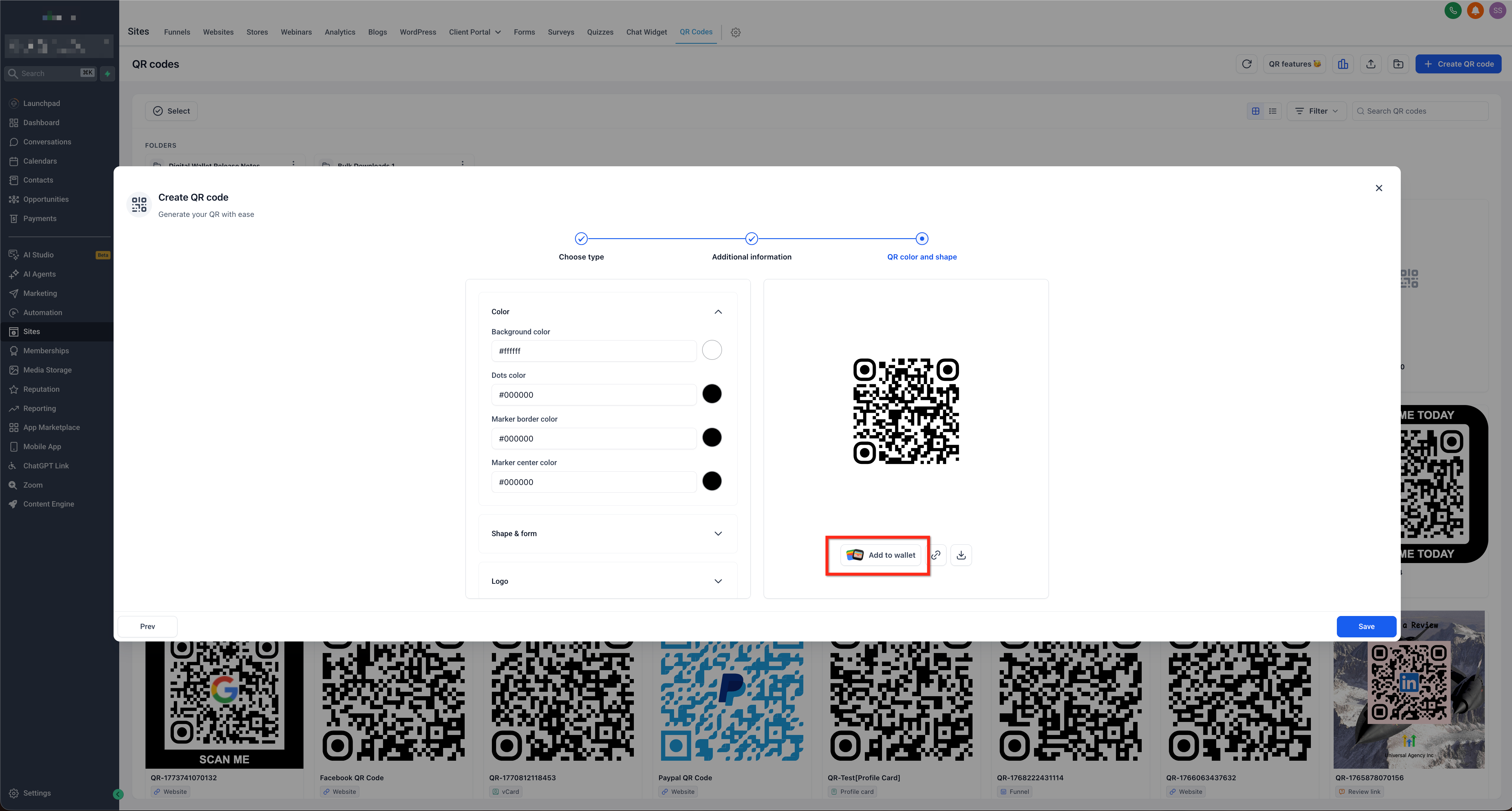
- Click Add to Wallet below the QR code preview.
- In the Add to digital wallet pop up, scan the displayed QR code using the phone’s camera or a compatible scanner.
- Follow the on screen prompts to open Apple Wallet or Google Wallet and confirm adding the QR code pass.
- Open the wallet app, select the saved QR code pass, and present it for scanning whenever needed.
05What it looks like in HighLevel
06Settings that matter
- Save to Wallet. Enables creation of a digital wallet pass that contains the QR code and its identifying information.
- Add to Wallet. Button that launches the device’s wallet app to store the QR code as a pass.
07Things to know before you rely on it
- The appearance of wallet passes varies by platform; Apple Wallet can show a profile image while Google Wallet currently does not.
- Agency branding appears in the header of every pass by default.
- A saved pass can be opened offline, but the linked destination (website, form, or funnel) still requires an internet connection.
08How it connects to the rest of HighLevel
- Generate and download QR codes QR code generation guide
- Manage QR codes with search and bulk tools QR code management
- Create custom business card QR codes Business card QR codes
Michael's take

When you’re constantly moving between client sites or events, having QR codes in your digital wallet reduces the number of taps needed each time you need to share a link, form, or check in code.
If you rarely need to scan QR codes on the go or you already have a simple image folder that works, the extra step of creating wallet passes may not be worth the effort. The passes also require an internet connection for any linked destinations, so they won’t replace a fully offline solution.