
01Who this is for
- Founders who need consistent branding across all marketing assets can use Universal sections for headers and footers.
- Marketers managing a single campaign can rely on Global sections to keep repetitive blocks in sync within that funnel.
- Design teams creating reusable content blocks can save them as Templates to customize each instance without affecting the original.
02Saved sections, explained
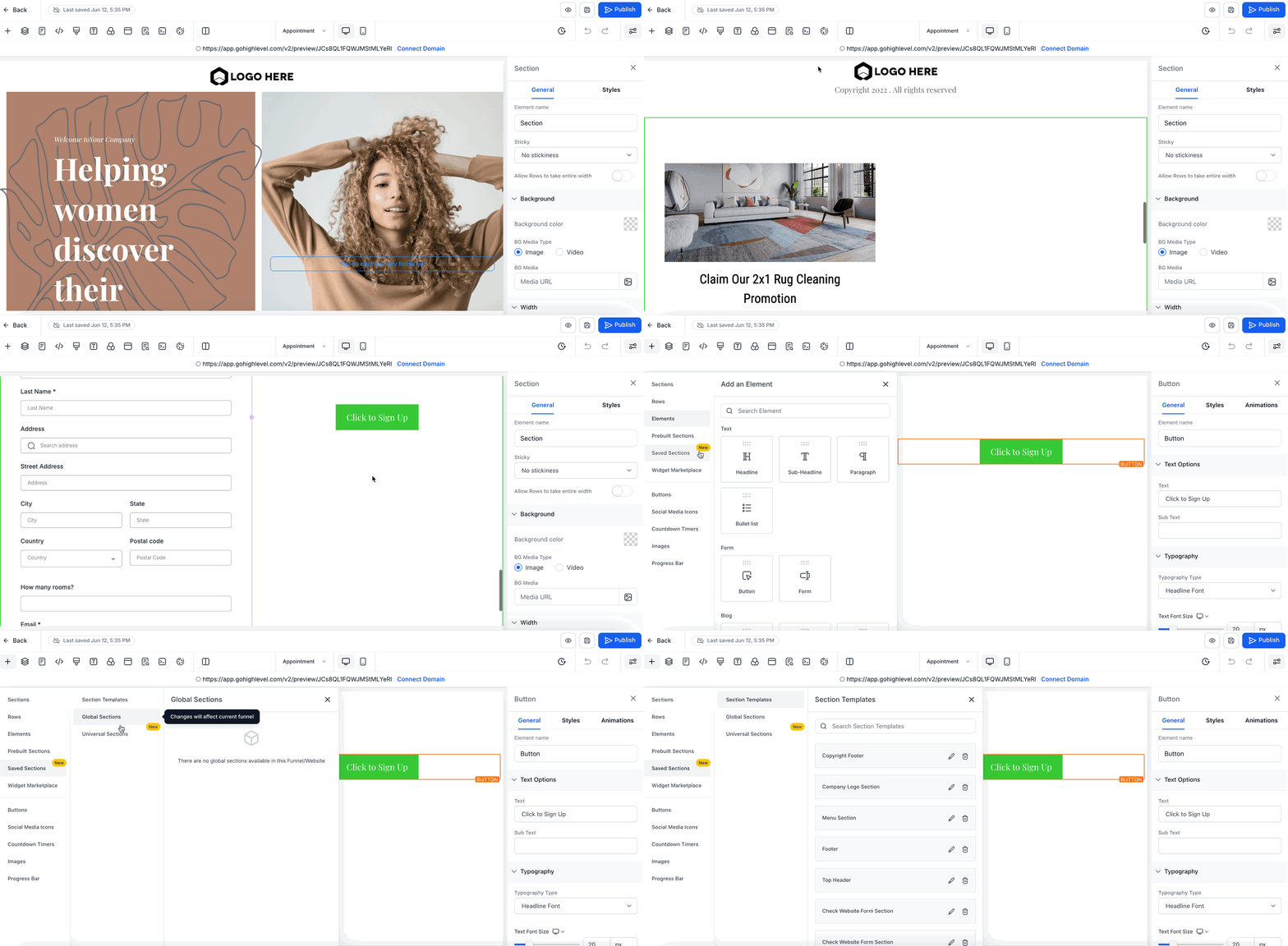
Saved Section Templates are a feature inside the page editor of funnels, websites, webinars, and ecommerce stores. When you select a section and save it, the platform stores only the layout, not personal data. Three section types exist: Universal (account wide sync), Global (syncs only inside the current asset), and Template (static copy). Universal sections automatically update everywhere they are used, so a change to a header appears on every page. Global sections behave the same way but only for pages inside the same funnel or website. Template sections act like a snapshot; editing one does not affect any other instance. Saved sections live in the editor’s library and can be inserted on any page via the “Add Section” menu. They are identified by unique IDs, which remain constant unless the section is cloned.
03How businesses use saved sections
- Coaching business. Create a Universal header that contains the brand logo and navigation. Save it once and insert it on every funnel and website. When the logo changes, edit the header once and the update appears on all pages.
- Real estate agency. Build a Global section for a property carousel specific to a landing page. Add it to each property page within that website. Any update to the carousel syncs across those pages but not to other sites.
- Ecommerce store. Design a Template block for product description text. Insert the block on each product page, then customize the copy for each item. The original template remains unchanged for future use.
04How to set up and use saved sections in HighLevel
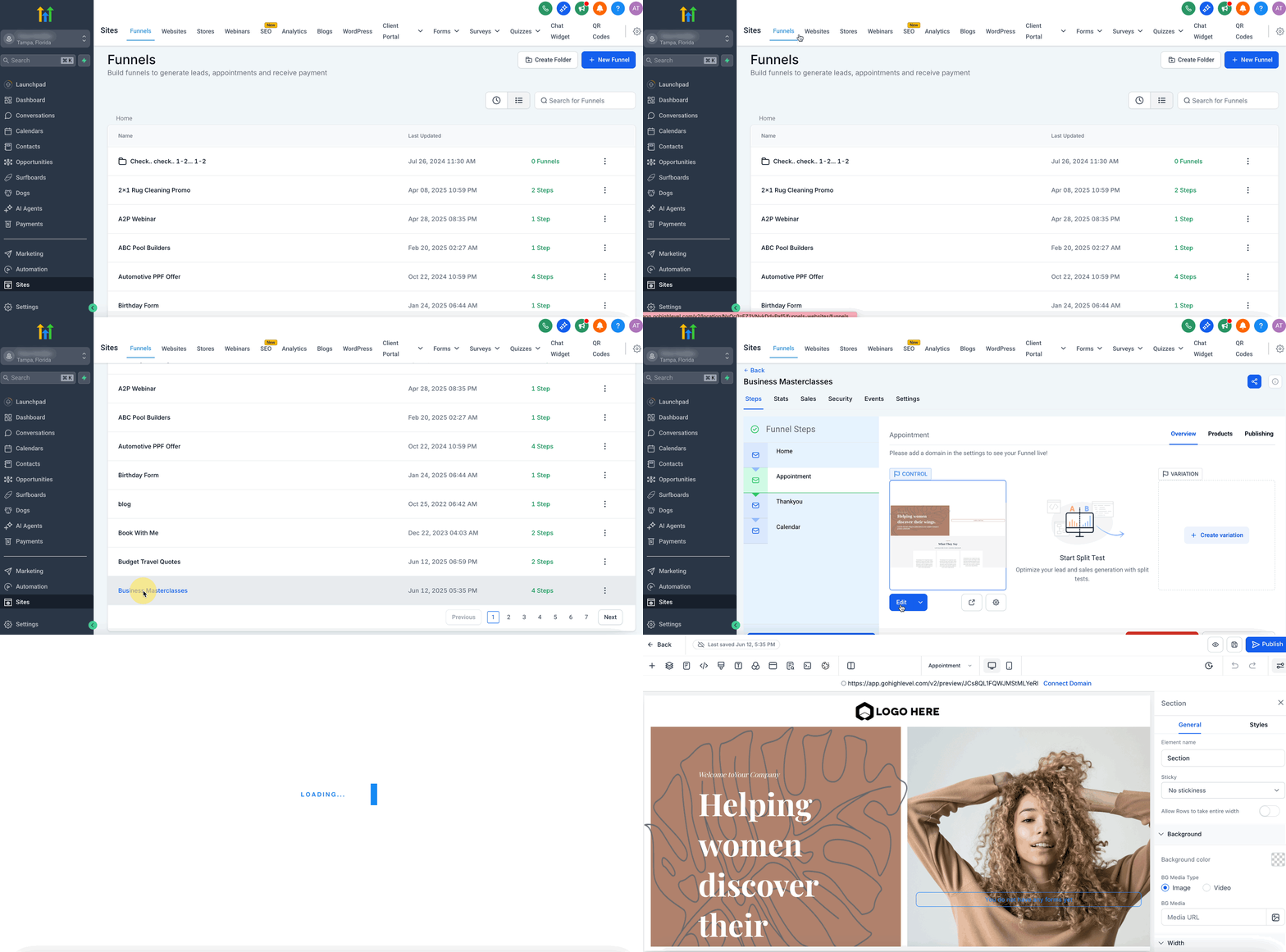
Set up a saved section
- Open the page editor for the funnel, website, webinar, or e commerce store where you want to create the section.
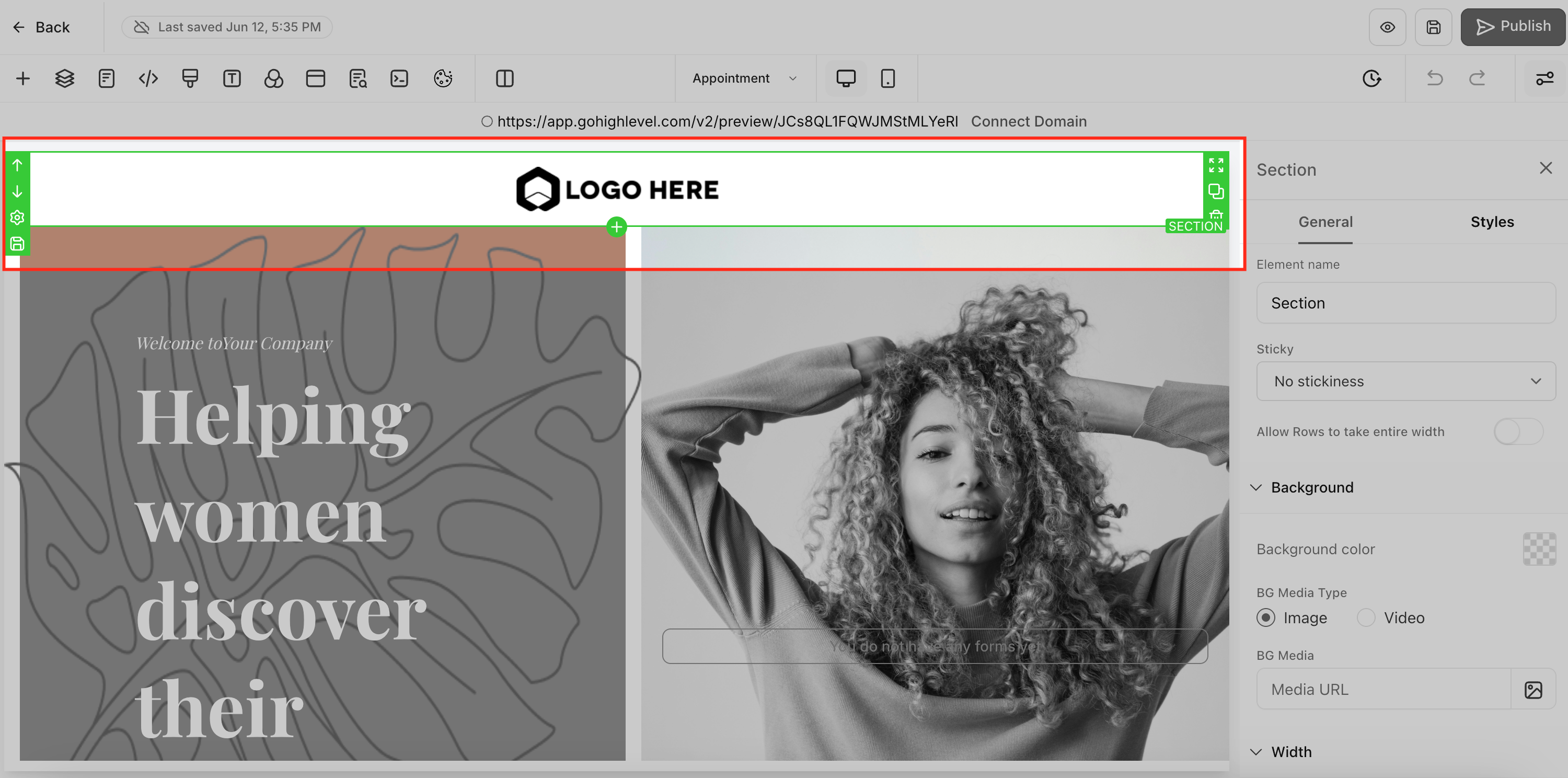
- Select the existing section on the canvas that you wish to reuse.
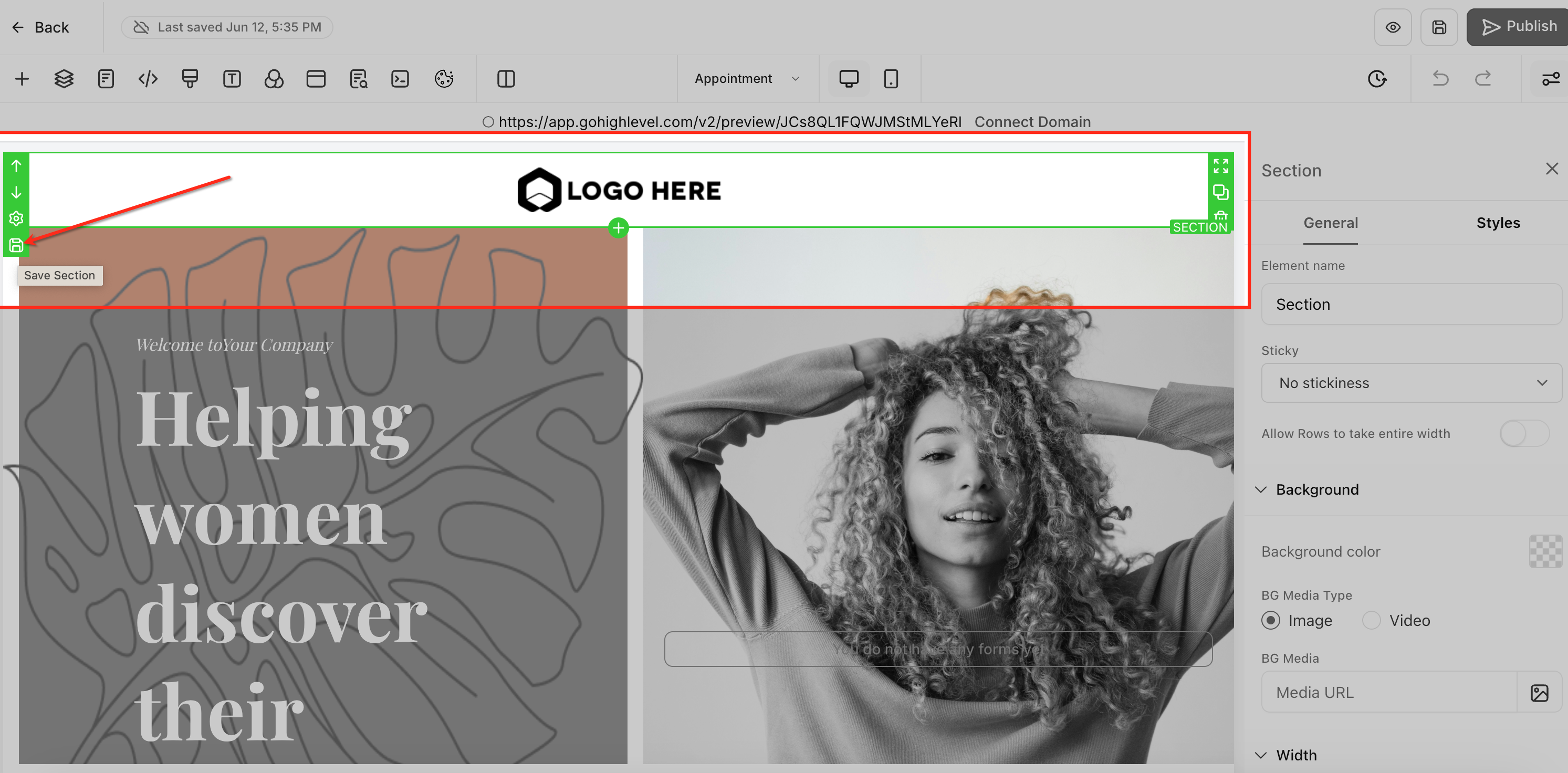
- Click the “Save Section” button to open the save modal.
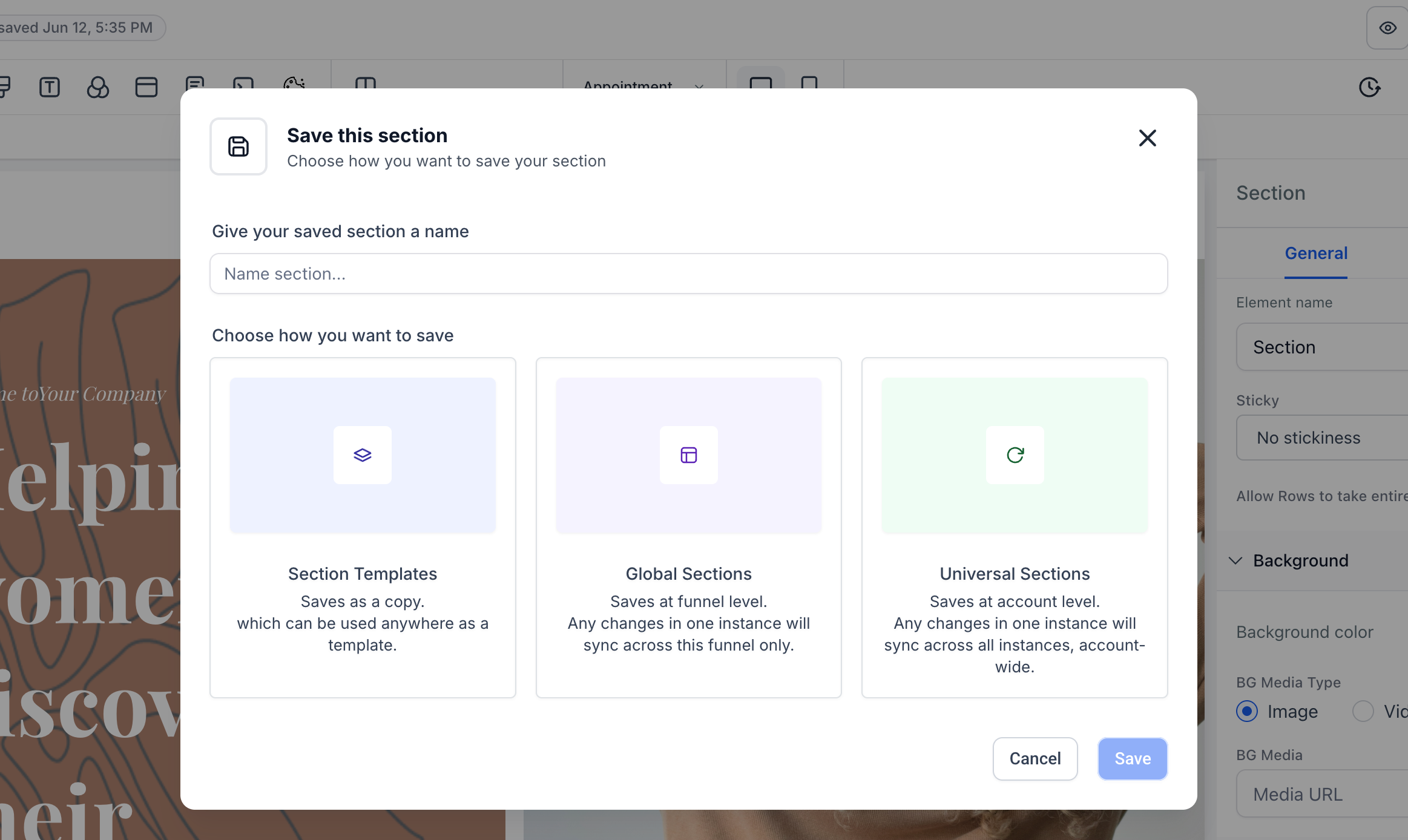
- Enter a name for the section and pick its type: Universal, Global, or Template.
- Confirm the save to store the section in the library.
- When you need the section on another page, choose “Add Section” and select the saved Universal, Global, or Template block to insert it.
05What it looks like in HighLevel
06Settings that matter
- Section Type. Determines how the saved section propagates changes: Universal syncs across the entire account, Global syncs only within the current asset, and Template remains static.
07Things to know before you rely on it
- The selected section type cannot be changed after the section is saved.
- Saved sections do not keep version history; edited versions overwrite the previous one.
- Cloning a saved section creates a new unique ID that no longer syncs with the original.
- Universal and Global sections always display the latest saved version, even when a page version is restored.
08How it connects to the rest of HighLevel
- Add a two step order form in HighLevel funnels Two step order form
- Add tracking code to funnels and websites in HighLevel Tracking code
- How to connect a root domain or subdomain in HighLevel Domain Connect
Michael's take

Wondering how to keep a header consistent across every page you build in HighLevel? Save that header as a Universal section and any change you make will sync across all funnels, websites, webinars, and eCommerce stores, so you don’t have to manually update each one.
If you need a block that stays the same inside one funnel but varies elsewhere, choose a Global section. For a call to action that you want to tweak on each page, save it as a Template and edit each instance separately. Plan the type before you save, because you can’t switch it later.