
01Who this is for
- Businesses that use multi step forms benefit because respondents can pause and resume without losing data.
- Organizations running quizzes can improve completion rates as participants can return later at their convenience.
02Save progress for forms, surveys & quizzes, explained
Save Progress is a toggle controlled feature that watches a respondent’s activity in a multi step form, survey, or quiz. If the user leaves the page before finishing, the platform records their answers automatically. The next time the same URL is opened, a modal appears offering to resume the saved session or begin a fresh one.
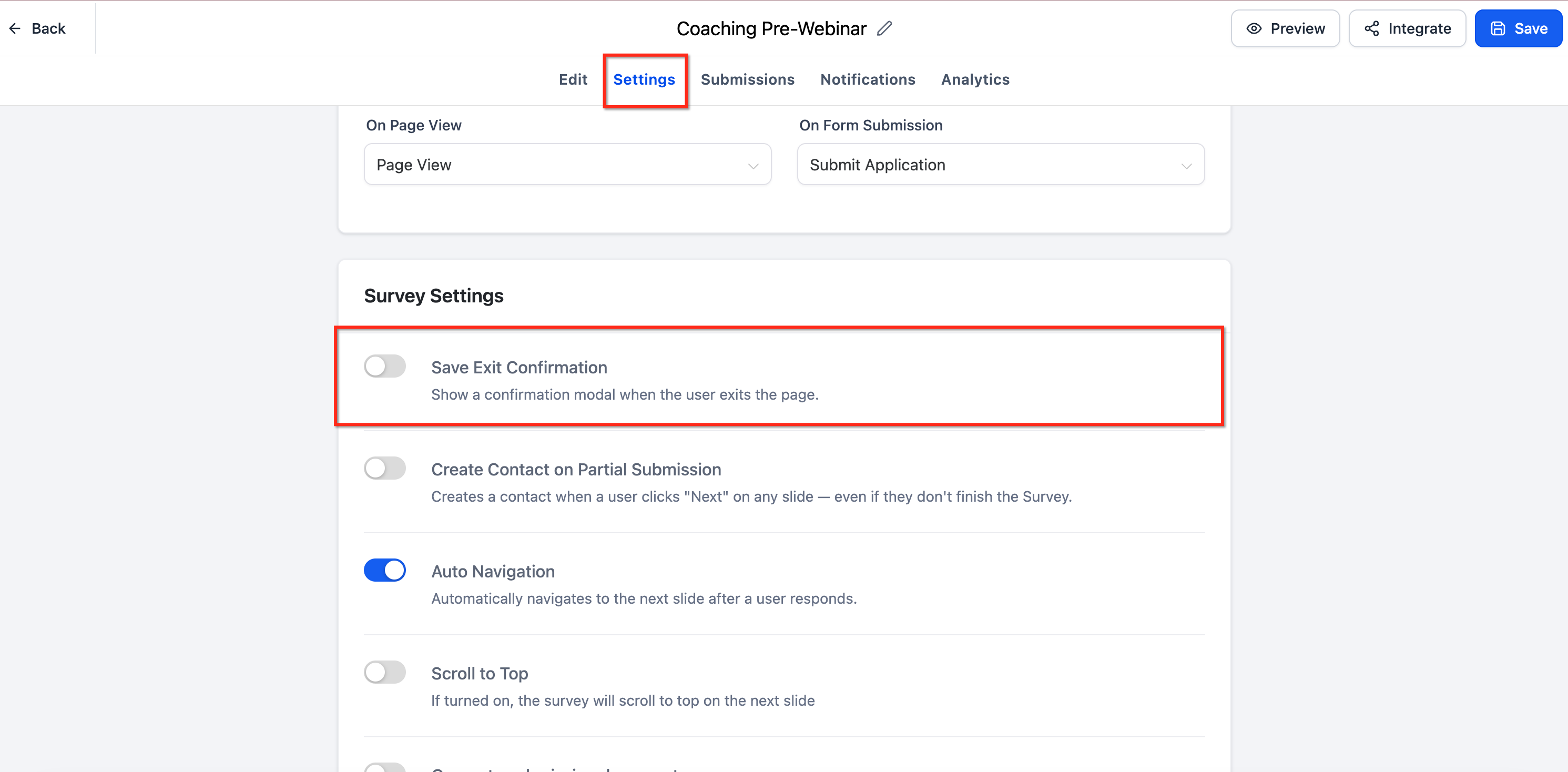
The setting resides in the Settings tab of the form, survey, or quiz builder. When the Save Exit Confirmation toggle is turned on, all subsequent sessions will have their progress preserved. The modal’s button color and font automatically match the form’s existing branding, so no extra design work is needed. The behavior works on both desktop and mobile browsers.
03How businesses use save progress for forms, surveys & quizzes
- Real estate agency. The agency enables Save Progress on its property inquiry form. Prospective buyers can fill out several pages of details, close the browser, and later return to finish without re entering information. The modal’s Continue button uses the agency’s brand color automatically.
- Online course provider. A course creator adds Save Progress to a multi step quiz that assesses learner knowledge. Students can pause the quiz, come back on any device, and resume exactly where they left off, while the modal reflects the course’s typography and button styling.
- Health clinic. The clinic turns on Save Progress for its new patient intake survey. Patients can start the survey on a phone, switch to a computer later, and continue without losing previously entered health information. The modal adopts the clinic’s footer color for consistency.
04The numbers and rules that matter
- Only available for multistep forms, surveys, and quizzes.
- No time limit is specified for how long progress is saved.
05How to set up and use save progress for forms, surveys & quizzes in HighLevel
Enable Save Progress for a form, survey, or quiz
- Open the desired form, survey, or quiz in edit mode.
- Select the Settings tab inside the builder interface.
- Find the Save Exit Confirmation toggle and switch it to the enabled position.
- Save the item to apply the change.
06What it looks like in HighLevel
07Settings that matter
- Save Exit Confirmation. Controls whether respondent data is automatically saved when they leave a multi step form, survey, or quiz before submitting.
08Things to know before you rely on it
- The feature works only for multi step forms, surveys, and quizzes; single step forms are not supported.
- Enabling the toggle does not affect submissions that were in progress before activation.
- The Resume Progress modal inherits only the footer button color and label font from the form’s existing branding.
- Save Progress works on both desktop and mobile devices.
09If something goes wrong
- Save Progress does not work on a single step form.. The feature is unavailable for single step forms. Use a multi step form if progress saving is required.
- Respondents cannot resume after the Save Exit Confirmation toggle was disabled.. Re enable the Save Exit Confirmation toggle to restore progress saving for future sessions.
10How it connects to the rest of HighLevel
- All Sites features overview All Sites features
- HighLevel pricing and plans Pricing
- Start a 30 day HighLevel trial 30 day trial
Michael's take

Pausing a long questionnaire seems like a smart way to keep prospects from abandoning the form.
If I were setting up a multistep intake form, I’d flip the Save Exit Confirmation toggle right away and let the automatic branding do the rest, so I don’t have to spend extra time on design.