
01Who this is for
- Founders running a marketing agency can keep client landing pages as drafts, allowing team edits before final approval.
- Small business owners of a local gym can create a new class schedule version, preview it, and publish only when ready.
02Save draft and publish funnels and websites, explained
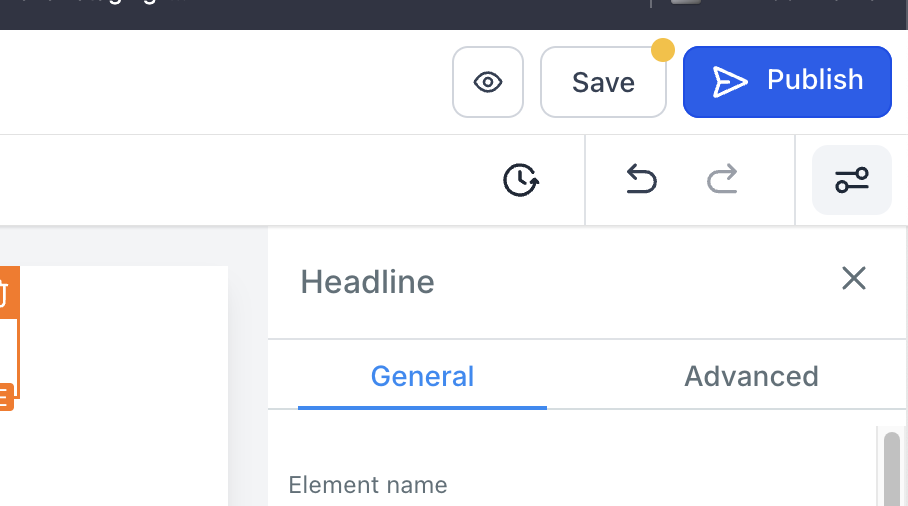
The Save Draft and Publish feature lives inside the Funnels and Websites builder. While you edit a page, you can press the Save option to store your work as a new version without affecting what visitors see.
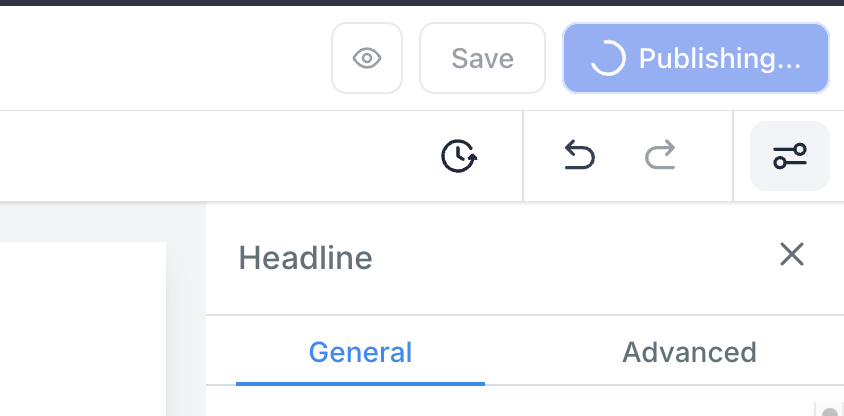
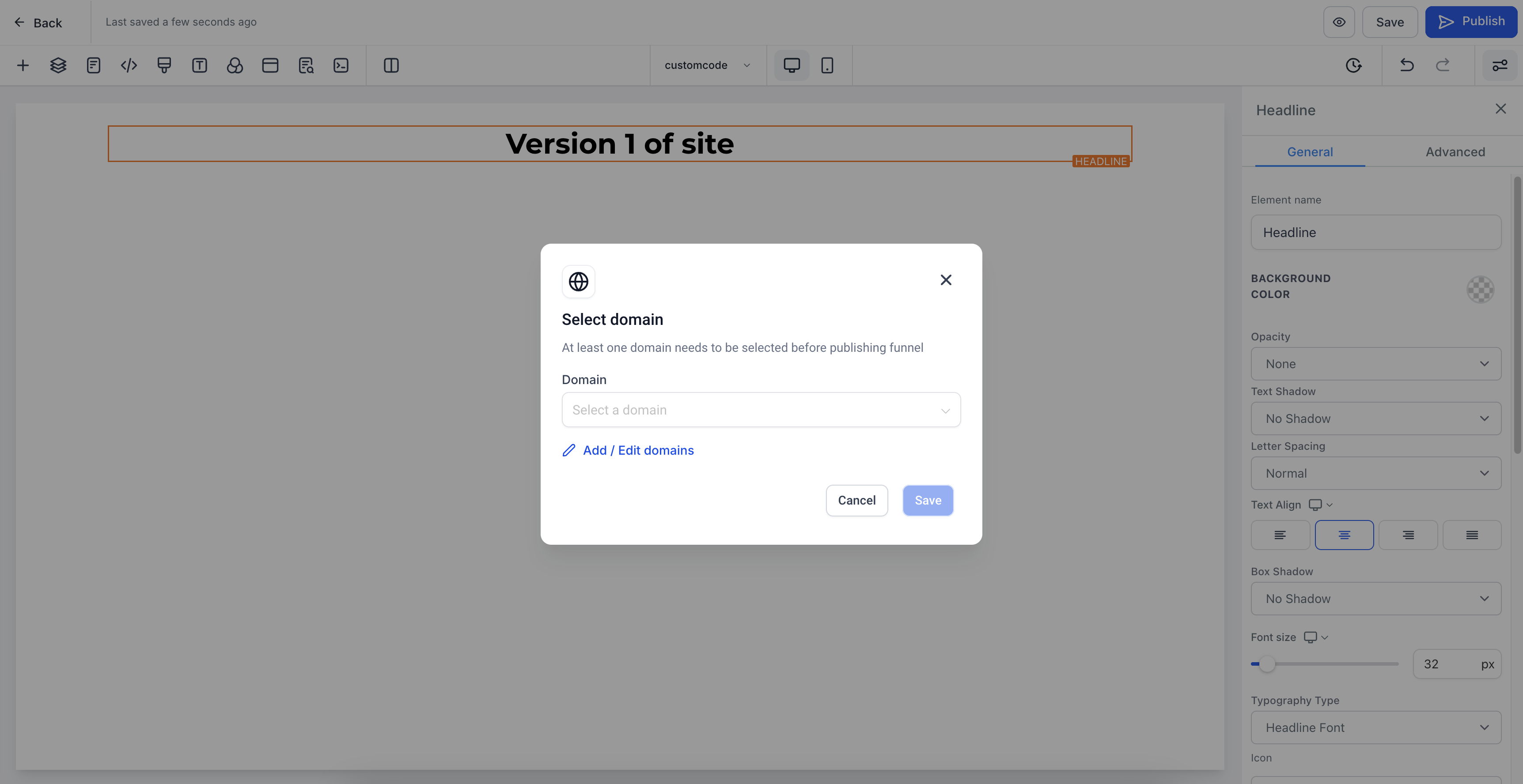
When the content is ready, you click the Publish button to make that particular version live. If the page has no domain, a popup appears prompting you to attach one before the version goes live.
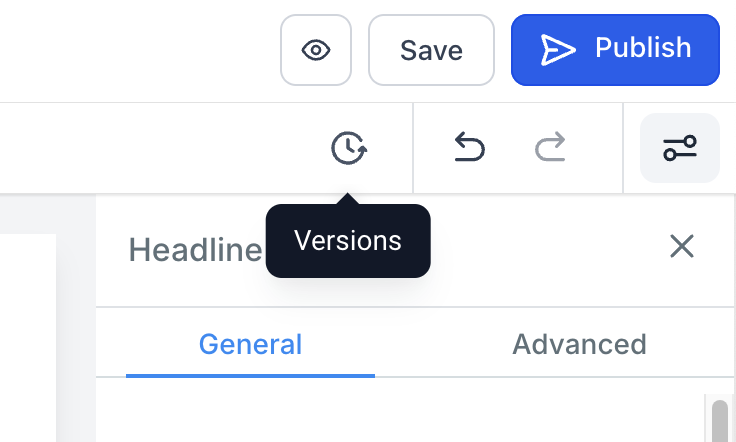
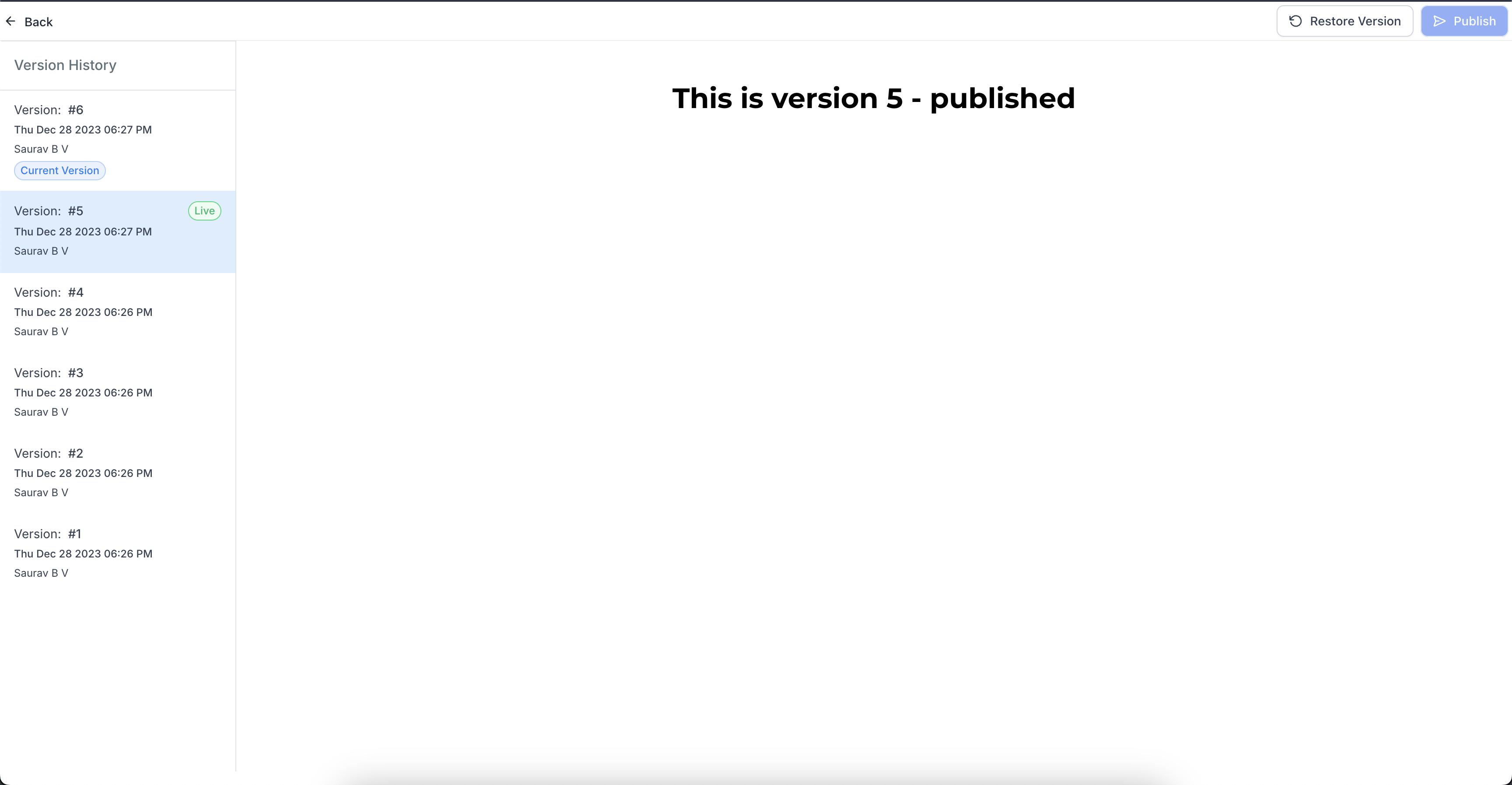
All saved versions appear in the Versions tab. From there you can publish any version directly, and a Live tag marks the version currently serving visitors.
03How businesses use save draft and publish funnels and websites
- Marketing agency. The agency drafts client landing pages, saves each iteration as a separate version, and publishes the final approved version. Team members can work on drafts simultaneously without exposing unfinished work.
- Local gym. The gym updates its class schedule page by creating a new version, reviews it internally, then publishes the schedule. If the gym’s site has no domain attached yet, the publish flow prompts to link the domain before going live.
- Ecommerce retailer. The retailer drafts a seasonal promotion page, saves it as a draft, and later selects that version from the Versions list to publish. The domain attach popup lets the retailer connect the store’s domain at publish time.
04The numbers and rules that matter
- A page can have a maximum of 30 versions.
05How to set up and use save draft and publish funnels and websites in HighLevel
Publish a version
- Open the funnel or website builder.
- Select the version you want to make live.
- Click the Publish button.
- If you have not saved recent changes, publishing will apply all changes from the last published version.
Attach a domain during publish
- Click Publish on a funnel that has no domain linked.
- In the domain attach popup, choose a domain to connect.
- Confirm the selection; the version is then published.
Publish from the Versions list
- Open the Versions tab for the page.
- Find the desired version in the list.
- Click Publish next to that version; a Live tag appears.
Save a draft
- Create or edit your funnel or website as usual.
- Click the Save option to store the current work as a new draft version.
06What it looks like in HighLevel
07Settings that matter
- Save. Stores the current work as a new draft version without changing the live site.
- Publish. Makes the selected version the live version served to visitors.
- Domain attach popup. Prompts you to connect a domain when publishing a page that has no domain attached.
08Things to know before you rely on it
- A page can have a maximum of 30 versions.
- When more than 30 drafts are saved, older versions are automatically deleted.
- If the version slated for deletion is the Live version, the next version is deleted instead.
- If no Live version exists, the latest version (Current version) is served to visitors.
09How it connects to the rest of HighLevel
- HighLevel website setup: create pages, customize design, connect domain, and review mobile settings before launch Website setup overview
- Add tracking code to funnels and websites in HighLevel Add tracking code
- How to connect a root domain or subdomain in HighLevel Domain connect guide
Michael's take

Wondering if you really need version control for your funnels? It’s a simple way to keep drafts safe and only push the final copy live, so your visitors never see half finished pages.
If I were setting up a new landing page, I’d save each rewrite as a draft, then pick the best version and publish it. That way the team can review changes without any risk of breaking the live site.