
01Who this is for
- Marketing teams can maintain brand look across all client capture forms by applying a single theme.
- Product managers can fine tune label placement on surveys to improve readability on mobile devices.
02Right sidebar, explained
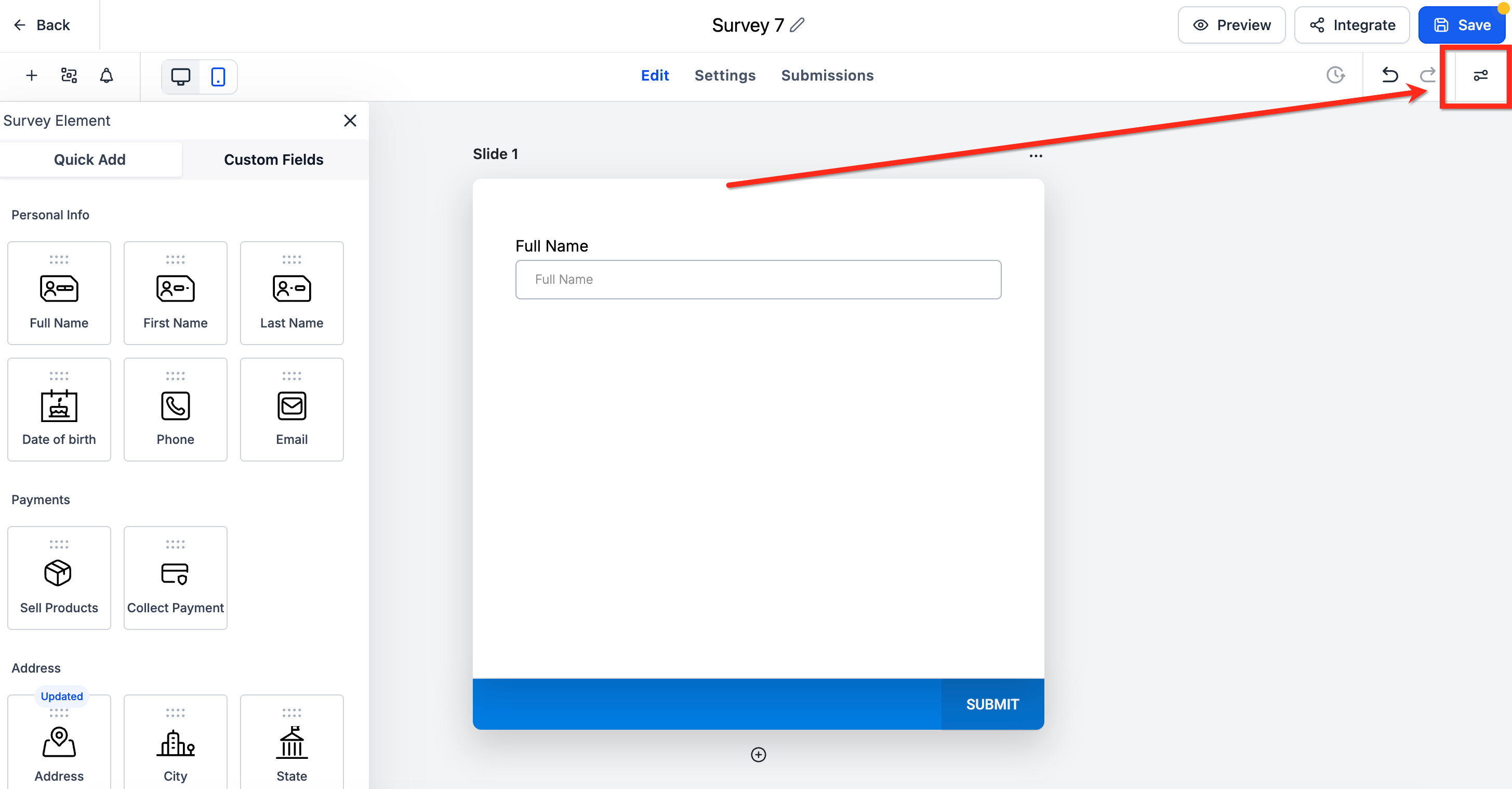
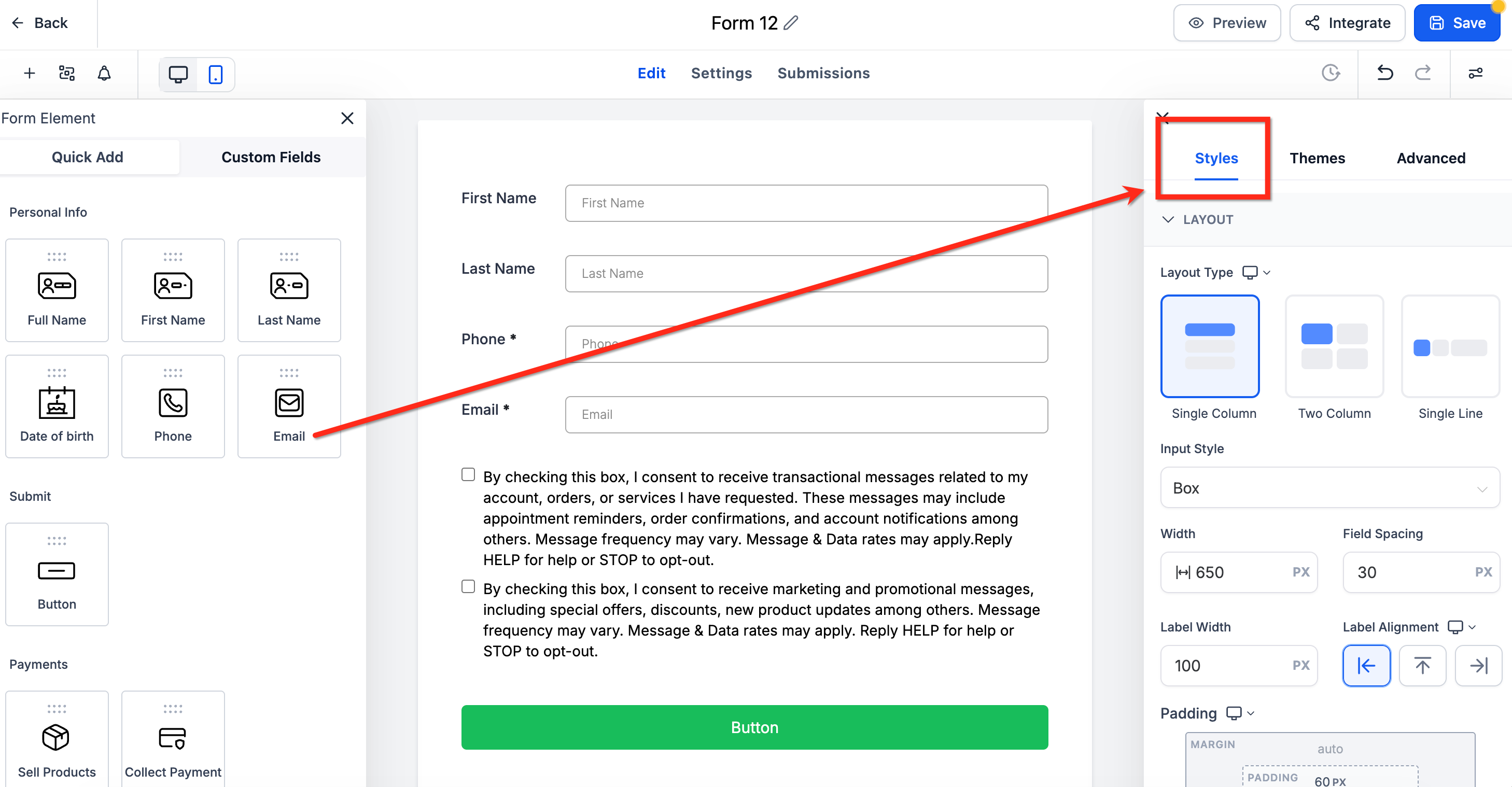
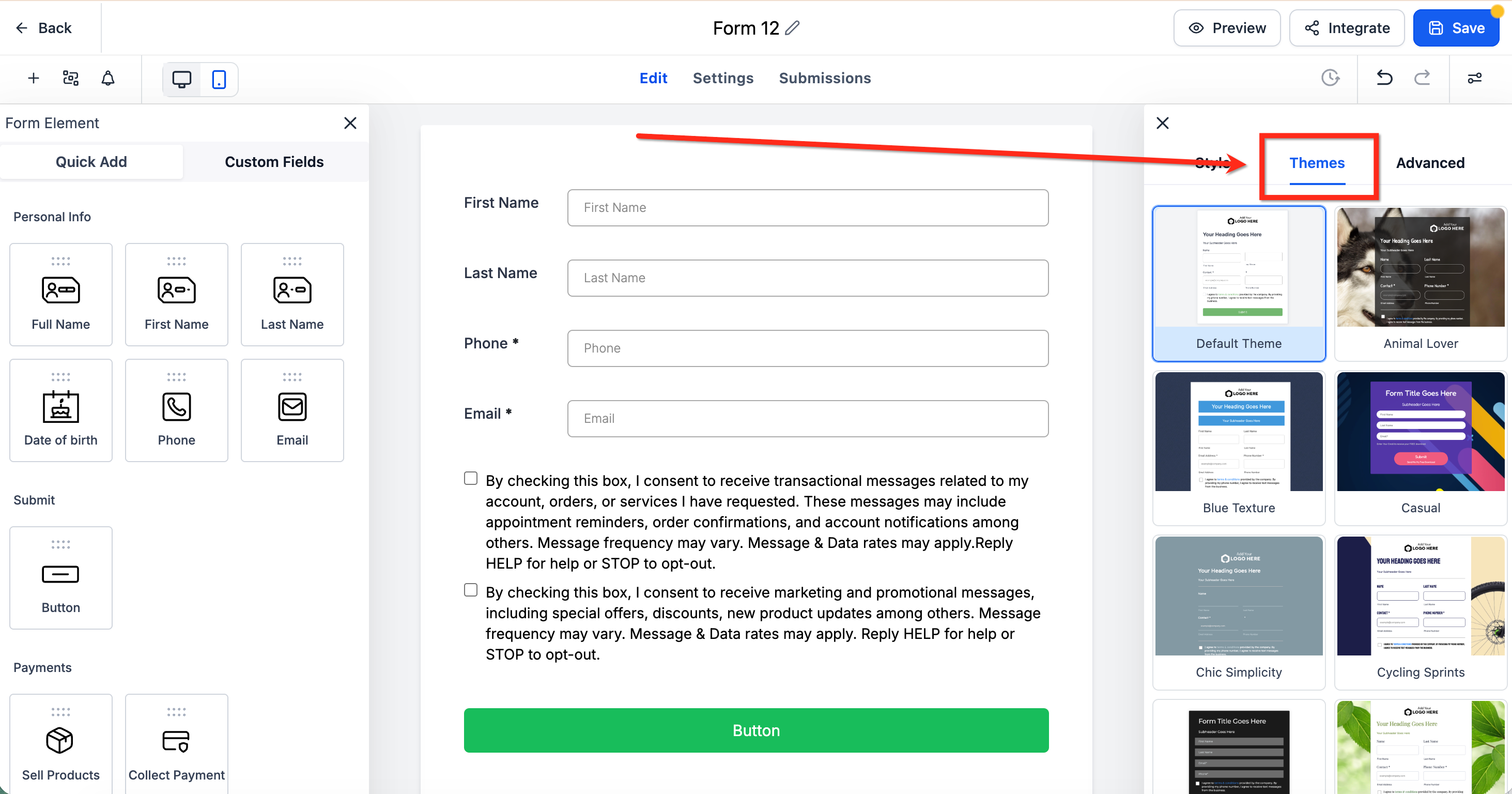
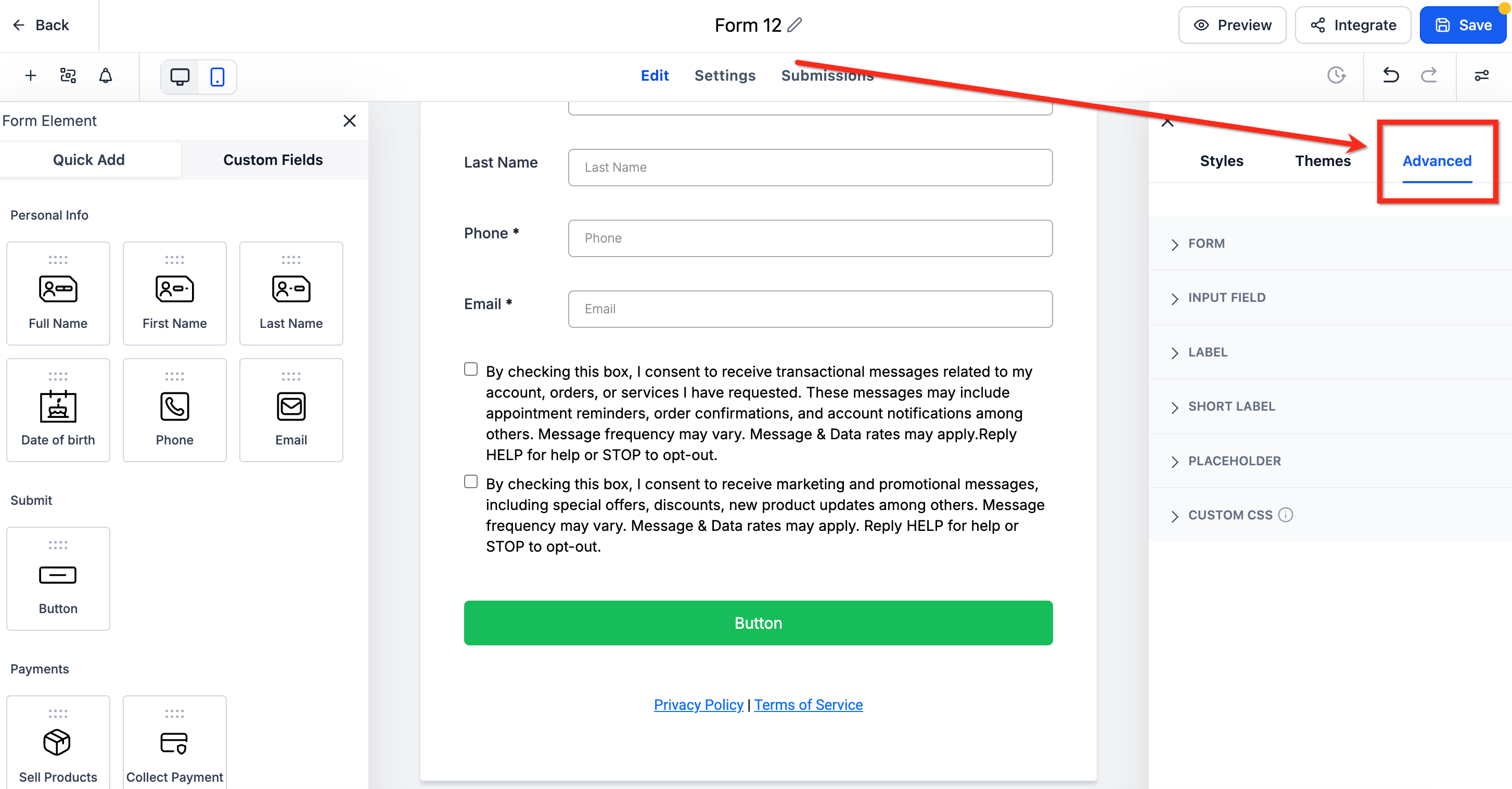
The right sidebar appears in the Form and Survey Builder when you click the Styles & Options button. It contains three tabs, Styles, Themes, and Advanced, each offering visual and layout options. The Themes tab provides ready made presets that right away style the entire form or survey. The Styles tab lets you adjust spacing, colors, and footer behavior, while the Advanced tab offers deeper controls like input field styling and custom CSS.
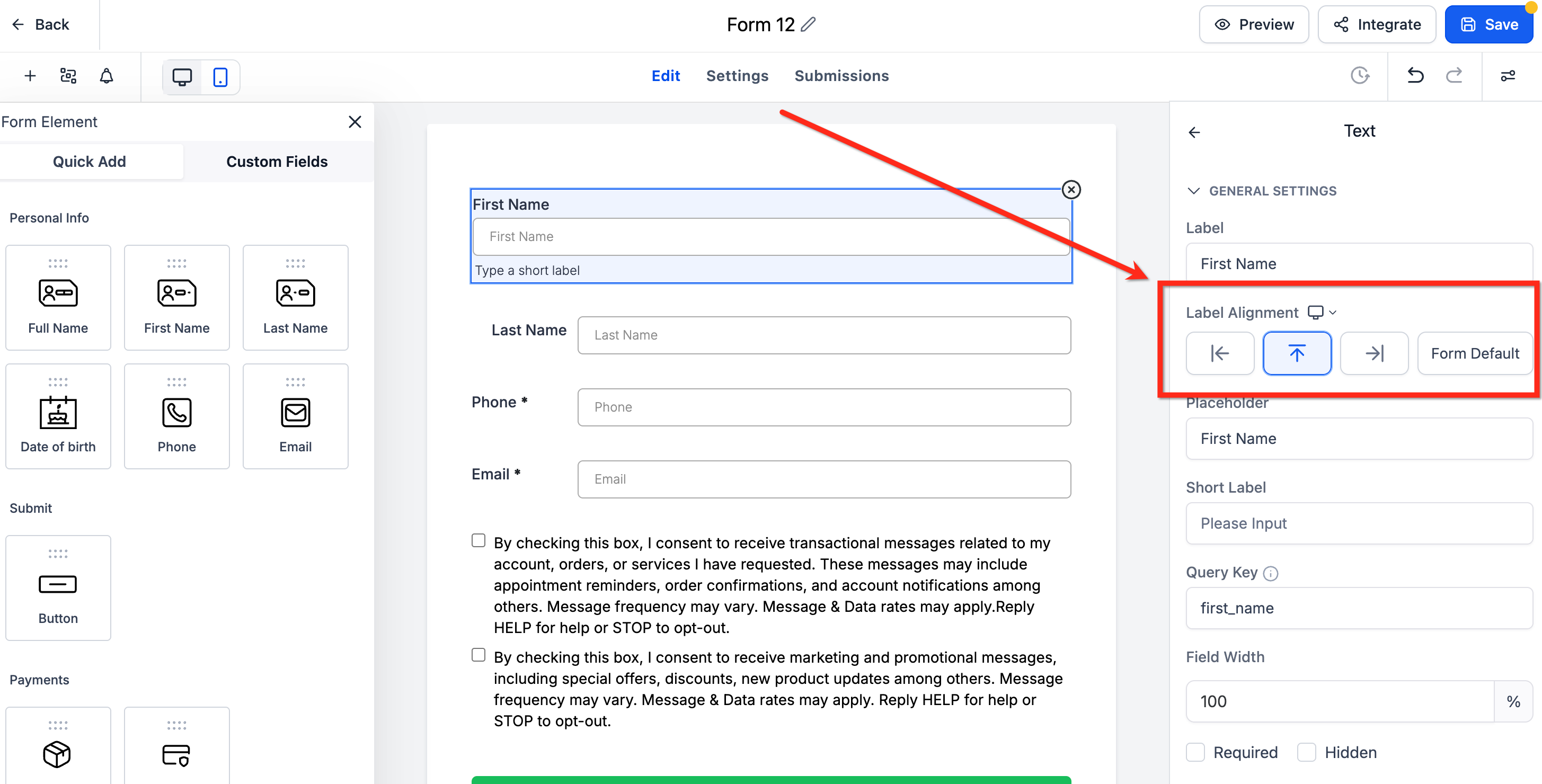
When a theme is applied, any existing style tweaks are reset, so you may need to revisit spacing or typography afterward. Label alignment can be changed per field through the Element Level Label Alignment control, which appears in the right sidebar after a field is selected. This per field setting works only for single column layouts in forms, surveys, and quizzes.
03How businesses use right sidebar
- Coaching business. A coach creates a signup form, selects a brand aligned theme from the Themes tab, then adjusts the top margin and button colors in the Styles tab. For each questionnaire field, the coach sets the label to the left to keep the layout compact on desktop.
- Ecommerce store. The store configures a feedback survey, applies a dark theme, and customizes the footer background to match its site. It then selects top alignment for the name field and left alignment for the rating field to improve visual flow.
- Real estate lead capture. An agent builds a property inquiry form, chooses a light color theme, and uses the element level label alignment to place address field labels on top for mobile clarity while keeping other fields left aligned for desktop.
04The numbers and rules that matter
- Top and Bottom padding can be set to 0 px for a true edge to edge layout.
- Footer settings include behavior, background fill, height, typography, progress bar, button type, button position, button text, button colors.
- Element level label alignment is available in Forms, Surveys, and Quizzes (only for Single Column layout).
05Before you start
- Open an existing form, survey, or quiz in the builder.
- If using element level label alignment, ensure the layout is set to Single Column.
06How to set up and use right sidebar in HighLevel
Apply a theme to a form or survey
- Open the Themes tab in the right sidebar.
- Hover over the desired preset and click the Use Theme button.
- When the confirmation window appears, click Proceed to accept the theme. Note: switching themes will reset any previous style modifications.
Set element level label alignment for a field
- Select the field you want to adjust in the canvas.
- In the right sidebar, find the Label Alignment option.
- Choose Top, Left, Right, or Form Default using the arrow controls.
07What it looks like in HighLevel
08Settings that matter
- Label Alignment. Controls the position of a field’s label, top, left, right, or default, allowing per field customization when the form uses a single column layout.
09Things to know before you rely on it
- Element level label alignment works only for forms, surveys, and quizzes that use the Single Column layout.
- Switching to a Two Column or Single Line layout removes per field label control and reverts to the global setting.
- Choosing a new theme overwrites any style changes made previously; you will need to re apply spacing or typography adjustments after switching.
- Custom CSS entered in the Advanced tab overrides theme and style settings.
10If something goes wrong
- Changes made in the right sidebar do not persist after leaving the builder.. Click the Save button in the builder to commit the modifications.
- Applying a new theme removes earlier style edits.. After applying the theme, revisit the Styles tab to re apply any needed spacing or color adjustments.
11How it connects to the rest of HighLevel
- Enable sticky contact options for forms and surveys Sticky contact
- Add address autocomplete to improve form entry Address autocomplete
- Learn how to embed HighLevel forms on external sites Embed forms
Michael's take

Every form or survey needs a clean look without hunting through menus. The right sidebar puts all the design knobs in one place, so you can see the impact as you tweak colors, spacing, or button styles. I would dive straight into the Styles tab to set the layout and padding, because getting the basic grid right saves a lot of rework later.
Once the layout feels solid, I’d jump to the Themes tab to add branding quickly, then fine tune any details in the Advanced tab or with a bit of custom CSS if the preset doesn’t cover a niche need. Testing a few variations in preview before hitting Save makes sure the final form looks sharp on both desktop and mobile.