
01Who this is for
- Founders of online course platforms, they can score quiz answers automatically.
- Financial advisors offering budgeting tools, they can total selected services in real time.
- Marketing agencies handling lead qualification, they can assign points to questionnaire responses.
02Math calculations, explained
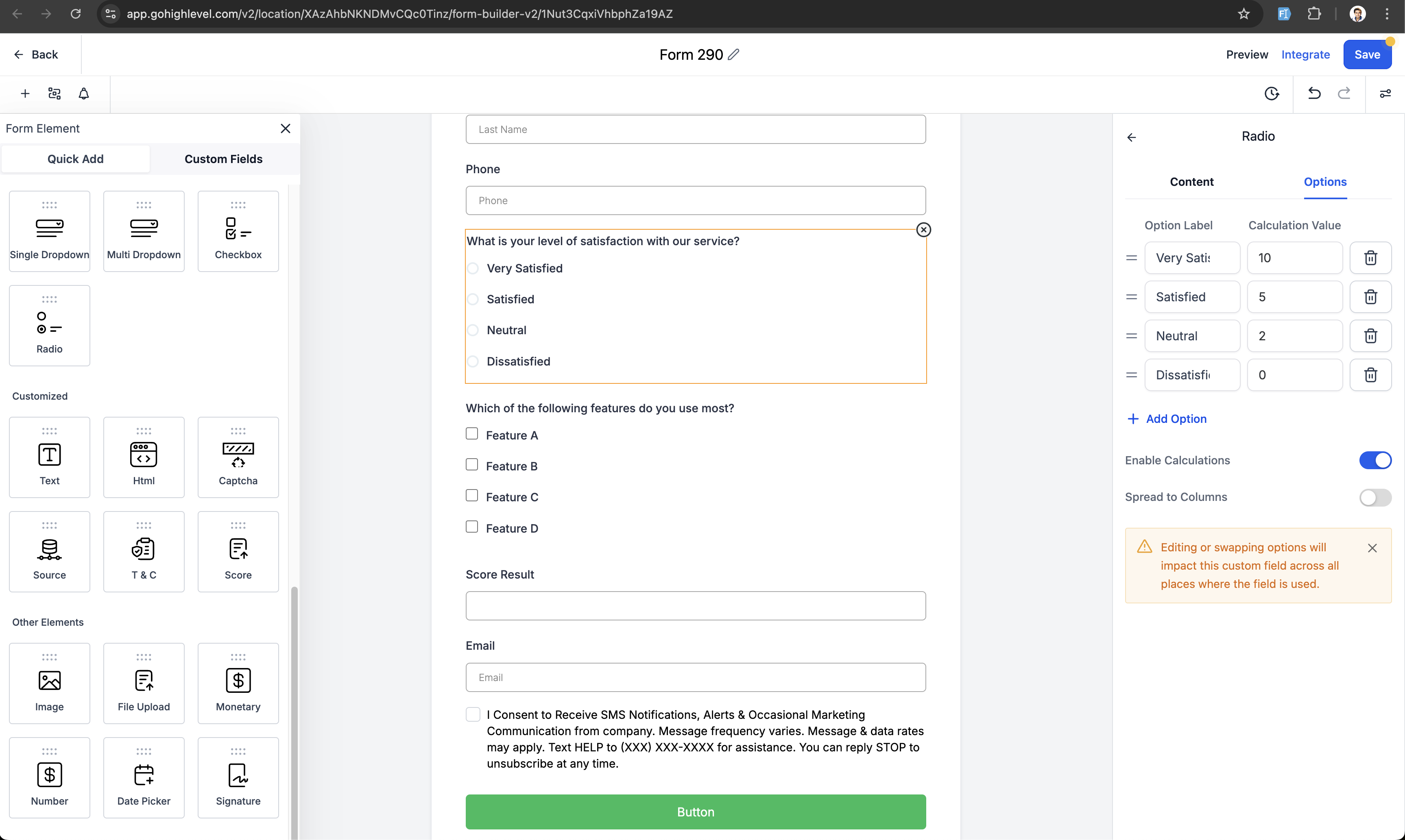
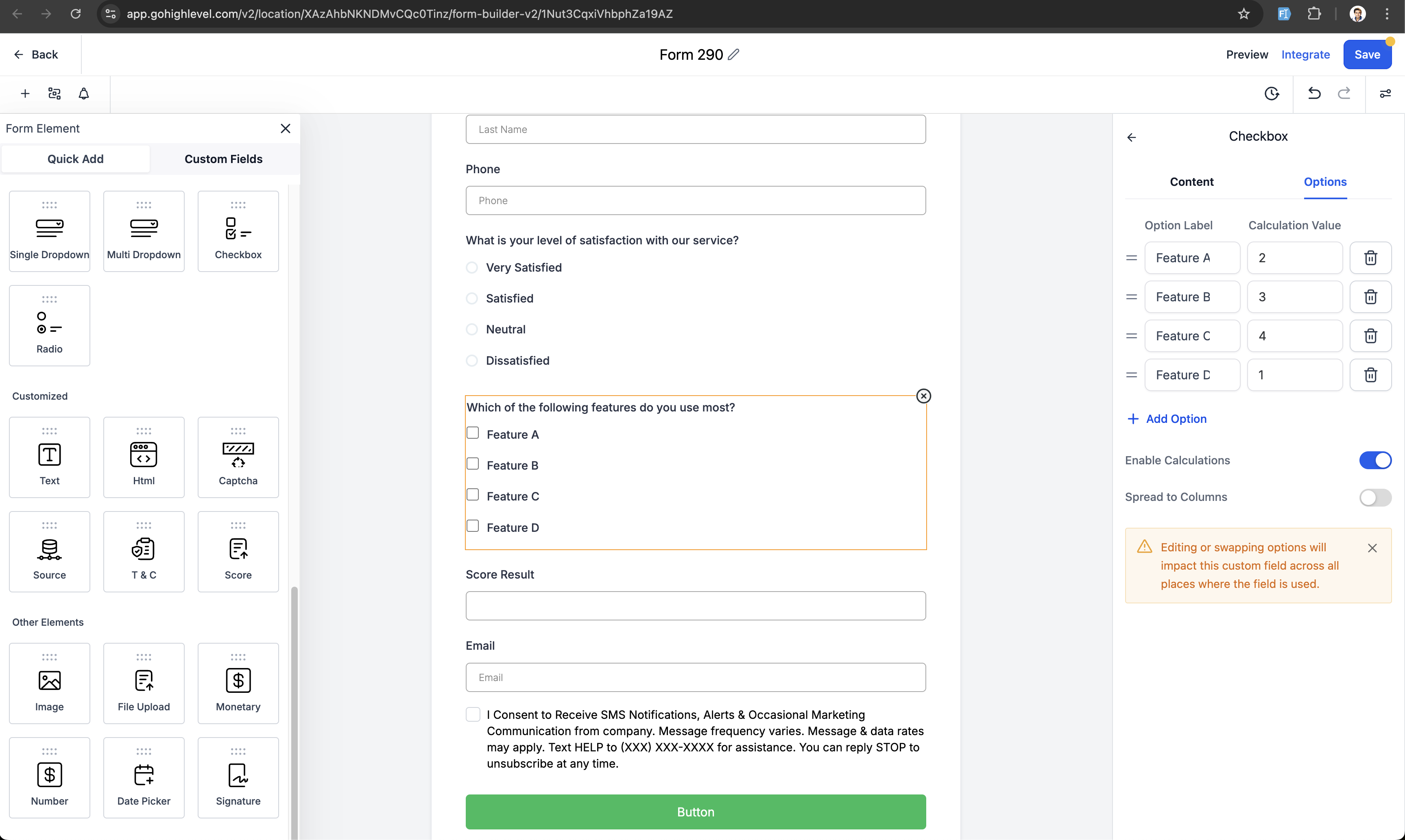
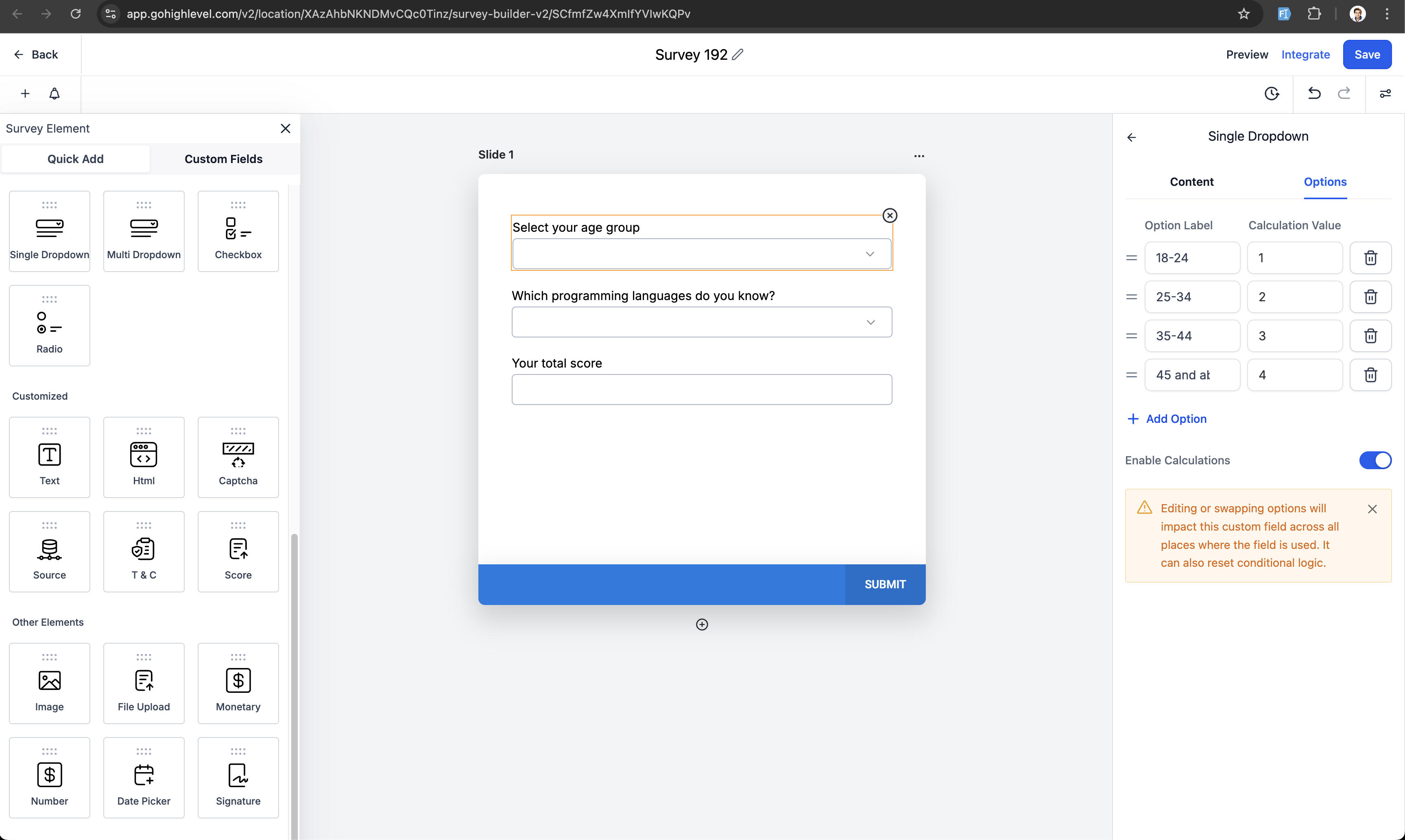
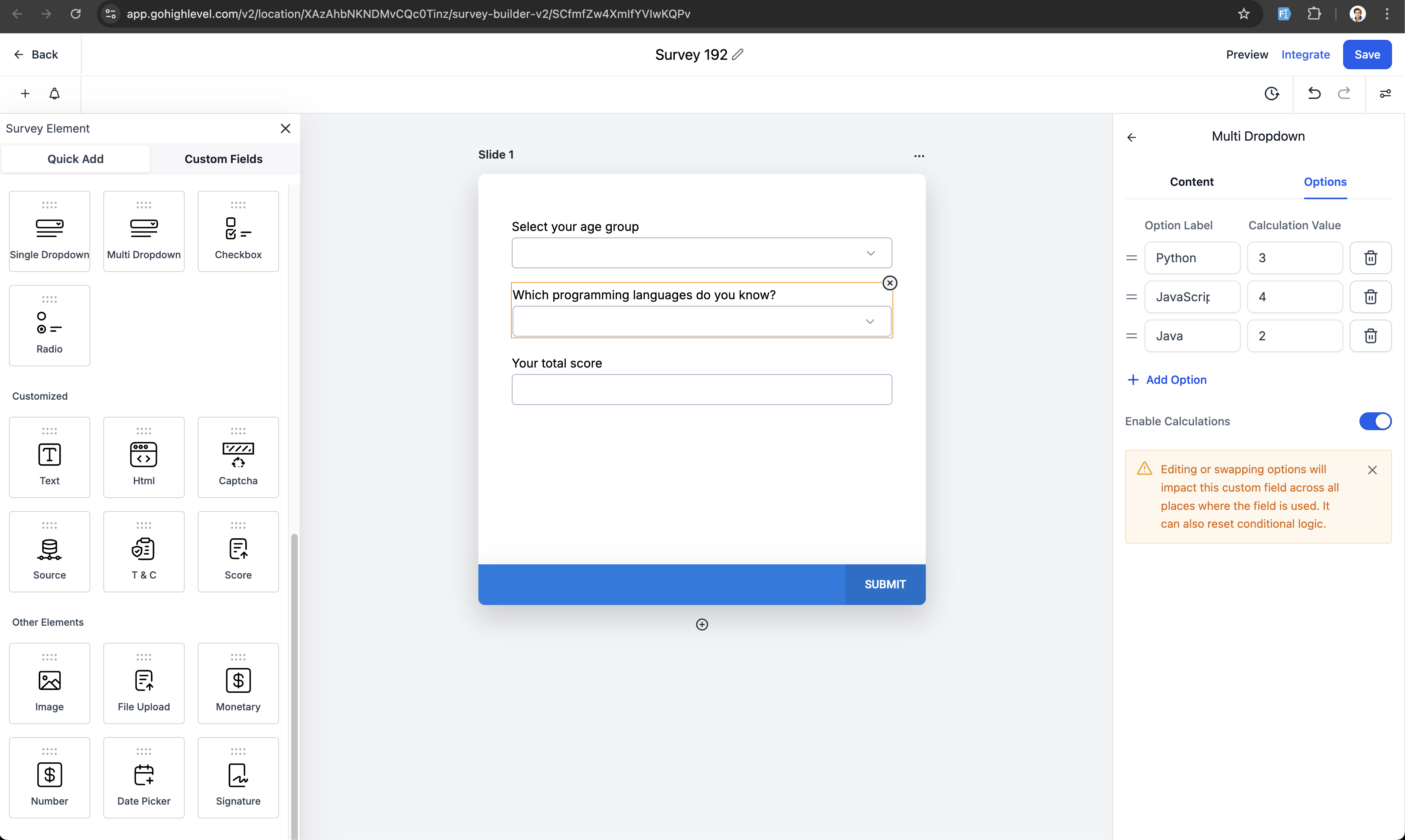
The feature adds scoring capability to several field types within the Forms & Surveys builder. You can give each option in radio, checkbox, single dropdown, and multi dropdown fields a numeric value, including decimals and negatives. Those values combine with any Number or Monetary fields you place on the same form, producing a cumulative score.
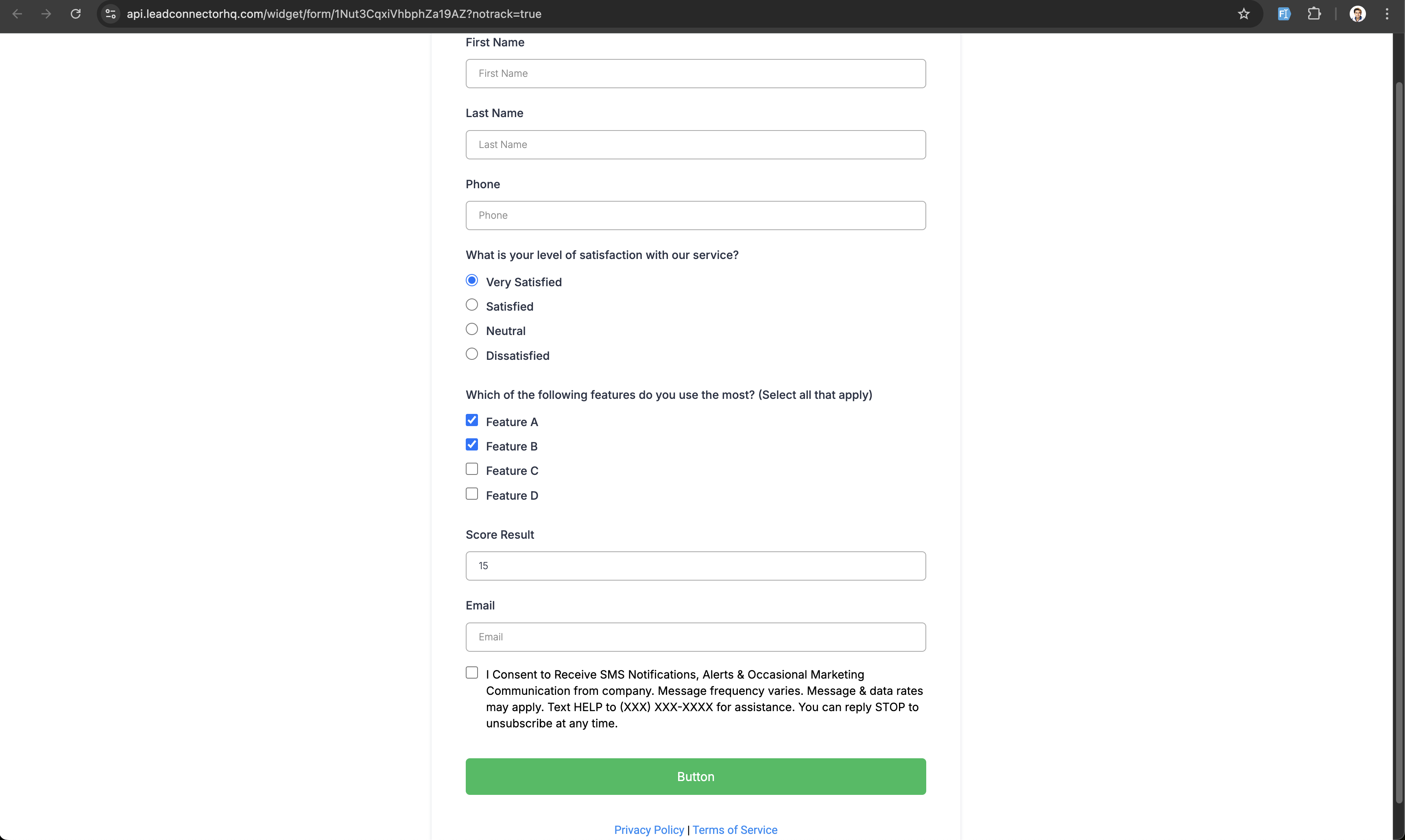
When a user selects or changes an option, the total updates immediately while you are in Preview Mode, allowing you to verify the logic before the form goes live. The calculation itself does not appear on a live form unless you design a place for the result, such as a hidden field or a confirmation page.
All of this lives inside the Forms & Surveys area of HighLevel. The builder includes a calculation settings panel where you define how individual field scores are summed or otherwise manipulated.
03How businesses use math calculations
- Online education platform. Add radio and checkbox questions to a quiz, assign each answer a point value, and configure the calculation settings to total the score. Preview the form to see the score change as a student selects answers.
- Financial services firm. Insert single dropdown fields for service options, give each a monetary value, and combine them with a Number field for additional costs. Use the calculation logic to sum selections, then preview to confirm the running total.
- Marketing agency. Create a lead qualification survey with multi dropdown fields, assign points to each choice, and set up the calculation to total those points. Test in preview mode to ensure the score reflects the intended qualification criteria.
04The numbers and rules that matter
- Supported fields: Radio Select, Checkbox, Single Dropdown, Multi Dropdown.
05How to set up and use math calculations in HighLevel
Set up math calculations in a form or survey
- Drag a supported field (radio select, checkbox, single dropdown, or multi dropdown) from the Quick Add menu onto the canvas.
- Click the field and enter a numeric score for each selectable option.
- Open the calculation settings and define how the scores from all fields should be added together or otherwise processed.
- Switch to Preview Mode and watch the total score update right away as you make selections.
06What it looks like in HighLevel

07Settings that matter
- Option Scores. Specifies the numeric value attached to each selectable option in supported fields.
- Calculation Logic. Controls how the individual option scores are combined to produce a final total.
08Things to know before you rely on it
- You can assign decimal and negative values to option scores.
- Calculations are visible only in Preview Mode during setup; live forms need a method to display or use the result.
- Conditional actions based on the score require additional workflows or automation.
- Existing forms are unchanged; you must edit them to incorporate the new calculation features.
- The feature works for both Forms and Surveys.
09If something goes wrong
- Calculations do not appear on the live form. Configure where the score is sent, such as a hidden field, custom field, or confirmation page, to make the result usable after publishing.
10How it connects to the rest of HighLevel
- Create and manage contact forms in HighLevel Contact form builder
- Embed HighLevel forms on external websites Embedding forms
- View HighLevel pricing and plan options Pricing
Michael's take

Math calculations are a handy way to add scoring to your HighLevel forms without extra code. Teams that don’t need quizzes, budgeting or lead scoring can skip it.