
01Who this is for
- Marketing agencies, maintain consistent form behavior across campaigns while tweaking specific lead capture forms.
- Healthcare clinics, enforce data collection standards for all patient intake surveys yet allow exceptions for specialty forms.
- Online course providers, manage quiz settings globally and adjust individual assessments as needed.
02Settings for forms, surveys & quizzes, explained
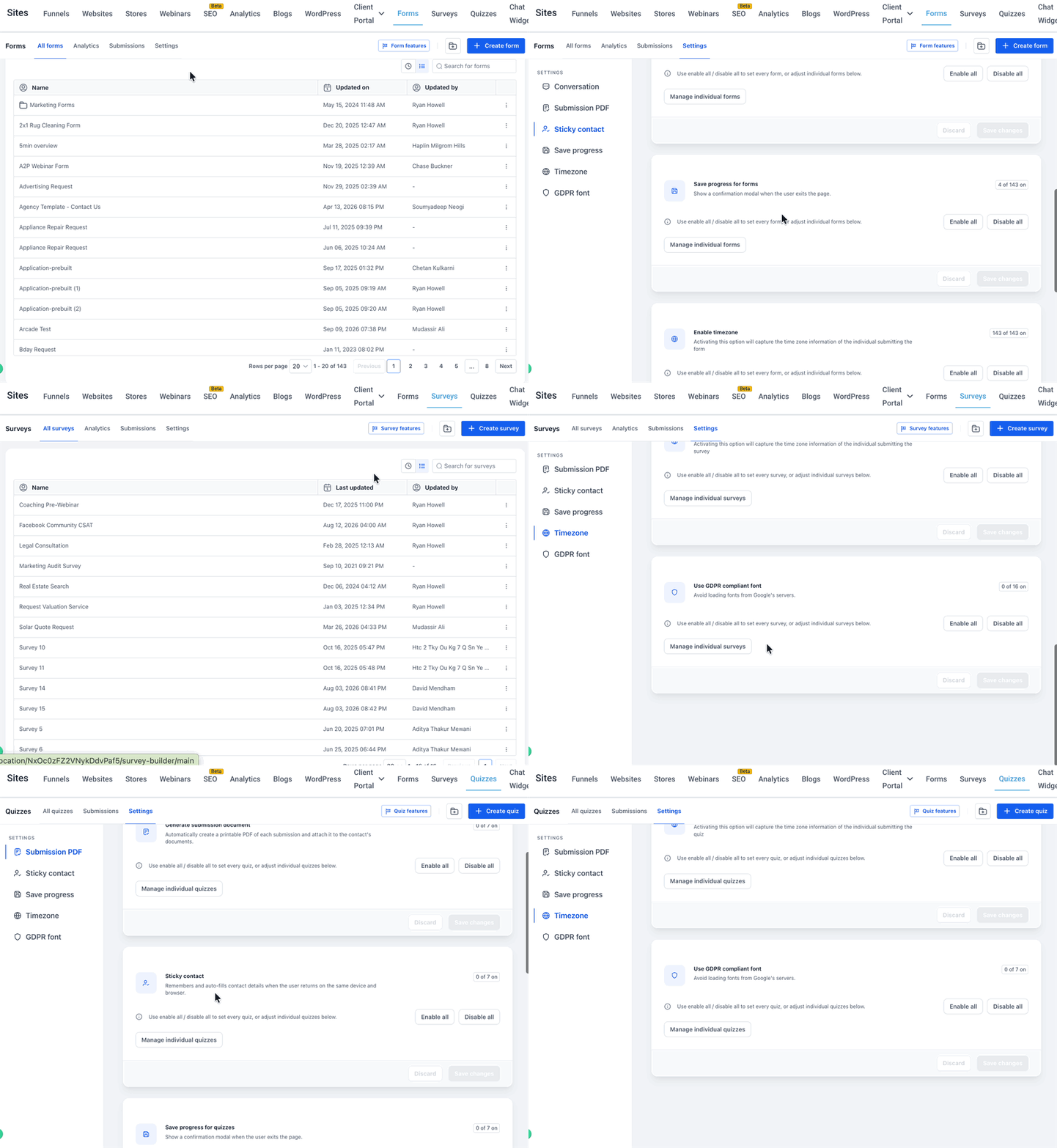
The Settings page, found under Sites > Forms/Surveys/Quizzes > Settings, provides a centralized view of supported options for each entity type. It shows how many forms, surveys or quizzes currently have each option enabled and lets you stage changes for the entire location.
Bulk actions let you enable or disable a setting for all applicable entities with a single click. After staging, you can still create per entity overrides before committing the changes. All updates remain staged until you click Save changes, giving you a chance to review the impact.
03How businesses use settings for forms, surveys & quizzes
- Marketing agency. The agency opens the Settings page, selects the Sticky contact option, clicks Enable all to apply it to every client form, then creates exceptions for a few legacy forms that require a different contact flow. The changes are saved after review.
- Healthcare clinic. The clinic navigates to Settings, chooses Generate submission document, disables it for all surveys, and then enables it only for the patient consent survey by toggling that specific item. The final configuration is saved to ensure required documents are generated only where needed.
- Online course provider. The provider accesses Settings, selects Save progress, clicks Enable all so all quizzes retain student answers, and adds an exception to turn it off for a timed assessment. After confirming the pending changes, the provider saves the updates.
04The numbers and rules that matter
- Generate submission document, Sticky contact, Save progress, Enable timezone, Use GDPR compliant font are available for Forms, Surveys and Quizzes.
05How to set up and use settings for forms, surveys & quizzes in HighLevel
Open the Settings page
- Click Sites in the left navigation menu.
- Choose Forms, Surveys, or Quizzes from the submenu.
- Select Settings to open the product level Settings page.
Apply a setting in bulk
- Open the appropriate Settings page.
- Select the desired setting from the left sidebar.
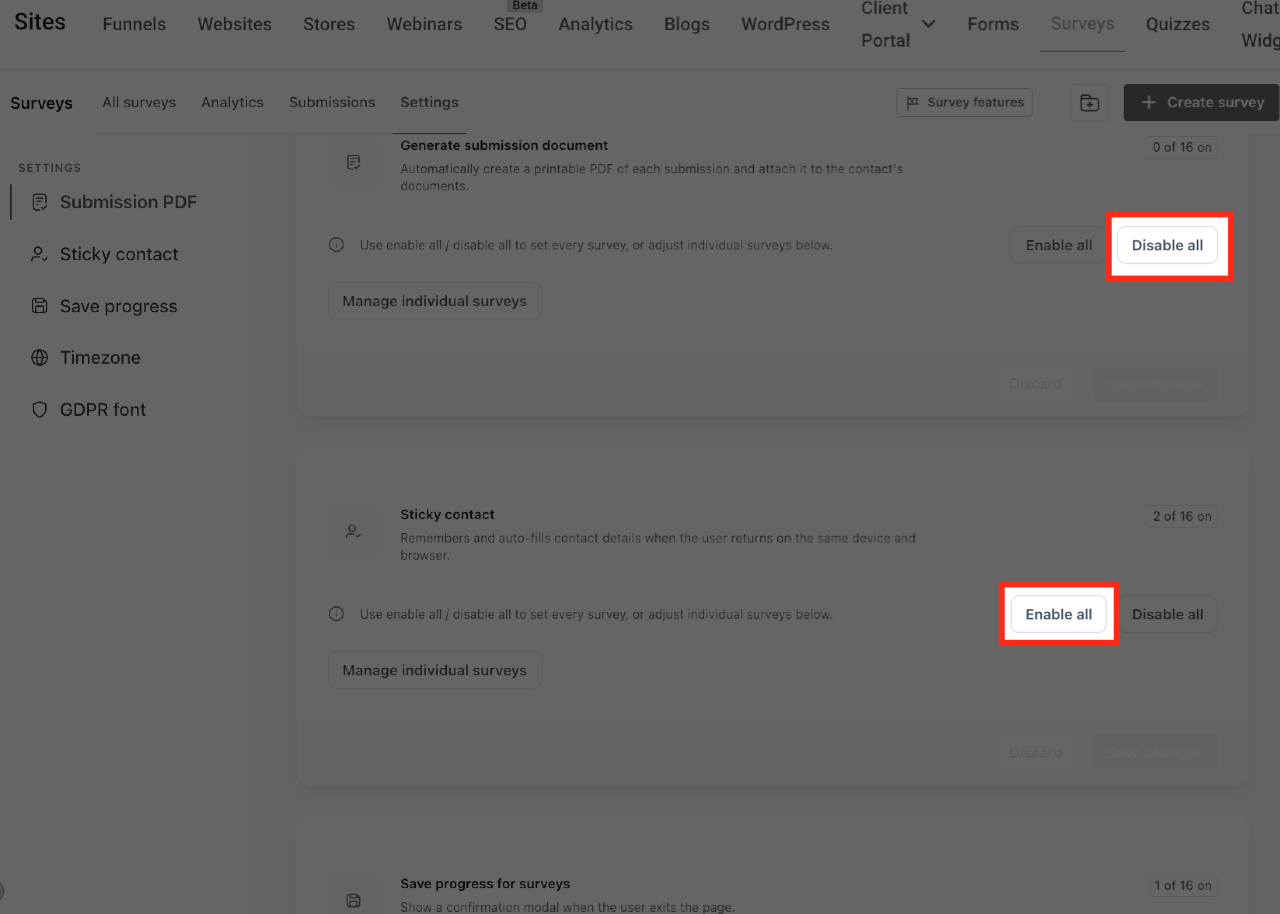
- View the count of entities that currently have the setting enabled.
- Click Enable all to stage the setting as enabled for every entity.
- Click Disable all to stage the setting as disabled for every entity.
- Review the pending change summary before proceeding.
Create individual exceptions
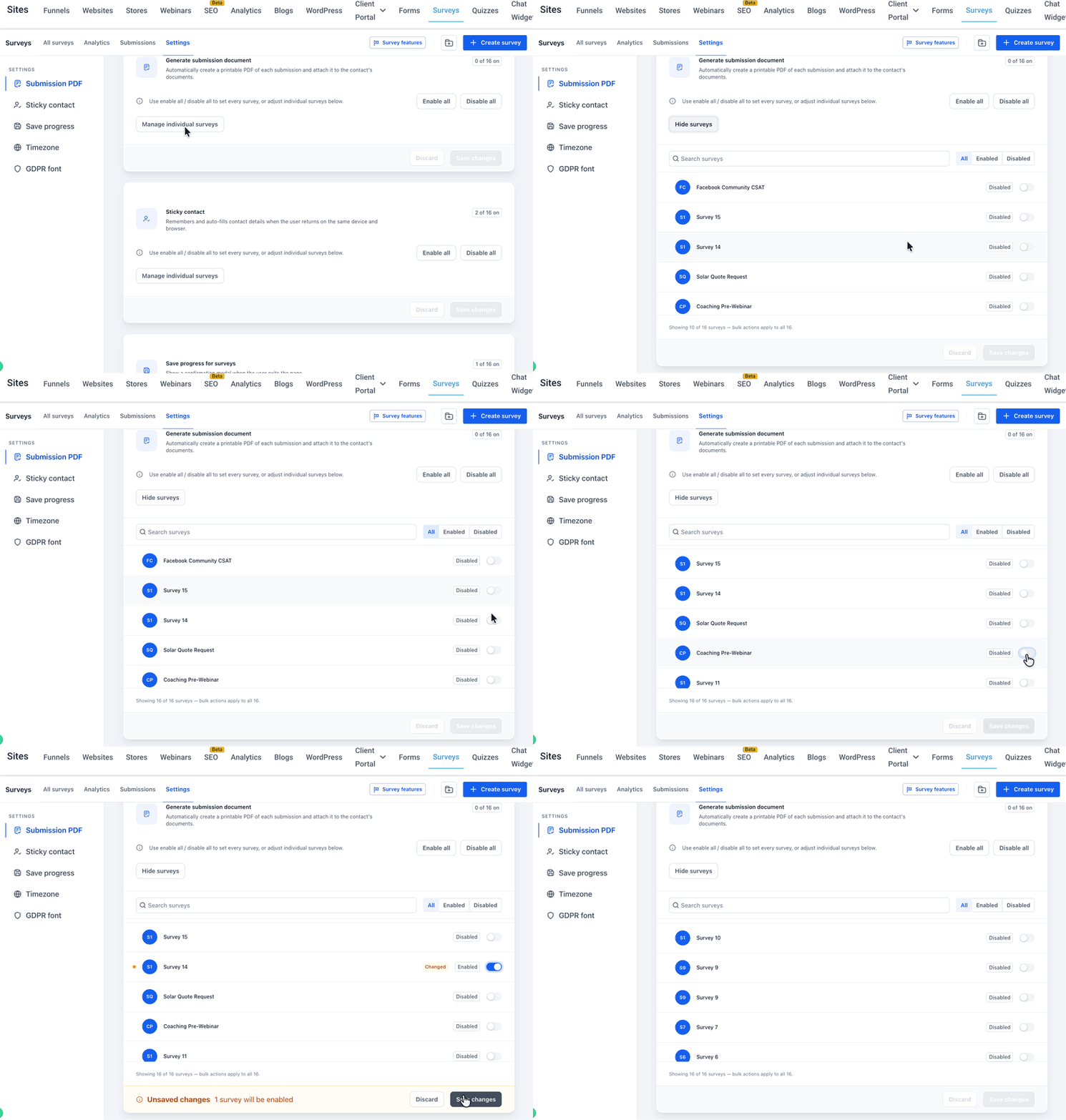
- Open the individual list using the control for the product (Manage individual forms, surveys, or quizzes).
- Search for a specific entity by name if needed.
- Filter the list by choosing All, Enabled, or Disabled.
- Toggle the switch next to an entity to set an exception.
- Repeat the toggle for any additional entities that need a different state.
- Review the Unsaved changes summary.
- Click Save changes to apply the staged updates.
Review and save changes
- Identify rows marked Changed to see which entities have pending overrides.
- Check the bottom bar for the Unsaved changes indicator.
- Read the save summary that explains the upcoming result.
- Click Save changes to commit all staged updates.
- If necessary, click Discard to revert any staged modifications.
06What it looks like in HighLevel
07Settings that matter
- Create conversation on submission. Creates a conversation thread in HighLevel when a form is submitted.
- Generate submission document. Produces a PDF document that contains the submitted information.
- Sticky contact. Keeps the contact information visible on the form as the user scrolls.
- Save progress. Allows respondents to resume a partially completed form, survey, or quiz later.
- Enable timezone. Applies the lead’s timezone to the form submission data.
- Use GDPR compliant font. Displays the form using a font that meets GDPR visual requirements.
08Things to know before you rely on it
- Create conversation on submission is only available for Forms, not for Surveys or Quizzes.
- Enable all and Disable all affect every applicable entity in the location, even those not visible on screen.
- Enabled and Disabled filters operate only on entities that have already been loaded in the list.
- Bulk actions are staged until you click Save changes; no data changes occur before that step.
09How it connects to the rest of HighLevel
- Enable Sticky Contact in HighLevel forms, surveys and calendars Sticky Contact
- How to enable address auto complete in HighLevel forms Address Auto Complete
- HighLevel pricing and plans Pricing
Michael's take

Bulk control sounds convenient, but you need to remember that nothing actually changes until you press Save. That staging step protects you from accidental sweeps across hundreds of quizzes or forms.