
01Who this is for
- Founders building an ecommerce store who need to verify product layout and cart flow before launch.
- Marketing managers who want to test variant selections and add to cart actions in a realistic preview.
- Design teams that require accurate placeholder visuals when no product is assigned to a section.
02Live preview, explained
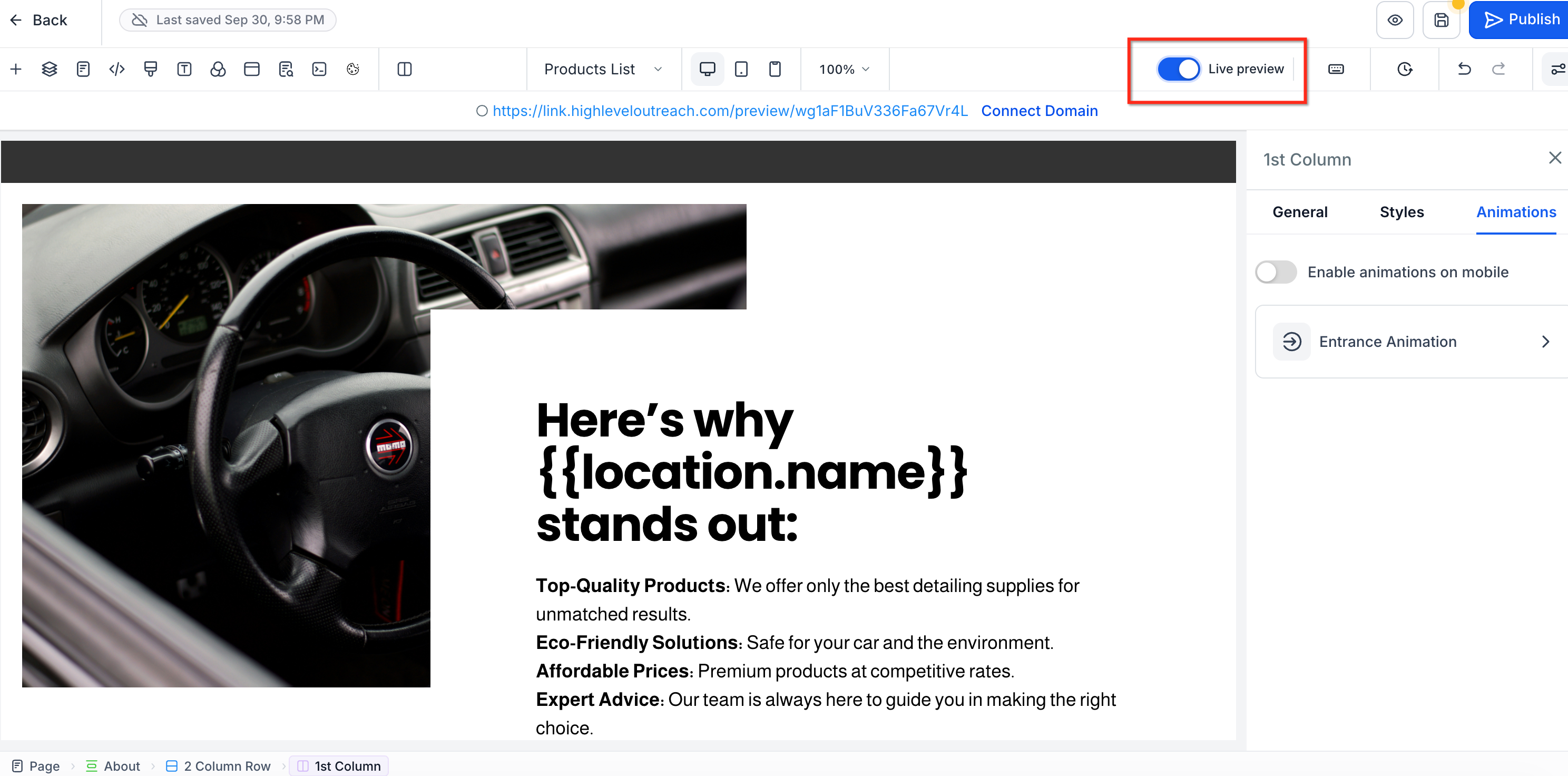
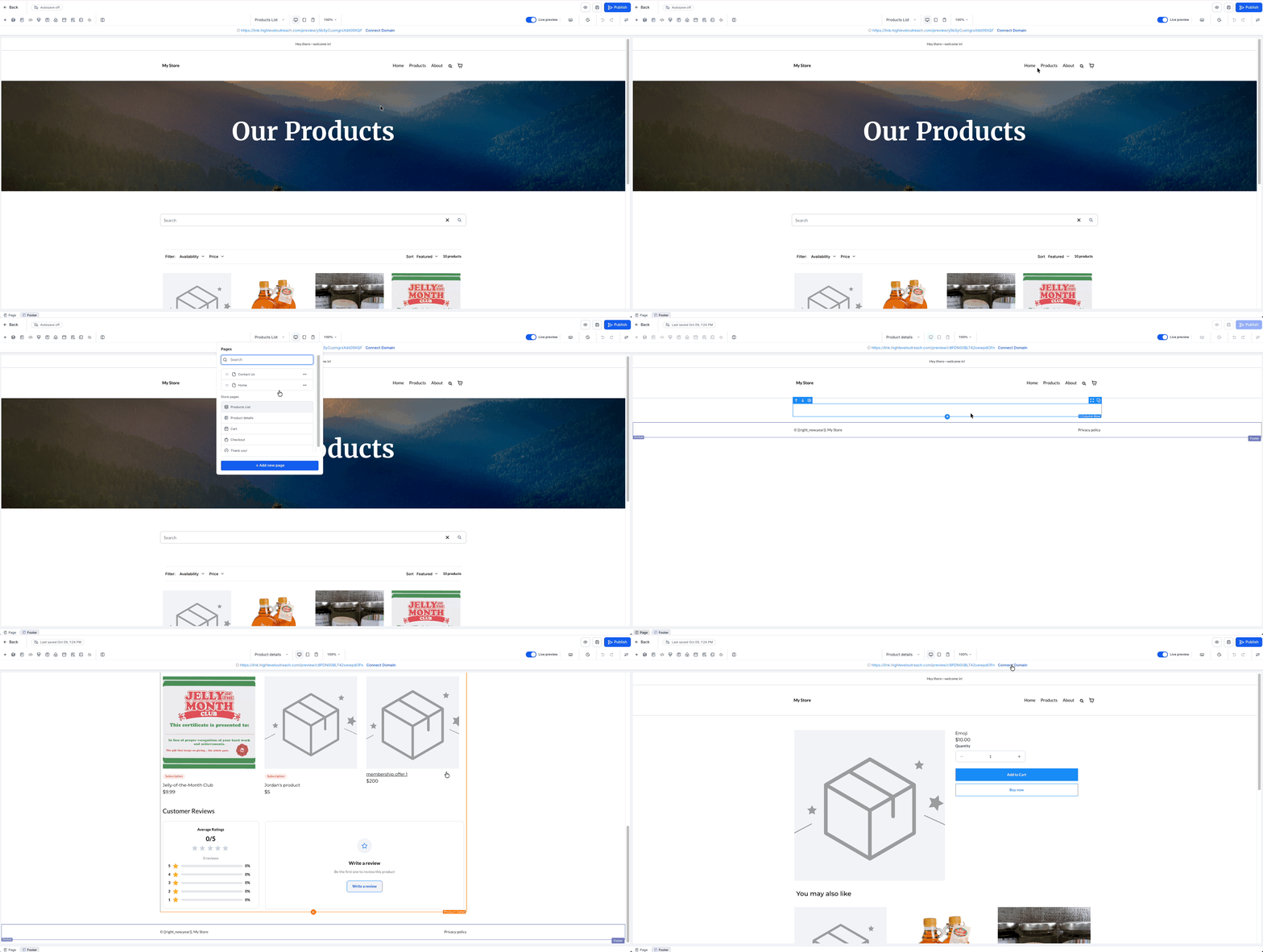
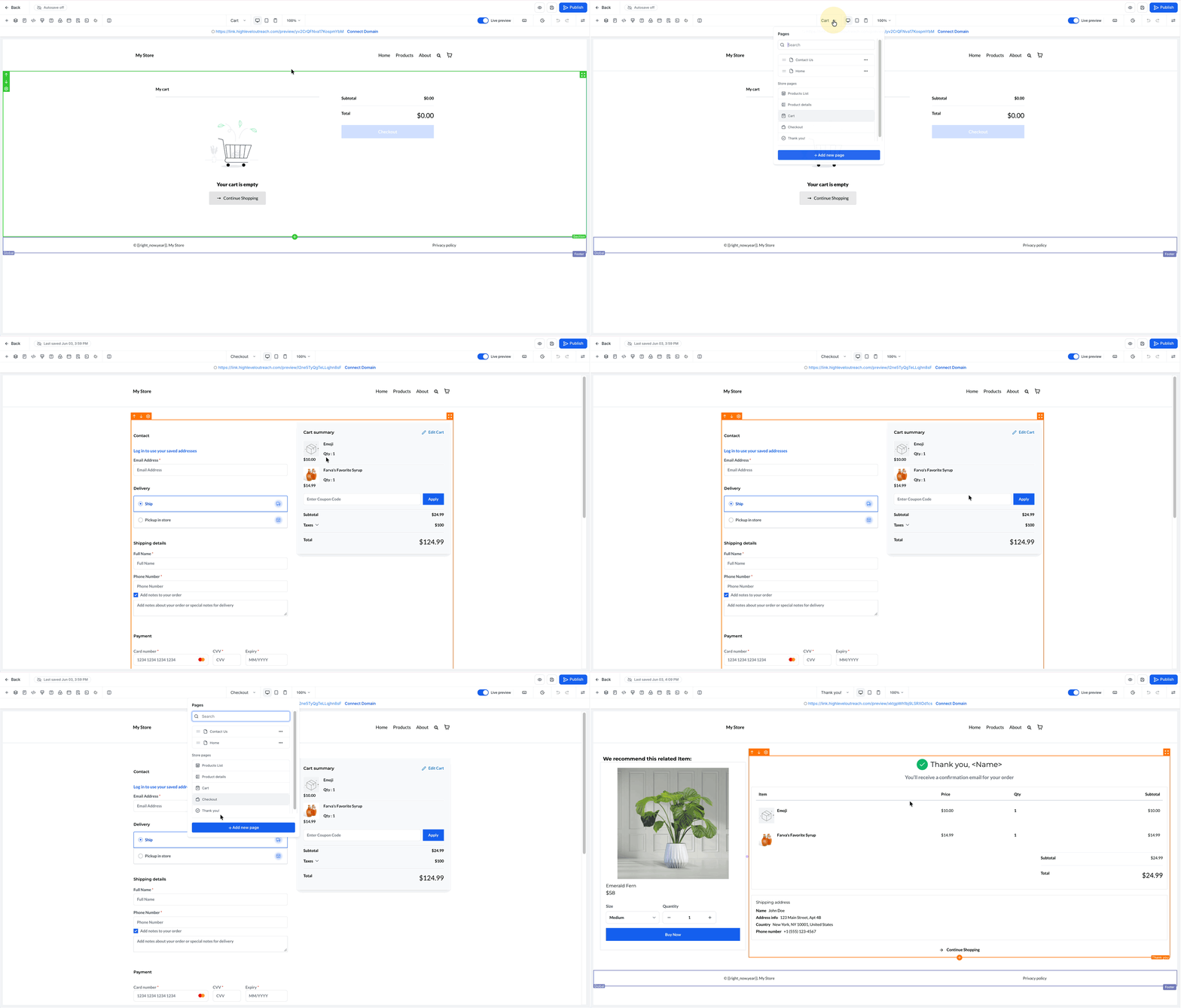
Live Preview replaces dummy product information with real items from your account while you are inside the Store Builder. When the toggle is on, product lists, detail pages, carts, checkout and thank you pages show actual data, letting you navigate, select variants and add items to a preview cart.
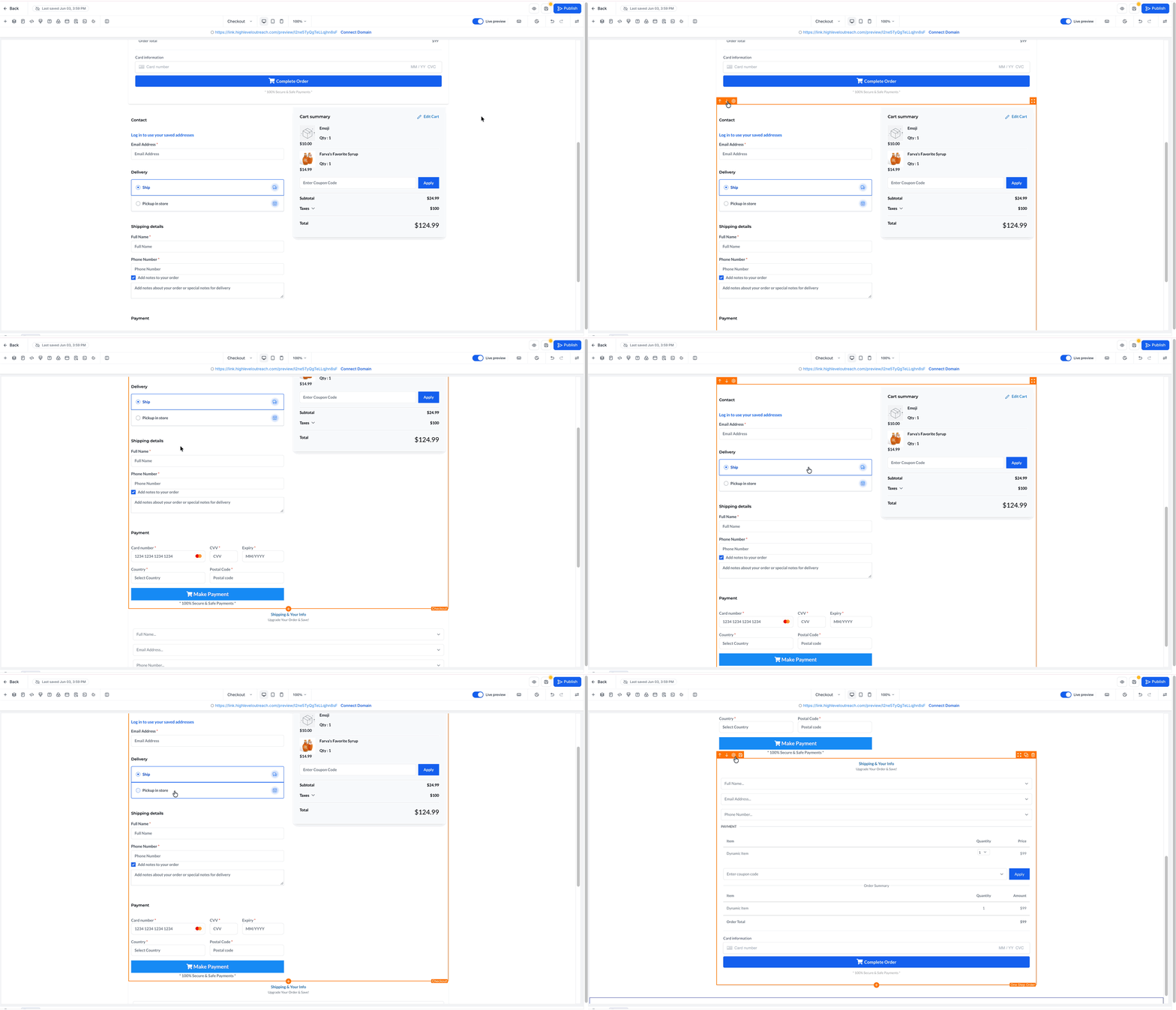
The feature works only on standard Store pages. Custom Product Details Pages do not contain the Live Preview toggle and always keep dummy data. Checkout inside Live Preview is a preview only; real time shipping, taxes and multiple payment methods are not supported.
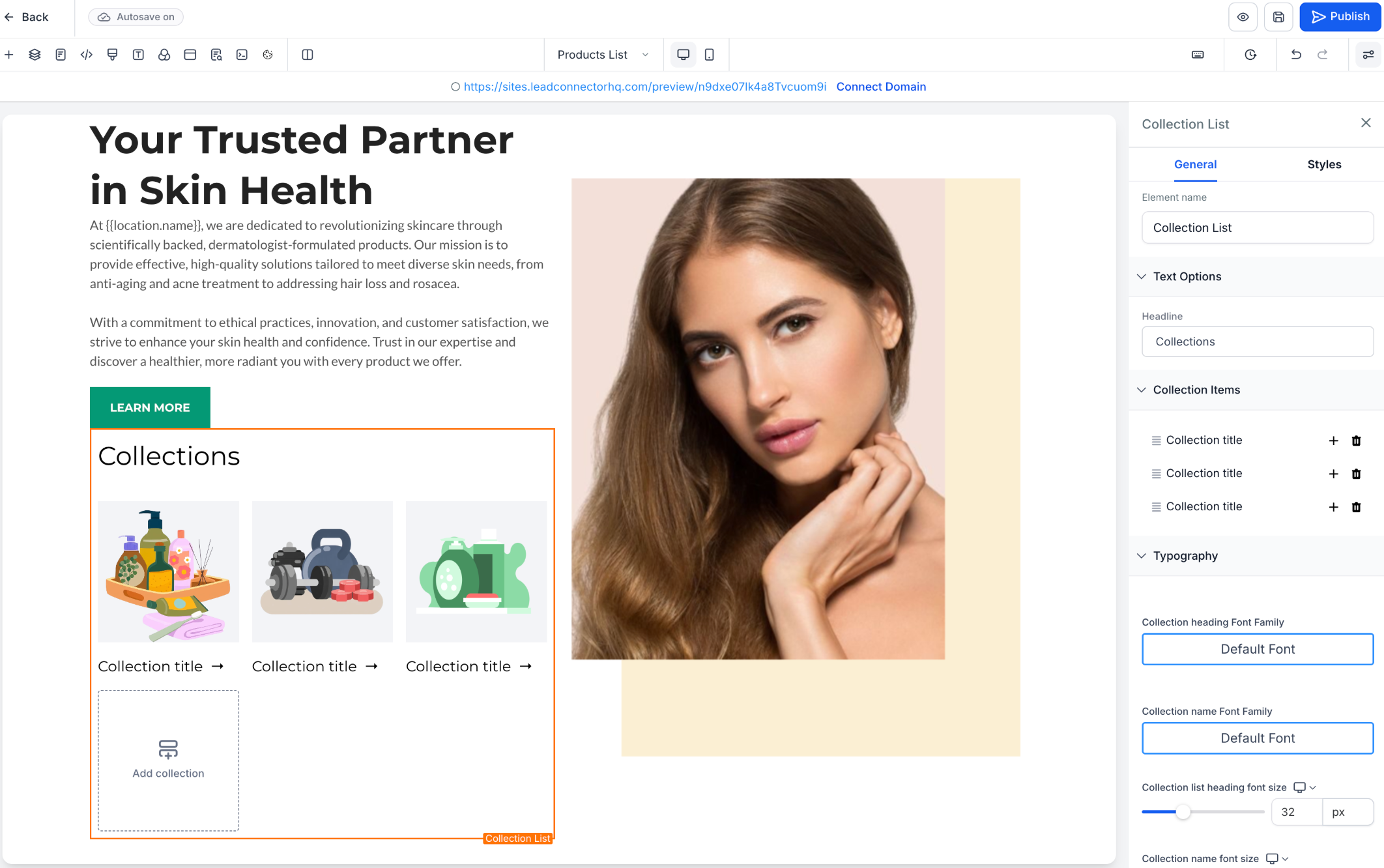
Refreshed placeholder images appear in sections that have no product or collection attached. The new illustrations help separate sample content from real data. They are visual only and do not affect the published store.
03How businesses use live preview
- Online clothing retailer. The retailer enables Live Preview to browse real apparel items, test size variant selections, and add pieces to the preview cart. They also turn on the new image placeholders to see how empty collection slots appear during design.
- Digital subscription service. The service activates Live Preview to verify that subscription products display correctly on product pages and that the preview cart can hold multiple subscription items before publishing.
- Handcrafted jewelry boutique. The boutique switches on the placeholder image Lab flag so that any product sections without assigned items show the new illustrative images, making the design layout clearer while building the store.
04The numbers and rules that matter
- Checkout preview does not include real time shipping rates, taxes, multiple payment methods, or functional checkout fields.
05Before you start
- The subaccount must contain at least one product for Live Preview to be active by default.
- The Labs feature flag must be enabled for the subaccount to use refreshed placeholder images.
06How to set up and use live preview in HighLevel
Enable live preview
- From the Subaccount View, go to Sites.
- Select Stores.
- Open the Ecommerce Store you want to edit.
- Open the Store page you want to review.
- Locate the Live Preview toggle in the Store Builder.
- Turn Live Preview ON to use available real product data.
- Test supported products, variants, navigation, and cart actions.
- Turn Live Preview OFF to return to dummy product data.
Enable updated placeholder images
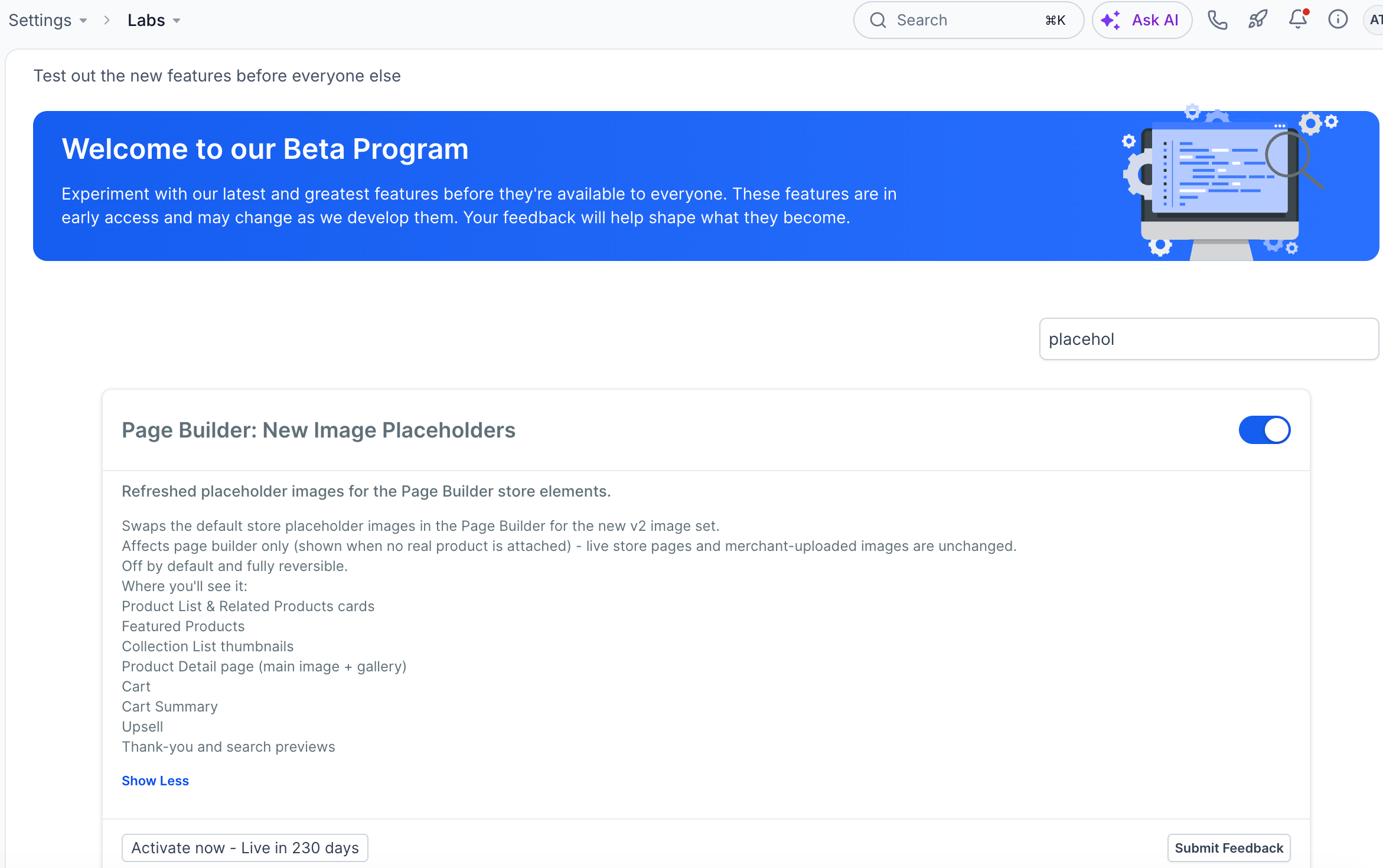
- Go to Admin Portal > Settings > Labs.
- Search for "Page Builder: New Image Placeholders".
- Toggle the feature On.
- Reload the Page Builder to see the updated placeholders.
07What it looks like in HighLevel
08Settings that matter
- Live Preview toggle. Turns real product data on or off inside the Store Builder, replacing dummy preview items with actual products.
- Page Builder: New Image Placeholders. Activates the refreshed illustration based placeholder images that appear when no product or collection is linked to a section.
09Things to know before you rely on it
- Live Preview is ON by default only when the account has products; otherwise it starts OFF.
- Custom Product Details Pages never include the Live Preview toggle and always use dummy data.
- Checkout preview does not calculate real time shipping, taxes, or support multiple payment methods.
- The refreshed placeholders are visual only; they do not change store layouts or published content.
- The Labs flag for new placeholders must be set per subaccount.
10How it connects to the rest of HighLevel
- Explore all Sites features for more store capabilities. All Sites features
- Review pricing options before enabling advanced Labs features. HighLevel pricing and plans
- Start a free trial to experiment with Live Preview and placeholder images. Start a 30 day HighLevel trial
Michael's take

Live preview is worth the time for any small business that wants confidence that the shopping experience looks right before going live.
Don’t forget that the checkout you see in preview isn’t a real transaction.