
01Integrate tab, explained
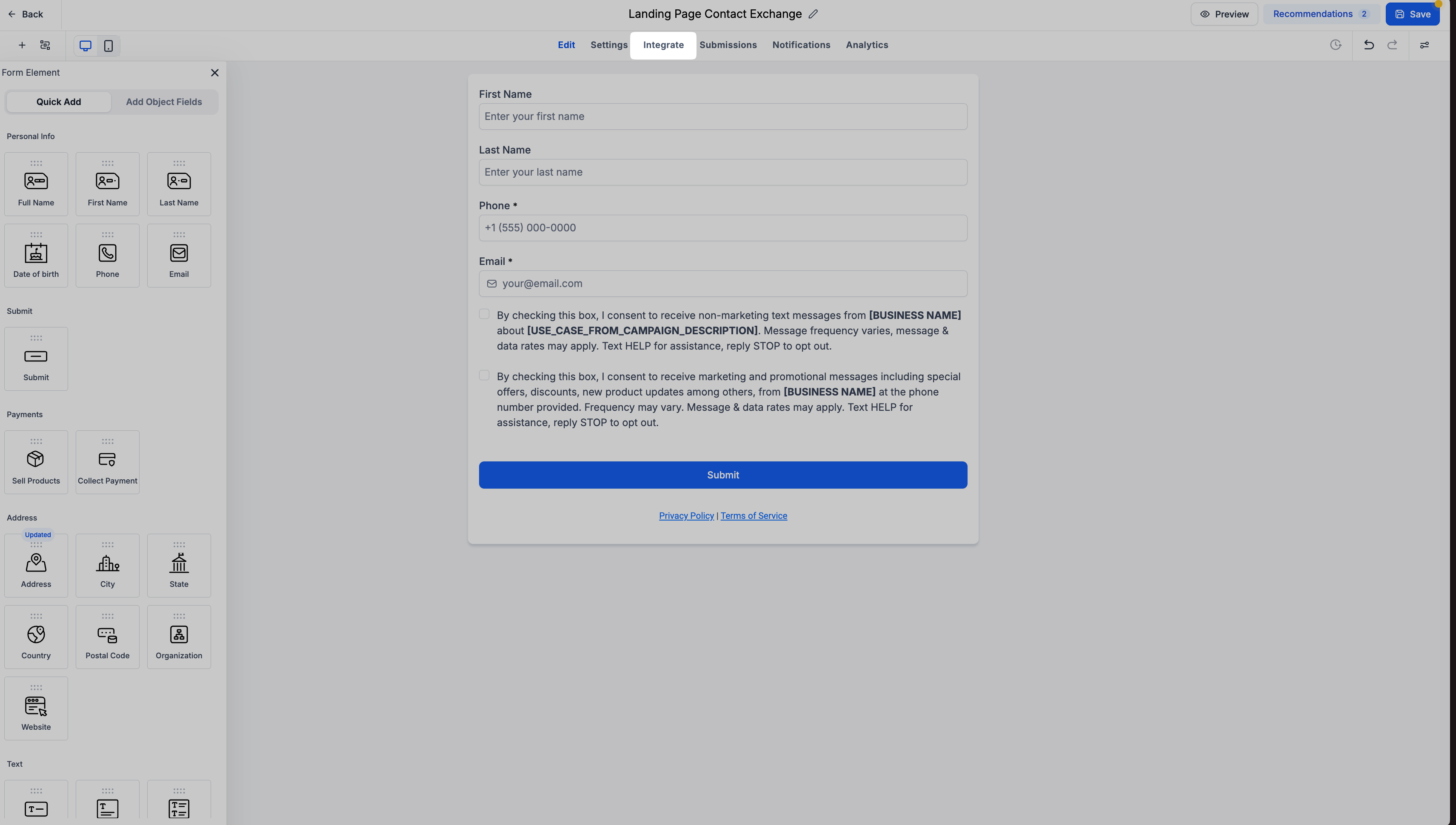
The Integrate tab is a centralized hub inside the Form, Survey, and Quiz builders. It replaces the previous Integrate button and provides four integration options: Embed, Share, Email, and Connections. Each option provides tools to configure how the content appears, how it is distributed, and how it ties into automations.
Live embed previews show how changes affect the layout before you copy the code. The Share option gives a direct link, social sharing buttons, and a prebuilt QR code. Email lets you add the content to existing or new email templates. Connections displays related Workflows and lets you initiate a new Workflow without manually searching through the Automation area.
02How businesses use the Integrate tab
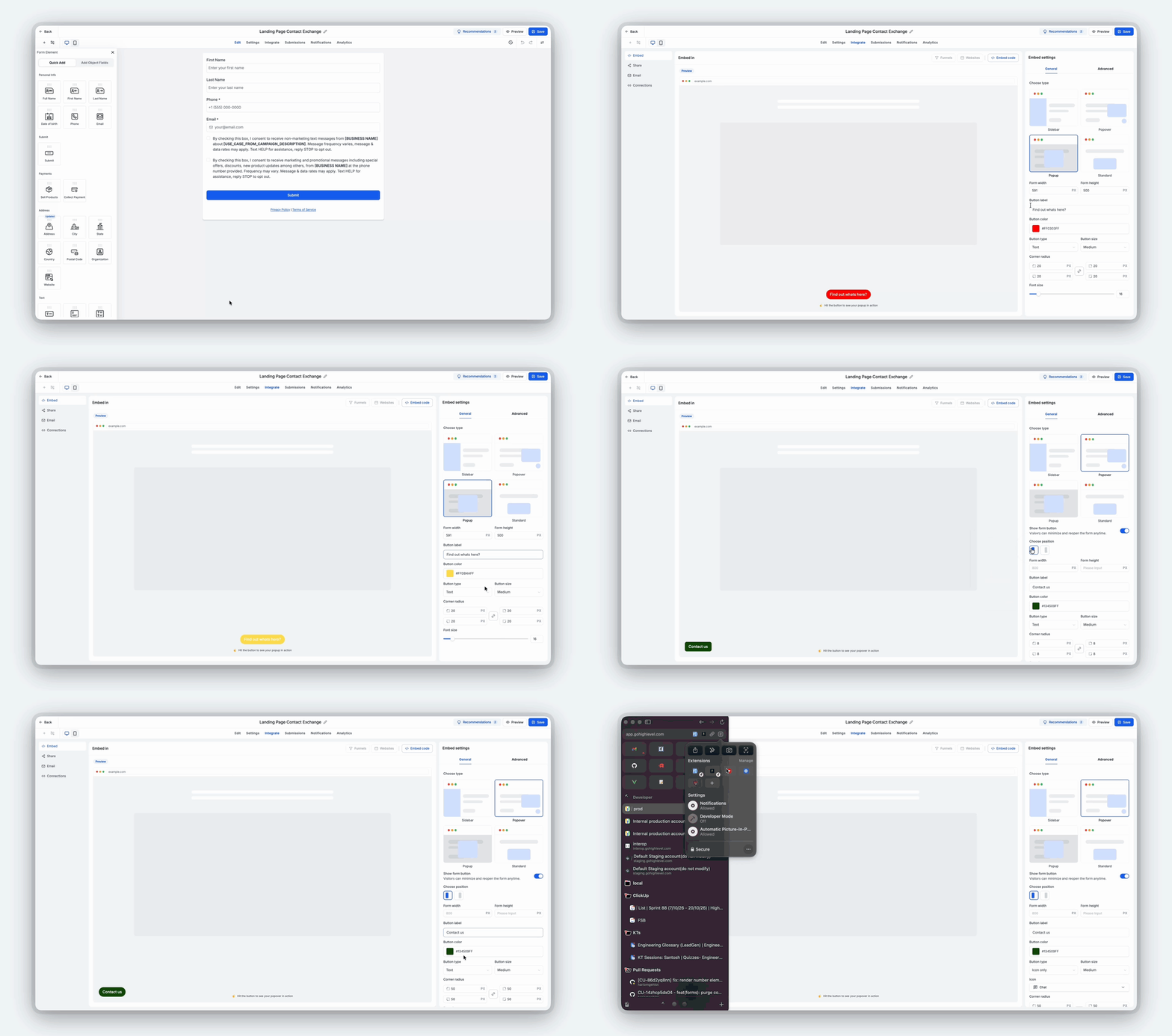
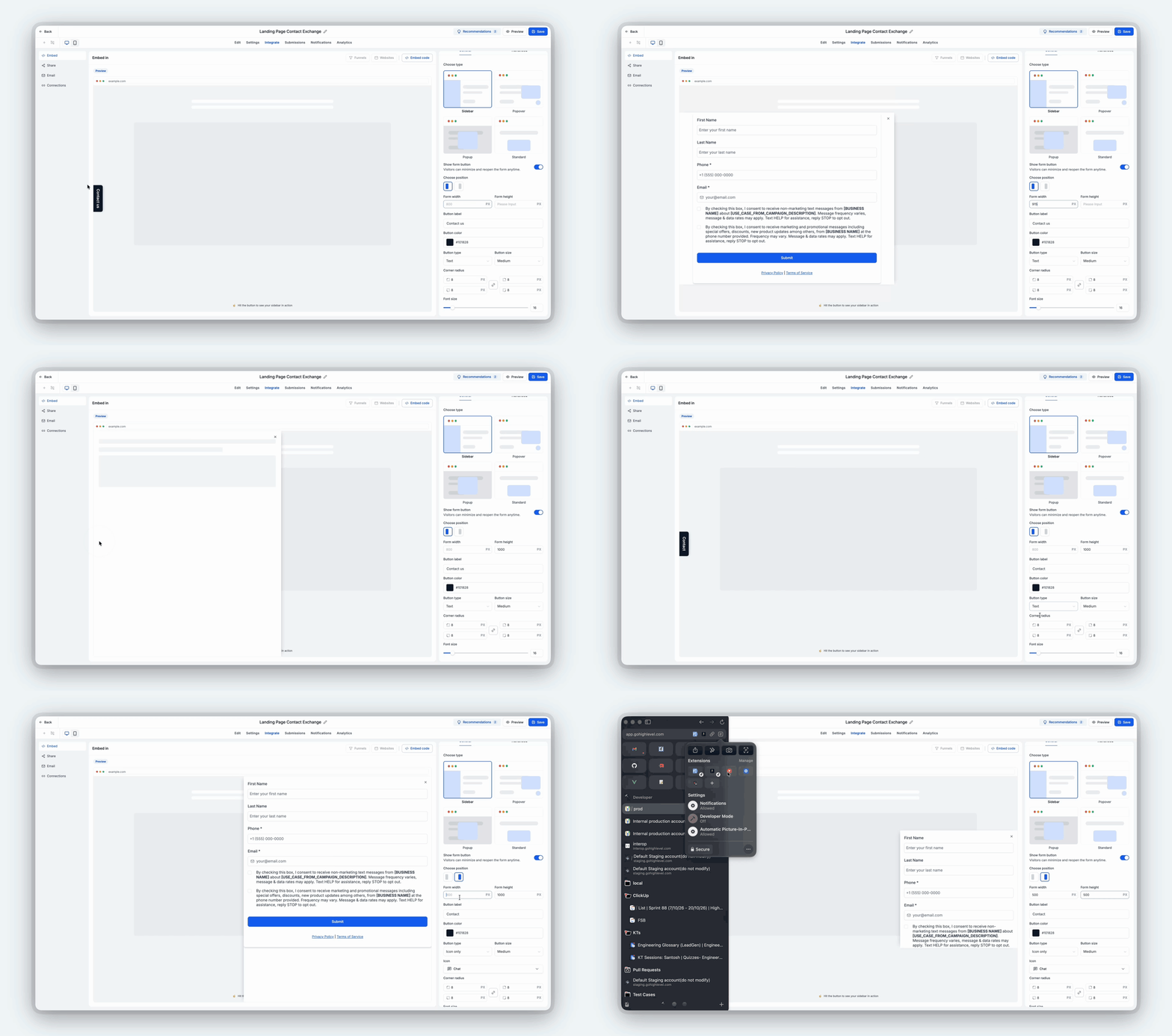
- Embed forms on a website. Choose the Embed option, select a type such as Standard or Popup, adjust settings like size and button appearance, and copy the generated code into your site. The live preview helps you pick the right layout before publishing.
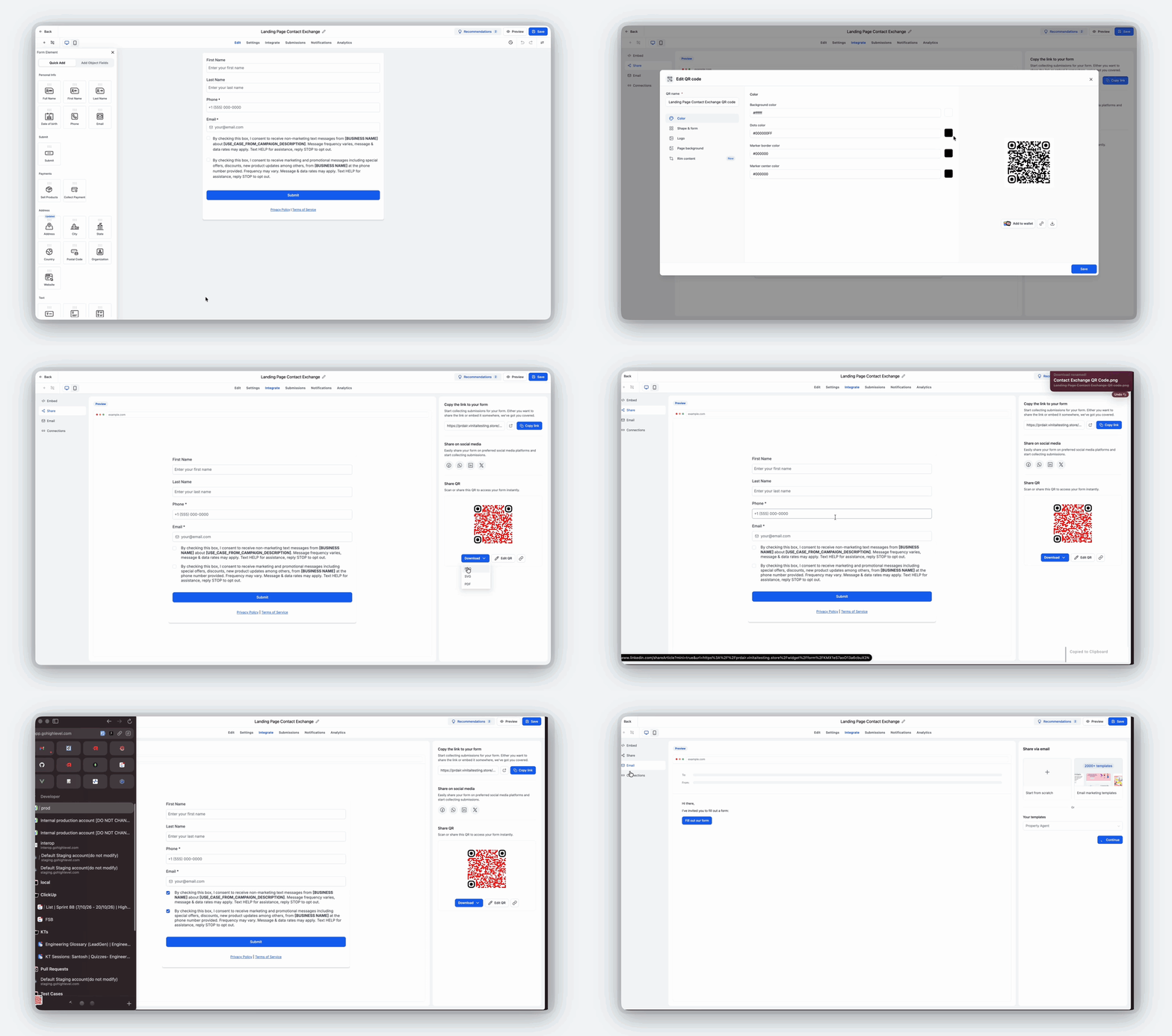
- Share via QR code or link. Open the Share tab, copy the direct URL, or customize and download the prebuilt QR code. You can then place the link in messages or print the QR code on marketing materials.
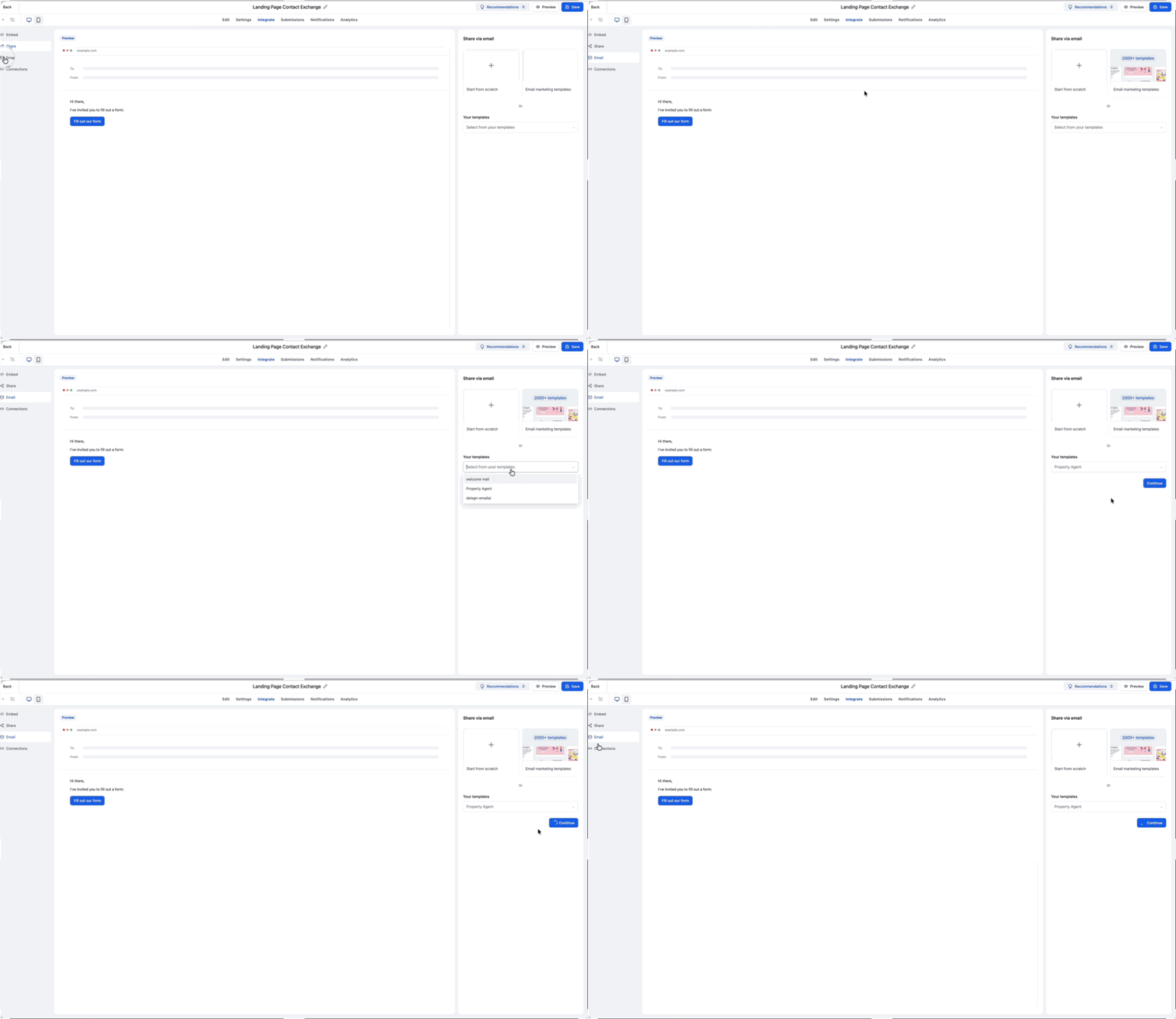
- Add to email campaigns. Select the Email option, pick an existing template or start a new email, and insert the Form, Survey, or Quiz. The integration works as before, now accessed from the Integrate tab.
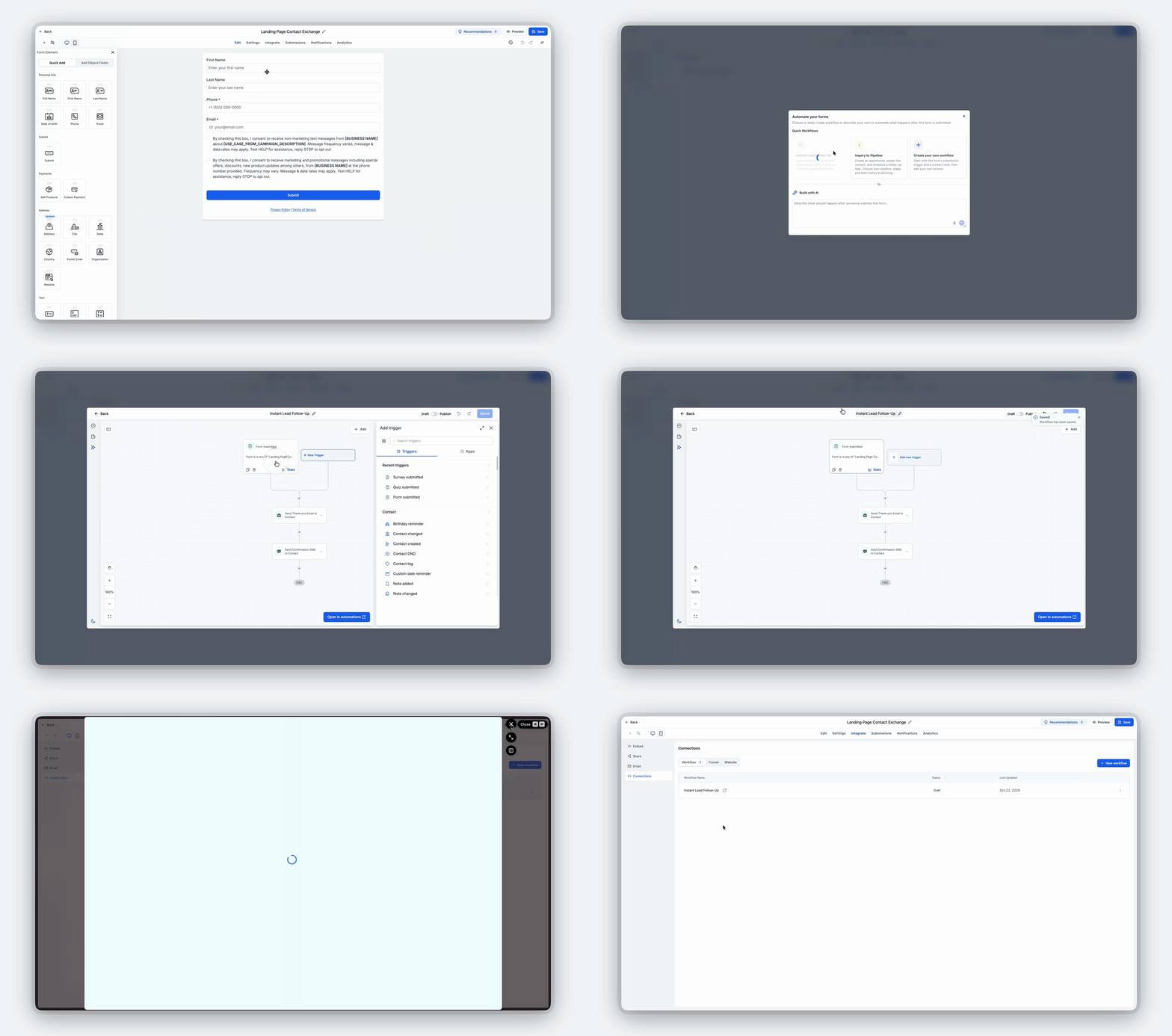
- Connect to automations. Use the Connections tab to view Workflows linked to the item or click Create Workflow to build a new automation.
03How to set up and use the Integrate tab in HighLevel
Set up integrate tab
- Go to Sites > Forms, Surveys, or Quizzes and open the item you want to integrate.
- Select the Integrate tab in the builder.
- Choose your preferred integration option:.
- Embed: Select an embed type, customize settings, review the live preview, click Embed code > Copy code, then paste the code into your website editor and publish.
- Share: Copy the direct link, select a social sharing option, or customize and download the prebuilt QR code.
- Email: Select an existing email template or create a new email to include your Form, Survey, or Quiz.
- Connections: View associated Workflows or click Create Workflow to configure a new automation.
- Click Save to save your Form, Survey, or Quiz. The postsave modal provides options to Share, Embed, or Create a Workflow.
04What it looks like in HighLevel
05Settings that matter
- Choose Type. Select Standard, Popup, Popover, or Sidebar embed layout.
- Position. Adjust the supported display or button position.
- Width and Height. Configure available form dimensions.
- Button Settings. Customize the label, color, type, and size.
- Appearance. Adjust supported corner radius and font settings.
06Things to know before you rely on it
- Visibility into connected Funnel steps and Website pages is not included in the initial release.
Michael's take

The Integrate tab packs the everyday distribution tasks into a single screen, so a small business can get a form out, share it with a QR code, or hook it to an automation without hopping around the platform.
Don’t forget to click Save. Otherwise the embed code and links you just set up won’t be stored.