
01Who this is for
- Founders who need a quick way to share personal contact details without building a card from scratch.
- Agency administrators who manage a team and want a shared Business Card that reflects the subaccount’s branding.
- Marketing staff who want to track how often their QR codes are scanned and capture leads directly.
02Profile and business cards, explained
Profile and Business Cards are digital cards that present personal or company information through a link or QR code. HighLevel generates both cards automatically when an authorized user first clicks the QR icon inside a subaccount. The Profile Card uses the individual’s name, title and contact data, while the Business Card reflects the subaccount’s business information.
Both cards include a shareable link, a downloadable QR code and analytics that show scan counts. Users with View permission can copy the link or download the QR code, whereas users with Manage permission can edit card details, add social links, adjust colors, and enable the optional Exchange Contact feature for lead capture. Cards are stored in protected system folders separate from manually created QR codes.
03How businesses use automatically created profile and business cards
- Consulting firm. A consultant opens the QR icon, edits the Profile Card to add a booking page link, enables Exchange Contact with an existing intake form, and shares the QR code on their email signature to let prospects schedule calls.
- Retail store. The store manager accesses the Business Card, updates the address and adds a link to the online shop, then downloads the QR code to print on receipts so customers can quickly visit the website.
- Health clinic. A clinic administrator customizes the Business Card with a link to the appointment scheduler, enables Exchange Contact using the clinic’s patient intake form, and monitors scan analytics to see which promotional material drives the most visits.
04Before you start
- The user must have QR Codes access granted in their role.
- The appropriate card permission (view or manage) must be enabled for the user.
05How to set up and use automatically created profile and business cards in HighLevel
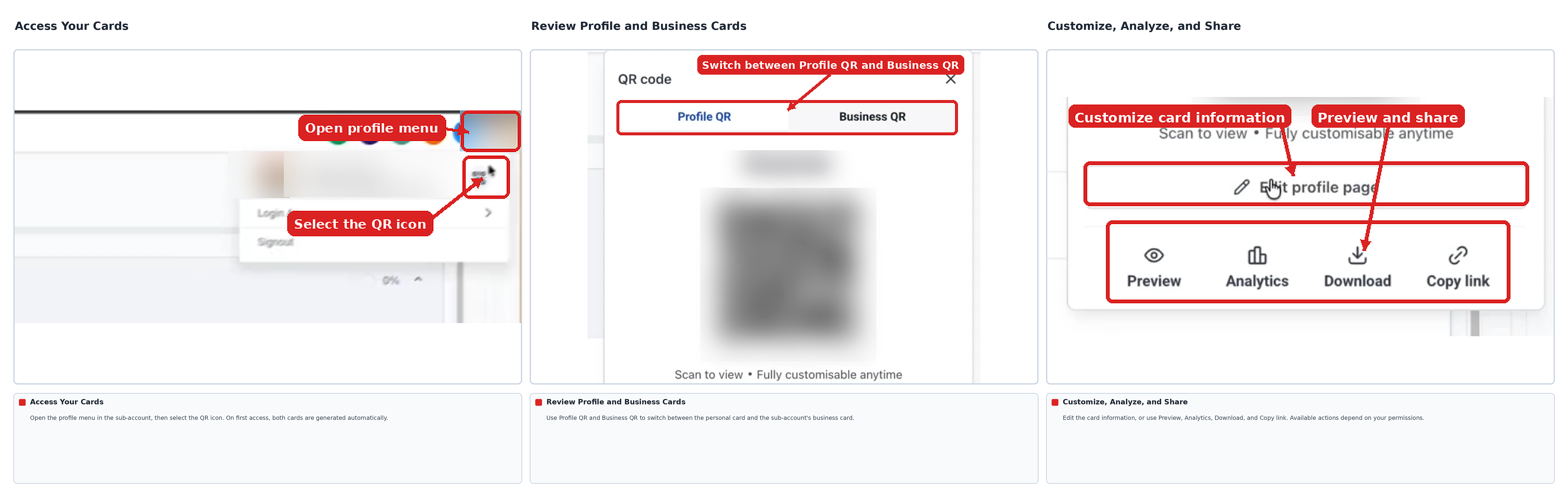
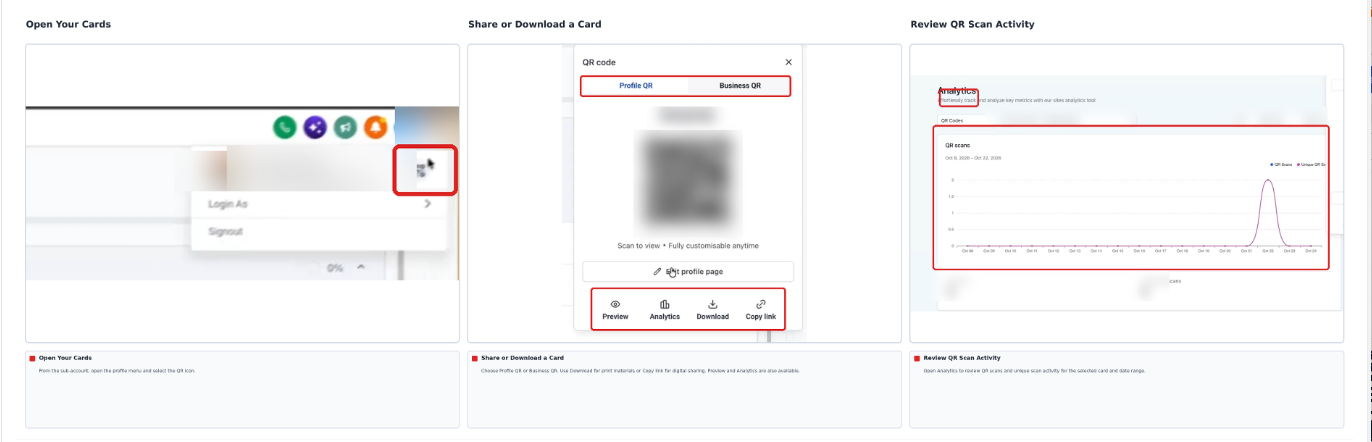
Access your profile and business cards
- Open your HighLevel subaccount.
- Click the QR icon in the top navigation bar.
- On first use, HighLevel automatically creates your Profile Card and the subaccount’s Business Card.
- Review the cards that appear in the popover; available actions depend on your permissions.
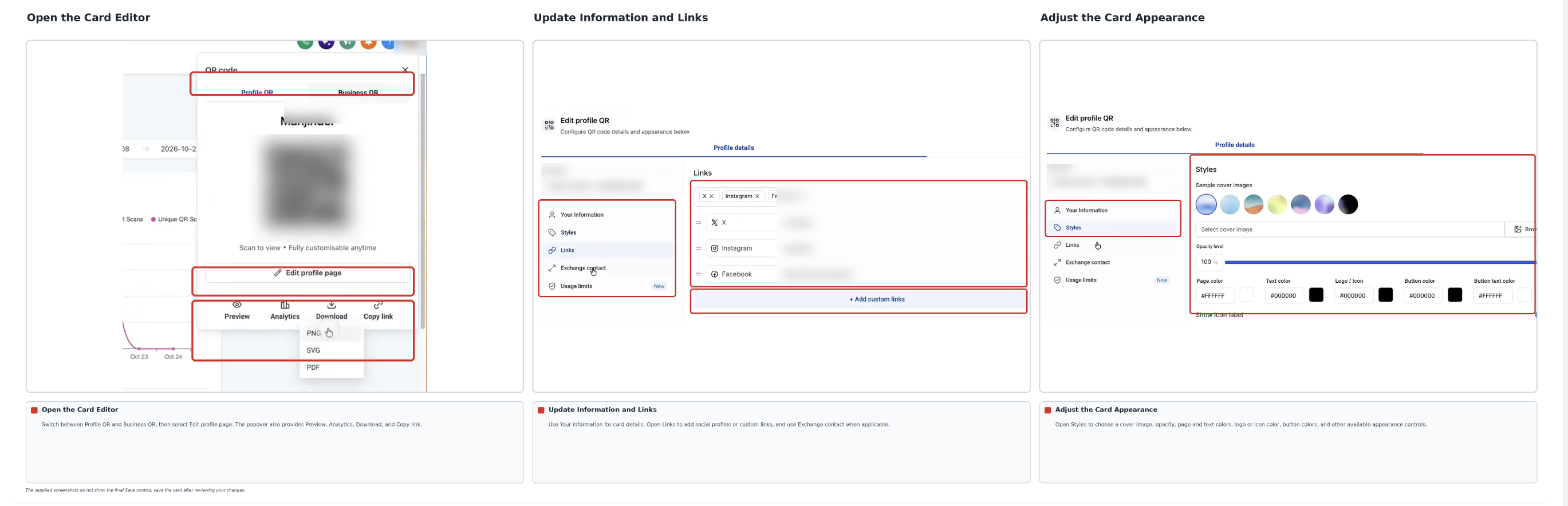
Customize your cards
- From your subaccount, click the QR icon.
- Locate the card you want to edit.
- Open the card editor.
- Update the personal or business details as needed.
- Add social profiles or custom links such as a website, email address, booking page, or portfolio.
- Adjust the card’s design, colors, or landing page settings.
- Save your changes.
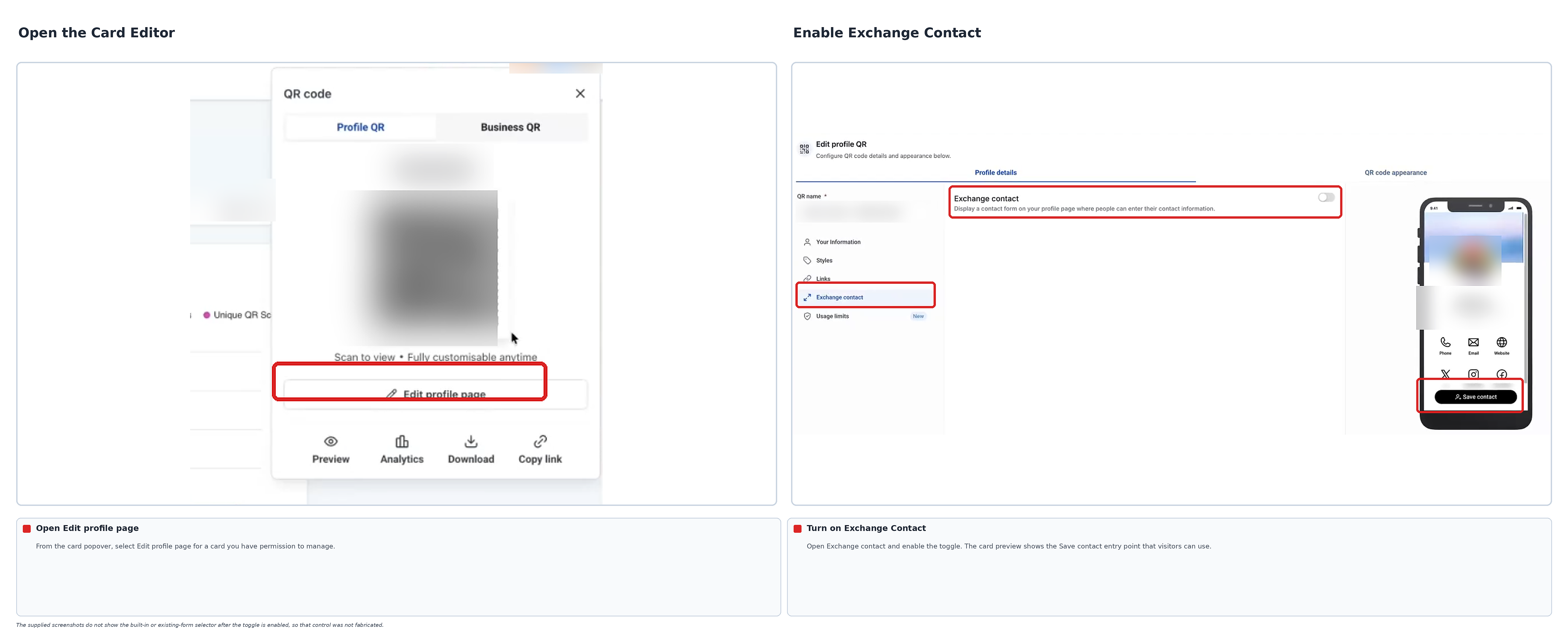
Enable Exchange Contact to collect leads
- From your subaccount, click the QR icon.
- Open a card that you have permission to manage.
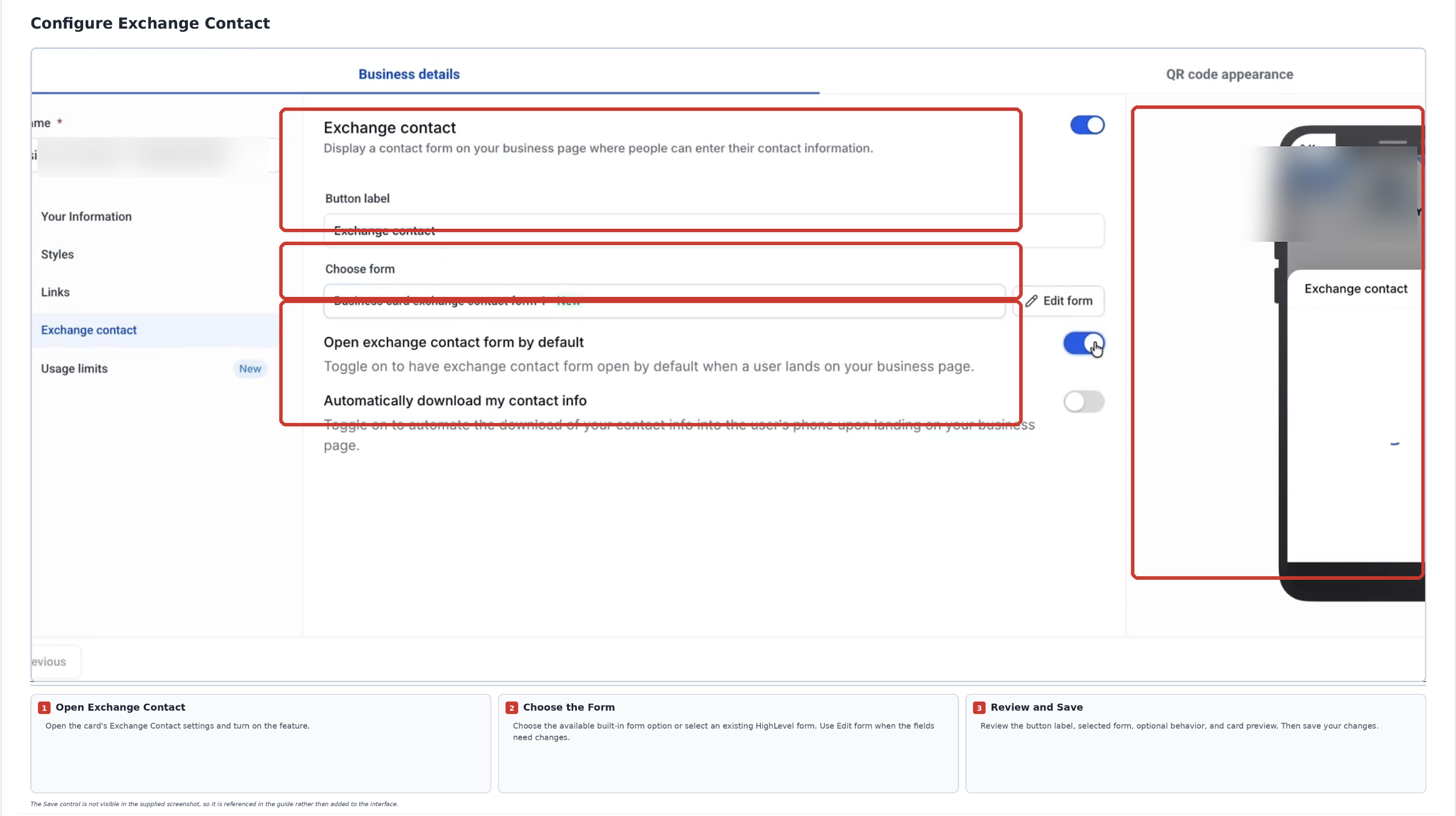
- Open the card’s Exchange Contact settings.
- Enable the feature and choose either the built in form or an existing HighLevel form.
- Review the configuration and save your changes.
Share your cards and review scans
- From your subaccount, click the QR icon.
- Locate the card you want to share.
- Use the sharing controls to copy the card link or download its QR code.
- Share the link online or place the QR code on printed materials.
- Open the card’s analytics view to review scan activity.
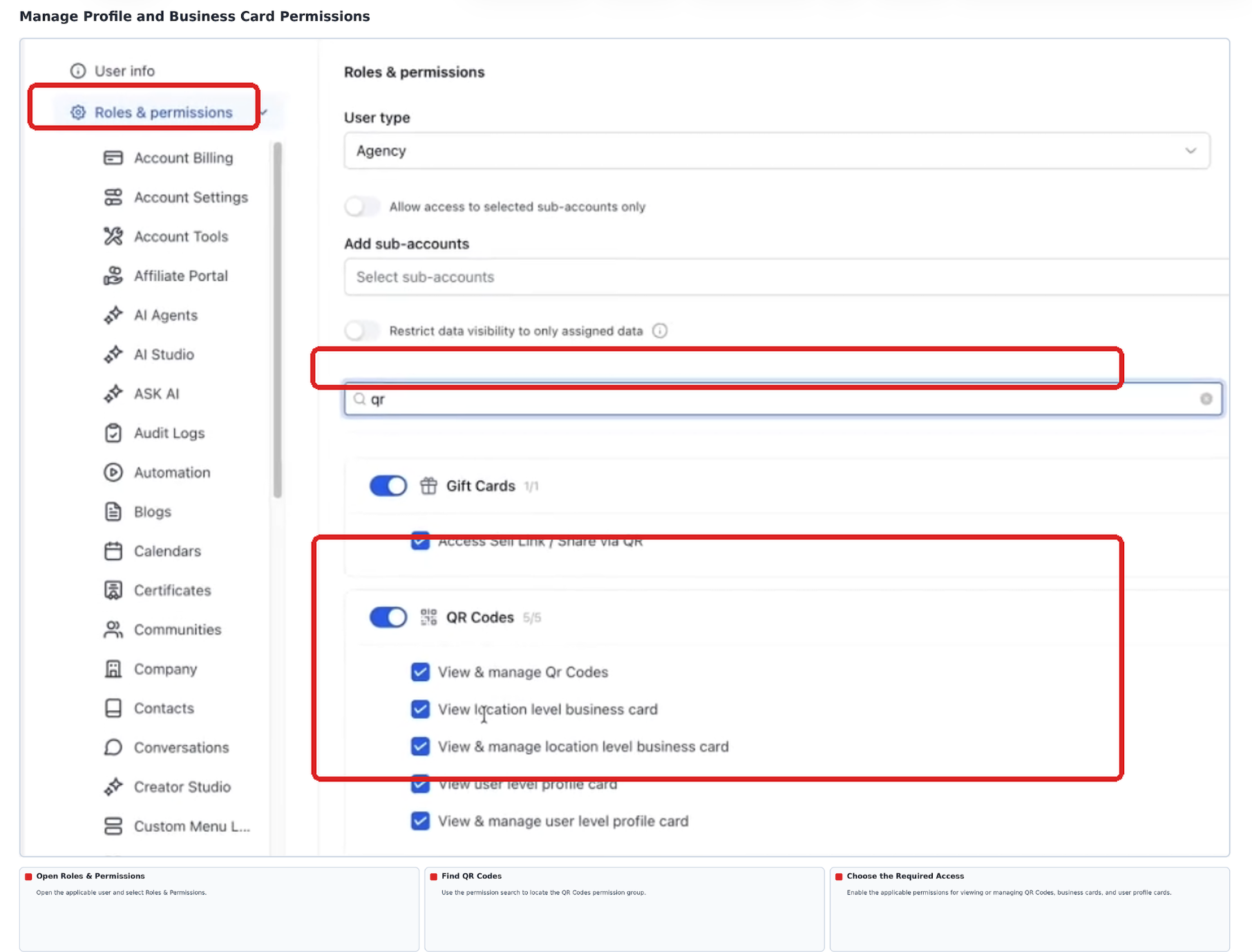
Manage card permissions
- Open the relevant HighLevel subaccount.
- Select Settings from the left navigation.
- Click Users.
- Open the user whose permissions you wish to change.
- Select Roles & Permissions.
- In the QR Codes permission area, enable QR Codes access.
- Configure the appropriate card permissions.
- Click Save.
Find cards in system folders
- From your HighLevel subaccount, select Sites.
- Open QR Codes.
- Locate the System folders section.
- Open Profile Cards or Business Cards to view the cards available to your role.
06What it looks like in HighLevel
07Settings that matter
- Exchange Contact. Controls whether visitors can submit their information through a form on the card, creating a contact record in the system.
- QR Codes permission area. Enables overall access to QR code features and activates the specific card permissions for viewing or managing cards.
08Things to know before you rely on it
- Access to cards requires QR Codes access and the appropriate card permission.
- Save Contact is turned on automatically for all cards.
- Exchange Contact is off by default and must be enabled manually.
- Regular users can only view and share their own Profile Card.
- The Business Card is shared across the subaccount and edited only by users with Manage permission.
- Permissions for automatically generated cards do not affect manually created QR codes.
- System folders are protected; they cannot be renamed, deleted, or used to create new QR codes.
09How it connects to the rest of HighLevel
- Generate and download QR codes for your cards QR code generation guide
- Create a custom business card QR code Custom business card QR
- Manage QR codes with search, filters, and bulk actions Manage QR codes
Michael's take

Most people assume the QR icon will appear for every user, but it only shows when QR Codes access and the right card permission are granted. When the icon is missing, I first check the user’s role and enable the specific card permissions instead of recreating cards manually. If I were setting this up for a new team, I would turn on Exchange Contact only after confirming the form captures the fields I need, then I’d test the QR code on a phone to make sure the contact saves correctly and the lead appears in HighLevel.