
01Who this is for
- Marketing managers who need a quick way to showcase curated client quotes while keeping full design control.
- Service based businesses that want to display detailed client stories without relying on external review platforms.
02Testimonials element, explained
The Testimonial element is a static content block you place inside a funnel or website page. It holds manually entered feedback, which you can reorder, edit, or delete at any time. The element includes toggles for profile pictures, author details, logos and star ratings.
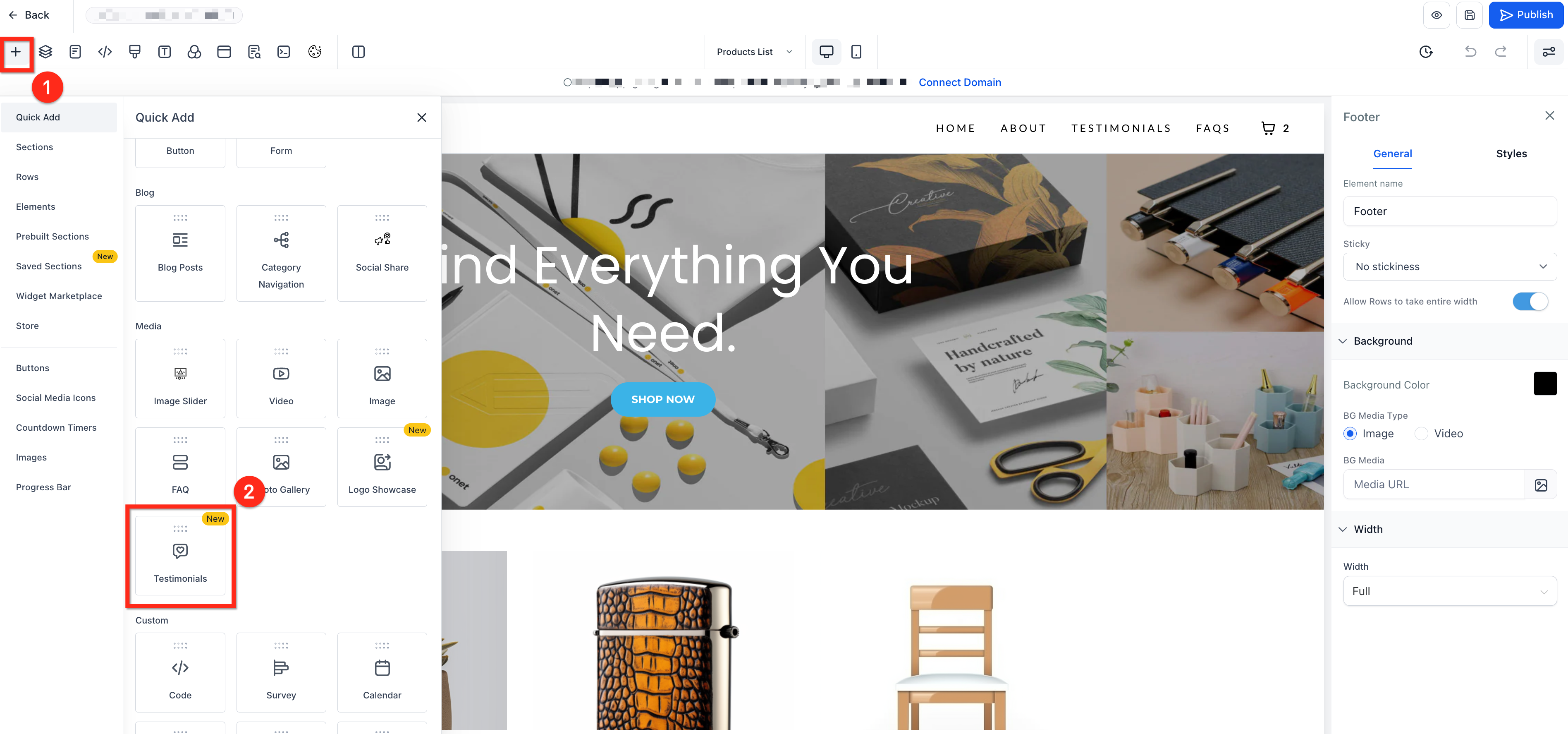
You find the element in the page builder under the Add Elements (+) menu. Once added, a configuration panel appears with three sections: Testimonial Settings, Layout Options and Card Style Options. These sections let you decide which parts of each testimonial are visible, choose a grid, carousel or masonry arrangement, set column counts and spacing, and pick one of four card templates.
Further styling options let you adjust corner radius, fonts, font sizes and the colors of backgrounds, text, ratings and the optional “Read More” link. All changes are applied right away inside the editor, so the element stays consistent with the rest of your brand design.
03How businesses use testimonials element
- Coaching practice. A coach adds the Testimonial element to the homepage, enters client success stories manually, and selects a carousel layout. The coach toggles profile pictures and star ratings to match the site’s visual style.
- Dental office. The office creates a testimonial block on the services page, enters patient quotes, shows logos of insurance partners, and chooses a grid layout with four columns to keep the page organized.
- Online SaaS startup. The startup inserts a testimonial element on its pricing page, uses the Reverse Center card style, custom brand colors and a “Read More” link for long case studies, ensuring the section aligns with its branding.
04The numbers and rules that matter
- Columns adjustable from 0 to 4.
05How to set up and use testimonials element in HighLevel
Add and configure the Testimonial element
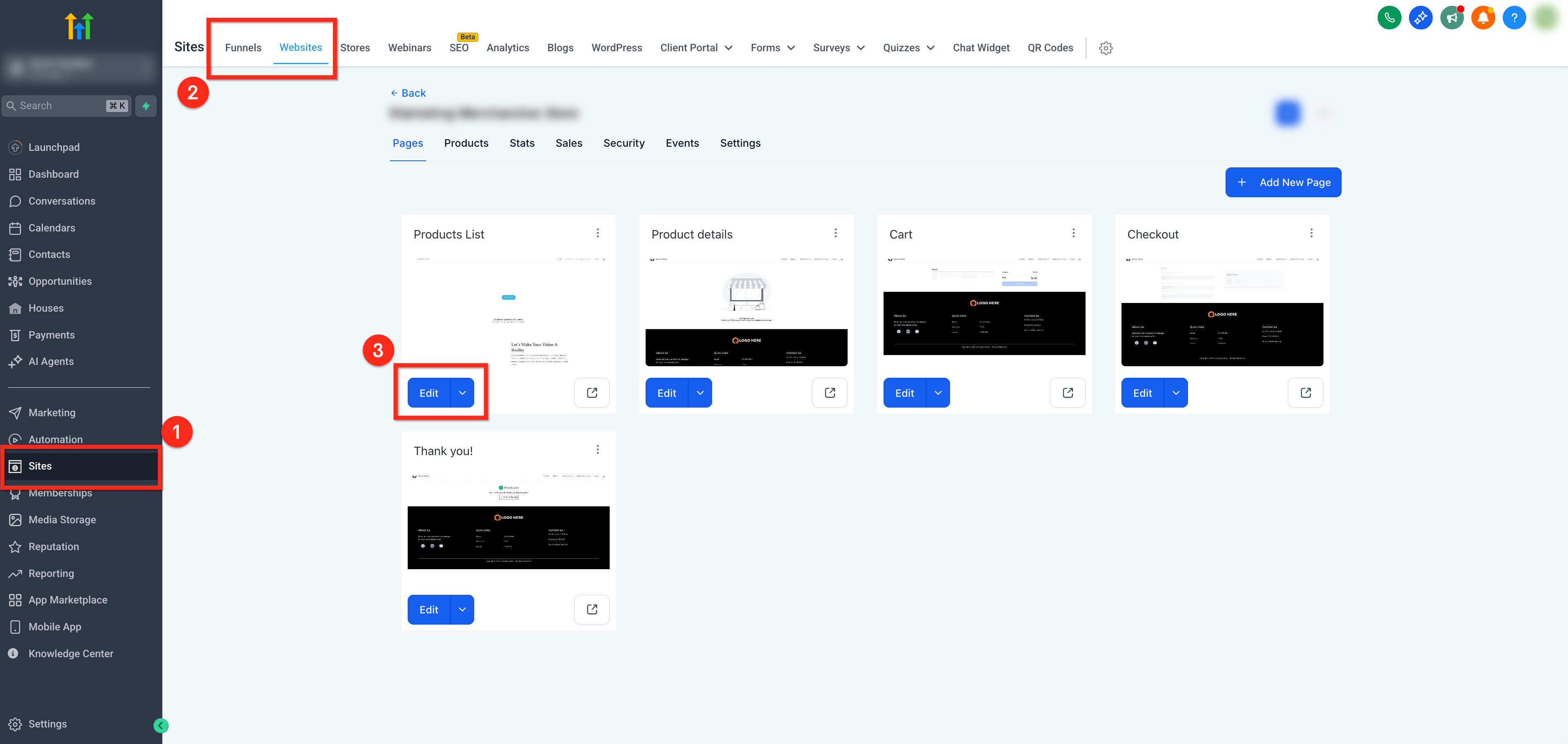
- Open the subaccount dashboard, click Sites in the left menu, select Funnels or Websites at the top, open the desired funnel or website and press the blue Edit button.
- Click the Add Elements (+) button at the upper left and drag the Testimonial element onto the page.
- Click inside the testimonial block to open its configuration panel.
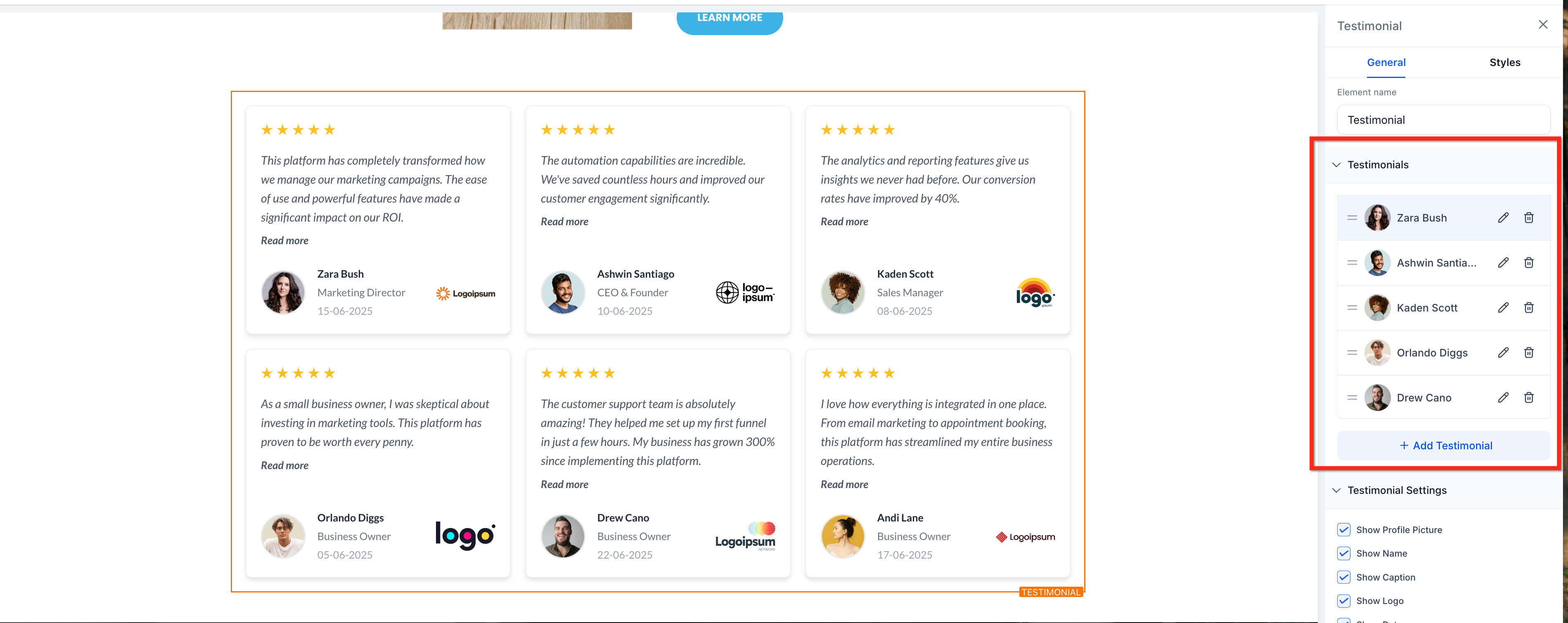
- Drag the two line handle to reorder existing testimonials.
- Press + Add Testimonial to create a new entry.
- Use the Pencil icon to edit a testimonial.
- Use the Trash icon to delete a testimonial.
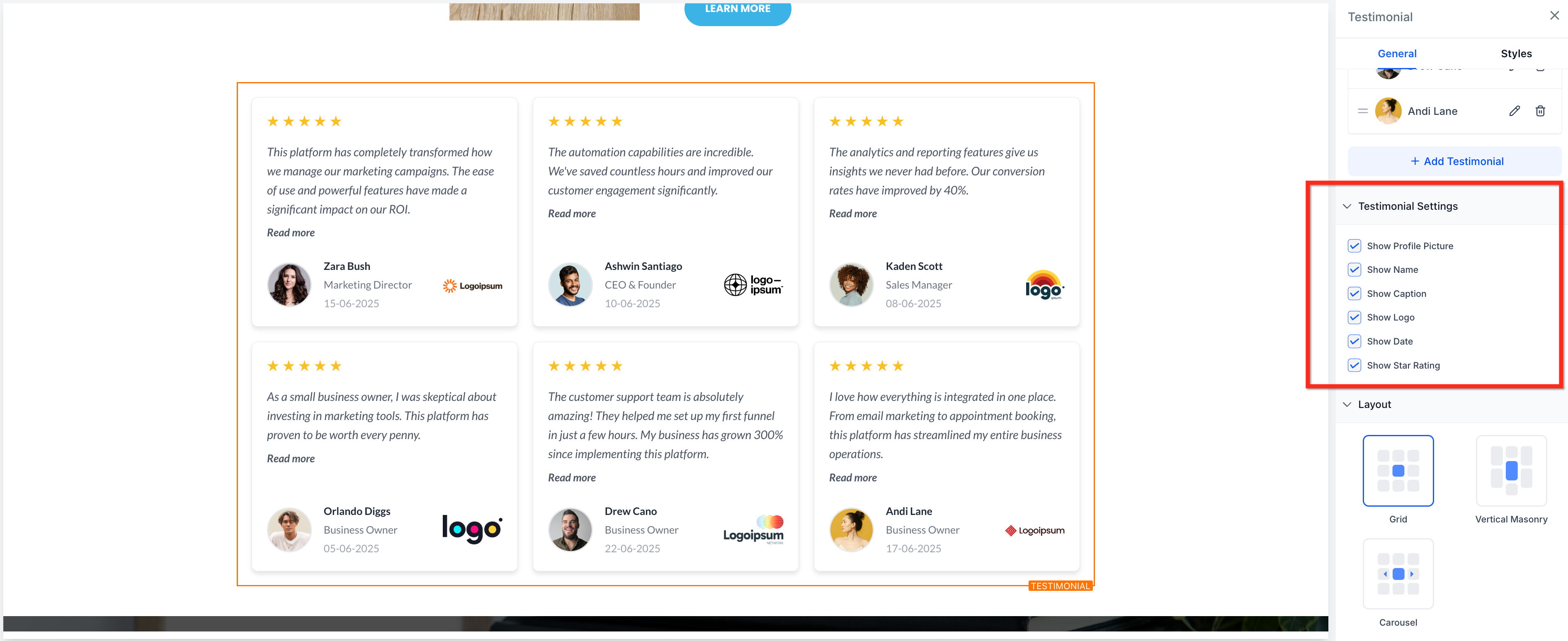
- In Testimonial Settings toggle visibility of profile picture, name, caption, date, logo and star rating.
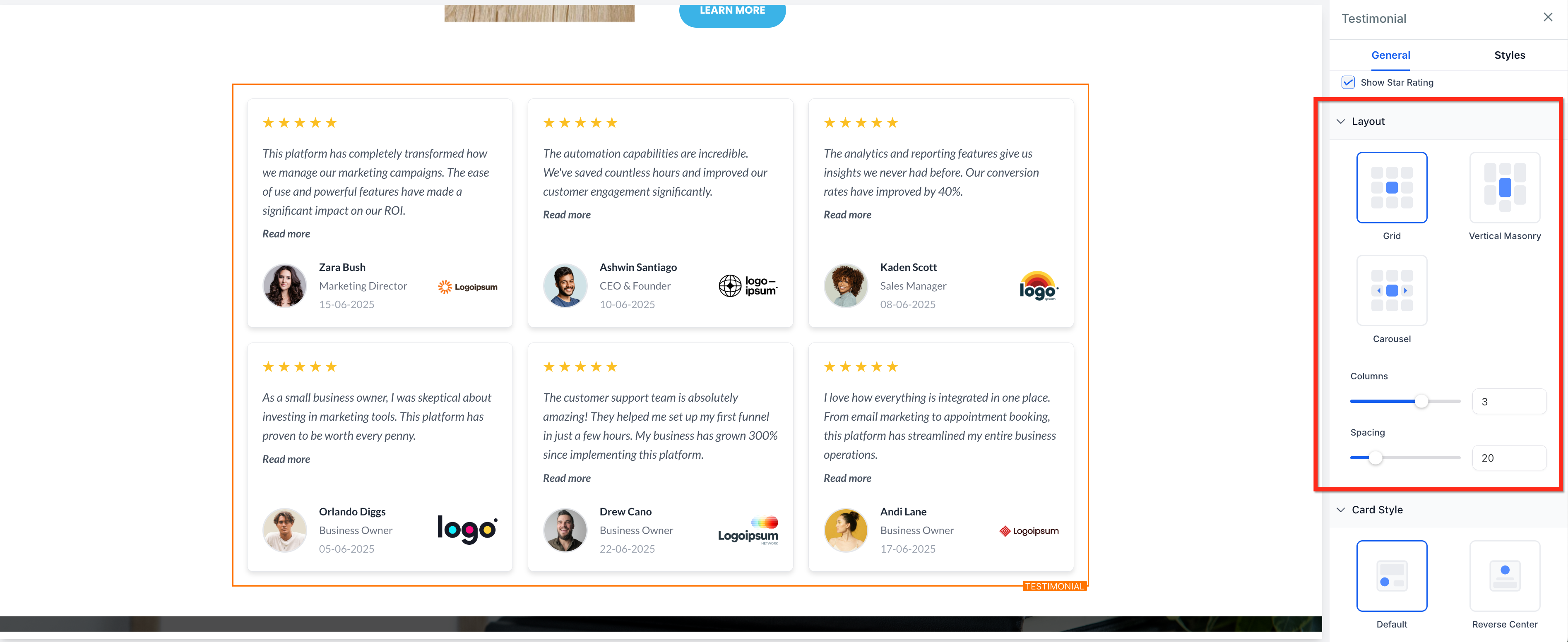
- Choose a layout type (grid, vertical masonry, carousel) and set the number of columns and spacing.
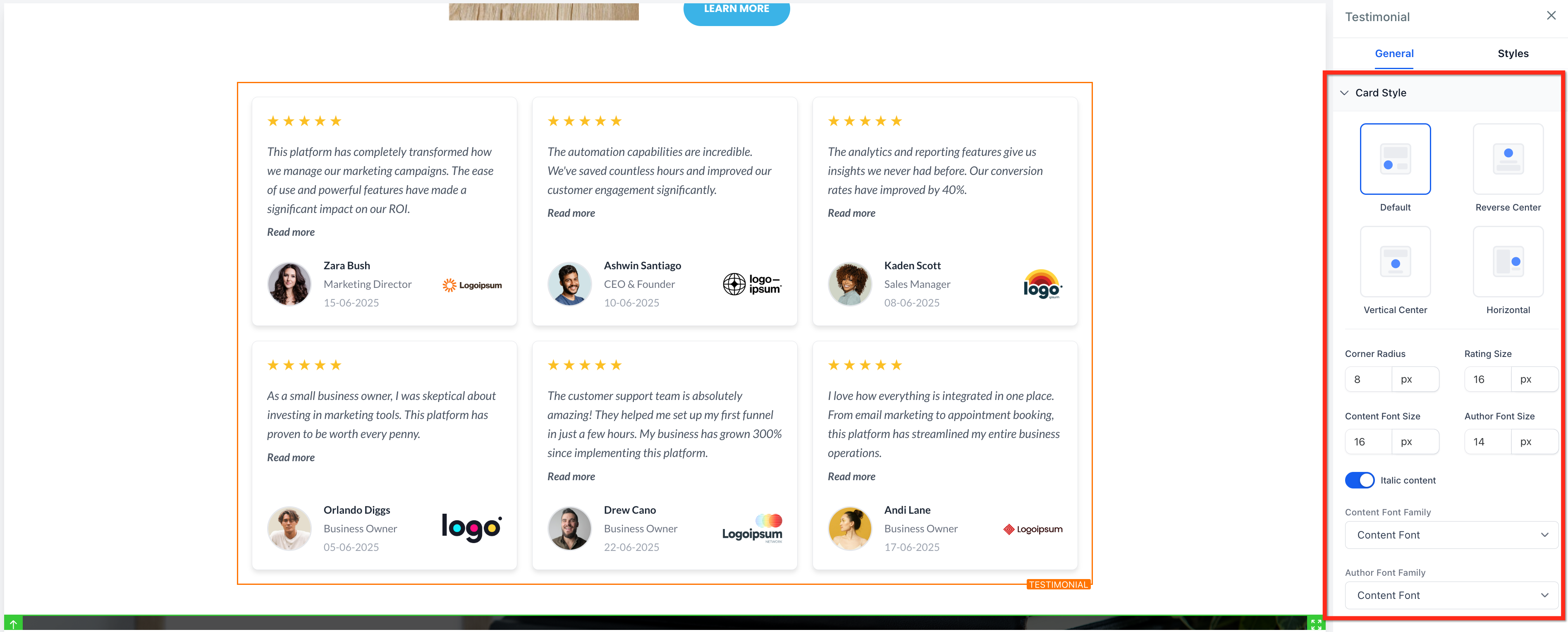
- Select a card style (Default, Reverse Center, Vertical Center, Horizontal) and adjust corner radius, font style, font size and colors.
- Apply size and color options for background, card, name, caption, content, rating, date and “Read More” link to match your brand.
06What it looks like in HighLevel
07Settings that matter
- Show Profile Picture. Controls whether the customer’s image appears beside each testimonial.
- Show Name, Caption, Date. Allows you to display or hide the author’s name, a short caption and the date of the testimonial.
- Show Logo. Enables a logo next to the testimonial to highlight the client’s brand.
- Show Star Rating. Turns the visual 1 to 5 star rating on or off for each entry.
- Layout Options. Lets you pick grid, vertical masonry or carousel arrangement and adjust column count and spacing between cards.
- Card Style Options. Provides four templates, Default, Reverse Center, Vertical Center, Horizontal, and lets you modify corner radius, fonts and colors.
- Read More Link. When a testimonial is long, it automatically shortens and shows an optional “Read More” link to expand the text.
08Things to know before you rely on it
- Only manually entered testimonials are supported; the element cannot pull reviews from Google or Facebook.
- Content is static; updates must be made manually within the editor.
- There are no fixed character limits, but long entries are truncated and can be expanded with the “Read More” link.
09If something goes wrong
- Cannot pull testimonials from Google or Facebook reviews. The Testimonial element does not support external sources. Use the Review Widget for automated review imports.
- Dynamic content does not update automatically. Edit or add testimonials manually in the configuration panel; the element does not refresh from external data.
10How it connects to the rest of HighLevel
- See the full list of Sites features for other page builder elements. All Sites features
- Learn how to add tracking code to funnels and websites to monitor visitor interactions. Add tracking code
- Understand how to connect a root domain or subdomain so your pages have a custom URL. Set up domain
Michael's take

I’ve seen users expect the Testimonials Element to autofetch reviews from Google or Facebook, but it only supports manually added testimonials, so the block stays empty until you add content.
If I were setting it up, I would first write a handful of curated quotes that reflect the outcomes I want prospects to see, then drop the element, pick a card style that matches the page’s visual hierarchy, and use the optional “Read More” link for any longer stories.