
01Who this is for
- Founders of SaaS companies who want sign up forms that look organized and guide users clearly.
- Marketing agencies that build client surveys and need a tidy presentation of answer choices.
- Coaches and consultants who create intake forms and want a professional, column based layout.
02Spread to column options, explained
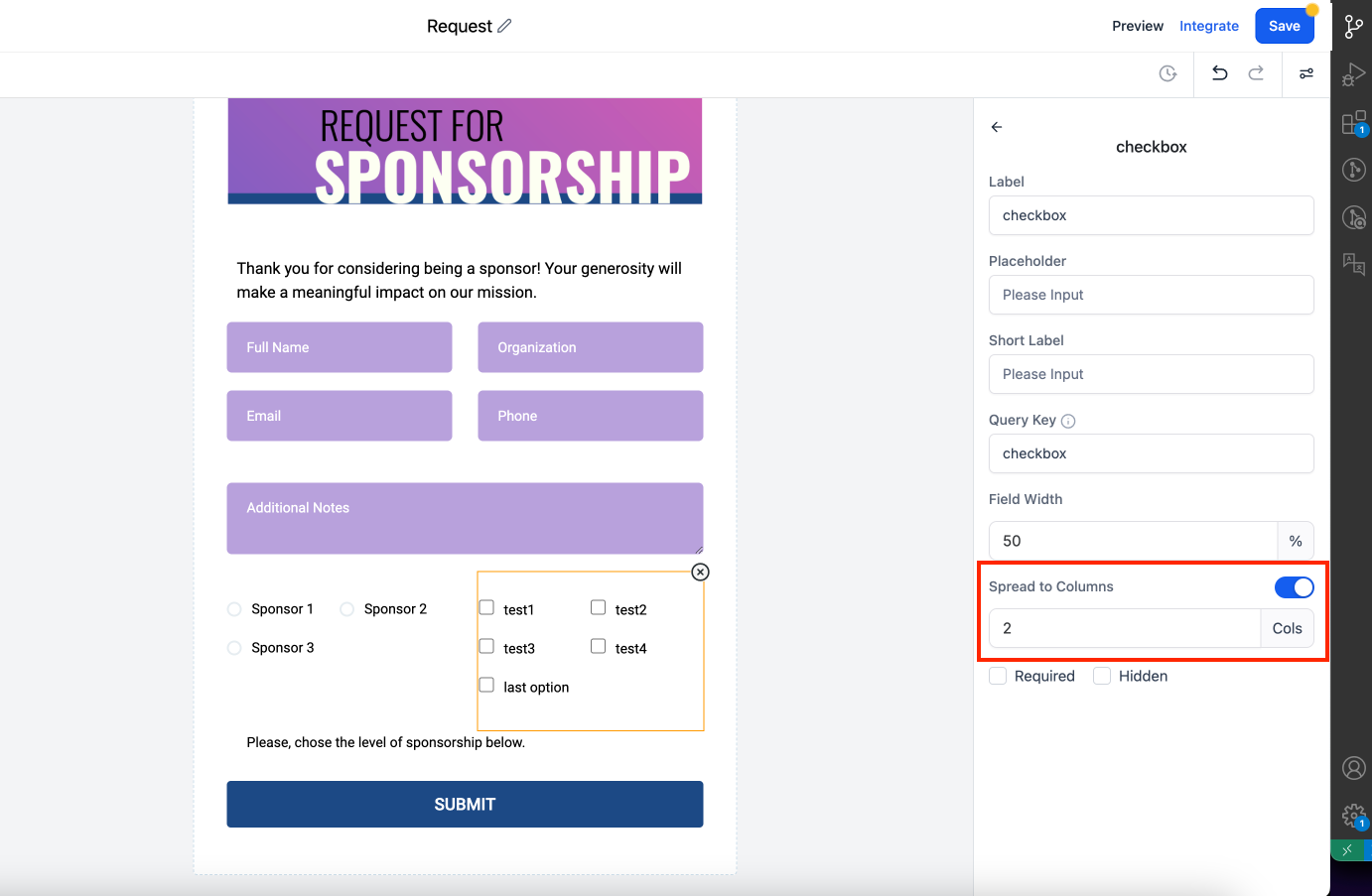
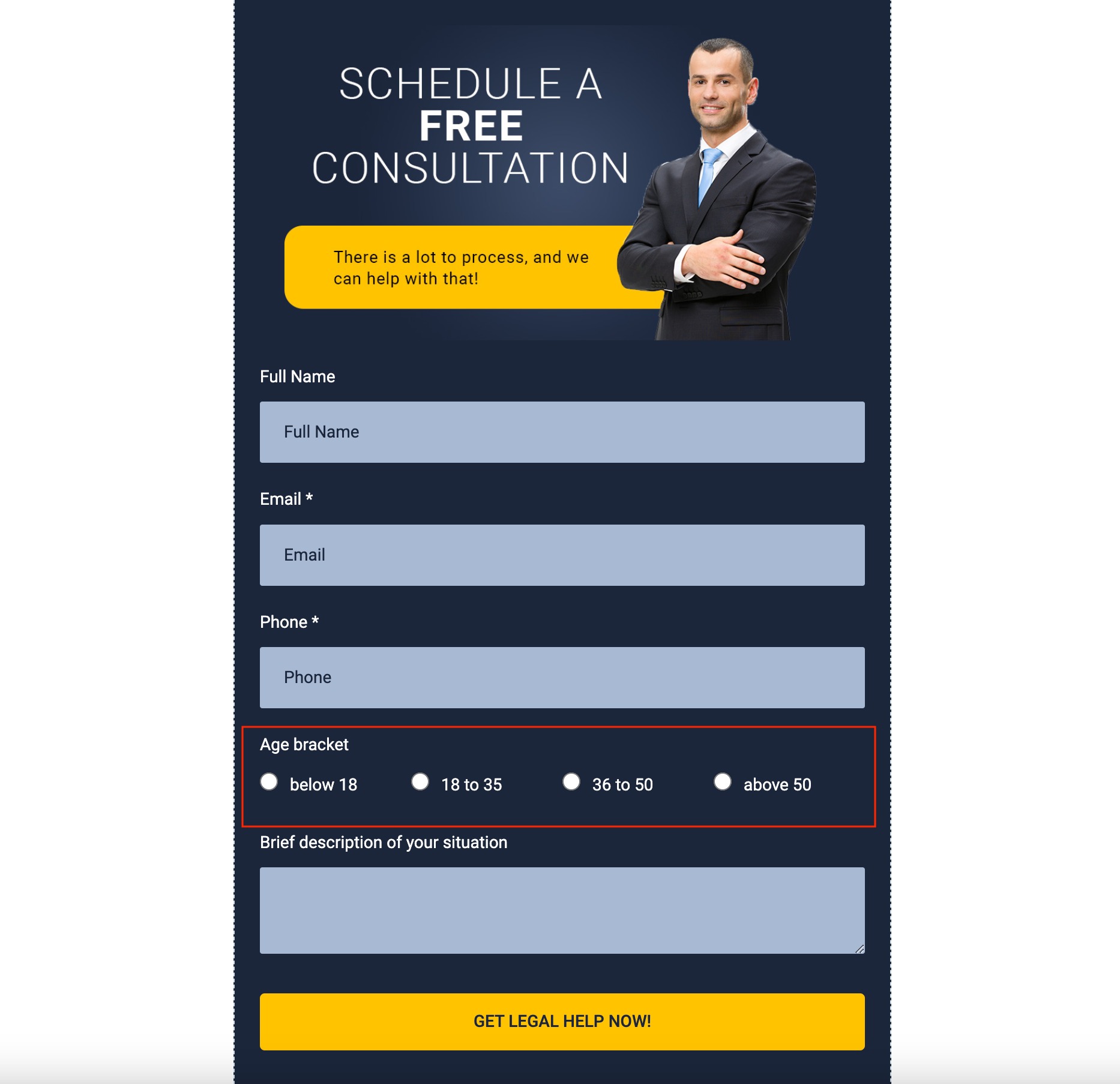
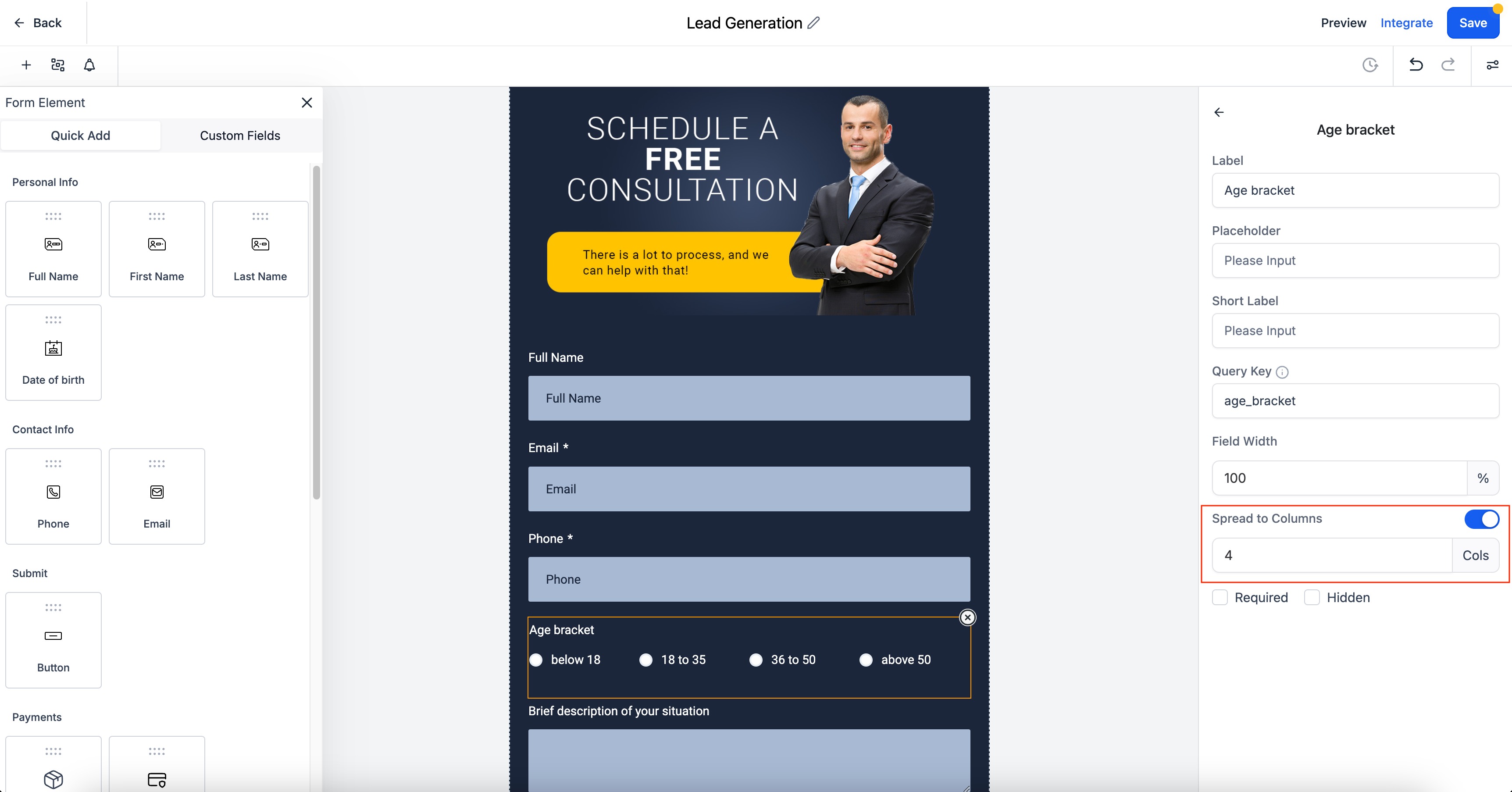
The feature adds a toggle called Spread to Column on radio, checkbox and radio image fields. Turning it on lets you decide how many columns the options will occupy. The option appears in the right hand settings panel of the field editor. After enabling it, you enter a column count that determines the layout of the choices.
The column count respects the limits defined for each layout type: Single Column up to five columns, Two Column up to two, and Single Line Column up to five. The setting only applies to the form or survey you edit; existing older forms remain unchanged. You find this control while building or editing a form or survey in the HighLevel Form Builder.
03How businesses use spread to column option
- SaaS startup. The Founder opens the form builder, selects a checkbox field, turns on Spread to Column, and sets three columns. The options now appear side by side, making the sign up form easier to scan.
- Marketing agency. While creating a client survey, the agency adds a radio image field, enables Spread to Column, and chooses two columns. The visual choices are organized across two columns for a cleaner survey layout.
- Consulting practice. A consultant edits an intake form, selects a radio field, activates Spread to Column, and picks five columns. The questionnaire displays all options across five columns, improving readability for respondents.
04The numbers and rules that matter
- In Single Column, the maximum number of columns is 5.
- In Two Column, the maximum number of columns is 2.
- In Single Line Column, the maximum number of columns is 5.
05How to set up and use spread to column option in HighLevel
Enable spread to column for a field
- Open the Form or Survey Builder.
- Select the Radio, Checkbox, or Radio Image field you want to adjust.
- In the settings panel on the right, toggle the Spread to Column option on.
- Enter the desired number of columns for the field.
06What it looks like in HighLevel
07Settings that matter
- Spread to Column. Turns on multi column layout for radio, checkbox and radio image options.
- Number of columns. Defines how many columns the selected options will be distributed across, subject to layout limits.
08Things to know before you rely on it
- Single Column layout allows a maximum of five columns.
- Two Column layout allows a maximum of two columns.
- Single Line Column layout allows a maximum of five columns.
- The setting does not modify forms that were created before the feature was introduced.
09How it connects to the rest of HighLevel
- Add sticky contact details to the same form for better lead capture. Sticky contact
- Enable address auto complete to further improve form usability. Address auto complete
- Set up the Source field to track where form submissions originate. Source field
Michael's take

Spread to column is a clean way to make your forms look more organized.
If you prefer a classic single list layout, you can skip it.