
01Who this is for
- Marketing agencies benefit by making fast copy adjustments inside client funnels without rebuilding layouts.
- Coaches can personalize landing page text with custom fonts to match their brand voice.
- Ecommerce businesses use the bullet list tools to format product feature lists clearly.
02New block editors, explained
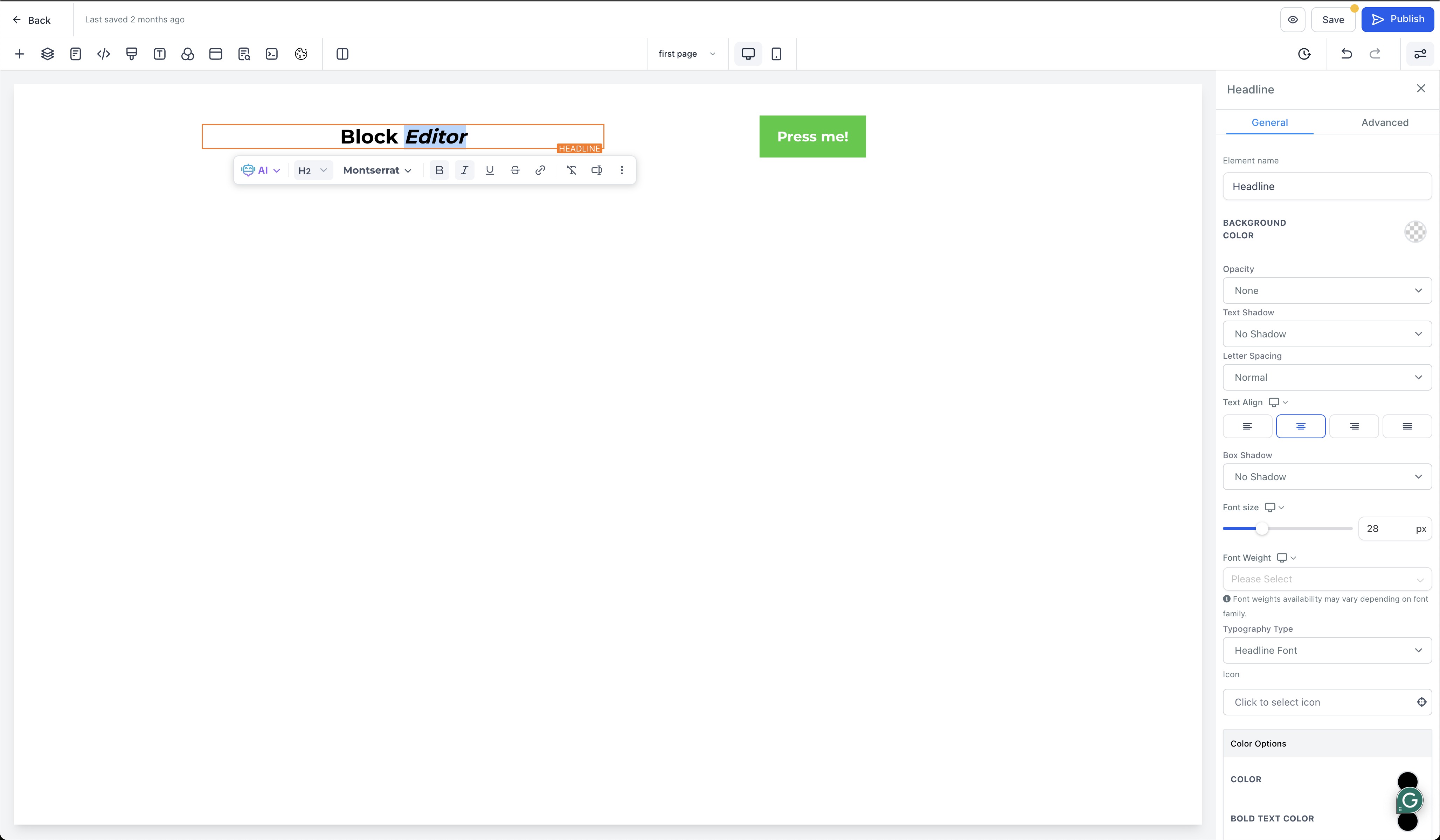
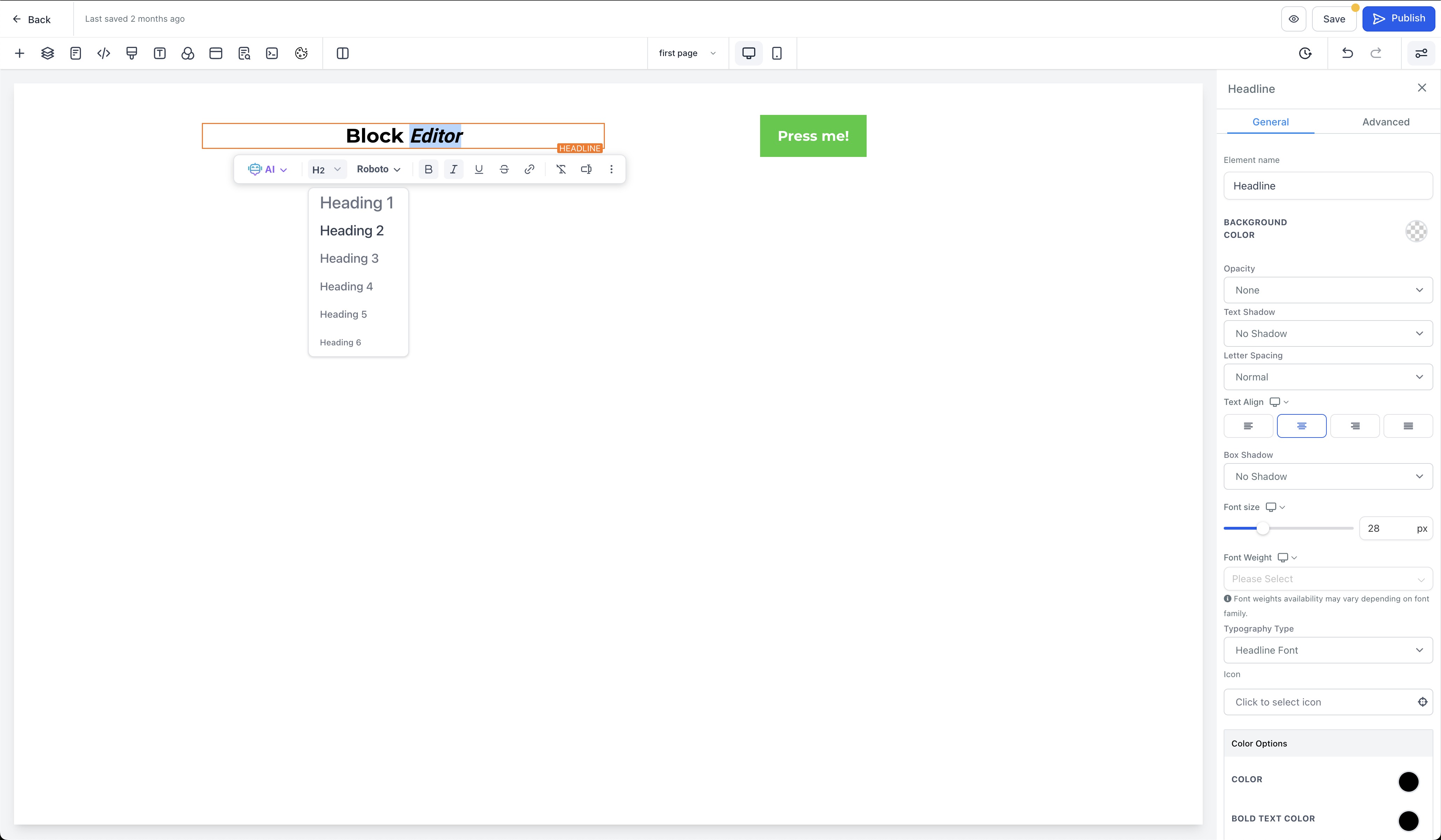
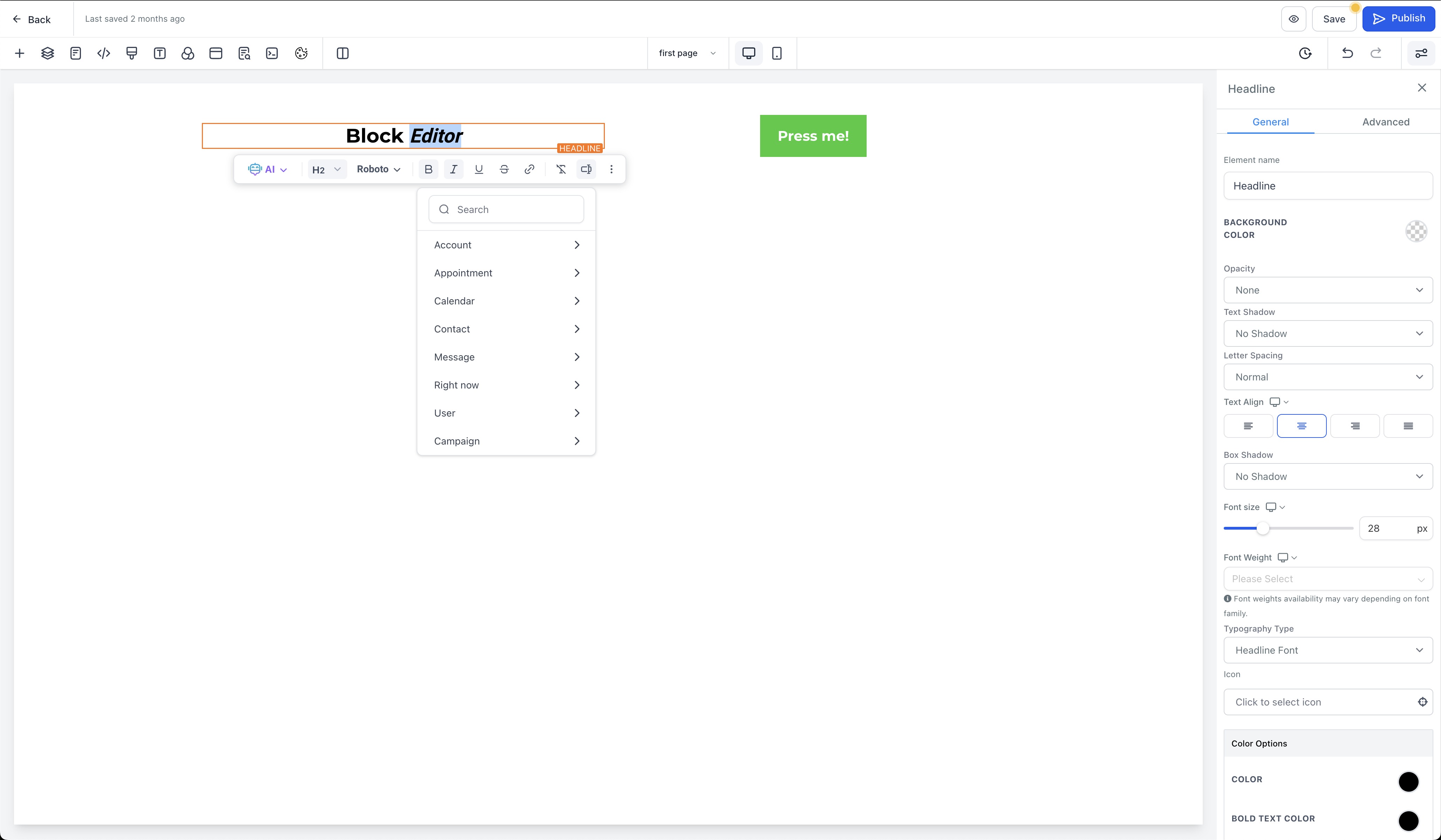
The new Block Editor lives inside the Funnels and Websites builder. It appears when you open a page from the Site tab in the left hand navigation. The editor provides a streamlined interface for manual text formatting inside a single element.
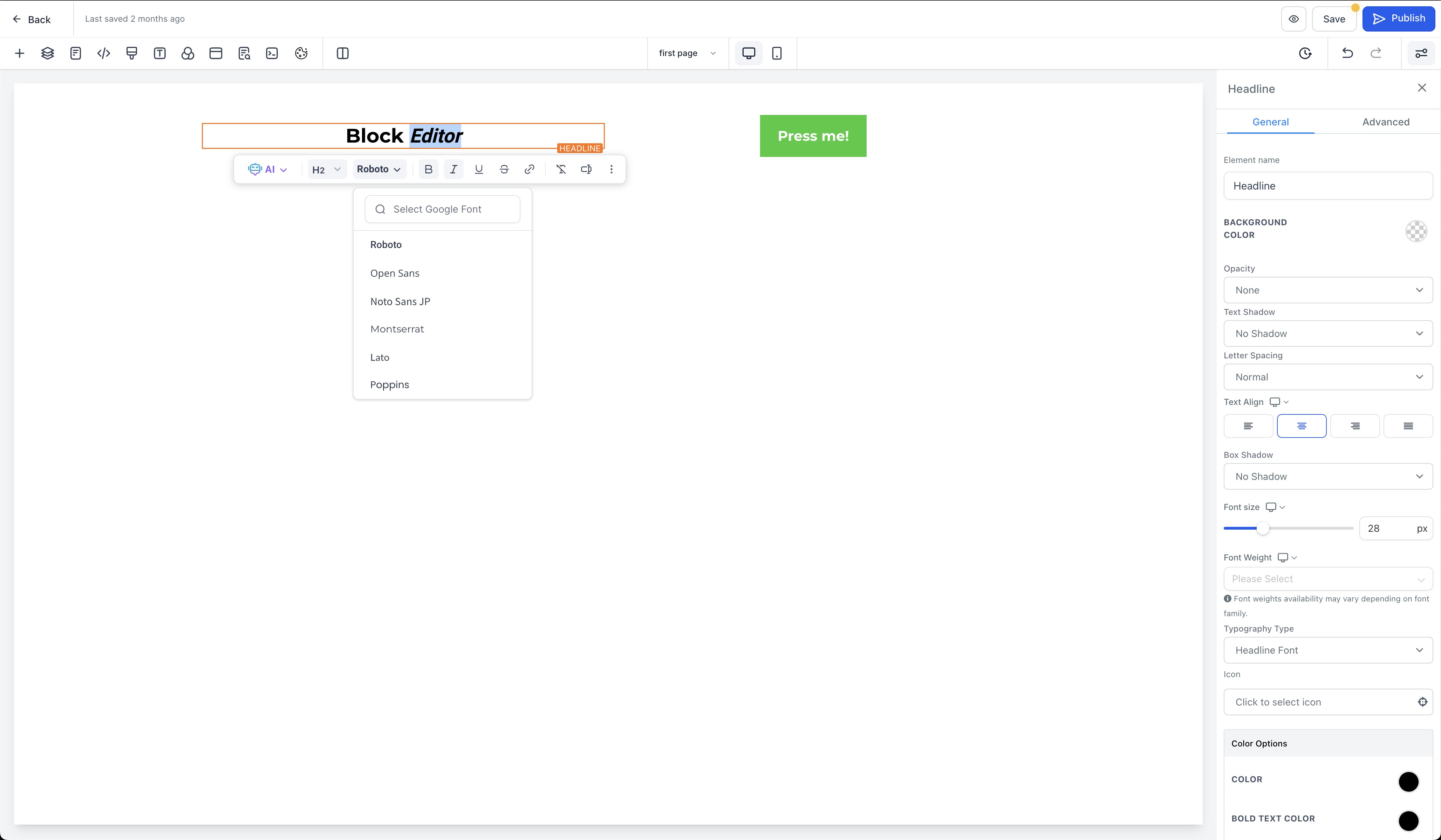
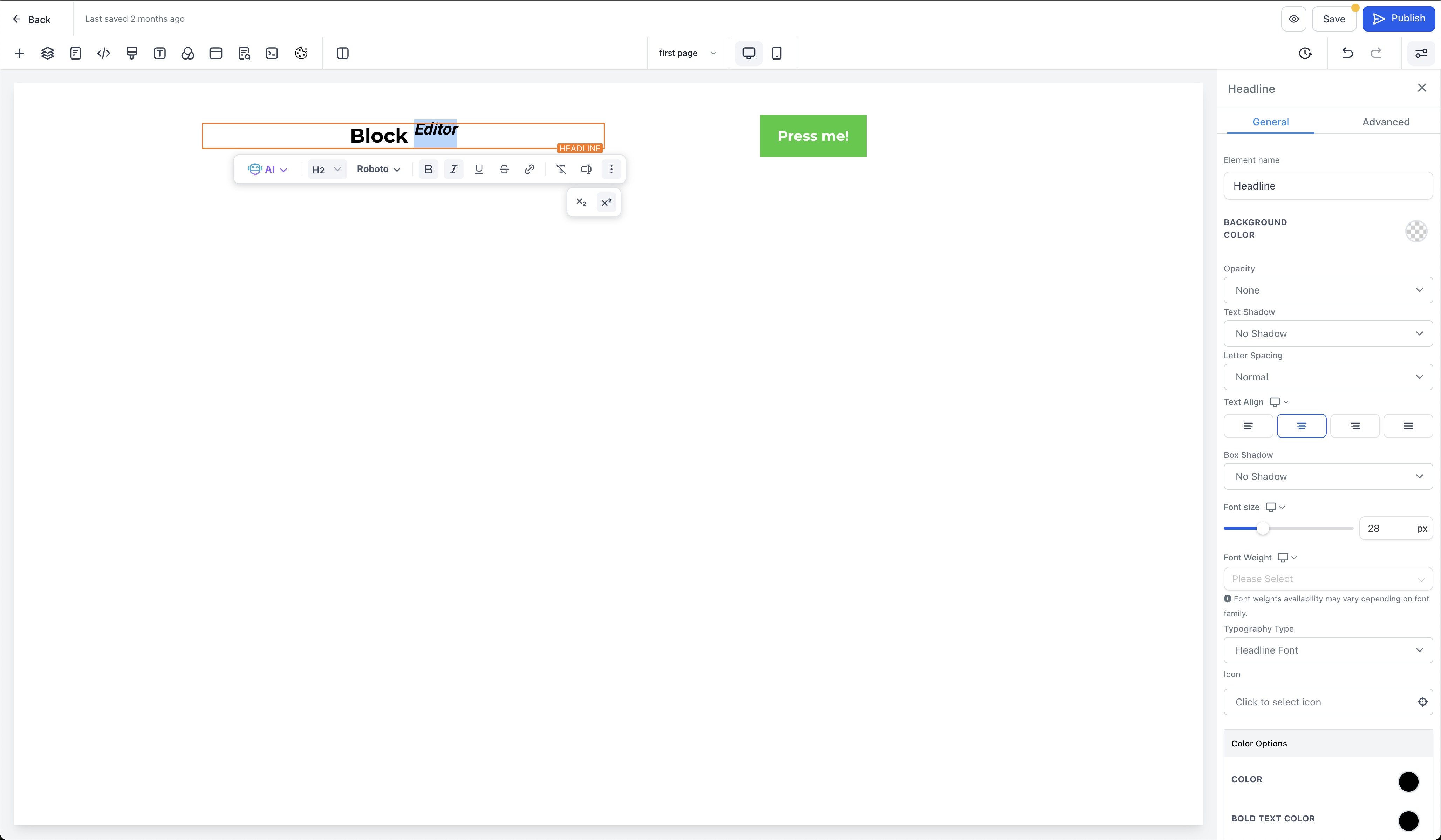
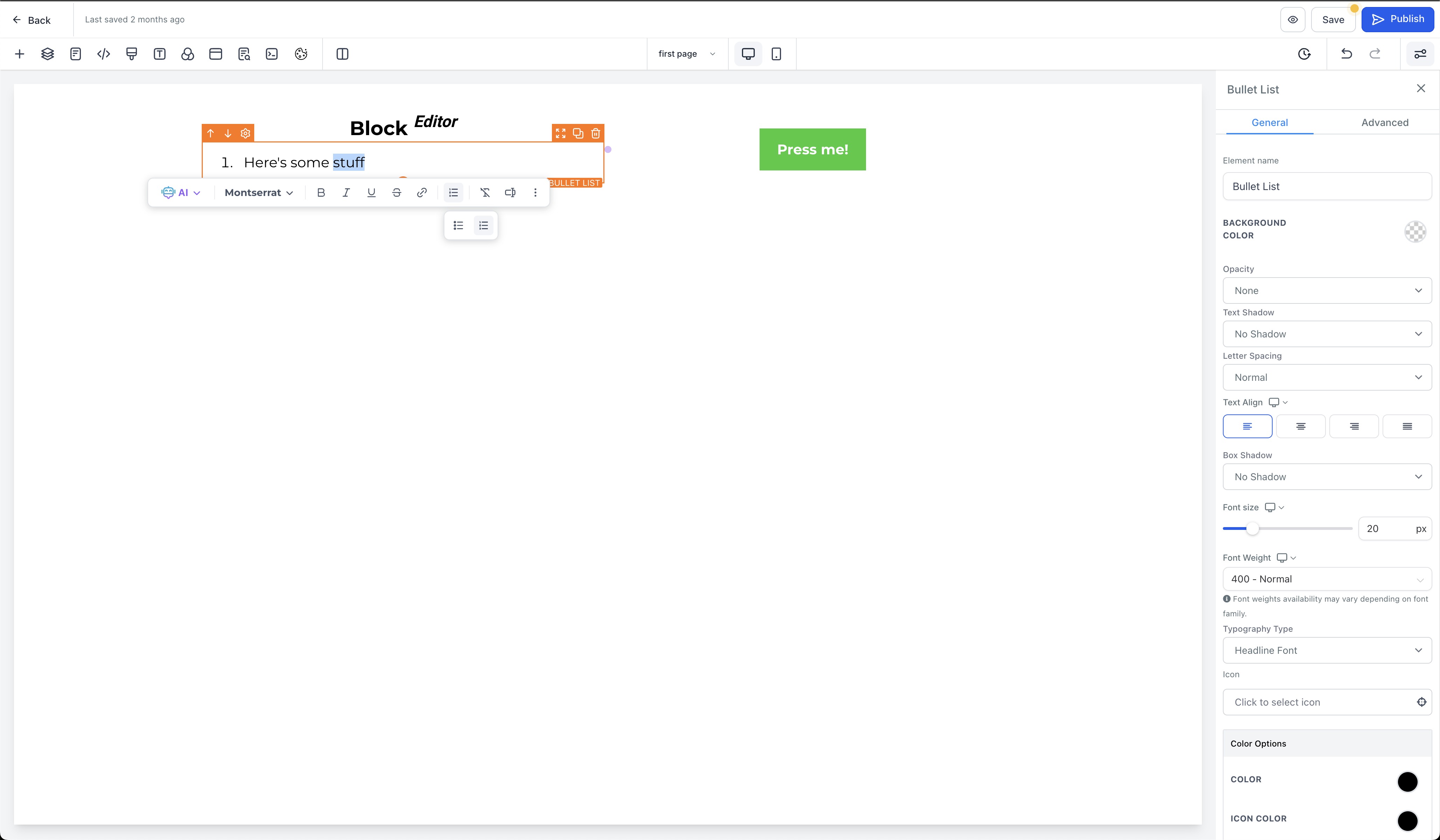
You can highlight a text block and choose a custom font directly in the editor. Subscript and superscript options are added to the text menu, allowing quick inline styling. Bullet lists have a separate section where you can pick native list markers such as disc, circle, square, or alphabetical and Roman numerals.
For broader copy or design changes across an entire section or page, HighLevel recommends using AI Page Revisions instead of the Block Editor.
03How businesses use the new block editor
- Digital marketing agency. An agency opens a client funnel page, selects the text element they need to adjust, and uses the Block Editor to change the font to match the client’s brand. They also apply superscript to highlight a key statistic and organize bullet points for a service list.
- Health coach. The coach edits a website landing page, highlights the headline, and selects a custom font that aligns with their branding. They add subscript to footnote citations and format a bullet list of program benefits using the native disc style.
- Online retailer. The retailer accesses a product description page, updates the font of the product name, adds superscript for size information, and creates an ordered list of features using the lower Roman numeral style.
04How to set up and use the new block editor in HighLevel
Edit with block editor
- Open the desired funnel or website and click the Site tab in the sidebar to launch the editor.
- Press Add Elements and select the text element you want to modify.
- Use the Block Editor tools to set a custom font, apply subscript or superscript, or configure bullet list styles.
05What it looks like in HighLevel
06How it connects to the rest of HighLevel
- Set up a website and add pages in HighLevel Website setup guide
- Add tracking code to funnels and websites Add tracking code
- Connect a root domain or subdomain Domain connect
Michael's take

I find the new block editor useful for quick text changes like swapping a headline font or adding a superscript.