
01Who this is for
- Marketing agencies can showcase client logos to build credibility with prospects.
- SaaS companies can highlight partner and integration logos to reinforce ecosystem trust.
- Consultants can display certification and award badges to strengthen authority.
02Logo showcase elements, explained
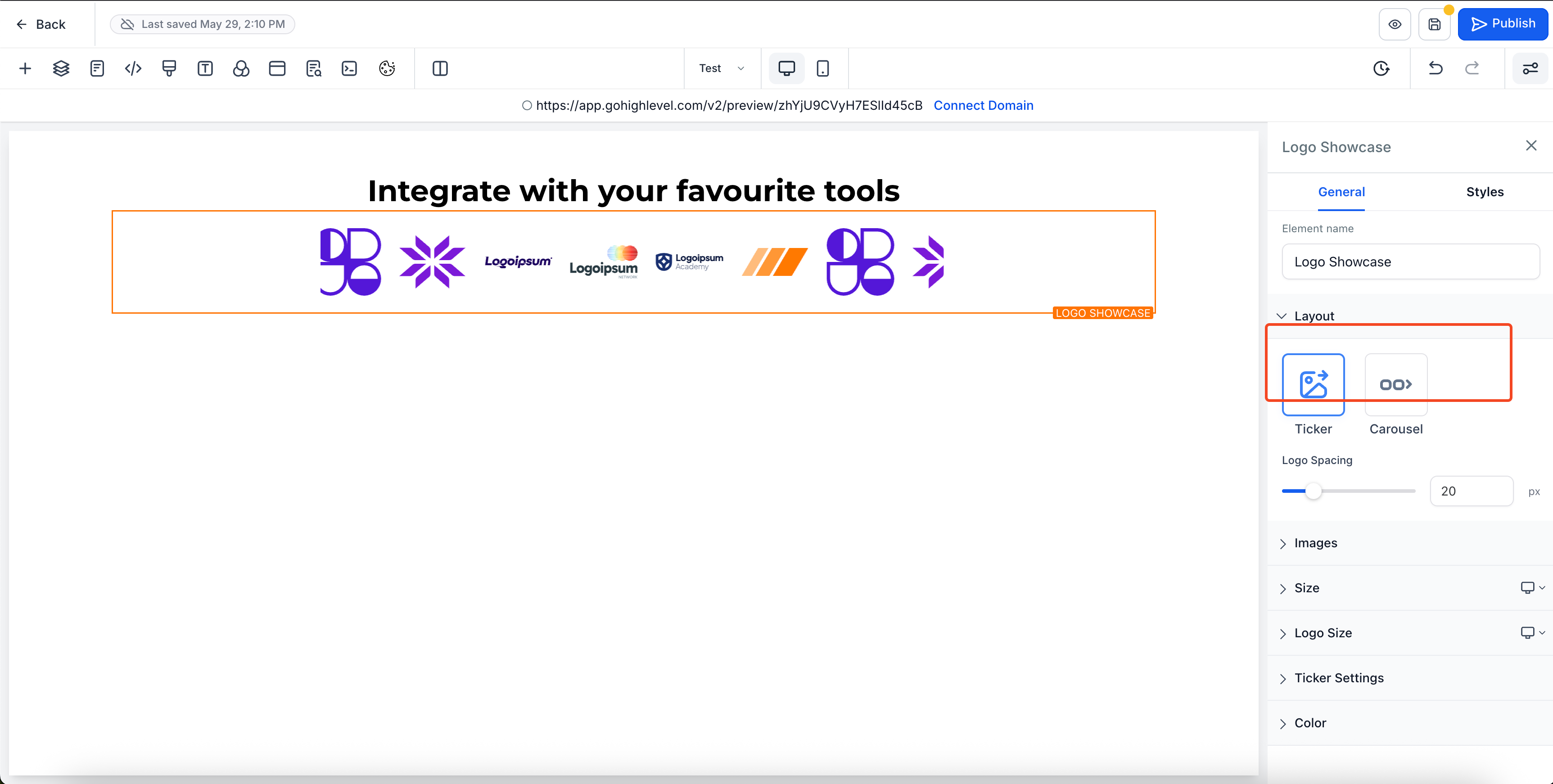
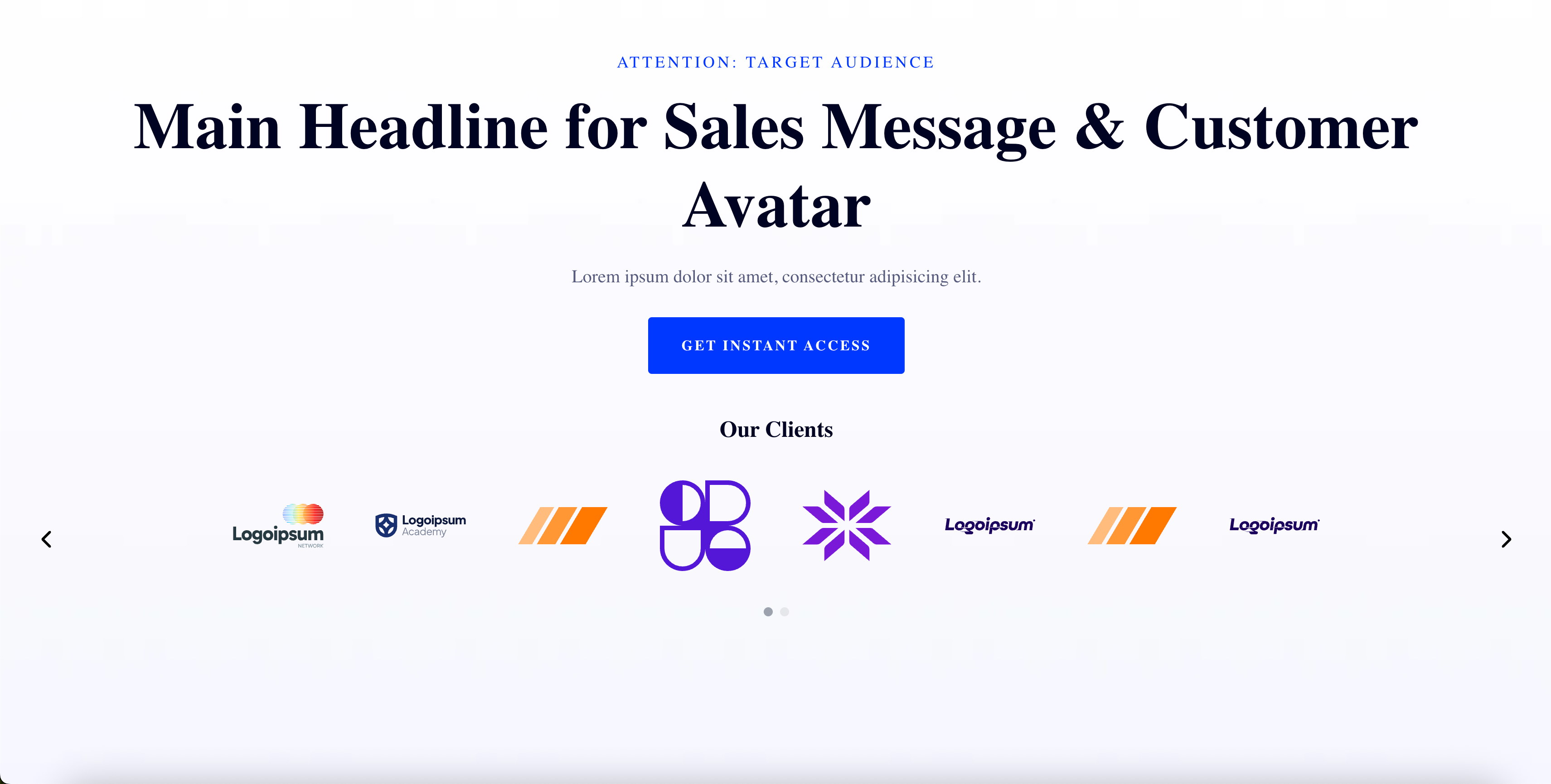
The Logo Showcase element is a visual block that presents a collection of images representing logos. It works in two display modes: a horizontally scrolling ticker that loops endlessly, and a carousel that moves slide by slide. You can upload logos directly, set the space between them, choose animation speed, and add custom alt text for accessibility.
The element lives inside the Funnel or Website Builder. After opening the builder, you drag the Logo Showcase from the sidebar onto a page, select the desired mode, upload images, fine tune layout and animation options, and preview the result before publishing.
03How businesses use the logo showcase element
- Marketing agency. The agency opens a client landing page in the builder, drags the Logo Showcase onto the trust section, selects ticker mode, uploads all client logos, and adjusts spacing to fit the page width.
- SaaS company. The SaaS team adds a carousel to the homepage, chooses carousel mode, limits each slide to three partner logos, sets auto animation timing, and previews the interactive showcase before going live.
- Consulting firm. The firm places the element on a services page, uploads certification badges, adds custom alt text for each badge, and tweaks the smooth scroll toggle to ensure a fluid mobile experience.
04The numbers and rules that matter
- Scroll Speed (1, 10).
- Logos per Slide.
- Adjust spacing between logos (0, 100px).
- No hard limit on number of logos, but performance may vary with very high numbers.
05Before you start
- Switch to the new sidebar experience in the builder before adding the element.
06How to set up and use the logo showcase element in HighLevel
Add the Logo Showcase element to a page
- Open the Funnel or Website Builder for the page you want to edit.
- Drag the Logo Showcase element from the sidebar onto the canvas.
- Select either Ticker or Carousel as the display mode.
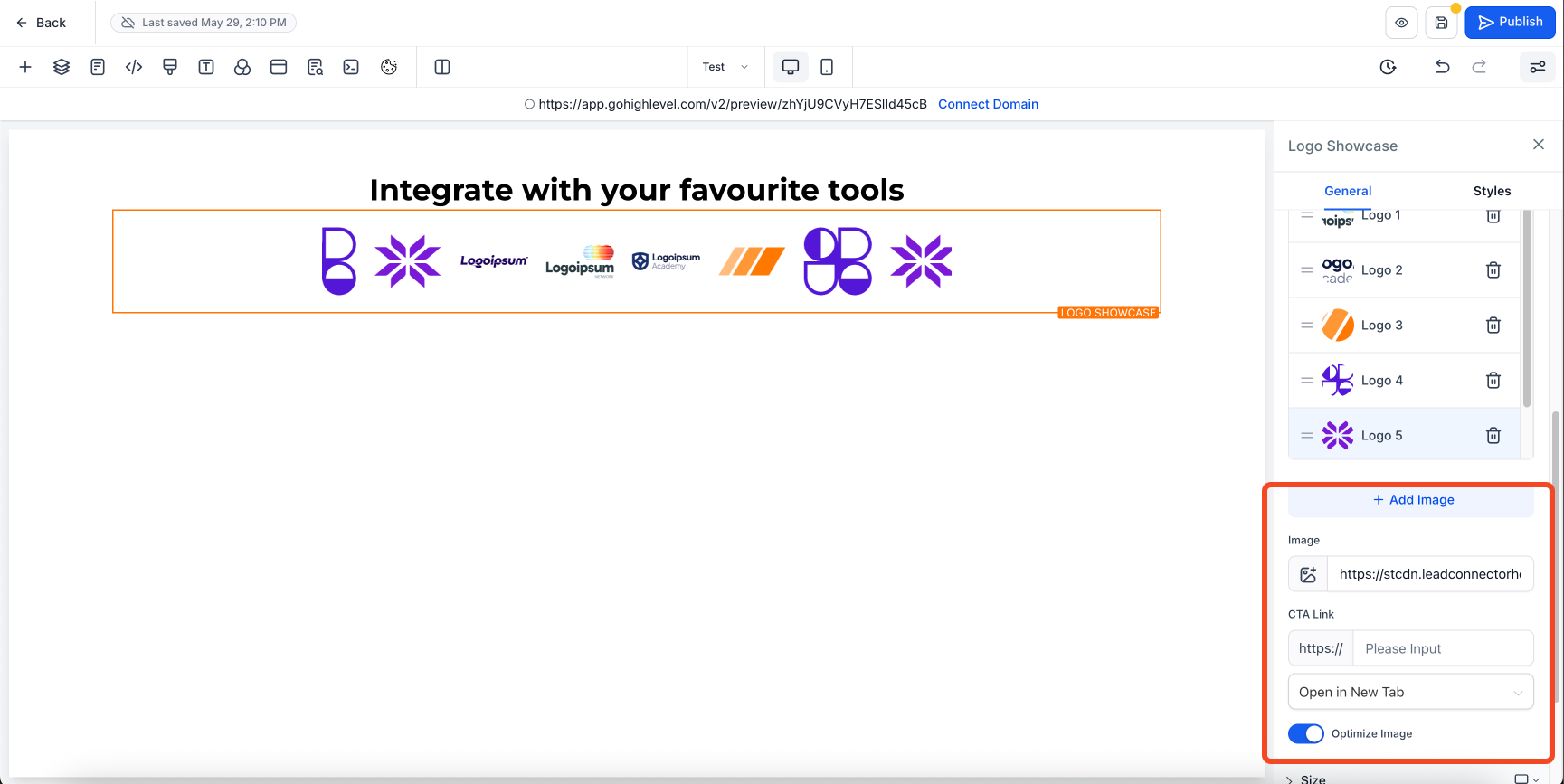
- Use the image uploader to add each logo file.
- Adjust layout, spacing, and animation settings as needed.
- Preview the page and make any final tweaks before saving.
07What it looks like in HighLevel

08Settings that matter
- Scroll Speed. Controls how fast the ticker scrolls, on a scale from 1 to 10.
- Smooth Scroll. Enables or disables a smooth scrolling effect for the ticker.
- Pause on Hover. Stops the ticker or carousel animation while the cursor hovers over the element.
- Logos per Slide. Determines the number of logos shown on each carousel slide, up to eight.
- Auto Animation & Interval Timing. Sets whether the carousel advances automatically and defines the time between slides.
- Infinite Loop. Keeps the carousel moving continuously without stopping at the last slide.
- Animation Style. Chooses between a slide transition or a fade transition for carousel movement.
- Spacing between logos. Adjusts the horizontal gap between adjacent logos, from 0 to 100 px.
- Custom alt text. Allows you to add descriptive alternate text to each logo for SEO and accessibility.
09Things to know before you rely on it
- There is no hard limit on the number of logos, but very large collections may affect performance.
- Logos must be uploaded directly; linking to external images is not supported.
- The element is only available in the new sidebar experience of the builder.
10How it connects to the rest of HighLevel
- Set up your website pages and design before adding the logo element. Website setup guide
- Learn how to create scroll to element links for smooth navigation alongside the ticker. Scroll to elements
- Add tracking scripts to your funnel or website to monitor logo showcase performance. Add tracking code
Michael's take

The logo showcase element feels like a small convenience that can turn a bland page into a credibility booster. Adding recognizable brand badges is an easy way to signal trust without writing copy.
A boutique design studio could drop a carousel of award logos on its portfolio page, letting visitors fast see the studio’s accolades. I’d start by placing the element in the footer and tweaking the spacing to keep the look clean.