
01Who this is for
- Content marketers who need fast, consistent blog posts benefit from ready made layouts.
- Small business owners can maintain a professional blog appearance without design expertise.
- Agencies managing multiple client blogs use the library to keep branding uniform across sites.
02Blog template library, explained
The Blog Template Library lives inside the HighLevel blog system. It supplies a set of pre designed page structures such as guides, promotional pieces, or storytelling formats. Selecting a template gives you a full layout that you can edit before publishing.
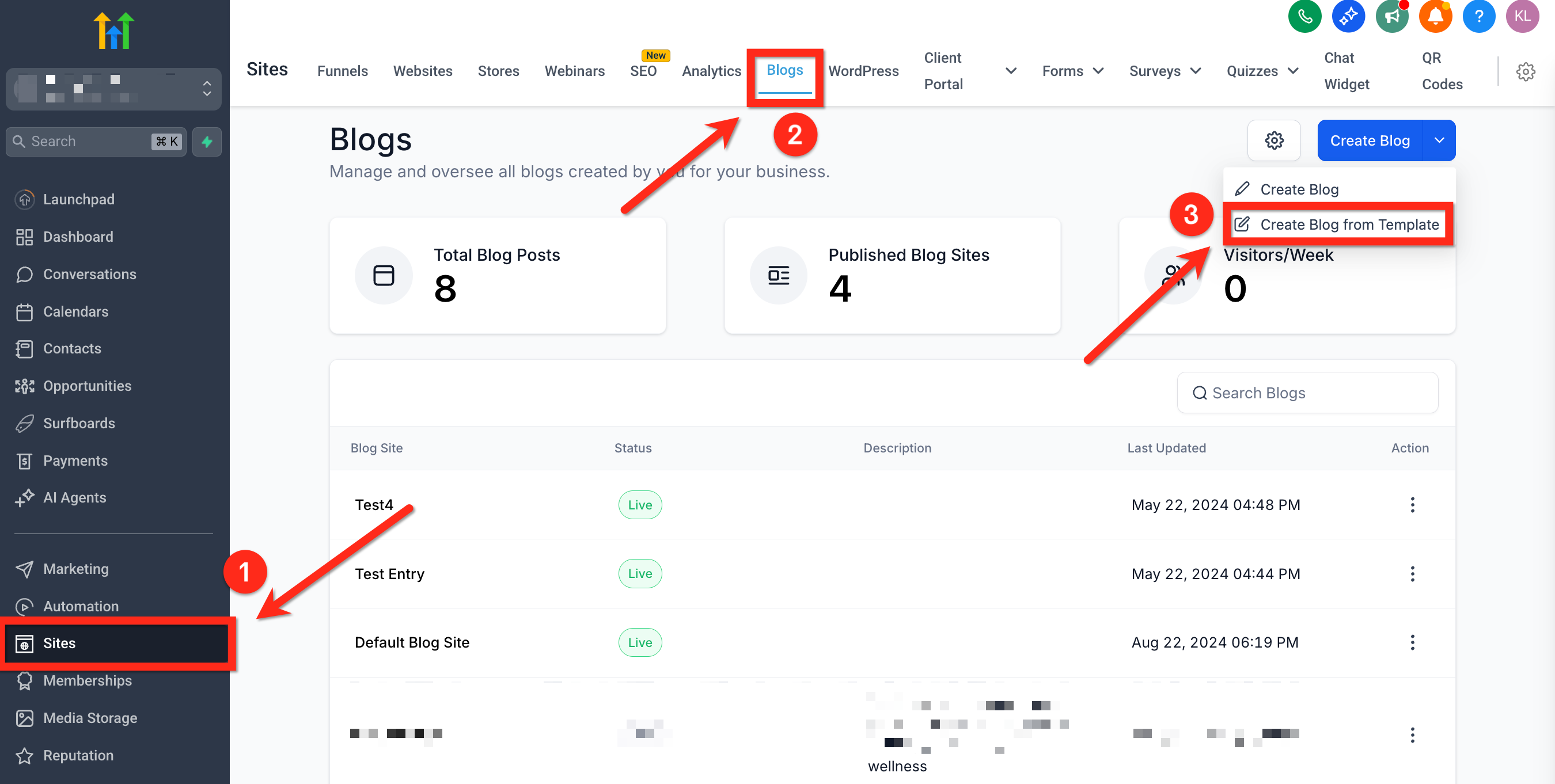
You reach the library from the left navigation by opening Sites > Blogs. After clicking Create Blog and choosing Create Blog From Template, you pick a template, preview it, and continue. The chosen layout opens in the blog editor where you can change text, add images, and adjust formatting. All templates are built to be mobile friendly and responsive.
03How businesses use the blog template library
- Digital marketing agency. The agency opens Sites > Blogs, selects Create Blog From Template, picks a guide style template, replaces placeholder copy with client content, adds images, and publishes the post, delivering a consistent client blog quickly.
- Real estate firm. The firm navigates to the blog area, chooses a promotional template, inserts property details and photos, updates contact information, then saves or publishes, creating a market ready listing article.
- Fitness studio. The studio accesses the template library, selects a class schedule template, edits class names, times, and trainer bios, adds a banner image, and publishes to announce new programs.
04How to set up and use the blog template library in HighLevel
Create a blog post from a template
- Open the left sidebar and click Sites > Blogs.
- Click the Create Blog button in the top right corner and choose Create Blog From Template.
- Scroll through the template collection and click a template to view its preview.
- After selecting a template, press Continue to load it in the editor.
- Edit the content, formatting, and media inside the blog editor as needed.
- Click Save or Publish when the post is ready.
05What it looks like in HighLevel
06Things to know before you rely on it
- Templates cannot be changed after you start editing a post; you must create a new post to use a different layout.
- Custom templates cannot be saved; only the system provided templates are available.
- Using a template does not limit SEO fields; you still need to fill SEO metadata manually.
- All templates are designed to be responsive on both desktop and mobile devices.
07How it connects to the rest of HighLevel
- Set up and manage your blog on HighLevel. Blog setup guide
- Create an RSS feed for your HighLevel blog. RSS feed guide
- Add and edit SEO information for blog posts. SEO guide
Michael's take

Jumping straight into a template can be tempting, but remember that once you begin editing a post you’re locked into that layout. Switching midstream means starting over with a fresh post, which can waste time if you’re not sure which template fits best.
When the right template matches your goal, you get a clean, consistent design in a few clicks. That saves effort, keeps your brand looking uniform, and lets you focus on the actual content rather than page structure.