
01Who this is for
- Marketers who build landing pages need fast formatting tools to keep copy on brand.
- Coaches creating online courses can highlight key points and display code examples directly in their training sites.
- Real estate teams can show property details with nested lists and highlighted call out text.
02Rich text elements, explained
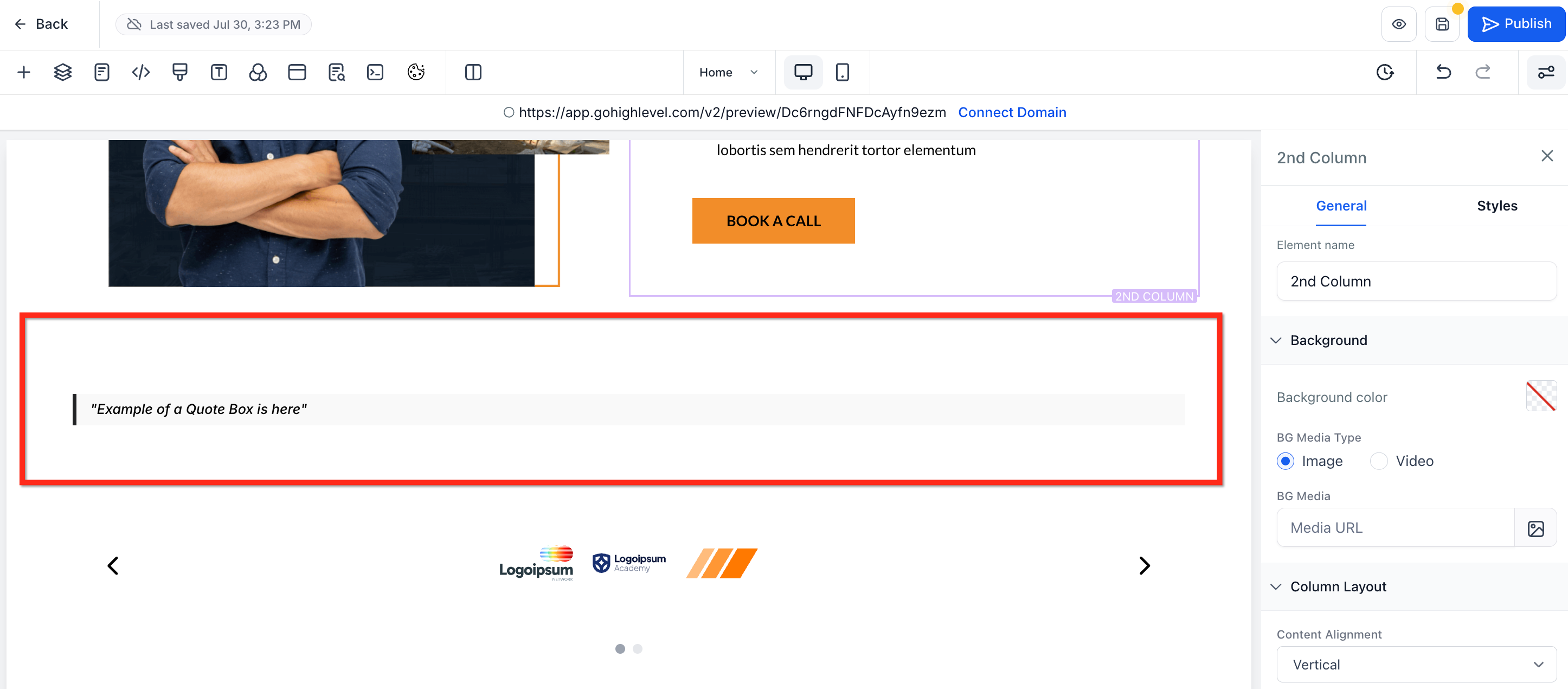
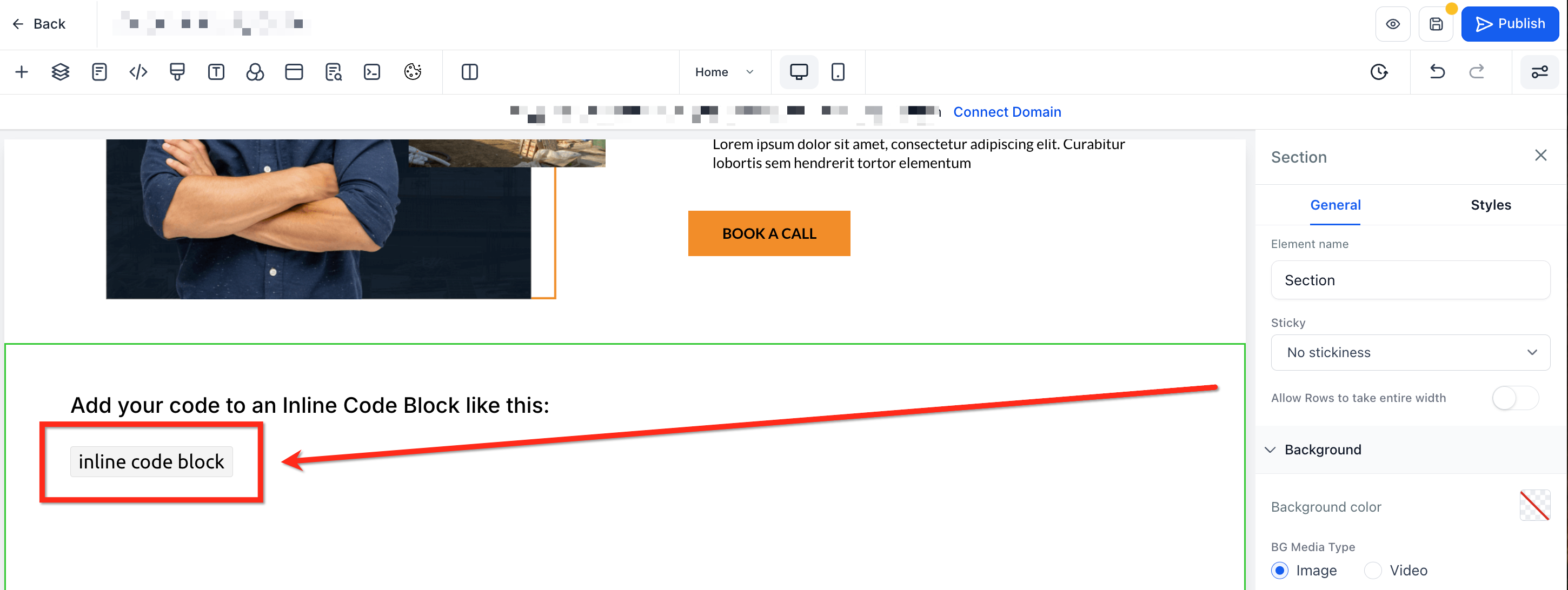
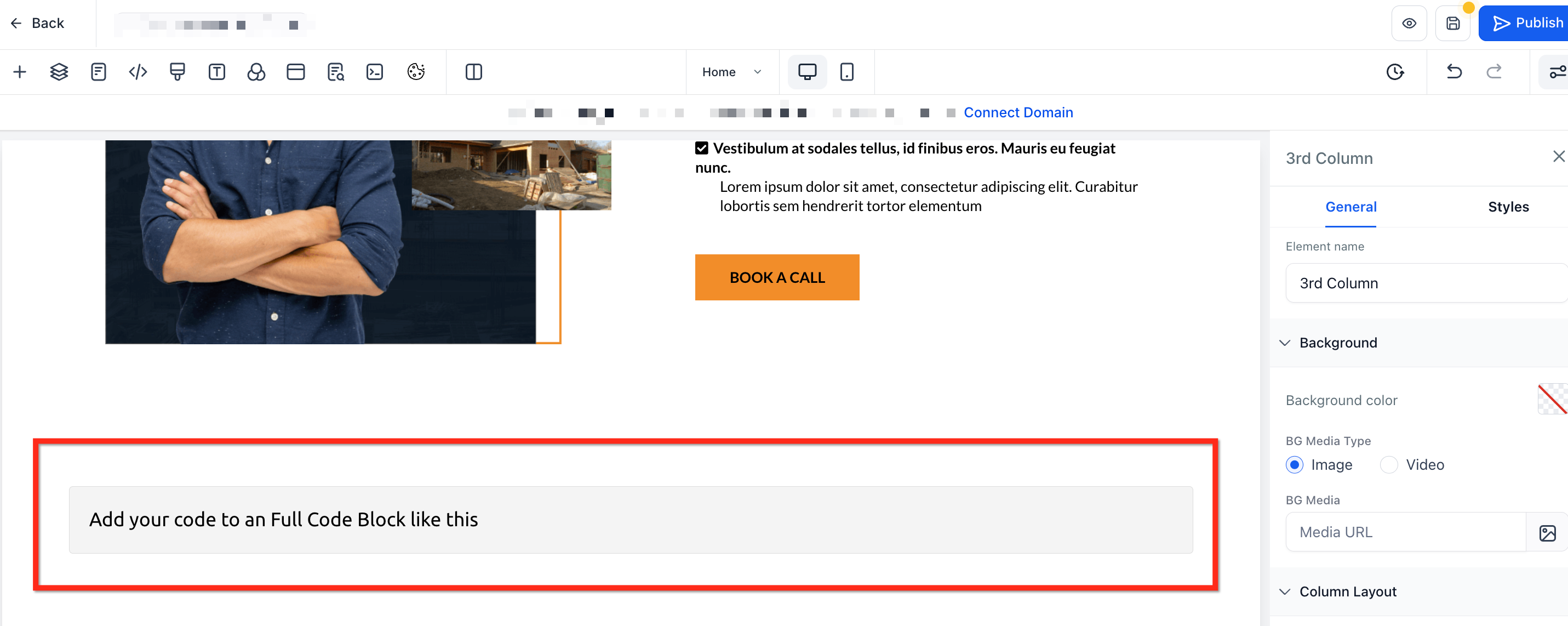
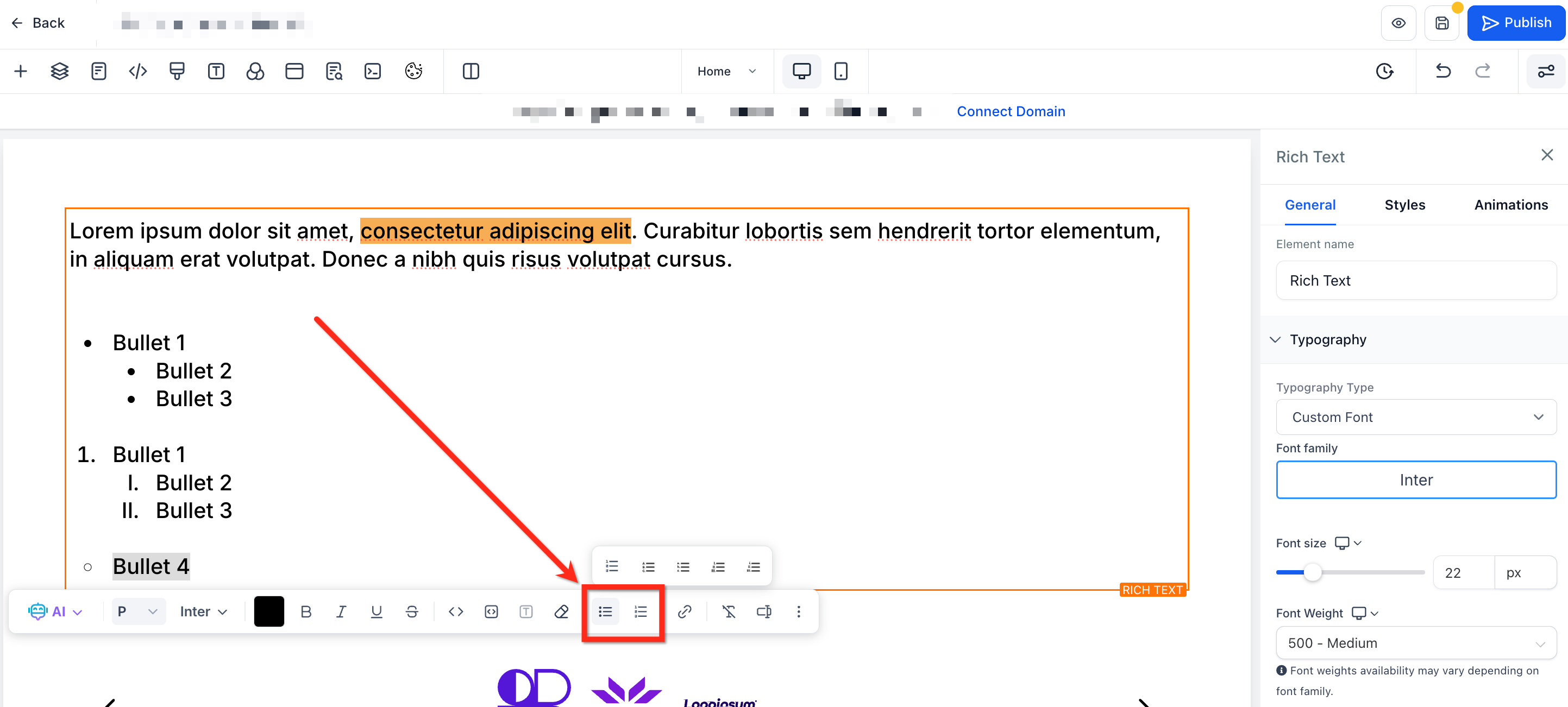
The Rich Text Element is a versatile text block that lives in the same sidebar as the standard Paragraph block. Inside the element you can switch between paragraph text and heading levels, insert block quotes, inline and full code blocks, create advanced ordered and unordered lists, and apply background highlight colors.
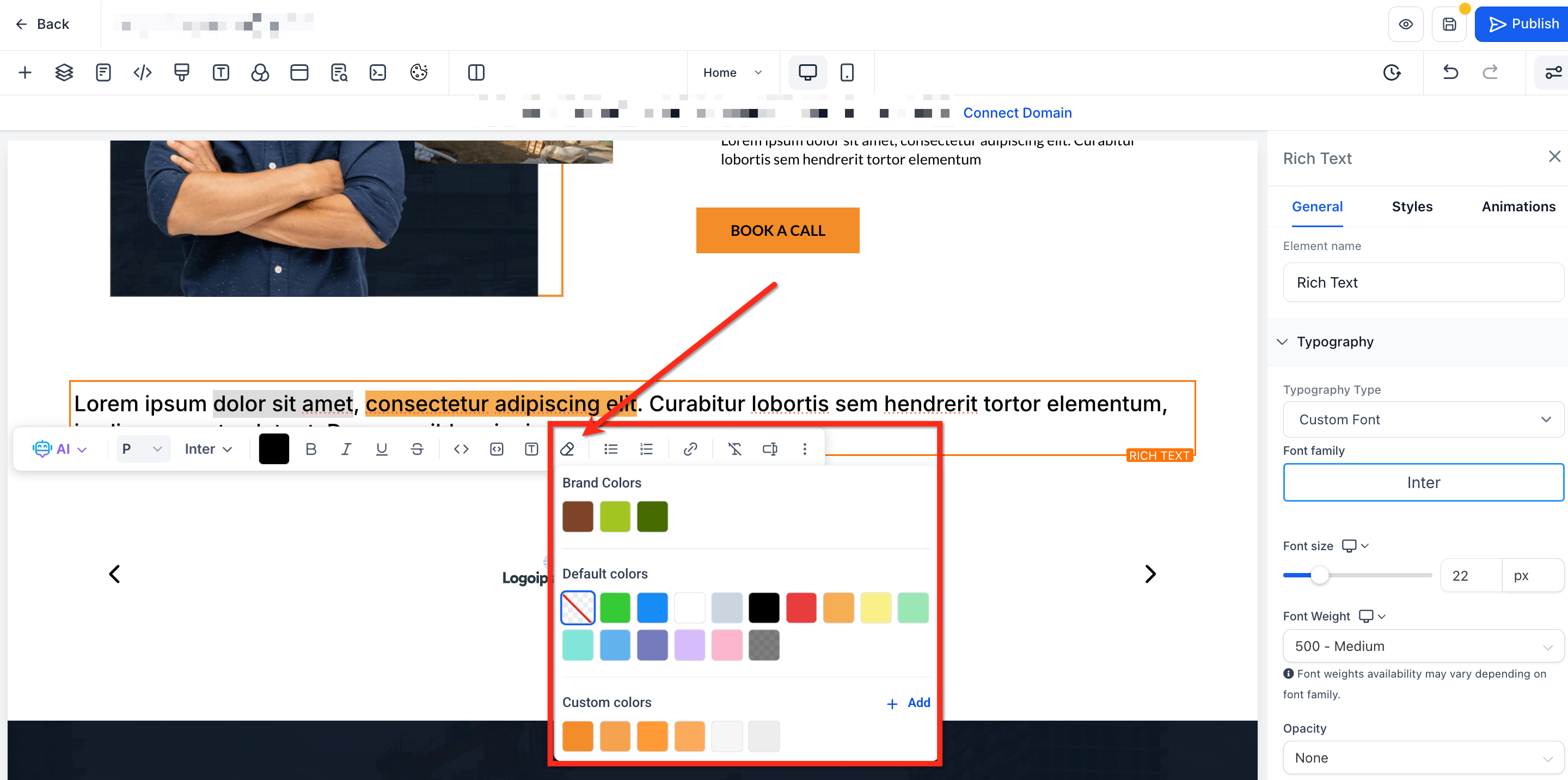
All formatting is controlled from a floating toolbar that appears when you click inside the element. The toolbar includes a Paragraph dropdown for heading selection, a Color Picker for highlights, and list type selectors. Keyboard shortcuts let you add quotes, code blocks and toggle headings quickly.
You add the element from the Builder’s left panel, then drag it into any row or column. Once placed, the element inherits your global theme fonts and colors, and you can further adjust spacing, typography and visibility from the Style panel.
03How businesses use rich text elements
- Digital marketing agency. The agency drops a Rich Text element onto a client landing page, then uses the toolbar to create H2 headings, bullet lists and highlighted statements that match the brand style without adding custom code.
- Online course creator. The creator inserts a Rich Text block into a course module page and wraps programming examples in backticks to show inline code, while using block quotes for student testimonials.
- Real estate brokerage. The brokerage adds a Rich Text element to a property showcase page, builds nested lists for features, highlights price reductions, and switches headings to organize sections.
04The numbers and rules that matter
- Keyboard shortcut: Ctrl + Alt + 1 to 6 (Windows) or + Option + 1 to 6 (Mac) toggles paragraph heading.
- Ordered list styles: 1 2 3 (numeric), a b c (lower alpha), A B C (upper alpha), I ii iii (lower roman), I II III (upper roman).
05How to set up and use rich text elements in HighLevel
Place a Rich Text element on the page
- Open the funnel or website Builder for the desired page.
- In the left panel, click Quick Add > Rich Text.
- Drag the element into a row or column and click it to start editing.
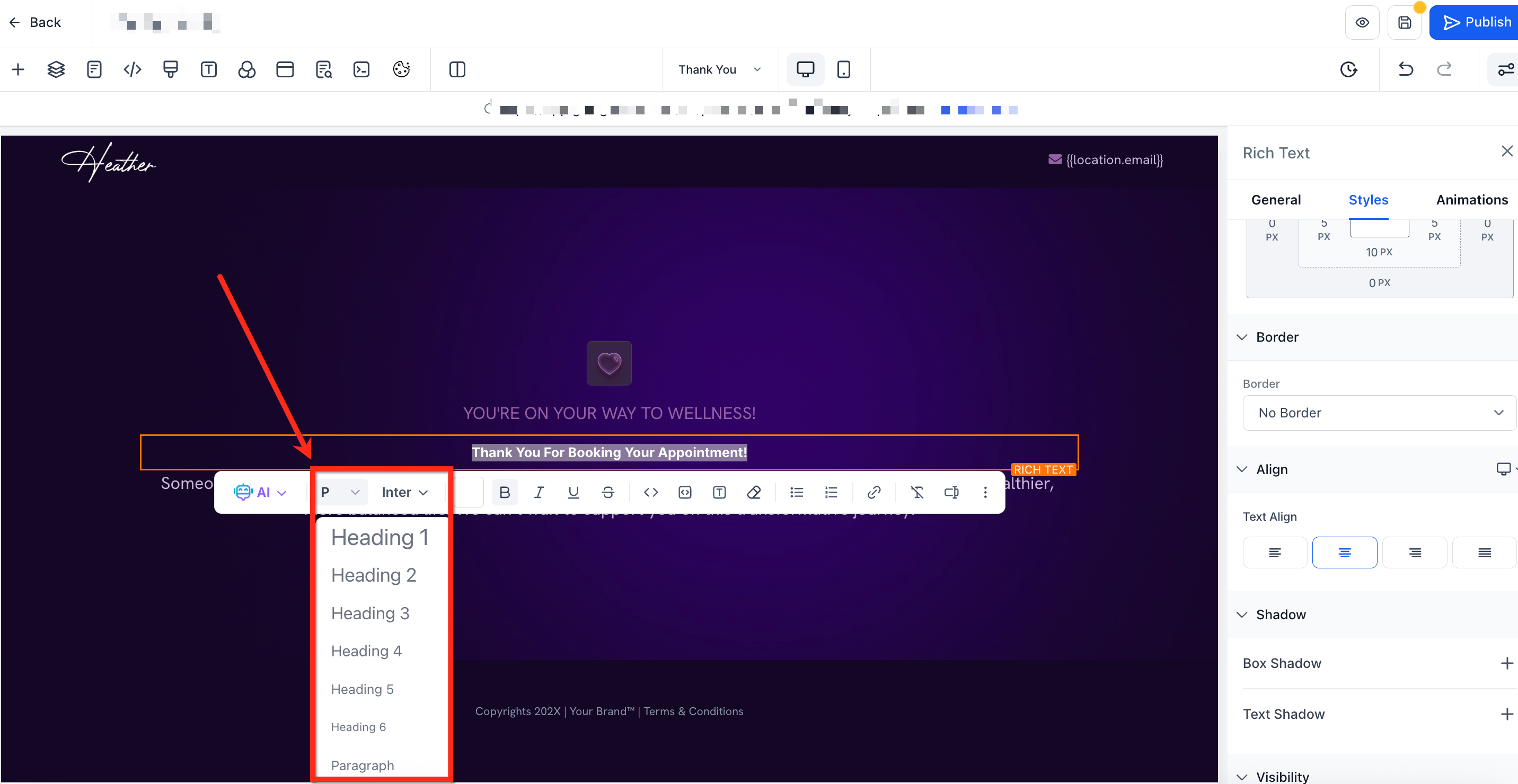
Convert selected text to a heading
- Highlight the text inside the Rich Text element.
- Click the Paragraph dropdown in the floating toolbar.
- Select the required heading level (H1 H6) from the list.
06What it looks like in HighLevel
07Settings that matter
- Paragraph dropdown. Lets you change selected text from a paragraph to any heading level from H1 to H6.
- Color Picker icon. Opens a palette to apply a background highlight color to the selected text.
- List Item Spacing. Adjusts the vertical distance between individual list items independent of line height.
08Things to know before you rely on it
- Existing Paragraph elements cannot be converted into Rich Text; you must add a new Rich Text element.
- The Rich Text element currently supports only Rich Text and Bullet List content types; other editors such as Email or Blog are not confirmed.
- Advanced formatting tools are limited to the options listed in the floating toolbar and keyboard shortcuts.
09How it connects to the rest of HighLevel
- Add tracking code to funnels and websites Add tracking code
- Set a page load popup in HighLevel Page load popup
- View HighLevel pricing and plans Pricing
Michael's take

Instead, drop a Rich Text element onto the page and use the built in toolbar to add headings, quotes, code blocks, lists and highlights. All without touching a line of code.
If I were setting up a new landing page, I would begin with swapping the default Paragraph for a Rich Text element wherever I need structured copy.
The List Item Spacing slider lets me adjust the space between list items.