
01Who this is for
- Users building funnels, websites, blogs, or ecommerce stores who need to compare multiple pricing options.
- Agencies and consultants who sell service packages and want to highlight discounts or previous pricing.
02Pricing Table element, explained
The Pricing Table element is a visual block that can be dropped onto any page built in HighLevel’s Funnel, Website, Blog, or Ecommerce Store editors. It arranges plans in one of four display modes, Grid, Carousel, Classic Table, or Comparison Table, so the layout matches the page’s design and the amount of information shown.
Each plan column can contain a price, feature list, action button and optional cues such as a discount badge, previous price strikethrough or a caption. Styling controls let you adjust colors, typography, spacing and column gaps, while mobile preview ensures the table remains readable on smaller screens.
03How businesses use Pricing Table element
- SaaS company. Create a grid style table with three columns for Basic, Pro and Enterprise plans. Set the pricing model to Subscription, add a discount badge to the Pro plan, and configure the button to open a signup popup.
- Fitness studio. Use a carousel layout to showcase monthly and annual membership tiers. Include a "Price From" model for custom training packages and add a previous price strikethrough to highlight a limited time reduction.
- Event ticketing service. Select the comparison table mode to list ticket categories with many feature rows. Enable the sticky head column for easy reference on mobile and set the button action to open the checkout URL.
04The numbers and rules that matter
- Grid supports up to 5 columns per row.
- Carousel supports 1 to 5 columns per slide.
- Column gap can be set from 0, 100 px.
- Pricing models: Fixed, Subscription, Price From, Price Range, Per Unit, Free, Custom.
- Available in Funnels, Websites, Blogs, and eCommerce Store builders.
- Conversion cues include previous price display (strikethrough), discount badges, and optional pricing captions.
05How to set up and use Pricing Table element in HighLevel
Set up the Pricing Table element
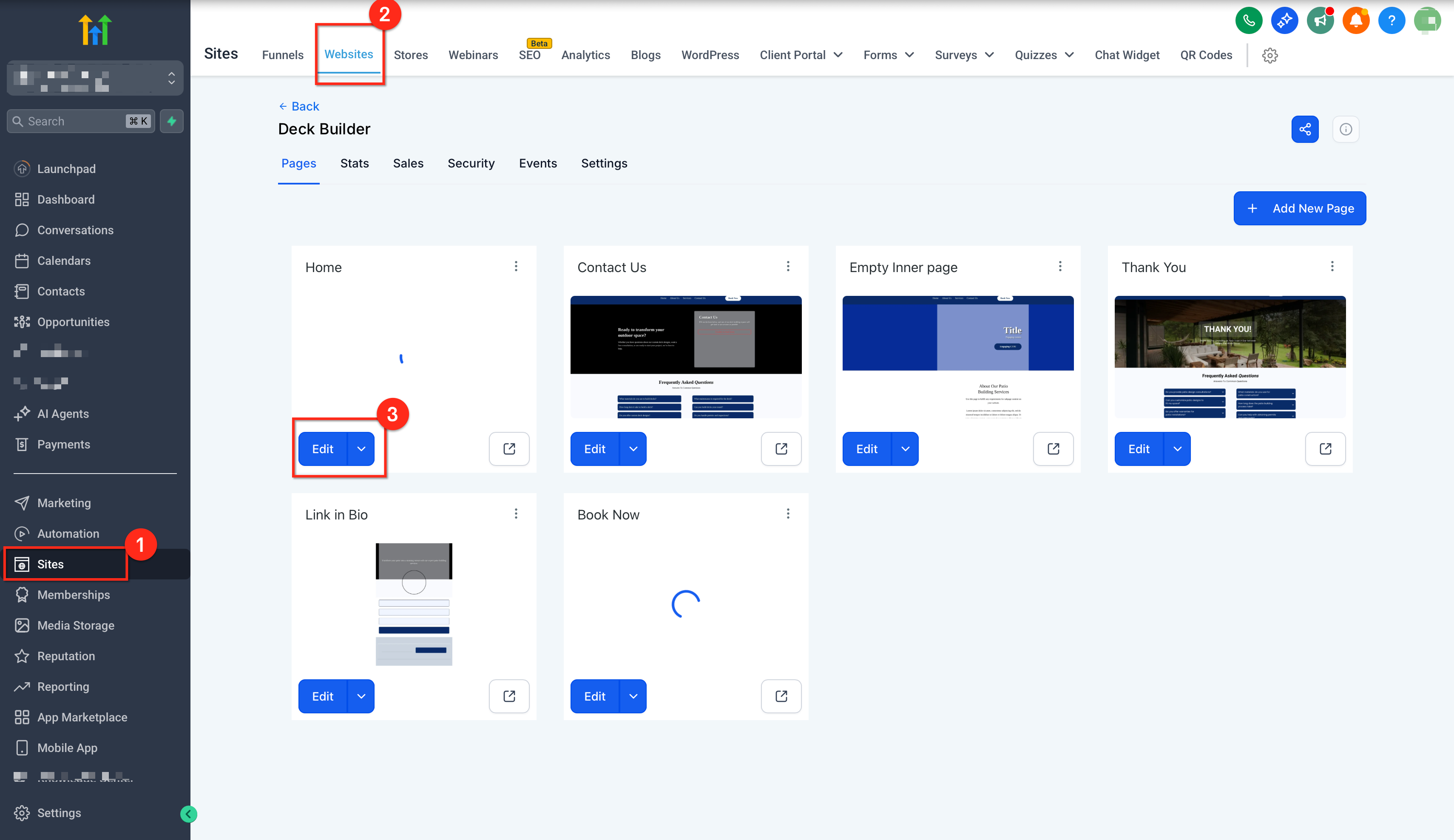
- Open the page builder by selecting Sites in the left menu, choosing the funnel or website, and clicking the blue Edit button.
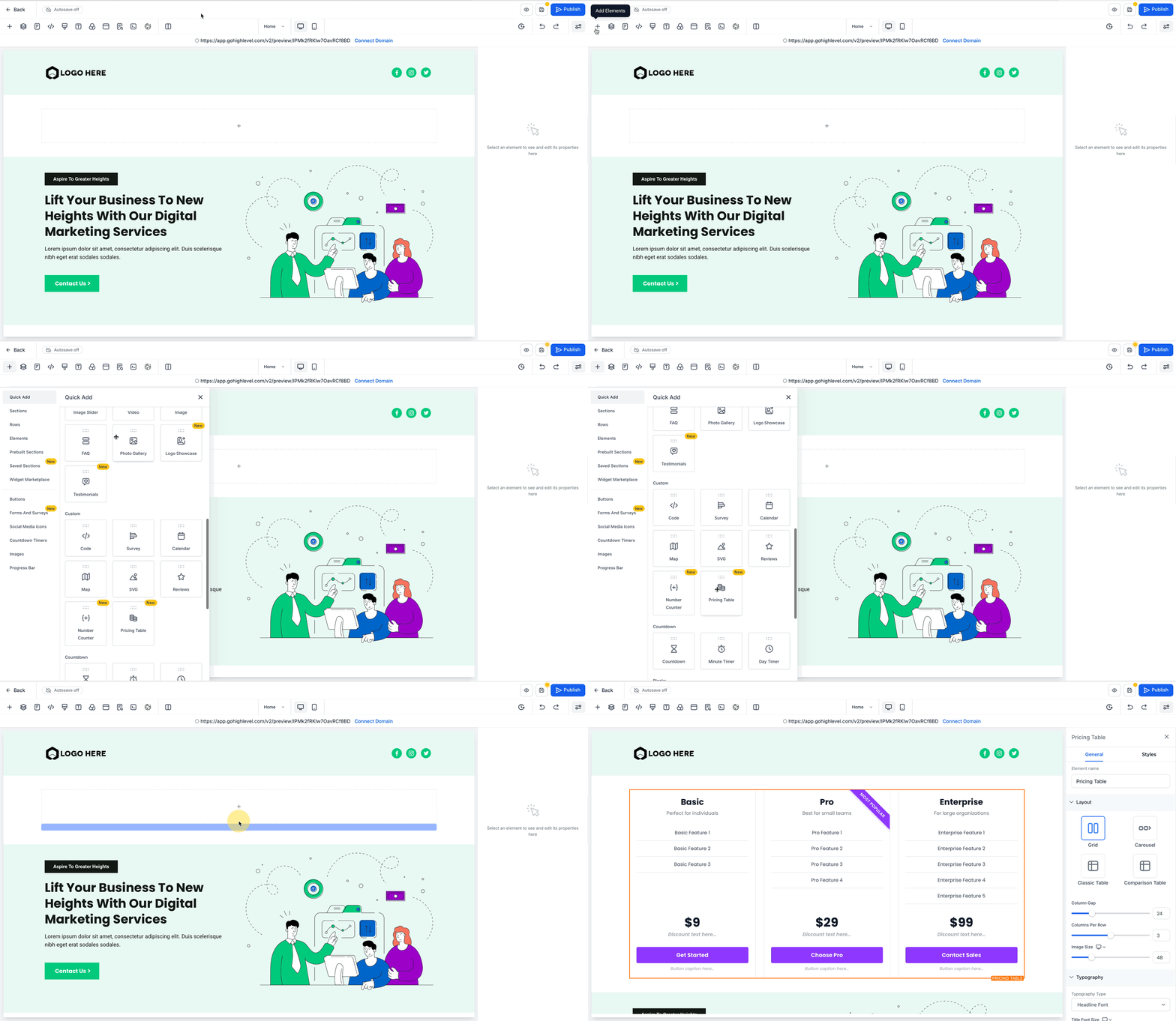
- Drag the Pricing Table component from the Elements panel onto the page canvas.
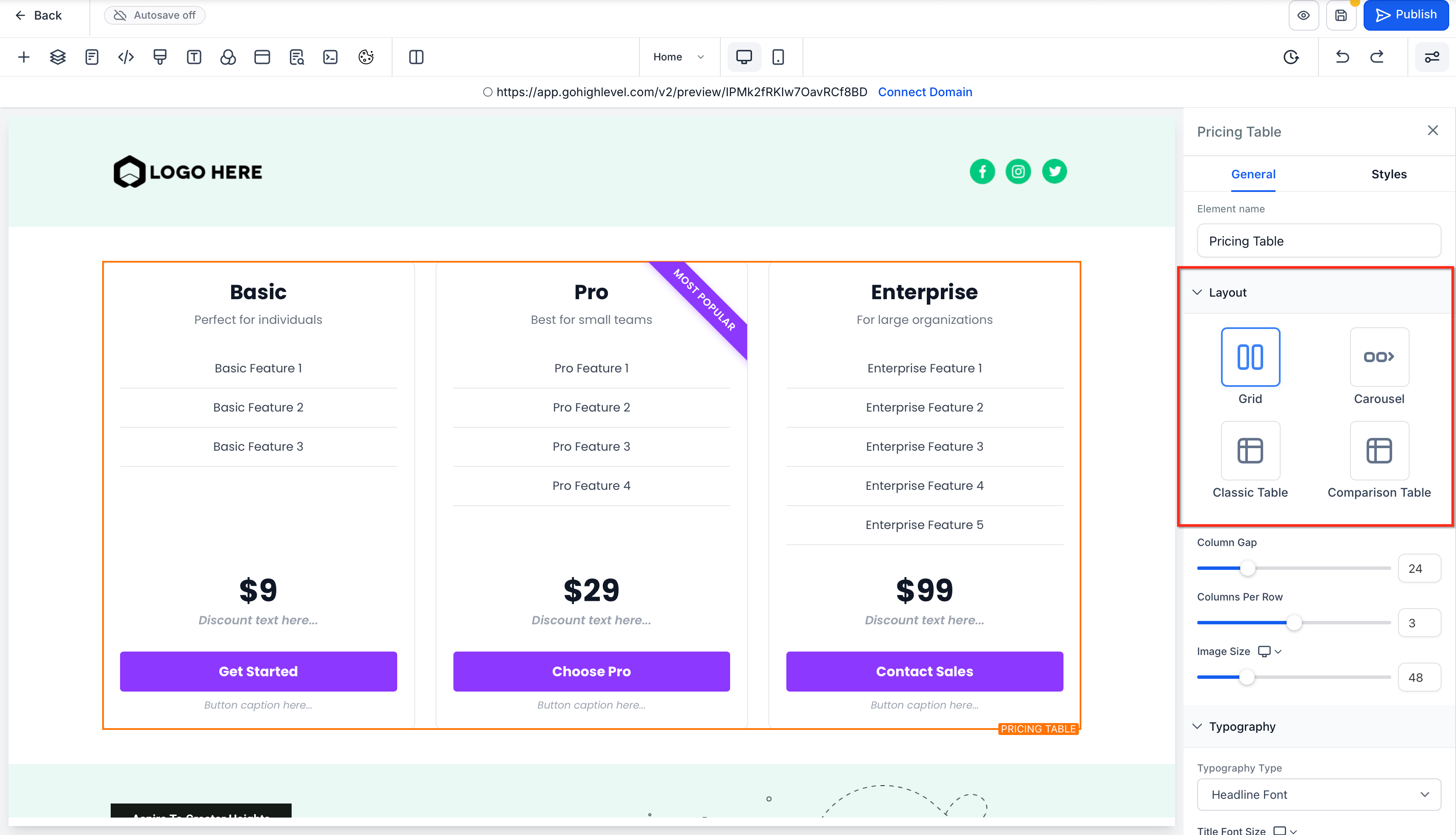
- Pick a layout style, Grid, Carousel, Classic, or Comparison, from the settings bar on the right.
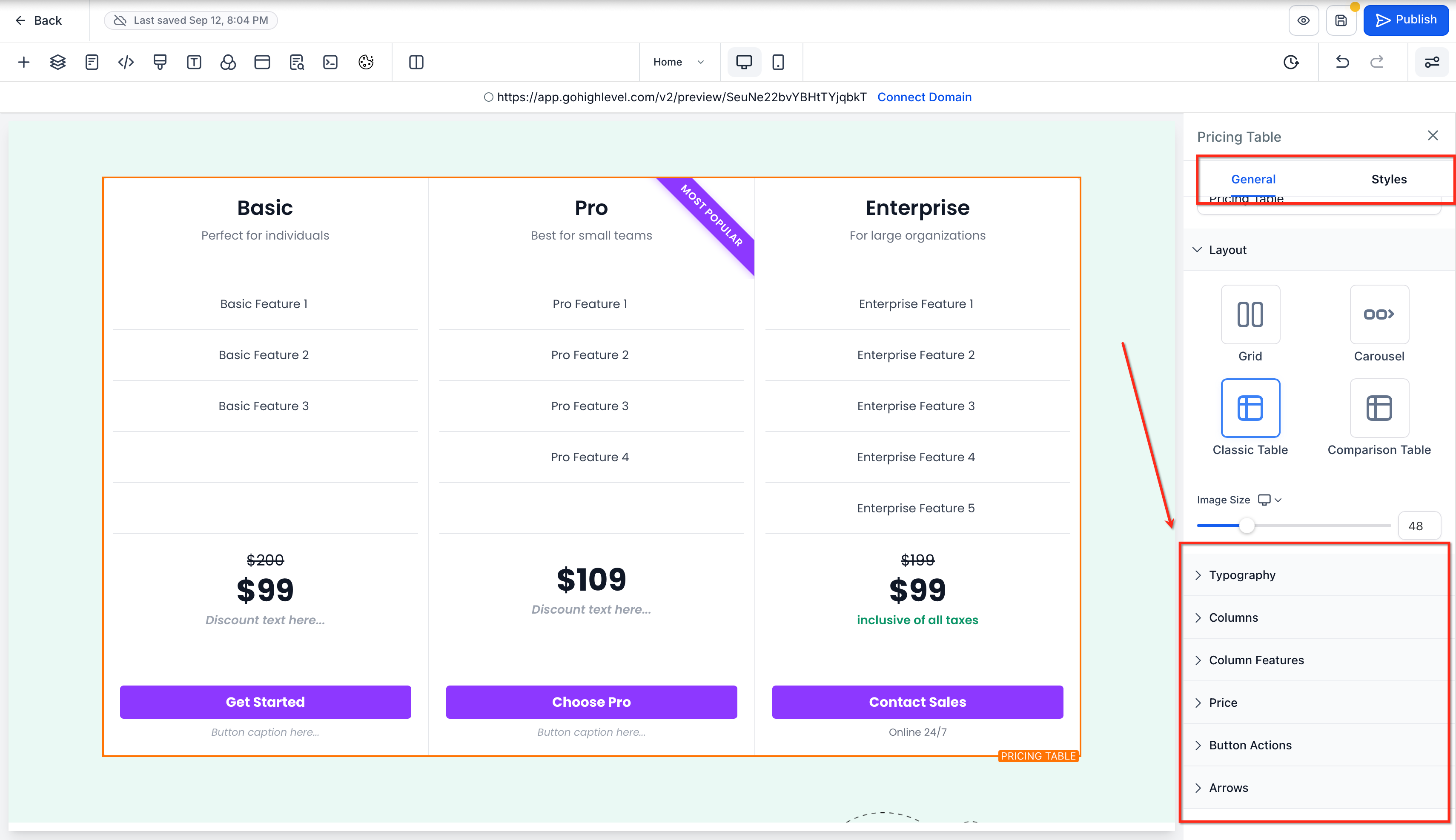
- Enter pricing numbers, feature items and button text for each plan column.
- Adjust visual styling such as colors, typography, spacing and column gap values.
- Preview the page on desktop and mobile, then click Save and Publish.
06What it looks like in HighLevel
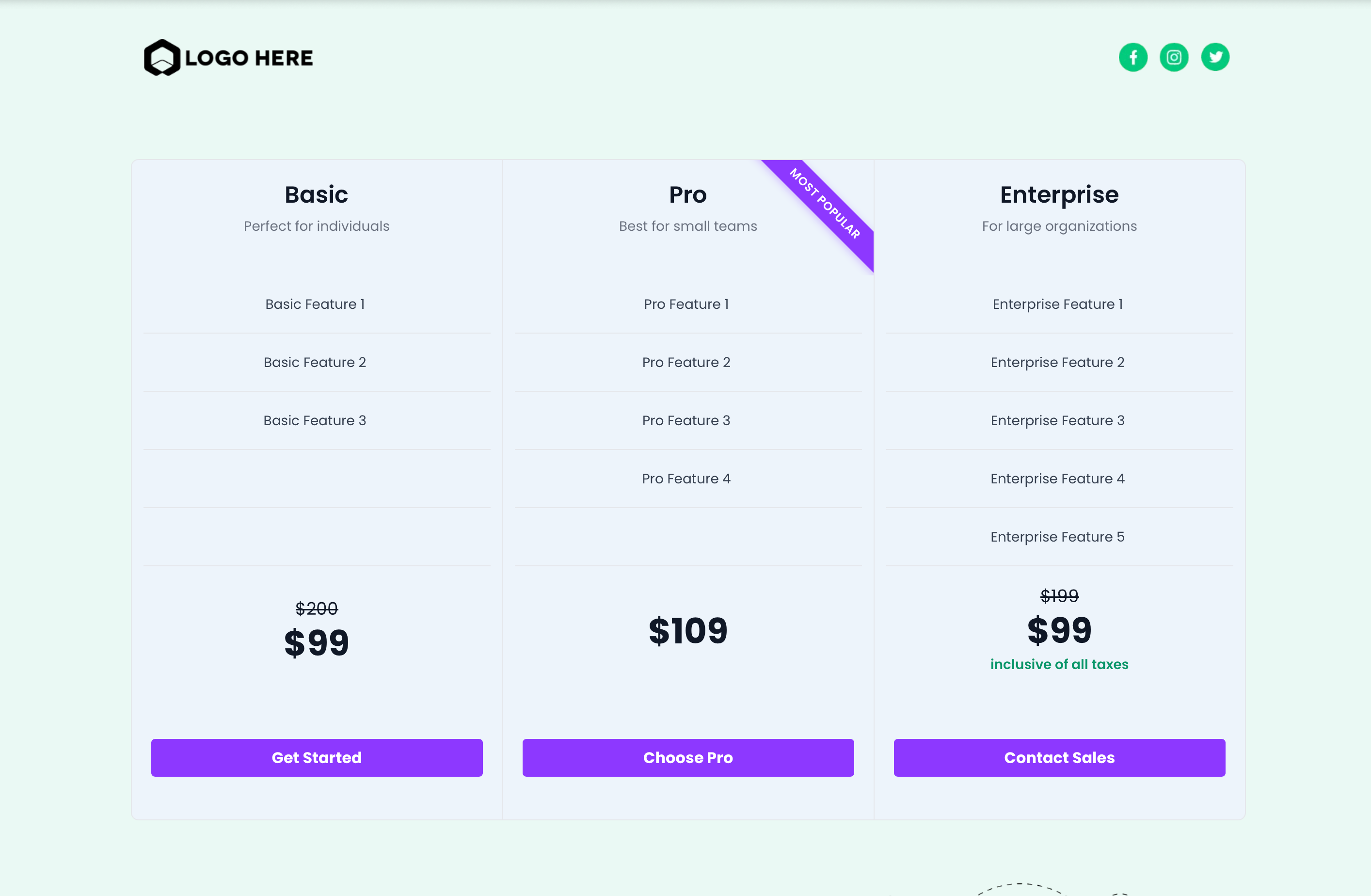
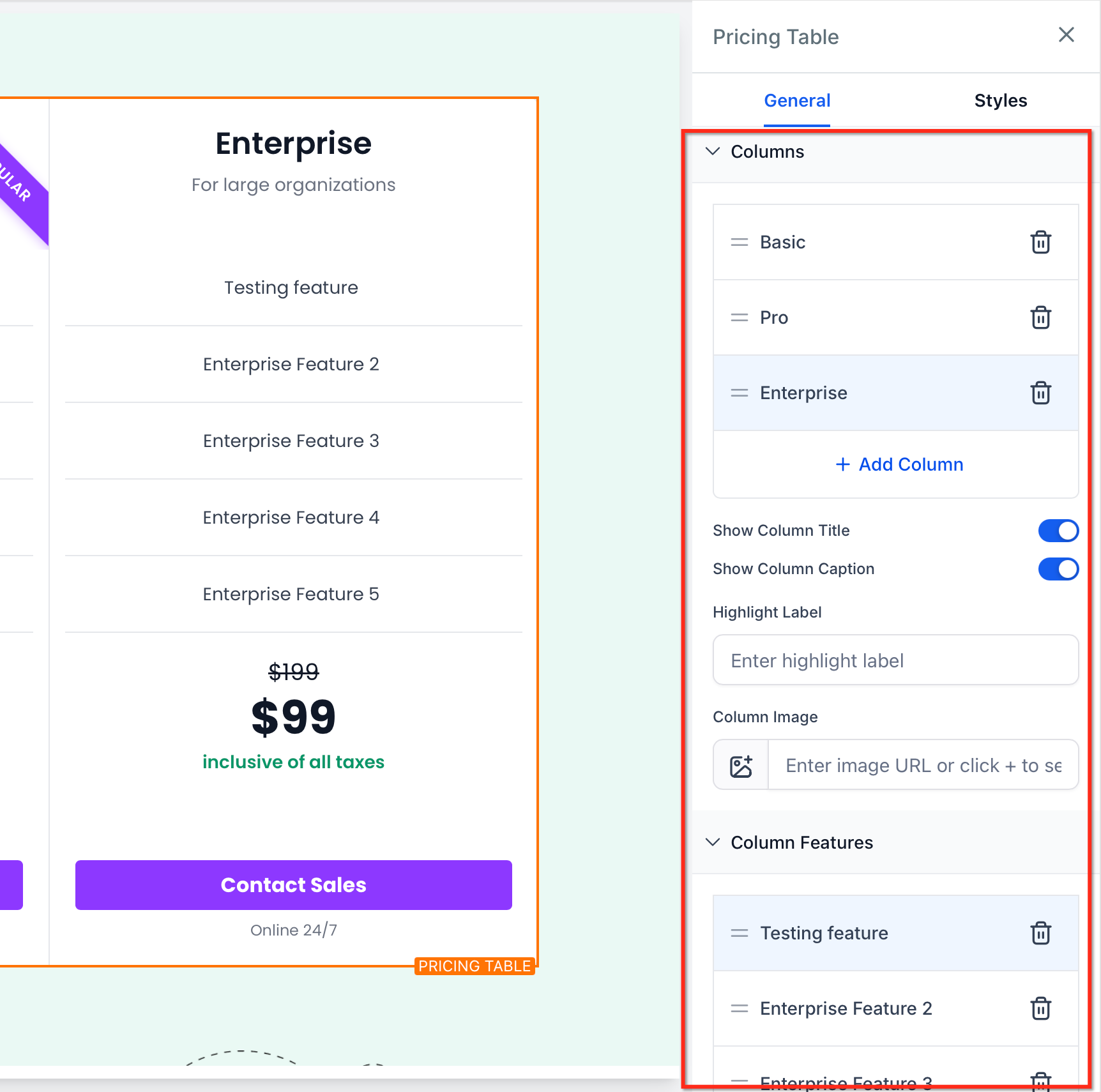
07Settings that matter
- Layout mode. Determines whether plans appear as cards, a sliding carousel, a traditional table or a comparison table with a sticky header.
- Pricing model. Selects how the price is shown: Fixed Price, Subscription, Price From, Price Range, Per Unit, Free, or Custom text.
- Previous price display. Shows an old price with a strikethrough to highlight a discount.
- Discount badge. Adds a promotional label next to the price.
- Pricing caption. Provides optional billing notes, tax information or other disclaimer text.
- Button action. Sets what happens when a visitor clicks the plan button: open a URL, open a popup, navigate to a page anchor, or do nothing.
- Show/Hide button. Controls whether the call to action button is displayed.
- Show/Hide caption. Controls visibility of the optional caption below the button.
- Colors. Defines the element’s color palette for text, badges and buttons.
- Typography. Sets font family, size and weight for all textual content.
- Spacing. Adjusts padding and margin inside each plan card.
- Column gap. Sets the distance between columns, ranging from 0 to 100 px.
08Things to know before you rely on it
- Grid layout can display up to five columns per row.
- Carousel layout supports one to five columns per slide.
- Column gap values are limited to between zero and one hundred pixels.
- On mobile devices, multi column layouts may collapse to fewer columns for readability.
- Comparison layout keeps the header column sticky while scrolling horizontally.
- Pricing models include Fixed, Subscription (daily to yearly), Price From, Price Range, Per Unit, Free and Custom.
09How it connects to the rest of HighLevel
- Overview of website building features in HighLevel Sites overview
- Add a two step order form to capture leads from table buttons Two step order form
- Create and attach a popup that can be opened from a pricing table button Page load popup
Michael's take

Most people try to jam every plan into a grid and end up with cramped cards that hide key details. I would begin with matching the layout to the amount of information, Grid for a few clean tiers, Classic or Comparison for long feature lists.
Once you pick the right mode, set the pricing model that reflects how you charge, add a discount badge if it makes sense, and point the button to the next step in your funnel. Test the mobile view before publishing to be sure the scroll and sticky columns behave as expected.