
01Who this is for
- Appointment coordinators can capture preferred follow up slots while limiting entries to business hours.
- Event planners can gather event dates and times, ensuring respondents pick only allowed days.
- Online educators can ask students for preferred class times, using 24 hour or AM/PM formats.
02Date, time, and date & time fields, explained
These field types add a flexible input element to any form, survey, or quiz in the Sites area of HighLevel. Depending on the selected collection type, Date, Time, or Date & Time, you control how respondents enter information, including the visual format and permissible values.
The fields appear in the form builder’s left sidebar under Other Elements. After placement, the General tab lets you set the label, placeholder, width and required status. The Field settings tab provides deeper controls such as date format, time format, default values, allowed ranges and which days or times users may select.
Both new and existing forms, surveys, and quizzes can receive these fields without needing to recreate the asset. Once saved, the collection type cannot be changed, so choose the correct option before finalizing.
03How businesses use date, time, and date & time fields
- Service appointment business. Add a Date & Time field to a service inquiry form, set the allowed days to Monday through Friday and limit the time range to business hours. This lets customers supply a preferred follow up slot that matches staff availability.
- Restaurant reservation system. Insert a Time field in the reservation form, choose a 24 hour format, and restrict the selectable times to the restaurant’s open hours. Guests then pick a time that fits the dining schedule.
- Fitness class scheduler. Place a Date field on a class sign up survey, set the date format to DD.MM.YYYY and limit the range to future dates only. Participants select a class date that is still open for enrollment.
04The numbers and rules that matter
- Time formats: 24 hour or AM/PM.
05How to set up and use date, time, and date & time fields in HighLevel
Set up date, time, and date & time fields
- Open the Sites section in your HighLevel subaccount and select Forms, Surveys, or Quizzes.
- Create a new form, survey, or quiz or open an existing one for editing.
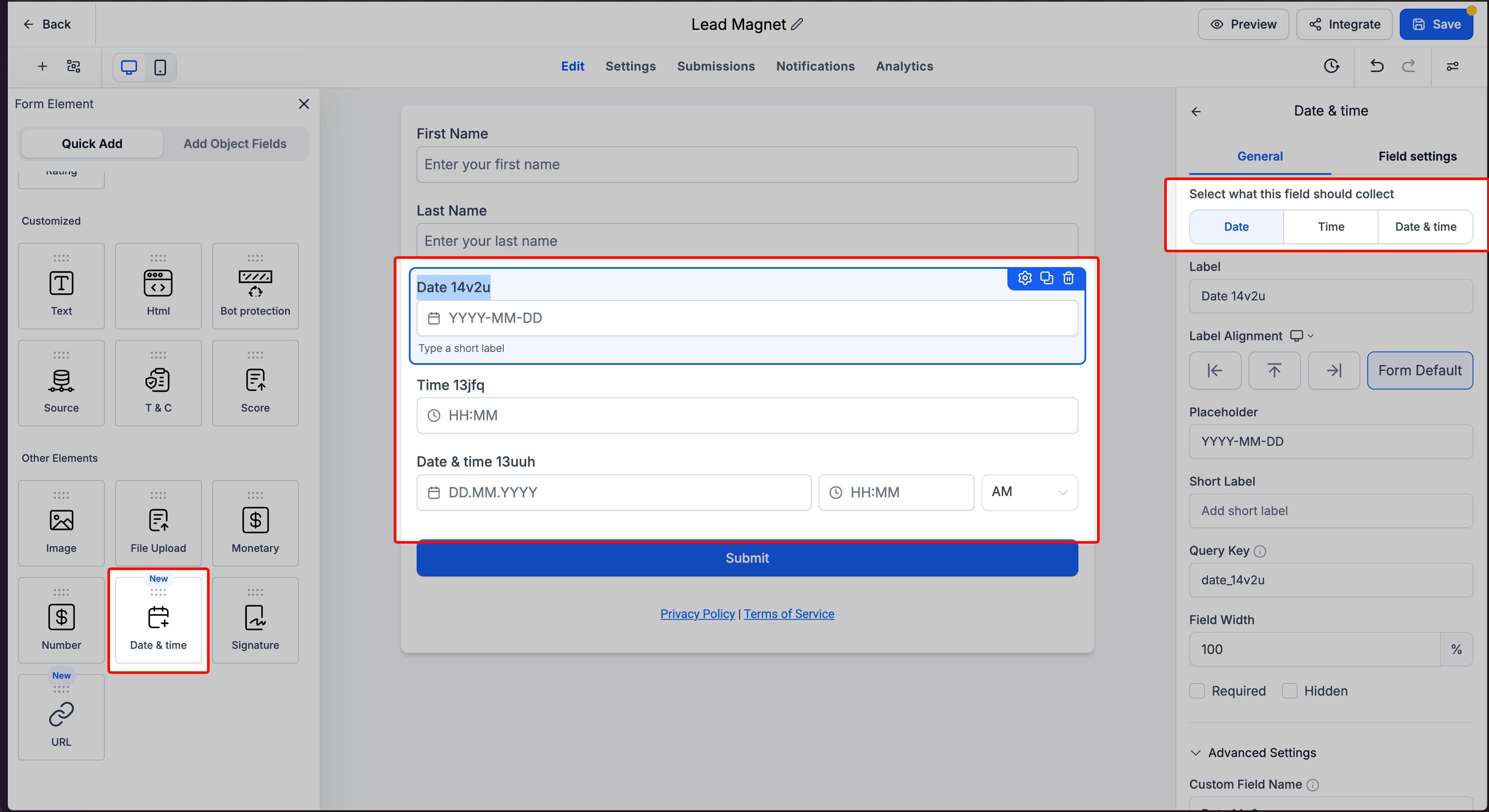
- In the left sidebar choose Quick Add and locate Date & time under Other Elements.
- Drag the Date & time element onto the canvas where you want it positioned.
- Click the newly added field and open the General tab in the right sidebar.
- Under “Select what this field should collect,” pick Date, Time, or Date & time.
- Enter the Label, Placeholder, adjust Field Width and toggle Required if needed.
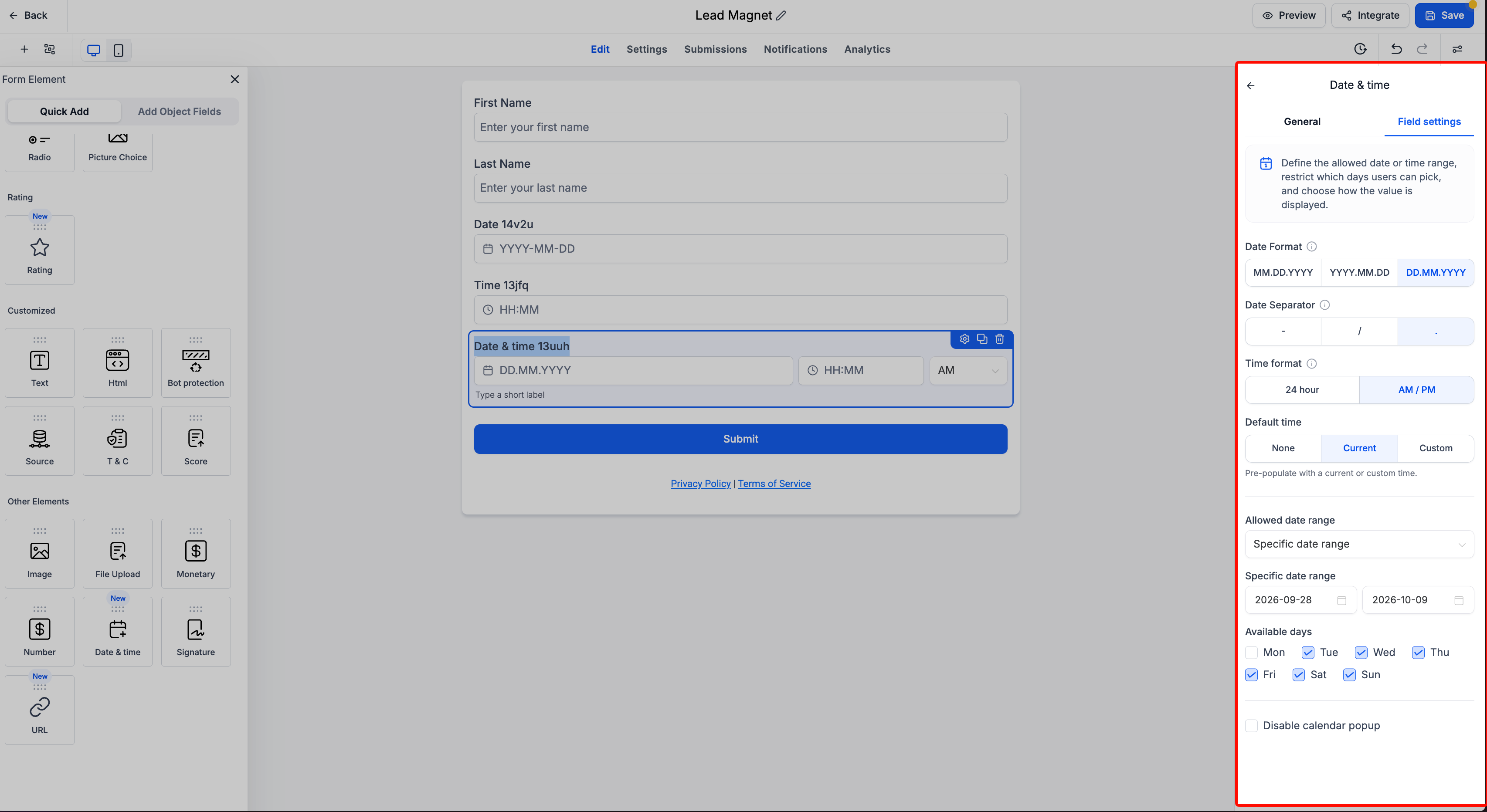
- Switch to the Field settings tab and set formats, separators, default values, allowed ranges, available days, and picker behavior appropriate to the chosen type.
- Review all settings and click Save in the upper right corner of the builder.
- Ensure the correct collection type is selected because it cannot be changed after the field is saved.
06What it looks like in HighLevel
07Settings that matter
- Date Format. Determines the order and representation of month, day, and year in the date selector.
- Date Separator. Chooses the character used between date components, such as hyphen, slash, or period.
- Time Format. Selects between a 24 hour clock or an AM/PM display for time entries.
- Default Time. Sets the initial time value; options include none, the current time, or a custom time.
- Allowed Date Range. Limits which dates respondents can choose, allowing any date, future only, past only, or a specific range.
- Available Days. Specifies which days of the week are selectable in the date picker.
- Allowed Time Range. Defines the start and end times that respondents may select.
- Picker Settings. Controls calendar and time picker behavior, including the option to disable pop up pickers for manual entry.
- Field Type. Chooses whether the field gathers a Date, Time, or combined Date & Time value.
- Label. The text displayed above the field to describe the requested information.
- Label Alignment. Adjusts the position of the label relative to the field or uses the default alignment.
- Placeholder. Shows hint text inside the input before a respondent enters a value.
08Things to know before you rely on it
- The collection type (Date, Time, or Date & Time) cannot be changed after the custom field is saved.
- Date restrictions only limit what respondents can enter in the field; they do not affect when the form, survey, or quiz accepts submissions.
- Adding a Date & Time field does not automatically schedule an appointment in a HighLevel calendar.
09How it connects to the rest of HighLevel
- Quickly add and edit custom fields in forms and surveys Custom fields guide
- Enable Sticky Contact in HighLevel forms, surveys and calendars Sticky Contact
- HighLevel contact form builder: design, test, and share Form builder overview
Michael's take

These fields let you enforce formats and limits right at the point of entry, reducing the need for later data cleanup.
If your workflow doesn’t rely on exact dates or times. Say you only need a simple yes/no or free form comment. Adding these fields can add unnecessary steps for respondents.