
01Who this is for
- Content marketers benefit because the feature keeps drafts safe while they focus on creating posts.
- Small business owners appreciate the reduced need to manually save, saving time during blog updates.
- Freelance writers gain peace of mind knowing edits are stored even if the browser stops responding.
02Auto Save, explained
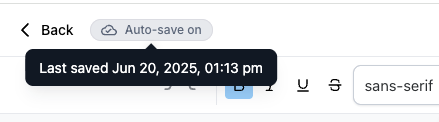
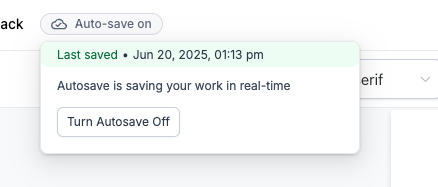
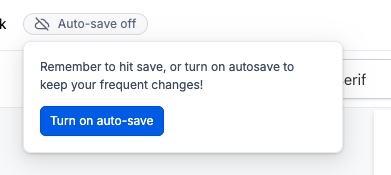
Auto Save is a feature inside the Blog Post Editor that records changes in real time with a slight delay. When the toggle shows “Autosave on,” edits are saved automatically and a visual indicator confirms each save. If you turn it off, the tag changes to “Last saved” with a timestamp of the most recent manual save. The preference is saved in the browser’s local storage under the key blog editor autosave enabled, so it remains the same each time the same browser is used. Preferences do not carry over to other browsers or devices, and if no previous save exists, the editor displays “Autosave off.”
The toggle lives in the top action bar of the Blog Post Editor. Hovering over the status tag opens a pop over that lets you enable or disable the feature with a single click. The setting is stored locally, so it persists across sessions on that browser.
03How businesses use Auto Save
- Digital marketing agency. Agents can enable Auto Save while drafting client blog posts to ensure that any unexpected browser issue does not erase work. If a writer prefers to control saves, they can disable the feature and manually click the save button.
- Ecommerce store blog. The store owner can turn on Auto Save to protect product announcement drafts from being lost if the browser crashes. They may later disable it to match a workflow that relies on scheduled manual saves before publishing.
- Coaching business newsletter. Coaches can use the toggle to keep their weekly newsletter drafts safe without extra clicks. When they want to review changes before saving, they can switch off Auto Save and apply manual saves only when ready.
04How to set up and use Auto Save in HighLevel
Enable or disable Auto Save
- Open the Blog Post Editor from your dashboard.
- Find the Autosave toggle in the top action bar.
- Hover over the “Autosave on” tag.
- Click the Disable Autosave button that appears in the pop over.
- Hover over the “Last saved” tag to open its pop over.
- Click the Enable Autosave button to turn the feature back on.
05What it looks like in HighLevel
06Settings that matter
- blog editor autosave enabled. Controls whether the Auto Save function is active for the current browser; stored in local storage.
07Things to know before you rely on it
- The Auto Save preference is saved per browser and does not sync across different devices or browsers.
- If the feature is disabled and no prior save exists, the editor shows “Autosave off.”
- Auto Save uses a slight delay to keep editor performance smooth.
08How it connects to the rest of HighLevel
- Set up and manage blogs in HighLevel Blog setup guide
- Create and publish blog posts manually Create posts
- Add SEO information to HighLevel blog posts Edit SEO
Michael's take

Most people assume the Auto Save setting follows them from one computer to the next, and they end up wondering why their preference vanished on a new laptop. The toggle is saved only in the browser you used, so each device needs its own setting.
If I were setting up my blog, I’d leave Auto Save on for every new draft and only turn it off for final polish sessions when I want full control over the save moment. I’d also double check the tag to make sure the status matches my expectation before I close the editor.