
01Who this is for
- Content marketers, keep campaign assets safe by restoring accidental deletions.
- Small business owners with blogs, manage content without waiting for support.
- Agencies handling client sites, bulk recover posts across multiple blogs efficiently.
02Deleted blog posts, explained
A Status filter includes a Deleted option that shows posts that have been removed for up to thirty days.
During that period a post can be restored, returning to its original draft or published status, or it can be permanently removed.
All actions are performed inside the Sites > Blogs area of HighLevel, which offers single post restore, bulk restore, and permanent delete options.
03How businesses use deleted blog posts
- Digital marketing agency. The agency can open the client’s blog, filter for Deleted posts, and bulk restore several articles that were removed by mistake, preserving each article’s prior draft or published state.
- Ecommerce store. When a product announcement blog post is accidentally deleted, the store owner filters to Deleted, selects the single post, and restores it so the announcement can be republished without recreating the content.
- Nonprofit organization. The nonprofit reviews the Deleted list periodically and permanently deletes posts that are outdated, ensuring the blog stays current while avoiding accidental loss of important updates.
04The numbers and rules that matter
- Deleted blog posts remain recoverable for 30 days.
05How to set up and use deleted blog posts in HighLevel
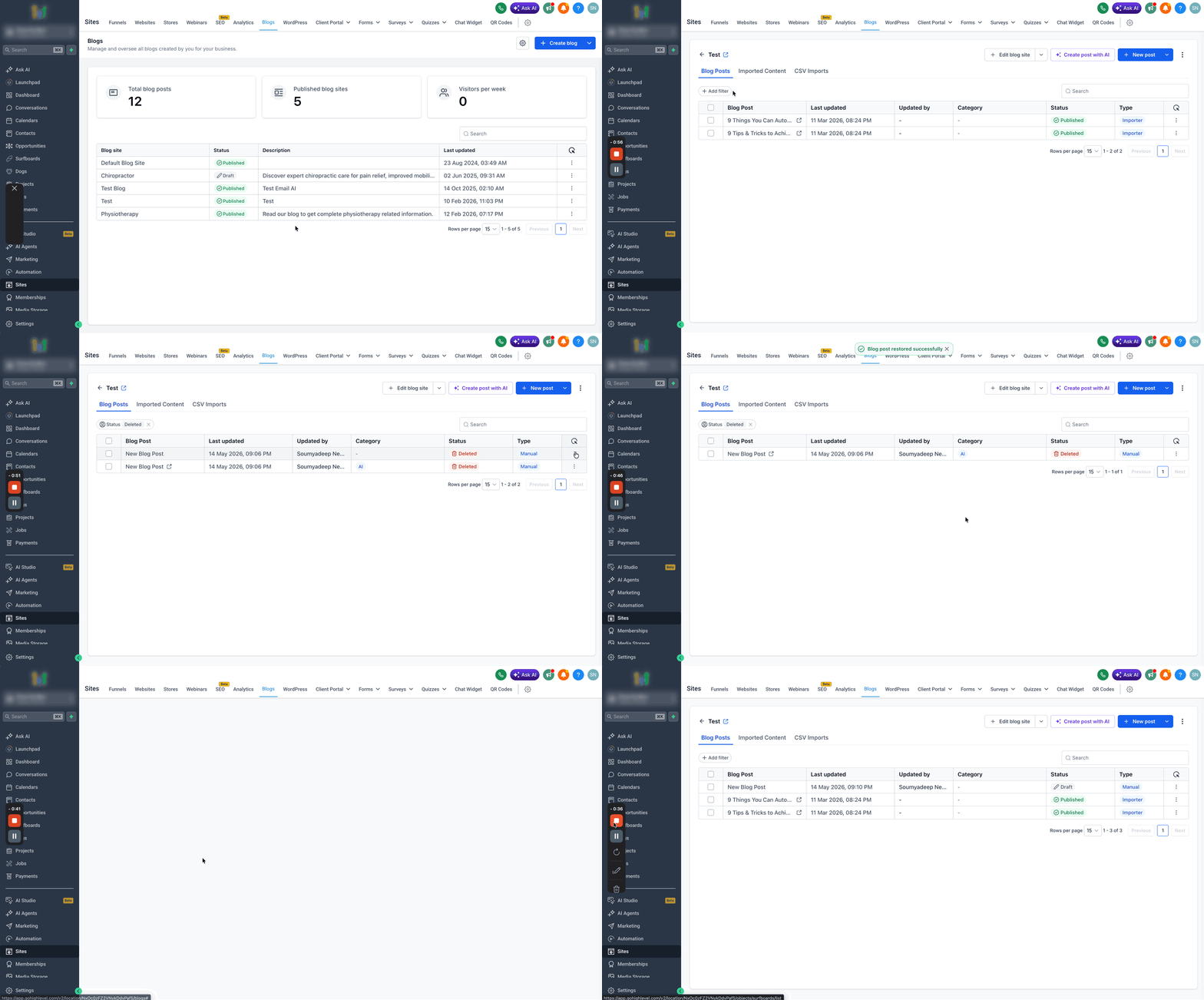
Restore a deleted blog post
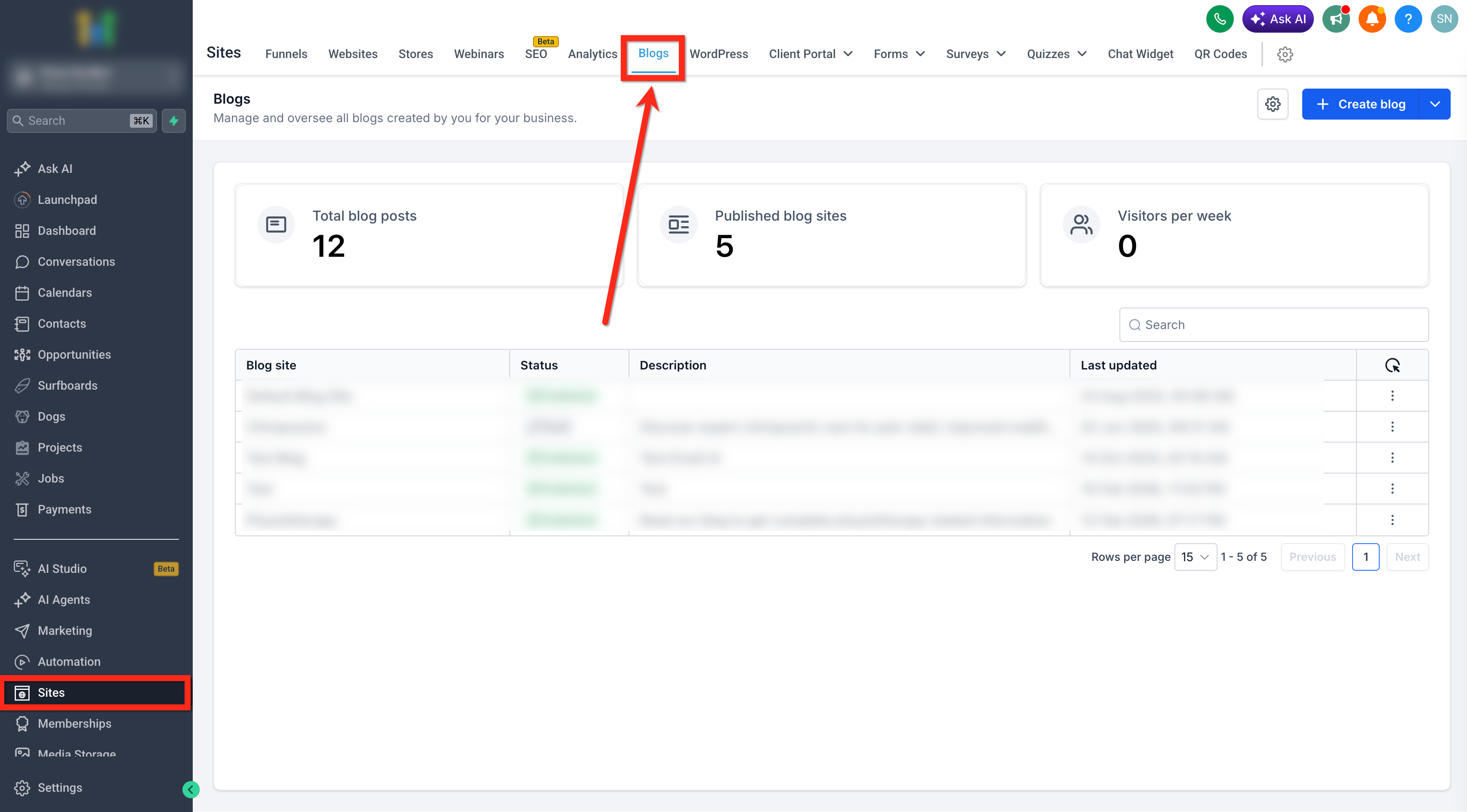
- Open Sites > Blogs.
- Select the blog that contained the deleted post.
- Click the Status filter.
- Choose Deleted from the options.
- Find the post you need to recover.
- Open the action menu for that post.
- Select Restore blog post.
- Confirm the restore request.
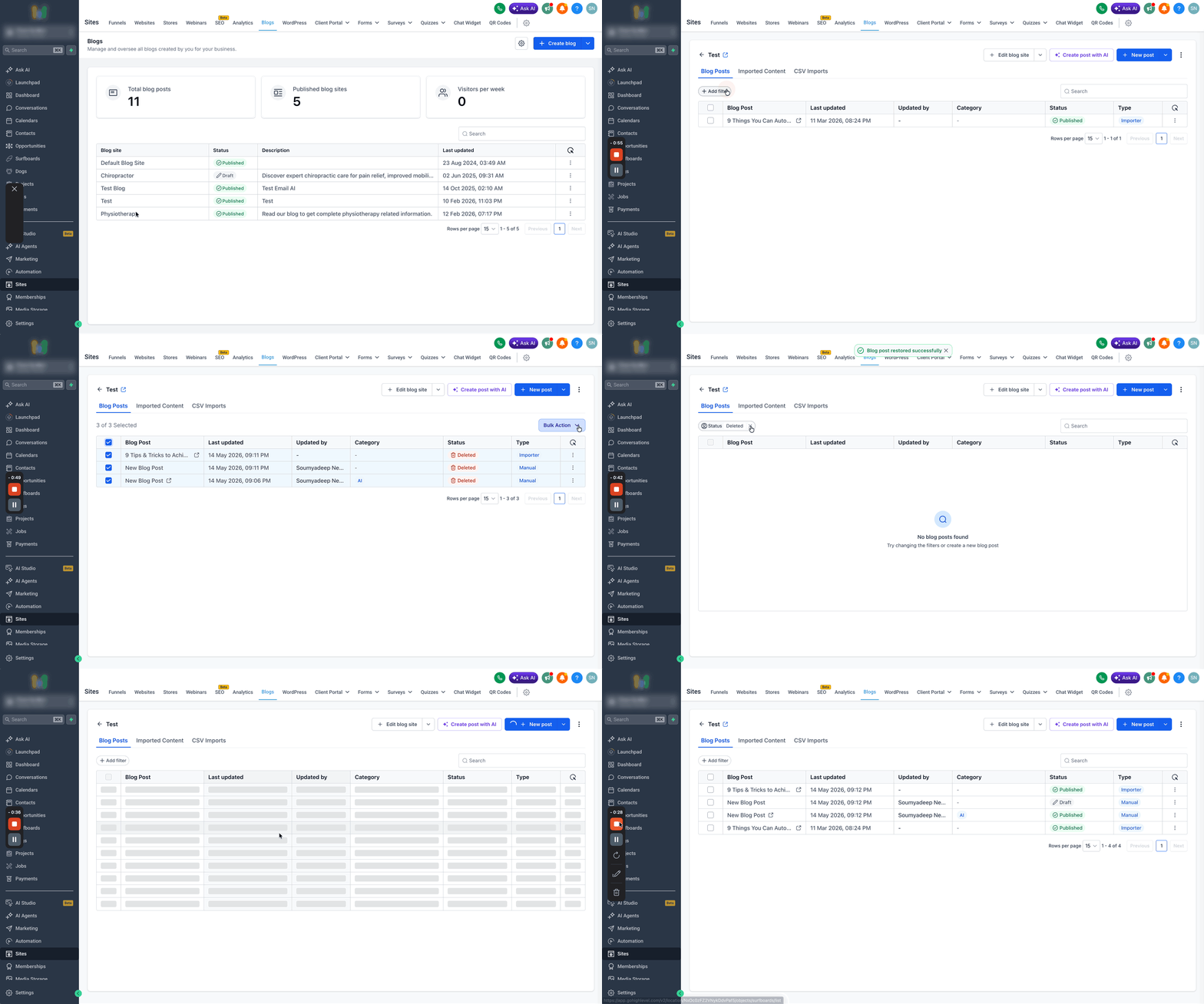
Restore multiple deleted blog posts
- Open Sites > Blogs.
- Select the blog that holds the deleted items.
- Click the Status filter.
- Pick Deleted from the dropdown.
- Check the boxes next to the posts you want to recover.
- Press Bulk Action.
- Choose Restore blog posts.
- Confirm the bulk restore operation.
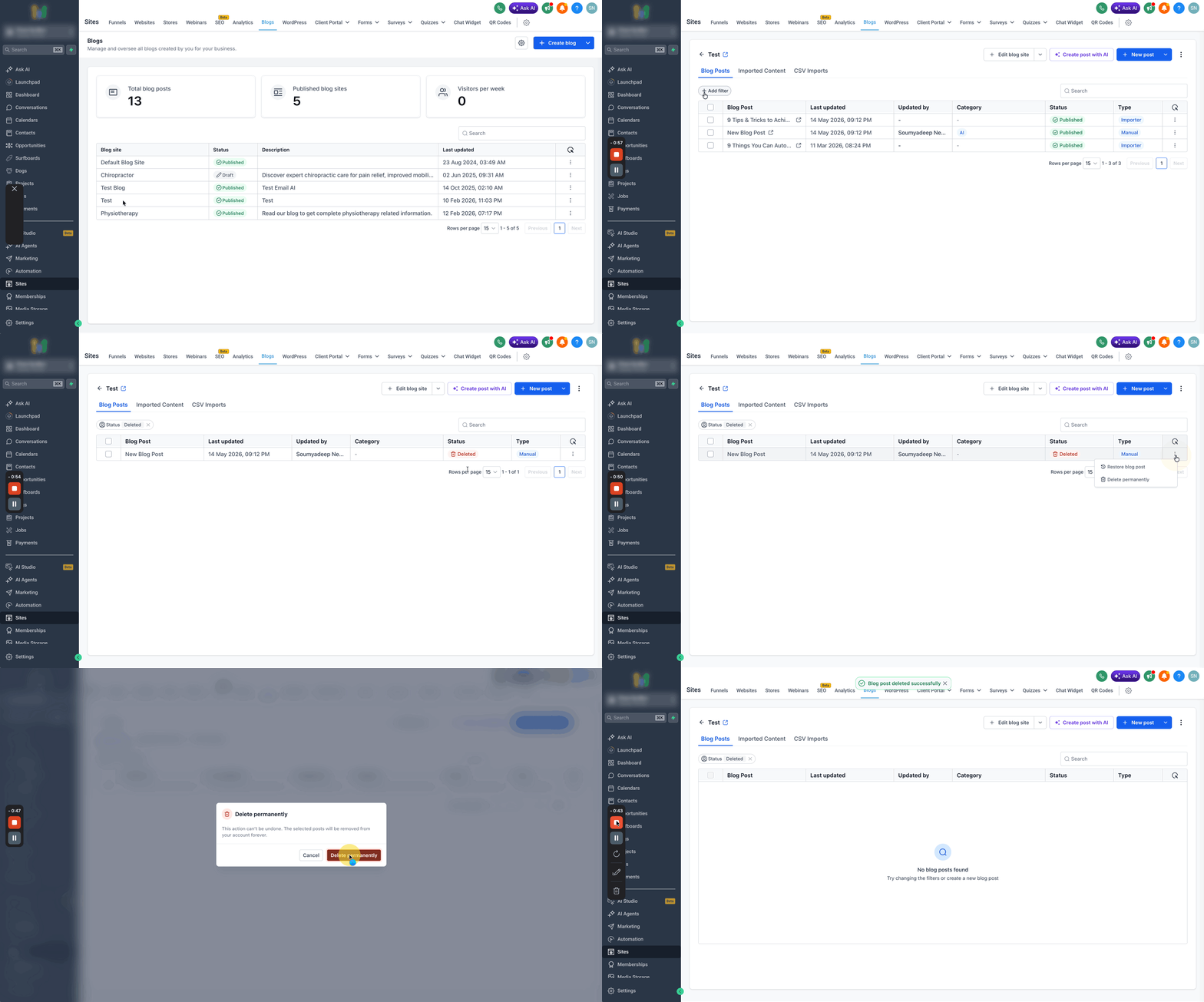
Permanently delete blog posts
- Open Sites > Blogs.
- Enter the blog containing the deleted posts.
- Click the Status filter.
- Select Deleted.
- Mark the post or posts you wish to erase forever.
- Click Bulk Action or open an individual post’s action menu.
- Choose Delete permanently.
- Confirm the permanent delete action.
06What it looks like in HighLevel
07Things to know before you rely on it
- Deleted posts can be recovered for up to thirty days; after that they are removed automatically.
- A permanently deleted post cannot be restored.
- Version history is not provided in this recovery flow.
08How it connects to the rest of HighLevel
- Set up and manage blogs in HighLevel Blog setup guide
- Move blog posts from the old to the new HighLevel blog Blog migration
- Create an RSS feed for your HighLevel blog RSS feed guide
Michael's take

Michael ReimerFounder of CRM Pros, HighLevel Commander and Certified Admin
Having the ability to restore a mistakenly removed blog entry without waiting on support feels convenient.
Don’t wait past the 30 day window, or the post disappears permanently.
Get More InformationOpens on HighLevelPublished November 2, 2026 · Updated November 17, 2026