
01Who this is for
- Marketing managers can add structured data without writing code to help search engines understand page content.
- Local business owners can mark up address, hours, and services directly on their pages to improve local search relevance.
02Schema markups, explained
The Schema Markup Generator lives inside the HighLevel Website & Funnel Builder. It allows you to select a page, choose a schema type, enter details via a guided form or raw JSON LD, validate the markup, and save it to the page configuration. When the page is published, the schema is emitted as JSON LD in the page's source. You can add multiple schemas to the same page, such as combining LocalBusiness and FAQPage. The tool highlights validation errors before you save, ensuring the markup meets syntax requirements. All schema is stored per page; it does not automatically copy to other pages or funnel steps.
03How businesses use schema markups
- Dental practice. The practice opens the website page for its location, selects the LocalBusiness schema, fills in name, address, phone, and hours using Form View, validates the entry, and publishes the page. This adds structured data that search engines can read.
- Ecommerce store. The store edits a product page, chooses the Product schema, pastes a ready made JSON LD snippet in JSON View, runs Validate & Save, fixes any formatting warnings, and publishes the page so product details appear in search listings.
- Event venue. The venue opens a funnel step announcing an upcoming workshop, selects the Event schema, enters date, location, and registration URL in Form View, validates the markup, and publishes the step to make the event information searchable.
04The numbers and rules that matter
- 140+ Schema Types.
- Multiple Schemas Per Page.
05How to set up and use schema markups in HighLevel
Add schema to a page
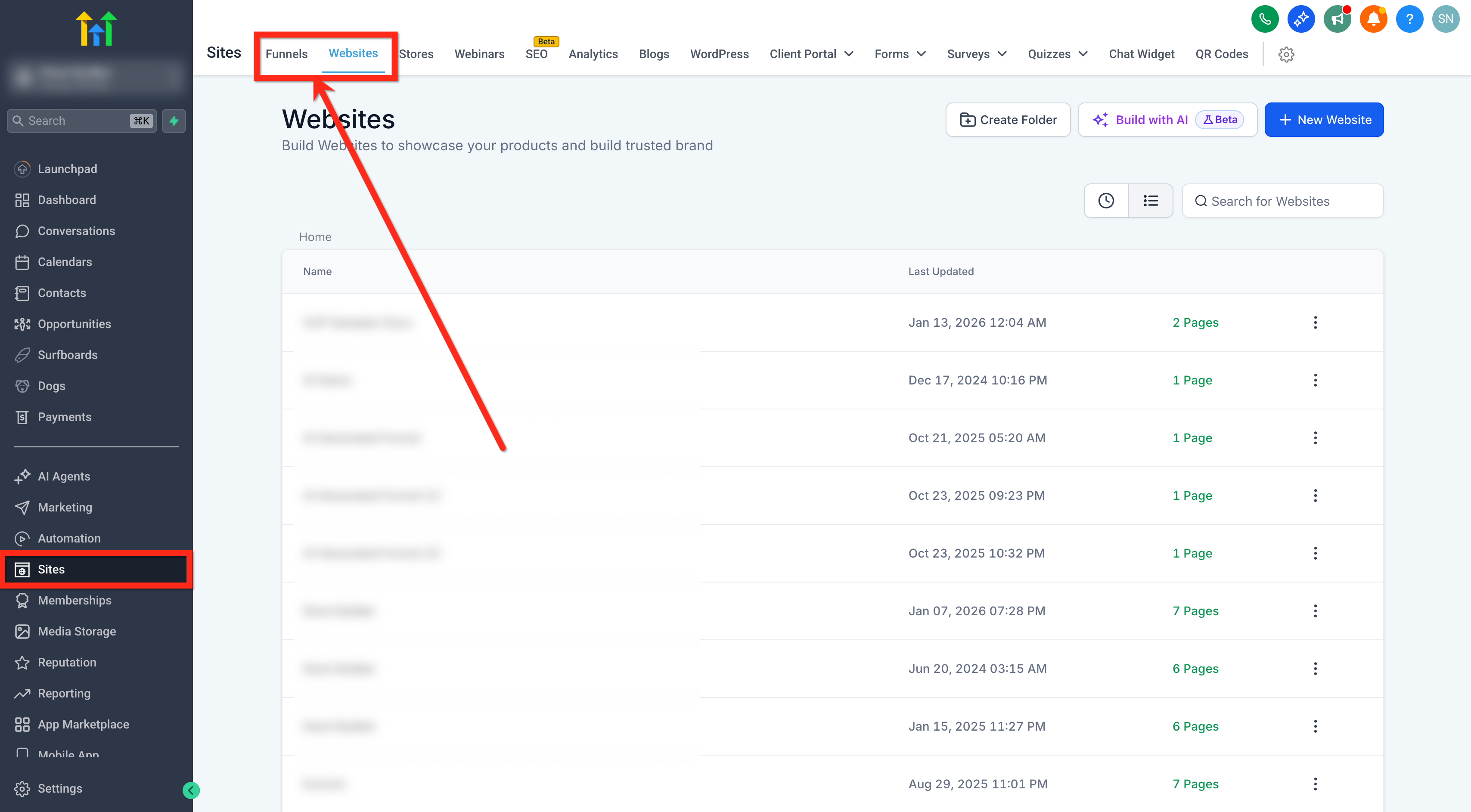
- Go to Sites.
- Click Funnels or Websites, depending on where you want to add schema.
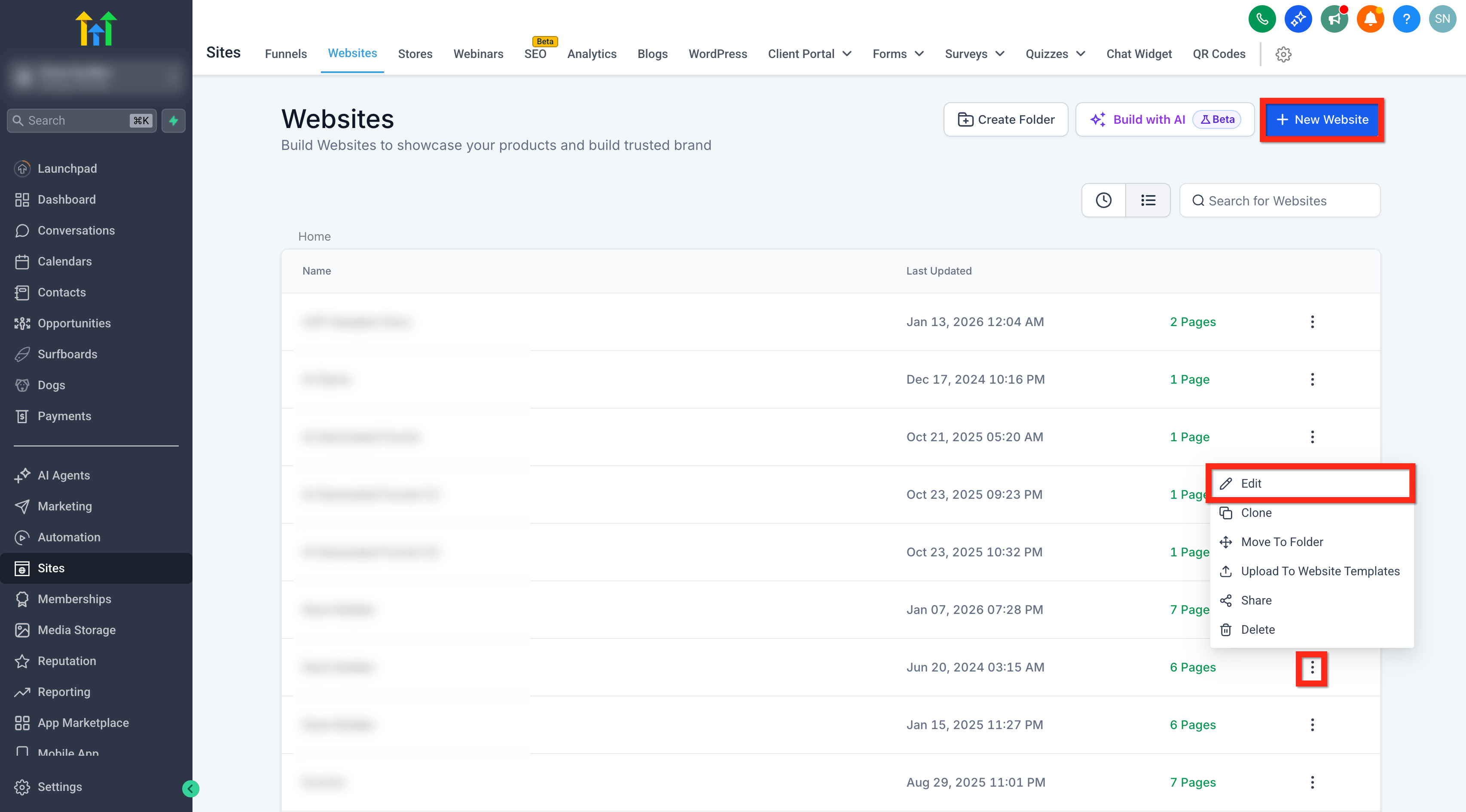
- Create a new Funnel or Website, or edit an existing one.
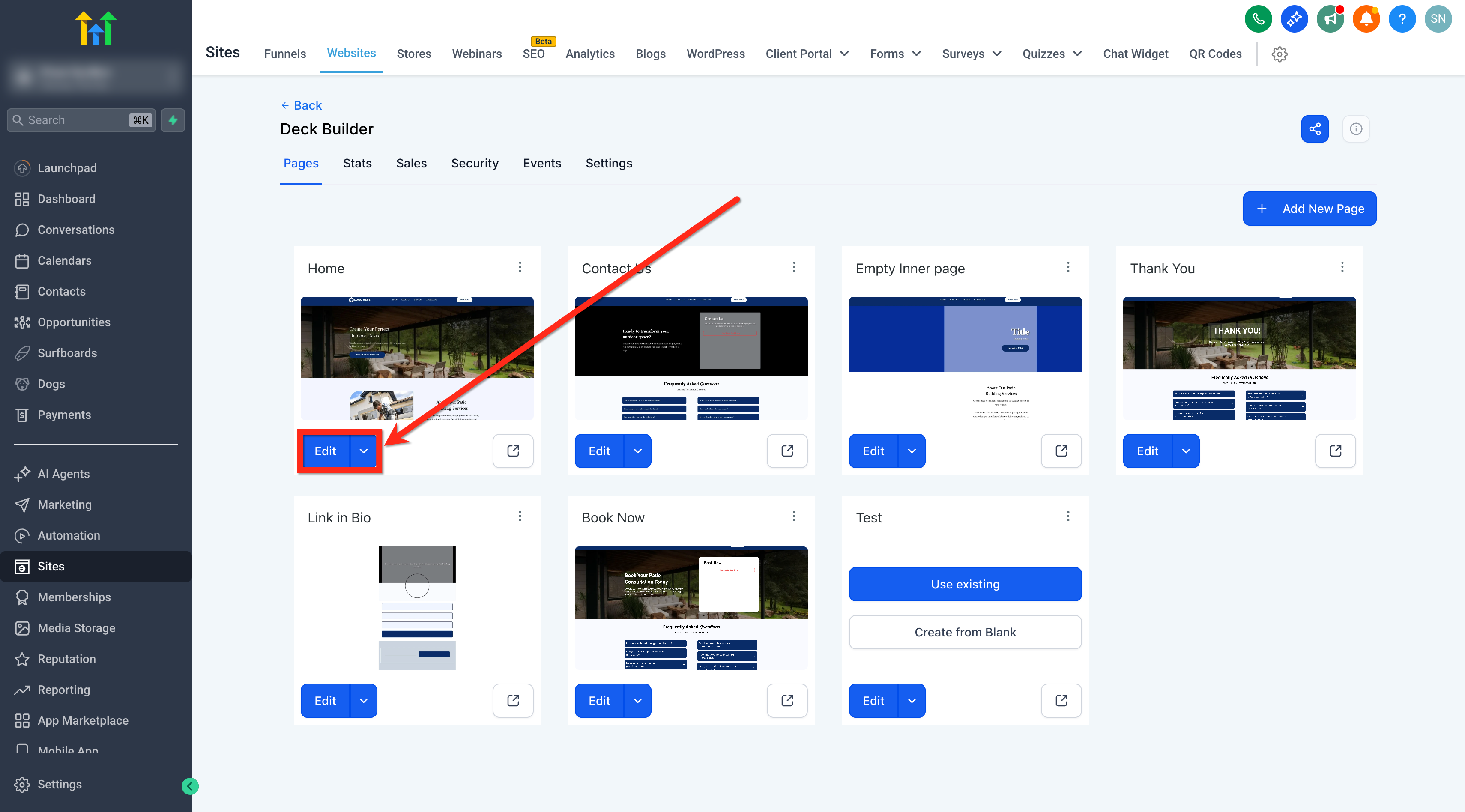
- Click Edit on the specific Website page or Funnel step you want to update.
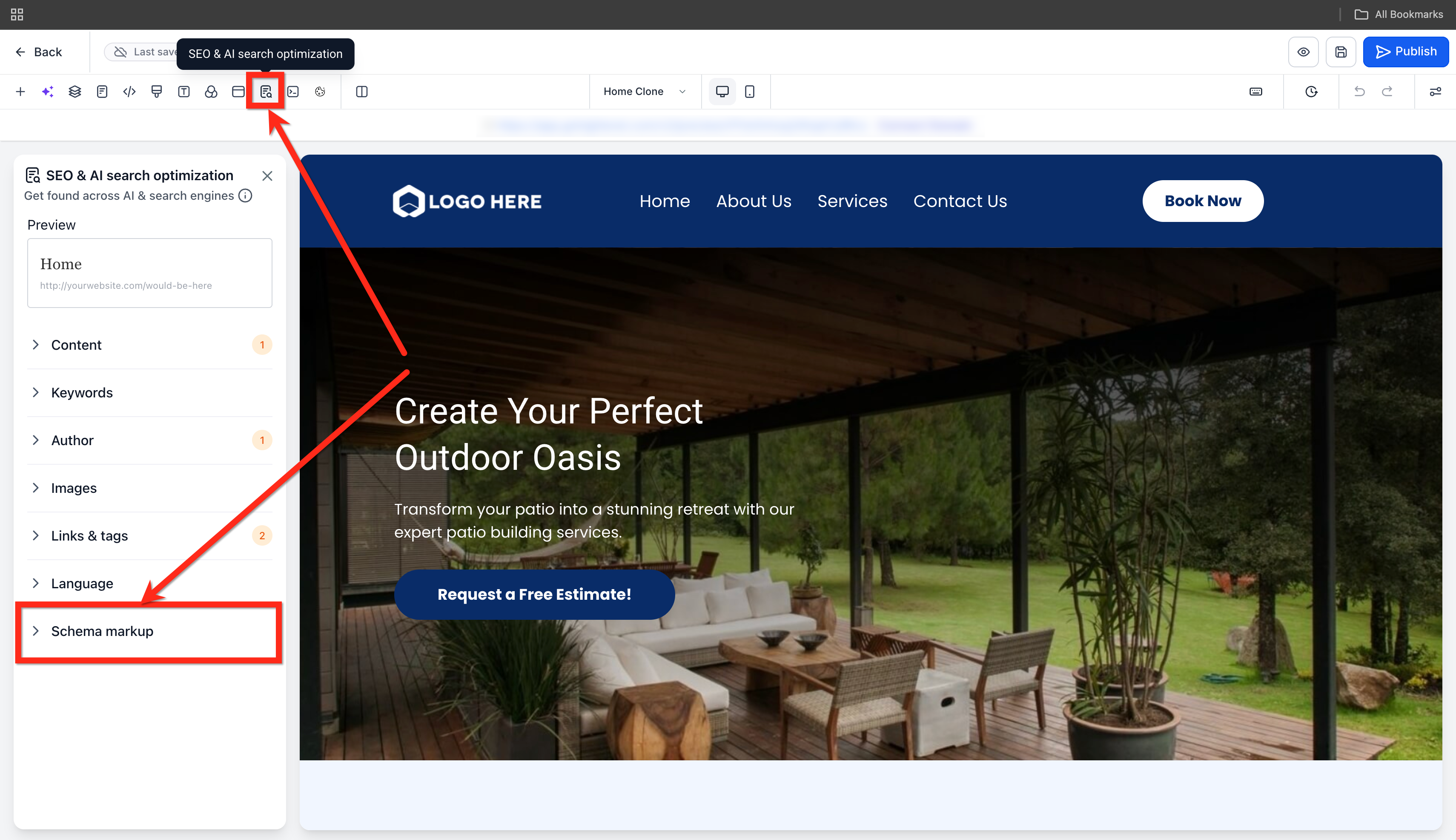
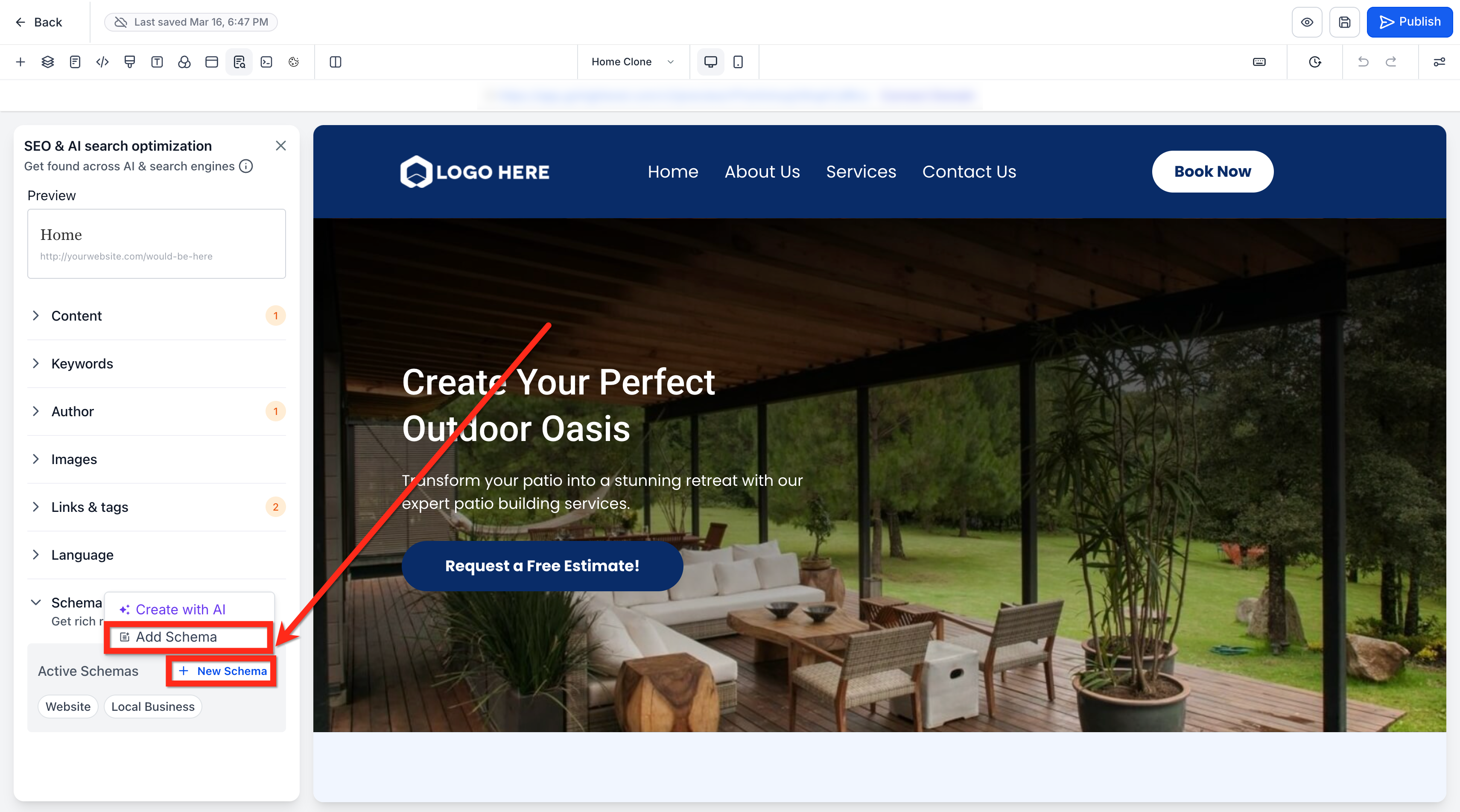
- In the left panel, open SEO & AI search optimization.
- Click on Schema Markup.
- Click + New Schema button and select Add Schema option.
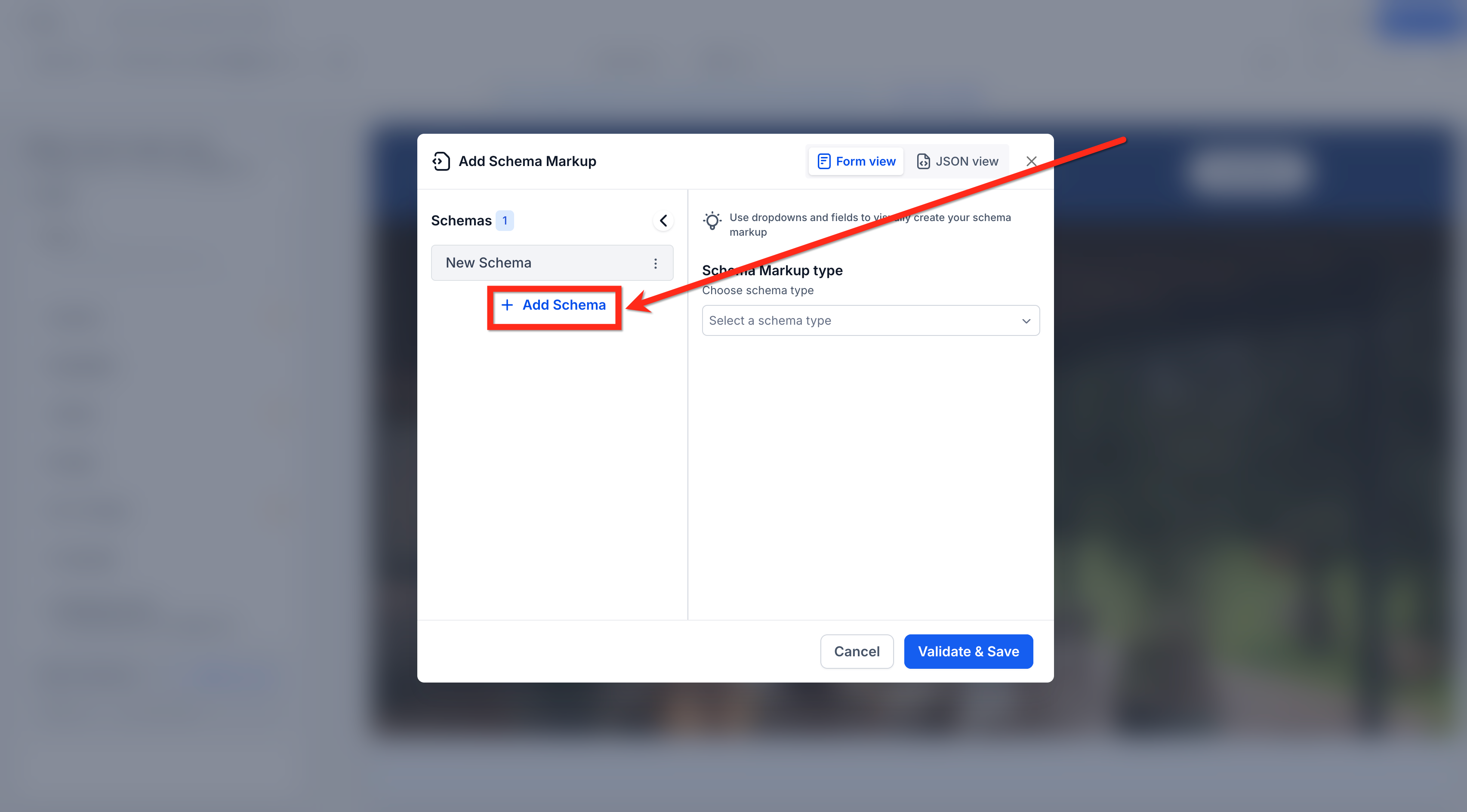
- In the pop up, click on the + Add Schema option.
- Select a schema type from the dropdown menu.
- Add your schema details using Form View or JSON View.
- Enter the necessary information for the chosen category.
- Click Validate & Save.
- If validation fails, correct the highlighted fields or JSON formatting issues.
- Save and publish the Website page or Funnel step to make the schema live.
06What it looks like in HighLevel
07Settings that matter
- Form View. Provides guided fields for entering schema properties without writing code.
- JSON View. Allows direct entry or pasting of JSON LD markup for advanced customization.
- Validate & Save. Checks the entered schema for missing required fields or formatting errors before saving.
- Schema Markup. The section in the SEO & AI search optimization panel where you manage page specific schema.
08Things to know before you rely on it
- Schema is page specific and does not automatically carry over to other pages or funnel steps.
- Schema is not auto generated when a new page is created with AI; it must be added manually after the content is finalized.
- The manual schema list includes common types only; AI can generate any valid schema type beyond this list.
- Schema Markup Generator is a free tool.
09If something goes wrong
- Schema appears in preview but not on the live page.. Publish the page after saving the schema.
- Validation fails.. Correct the highlighted fields or fix JSON formatting issues, then click Validate & Save again.
10How it connects to the rest of HighLevel
- Generate schema markup automatically with AI for funnels and websites. AI schema generation
- Remove schema markup from a page if it is no longer needed. Delete schema
- Enable automatic schema generation on publish for faster setup. Auto generate on publish
- View all site related features and tools in HighLevel. All Sites features
- Check pricing and plan options for accessing schema features. Pricing
Michael's take

Schema Markup Generator is a modest convenience that can still move the needle for sites that rely on search visibility. Adding the right structured data helps Google understand what you offer without any coding, and the built in validation stops you from publishing broken markup.
A small local dental practice could add a LocalBusiness schema on its homepage and an FAQPage schema on its services page.