
01Who this is for
- SEO managers benefit because the tool quickly produces structured data without manual entry, improving search visibility.
- Marketing agencies gain efficiency by allowing clients to add schema to many pages with conversational AI.
- Small business owners can add local business or FAQ schema without deep technical knowledge, helping search results.
02Schema markup AI, explained
The Schema Markup AI feature resides in the HighLevel page builder. When you open a page, the AI scans the existing content and proposes one or more schema types that match the page. It then fills the available fields, validates the markup and stores it as an active schema for that page. The result appears in both a form view and a JSON view, and you can edit it through a chat style interface.
You access the tool from the SEO & AI search optimization panel of any funnel or website page. After generating the markup, you must validate, save, and finally publish the page for the schema to become live. The AI operates on a page by page basis; each page’s schema is independent of others.
03How businesses use schema markup AI
- Local restaurant. The owner edits the restaurant’s menu page, runs Schema Markup AI with a detailed prompt, and the AI adds LocalBusiness schema with address and phone fields pre filled. After validating and saving, the page is published so search engines can display the restaurant’s details.
- Law firm. A firm creates a FAQ page about services, then triggers Schema Markup AI. The AI generates FAQ schema, fills each question and answer from the page text, and the firm refines any items through the chat window before publishing.
- Ecommerce store. The store updates a product landing page, runs the AI generator, and receives Product schema with price, description, and availability fields already inserted. After validation, the schema is saved and goes live with the next page publish.
04Before you start
- The page must already contain the content that the AI will analyze.
- You must be signed into HighLevel and have access to the Sites area.
05How to set up and use schema markup AI in HighLevel
Generate schema markup with AI for a page
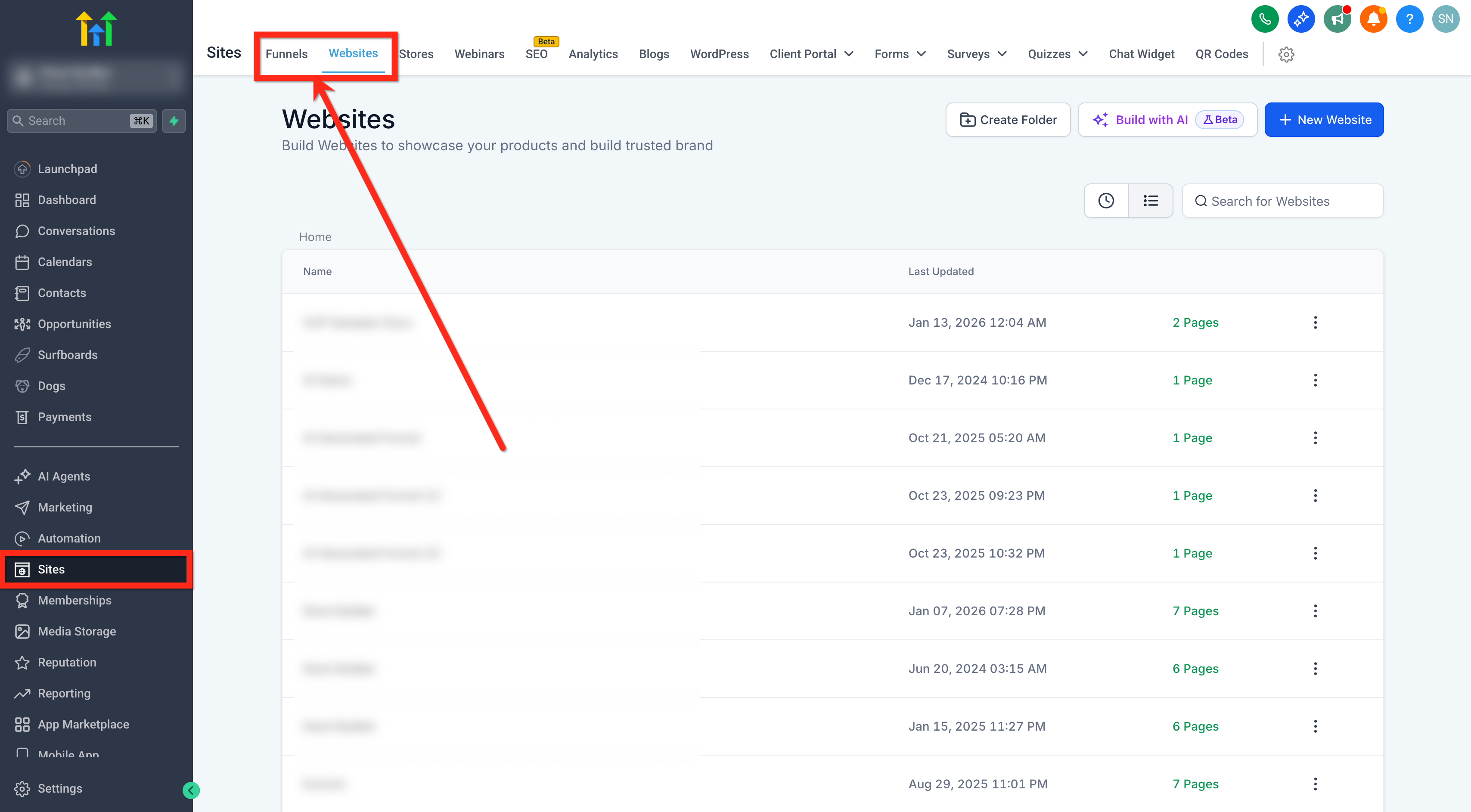
- Open the Sites section.
- Select either Funnels or Websites.
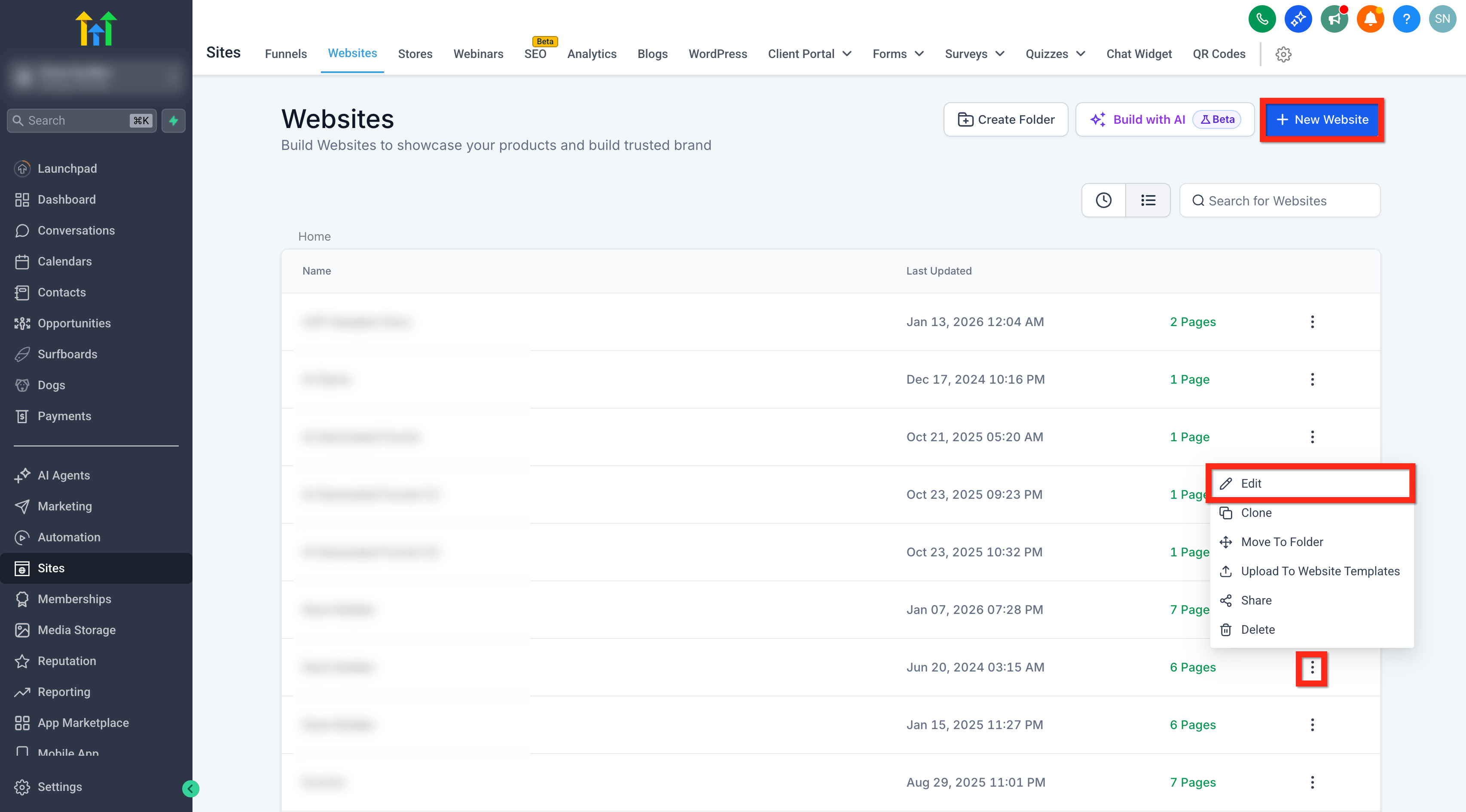
- Create a new funnel or website, or open an existing one for editing.
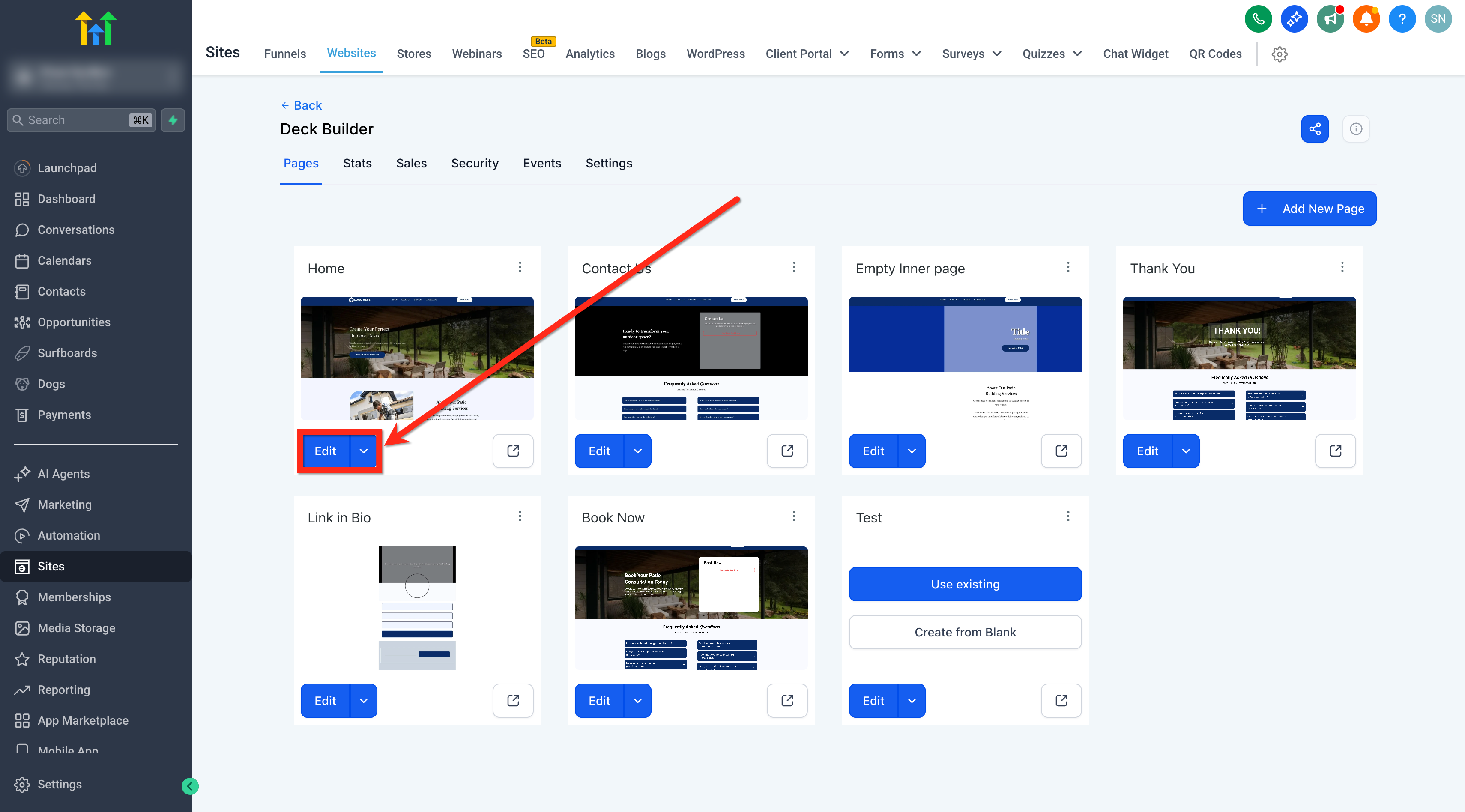
- Choose the page or funnel step you want to add schema to and click Edit.
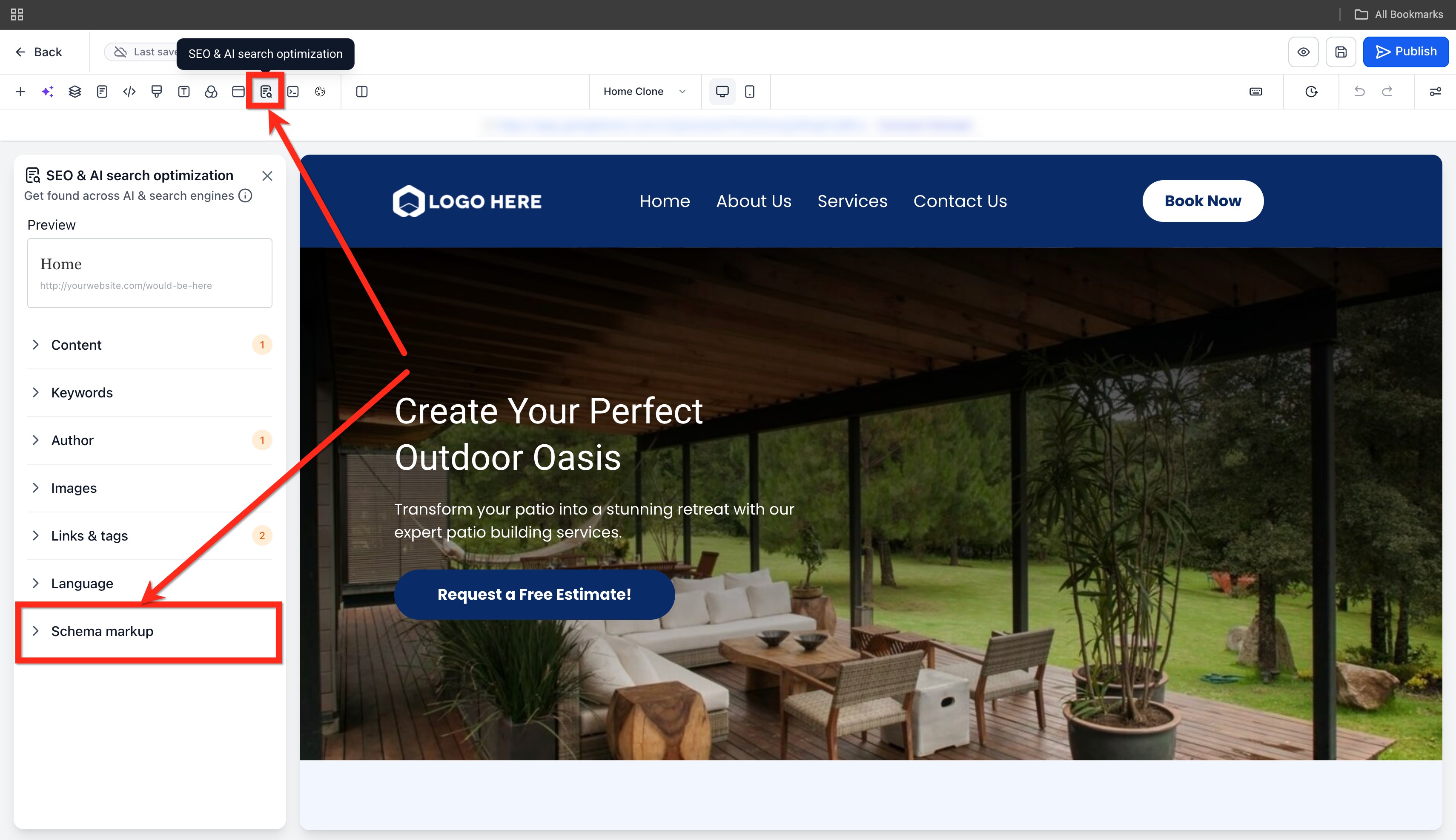
- Open the SEO & AI search optimization tab.
- Click the Schema Markup option.
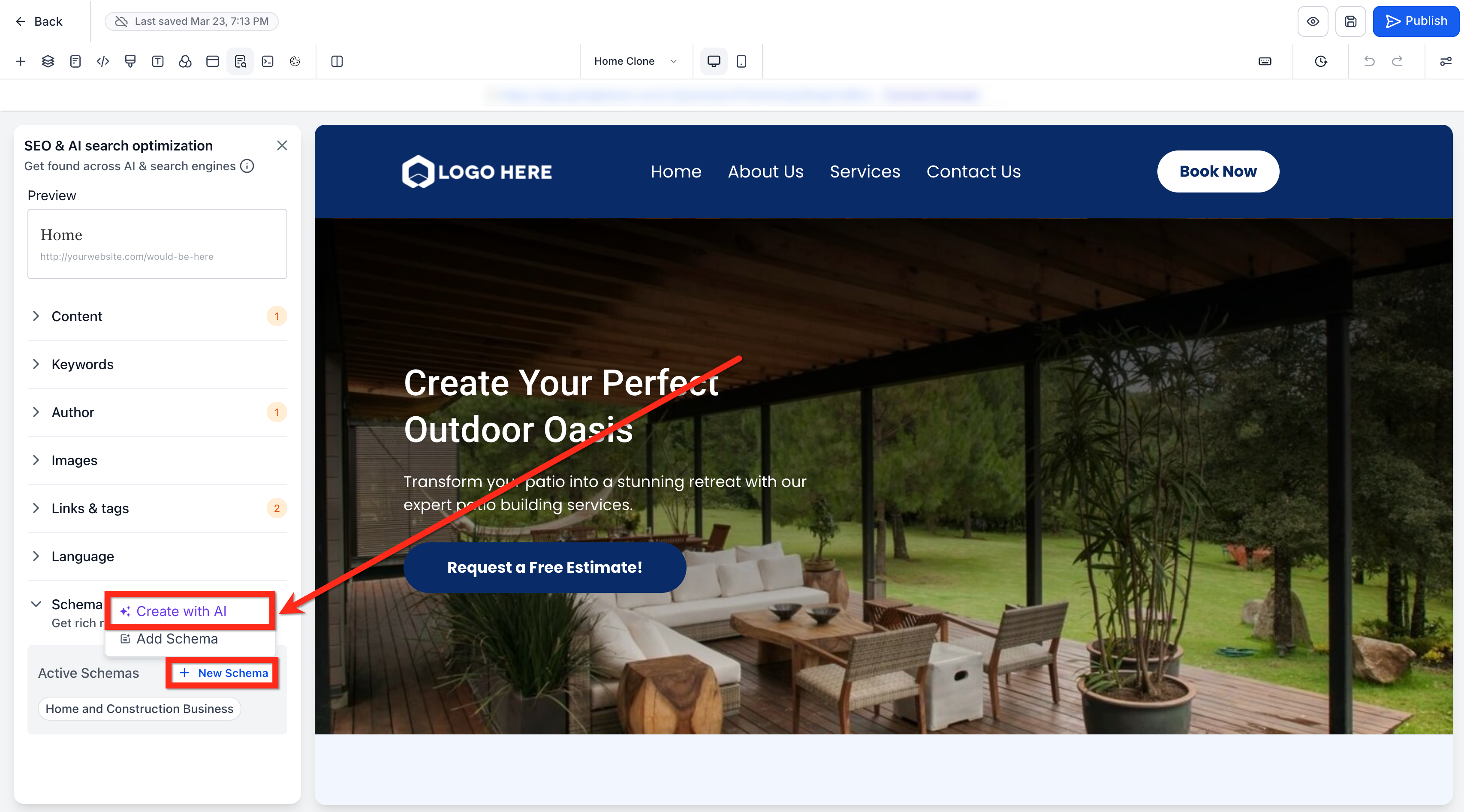
- Press the + New Schema button and pick the Create with AI choice.
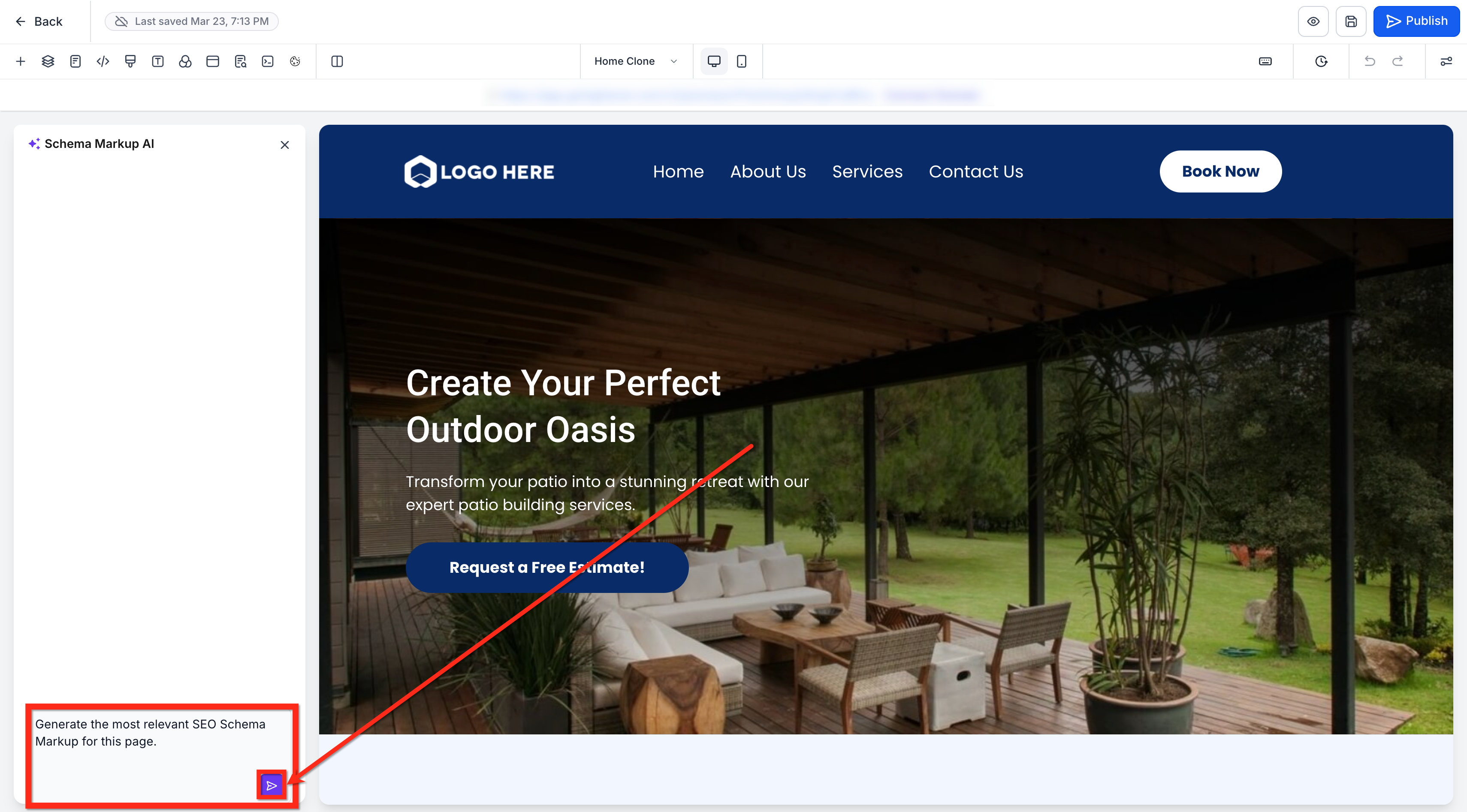
- Enter a detailed prompt describing the desired markup and press Send Message.
- Allow the AI to read the page and produce the appropriate schema.
- Select View Schema Markup to see the generated form and JSON data.
- If a warning appears, click View details or switch to JSON view to examine hidden fields.
- Use the chat window to add, modify, or delete any schema elements.
- Click Validate and Save to confirm the markup.
- Check that the new schema is listed under Active Schemas.
- Publish the page so the schema becomes active on the live site.
06What it looks like in HighLevel
07Settings that matter
- Create with AI. Starts the AI process that reads page content and proposes schema types and values.
- Validate and Save. Runs built in validation on the generated markup and stores it as an active schema for the page.
- Active Schemas. Shows the list of schemas that have been saved for the current page.
08Things to know before you rely on it
- You must trigger Schema Markup AI manually; it does not run automatically on new pages.
- The tool cannot create schema on a page that has no content; an empty page will cause an error.
- Custom value field mapping such as {{custom_values.field_name}} is not supported.
- Schema is limited to the individual page; it does not automatically copy to other pages or funnel steps.
- Even after validation, the page must be published for the schema to be visible on the live site.
09If something goes wrong
- Schema does not generate on a page. Ensure the page contains content before running Schema Markup AI; empty pages will return an error.
10How it connects to the rest of HighLevel
- Add schema manually if preferred Manual schema guide
- Auto generate schema on publish for comparison Auto generate on publish
- Review HighLevel pricing and plan options Pricing
Michael's take

Avoid the mistake of running the tool on a blank page; the AI needs content to work.