
01Who this is for
- SEO consultants, need to keep schema current for accurate search signals.
- Digital marketing agencies, remove outdated markup across client sites quickly.
- Local service businesses, eliminate irrelevant schemas to match their latest offerings.
02Schema markups, explained
The feature provides three ways to erase schema markup that lives on a page built with the Website or Funnel Builder. In Form view you work with a list of schema types, while JSON view gives direct access to the raw code. An AI chat interface also accepts natural language commands to perform the same deletions. A confirmation dialog appears before any removal, and changes are visible in preview after saving but only go live after the page is published. If you delete the wrong markup, you can revert to a previous version using the builder’s version history tool.
03How businesses use schema markups
- Digital marketing agency. The agency opens a client’s funnel page, goes to the Schema Markup section in Form view, and deletes an outdated LocalBusiness schema. They save the changes and republish the page, keeping the client’s SEO data clean.
- Ecommerce store. The store’s team switches to JSON view on a product page, wipes the entire JSON LD block, and validates the page. This removes old product schema that no longer matches inventory.
- Local service provider. Using the AI chat, the provider types “Delete the Organization schema” while editing their website. The AI confirms the removal and shows the updated schema list for review.
04How to set up and use schema markups in HighLevel
Delete schemas in Form View
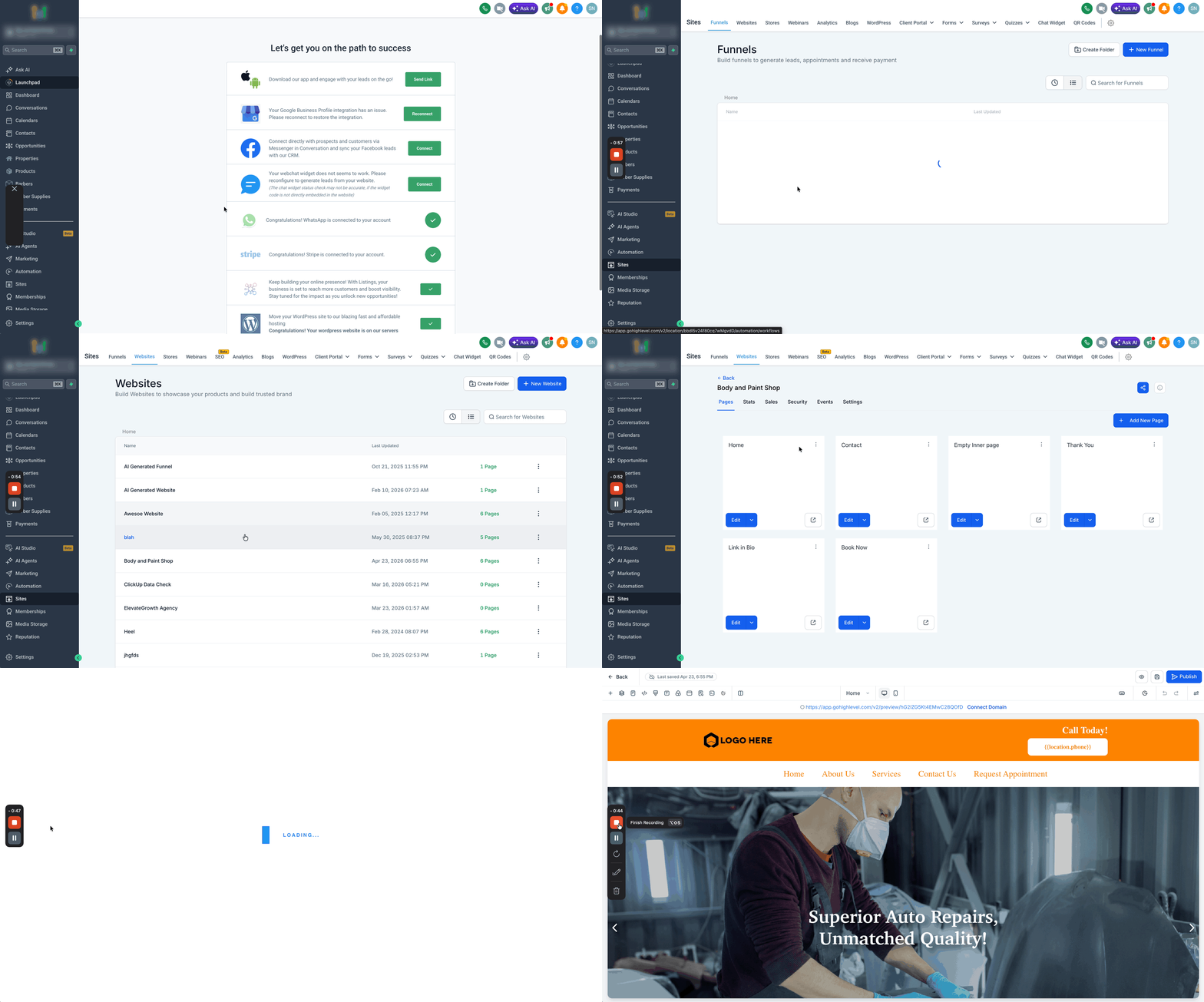
- Go to Sites > Open Website or Funnel Builder.
- Click Edit Page.
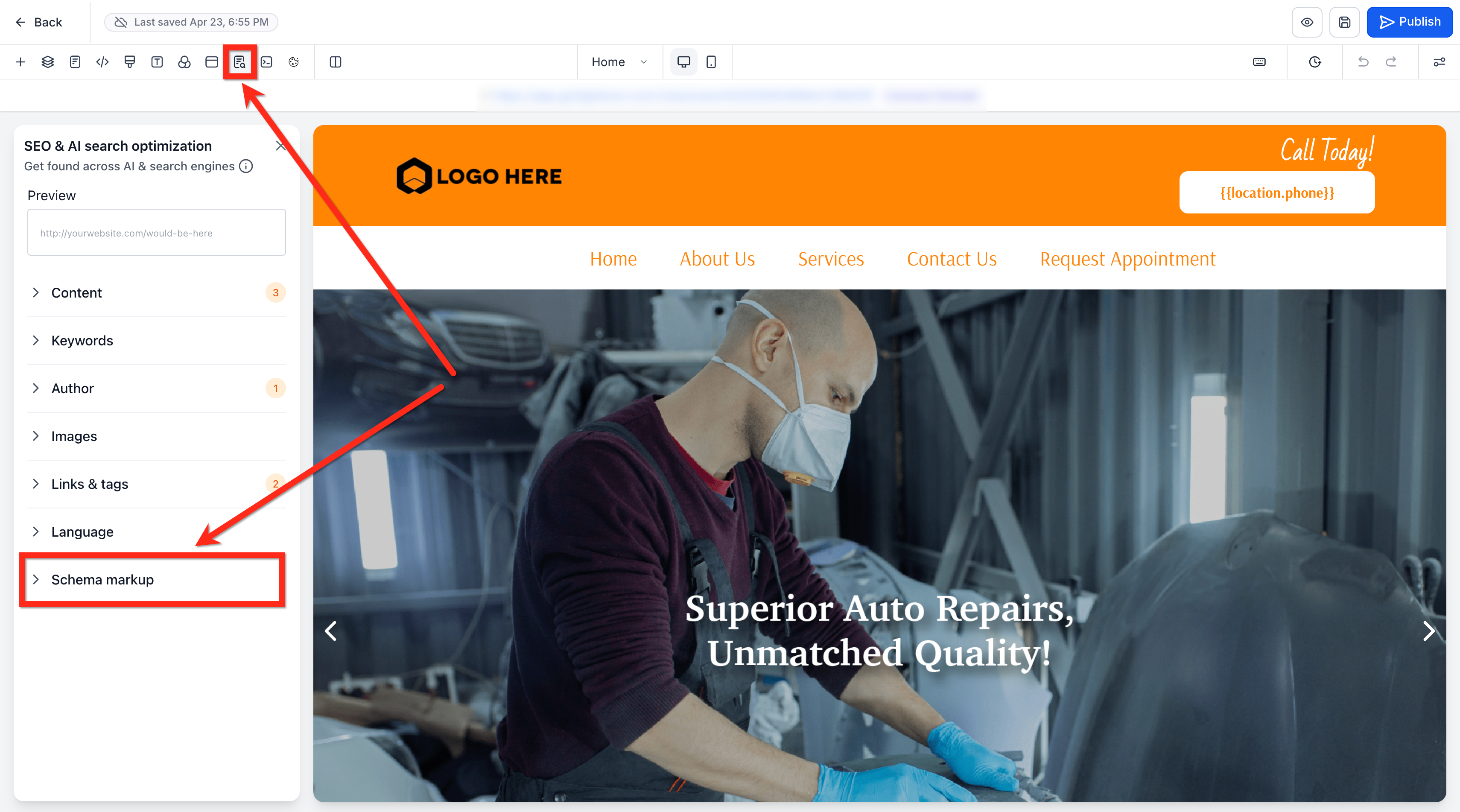
- Navigate to SEO & AI search optimization > Schema Markup.
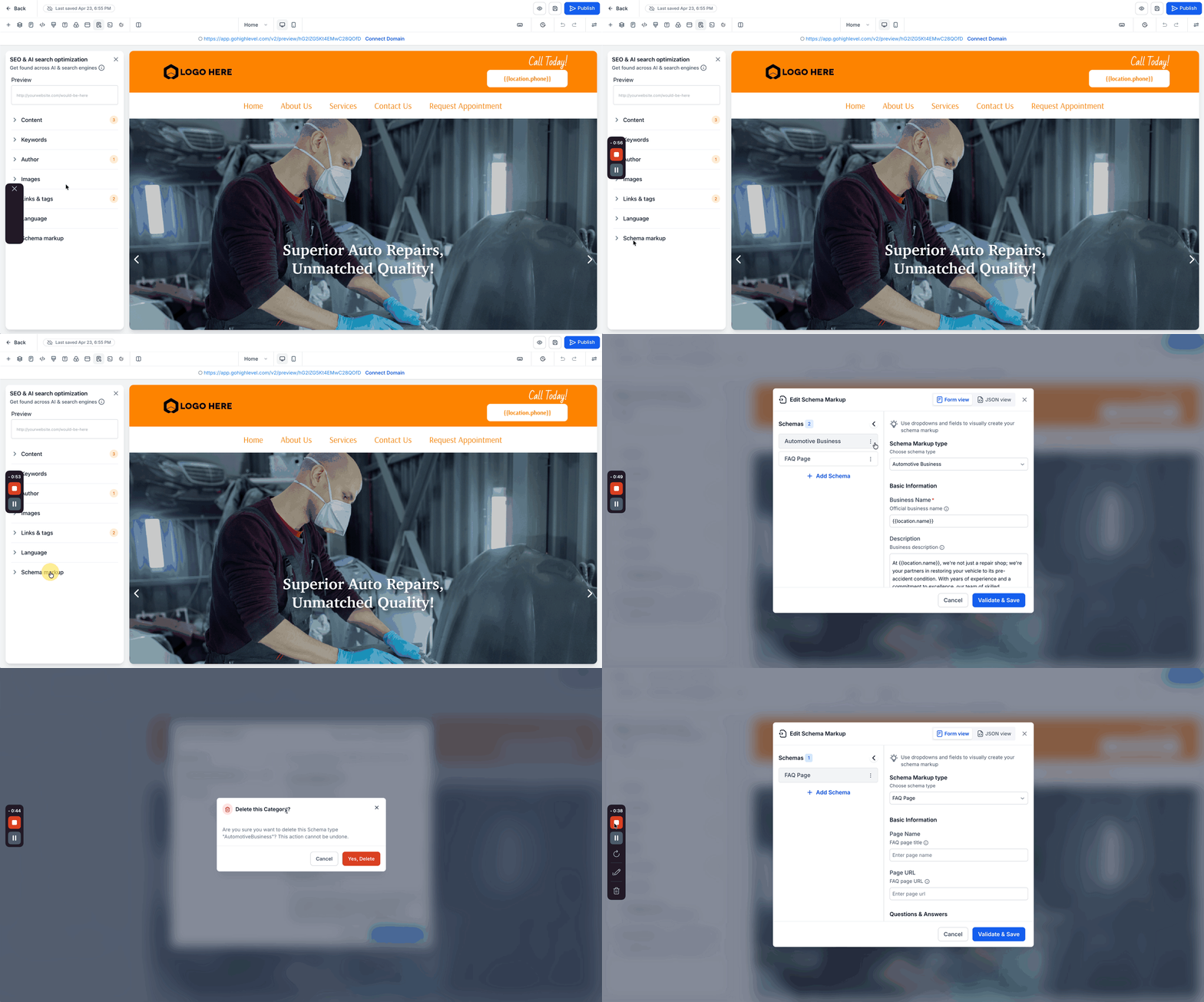
- Open the schema editor in Form View.
- In the left panel, locate the schema list.
- Click the three dot menu next to a schema.
- Select Delete.
- Confirm by clicking Yes, Delete in the popup.
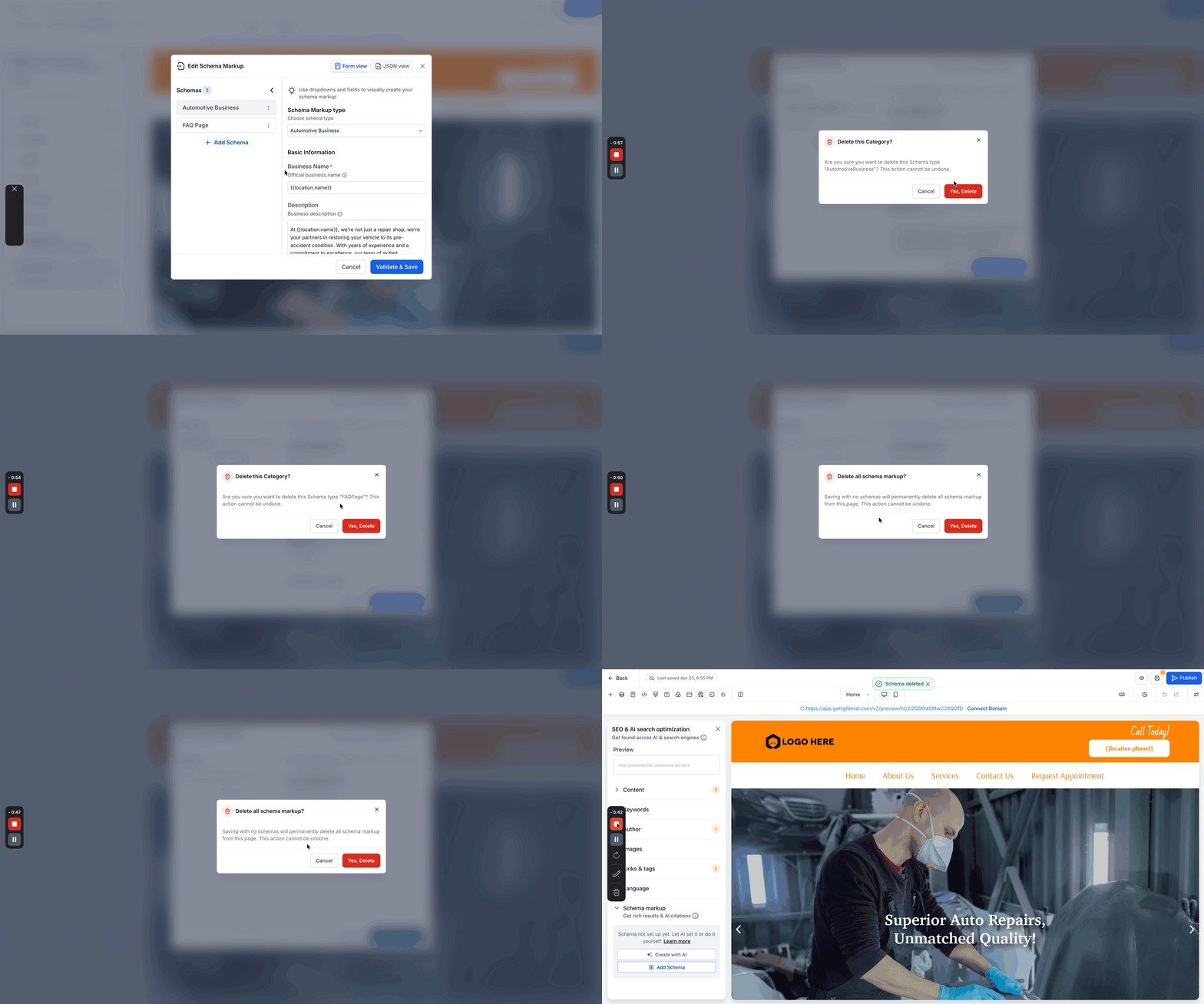
- Delete all schemas from the list.
- Click Validate & Save.
- When prompted "Delete all schema markup?" click Yes, Delete.
Delete schemas in JSON View
- Go to Sites > Open Website or Funnel Builder.
- Click Edit Page.
- Navigate to SEO & AI search optimization > Schema Markup.
- Open the schema editor and switch to JSON View.
- Remove all JSON LD code from the editor.
- Click Validate & Save.
- Confirm the deletion prompt.
Delete schemas using AI Chat
- Open Ask AI, Funnel AI, or Schema Markup AI.
- Enter a prompt such as "Remove all schema markup from this page" or "Delete the Organization schema".
- The AI reviews the existing schema and performs the deletion.
- A confirmation message appears with an option to view the schema markup.
Recover deleted schema via version history
- Open the page in the builder.
- Access Version History from the toolbar.
- Restore a version that contains the schema.
05What it looks like in HighLevel
06Things to know before you rely on it
- A confirmation dialog appears before any schema is removed.
- Deletion applies only to the page you are editing; other pages are unaffected.
- Changes become live only after the page is published.
- Partial JSON deletions may cause validation errors.
07How it connects to the rest of HighLevel
- Learn how to add schema markup manually in HighLevel pages. Manual schema markup
- Generate schema markup automatically with AI in funnels and websites. AI schema generation
- Read about auto generating schema markup on publish. Auto generate on publish
Michael's take

Michael ReimerFounder of CRM Pros, HighLevel Commander and Certified Admin
Don’t delete only part of the JSON LD; partial edits may cause validation errors.
Get More InformationOpens on HighLevelPublished November 2, 2026 · Updated November 17, 2026