
01Who this is for
- Agency owners can keep printable records of client lead forms without extra steps.
- Coaches benefit from archived quiz results that are right away available for follow up sessions.
- Small businesses that use surveys for feedback can store each response as a professional PDF for compliance.
02Generate submission documents, explained
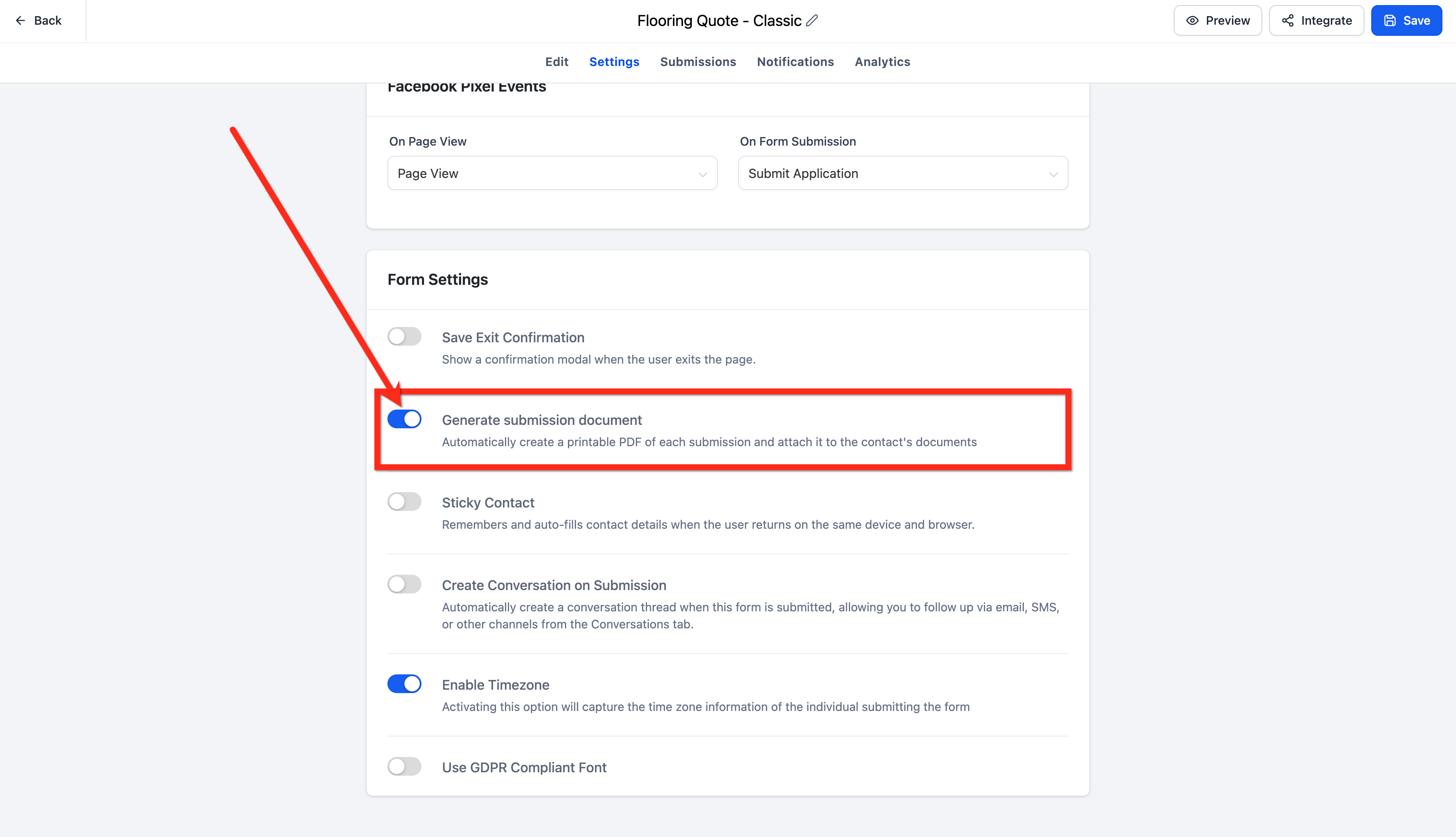
When the Generate Submission Document toggle is turned on for a specific form, survey or quiz, HighLevel builds a PDF that includes every field, the respondent’s answers, the submission date and time, and the contact’s information. The document is saved in the contact’s record under the Documents tab, sorted into a folder named Forms, Surveys, or Quizzes.
The setting works independently for each asset, so you must enable it on every form, survey or quiz you want to capture. New submissions only trigger PDF creation; past entries remain unchanged. PDFs can be opened, downloaded, printed, or attached to emails and client portal messages directly from the contact’s Documents view.
03How businesses use generate submission documents
- Real estate brokerage. The broker enables the setting on lead capture forms for property inquiries. Each new inquiry automatically generates a PDF that the agent can attach to a follow up email or print for in office review.
- Insurance agency. The agency turns on PDF generation for policy quote surveys. When a prospect completes the survey, a formatted PDF appears in the prospect’s contact record, ready to be shared with underwriting staff.
- Online course provider. The provider activates the feature for quiz assessments. After a learner finishes a quiz, a result PDF is stored in their contact profile, allowing the instructor to download and review performance.
04How to set up and use generate submission documents in HighLevel
Enable submission document generation
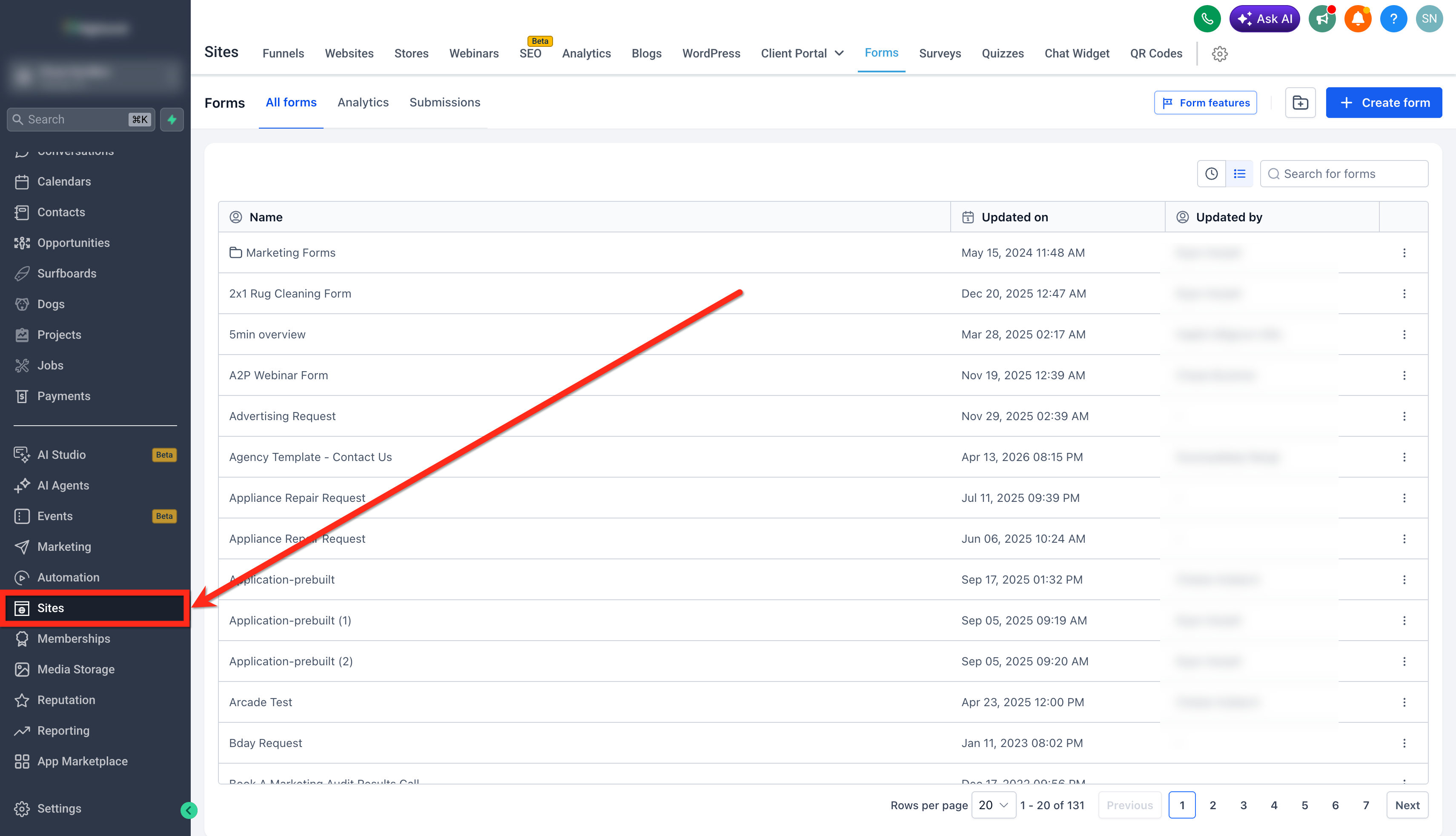
- Log in to HighLevel and click the Sites option in the main navigation.
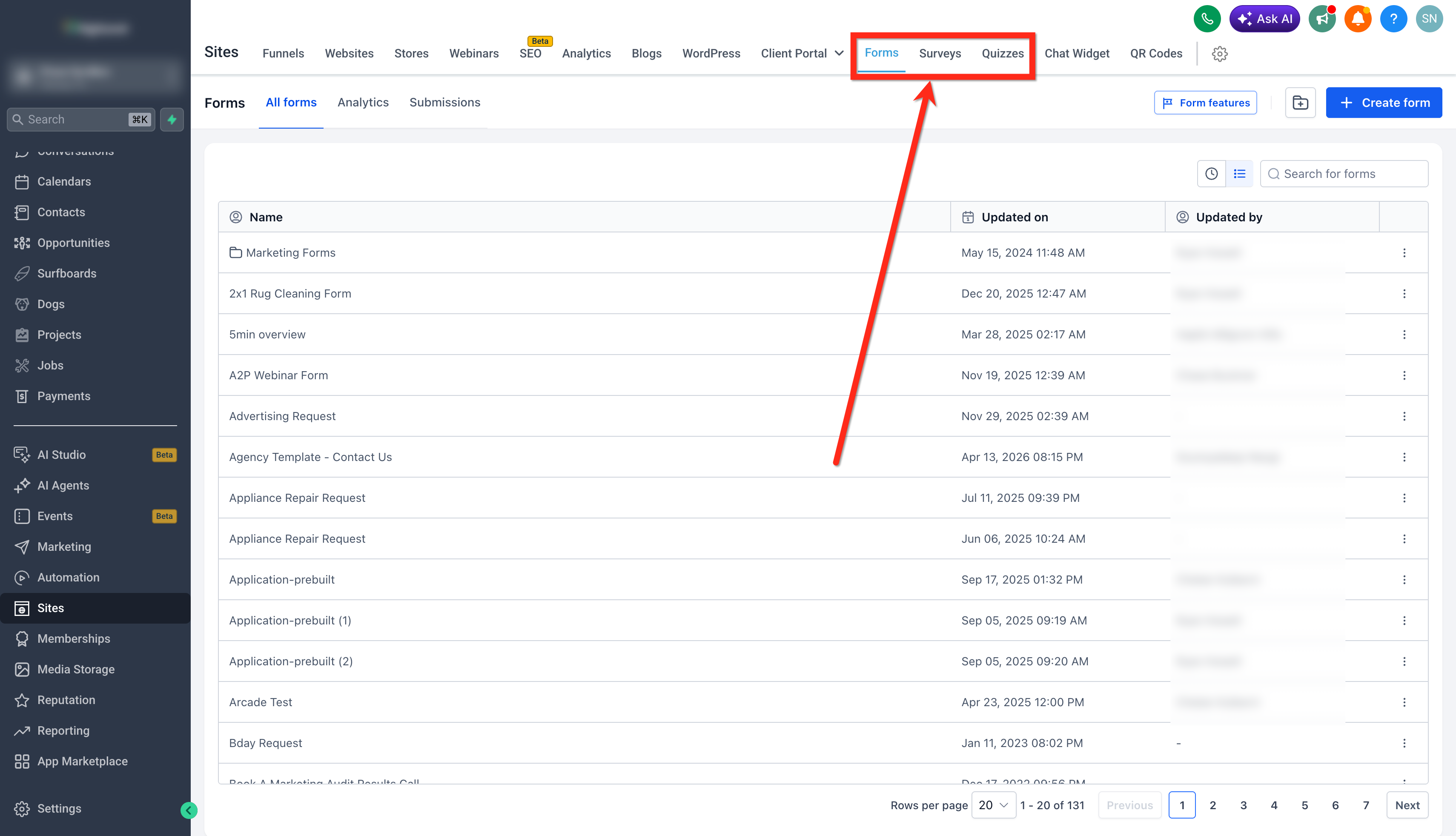
- Choose the type of asset, Form, Survey, or Quiz, where you want PDFs created.
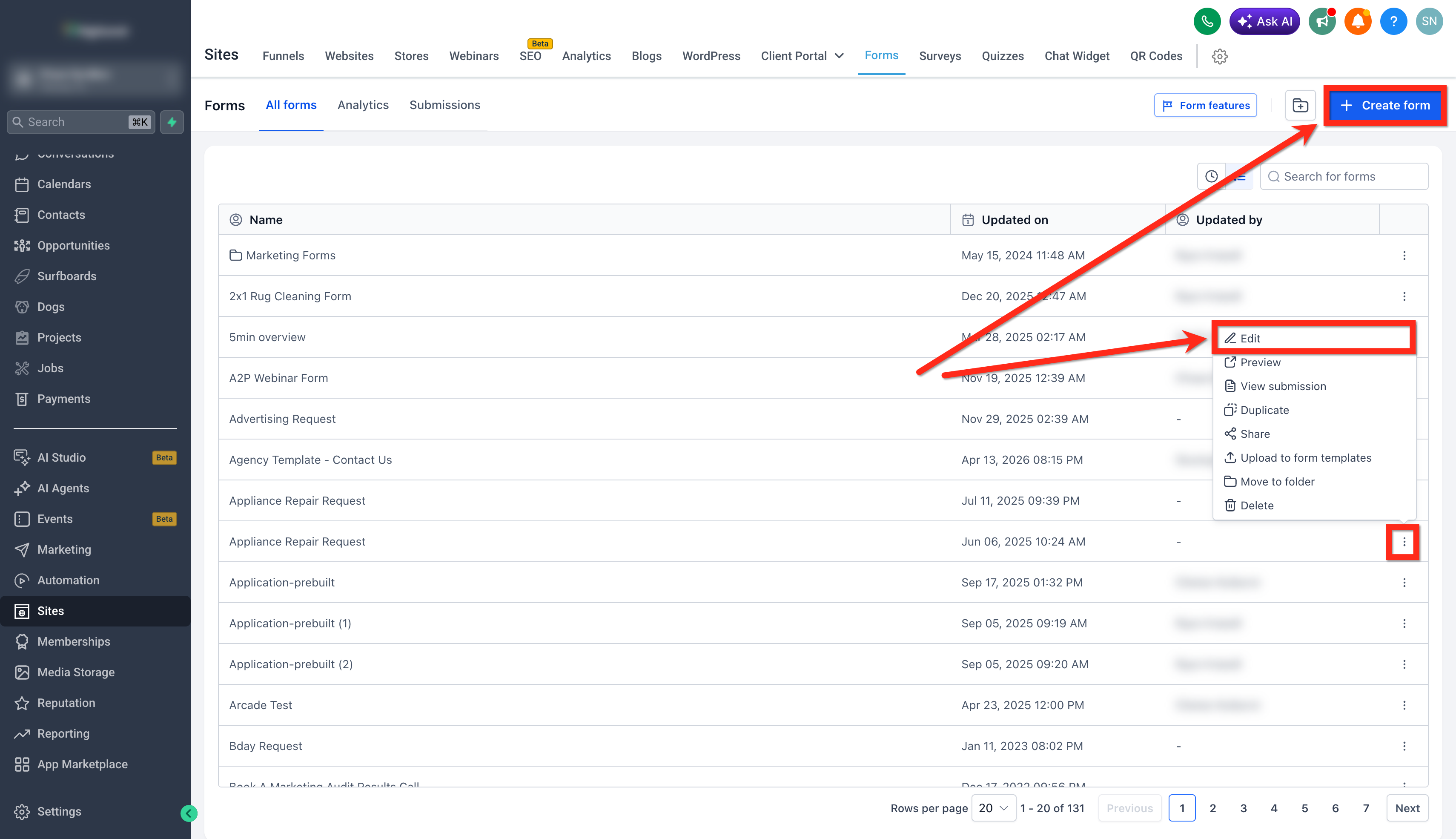
- Select an existing asset or click the + Create button to start a new one.
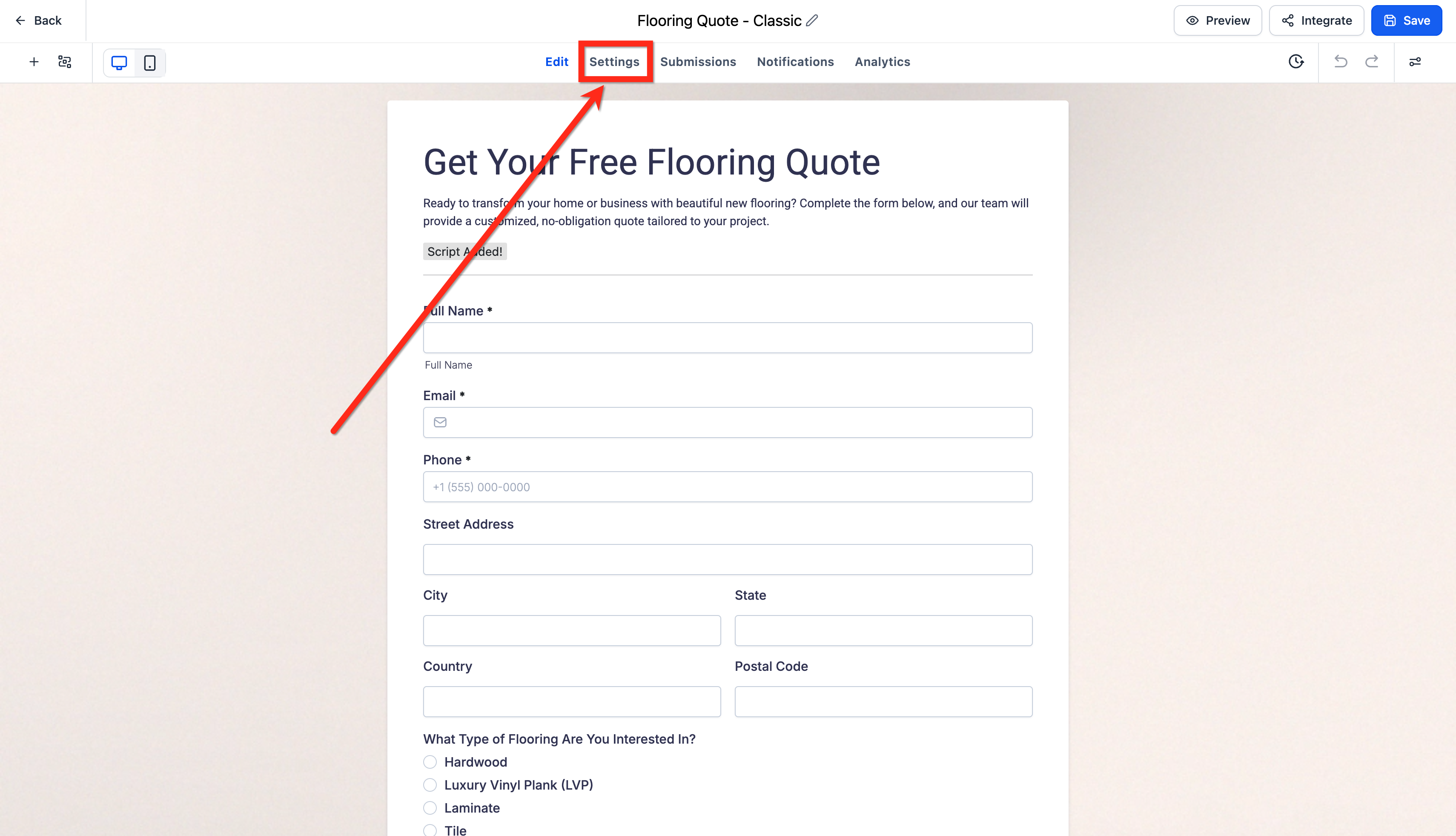
- Open the builder and click Settings in the top navigation or side panel.
- Find the Generate Submission Document toggle in the settings section and switch it to ON.
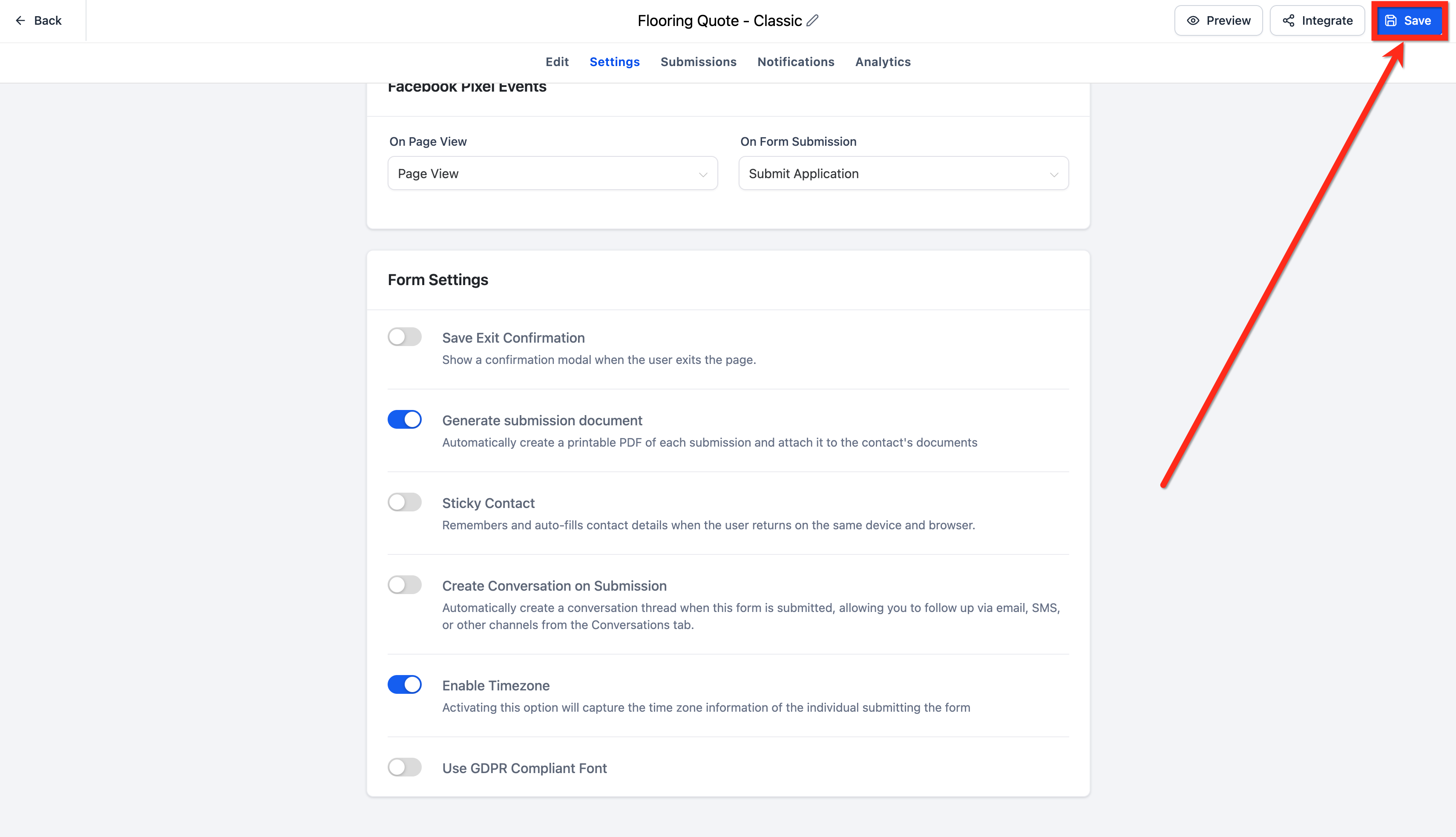
- Press Save to apply the change; future submissions will now produce PDFs.
Access generated documents
- Go to Contacts in HighLevel and locate the person who submitted the form, survey, or quiz.
- Click the contact’s name to open their detailed record.
- In the right hand panel, select Documents and open the folder for Forms, Surveys, or Quizzes.
- Find the PDF, then preview, download, print, or share it as needed.
05What it looks like in HighLevel
06Settings that matter
- Generate Submission Document. Controls whether HighLevel automatically creates a PDF for every new submission of the selected form, survey, or quiz.
07Things to know before you rely on it
- The setting must be turned on for each individual form, survey or quiz; enabling it on one does not affect others.
- PDFs are generated only for submissions received after the toggle is activated; past entries are not retroactively converted.
- Disabling the toggle stops future PDF creation, but already generated files stay in the contact’s Documents section.
- PDF filenames follow a fixed pattern that includes the asset name, contact name and a timestamp, ensuring each file is unique.
08How it connects to the rest of HighLevel
- Learn more about building and managing contact forms Contact form builder
- Add address autocomplete to improve form submissions Address auto complete
- Set up source tracking for form and survey leads Source field
Michael's take

Generating PDFs for every form or quiz can feel risky if you rely on them for compliance. Make sure you understand what data ends up in a printable document and that you have proper consent before sharing it. The automatic nature means you could quickly accumulate a large library of files, so keep an eye on storage and naming conventions.
When it works, the feature gives you a tidy, ready to print record of every client interaction. It’s especially handy for agencies that need to archive questionnaire results or attach a snapshot of a lead’s answers to a follow up email. If I were using it, I’d start by enabling it on my most critical lead capture forms and then let the PDFs flow into the contact records.