
01Who this is for
- Founders of SaaS startups need to ensure their lead capture forms work before launch, avoiding missed data caused by validation errors.
- Marketing agencies managing client surveys benefit from quick error identification to keep projects on schedule.
- Ecommerce owners using quizzes for product recommendations can verify payment settings and bot protection before publishing.
02Recommendations & error detection, explained
The feature adds an error detection layer to the Form, Survey, and Quiz builders. When you click Save, the system scans the asset for configuration mistakes such as duplicate custom fields, missing field names, or empty image elements. Each error appears in a list with a link that jumps to the problematic element, and the list updates automatically as you fix items.
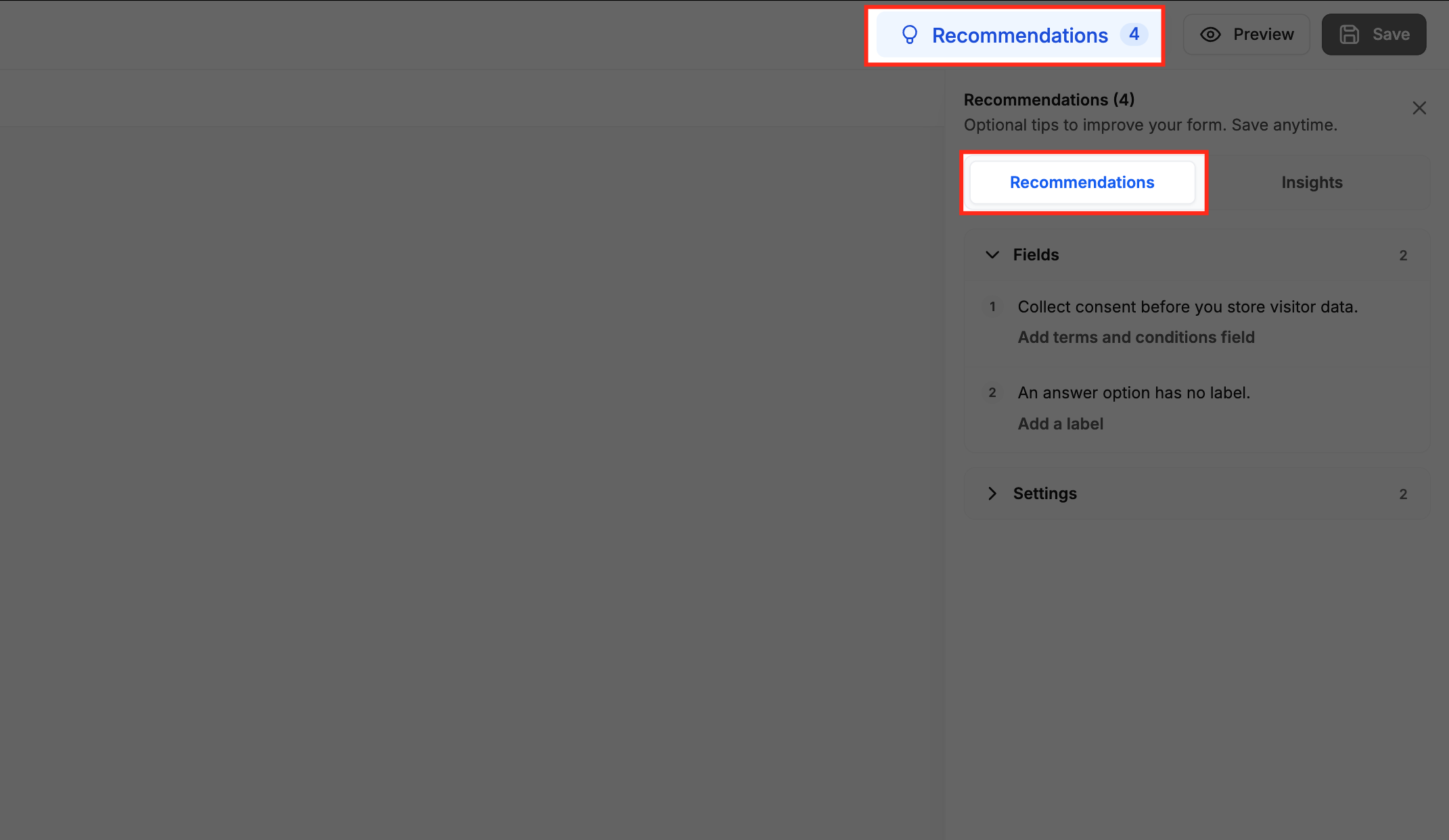
Alongside error detection, the Recommendations panel surfaces optional suggestions like placeholder URLs, default field names, missing answer labels, payment test mode, and bot protection settings. You can expand categories, follow action links to the relevant settings, make changes, and then Save.
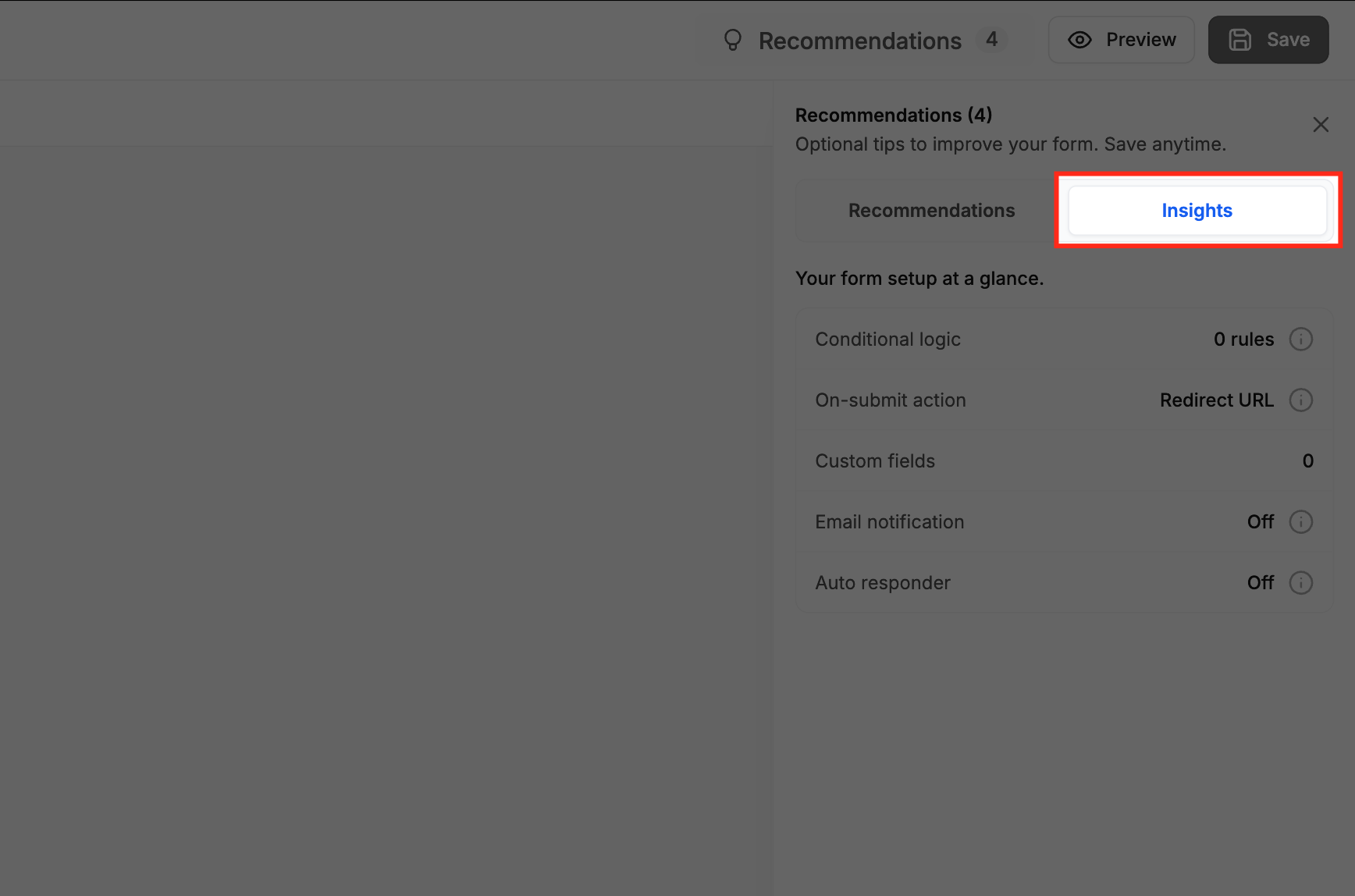
The Insights view offers a concise snapshot of key settings, conditional logic count, on submit action, custom field total, payment mode, email notifications, and auto responder status, so you can verify the overall configuration at a glance. All three capabilities reside within the builder’s Edit tab, accessed from the Sites > Forms/Surveys/Quizzes > Builder path.
03How businesses use recommendations & error detection
- Digital marketing agency. The agency opens a client’s Survey builder, clicks Save, and reviews the error list to jump directly to any duplicate custom fields. After correcting them, the agency checks Recommendations for placeholder URLs and updates them before delivering the survey to the client.
- Online education platform. The platform edits a Quiz, uses the Recommendations panel to locate a payment element still set to Test Mode, switches it to Live Mode, and then saves. It also expands the Settings category to enable bot protection, reducing spam submissions.
- Health clinic appointment system. Staff edit a Form that captures patient details, view Insights to confirm that email notifications and the auto responder are active, and verify that the on submit action routes to the correct appointment page before publishing the form.
04The numbers and rules that matter
- Supported products: Forms, Surveys, and Quizzes.
05Before you start
- You must be in a Subaccount view and have access to the Sites navigation.
- The asset you edit must be a Form, Survey, or Quiz.
06How to set up and use recommendations & error detection in HighLevel
Identify and fix save errors
- From the Subaccount view, select Sites in the left hand menu.
- Choose Forms, Surveys, or Quizzes.
- Open Builder.
- Click the three dot menu next to the asset and pick Edit.
- In the builder, go to the Edit tab.
- Press Save in the upper right corner.
- If validation errors appear, look at the Action required error list.
- Click an error or its action link to jump to the problematic element.
- Read the error message shown beside that element.
- Use the appropriate controls to correct the issue.
- Verify the error list; the resolved item is crossed off automatically.
- Press Save again after all blocking errors are fixed.
Review recommendations
- From the Subaccount view, click Sites in the left hand menu.
- Select Forms, Surveys, or Quizzes.
- Open Builder.
- Click the three dot menu beside the asset and choose Edit.
- Switch to the Edit tab in the builder.
- Click Recommendations in the upper right toolbar.
- Select the Recommendations tab in the panel.
- Expand a category such as Fields, Payments, or Settings.
- Read each recommendation and its suggested action.
- Click the action link to go to the relevant configuration.
- Make the needed changes using the displayed controls.
- Click Save to store your edits.
Review insights
- From the Subaccount view, select Sites in the left hand navigation.
- Choose Forms, Surveys, or Quizzes.
- Open Builder.
- Click the three dot menu next to the asset and select Edit.
- Go to the Edit tab in the builder.
- Click Recommendations in the upper right toolbar.
- Select the Insights tab.
- Read the configuration information shown for the asset.
07What it looks like in HighLevel
08Settings that matter
- Recommendations. Controls whether the optional improvement suggestions panel appears in the builder; it can be turned on or off from Settings.
09Things to know before you rely on it
- Blocking validation errors must be resolved before the asset can be saved.
- Recommendations are optional and do not prevent saving.
- Error Detection only checks existing configuration errors related to custom fields and element setup; it does not add new validation rules.
- The feature works for both newly created and existing Forms, Surveys, and Quizzes.
10How it connects to the rest of HighLevel
- Explore all Sites features for additional builder tools. All Sites features
- Learn about conditional logic enhancements for forms. Conditional Logic V2
- Review pricing plans to ensure your subscription includes Forms, Surveys, and Quizzes. HighLevel pricing
Michael's take

It's easy to overlook a missing field name or a duplicate custom field until you hit save and get stuck. Those hidden blockers can waste time and delay launches, especially when you’re juggling multiple forms.
When you turn on recommendations & error detection, the builder points you straight to the problem, marks fixes as you go, and even suggests optional tweaks like replacing placeholder URLs. It gives you a quick snapshot of key settings so you can publish with confidence.