
01Who this is for
- Marketing managers can target visitors with timed offers without extra pages.
- Online course creators can display enrollment forms when a learner clicks a button.
- Ecommerce store owners can capture exit intent leads on product pages.
02Multiple popups per page, explained
The Multiple Popups per Page feature lets you create, edit, and position more than one popup on a single funnel or website page. Each popup works like a regular page section, so you can add text, images, forms, videos, countdowns, or any other element.
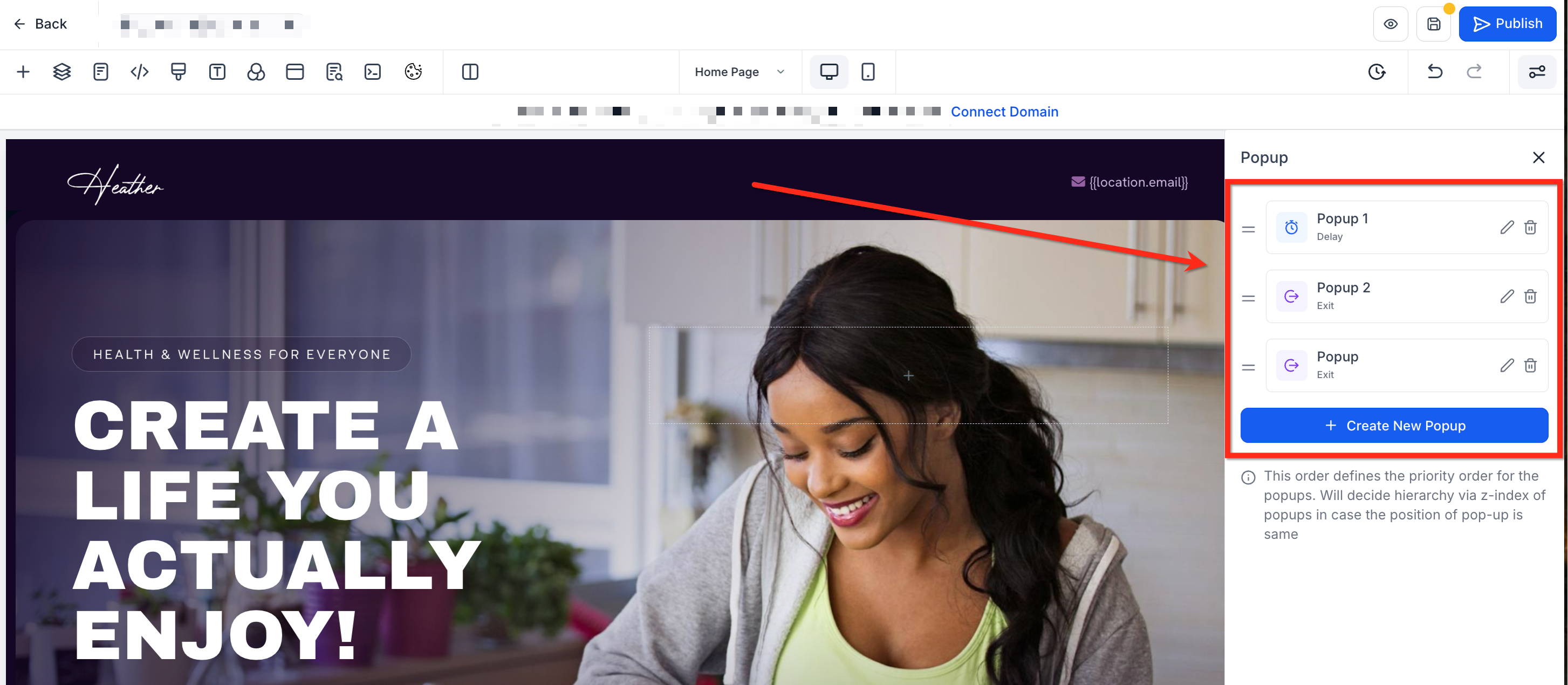
All popups are managed from the Popup Settings panel inside the Site or Funnel Builder. From there you can create new popups, edit or delete existing ones, reorder them by dragging the two line icon, and customize their appearance using the same design tools you use for sections.
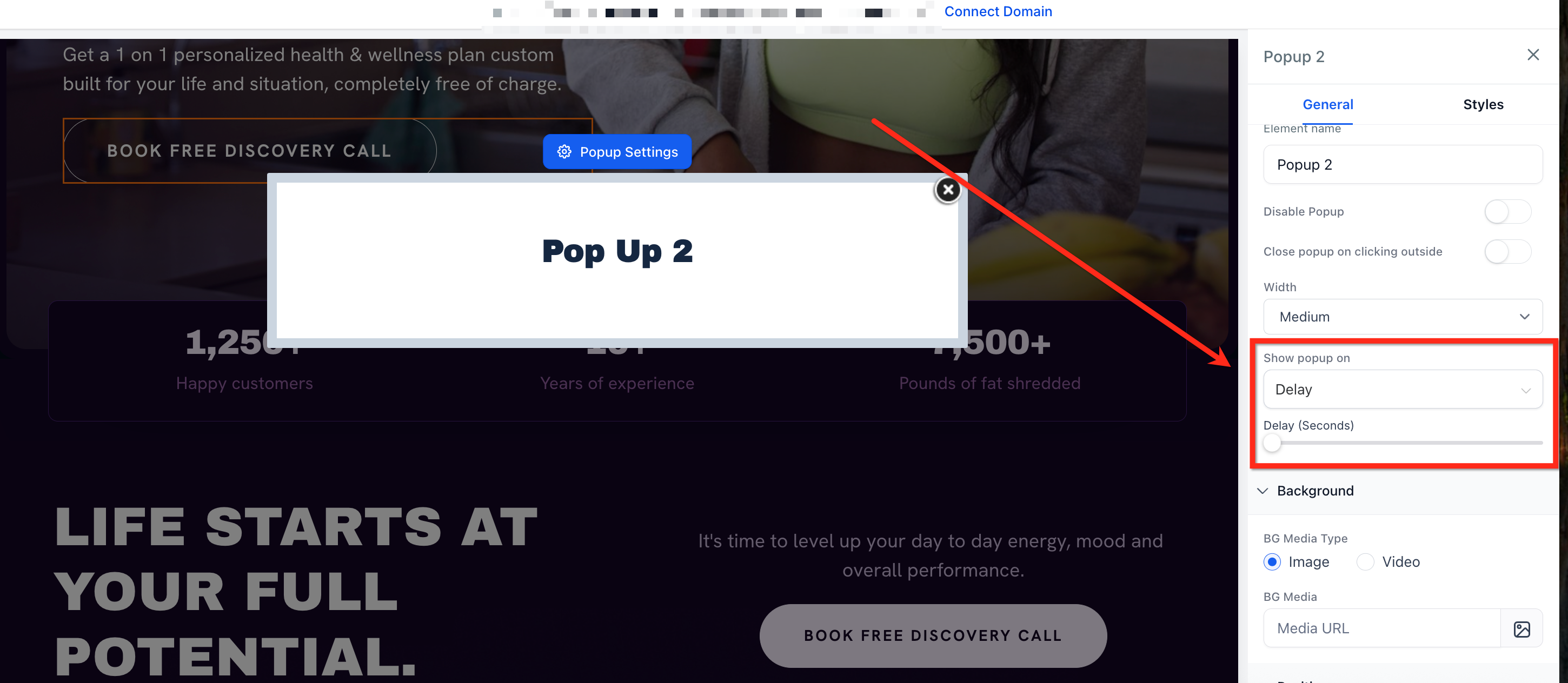
Triggers control when a popup appears. You can choose a delay in seconds, an exit intent signal when the visitor moves toward the browser bar, or set the popup to appear only when a button, image, or text element is clicked. Each popup can have a unique trigger.
03How businesses use multiple popups per page
- Digital marketing agency. Create a welcome discount popup that appears three seconds after a visitor lands on a landing page, using the Delay trigger. The popup can contain a form that captures lead information without leaving the page.
- Coaching business. Add an exit intent popup that asks for feedback when a prospect tries to leave the site, set via the Exit Intent trigger. The popup appears automatically and can route responses to a pipeline.
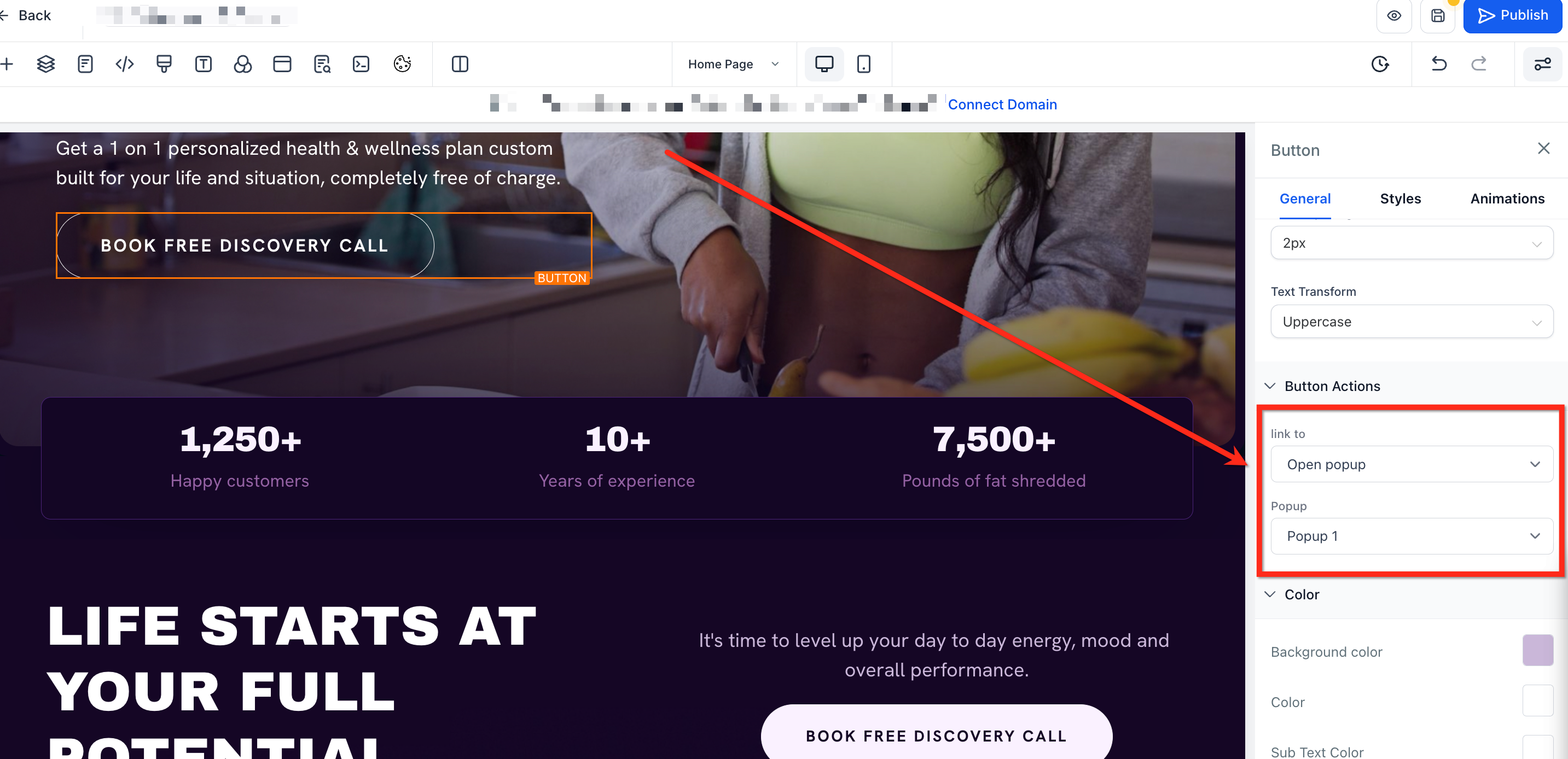
- SaaS website. Attach a bonus video popup to a call to action button by selecting Open Popup in the Link To dropdown and choosing the desired popup. The video only plays when the visitor clicks the button, keeping the page clean.
04How to set up and use multiple popups per page in HighLevel
Create a new popup
- Open a page in the Site or Funnel Builder.
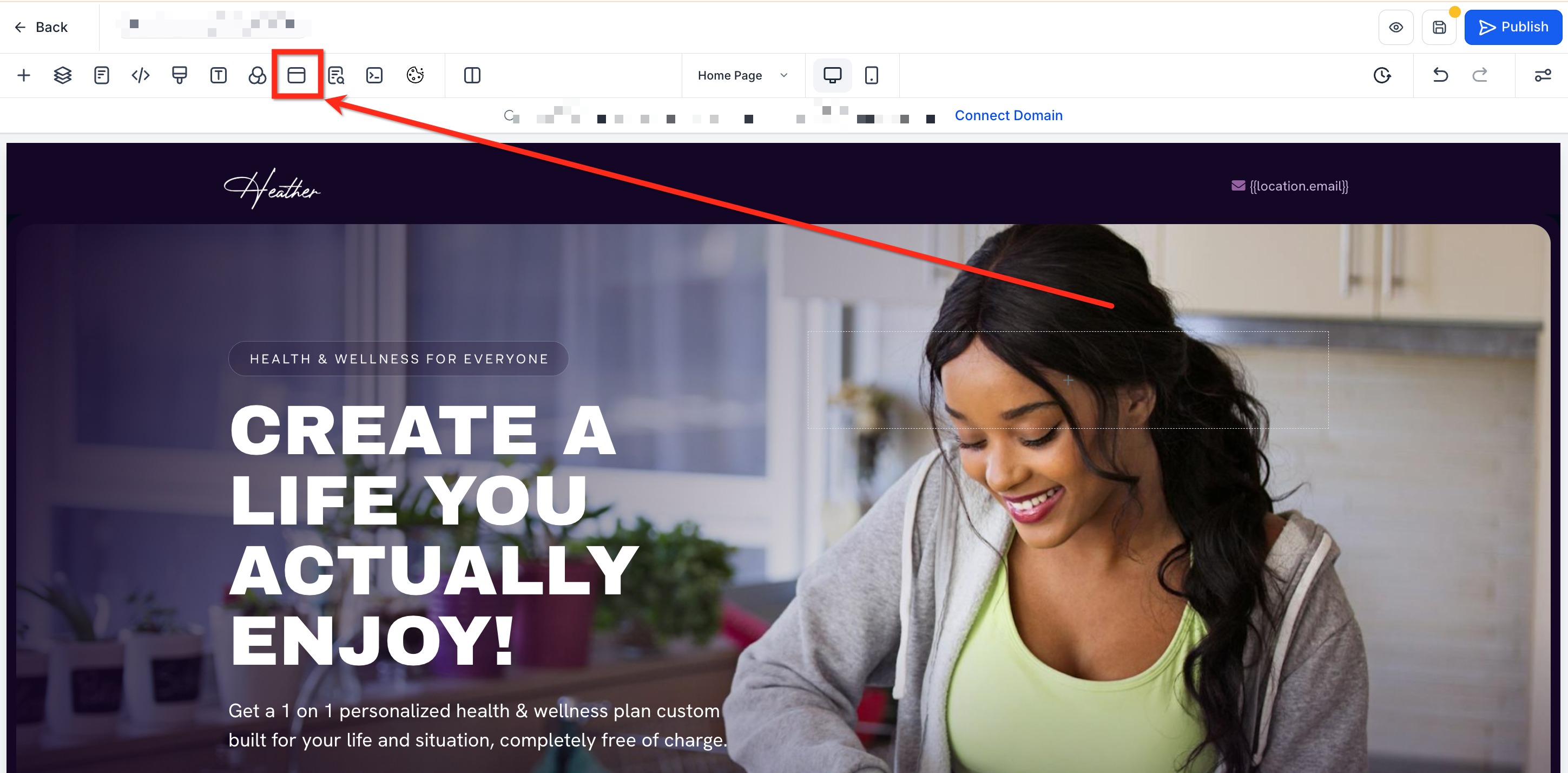
- Click the Popup Settings button in the top navigation bar.
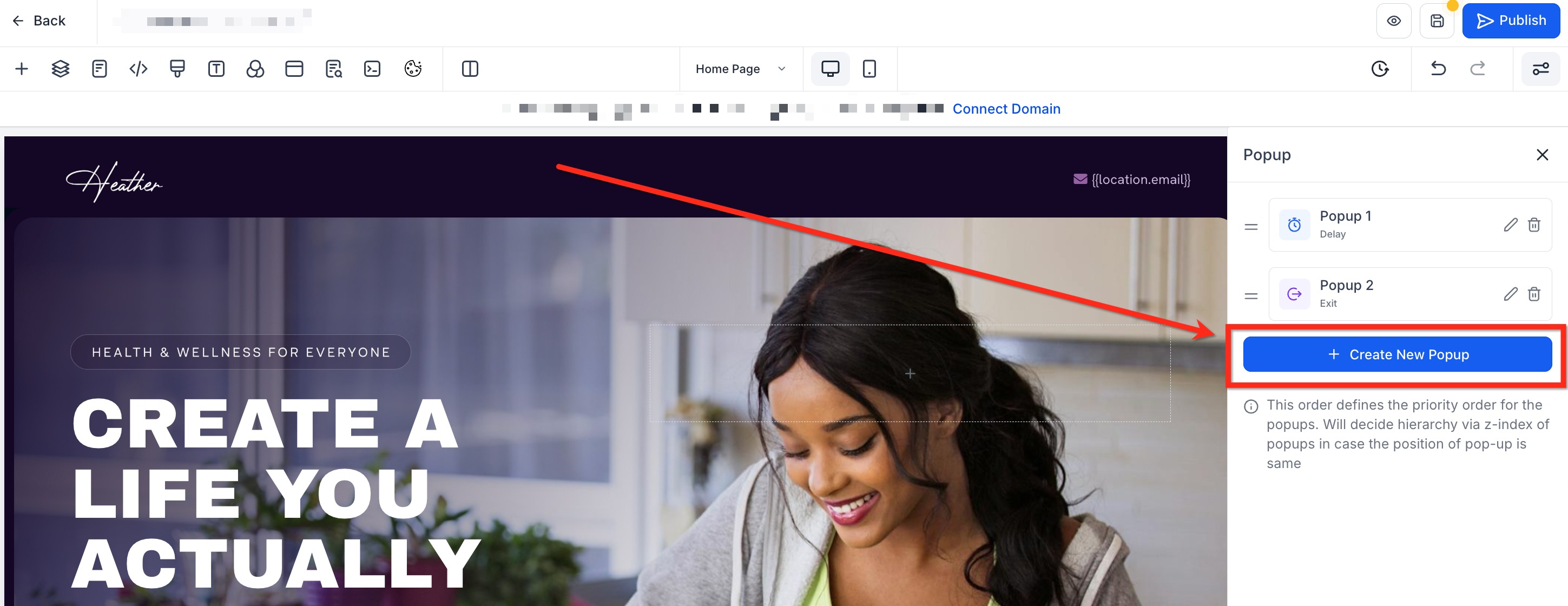
- In the sidebar, press + Create New Popup and enter a descriptive name.
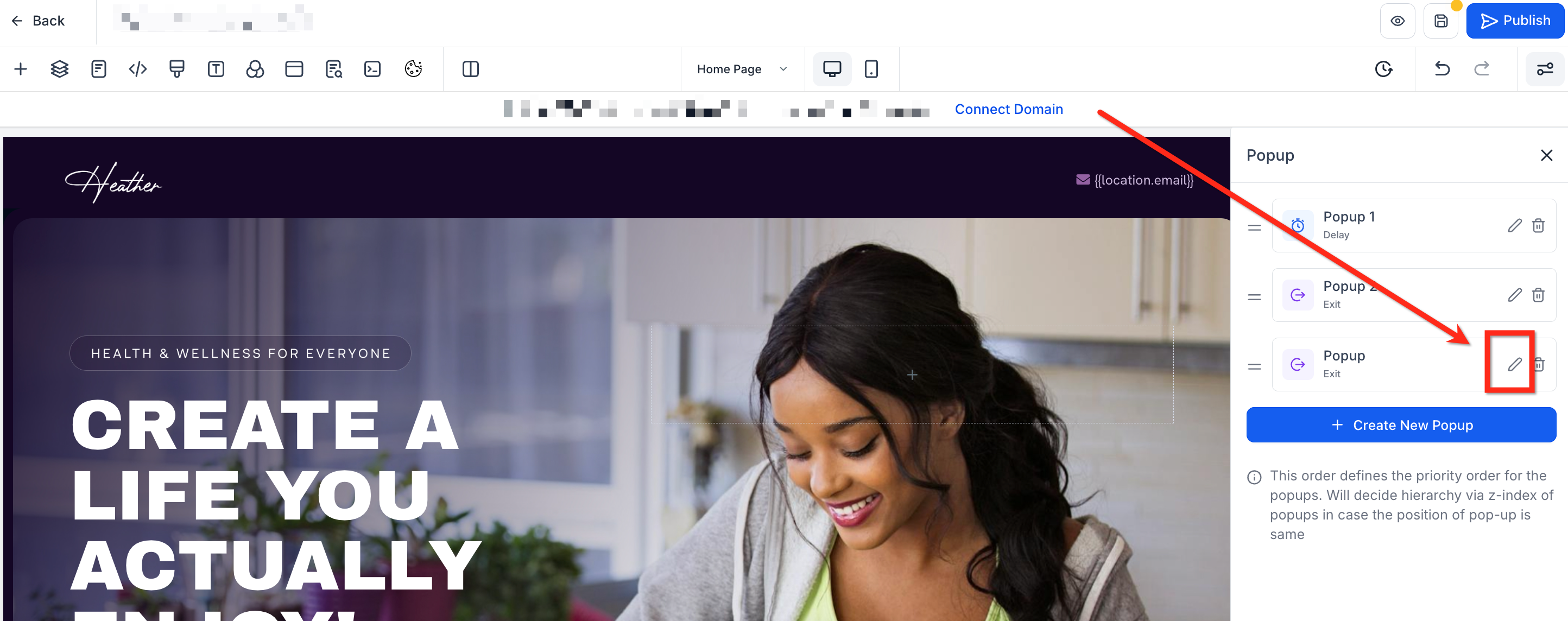
- Click the Edit (Pencil) icon next to the newly created popup.
- Add text, forms, images, videos, or other elements to design the popup.
Set a popup trigger
- Select the popup you want to configure in the sidebar.
- Open the Settings tab for that popup.
- From the Show Popup On dropdown, choose Delay, Exit Intent, or None.
- If you selected Delay, type the number of seconds before the popup appears.
Link a popup to a button, image or text
- Select the button, image, or text element you want to use as a trigger.
- In the Link To dropdown, choose Open Popup.
- Select the popup you created from the list that appears.
05What it looks like in HighLevel
06Settings that matter
- Show Popup On. Determines which trigger type, Delay, Exit Intent, or None, will cause the popup to appear.
- Popup Positioning. Sets the horizontal placement of the popup on the page, such as left, center, or right.
- Link To. Specifies the action for a selected element; choosing Open Popup links that element to a chosen popup.
07Things to know before you rely on it
- Each popup can only use one of the three trigger options: Delay, Exit Intent, or None.
- When multiple popups share the same trigger, the popup higher in the sidebar order displays first.
08How it connects to the rest of HighLevel
- Learn how to display a popup when a visitor first lands on a page. Page load popup guide
- Add custom tracking scripts to capture popup conversions. Add tracking code
- Explore the full set of Site features, including popup management. All Sites features
Michael's take

When you have several offers that need to appear at different moments. Like a welcome discount, an exit survey, and a bonus form triggered by a button. This feature is useful.