
01Who this is for
- Marketing managers can use it to capture data from visitors who are about to leave a landing page.
- Sales teams benefit by offering a last minute discount through a pop up that appears at exit.
- Small business owners can add a sign up form to a pop up and grow their email list without extra tools.
02Exit intent pop ups, explained
The exit intent pop up lives inside the HighLevel funnel or website builder. You design the pop up in the same editor you use for pages. When a desktop user moves the cursor toward the top of the browser, HighLevel detects the intent and displays the pop up. The pop up can contain any HighLevel form you have created. You control the look, layout, and form fields to match your brand. The trigger setting determines whether the pop up shows on exit, after a delay, or not at all. The feature works only on desktop browsers; mobile devices do not have a cursor, so the exit intent behavior does not activate on phones or tablets.
03How businesses use exit intent pop ups
- Ecommerce store. Create a discount offer form, add it to a pop up on the checkout page, and set the trigger to exit. When a shopper moves to close the tab, the pop up appears with a coupon code, encouraging completion of the purchase.
- Coaching business. Build a lead capture form for a free consultation, attach it to a pop up on the services page, and enable the exit trigger. As a visitor tries to leave, the pop up invites them to schedule a call, turning a bounce into a prospect.
- Real estate agency. Design a pop up that contains a property inquiry form, place it on a listing page, and configure it for exit intent. When a potential buyer moves the cursor away, the pop up appears, allowing the agent to collect contact details.
04Before you start
- A form must be created in HighLevel before adding it to the pop up.
- A funnel or website page must exist where the pop up will be placed.
05How to set up and use exit intent pop ups in HighLevel
Create a pop up with a form
- Build or locate the form you want to embed in the pop up.
- Go to Sites > Funnels or Websites and pick the funnel or website where the pop up will appear.
- Find the specific funnel step or page and click the blue Edit button to open the builder.
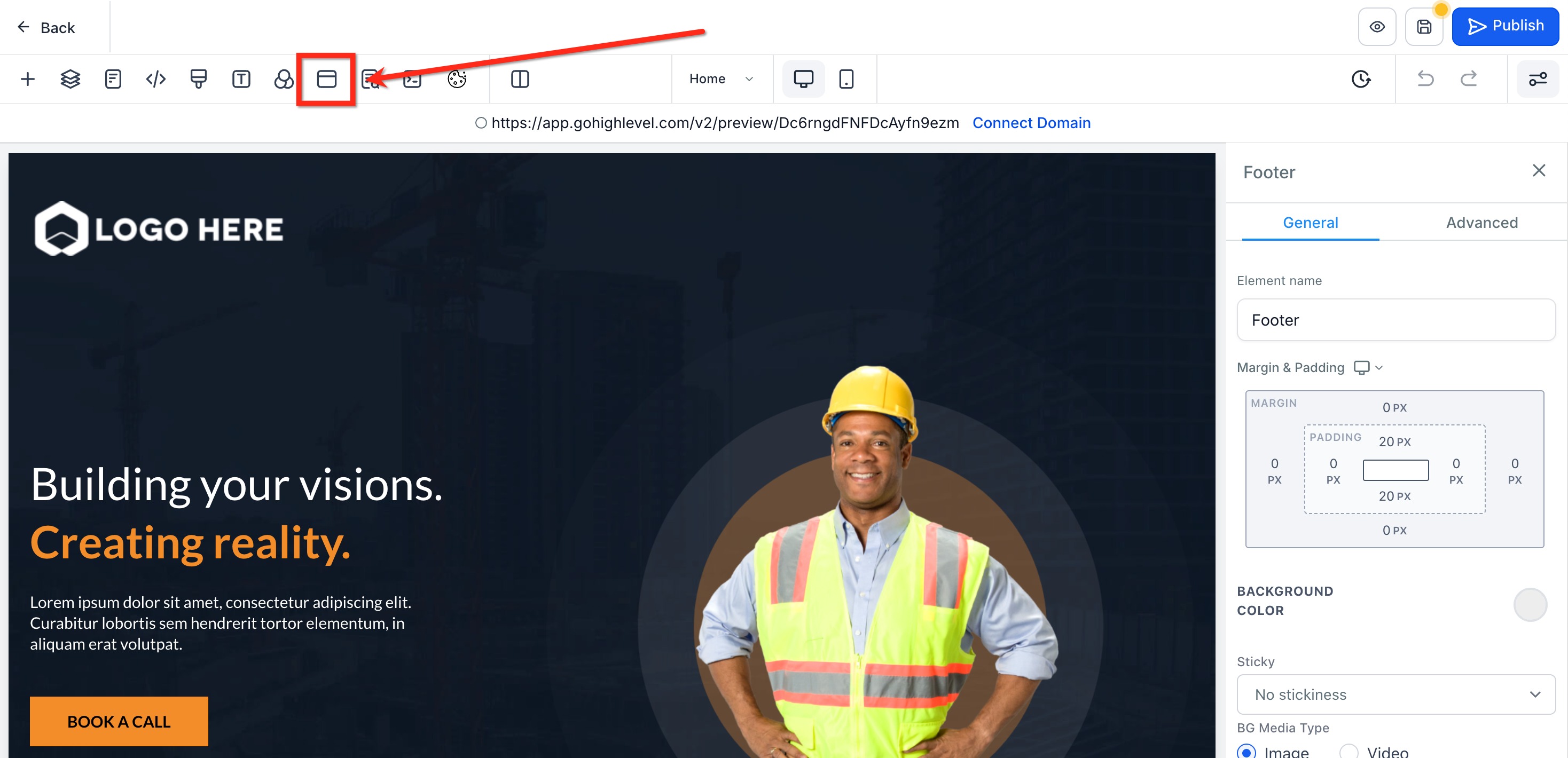
- In the builder top menu, select Pop up Settings.
- Choose Add Row then Add Element and add a Form element to the pop up.
- Use the form picker to attach the previously built form.
- Adjust the pop up design, including rows, columns, background, and form styles; optionally change the form via the sidebar dropdown.
Set the pop up to trigger on exit intent
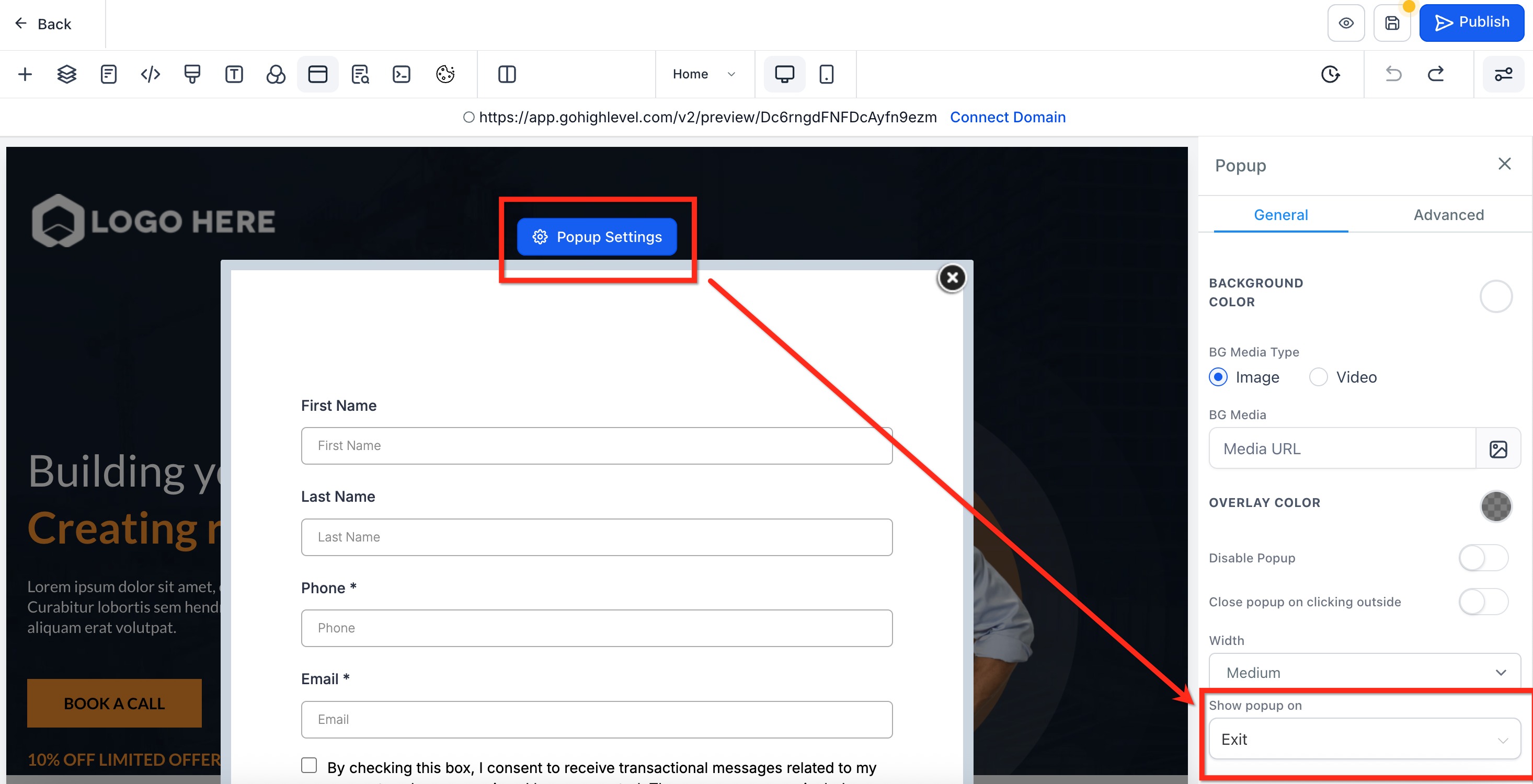
- Click the blue button labeled Pop Up Settings with the gear icon at the top of the pop up.
- In the sidebar, scroll to the option Show Pop up On.
- Select Exit from the dropdown list.
Test the pop up
- Preview the page or funnel step.
- Move the cursor toward the top of the browser as if exiting.
- Verify that the pop up appears.
- Adjust styling or content and repeat the test if needed.
06What it looks like in HighLevel

07Settings that matter
- Show Pop up On. Controls when the pop up appears. Options include Exit, Delay, or None. Choosing Exit enables the exit intent behavior.
08Things to know before you rely on it
- The exit intent pop up works only on desktop browsers because it relies on mouse cursor tracking.
- It is supported only on funnels and websites built inside HighLevel; external sites cannot use this feature.
09How it connects to the rest of HighLevel
- Learn how to set a page load pop up that shows when a visitor enters a page Page load pop up
- Get guidance on creating and customizing forms for use in pop ups Form creation guide
- Review overall website and funnel capabilities in HighLevel All Sites features
Michael's take

Do I really need an exit intent pop up for my desktop funnel? Absolutely if you want one more chance to grab a lead before a visitor walks away.
HighLevel makes it easy to drop a form based pop up right where the cursor heads for the browser bar, so you can offer a quick incentive or capture an email without any third party scripts.
I’d set up a simple sign up form, attach it to a pop up, and test it by moving my mouse toward the top of the screen. Just remember it only works on desktop, so pair it with mobile friendly tactics elsewhere.