
01Who this is for
- Founders who want a consistent brand experience even when visitors land on broken links.
- Digital marketers responsible for website navigation and visitor recovery.
02Customizable 404 error pages, explained
A customizable 404 error page is a page you select to handle unavailable or invalid URLs for a connected domain. You create the page using HighLevel's Funnel or Website builder, then assign it as the domain's Default 404/Error Page. When a visitor reaches an invalid address, the platform serves this page instead of the generic error message. The page can include branding, navigation, contact details, or any supported builder element.
03How businesses use customizable 404 error page
- Ecommerce store. Create a simple page that includes navigation links back to product categories and a search bar. Assign that page as the default 404 for the store’s domain so shoppers who follow broken links are guided back to purchasable items.
- Coaching business. Build a page with a brief welcome message, contact form, and links to popular coaching programs. Set it as the domain’s 404 page so prospects landing on old URLs can quickly reach the latest offerings.
- Local service provider. Design a page that shows the company logo, address, phone number, and a button to the services page. Assign it to the business’s domain so visitors who mistype a URL can call or find services immediately.
04The numbers and rules that matter
- Create and publish the Funnel or Website page before testing the live 404 experience.
05Before you start
- The domain or subdomain must already be connected to HighLevel Sites.
- You must have access to the subaccount where the domain is managed.
- Create and publish the Funnel or Website page that will serve as the 404 experience.
06How to set up and use customizable 404 error page in HighLevel
Create the 404 page
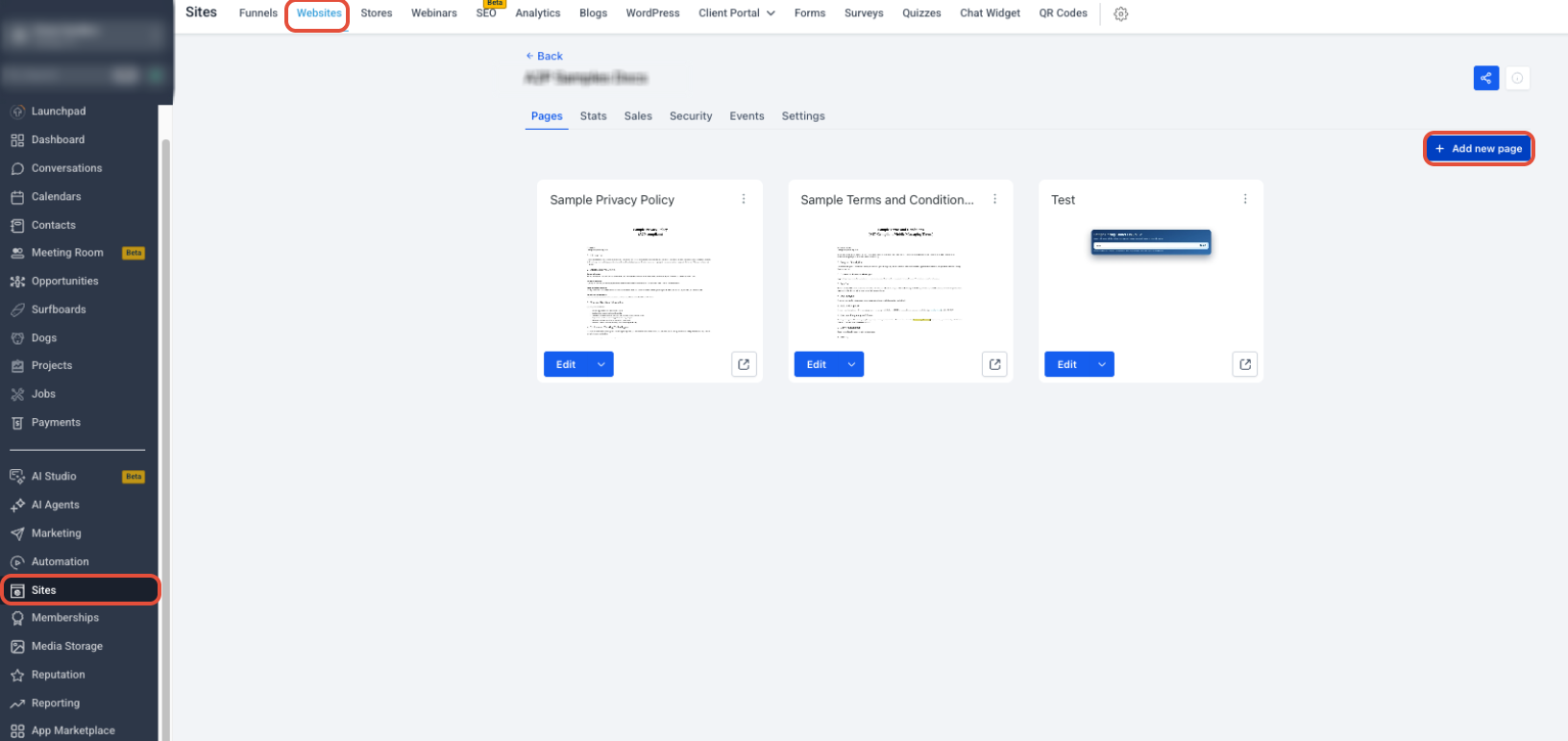
- From the Subaccount view, navigate to Sites > Websites.
- Open the website you want to use.
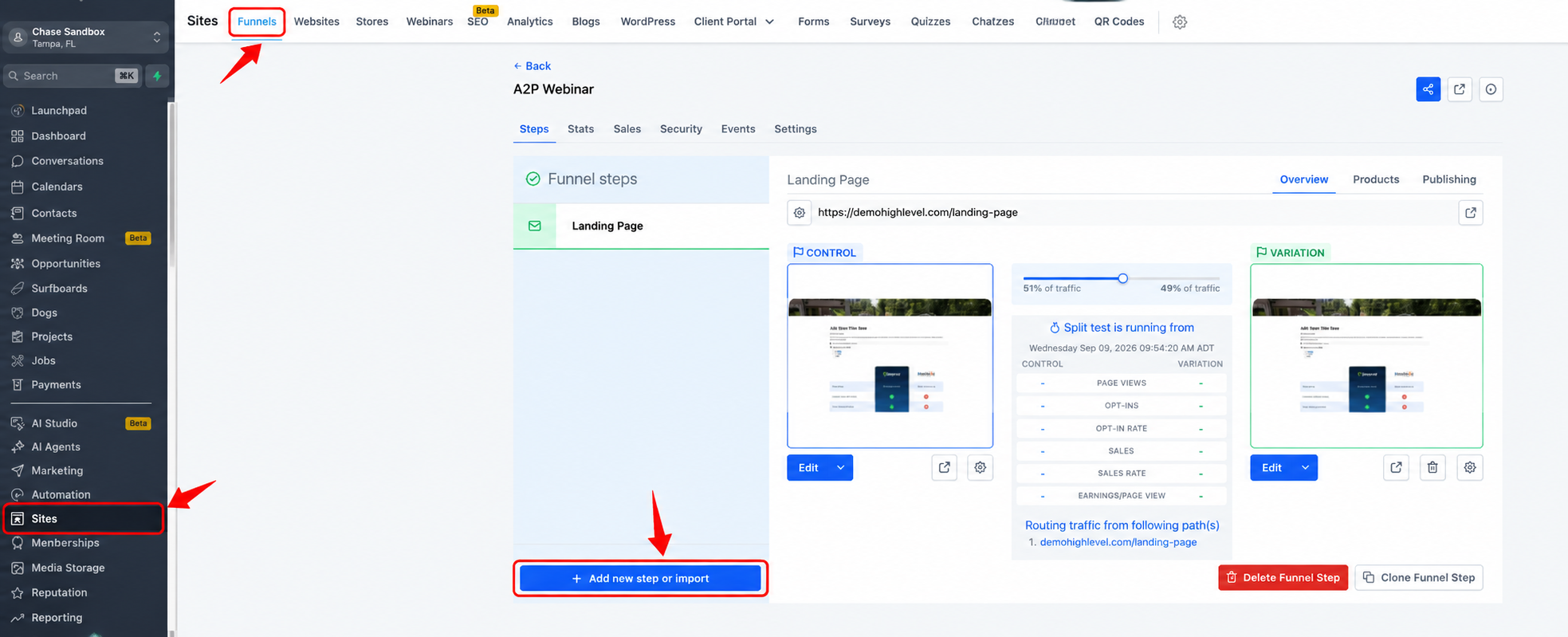
- Click Add New Page.
- Enter a page name such as 404 Error Page and configure the page path.
- Click Create New Page.
- Select Create From Blank or another starting point as needed.
- Build the page with the Website Builder, adding branding, navigation, contact information, or any other useful elements.
- Save your changes and publish the page when it is ready to go live.
Assign the default 404/Error page to the domain
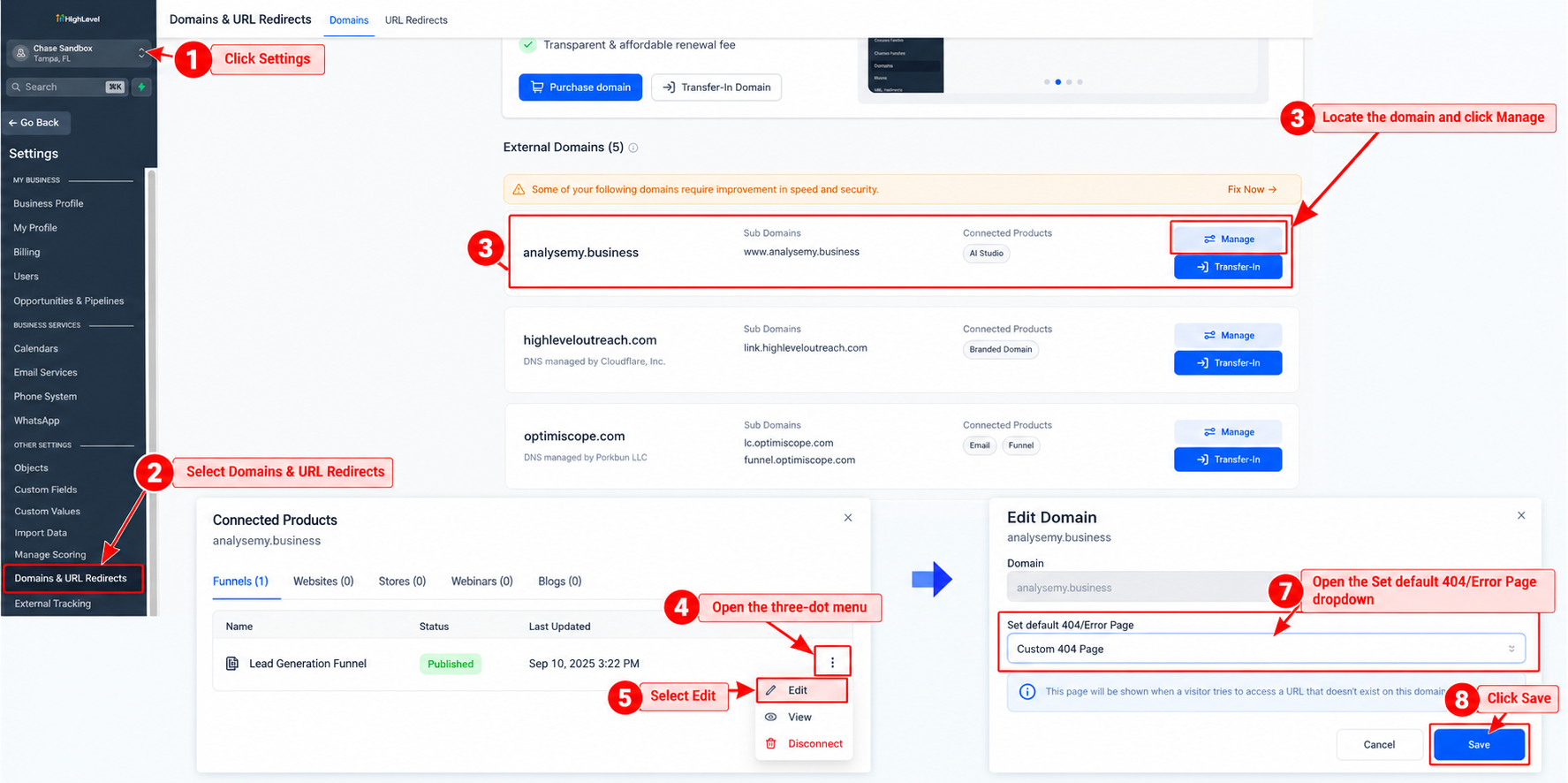
- From the Subaccount view, click Settings.
- Select Domains & URL Redirects.
- Locate the applicable connected domain and click Manage.
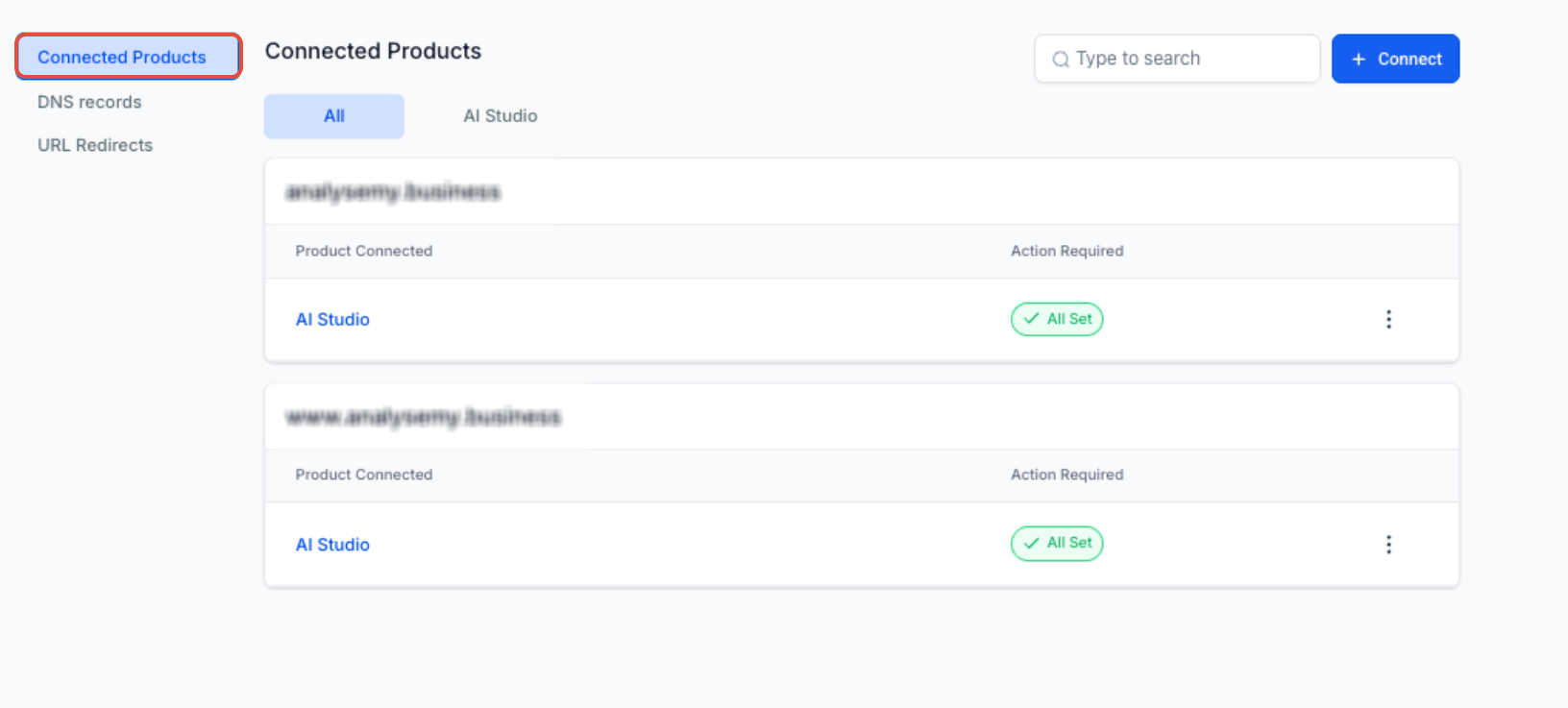
- On the Connected Products screen, locate the domain connection.
- Open the three dot menu for the connection.
- Select Edit.
- Open the Set default 404/Error Page dropdown and select the page you created.
- Click Save.
Test the custom 404 page
- Open the connected domain in a browser.
- Add a page path that does not exist on the site.
- Load the URL.
- Confirm that the custom 404/Error page appears.
- Test any navigation, buttons, or links on the custom page.
- If the expected page does not appear, return to Settings > Domains & URL Redirects > Manage > three dot menu > Edit and verify the correct page is selected under Set default 404/Error Page.
07What it looks like in HighLevel
08Settings that matter
- Set default 404/Error Page. Controls which published Funnel or Website page HighLevel serves when a visitor reaches an invalid URL for the selected domain.
09Things to know before you rely on it
- The default 404/Error page is configured per domain connection; it does not affect other connected products.
- The Action Required reminder appears only in the subaccount where the domain was originally connected.
- Only pages that are eligible for the selected domain connection appear in the dropdown.
10If something goes wrong
- Unexpected generic error page after configuring a custom 404 page. Ensure the page you created is published and selected under Set default 404/Error Page for the correct domain connection, then retest with a nonexistent path.
11How it connects to the rest of HighLevel
- Learn how to create and customize website pages before assigning a 404 page. Website setup guide
- Set up root domains or subdomains to make them eligible for custom 404 pages. Domain setup
- Review HighLevel pricing and plans to confirm you have access to Sites features. Pricing
Michael's take

When you have many external links or older content that may lead to broken URLs, a custom 404 page can help keep visitors on your site by providing a branded fallback.
If your site rarely gets mistyped URLs or broken links, the effort to build and maintain a custom 404 may not add much value. In those cases a simple redirect or leaving the default error could be sufficient.