
01Who this is for
- Content marketers, they can set proper tag hierarchy to aid SEO reporting.
- Web designers, they can adjust tags while keeping visual styles intact.
- Accessibility specialists, they ensure screen readers recognize correct heading levels.
02Heading tags, explained
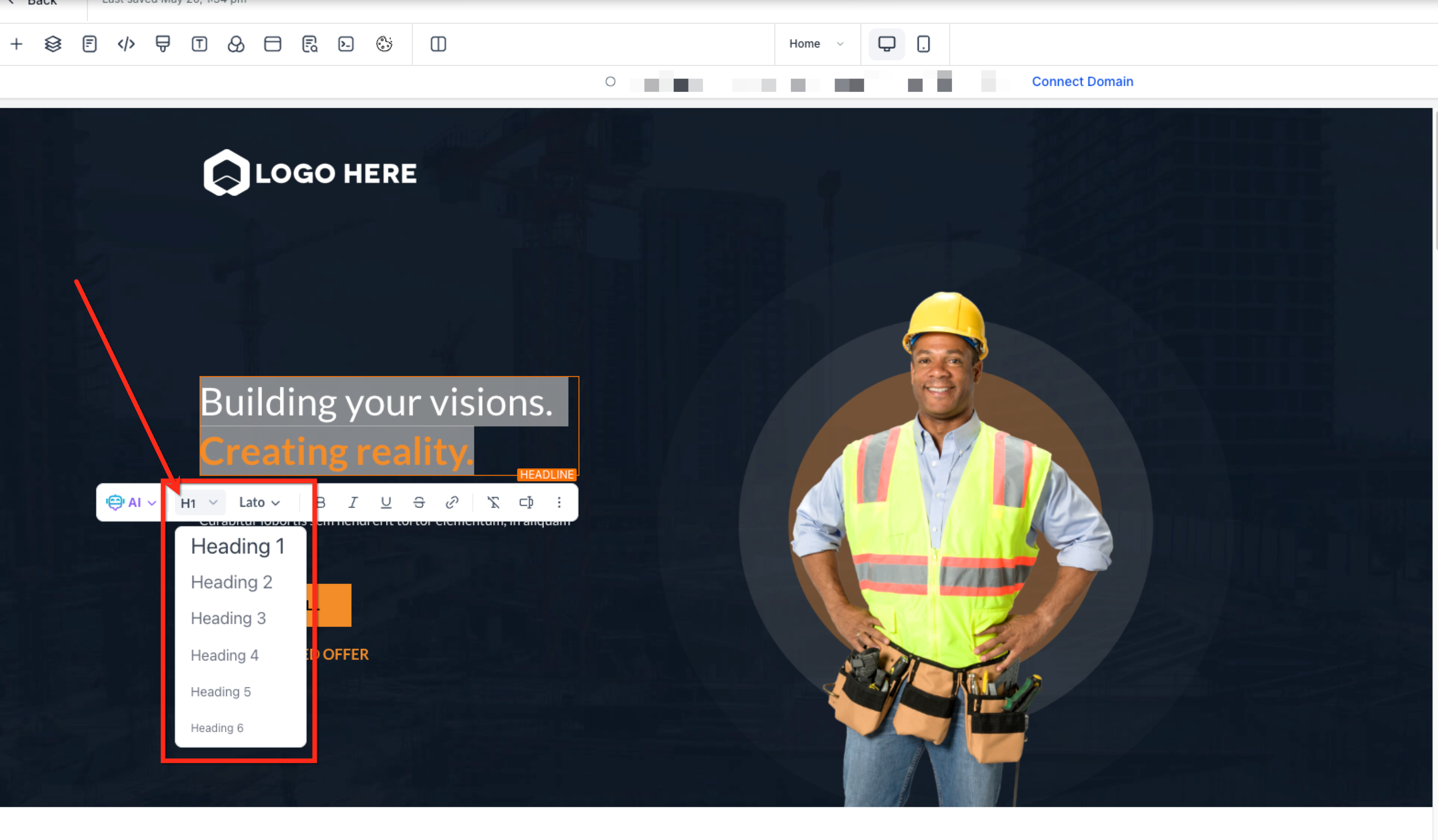
The feature lets you modify the HTML heading level (H1 to H6) of any text element inside a funnel or website page. When you select heading text, a formatting toolbar appears with a dropdown that lists the heading tags. Choosing a different tag updates the element’s structural role for search engines and assistive technologies.
The change occurs inside the HighLevel page builder. It does not automatically adjust the visual appearance; styles can be managed separately with CSS. The heading tags work across desktop and mobile previews, allowing you to verify responsiveness in the builder.
03How businesses use heading tags
- Digital marketing agency. The agency opens a client’s funnel page, highlights the main title, and selects H1 from the dropdown. They repeat for section headings, ensuring each page follows a clear hierarchy for better SEO insights.
- Co working space website. The site owner edits the homepage, selects the introductory paragraph heading, and switches it to H2 to reflect its sub section status while leaving the visual font unchanged.
- Online course platform. The platform manager updates lesson page headings from H3 to H4 to match the overall course outline, using the builder’s heading dropdown without altering the design.
04The numbers and rules that matter
- One H1 per page provides clarity and better SEO.
05Before you start
- You must have access to a HighLevel subaccount that contains the funnel or website page you want to modify.
06How to set up and use heading tags in HighLevel
Change heading tags on a funnel or website page
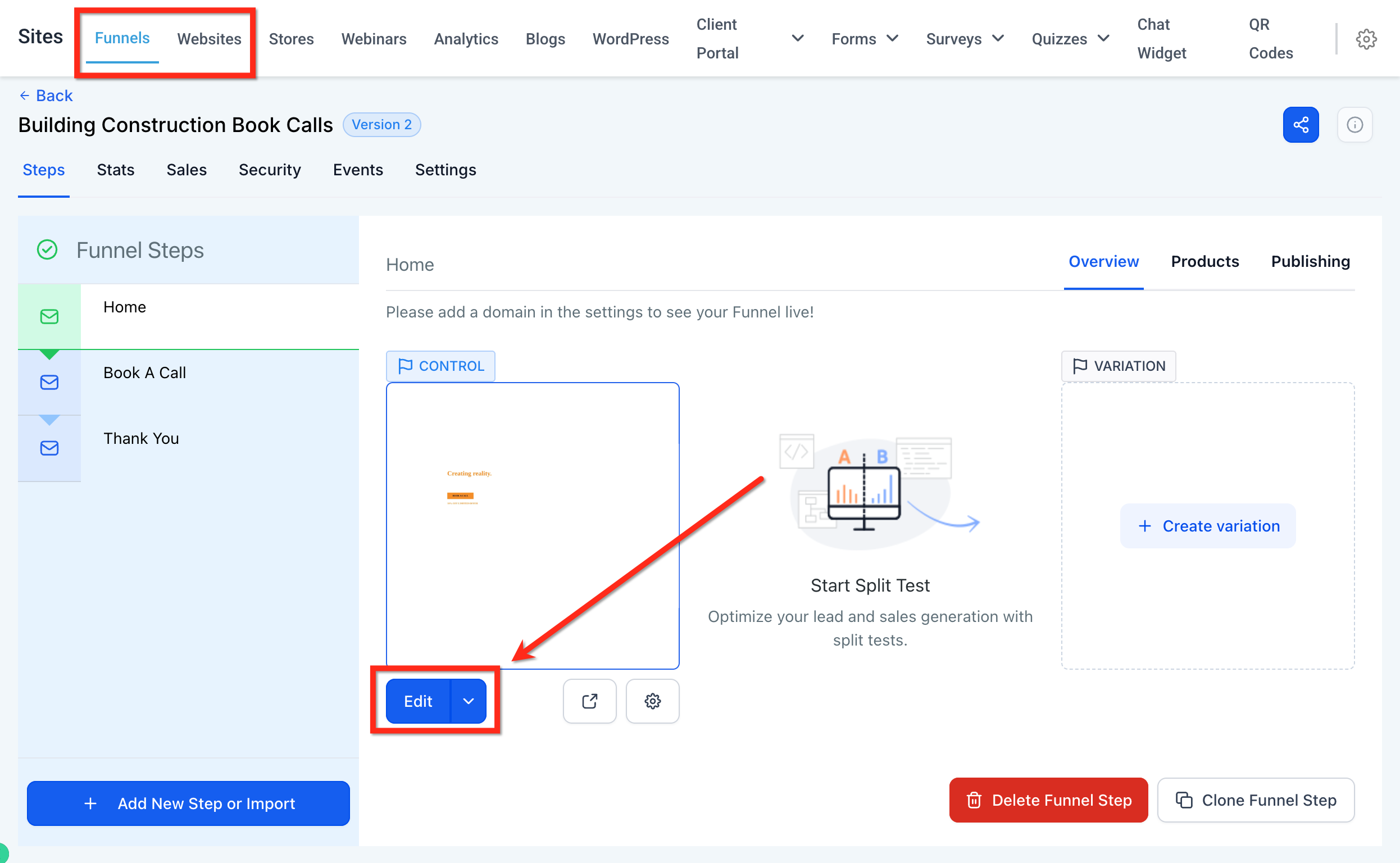
- Navigate to Sites > Funnels or Sites > Websites from your subaccount.
- Select the funnel or website and choose the step or page you want to edit.
- Click the blue Edit Page button to launch the page editor.
- Highlight the heading text whose tag you wish to change.
- On the formatting toolbar, click the heading dropdown and pick the desired tag (H1, H2, etc.).
07What it looks like in HighLevel
08Things to know before you rely on it
- The heading dropdown only appears when the selected text is already a heading element.
- Multiple H1 tags can be added, but using one H1 per page is recommended for clearer SEO signals.
- Changing a heading tag does not automatically change its visual style; CSS controls appearance.
- Heading tags are responsive; you can preview and style them for each device in the builder.
09If something goes wrong
- The heading dropdown does not appear.. Make sure the selected text is a heading element, not plain paragraph text.
10How it connects to the rest of HighLevel
- Overview of the HighLevel website and funnel builder Sites overview
- Add tracking code to funnels and websites for analytics Add tracking code
- Set up a page load popup to capture leads Page load popup
Michael's take

Most people jam several H1 tags onto a page, thinking bigger is better for search rankings.
If I were setting up a new funnel, I’d start by mapping out the content hierarchy, assign the proper heading tags in the builder, then fine tune the visual style with CSS. That way the structure is solid before any design tweaks.