
01Who this is for
- Founders of subscription based services, they need to verify funds before granting access.
- Small business owners offering payment plans, they require a hold to ensure client ability to pay.
02Card payment authorizations, explained
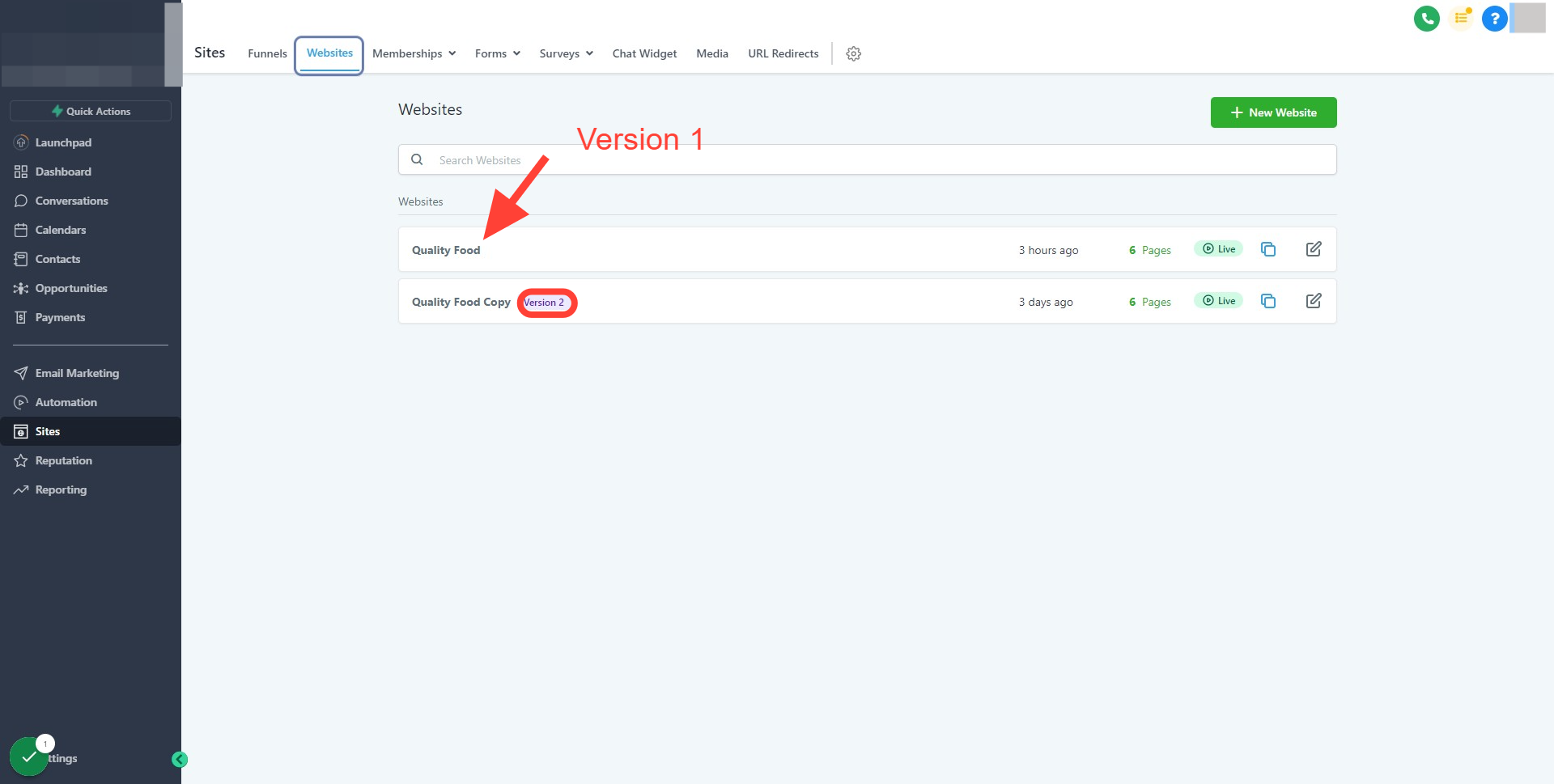
Custom authorization is a setting attached to each subscription or payment plan product on a website page. When a visitor selects the product, the system withdraws the defined amount from their bank account, then refunds it after the authorization step completes. The feature is only available for plans created with the Version 2 page builder.
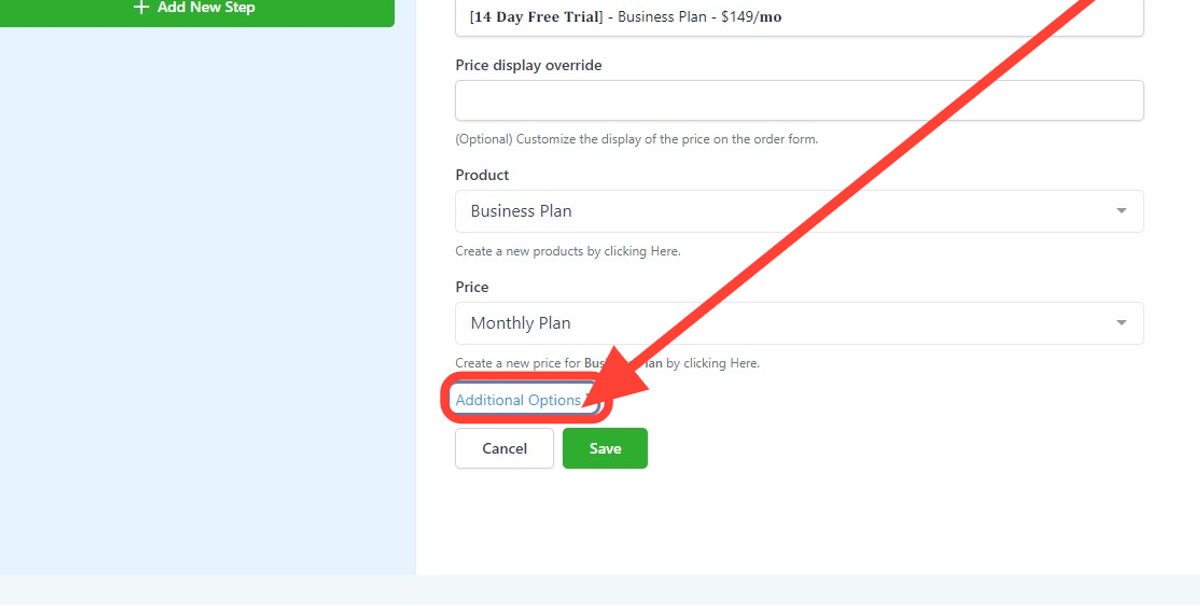
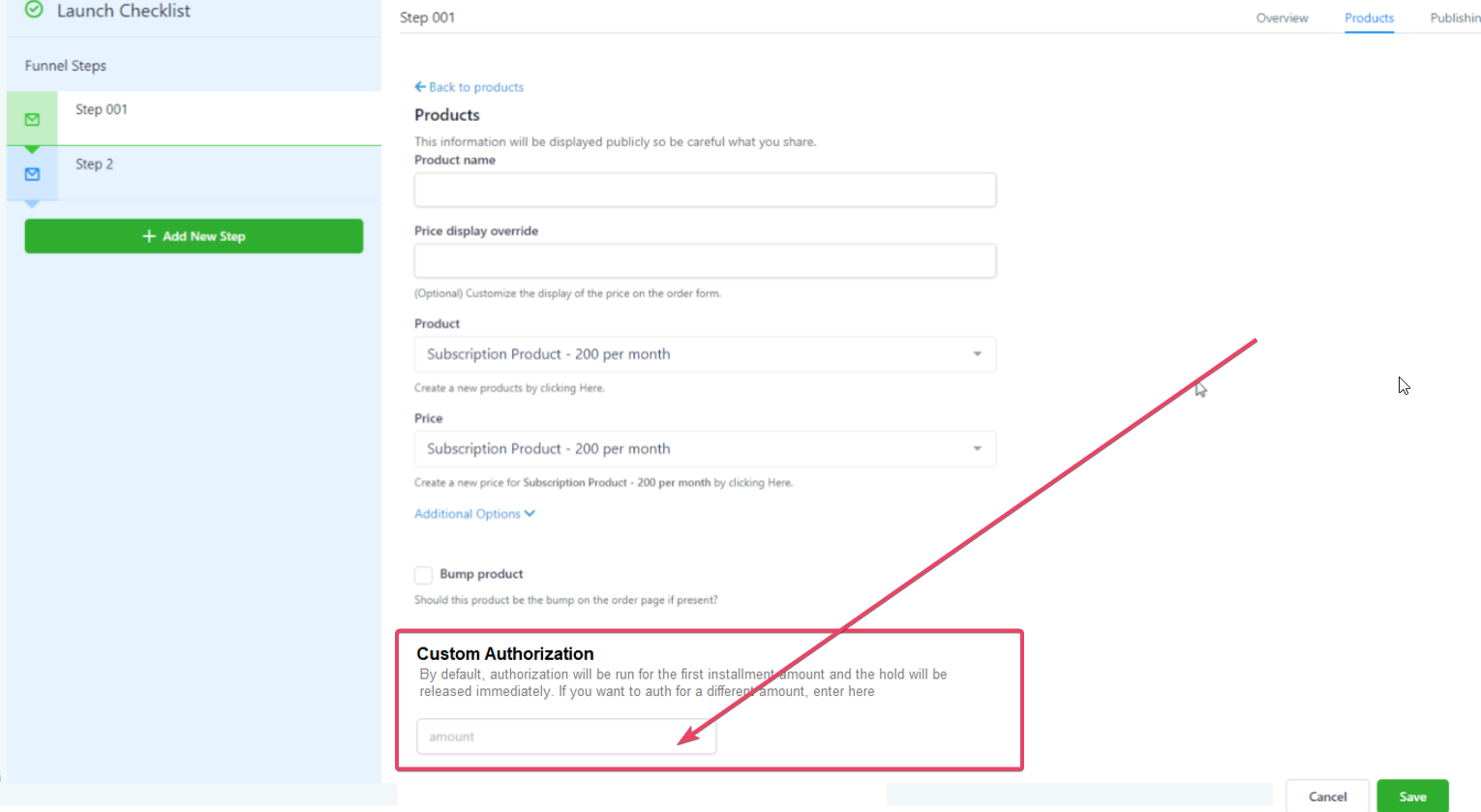
The setting lives inside the product editor for the order form block. After opening the product’s options, you scroll to Additional Options and activate Custom Authorization, entering the amount to hold. The amount must be at least $1.00, have two decimal places, and cannot be negative (per HighLevel's help center, checked November 2026). Each plan requires its own configuration.
When the client proceeds, the platform checks that the required funds exist. If they do not, the client cannot move forward. Once authorized, any trial days linked to the plan start immediately. The held funds are returned to the client’s account, which may take up to five business days.
03How businesses use card payment authorizations
- Fitness studio. The studio adds a monthly membership plan to its website, enables Custom Authorization for $1.00, and saves the setting. When a new member signs up, the platform holds the $1.00 to confirm payment ability before granting access to class schedules (per HighLevel's help center, checked November 2026).
- Online course provider. The provider creates an annual course subscription plan, turns on Custom Authorization with a $1.00 hold, and repeats the steps for the monthly option. Prospective students must have sufficient funds, ensuring the enrollment process continues only after verification (per HighLevel's help center, checked November 2026).
- Software SaaS company. The SaaS business adds a subscription product to its checkout page, activates Custom Authorization for $1.00, and saves the configuration. New users attempting to activate a free trial must pass the $1.00 hold, after which the trial period begins (per HighLevel's help center, checked November 2026).
04The numbers and rules that matter
- Funds may take up to 5 business days before being returned.
- Amount must be equal to or more than 1, with exactly two decimal places, and not a negative number.
05Before you start
- A product must be attached to the page before editing its authorization.
- The plan must be linked to the payment form on the website.
06How to set up and use card payment authorizations in HighLevel
Enable custom authorization for a plan
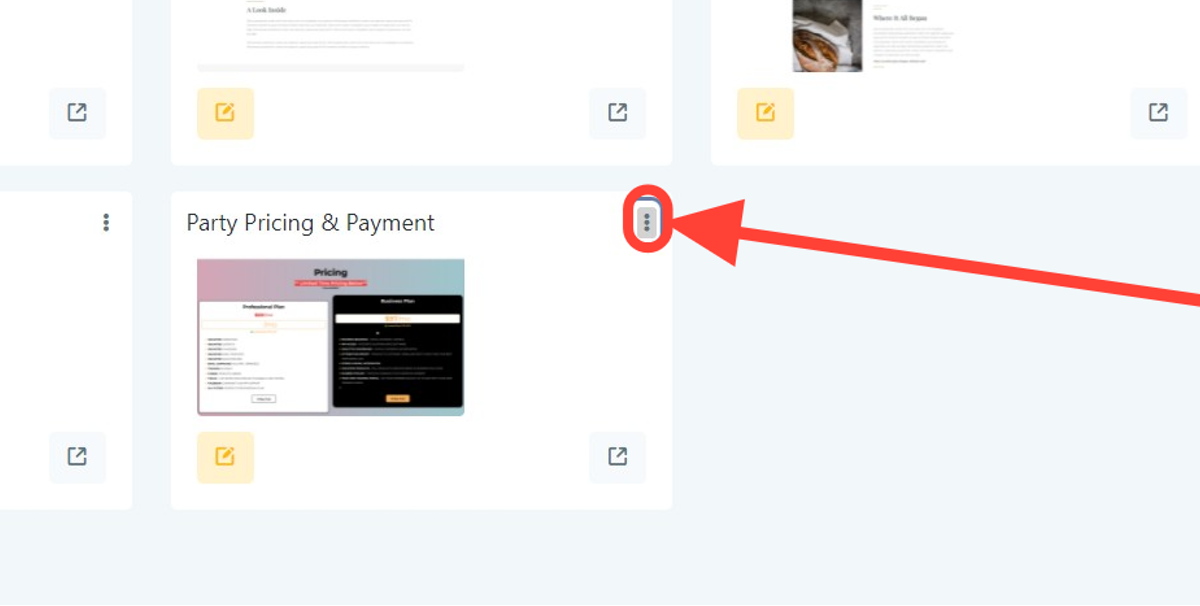
- Open the website page that contains the order form and click the three dot menu for that block.
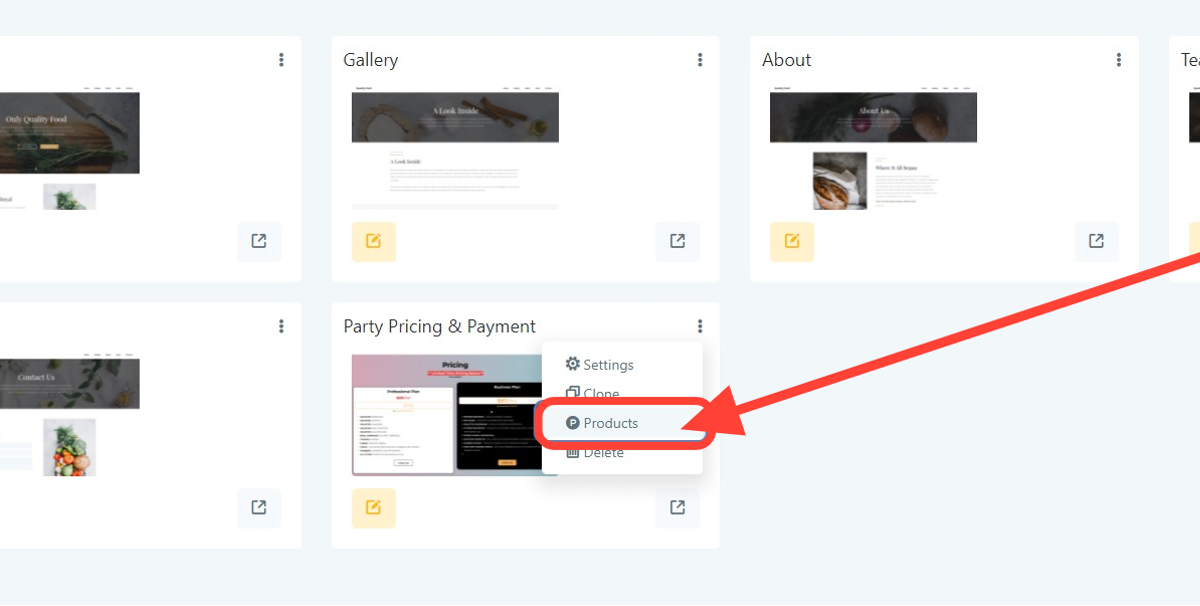
- Select “Products” from the menu that appears.
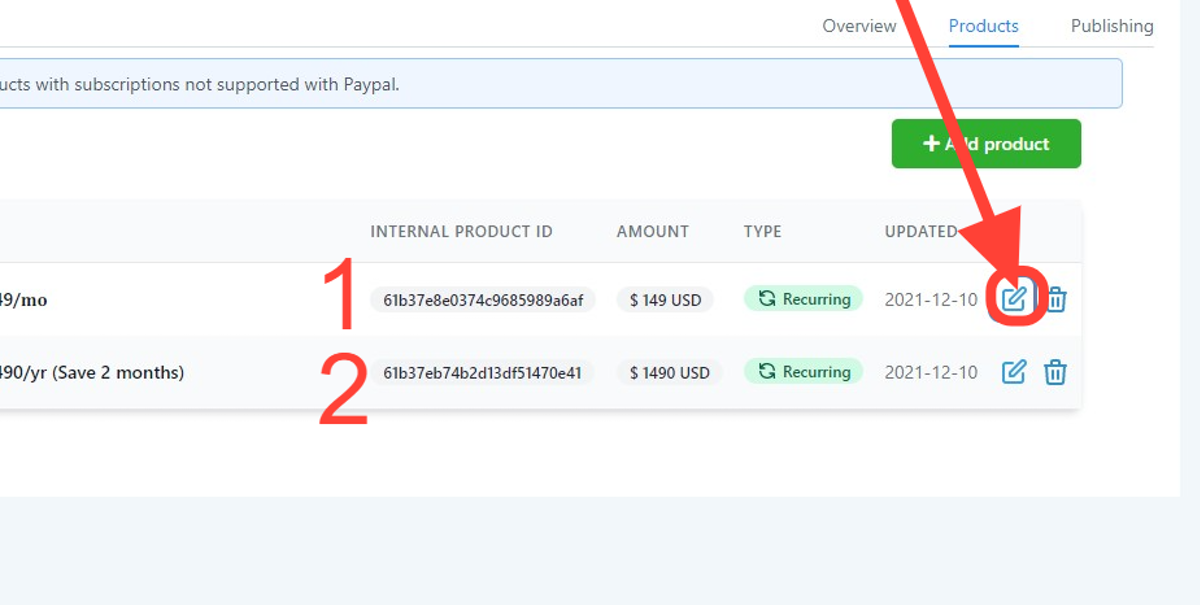
- If no products are listed, add a product to the page before proceeding.
- Click the pencil style Edit icon next to the plan you want to configure.
- Scroll down and open the “Additional Options” section.
- Choose “Custom Authorization” and type the amount to hold (minimum 1.00, two decimal places, not negative).
- Click “Save” to store the change.
- Repeat the entire process for any other plans that require authorization.
07What it looks like in HighLevel
08Settings that matter
- Custom Authorization. Specifies the amount that will be temporarily taken from a client’s card during the authorization step.
09Things to know before you rely on it
- The feature is off by default and must be enabled for each plan individually.
- It works only with Subscriptions and Payment plans, not with one time purchases.
- The authorized amount must be at least $1.00, have exactly two decimal places, and cannot be a negative number (per HighLevel's help center, checked November 2026).
- Held funds are returned to the client’s account and may take up to five business days to appear.
- If the client’s account lacks the required amount, they cannot proceed to the next step.
- Authorization works only with the Version 2 page builder; a separate process applies to Version 1.
10How it connects to the rest of HighLevel
- Learn how to set up pages, customize design, and connect a domain before launching. Website setup guide
- Add a two step order form to your funnel or website for more detailed checkout flows. Two step order form
- Connect a root domain or subdomain to your HighLevel site to make the checkout page live. Domain connection
Michael's take

Most people assume the hold happens automatically once you add a payment form, but it’s actually off by default and must be turned on for each plan. Skipping the extra steps means you lose the safety net of confirming funds before a subscription starts.
If I were setting this up, I’d first pick the smallest amount that still proves the card is valid, enable custom authorization for every plan, and double check that the amount follows the rule of equal to or more than 1 with two decimals. A quick test purchase confirms the flow before you go live.