
01Who this is for
- Marketing managers can embed a qualification quiz to collect lead details while visitors browse the funnel.
- Course creators can use a quiz to gauge student readiness before granting access to premium content.
- Service businesses can add a quiz to a landing page to segment prospects based on their answers.
02Quizzes, explained
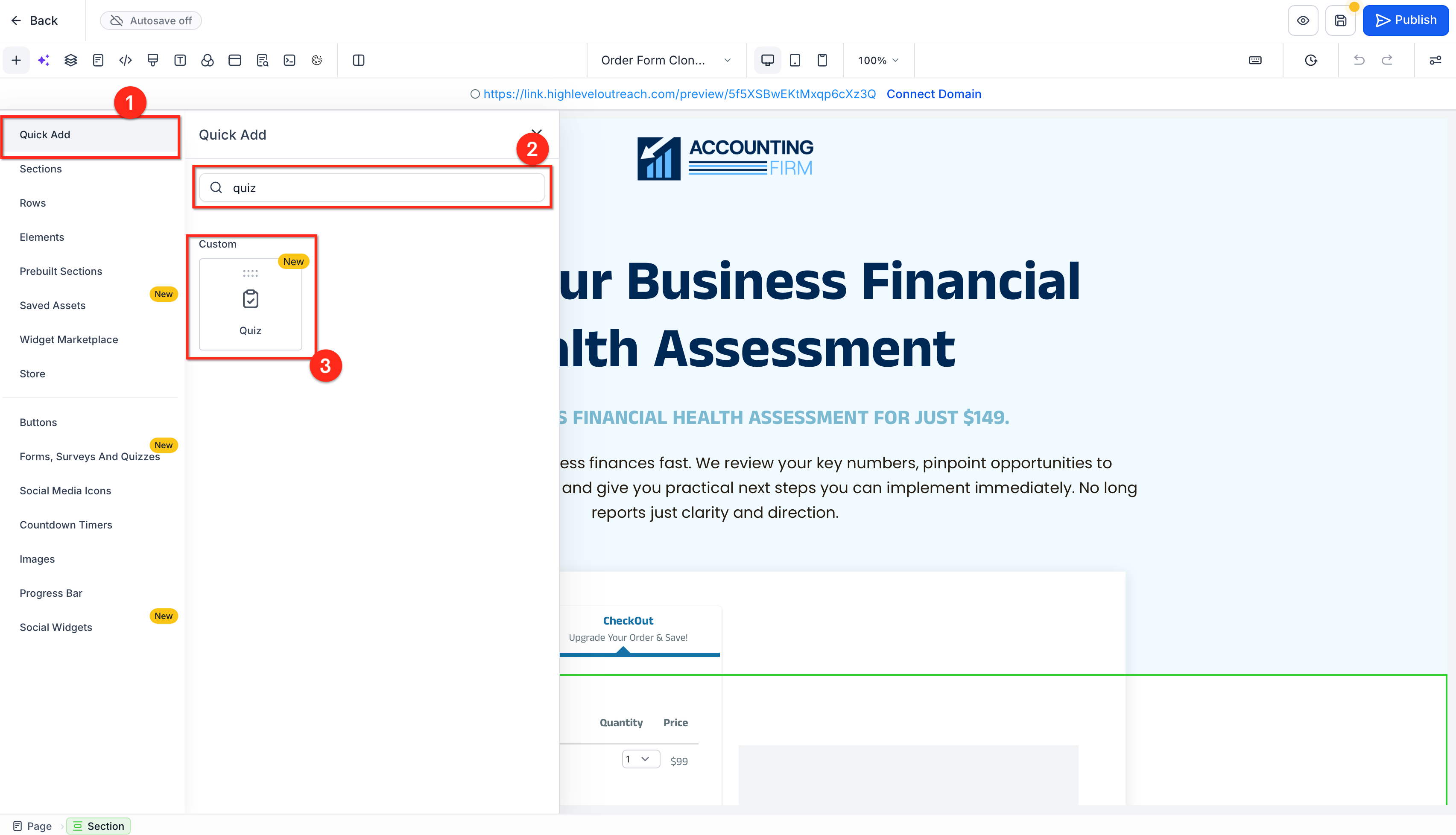
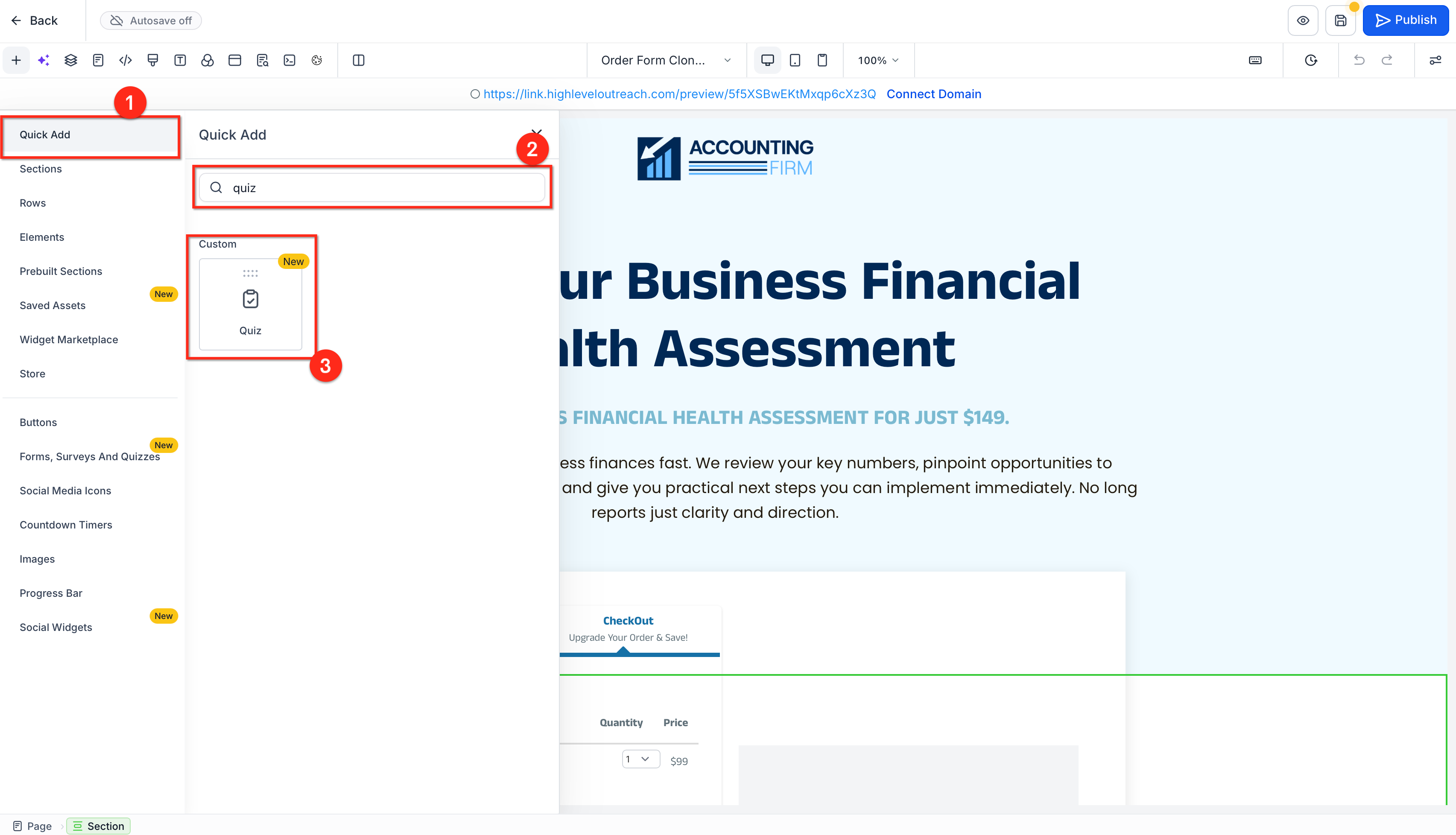
The Quiz element is a native widget available inside the Funnel and Website builders. You locate it through the Quick Add panel or the Forms, Surveys And Quizzes section, then drag it onto the canvas. Once placed, the element displays the selected quiz directly on the page.
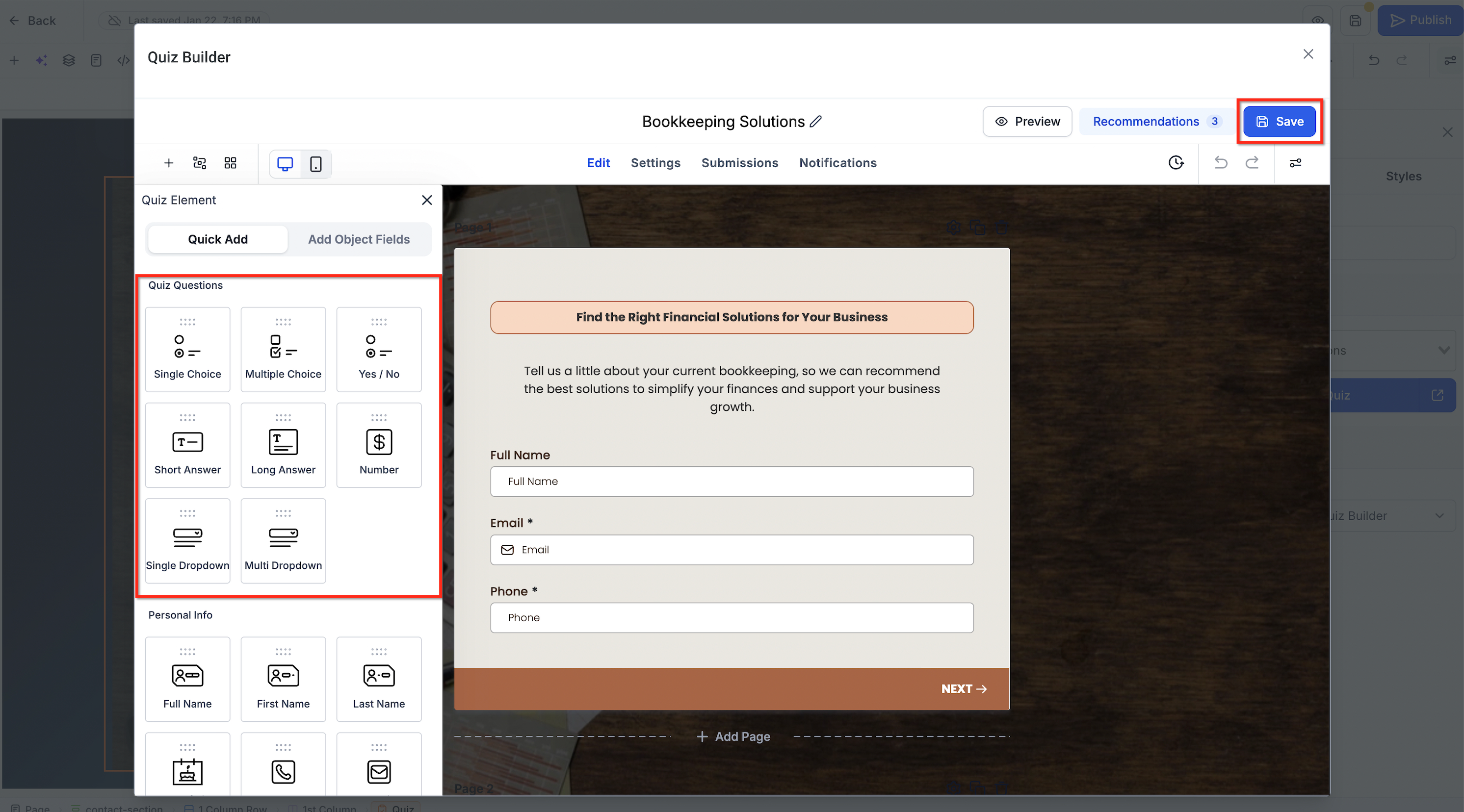
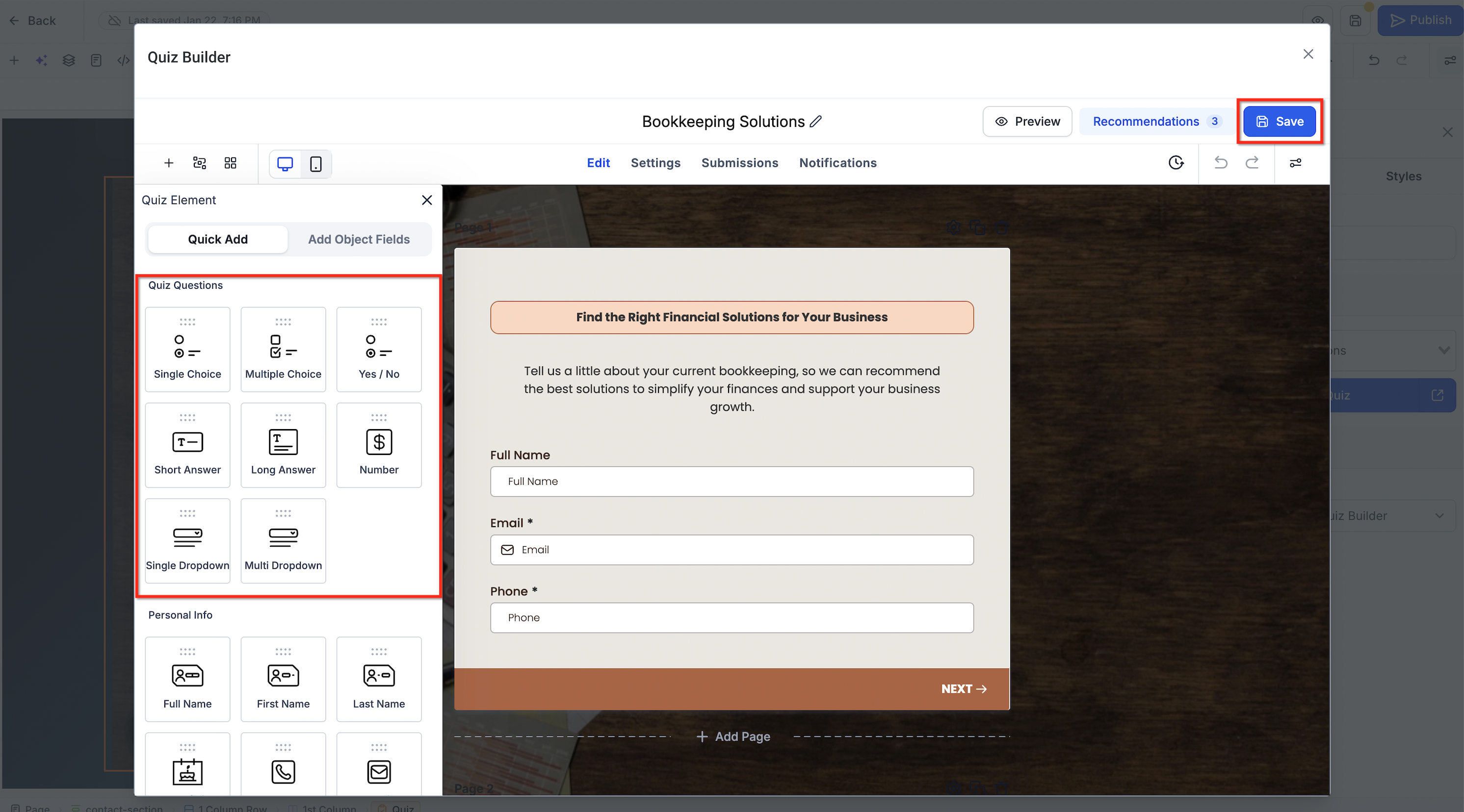
The widget pulls all quiz logic, questions, scoring, result pages, and notifications, from the Quiz Builder. You can edit the quiz in a popup without leaving the page editor. Settings on the element let you choose which quiz to show, adjust its visual style, and define what happens after a visitor submits an answer.
All of this lives within the HighLevel platform, so the quiz works in both desktop and mobile layouts and integrates with the platform’s submission tracking and workflow triggers.
03How businesses use quizzes
- Real estate agency. The agency creates a property preference quiz inside the Quiz Builder, adds the Quiz element to a funnel page, and configures the button action to redirect prospects to a personalized listing page. They can edit the quiz later without rebuilding the funnel.
- Online course provider. A course provider builds a knowledge check quiz, places the element on a signup landing page, and uses the Quiz Builder to set a pass/fail result that enrolls successful respondents into the course via a workflow.
- Fitness studio. The studio adds a fitness goal quiz to its website homepage, selects an existing quiz, and adjusts the element’s style to match the brand. After visitors complete the quiz, the studio reviews submissions in the Quiz Builder to follow up.
04How to set up and use quizzes in HighLevel
Add a quiz to a funnel or website page
- Navigate to Sites > Funnels or Sites > Websites and open the desired page or step in the builder.
- Open the Quick Add panel, type “Quiz”, and drag the Quiz element onto the canvas.
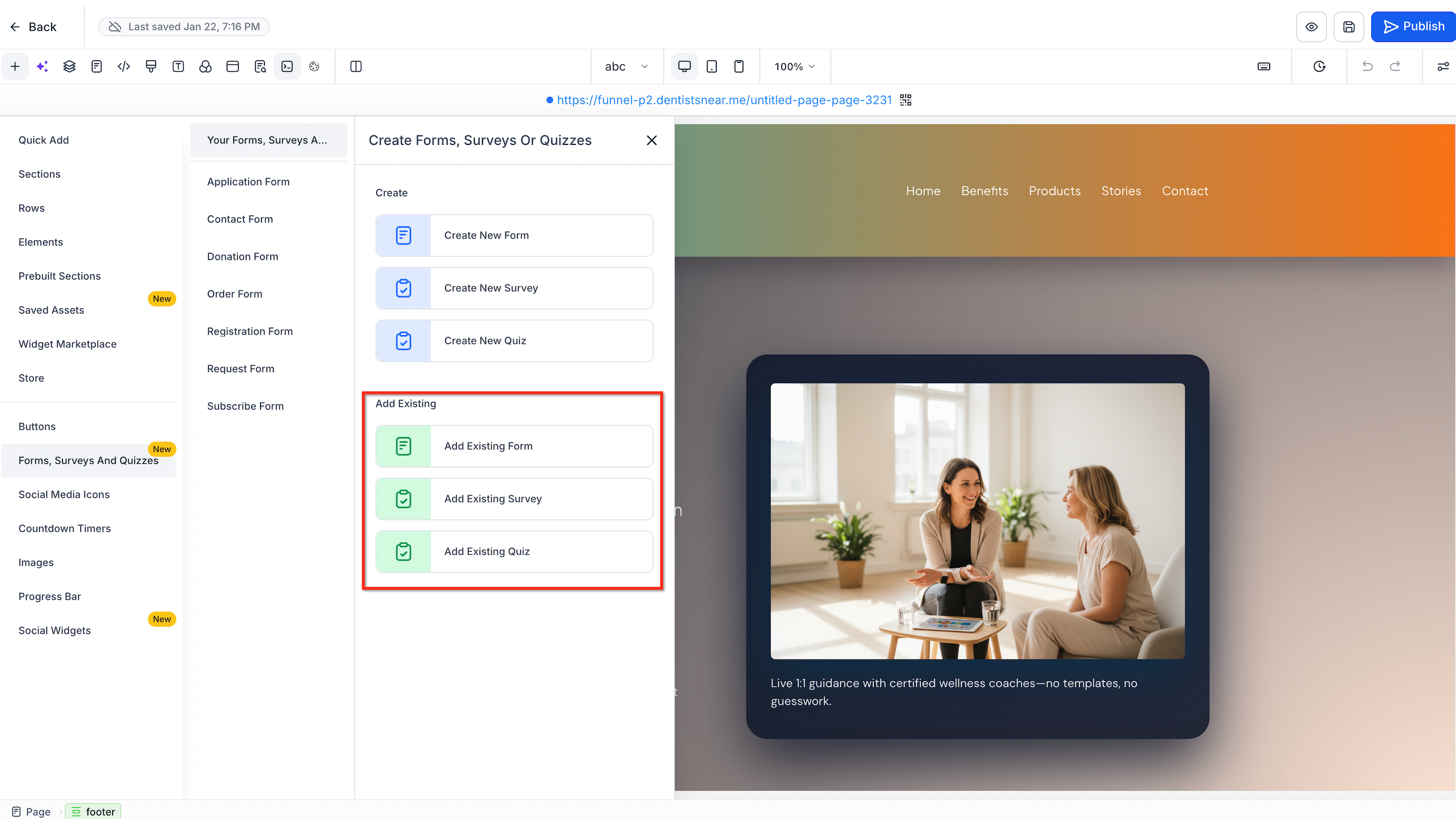
- Choose to either Create New Quiz or Add Existing Quiz; use the Quiz Builder to set up a new quiz or pick one from the list.
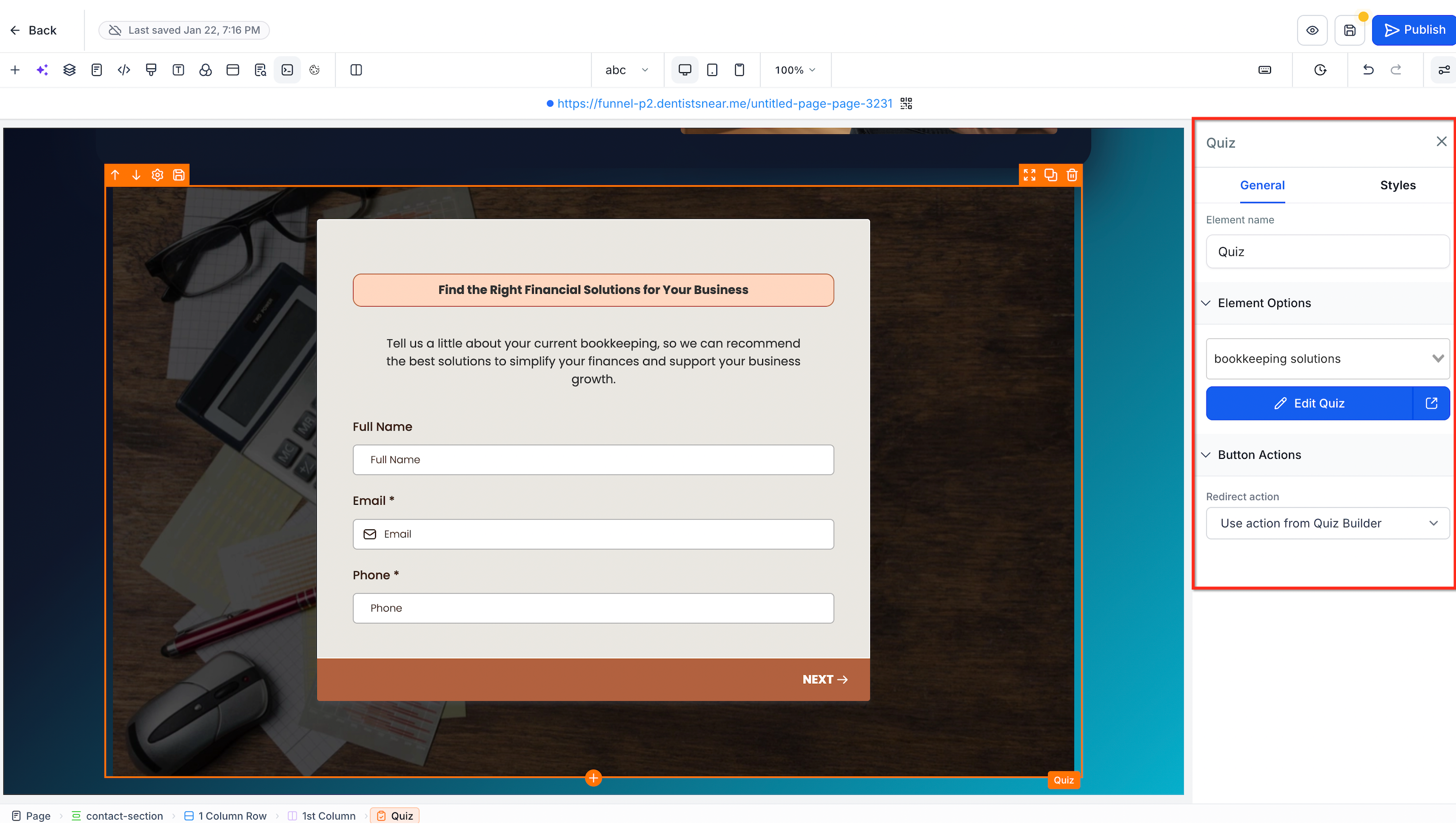
- Select the placed Quiz element, go to General > Element Options and verify the correct quiz is chosen, then review style and button action options.
- Click Edit Quiz, modify any content in the popup, save the changes, and close the popup to return to the page editor.
- Preview the page to ensure the quiz appears correctly on both desktop and mobile, test the quiz questions and submission message or redirect, then save any pending changes and publish the page.
- Warning: If the same quiz appears on multiple pages, confirm how edits will affect its other placements before saving changes.
05What it looks like in HighLevel
06Settings that matter
- General. Controls the element’s name and which quiz is assigned to it.
- Styles. Provides options to change the visual appearance of the quiz on the page.
- Element Options. Allows selection of the specific quiz that the element will display.
- Edit Quiz. Opens the Quiz Builder in a popup so you can modify questions, scoring, and results.
- Button Actions. Sets the behavior after a quiz is submitted, such as using the action defined in the Quiz Builder.
07Things to know before you rely on it
- The native Quiz element is only available inside Funnel and Website builders; traditional embed codes remain an option for other integrations.
- Button Actions set at the element level can override or interact with the submission settings defined in the Quiz Builder.
- If the same quiz is placed on multiple pages, editing it may affect every location where it appears.
08How it connects to the rest of HighLevel
- Learn how to add conditional logic to forms, which can complement quiz workflows. Conditional Logic V2
- Set up a chat widget on the same page to engage visitors while they take the quiz. Chat widget guide
- Review pricing options if you need to upgrade to access advanced quiz features. HighLevel pricing
Michael's take

Adding quizzes feels like a modest convenience that can shift how you qualify leads.