
01Who this is for
- Content marketers benefit because the feature keeps priority articles front and center for audience engagement.
- SEO specialists gain by promoting high performing posts that can improve search rankings and dwell time.
- Small business owners use it to showcase announcements or flagship content without redesigning the site.
02Hero or featured post, explained
The hero or featured post element lets you select a single blog article to display prominently on a blog’s landing page. Once chosen, the post stays at the top regardless of newer entries, ensuring consistent visibility. The layout options let you decide which parts of the post, such as title, image, or excerpt, appear in the featured slot.
This element is managed within the Sites section of HighLevel. After opening a specific blog, you edit the site, add the Featured Post element, pick the article, configure the layout, and then publish the changes. The blog itself remains the same; only the front page representation is altered.
03How businesses use hero or featured post
- Digital marketing agency. The agency adds a featured post to each client’s blog to highlight a flagship case study. Inside HighLevel it selects the case study article, chooses a layout showing the image and headline, and publishes the site so visitors see it first.
- Local restaurant. The restaurant pins a seasonal menu announcement as the hero post. Using HighLevel, it adds the Featured Post element, picks the menu post, opts to display the title and cover photo, and publishes the blog to draw immediate attention.
- Consulting firm. The firm promotes a cornerstone whitepaper by making it the featured post. In HighLevel it inserts the element, selects the whitepaper article, selects a layout that shows the excerpt, and publishes the blog to keep the resource prominent.
04How to set up and use hero or featured post in HighLevel
Add a hero or featured post to a blog
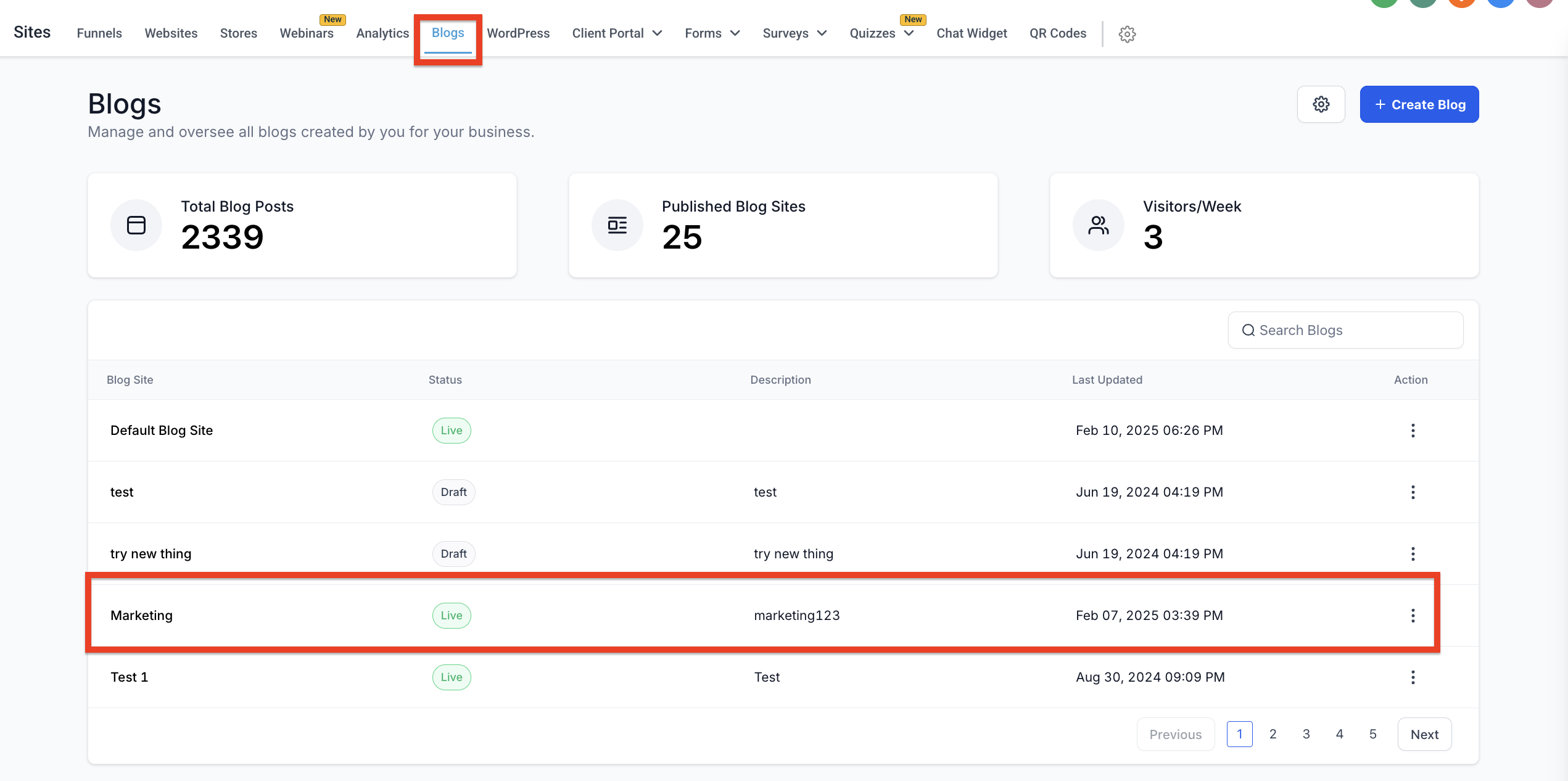
- Open Sites > Blogs.
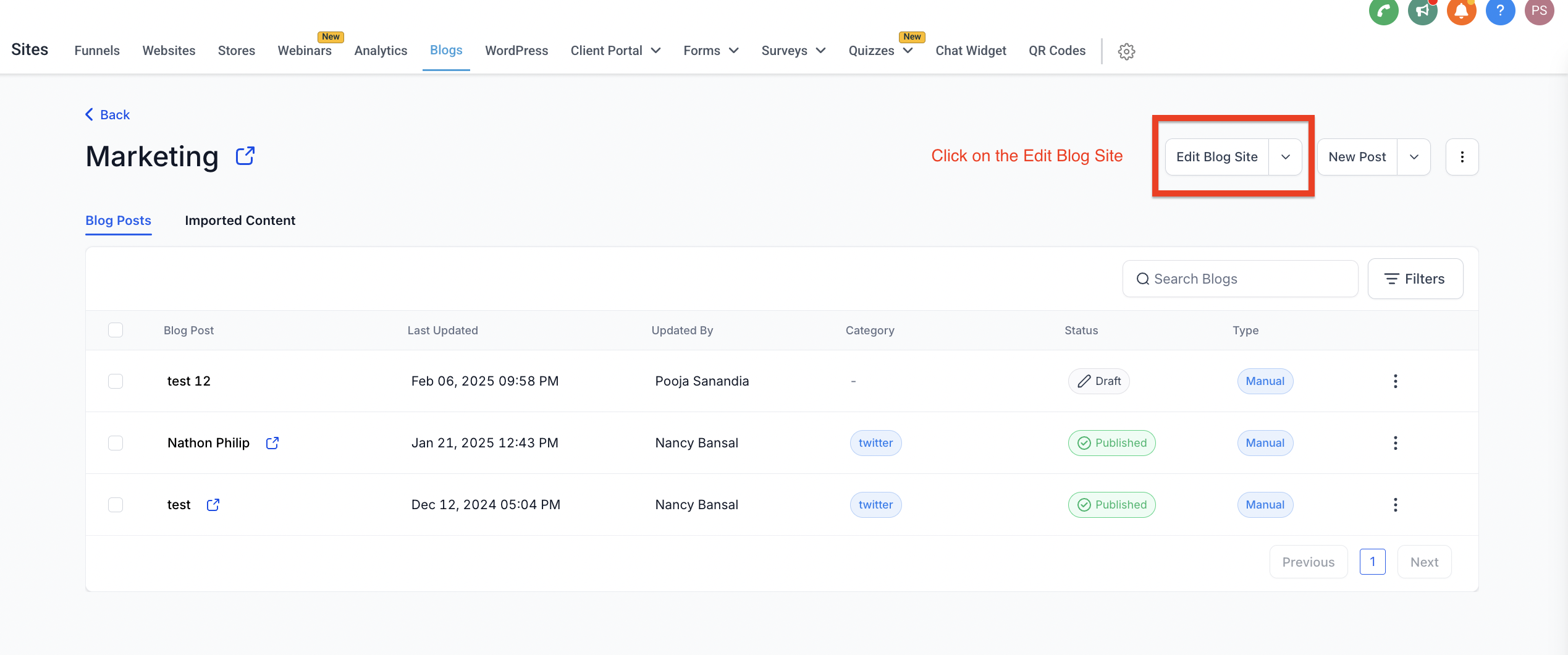
- In the list of blogs, click the name of the blog you want to edit.
- Choose the option to edit the Blog Site.
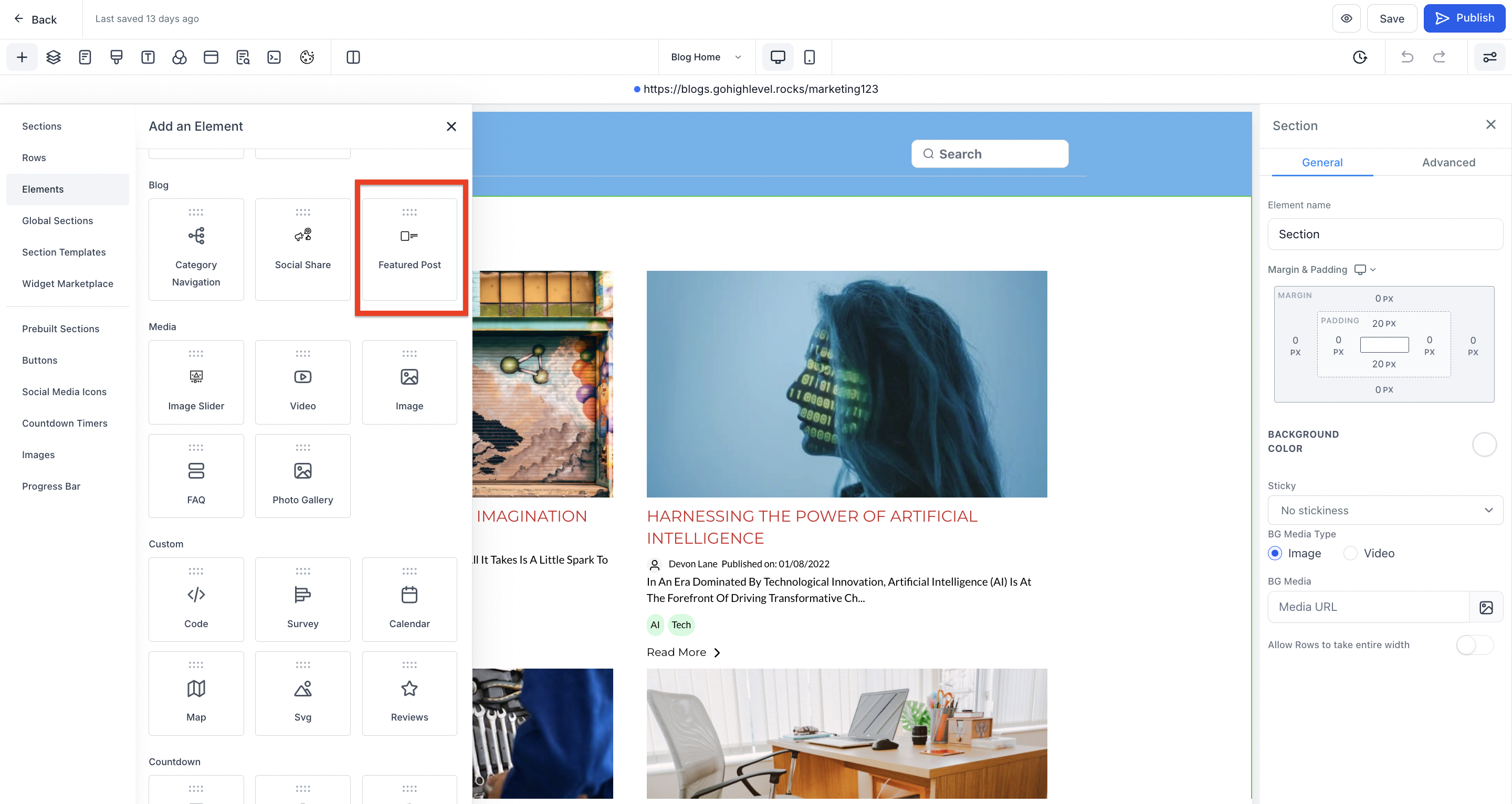
- Insert the Featured Post element into the page.
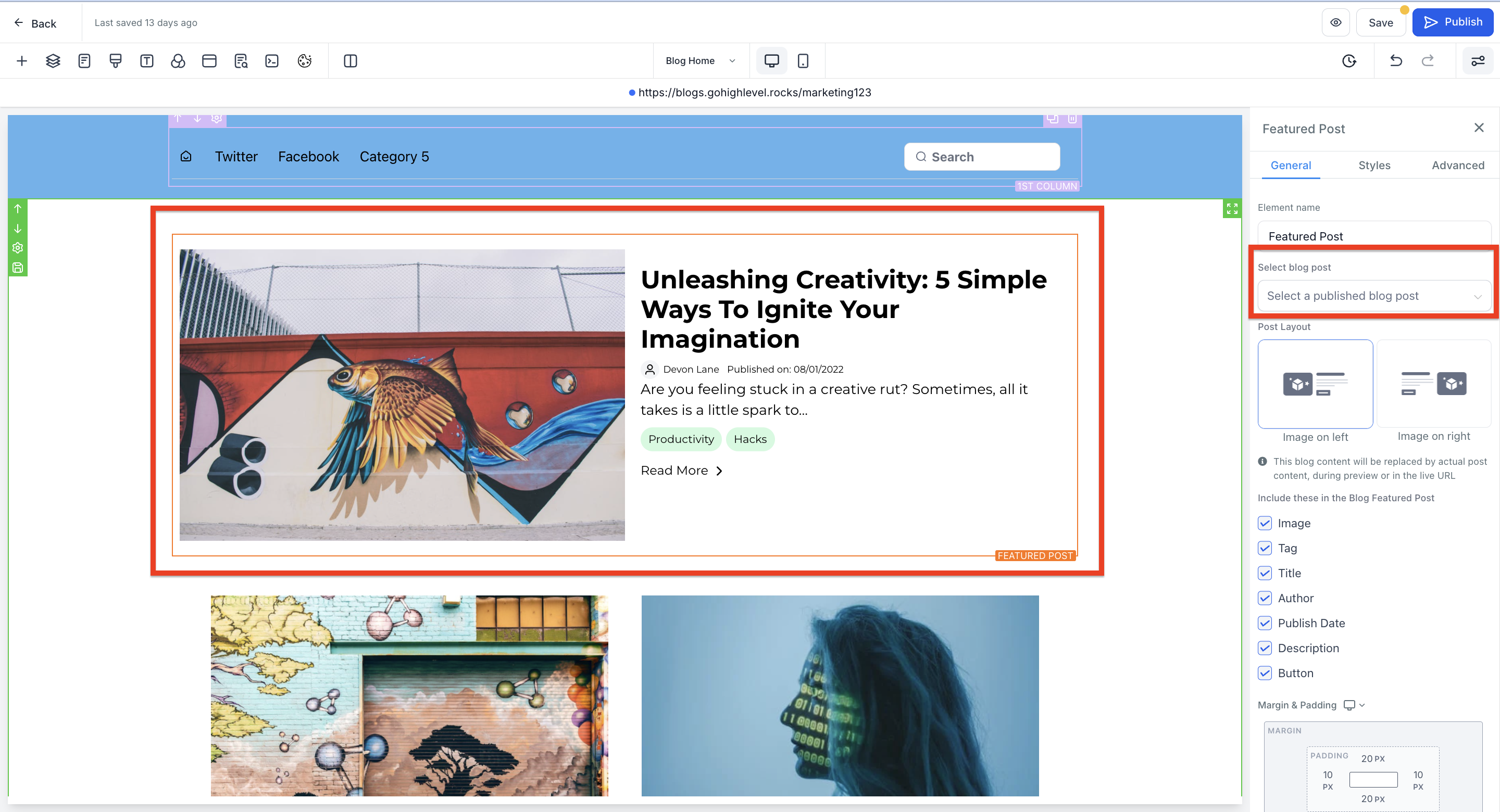
- Select the blog post you wish to feature.
- Choose a layout and decide which post details to display.
- Publish the blog site to make the featured post live.
05What it looks like in HighLevel
06How it connects to the rest of HighLevel
- Learn how to set up and manage blogs in HighLevel. Blog setup guide
- Create a new blog post that can be used as a featured article. Create blog post
- Add SEO information to enhance the visibility of your featured post. SEO for posts
Michael's take

Michael ReimerFounder of CRM Pros, HighLevel Commander and Certified Admin
Featured hero posts are a straightforward way to keep your top content front and center.
Get More InformationOpens on HighLevelPublished November 2, 2026 · Updated November 17, 2026