
01Who this is for
- Marketers who want brand consistent form appearance without hiring a designer.
- Coaches who embed surveys in landing pages and need extra spacing or background tweaks.
- Agencies managing multiple client sites that require uniform styling across forms.
02Custom CSS, explained
The feature provides a text box where you can paste any CSS code. When placed inside a form, survey, or quiz builder, the styles affect the form elements directly. When added on a funnel or website page, the CSS only targets the iframe container that holds the form.
The custom CSS area is found under the Styles tab in the Advanced section of the form, survey, or quiz builder. For page level styling, open the funnel or website builder and use the Settings > Custom CSS option. The platform then injects your code at the appropriate location.
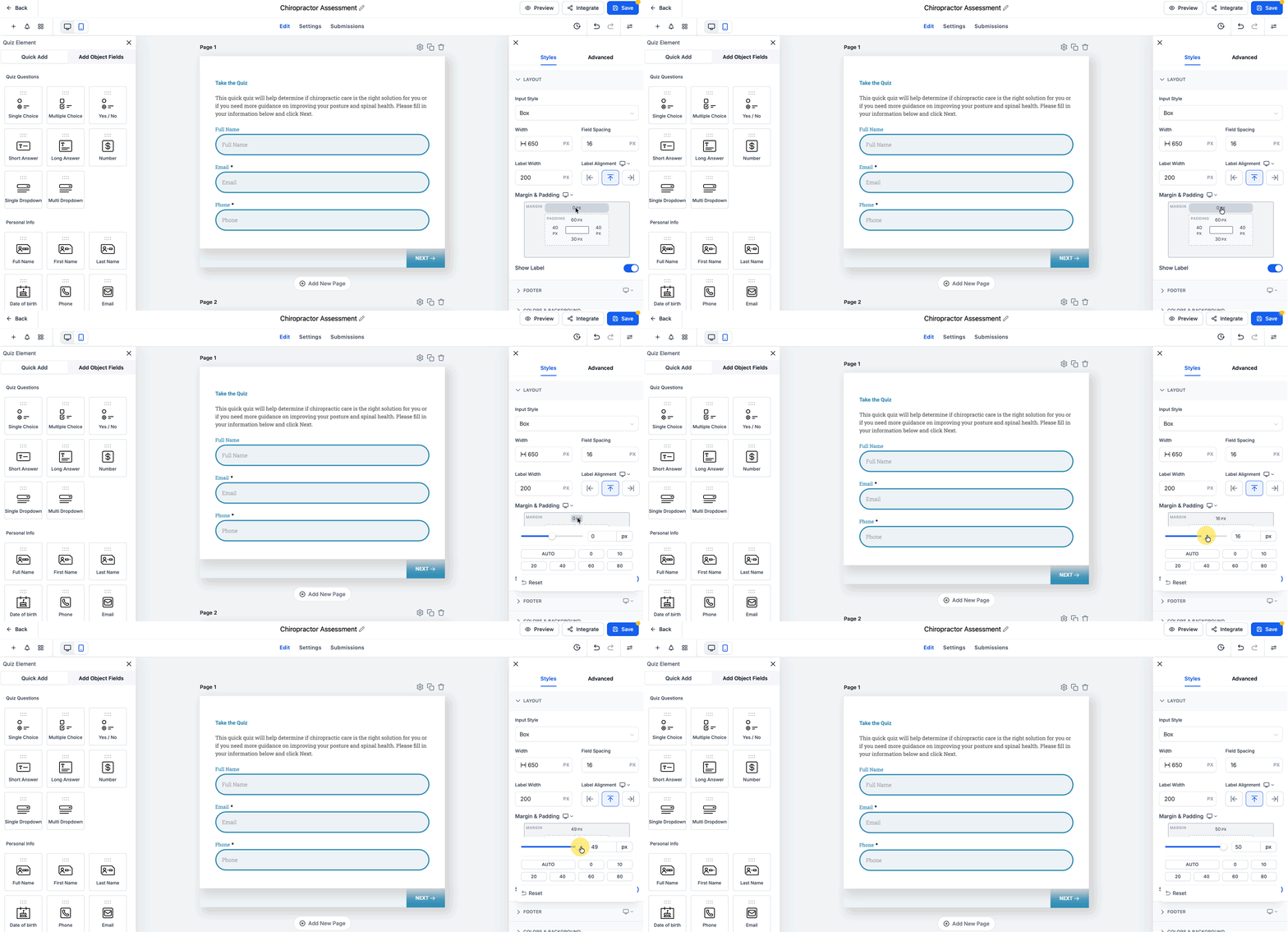
Because embedded forms load inside an iframe, page CSS cannot modify fields, buttons, or internal layout. Use the builder’s built in top margin control for simple spacing before resorting to custom code.
03How businesses use custom CSS
- Real estate agency. The agency opens its contact form in the Form Builder, navigates to Styles > Advanced, pastes CSS that changes input borders to match its brand colors, saves and publishes the form. The new look appears on all property inquiry pages.
- Online course provider. The provider embeds a quiz on a landing page, opens the page in the Funnel Builder, selects Settings > Custom CSS, and adds CSS that adjusts the surrounding container’s padding and background. The quiz itself retains its original design because it resides in an iframe.
- Fitness studio. The studio edits its survey builder, goes to the Styles tab, uses the Advanced > Custom CSS field to style the progress bar and navigation buttons with its brand green, then saves and publishes the survey for member feedback.
04How to set up and use custom CSS in HighLevel
Add custom CSS inside a form, survey, or quiz
- Navigate to Sites > Form Builder (or Survey Builder / Quiz Builder).
- Open the specific form you want to modify.
- Select the Styles tab, expand the Advanced section, and locate the Custom CSS area.
- Paste your CSS code into the box.
- Click Save and then Publish to apply the changes.
Add custom CSS on a funnel or website page
- Open the desired funnel or website within the Builder.
- Choose Settings and then click Custom CSS.
- Enter CSS that styles the iframe container around the form, such as margins, padding, or background color.
- Note: CSS cannot style fields or buttons because the form loads inside an iframe.
05What it looks like in HighLevel
06Settings that matter
- Custom CSS (inside Styles → Advanced). Controls the CSS that directly styles elements of the form, survey, or quiz.
- Custom CSS (under Settings). Controls CSS that applies to the container surrounding an embedded form on a funnel or website page.
07Things to know before you rely on it
- Page level CSS cannot style individual fields or buttons because the form loads inside an iframe.
- Use the built in top margin controls for simple spacing before adding custom CSS.
- The feature is recommended for advanced visual tweaks not available in the Layout panel.
08If something goes wrong
- Custom CSS does not affect the form appearance. Confirm the code was added in the Custom CSS area inside the Form/Survey/Quiz builder, then click Publish and refresh the browser or open the page in Incognito.
- Embedded form does not reflect page CSS changes. Remember that CSS added on the funnel or website page only styles the iframe container; it cannot modify the form internals.
09How it connects to the rest of HighLevel
- Learn how sticky contact works alongside form styling. Sticky contact feature
- Read about embedding HighLevel forms on external site builders and the iframe limitation. Embedding forms
- See the pricing and plan options for accessing the form builder. HighLevel pricing
Michael's take

Custom CSS can feel risky because a single typo can break the look of an entire form, and you’re limited by the iframe barrier when the form is embedded elsewhere. Follow the Quick Tips, Save and Publish, use Inspect to find class names, avoid overusing.important, and check on desktop and mobile.