
01Who this is for
- Marketing teams can assign multiple contributors, keeping each post’s byline clear.
- Content agencies can set up author profiles for clients, ensuring brand consistency.
- Small business owners can showcase staff expertise through author bios on their blog.
02Authors, explained
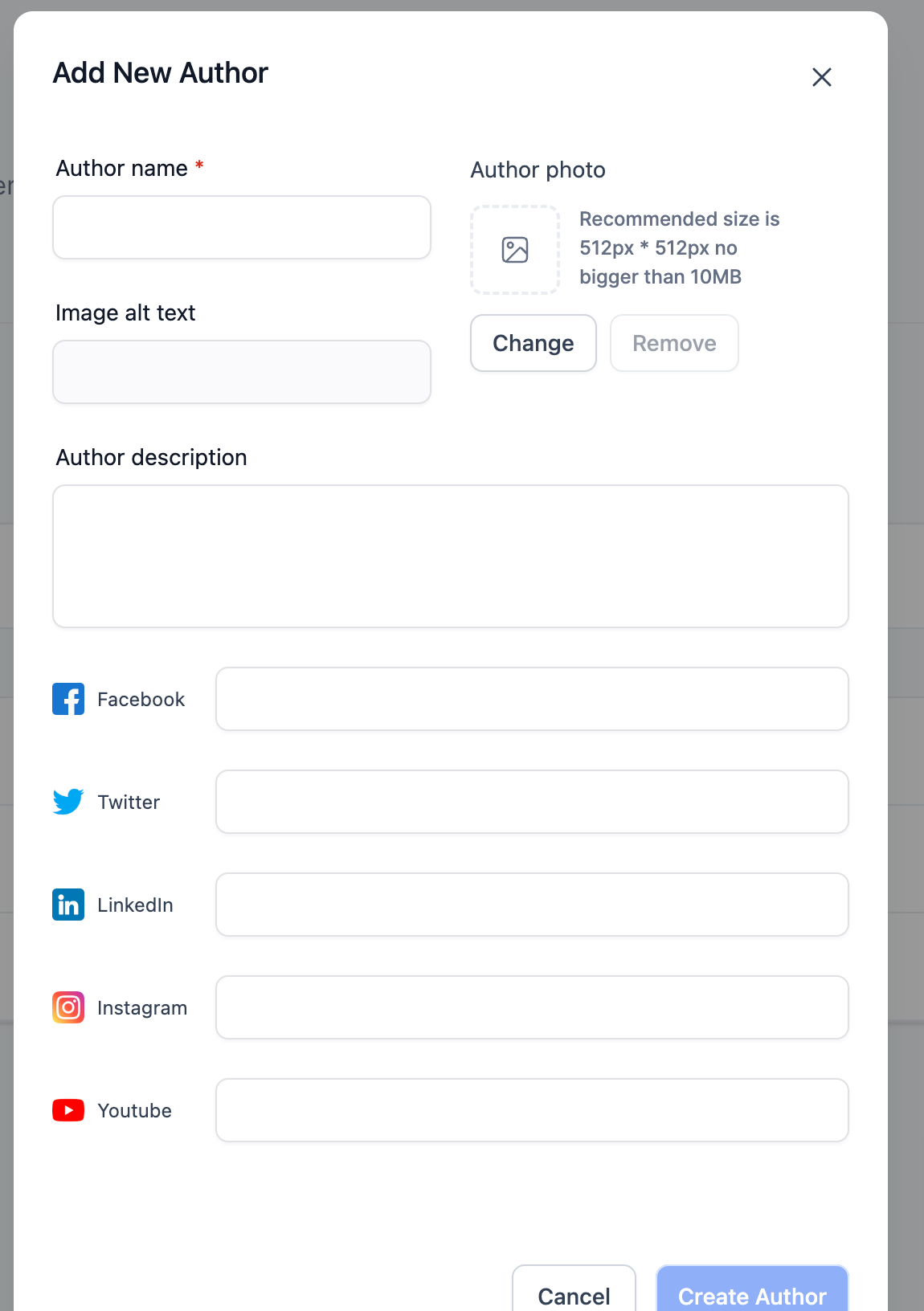
The blog builder lets you create author profiles that can later be attached to blog posts. An author entry stores a name, a photo, alternative text for the image, links to social pages and a short description.
Author information is entered in the Settings area of the blog builder. After a blog is published, the author, category, keyword and slug fields are locked and cannot be changed.
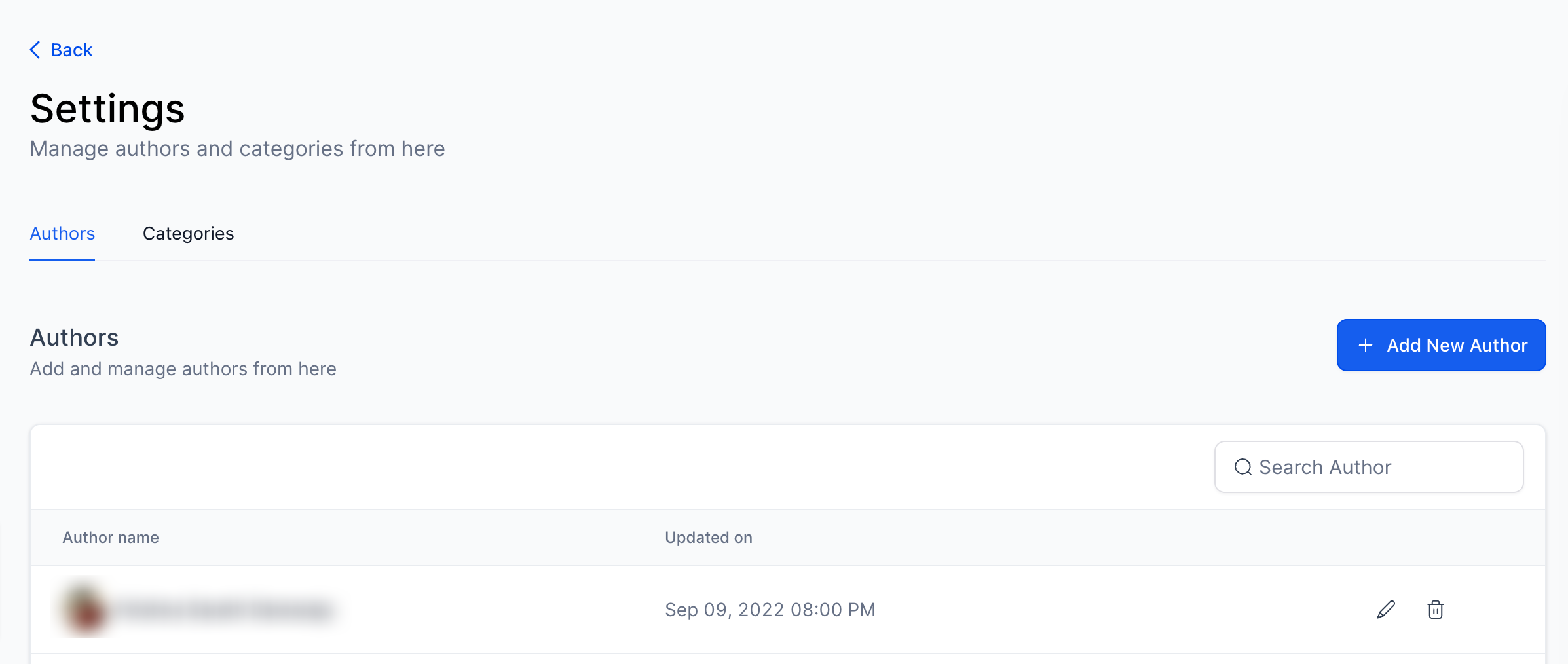
The feature is located inside the Sites section of HighLevel. It is accessed through the Blogs settings and the Author tab on the left side.
03How businesses use authors
- Digital marketing agency. The agency creates an author profile for each specialist, filling in name, photo, alt text, social links and a description via the Author tab. When writing a blog post the specialist can be selected as the author.
- Ecommerce store. The store owner adds authors that represent product experts, uploads headshots under 10MB, adds their social URLs and writes bios. These author entries are then attached to blog articles that announce new products.
- Consulting firm. Consultants add their own author entries with photos and LinkedIn URLs, write personal descriptions, and assign themselves as authors when publishing thought leadership posts.
04The numbers and rules that matter
- Supported Image size for Author is 10MB.
- There is no limit on Author Creation.
05How to set up and use authors in HighLevel
Add authors to the blog builder
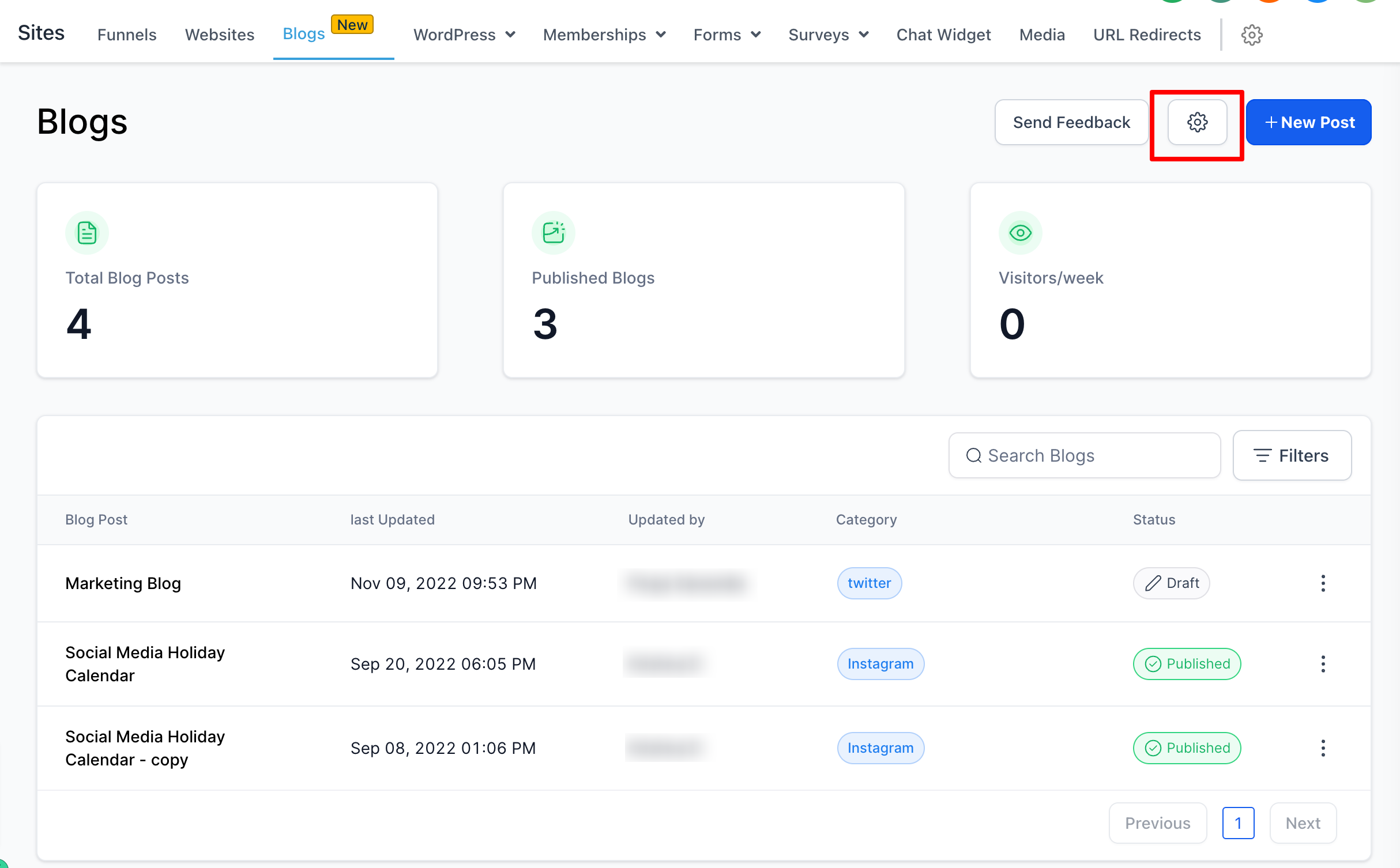
- Open Sites, choose Blogs, and click the Settings gear icon.
- Select the Author tab on the left menu and press the Add new author button.
- Click the Create Author button to open the author details form.
- Enter the author’s name, upload a photo (max 10MB), add alt text, social page URLs and a description, then click Create Author to save.
06What it looks like in HighLevel
07Settings that matter
- Author. Controls the section where you create and manage author profiles for blog posts.
- Supported Image size for Author. Sets the maximum file size allowed for an author’s photo.
08Things to know before you rely on it
- Category, Keywords, Author, and Slug cannot be changed after a blog is published.
- Author photos must be 10MB or smaller.
- There is no limit on how many authors can be created.
09How it connects to the rest of HighLevel
- Get started with blog creation and management in HighLevel Blog setup guide
- Learn how to move existing posts to the new HighLevel blog platform Migrate blog posts
- Create an RSS feed for your HighLevel blog to syndicate content RSS feed guide
Michael's take

Michael ReimerFounder of CRM Pros, HighLevel Commander and Certified Admin
The first setting I’d lock down is the author photo size. Make sure every image stays under 10MB.
Get More InformationOpens on HighLevelPublished November 2, 2026 · Updated November 16, 2026