
01Who this is for
- Anyone building a website or funnel in HighLevel can use the Photo Gallery widget to showcase visual content.
- Teams that need to present images, such as portfolios, product shots, or event photos, can add the gallery without coding.
02Photos gallery element, explained
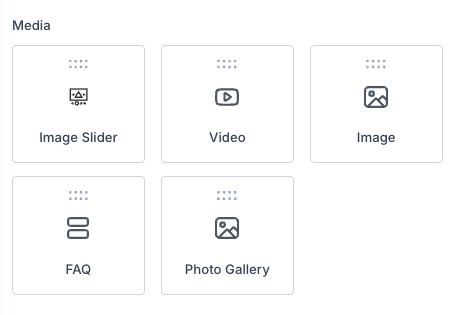
The Photo Gallery widget is a visual element available in the website and funnel builders. It appears in the left sidebar of the builder and can be placed on any page section by dragging it onto the canvas.
Once added, the widget offers layout choices such as grid or masonry, column and spacing controls, mobile specific behavior, image captions, click actions, optional opening in a new tab, and watermark overlay. Lightbox support is built in, and images load lazily for faster performance.
03How businesses use photos gallery element
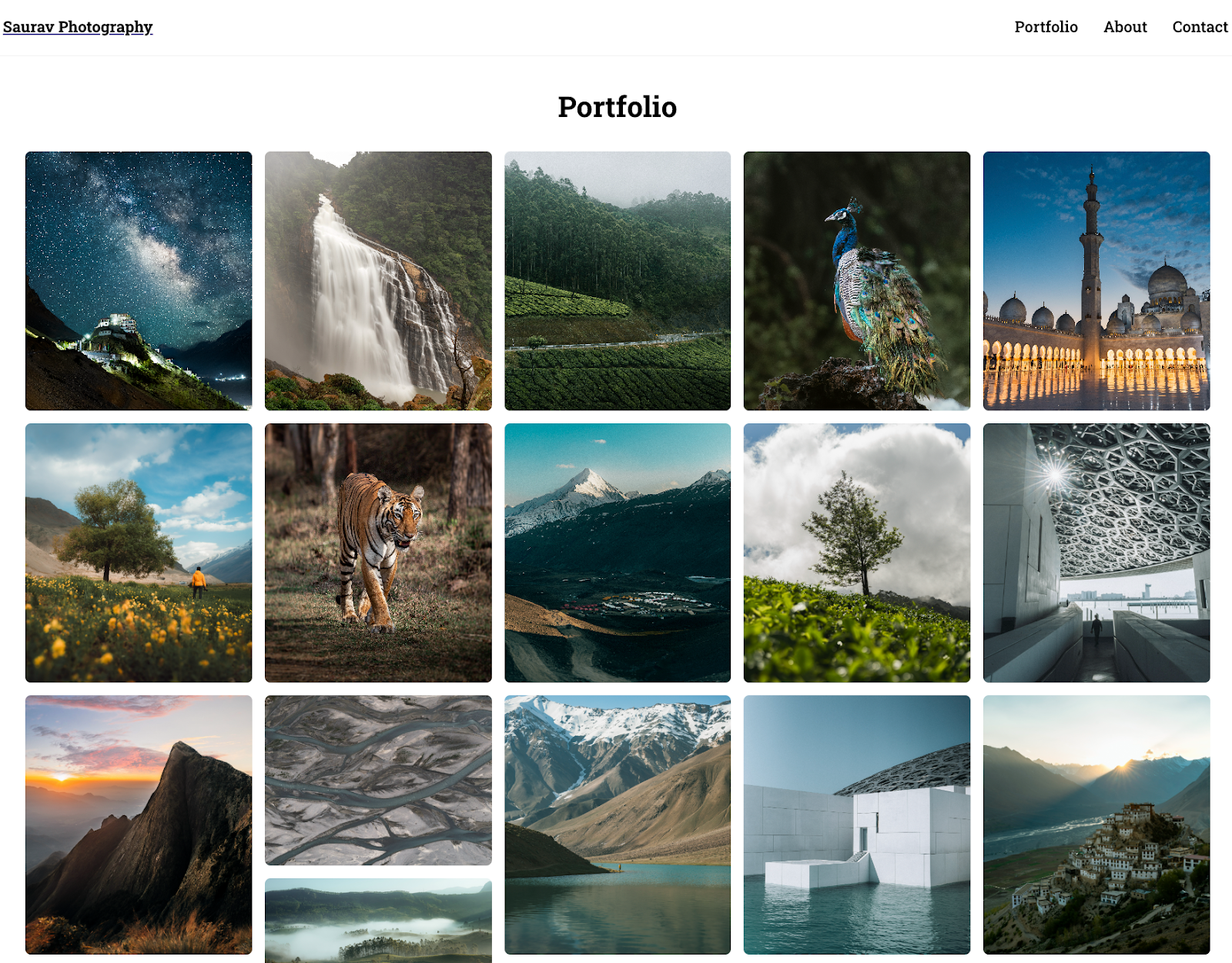
- Portfolio showcase. Upload portfolio images, choose a grid layout, add captions, and enable lightbox for larger viewing.
- Class or event album. Create a horizontal masonry gallery, add a custom heading, and apply a watermark to protect the photos.
- Product display. Insert product images, set click actions to redirect to product pages, and configure mobile behavior for a smooth shopping experience.
04The numbers and rules that matter
- Captions & descriptions per image.
05How to set up and use photos gallery element in HighLevel
Add photos gallery element
- Open the website or funnel builder and locate the Photo Gallery widget in the left sidebar.
- Drag the widget onto the page area where the gallery should appear.
- Open the widget settings and add images from the media library, uploading new files if needed.
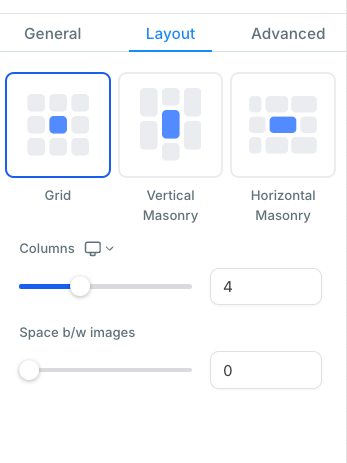
- Select a layout style, grid or masonry, and set the desired number of columns and spacing between images.
- Adjust the Mobile Behavior settings to control how the gallery displays on smaller screens.
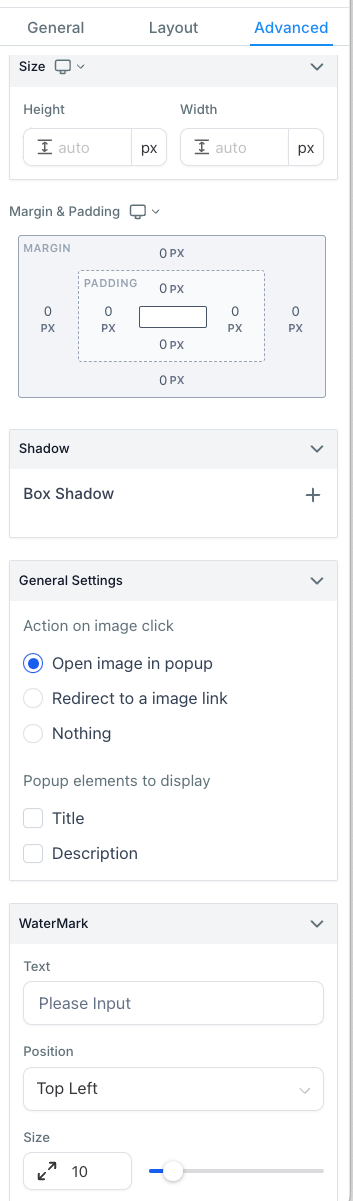
- Enter captions or descriptions for each image and choose the click action, such as opening a lightbox or redirecting to a URL.
- Enable the Watermark option and upload a watermark image if branding or protection is required.
06What it looks like in HighLevel
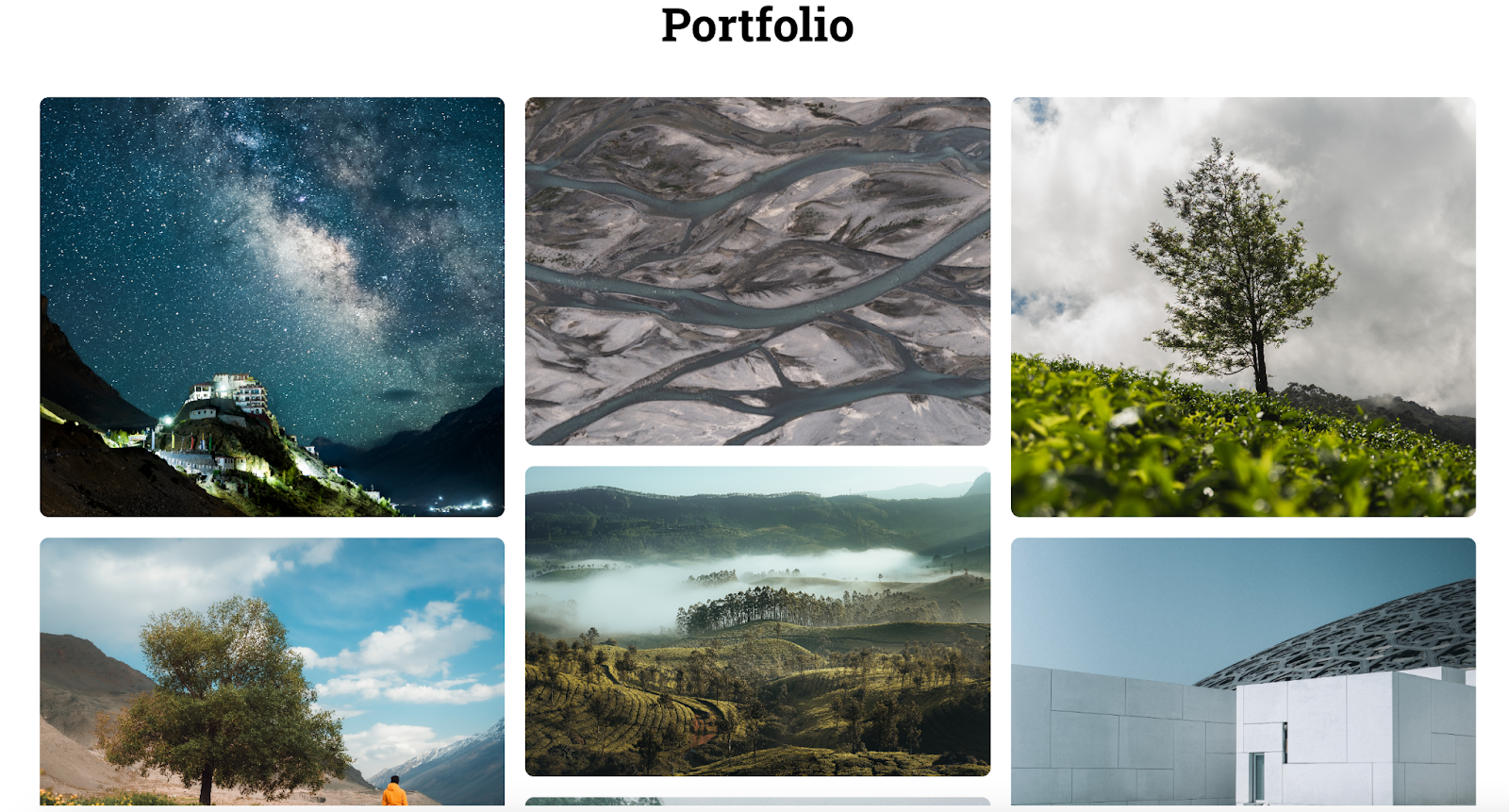
07Settings that matter
- Grid, Vertical & Horizontal Masonry Layouts. Determines the overall arrangement of images, allowing selection of grid, vertical masonry, or horizontal masonry display.
- Column Control. Sets the number of columns the gallery uses.
- Spacing Between Images. Defines the gap size between individual images.
- Mobile Behavior. Configures how the gallery adapts and displays on mobile devices.
- Captions & Descriptions. Enables adding text captions or descriptive details to each image.
- Click Actions. Specifies what happens when a visitor clicks an image, such as opening a lightbox or redirecting to a URL.
- Open Link in New Tab. Controls whether a redirected link opens in a new browser tab.
- Watermark. Adds a branding overlay image to each gallery photo.
- Heading Option. Allows insertion of a custom heading above the gallery for context or branding.
08How it connects to the rest of HighLevel
- Set up and customize your HighLevel website before adding a gallery Website setup guide
- Add tracking code to funnels and websites to monitor gallery performance Add tracking code
- Create scroll to links that can jump to your photo gallery section Scroll to element
Michael's take

The Photos gallery element gives you a ready made, customizable way to showcase images that looks professional and can keep visitors engaged.
Start by choosing the layout. Grid or masonry. That matches your brand’s visual flow, then adjust the column count so the gallery fits your page cleanly.
Add captions and enable lightbox so users can explore each image in detail, and run a quick test of the mobile behavior to make sure the gallery stays crisp on phones.