
01Who this is for
- Founders of online service businesses can keep their top navigation clean by grouping related pages under one heading.
- Marketing managers of local retailers benefit from nesting service pages, making it easier for customers to locate offers.
- Web developers building client funnels can quickly organize multiple landing pages without writing code.
02Navigation menu categories, explained
Navigation menu categories are groups of links that appear as a drop down when a visitor clicks or hovers over a parent menu item. The parent item stays visible in the main bar, while the sub items are hidden until the drop down is opened. This structure reduces visual clutter and helps users find related pages faster.
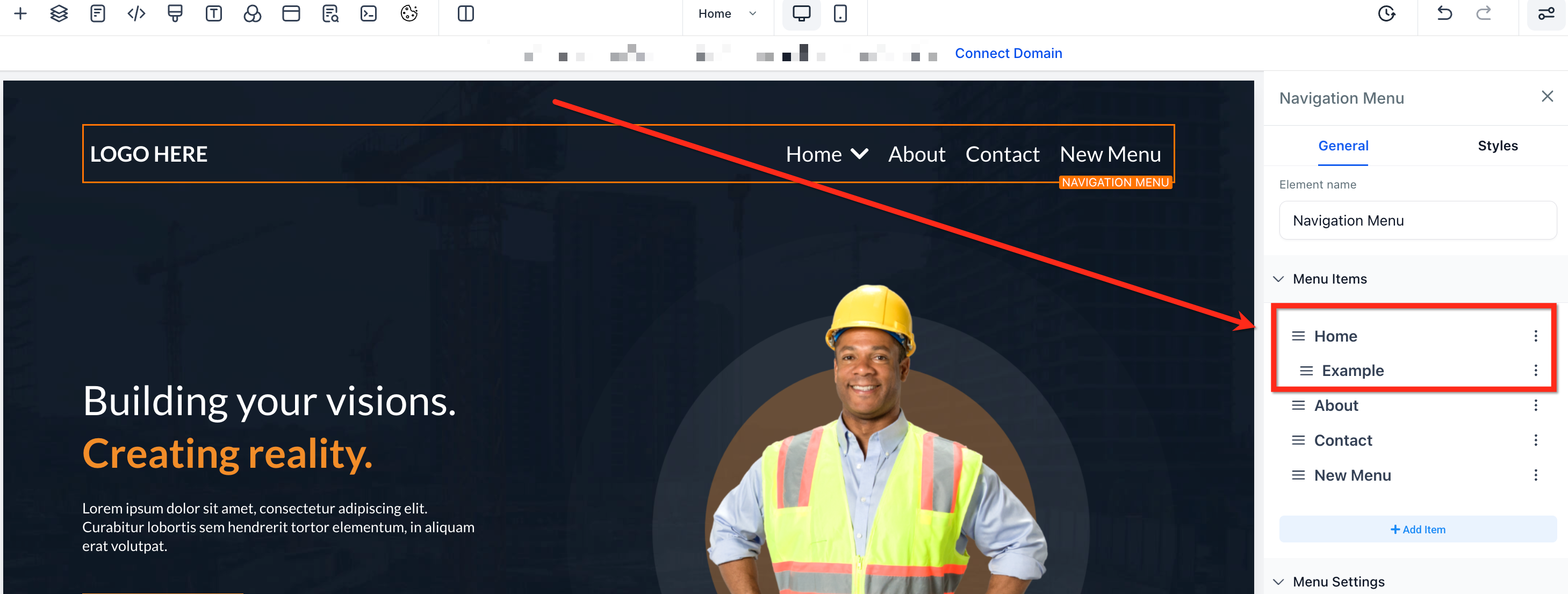
In HighLevel, the feature lives inside the Navigation Menu element of the page or funnel builder. You add a new menu item, name it, and then drag it beneath an existing parent item. The builder shows an indentation to indicate the item is nested, and the platform automatically renders it as a drop down in both desktop and mobile views.
Only one level of nesting is supported. If you need deeper or more complex navigation, you would have to use a Mega Menu instead of the standard navigation element.
03How businesses use navigation menu categories
- SaaS startup. The startup creates a "Products" parent item and nests "Features", "Pricing", and "Demo" as sub items. This lets visitors explore product details without a crowded top bar.
- Coaching business. A coach adds a "Resources" parent and nests "Blog", "Webinars", and "Ebooks" beneath it. Clients can quickly locate learning materials from any page.
- Event venue. The venue sets up an "Events" parent menu and places individual event pages as sub items. Guests can see all upcoming events in a single drop down.
04How to set up and use navigation menu categories in HighLevel
Create navigation menu categories
- Open the funnel or website you want to edit in the HighLevel builder.
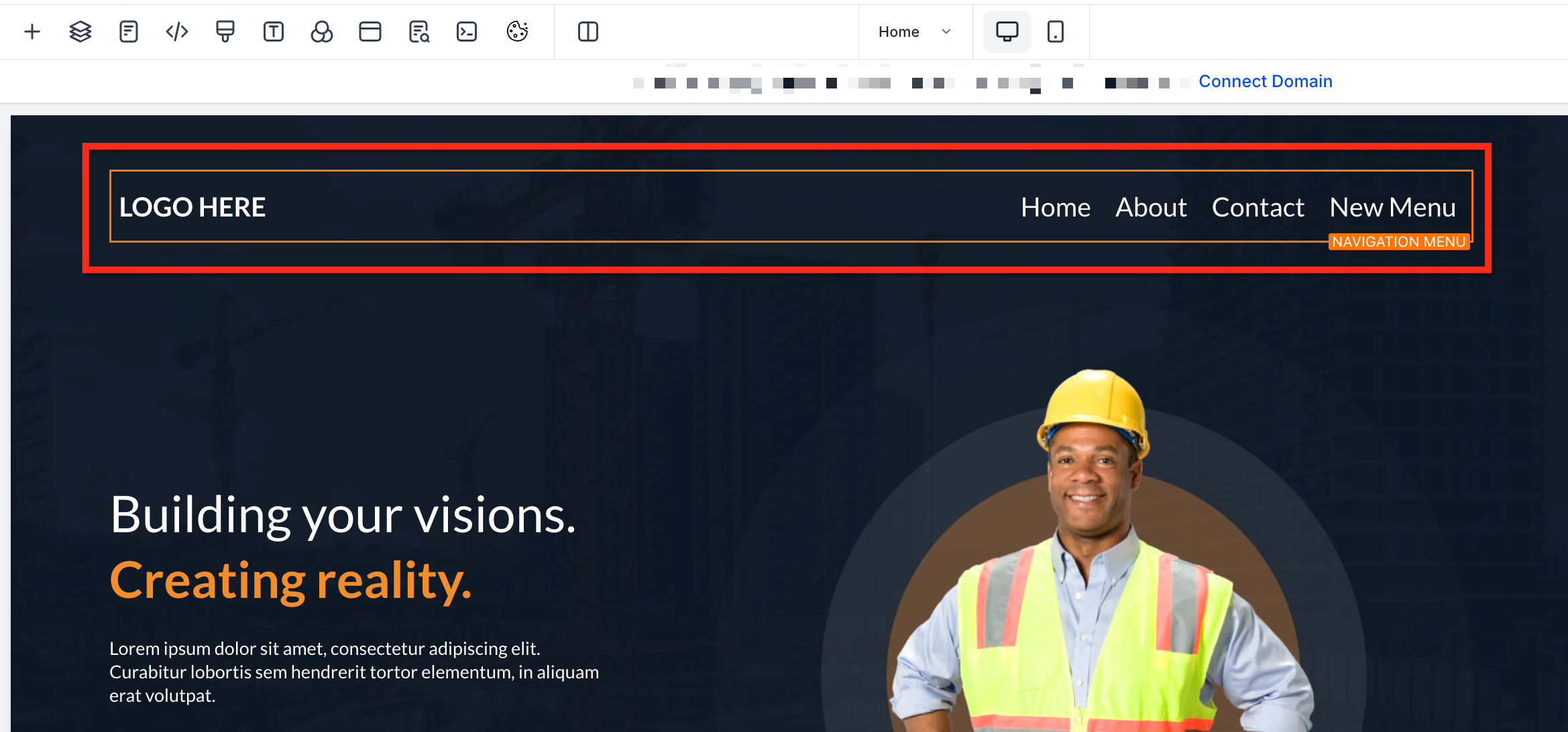
- Select the Navigation Menu element placed in the page layout.
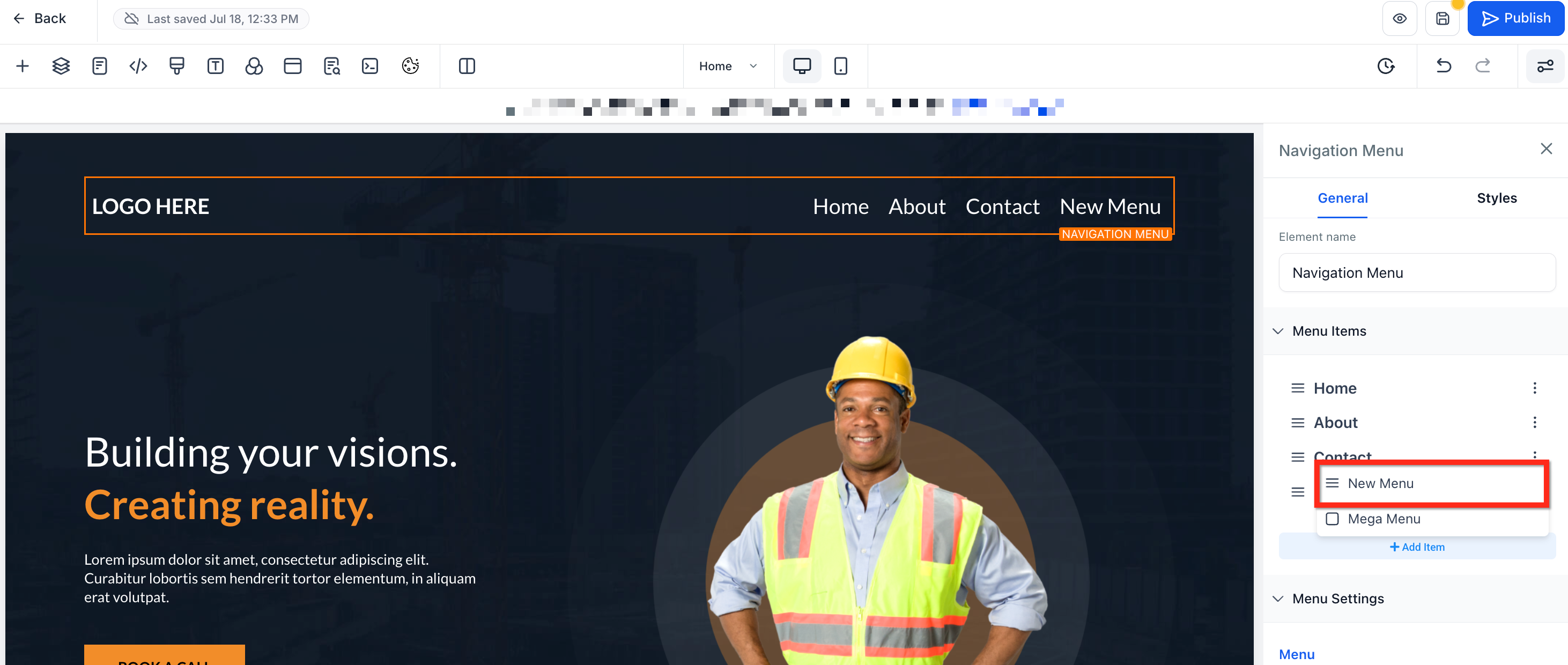
- In the right hand panel choose Add Item and pick New Menu Item.
- Enter a clear name for the new menu item.
- Drag the new item beneath the desired parent item until it indents, indicating it is nested.
- Click Save, then use Preview to hover over the parent and see the drop down.
05What it looks like in HighLevel
06Things to know before you rely on it
- Standard Navigation Menus support only a single level of nested items; you cannot create multi level drop downs.
- For deeper or more visual navigation structures, a Mega Menu must be used instead of the standard menu.
07How it connects to the rest of HighLevel
- Review mobile and desktop navigation settings before publishing. Website setup overview
- Link menu items to page sections using anchor links for smooth scrolling. Scroll to elements guide
- Check plan eligibility for using navigation menus with funnels and websites. HighLevel pricing
Michael's take

Wondering if dropdown categories are worth the effort for a simple site? They let you tidy up a crowded menu without touching code, and the drag and drop setup is quick enough that you can experiment on the fly.
If I were building a services page, I’d add a Services parent and nest Consulting, Coaching and Training right away. That gives visitors a clear path and keeps the top bar from looking messy.