
01Who this is for
- Founders who need a fast way to launch landing pages without hiring a designer.
- Marketing agencies that build multiple client funnels and want to speed up revisions.
- Coaches or consultants who lack design experience but require professional looking signup pages.
02Funnel & website AI, explained
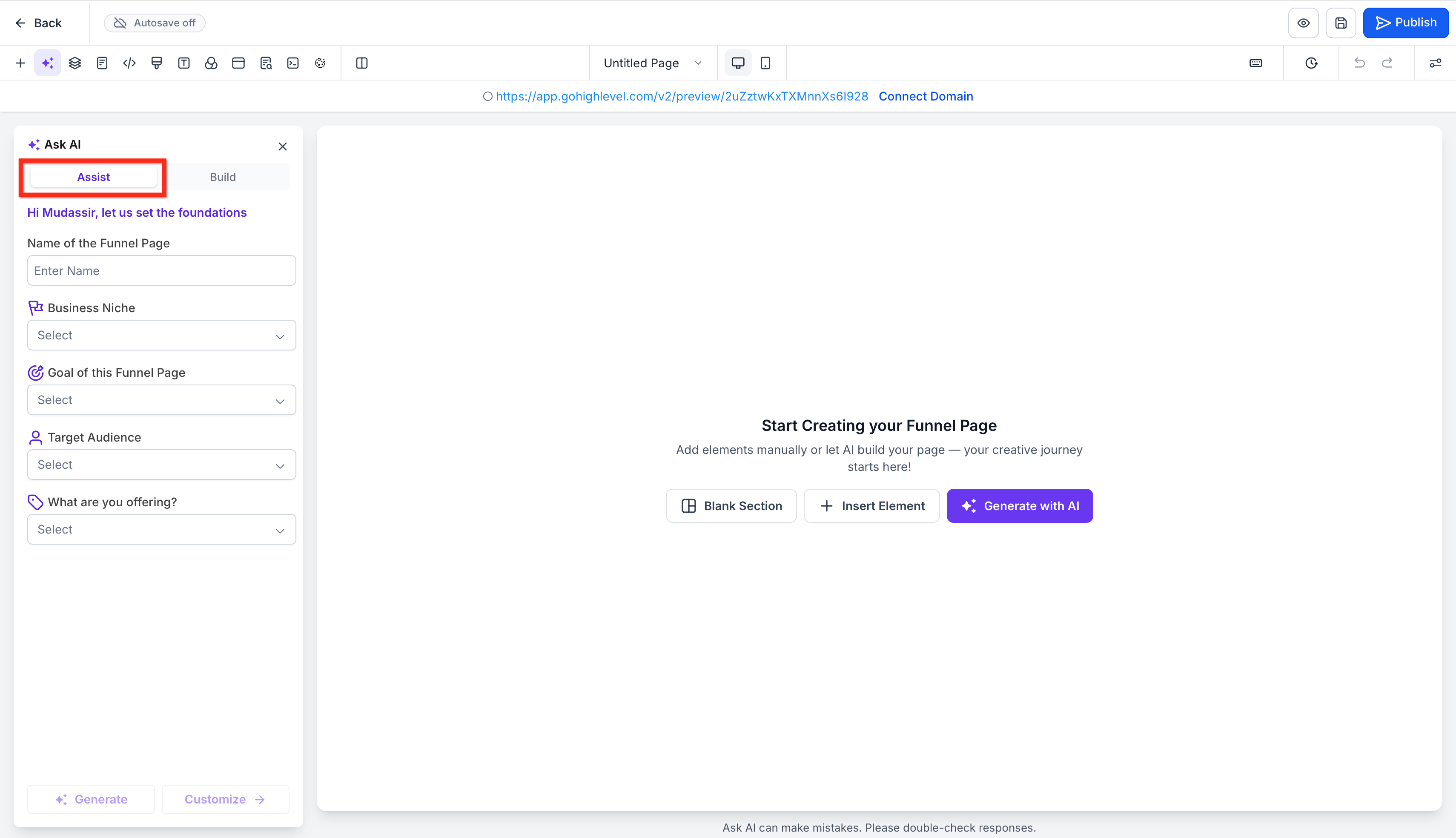
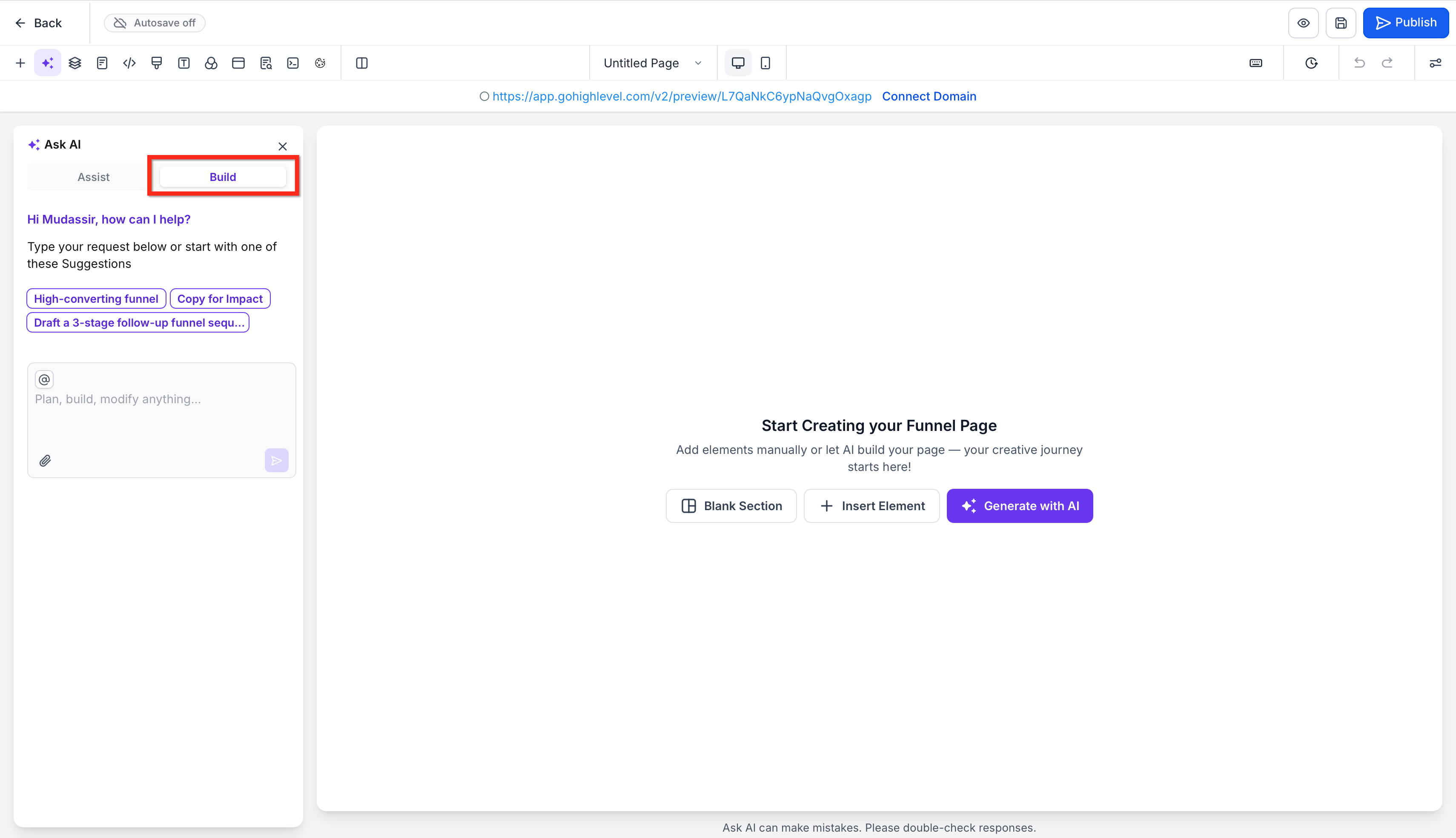
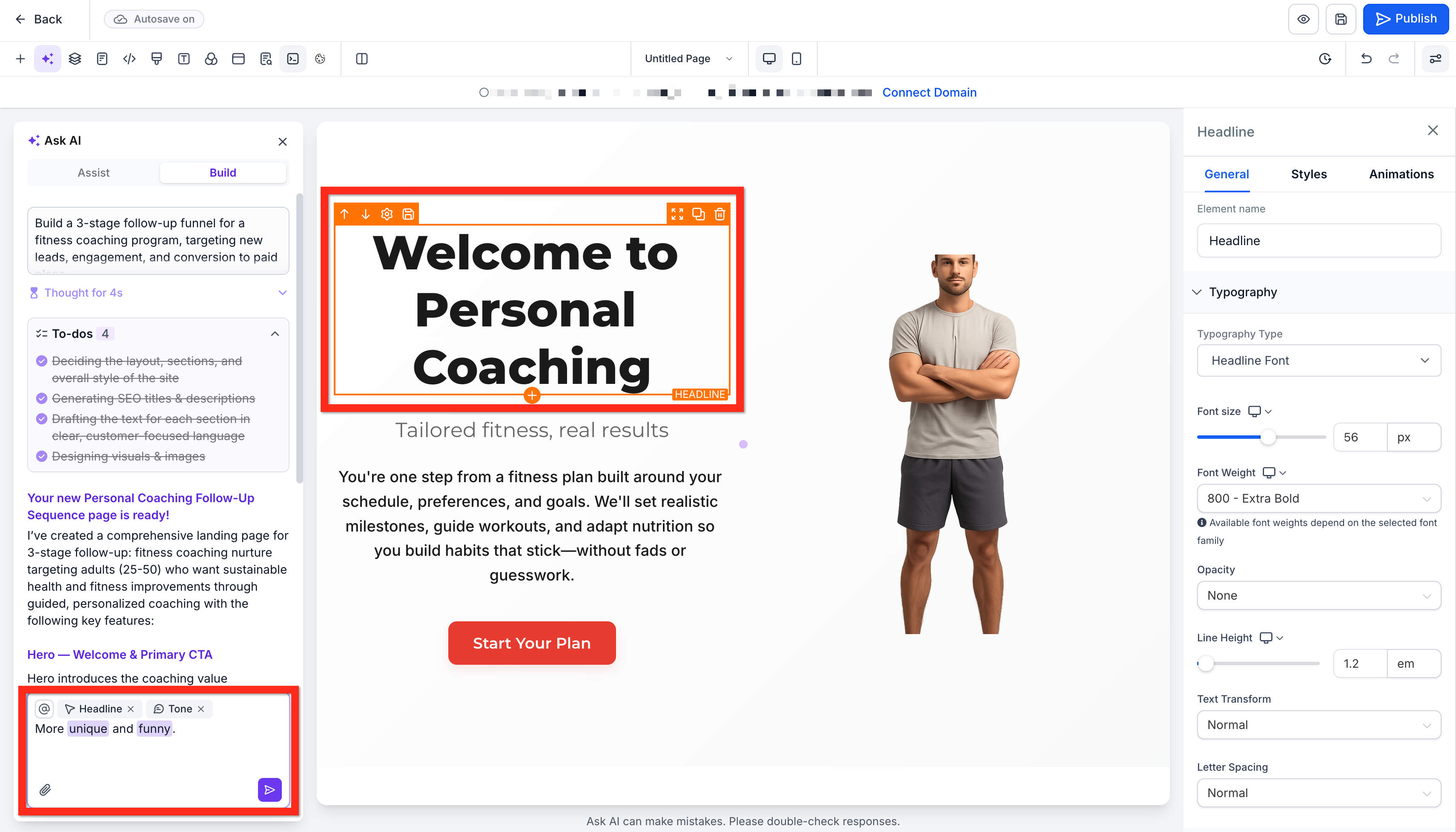
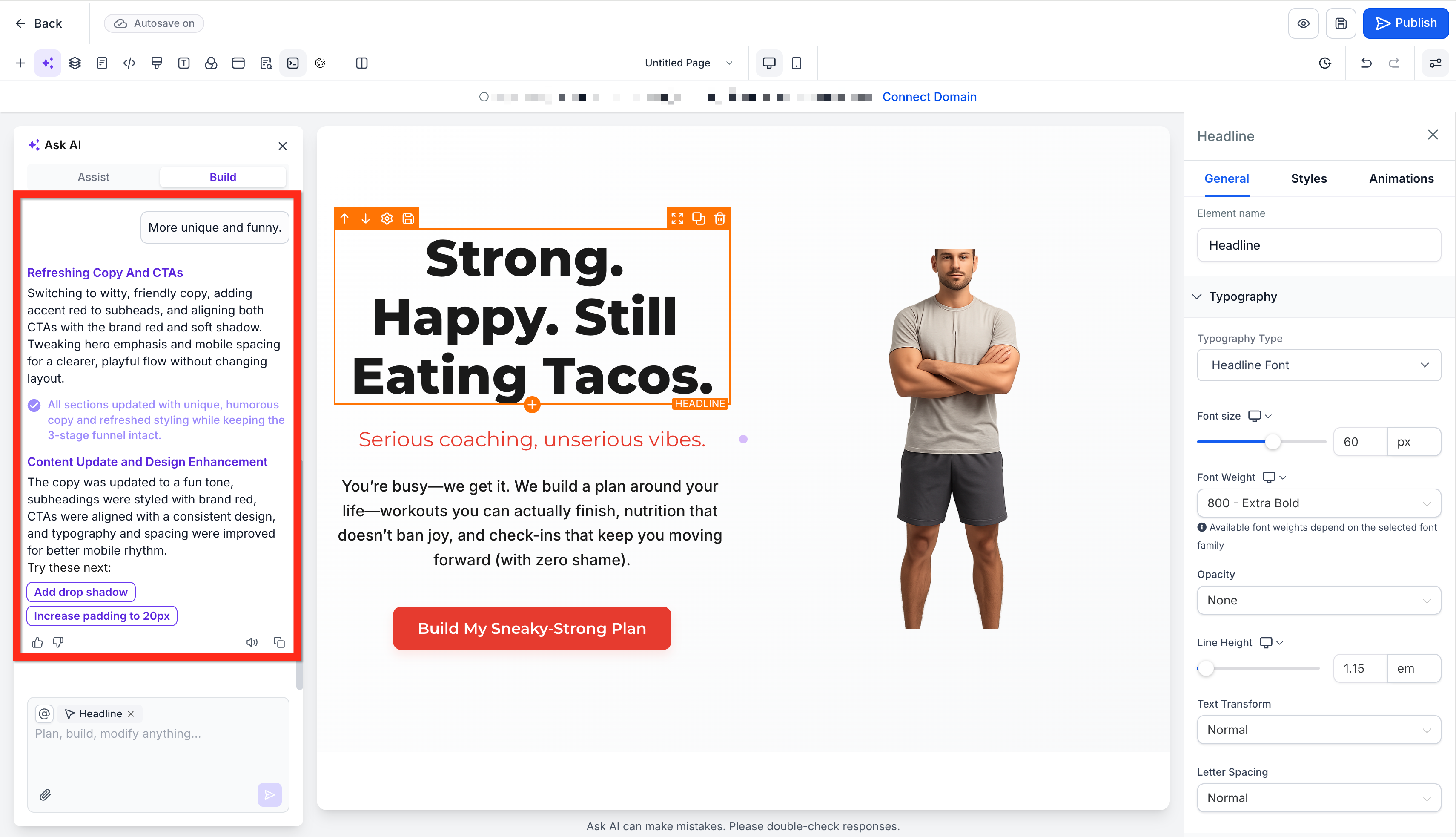
Funnel & Website AI is an AI driven experience inside the HighLevel page builder. It creates page layouts, copy, visuals and structure from prompts, guided inputs, URLs or images. The tool offers two creation paths, Assist for structured, preset based generation, and Build for free form prompting. Once a page is generated, a side by side chat panel lets you ask the AI to revise copy, change the theme, redesign sections, regenerate content, or add new sections while the standard builder controls stay available for manual tweaks. The feature lives within the Sites area of a HighLevel subaccount. You open an existing funnel or website, or click **Build with AI** to start a new asset. The AI runs in the background, so generation continues even if the browser is closed. SEO suggestions are provided during creation, but they must be reviewed before publishing. All AI generated elements remain editable using the regular builder tools.
03How businesses use funnel & Website AI
- Ecommerce store. The store owner opens a new funnel in HighLevel, selects the Build path, and prompts the AI to create a product launch page with specific copy and visual style. After generation, the owner uses chat to add a pricing table section and adjusts colors with the builder controls.
- Real estate agency. The agency imports a competitor’s landing page URL through the Import from a Link option. The AI uses the reference to generate a similarly styled page, then the agent asks the chat to revise the copy to reflect their listings and adds a testimonial section.
- Online course creator. Using Assist, the creator fills in fields for niche, audience, and course offer. The AI produces a draft sales page, after which the creator requests the chat to rewrite the headline and adds an FAQ section without rebuilding the rest of the page.
04The numbers and rules that matter
- Funnel & Website AI is available without additional AI usage charges, subject to usage limits.
05Before you start
- Access to a HighLevel subaccount with the Sites > Funnels or Websites menu.
06How to set up and use funnel & Website AI in HighLevel
Use Funnel & Website AI to create or refine a page
- Open Sites > Funnels or Websites in the HighLevel subaccount and click Build with AI or open an existing page.
- Select Assist or Build inside the AI panel to start generation.
- Enter the required fields for Assist or type a detailed prompt for Build.
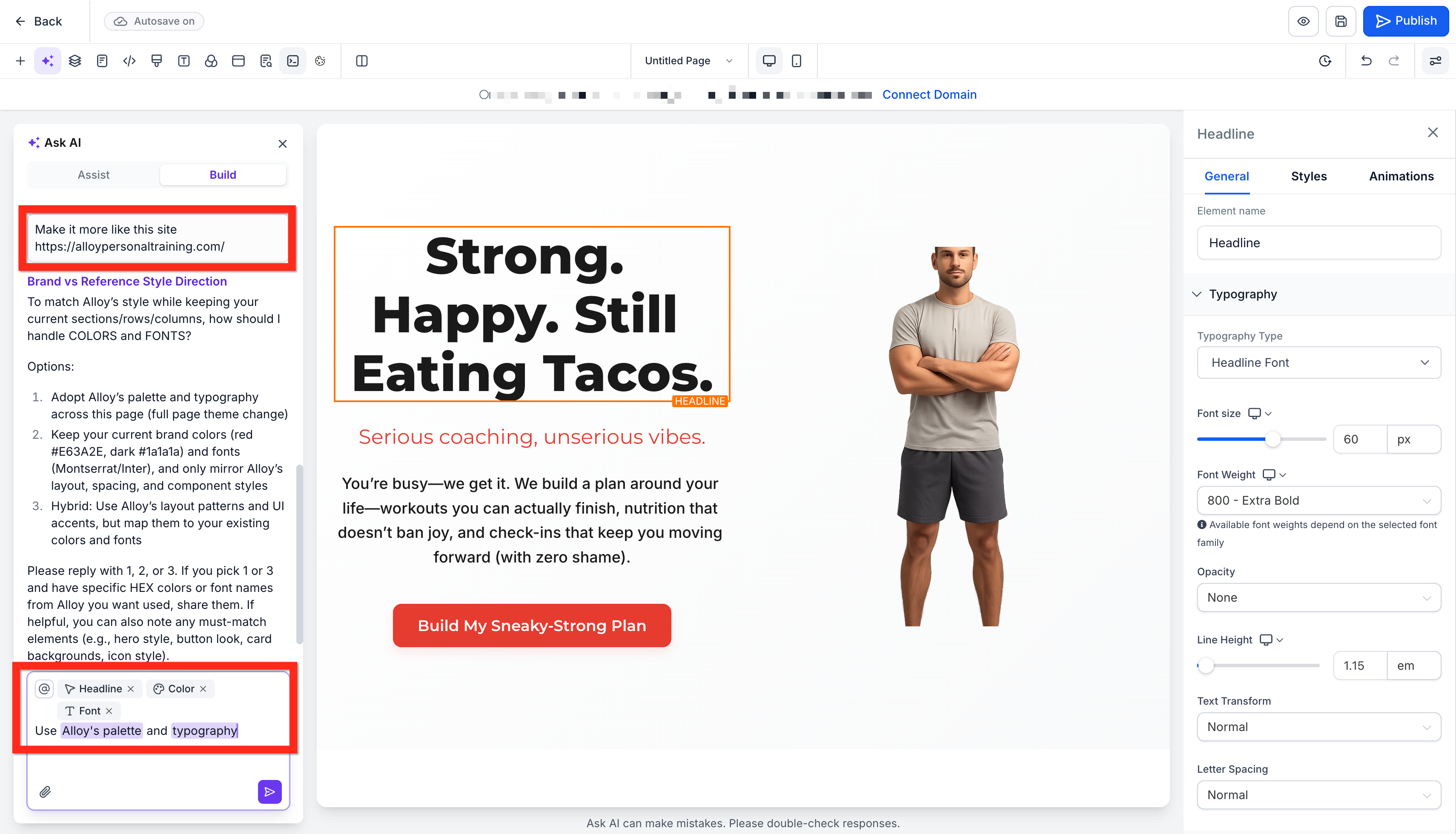
- Use the Ask AI chat to request copy edits, theme changes, redesigns, regeneration, or addition of new sections.
- Apply any manual adjustments with the standard builder controls such as colors, typography, images, and spacing.
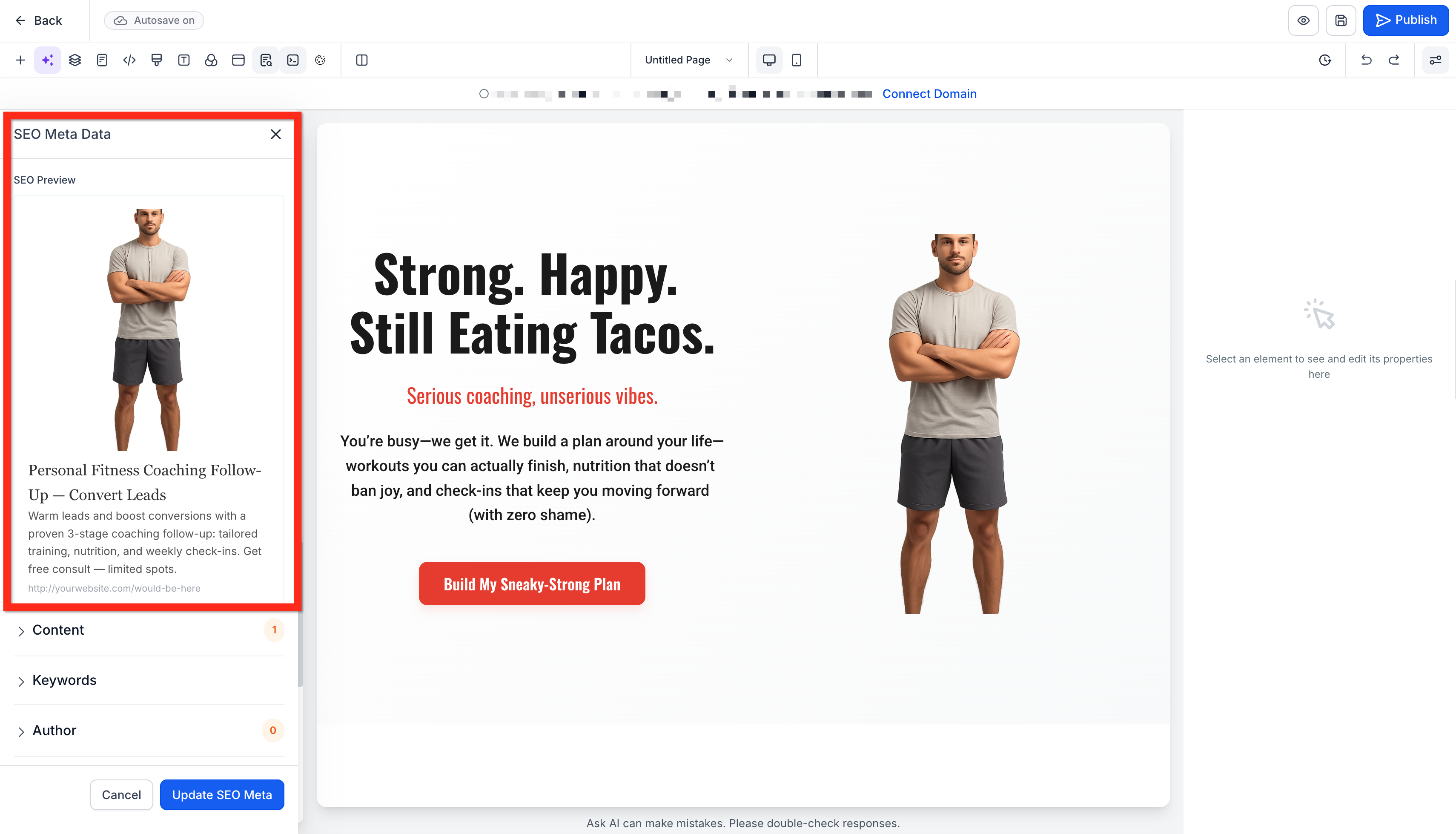
- Review the AI generated SEO title and meta description and edit them for accuracy and brand voice.
- Verify all AI generated copy, claims, offers, links and images are correct before publishing.
- Publish the page when the content, layout, and settings are finalized.
07What it looks like in HighLevel
08Settings that matter
- Assist. Provides guided inputs like page name, business niche, goal, audience and offer to generate a tailored starting layout.
- Build. Allows a free form prompt so the AI creates a page based on the user’s direct description.
- Chat, based editing. Enables conversational requests to revise copy, theme, design, regenerate sections, or add new sections while staying in the builder.
- Ask AI + Settings Side, by, Side. Displays AI assistance next to the normal builder controls so users can switch between AI suggestions and manual edits easily.
- Import from a Link or Image. Supplies a public URL or image as a reference for the AI to generate a page inspired by that design or structure.
- SEO Support. Generates suggested page titles, meta descriptions and content ideas to help improve search visibility.
09Things to know before you rely on it
- Funnel & Website AI is available without extra charges but is subject to usage limits defined in the AI Product Pricing article.
- Importing from a link or image provides inspiration only; the result is not an exact clone of the source.
- All AI generated SEO suggestions must be reviewed and refined before publishing.
10How it connects to the rest of HighLevel
- Learn how to set up a website and customize its design before using AI. Website setup guide
- Add tracking scripts to funnels and websites to measure performance. Add tracking code
- Install the HighLevel chat widget and link it to a workflow for real time visitor interaction. Chat widget setup
Michael's take

If I were starting a new campaign, I’d fire up Assist to get a solid first draft, then jump into the chat to polish the headline and add a testimonial block. I’d double check the AI suggested meta title and description to make sure they match my brand tone before hitting publish.
The AI applied colors and typography remain editable, so you can tweak every color and font after the AI finishes.